> ## Documentation Index
> Fetch the complete documentation index at: https://docs.pipeshub.com/llms.txt
> Use this file to discover all available pages before exploring further.
# Gemini
> Configure PipesHub to use Google Gemini image generation models
# Gemini Image Generation Configuration
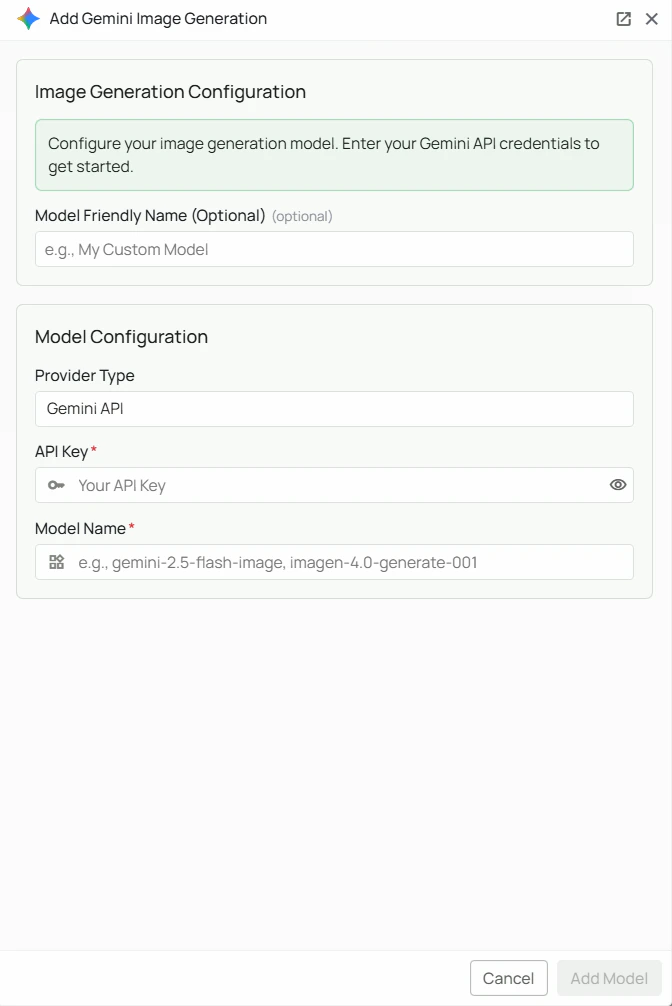 *The Gemini image generation configuration screen in PipesHub where you'll enter your API Key and Model Name*
PipesHub allows you to integrate with Google's Gemini and Imagen models to enable AI-powered image creation in your workspace. Once configured, AI agents and workflows can generate images from text prompts using Google's latest image generation technology.
## Required Fields
### API Key \*
The API Key is required to authenticate your requests to Google's image generation services.
**How to obtain an API Key:**
1. Log in to [Google AI Studio](https://aistudio.google.com/app/apikey)
2. Click "Create API key"
3. Select or create a Google Cloud project
4. Copy the generated API key
**Security Note:** Your API key should be kept secure and never shared publicly. PipesHub securely stores your API key and uses it only for authenticating requests to Google.
Imagen models require your Google Cloud project to have the **Vertex AI API** enabled, or access granted via Google AI Studio. Not all API keys have Imagen access enabled by default — verify your key has image generation permissions before configuring.
### Model Name \*
The Model Name field defines which Google image generation model you want to use with PipesHub.
**Available Gemini image generation models:**
* `gemini-2.5-flash-image` - Fast image generation using Gemini 2.5 Flash, good for quick results
* `imagen-4.0-generate-001` - Google's Imagen 4 model, optimised for high-quality, photorealistic image generation
**How to choose a model:**
* For faster generation and lower cost, select `gemini-2.5-flash-image`
* For the highest image quality and photorealism, select `imagen-4.0-generate-001`
* Check Google's [image generation documentation](https://ai.google.dev/docs) for the most up-to-date model options
## Configuration Steps
As shown in the image above:
1. Click **Configure** on the Gemini provider card
2. Enter your Google AI API Key in the designated field (marked with \*)
3. Specify your desired Model Name (marked with \*)
4. (Optional) Set a **Model Friendly Name** — a human-readable label shown in the UI
5. Click **Add Model** to save and validate your credentials
> Both the API Key and Model Name are required fields to successfully configure Gemini image generation integration.
## Usage Considerations
* API usage will count against your Google AI API quota and billing
* Different models have different pricing — check Google AI's pricing page for details
* Imagen models may have additional access requirements — verify your project has the necessary permissions
## Troubleshooting
* If you encounter authentication errors, verify your API key is correct and has not expired
* For Imagen models, ensure the Vertex AI API is enabled on your Google Cloud project
* Check that the model name is spelled correctly and matches exactly
* If image generation is blocked, verify your API key has permission for the image generation API
* If you are experiencing rate limits, check your quota in the Google AI Studio dashboard
For additional support, refer to the [Google Gemini documentation](https://ai.google.dev/docs) or contact PipesHub support.
*The Gemini image generation configuration screen in PipesHub where you'll enter your API Key and Model Name*
PipesHub allows you to integrate with Google's Gemini and Imagen models to enable AI-powered image creation in your workspace. Once configured, AI agents and workflows can generate images from text prompts using Google's latest image generation technology.
## Required Fields
### API Key \*
The API Key is required to authenticate your requests to Google's image generation services.
**How to obtain an API Key:**
1. Log in to [Google AI Studio](https://aistudio.google.com/app/apikey)
2. Click "Create API key"
3. Select or create a Google Cloud project
4. Copy the generated API key
**Security Note:** Your API key should be kept secure and never shared publicly. PipesHub securely stores your API key and uses it only for authenticating requests to Google.
Imagen models require your Google Cloud project to have the **Vertex AI API** enabled, or access granted via Google AI Studio. Not all API keys have Imagen access enabled by default — verify your key has image generation permissions before configuring.
### Model Name \*
The Model Name field defines which Google image generation model you want to use with PipesHub.
**Available Gemini image generation models:**
* `gemini-2.5-flash-image` - Fast image generation using Gemini 2.5 Flash, good for quick results
* `imagen-4.0-generate-001` - Google's Imagen 4 model, optimised for high-quality, photorealistic image generation
**How to choose a model:**
* For faster generation and lower cost, select `gemini-2.5-flash-image`
* For the highest image quality and photorealism, select `imagen-4.0-generate-001`
* Check Google's [image generation documentation](https://ai.google.dev/docs) for the most up-to-date model options
## Configuration Steps
As shown in the image above:
1. Click **Configure** on the Gemini provider card
2. Enter your Google AI API Key in the designated field (marked with \*)
3. Specify your desired Model Name (marked with \*)
4. (Optional) Set a **Model Friendly Name** — a human-readable label shown in the UI
5. Click **Add Model** to save and validate your credentials
> Both the API Key and Model Name are required fields to successfully configure Gemini image generation integration.
## Usage Considerations
* API usage will count against your Google AI API quota and billing
* Different models have different pricing — check Google AI's pricing page for details
* Imagen models may have additional access requirements — verify your project has the necessary permissions
## Troubleshooting
* If you encounter authentication errors, verify your API key is correct and has not expired
* For Imagen models, ensure the Vertex AI API is enabled on your Google Cloud project
* Check that the model name is spelled correctly and matches exactly
* If image generation is blocked, verify your API key has permission for the image generation API
* If you are experiencing rate limits, check your quota in the Google AI Studio dashboard
For additional support, refer to the [Google Gemini documentation](https://ai.google.dev/docs) or contact PipesHub support.