> ## Documentation Index
> Fetch the complete documentation index at: https://docs.pipeshub.com/llms.txt
> Use this file to discover all available pages before exploring further.
# Fireworks AI
> Configure PipesHub Workplace AI to use Fireworks AI models
# Fireworks AI Configuration
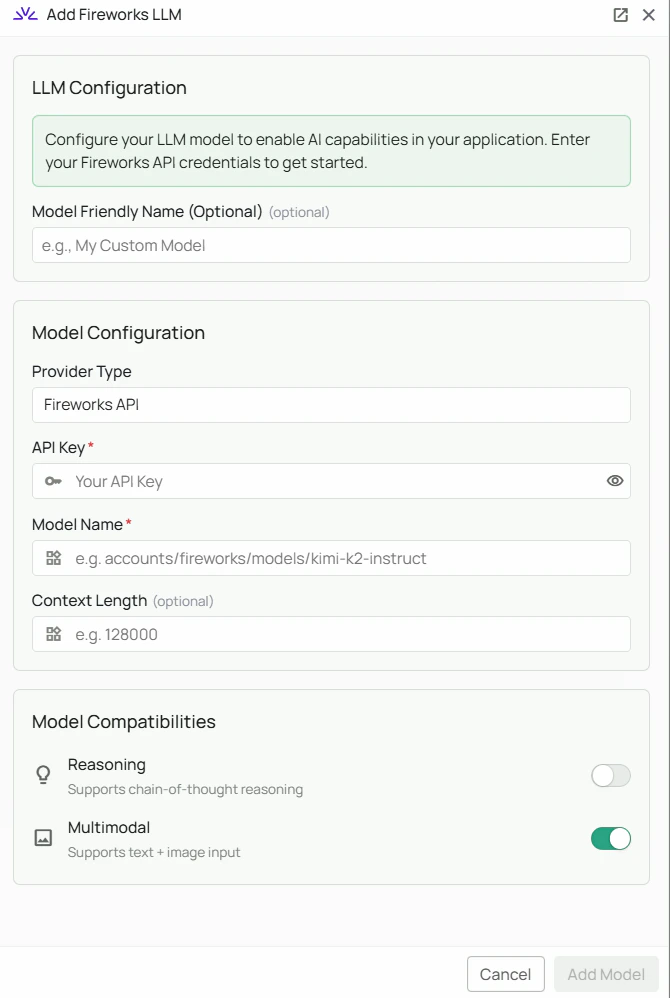 *The Fireworks AI configuration screen in PipesHub where you'll enter your API Key and Model Name*
PipesHub allows you to integrate with Fireworks AI to enable AI features in your workspace. Fireworks AI provides fast, production-grade inference for a wide range of open-source and third-party models, with a focus on speed and reliability.
## Required Fields
### API Key \*
The API Key is required to authenticate your requests to Fireworks AI's services.
**How to obtain an API Key:**
1. Log in to the [Fireworks AI Console](https://fireworks.ai/account/api-keys)
2. Navigate to the "API Keys" section
3. Click "Create API Key"
4. Copy the generated API key
**Security Note:** Your API key should be kept secure and never shared publicly. PipesHub securely stores your API key and uses it only for authenticating requests to Fireworks AI.
### Model Name \*
The Model Name field defines which model you want to use through Fireworks AI. Model names follow the format `accounts/fireworks/models/`.
**Popular Fireworks AI models include:**
* `accounts/fireworks/models/kimi-k2-instruct` - Moonshot AI's Kimi K2 instruction-tuned model, optimised for agentic and tool-use tasks
**How to choose a model:**
* For agentic tasks and tool calling, select `accounts/fireworks/models/kimi-k2-instruct`
* Browse Fireworks AI's [model library](https://fireworks.ai/models) for the full list of available models
* Use the exact model path shown in the Fireworks model catalog
## Configuration Steps
As shown in the image above:
1. Click **Configure** on the Fireworks AI provider card
2. Enter your Fireworks AI API Key in the designated field (marked with \*)
3. Specify your desired Model Name in the full path format (marked with \*)
4. Click **Add Model** to save and validate your credentials
> Both the API Key and Model Name are required fields to successfully configure Fireworks AI integration. Use the full model path (e.g. `accounts/fireworks/models/kimi-k2-instruct`).
## Usage Considerations
* API usage will count against your Fireworks AI account's quota and billing
* Different models have different pricing — check [Fireworks AI pricing](https://fireworks.ai/pricing) for details
* Fireworks AI provides:
* Fast inference with production-grade reliability
* Access to a broad catalog of open-source models
* Competitive latency for real-time applications
## Troubleshooting
* If you encounter authentication errors, verify your API key is correct and has not expired
* Ensure your Fireworks AI account has billing set up if you are on a paid tier
* Check that the model name uses the full path format: `accounts/fireworks/models/`
* Verify the model is available in the [Fireworks model catalog](https://fireworks.ai/models)
* If you are experiencing rate limits, check your usage in the Fireworks AI Console dashboard
For additional support, refer to the [Fireworks AI documentation](https://docs.fireworks.ai/) or contact PipesHub support.
*The Fireworks AI configuration screen in PipesHub where you'll enter your API Key and Model Name*
PipesHub allows you to integrate with Fireworks AI to enable AI features in your workspace. Fireworks AI provides fast, production-grade inference for a wide range of open-source and third-party models, with a focus on speed and reliability.
## Required Fields
### API Key \*
The API Key is required to authenticate your requests to Fireworks AI's services.
**How to obtain an API Key:**
1. Log in to the [Fireworks AI Console](https://fireworks.ai/account/api-keys)
2. Navigate to the "API Keys" section
3. Click "Create API Key"
4. Copy the generated API key
**Security Note:** Your API key should be kept secure and never shared publicly. PipesHub securely stores your API key and uses it only for authenticating requests to Fireworks AI.
### Model Name \*
The Model Name field defines which model you want to use through Fireworks AI. Model names follow the format `accounts/fireworks/models/`.
**Popular Fireworks AI models include:**
* `accounts/fireworks/models/kimi-k2-instruct` - Moonshot AI's Kimi K2 instruction-tuned model, optimised for agentic and tool-use tasks
**How to choose a model:**
* For agentic tasks and tool calling, select `accounts/fireworks/models/kimi-k2-instruct`
* Browse Fireworks AI's [model library](https://fireworks.ai/models) for the full list of available models
* Use the exact model path shown in the Fireworks model catalog
## Configuration Steps
As shown in the image above:
1. Click **Configure** on the Fireworks AI provider card
2. Enter your Fireworks AI API Key in the designated field (marked with \*)
3. Specify your desired Model Name in the full path format (marked with \*)
4. Click **Add Model** to save and validate your credentials
> Both the API Key and Model Name are required fields to successfully configure Fireworks AI integration. Use the full model path (e.g. `accounts/fireworks/models/kimi-k2-instruct`).
## Usage Considerations
* API usage will count against your Fireworks AI account's quota and billing
* Different models have different pricing — check [Fireworks AI pricing](https://fireworks.ai/pricing) for details
* Fireworks AI provides:
* Fast inference with production-grade reliability
* Access to a broad catalog of open-source models
* Competitive latency for real-time applications
## Troubleshooting
* If you encounter authentication errors, verify your API key is correct and has not expired
* Ensure your Fireworks AI account has billing set up if you are on a paid tier
* Check that the model name uses the full path format: `accounts/fireworks/models/`
* Verify the model is available in the [Fireworks model catalog](https://fireworks.ai/models)
* If you are experiencing rate limits, check your usage in the Fireworks AI Console dashboard
For additional support, refer to the [Fireworks AI documentation](https://docs.fireworks.ai/) or contact PipesHub support.