> ## Documentation Index
> Fetch the complete documentation index at: https://docs.pipeshub.com/llms.txt
> Use this file to discover all available pages before exploring further.
# Wispr Flow
> Configure PipesHub to use Wispr Flow for speech-to-text transcription
# Wispr Flow Speech to Text Configuration
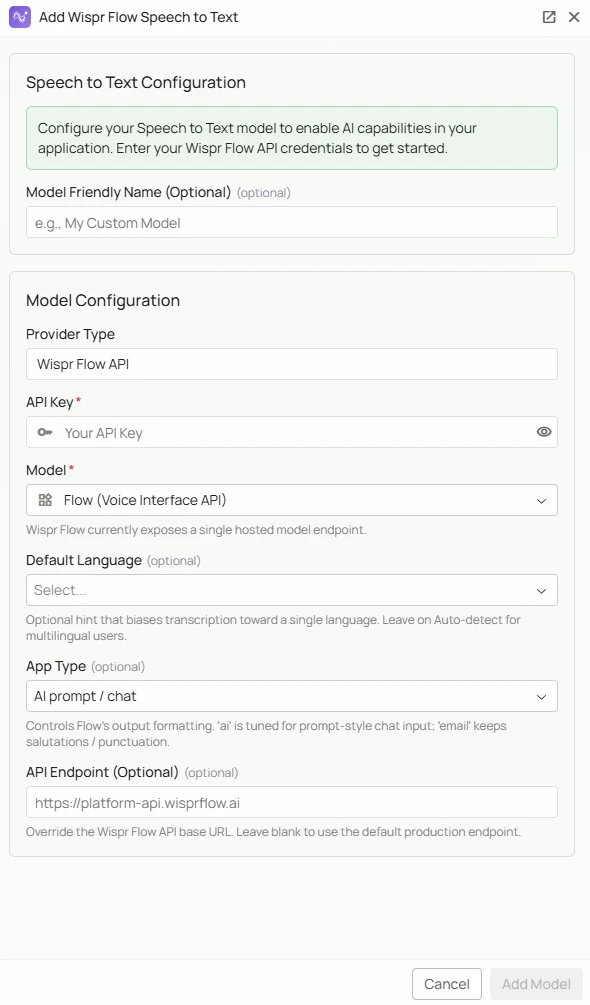 *The Wispr Flow STT configuration screen in PipesHub where you'll enter your API Key and optional settings*
PipesHub integrates with Wispr Flow, a specialist hosted transcription service optimised for professional and enterprise voice input. Wispr Flow's `flow-v1` model is purpose-built for dictation and AI prompt input, with context-aware formatting across multiple output styles.
Wispr Flow requires **ffmpeg** installed on the PipesHub backend host for audio transcoding. Contact [enterprise@wisprflow.ai](mailto:enterprise@wisprflow.ai) to obtain an API key.
## Required Fields
### API Key \*
The API Key is required to authenticate your requests to Wispr Flow's transcription service.
**How to obtain an API Key:**
* Contact Wispr Flow's enterprise team at [enterprise@wisprflow.ai](mailto:enterprise@wisprflow.ai) to request access and obtain your API key
**Security Note:** Your API key should be kept secure and never shared publicly. PipesHub securely stores your API key and uses it only for authenticating requests to Wispr Flow.
### Model
Wispr Flow currently has one available model: **flow-v1**. This is selected automatically — no manual entry is required.
## Optional Fields
### Default Language
Bias transcription toward a specific language to improve accuracy. Leave on **Auto-detect** for multilingual users or when audio language varies.
**Supported languages:**
Auto-detect, English, Spanish, French, German, Italian, Portuguese, Dutch, Polish, Russian, Japanese, Korean, Chinese, Hindi, Arabic
### App Type
Controls how Wispr Flow formats the transcribed output. Choose the type that best matches how the transcription will be used.
| App Type | Best for |
| ---------------------------- | ---------------------------------------------------------------------------------- |
| **AI prompt/chat** (default) | Voice input for AI chat or prompt boxes — tuned for natural, prompt-style phrasing |
| **Email** | Dictating emails — preserves salutations, sign-offs, and punctuation conventions |
| **Other** | General-purpose transcription |
### API Endpoint
Override the default Wispr Flow production URL. Leave blank to use the default endpoint (`https://platform-api.wisprflow.ai`).
Only change this if Wispr Flow has provided you with a dedicated or regional endpoint URL.
### Model Friendly Name
A human-readable label for this configuration, shown in the PipesHub UI. Useful if you have multiple STT models configured.
## Configuration Steps
As shown in the image above:
1. Click **Configure** on the Wispr Flow provider card in the STT tab
2. Enter your Wispr Flow API Key in the designated field (marked with \*)
3. (Optional) Select a **Default Language** from the dropdown, or leave on Auto-detect
4. (Optional) Select an **App Type** matching your use case (default: AI prompt/chat)
5. (Optional) Enter an **API Endpoint** if you have a custom endpoint from Wispr Flow
6. (Optional) Set a **Model Friendly Name**
7. Click **Add Model** to save and validate your credentials
> The API Key is the only required field. All other settings are optional and can be adjusted after saving by clicking **Edit** on the configured model.
## Usage Considerations
* ffmpeg must be installed on the machine running the PipesHub backend for audio transcoding to work
* API usage is billed through your Wispr Flow enterprise account — check with your Wispr Flow contact for pricing details
* Selecting the correct App Type improves output formatting significantly for email dictation versus chat/prompt use
* For multilingual teams, leaving Default Language on Auto-detect gives the best results across different speakers
## Troubleshooting
* If the health check fails, verify your API key is correct and active — contact [enterprise@wisprflow.ai](mailto:enterprise@wisprflow.ai) if unsure
* If audio output is silent or transcription fails entirely, confirm ffmpeg is installed on the backend host
* If you are seeing formatting issues in output, try switching the App Type to better match your use case
* Verify the API Endpoint is correct if you have overridden it — an incorrect URL will cause all requests to fail
For additional support, contact Wispr Flow at [enterprise@wisprflow.ai](mailto:enterprise@wisprflow.ai) or reach out to PipesHub support.
*The Wispr Flow STT configuration screen in PipesHub where you'll enter your API Key and optional settings*
PipesHub integrates with Wispr Flow, a specialist hosted transcription service optimised for professional and enterprise voice input. Wispr Flow's `flow-v1` model is purpose-built for dictation and AI prompt input, with context-aware formatting across multiple output styles.
Wispr Flow requires **ffmpeg** installed on the PipesHub backend host for audio transcoding. Contact [enterprise@wisprflow.ai](mailto:enterprise@wisprflow.ai) to obtain an API key.
## Required Fields
### API Key \*
The API Key is required to authenticate your requests to Wispr Flow's transcription service.
**How to obtain an API Key:**
* Contact Wispr Flow's enterprise team at [enterprise@wisprflow.ai](mailto:enterprise@wisprflow.ai) to request access and obtain your API key
**Security Note:** Your API key should be kept secure and never shared publicly. PipesHub securely stores your API key and uses it only for authenticating requests to Wispr Flow.
### Model
Wispr Flow currently has one available model: **flow-v1**. This is selected automatically — no manual entry is required.
## Optional Fields
### Default Language
Bias transcription toward a specific language to improve accuracy. Leave on **Auto-detect** for multilingual users or when audio language varies.
**Supported languages:**
Auto-detect, English, Spanish, French, German, Italian, Portuguese, Dutch, Polish, Russian, Japanese, Korean, Chinese, Hindi, Arabic
### App Type
Controls how Wispr Flow formats the transcribed output. Choose the type that best matches how the transcription will be used.
| App Type | Best for |
| ---------------------------- | ---------------------------------------------------------------------------------- |
| **AI prompt/chat** (default) | Voice input for AI chat or prompt boxes — tuned for natural, prompt-style phrasing |
| **Email** | Dictating emails — preserves salutations, sign-offs, and punctuation conventions |
| **Other** | General-purpose transcription |
### API Endpoint
Override the default Wispr Flow production URL. Leave blank to use the default endpoint (`https://platform-api.wisprflow.ai`).
Only change this if Wispr Flow has provided you with a dedicated or regional endpoint URL.
### Model Friendly Name
A human-readable label for this configuration, shown in the PipesHub UI. Useful if you have multiple STT models configured.
## Configuration Steps
As shown in the image above:
1. Click **Configure** on the Wispr Flow provider card in the STT tab
2. Enter your Wispr Flow API Key in the designated field (marked with \*)
3. (Optional) Select a **Default Language** from the dropdown, or leave on Auto-detect
4. (Optional) Select an **App Type** matching your use case (default: AI prompt/chat)
5. (Optional) Enter an **API Endpoint** if you have a custom endpoint from Wispr Flow
6. (Optional) Set a **Model Friendly Name**
7. Click **Add Model** to save and validate your credentials
> The API Key is the only required field. All other settings are optional and can be adjusted after saving by clicking **Edit** on the configured model.
## Usage Considerations
* ffmpeg must be installed on the machine running the PipesHub backend for audio transcoding to work
* API usage is billed through your Wispr Flow enterprise account — check with your Wispr Flow contact for pricing details
* Selecting the correct App Type improves output formatting significantly for email dictation versus chat/prompt use
* For multilingual teams, leaving Default Language on Auto-detect gives the best results across different speakers
## Troubleshooting
* If the health check fails, verify your API key is correct and active — contact [enterprise@wisprflow.ai](mailto:enterprise@wisprflow.ai) if unsure
* If audio output is silent or transcription fails entirely, confirm ffmpeg is installed on the backend host
* If you are seeing formatting issues in output, try switching the App Type to better match your use case
* Verify the API Endpoint is correct if you have overridden it — an incorrect URL will cause all requests to fail
For additional support, contact Wispr Flow at [enterprise@wisprflow.ai](mailto:enterprise@wisprflow.ai) or reach out to PipesHub support.