> ## Documentation Index
> Fetch the complete documentation index at: https://docs.pipeshub.com/llms.txt
> Use this file to discover all available pages before exploring further.
# Gemini
> Configure PipesHub to use Google Gemini text-to-speech models
# Gemini Text to Speech Configuration
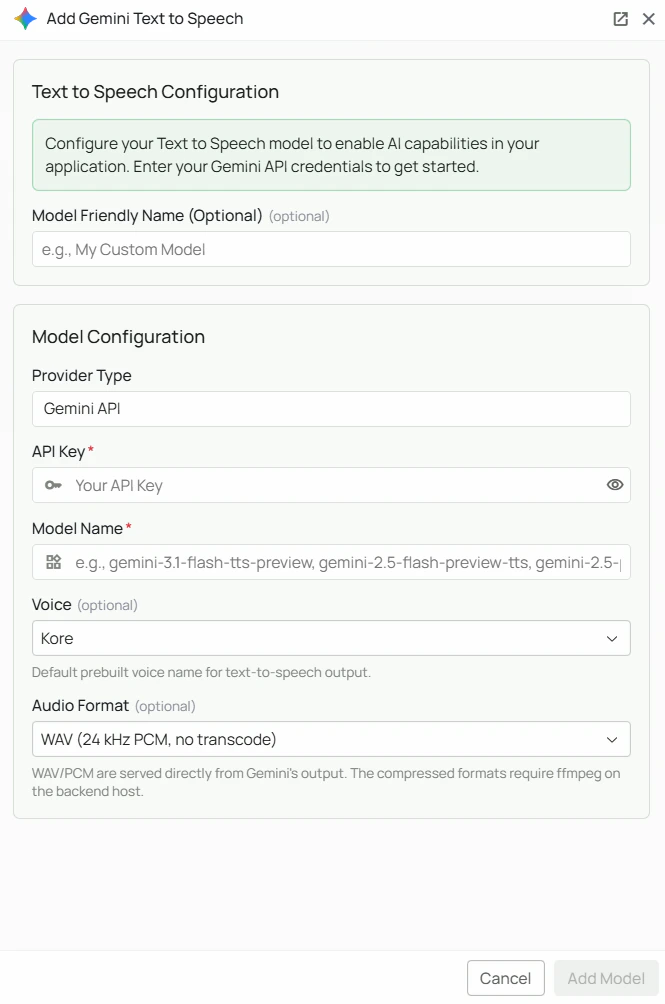 *The Gemini TTS configuration screen in PipesHub where you'll enter your API Key, Model Name, Voice, and Audio Format*
PipesHub allows you to integrate with Google's Gemini TTS models to enable voice output in AI workflows and agents. Gemini TTS models offer a wide selection of 30 natural-sounding voices and support multiple audio output formats.
## Required Fields
### API Key \*
The API Key is required to authenticate your requests to Google's TTS services.
**How to obtain an API Key:**
1. Log in to [Google AI Studio](https://aistudio.google.com/app/apikey)
2. Click "Create API key"
3. Select or create a Google Cloud project
4. Copy the generated API key
**Security Note:** Your API key should be kept secure and never shared publicly. PipesHub securely stores your API key and uses it only for authenticating requests to Google.
### Model Name \*
The Model Name field defines which Gemini TTS model you want to use with PipesHub.
**Available Gemini TTS models:**
* `gemini-3.1-flash-tts-preview` - Gemini 3.1 Flash TTS, fast and cost-effective voice generation
* `gemini-2.5-flash-preview-tts` - Gemini 2.5 Flash TTS, balanced speed and quality
* `gemini-2.5-pro-preview-tts` - Gemini 2.5 Pro TTS, highest quality voice generation
**How to choose a model:**
* For fast, cost-effective voice output, select `gemini-3.1-flash-tts-preview`
* For balanced performance, select `gemini-2.5-flash-preview-tts`
* For the highest audio quality, select `gemini-2.5-pro-preview-tts`
* Check Google's [TTS documentation](https://ai.google.dev/docs) for the most up-to-date options
## Optional Fields
### Voice
Select the default voice used for audio output (default: Kore). Gemini TTS provides 30 prebuilt voices named after astronomical objects.
**Available voices:**
| | | | | |
| ------------- | ------------ | ---------- | ----------- | -------- |
| Zephyr | Puck | Charon | Kore | Fenrir |
| Leda | Orus | Aoede | Callirrhoe | Autonoe |
| Enceladus | Iapetus | Umbriel | Algieba | Despina |
| Erinome | Algenib | Rasalgethi | Laomedeia | Achernar |
| Alnilam | Schedar | Gacrux | Pulcherrima | Achird |
| Zubenelgenubi | Vindemiatrix | Sadachbia | Sadaltager | Sulafat |
### Audio Format
Select the output audio format for generated speech (default: WAV).
**Available formats:**
| Format | Transcoding required | Notes |
| -------- | --------------------- | -------------------------------------------------------- |
| **WAV** | No | Served directly from Gemini output. Recommended default. |
| **PCM** | No | Raw 24 kHz signed 16-bit mono audio. |
| **MP3** | Yes — requires ffmpeg | Good compression, widely compatible. |
| **Opus** | Yes — requires ffmpeg | Optimised for internet streaming, low latency. |
| **AAC** | Yes — requires ffmpeg | Good quality with broad device compatibility. |
| **FLAC** | Yes — requires ffmpeg | Lossless, highest quality, larger file size. |
If you select MP3, Opus, AAC, or FLAC and audio output is silent or failing, confirm that **ffmpeg** is installed on the machine running the PipesHub backend. WAV and PCM work without any additional dependencies.
## Configuration Steps
As shown in the image above:
1. Click **Configure** on the Gemini provider card
2. Enter your Google AI API Key in the designated field (marked with \*)
3. Specify your desired Model Name (marked with \*)
4. (Optional) Select your preferred **Voice** from the dropdown (default: Kore)
5. (Optional) Select your preferred **Audio Format** (default: WAV)
6. (Optional) Set a **Model Friendly Name** — a human-readable label shown in the UI
7. Click **Add Model** to save and validate your credentials
> Both the API Key and Model Name are required fields to successfully configure Gemini TTS integration.
## Usage Considerations
* API usage will count against your Google AI API quota and billing
* Different models have different pricing — check Google AI's pricing page for details
* WAV and PCM formats require no additional server-side dependencies
* MP3, Opus, AAC, and FLAC require ffmpeg to be installed on your PipesHub backend host
## Troubleshooting
* If you encounter authentication errors, verify your API key is correct and has not expired
* Ensure your Google account has billing set up if you are on a paid tier
* Check that the model name is spelled correctly
* If using MP3, Opus, AAC, or FLAC and audio is not playing, install ffmpeg on the backend host and restart PipesHub
* If you are experiencing rate limits, check your quota in the Google AI Studio dashboard
For additional support, refer to the [Google Gemini documentation](https://ai.google.dev/docs) or contact PipesHub support.
*The Gemini TTS configuration screen in PipesHub where you'll enter your API Key, Model Name, Voice, and Audio Format*
PipesHub allows you to integrate with Google's Gemini TTS models to enable voice output in AI workflows and agents. Gemini TTS models offer a wide selection of 30 natural-sounding voices and support multiple audio output formats.
## Required Fields
### API Key \*
The API Key is required to authenticate your requests to Google's TTS services.
**How to obtain an API Key:**
1. Log in to [Google AI Studio](https://aistudio.google.com/app/apikey)
2. Click "Create API key"
3. Select or create a Google Cloud project
4. Copy the generated API key
**Security Note:** Your API key should be kept secure and never shared publicly. PipesHub securely stores your API key and uses it only for authenticating requests to Google.
### Model Name \*
The Model Name field defines which Gemini TTS model you want to use with PipesHub.
**Available Gemini TTS models:**
* `gemini-3.1-flash-tts-preview` - Gemini 3.1 Flash TTS, fast and cost-effective voice generation
* `gemini-2.5-flash-preview-tts` - Gemini 2.5 Flash TTS, balanced speed and quality
* `gemini-2.5-pro-preview-tts` - Gemini 2.5 Pro TTS, highest quality voice generation
**How to choose a model:**
* For fast, cost-effective voice output, select `gemini-3.1-flash-tts-preview`
* For balanced performance, select `gemini-2.5-flash-preview-tts`
* For the highest audio quality, select `gemini-2.5-pro-preview-tts`
* Check Google's [TTS documentation](https://ai.google.dev/docs) for the most up-to-date options
## Optional Fields
### Voice
Select the default voice used for audio output (default: Kore). Gemini TTS provides 30 prebuilt voices named after astronomical objects.
**Available voices:**
| | | | | |
| ------------- | ------------ | ---------- | ----------- | -------- |
| Zephyr | Puck | Charon | Kore | Fenrir |
| Leda | Orus | Aoede | Callirrhoe | Autonoe |
| Enceladus | Iapetus | Umbriel | Algieba | Despina |
| Erinome | Algenib | Rasalgethi | Laomedeia | Achernar |
| Alnilam | Schedar | Gacrux | Pulcherrima | Achird |
| Zubenelgenubi | Vindemiatrix | Sadachbia | Sadaltager | Sulafat |
### Audio Format
Select the output audio format for generated speech (default: WAV).
**Available formats:**
| Format | Transcoding required | Notes |
| -------- | --------------------- | -------------------------------------------------------- |
| **WAV** | No | Served directly from Gemini output. Recommended default. |
| **PCM** | No | Raw 24 kHz signed 16-bit mono audio. |
| **MP3** | Yes — requires ffmpeg | Good compression, widely compatible. |
| **Opus** | Yes — requires ffmpeg | Optimised for internet streaming, low latency. |
| **AAC** | Yes — requires ffmpeg | Good quality with broad device compatibility. |
| **FLAC** | Yes — requires ffmpeg | Lossless, highest quality, larger file size. |
If you select MP3, Opus, AAC, or FLAC and audio output is silent or failing, confirm that **ffmpeg** is installed on the machine running the PipesHub backend. WAV and PCM work without any additional dependencies.
## Configuration Steps
As shown in the image above:
1. Click **Configure** on the Gemini provider card
2. Enter your Google AI API Key in the designated field (marked with \*)
3. Specify your desired Model Name (marked with \*)
4. (Optional) Select your preferred **Voice** from the dropdown (default: Kore)
5. (Optional) Select your preferred **Audio Format** (default: WAV)
6. (Optional) Set a **Model Friendly Name** — a human-readable label shown in the UI
7. Click **Add Model** to save and validate your credentials
> Both the API Key and Model Name are required fields to successfully configure Gemini TTS integration.
## Usage Considerations
* API usage will count against your Google AI API quota and billing
* Different models have different pricing — check Google AI's pricing page for details
* WAV and PCM formats require no additional server-side dependencies
* MP3, Opus, AAC, and FLAC require ffmpeg to be installed on your PipesHub backend host
## Troubleshooting
* If you encounter authentication errors, verify your API key is correct and has not expired
* Ensure your Google account has billing set up if you are on a paid tier
* Check that the model name is spelled correctly
* If using MP3, Opus, AAC, or FLAC and audio is not playing, install ffmpeg on the backend host and restart PipesHub
* If you are experiencing rate limits, check your quota in the Google AI Studio dashboard
For additional support, refer to the [Google Gemini documentation](https://ai.google.dev/docs) or contact PipesHub support.