> ## Documentation Index
> Fetch the complete documentation index at: https://docs.pipeshub.com/llms.txt
> Use this file to discover all available pages before exploring further.
# Authentication Overview
> Configure how users authenticate and access the application
Our application supports multiple authentication methods to provide secure and flexible access for your users. This guide explains each authentication option, how to configure them, and best practices for implementation.
## Overview
Authentication is the process of verifying a user's identity before granting access to your application. Selecting the right authentication method(s) depends on your organization's security requirements, user experience preferences, and existing infrastructure.
Choose authentication methods that align with your security policies and
compliance requirements.
Balance security with a smooth login experience to enhance user adoption.
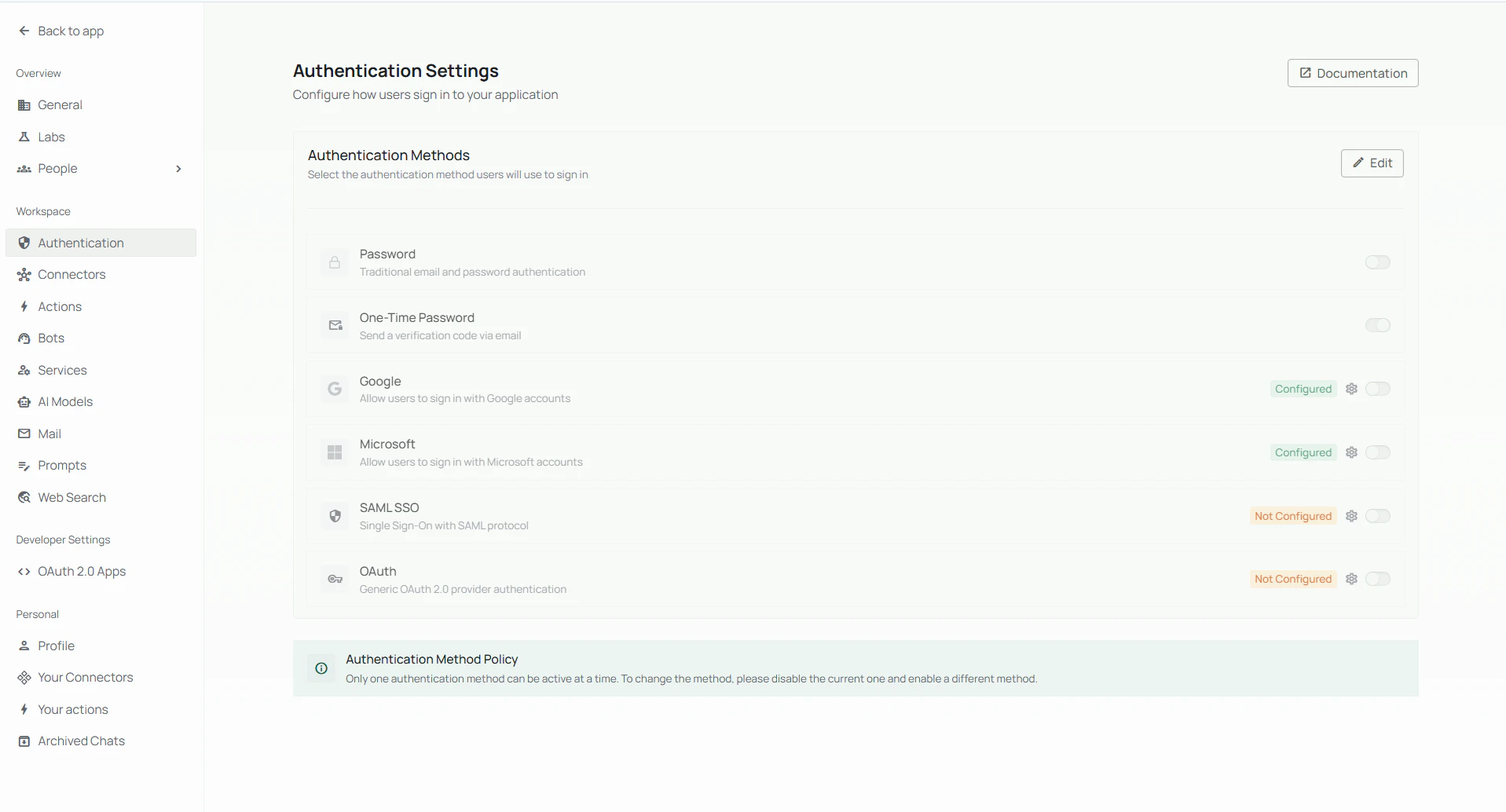
You can edit the authentication method and configure the respective credentials under the authentication page of settings in Company profie as shown in below image.
 ## Available Authentication Methods
## Password Authentication
Traditional username and password authentication for your application.
### For more info, refer to [Password Configuration Guide](/auth/password).
Password authentication is the simplest to set up your app.
## One-Time Password (OTP)
Single-use codes sent via email for secure, passwordless authentication.
### For more info, refer to [OTP Configuration Guide](/auth/otp).
## Google Authentication Allow users to sign in with their Google accounts using OAuth 2.0.
Get credentials from Google Cloud console.
### For more info, refer to [Google Configuration Guide](/auth/google).
## Microsoft Authentication Allow users to sign in with their Microsoft
accounts using OAuth 2.0.
## Enterprise single sign-on using Security Assertion Markup Language (SAML) protocol.
SAML configuration requires technical coordination between your application admin and the Identity Provider admin.
## Troubleshooting
If users encounter authentication issues:
1. Verify the authentication method configuration
2. Check server logs for specific error messages
3. Confirm network connectivity to identity providers
4. Validate certificate expiration dates
5. Test authentication flow with a test account
## Next Steps
## Available Authentication Methods
## Password Authentication
Traditional username and password authentication for your application.
### For more info, refer to [Password Configuration Guide](/auth/password).
Password authentication is the simplest to set up your app.
## One-Time Password (OTP)
Single-use codes sent via email for secure, passwordless authentication.
### For more info, refer to [OTP Configuration Guide](/auth/otp).
## Google Authentication Allow users to sign in with their Google accounts using OAuth 2.0.
Get credentials from Google Cloud console.
### For more info, refer to [Google Configuration Guide](/auth/google).
## Microsoft Authentication Allow users to sign in with their Microsoft
accounts using OAuth 2.0.
## Enterprise single sign-on using Security Assertion Markup Language (SAML) protocol.
SAML configuration requires technical coordination between your application admin and the Identity Provider admin.
## Troubleshooting
If users encounter authentication issues:
1. Verify the authentication method configuration
2. Check server logs for specific error messages
3. Confirm network connectivity to identity providers
4. Validate certificate expiration dates
5. Test authentication flow with a test account
## Next Steps