> ## Documentation Index
> Fetch the complete documentation index at: https://docs.pipeshub.com/llms.txt
> Use this file to discover all available pages before exploring further.
# Google Authentication
> Configure how users authenticate and access the application using google
## Google Authentication Allow users to sign in with their Google accounts using OAuth 2.0.
### How It Works
1. User clicks "Sign in with Google"
2. User is redirected to Google's authentication page
3. After authenticating with Google, user is returned to the application
4. Upon successful validation, access is granted
### Configuration To enable Google authentication:
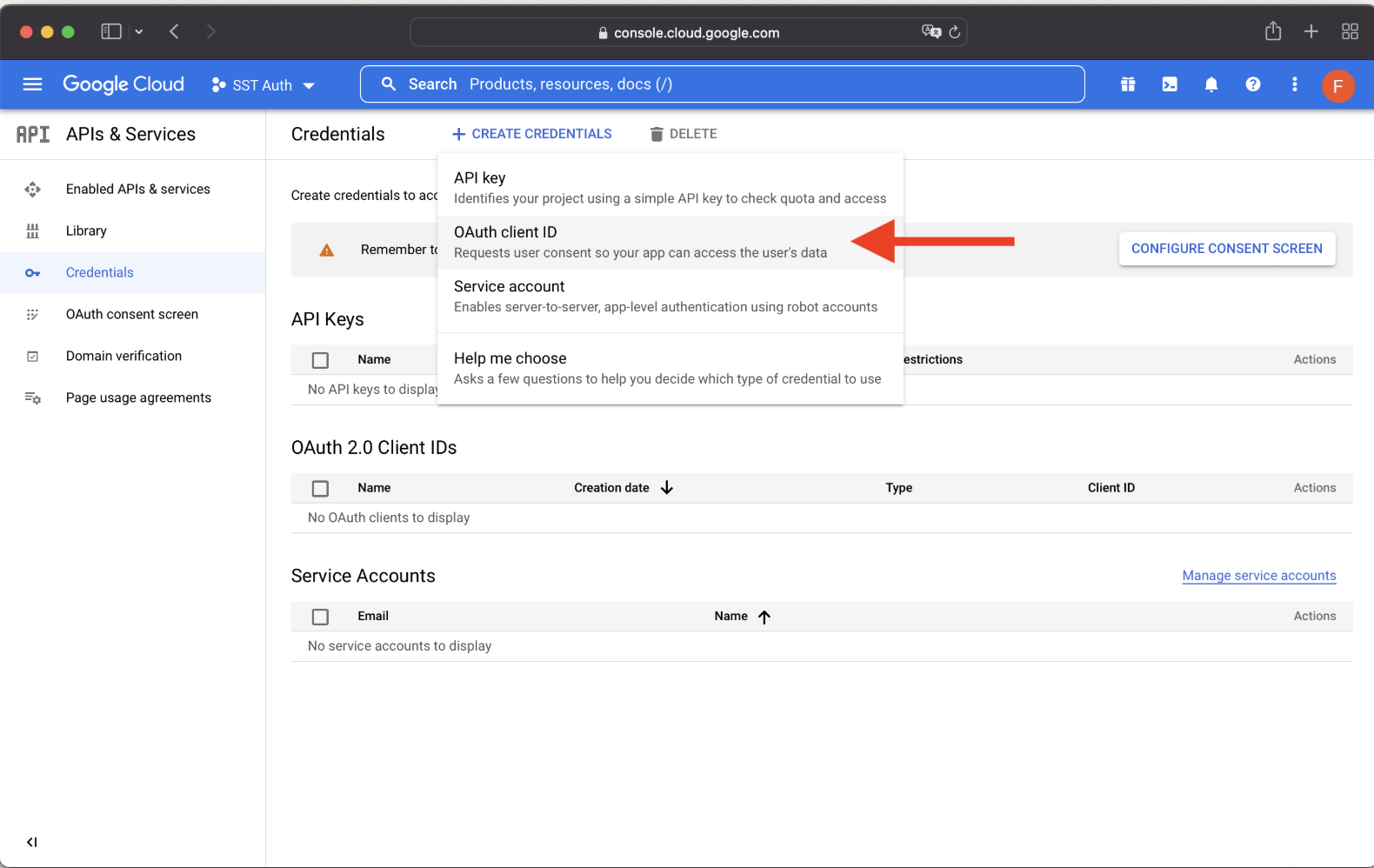
1. Create OAuth credentials in [Google Cloud Console](https://console.cloud.google.com/) Google Cloud Console: - Create a project (if you don't have one) - Configure
OAuth consent screen - Create OAuth client ID (Web application) - Note your Client ID and Client Secret
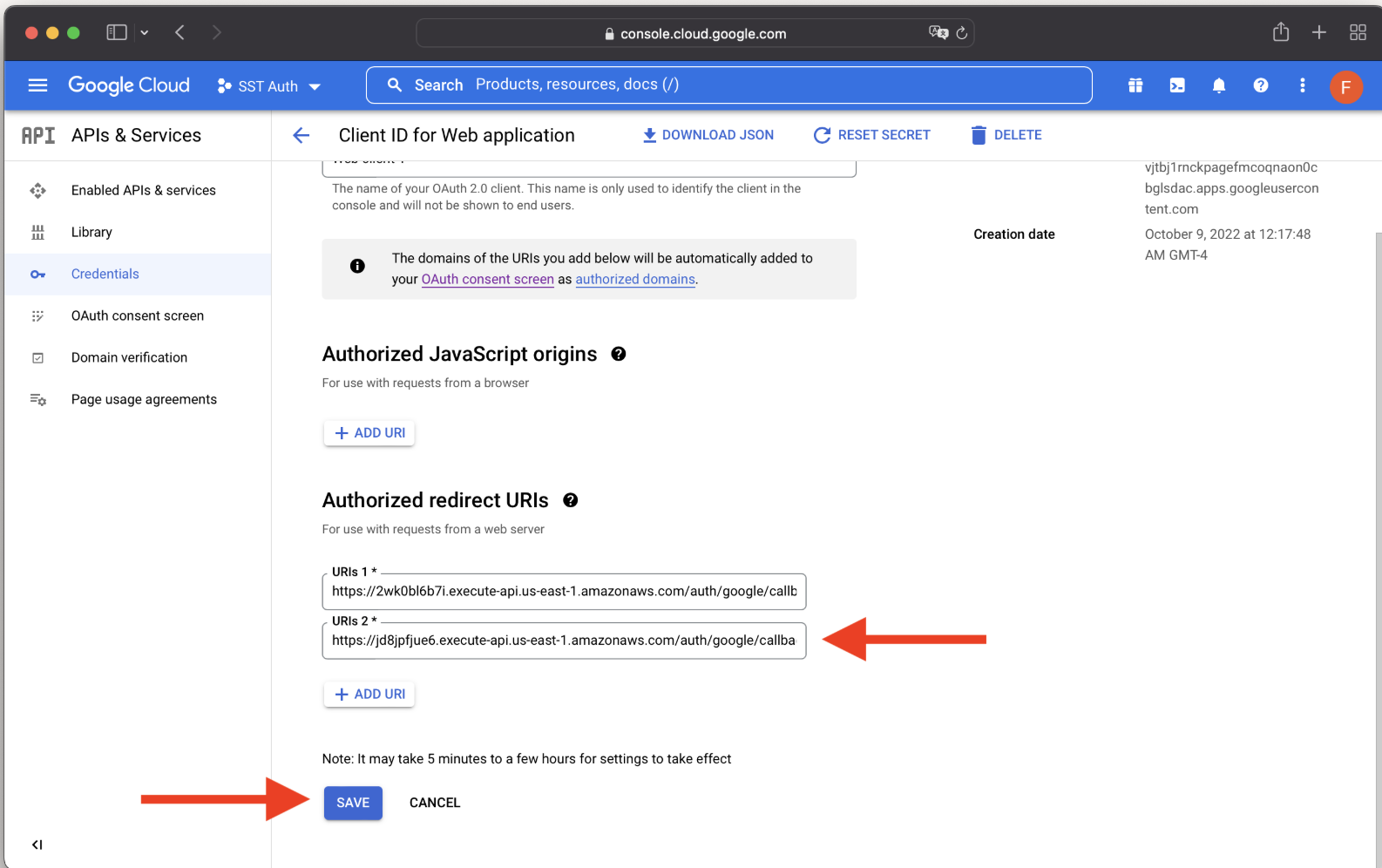
Redirect Uri in you Google Cloud Console should match exactly with the
(your-app-url/auth/google/callback)
For example - if your app is running on [https://f7f0-240.ngrok-free.app](https://f7f0-240.ngrok-free.app)
then redirectUri should be
[https://f7f0-240.ngrok-free.app/auth/google/callback](https://f7f0-240.ngrok-free.app/auth/google/callback) in Google Cloud
Console.
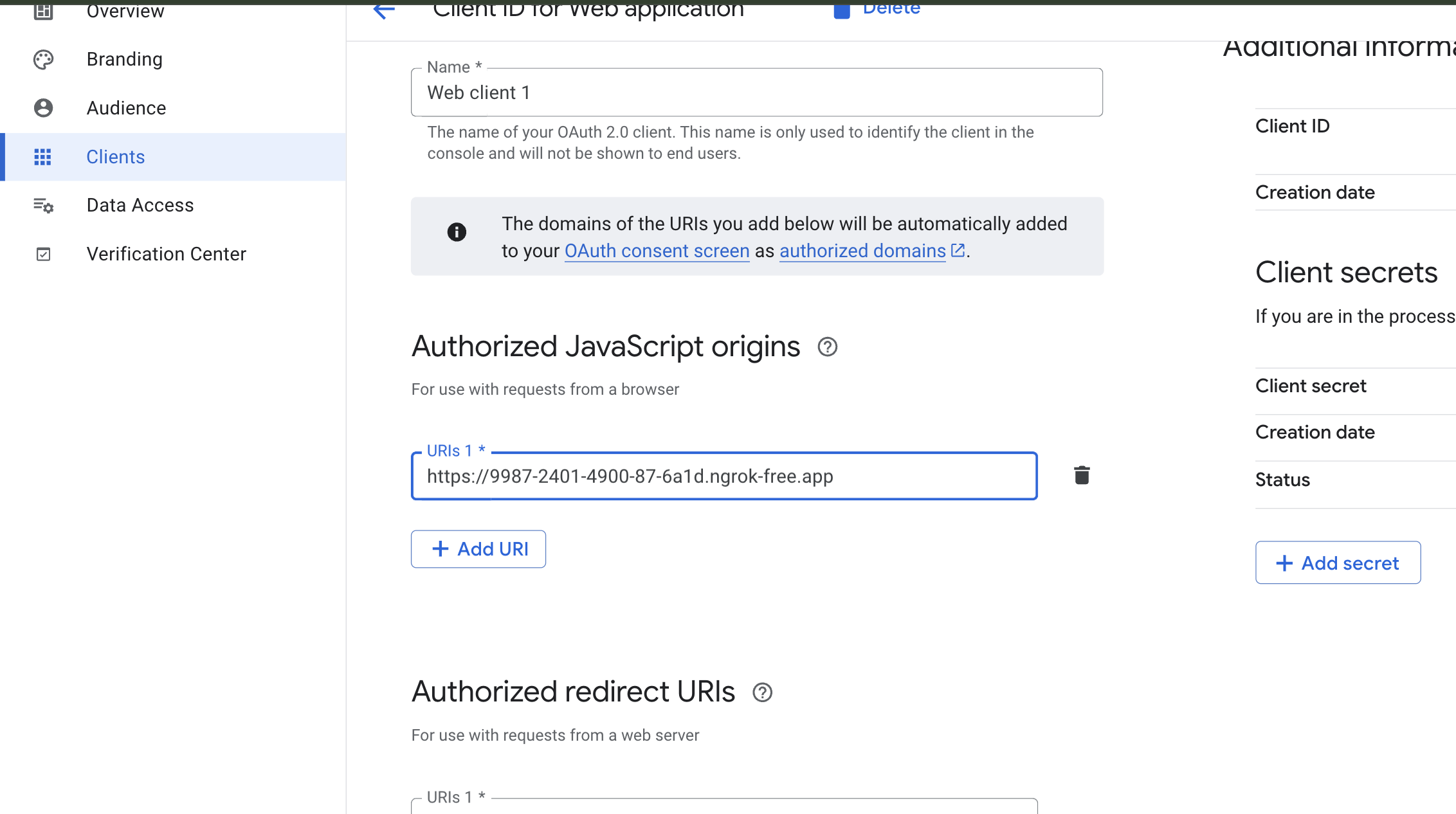
Authorized Javascript Origin in you Google Cloud Console should match
exactly with the (your-app-url)
For example - if your app is running on [https://f7f0-240.ngrok-free.app](https://f7f0-240.ngrok-free.app)
then authorized Javascript origin should be
[https://f7f0-240.ngrok-free.app](https://f7f0-240.ngrok-free.app) in Google Cloud Console.
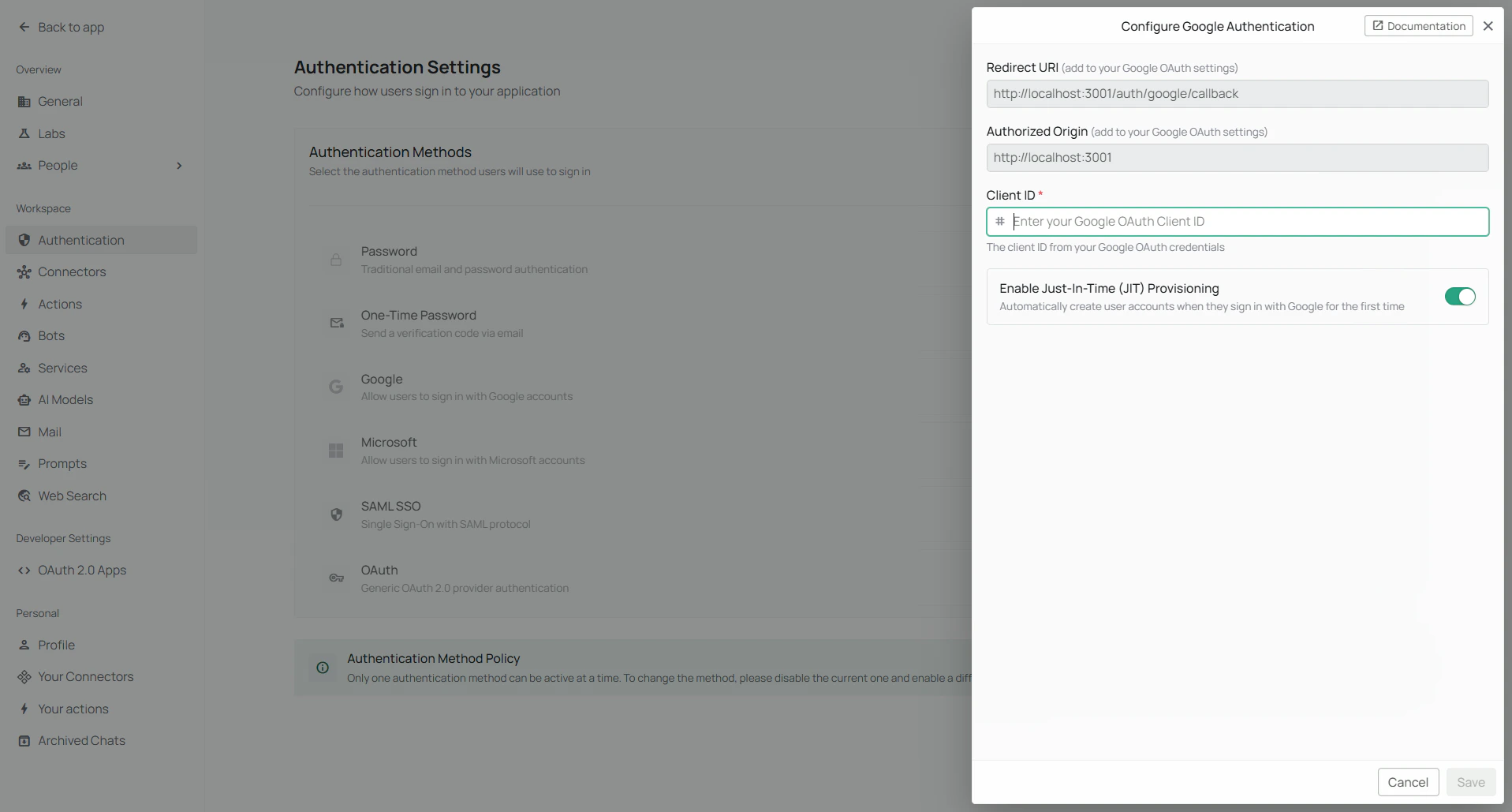
2. Navigate to Authentication Settings - Toggle on "Google" - Enter Client ID - Click "Save"