> ## Documentation Index
> Fetch the complete documentation index at: https://docs.pipeshub.com/llms.txt
> Use this file to discover all available pages before exploring further.
# Password
> Configure how users authenticate and access the application through password
## Password Authentication
Traditional username and password authentication for your application.
### How It Works
1. Users enter their email address and password
2. The system validates credentials against stored (hashed)
passwords
3. Upon successful validation, access is granted
### Configuration
Password authentication is enabled by default. From the Authentication
Settings page:
1. Ensure "Password" is toggled on.
Password that was used to login for the first time will be considered as default.
### Reset Password
For resetting the password, user can go to the profile page and click on the change password option.
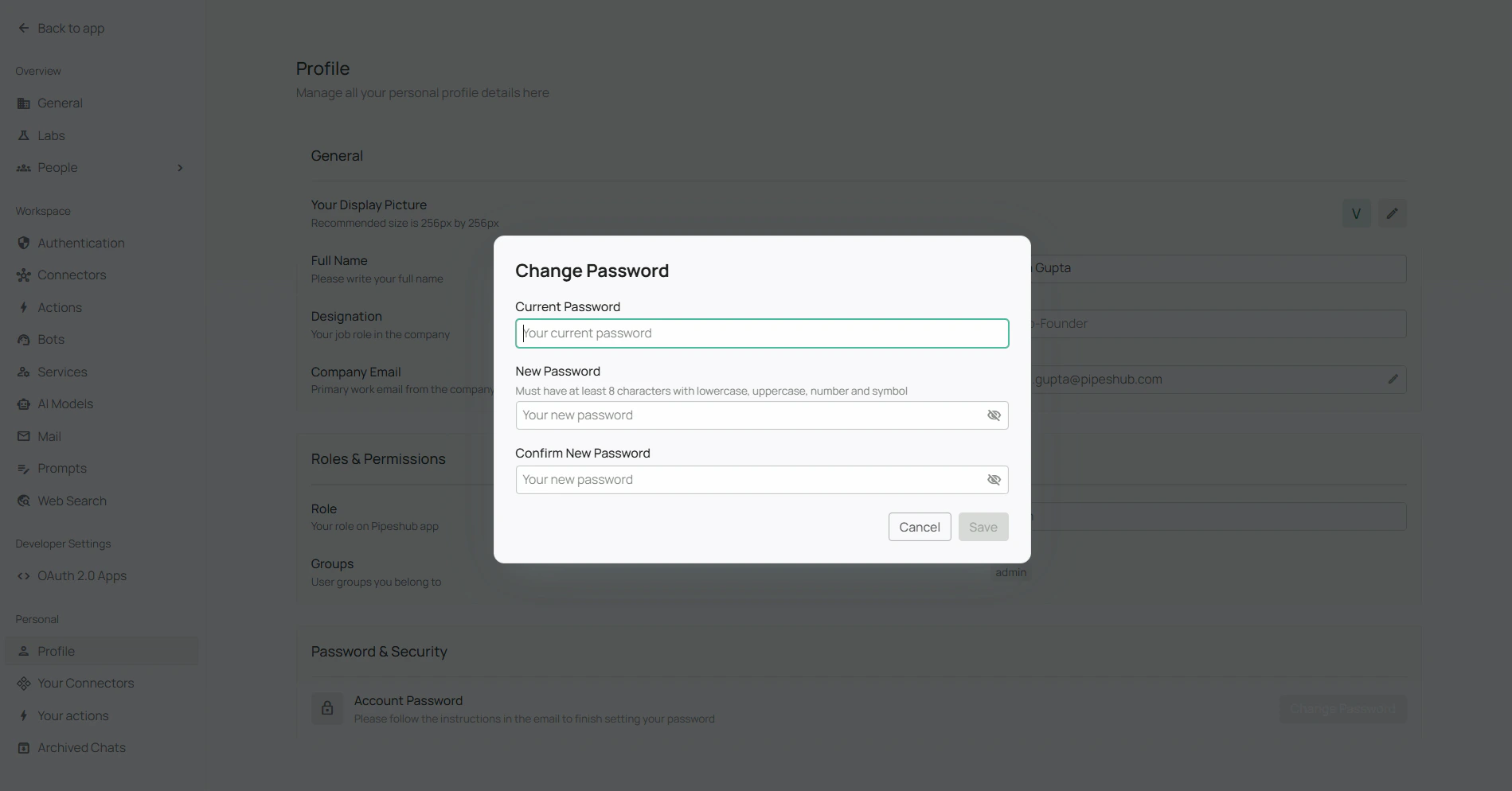 Enter the current password and new password and click on update password.
### Forgot Password
If a user forgets their password, SMTP configuration is necessary to enable the password reset functionality.
How It Works
1. Users click on the "Forgot Password" option.
2. The system sends a password reset email via the configured SMTP server.
3. The email contains a secure link redirecting the user to the password reset page.
4. Users enter and confirm their new password.
5. The system updates the password and grants access.
### For Smtp Configuration, refer to [SMTP Configuration Guide](/smtp).
Password authentication is the simplest to set up your app.
Enter the current password and new password and click on update password.
### Forgot Password
If a user forgets their password, SMTP configuration is necessary to enable the password reset functionality.
How It Works
1. Users click on the "Forgot Password" option.
2. The system sends a password reset email via the configured SMTP server.
3. The email contains a secure link redirecting the user to the password reset page.
4. Users enter and confirm their new password.
5. The system updates the password and grants access.
### For Smtp Configuration, refer to [SMTP Configuration Guide](/smtp).
Password authentication is the simplest to set up your app.