> ## Documentation Index
> Fetch the complete documentation index at: https://docs.pipeshub.com/llms.txt
> Use this file to discover all available pages before exploring further.

# Confluence Data Center

> Team workspace and documentation connector for self-hosted Confluence

<div className="max-w-2xl mx-auto mt-12">
  <div className="p-6 border border-gray-200 dark:border-gray-700 rounded-lg bg-blue-50 dark:bg-gray-800">
    <div className="flex items-center mb-4">
      <img src="https://mintcdn.com/pipeshub/8k-iBPRh1yJZHQe1/logo/confluence.png?fit=max&auto=format&n=8k-iBPRh1yJZHQe1&q=85&s=90d0e7fb5418167b553db5c420a8c72f" alt="Confluence Logo" className="w-8 h-8 mr-3 object-contain flex-shrink-0" width="567" height="545" data-path="logo/confluence.png" />

      <h2 className="text-2xl font-semibold m-0">Confluence Data Center</h2>
    </div>

    <p className="text-lg text-gray-700 dark:text-gray-300 mb-4">Self-hosted team workspace and documentation platform</p>

    <div className="flex items-center gap-2">
      <span className="px-3 py-1 bg-green-100 dark:bg-green-900 text-green-800 dark:text-green-200 rounded-full text-sm font-medium">
        ✅ Ready
      </span>

      <span className="px-3 py-1 bg-blue-100 dark:bg-blue-900 text-blue-800 dark:text-blue-200 rounded-full text-sm font-medium">
        📖 Documentation Available
      </span>
    </div>
  </div>
</div>

## Overview

Confluence Data Center is the version of Confluence that you install and run on your own servers. Atlassian does not host it for you.

The Confluence Data Center connector syncs spaces, pages, blog posts, comments, attachments, and users from your instance. It keeps space permissions and page restrictions, so each user in PipesHub only sees what they can already see in Confluence.

<Info>
  If Atlassian hosts your Confluence for you, that is Confluence Cloud. Use the [Confluence Cloud connector](/connectors/confluence/confluence) instead. The two connectors are not interchangeable.
</Info>

### What Gets Synced

| Entity             | Description                                          |
| ------------------ | ---------------------------------------------------- |
| **Spaces**         | Top-level containers (e.g., Engineering, Marketing)  |
| **Pages**          | Full page content with formatting preserved          |
| **Blog Posts**     | All blog post content and metadata                   |
| **Comments**       | Footer and inline comments on pages and blog posts   |
| **Attachments**    | Files attached to pages and blog posts               |
| **Users & Groups** | User profiles and group memberships                  |
| **Permissions**    | Space permissions and page or blog view restrictions |

<Warning>
  **Folders are not synced.** Folders only exist in Confluence Cloud, so there is nothing to sync on Data Center. Pages inside folders sync as normal.
</Warning>

***

## Configuration Guide

The Confluence Data Center connector supports **two ways to sign in**: Personal Access Token (PAT) and Basic Authentication. Both sync the same data.

<Warning>
  **This connector supports Personal Access Token and Basic Authentication only.** OAuth apps you create in the Atlassian Developer Console are for Confluence Cloud and will not work here.
</Warning>

### Prerequisites

Check these before you start:

| Requirement       | Detail                                                                                                              |
| ----------------- | ------------------------------------------------------------------------------------------------------------------- |
| **Deployment**    | Confluence Data Center that PipesHub can reach over HTTPS                                                           |
| **Version**       | **Confluence Data Center 9.1 or later.** See the warning below                                                      |
| **Base URL**      | The root URL of your instance, such as `https://confluence.yourcompany.com`. Not a page URL like `/display/SPACE`   |
| **PAT support**   | Personal Access Tokens need Confluence 7.9 or later. On older versions, use Basic Authentication                    |
| **Admin account** | Use a Confluence administrator account so the connector can read every space, the full user list, and the audit log |

<Warning>
  **You need Confluence Data Center 9.1 or later.** Space permissions were only added to the REST API in 9.1 ([CONFSERVER-78176](https://jira.atlassian.com/browse/CONFSERVER-78176)). On older versions the connector cannot read who is allowed to see a space, so it stops with a clear error instead of syncing spaces without permissions. Upgrade to 9.1 or later before you set this up.
</Warning>

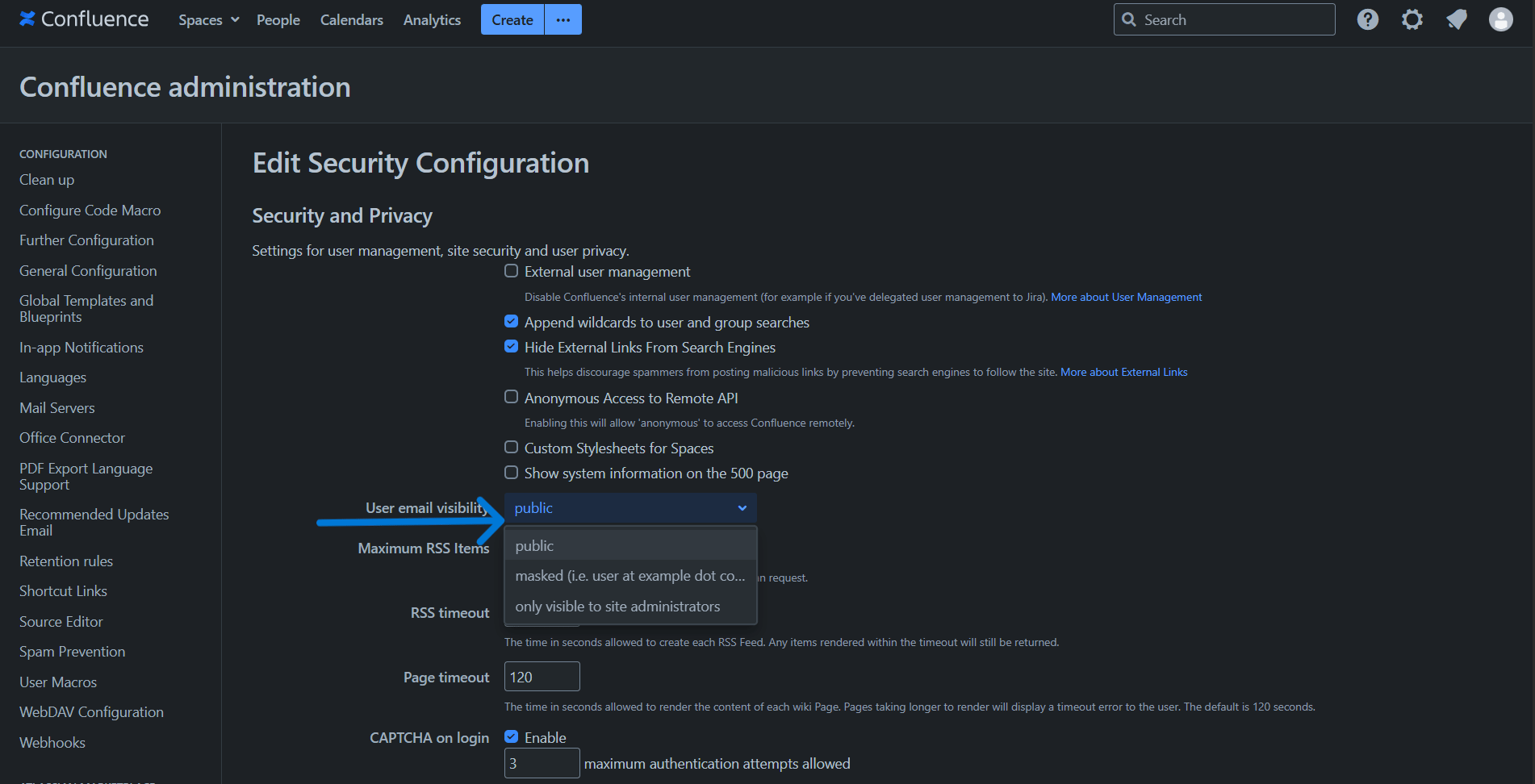
### Prerequisite: Email visibility

<Note>
  On Confluence Data Center, email visibility is a **global setting that an administrator controls**. Users cannot change it for themselves, unlike Confluence Cloud where each person sets their own.
</Note>

**How to make email addresses visible.** A Confluence administrator needs to do this:

1. Go to **Administration** → **General Configuration**.
2. Open **Security Configuration** and click **Edit**.
3. Set **User email visibility** to **Public**.
4. Save.

The setting has three options:

| Option                                  | What it means                                                                                                                                         |
| --------------------------------------- | ----------------------------------------------------------------------------------------------------------------------------------------------------- |
| **Public**                              | Email addresses are visible to logged-in Confluence users. Pick this one.                                                                             |
| **Masked**                              | Email addresses are shown in a masked form.                                                                                                           |
| **Only visible to site administrators** | Only Confluence administrators can see email addresses. They are also missing from the User Search popup, for example when you add page restrictions. |

<div className="text-center">
  <img src="https://mintcdn.com/pipeshub/ImtR-JwH2wozwy1H/images/connectors/confluence-data-center/admin_email_visibility_setting.png?fit=max&auto=format&n=ImtR-JwH2wozwy1H&q=85&s=43c7e145c481daae33daef958a408031" alt="User email address visibility setting in Confluence Data Center Security Configuration" className="block mx-auto w-11/12" width="1902" height="972" data-path="images/connectors/confluence-data-center/admin_email_visibility_setting.png" />
</div>

### Choose how to sign in

| Method                          | Best for                                                                                                                                       |
| ------------------------------- | ---------------------------------------------------------------------------------------------------------------------------------------------- |
| **Personal Access Token (PAT)** | Recommended. Needs Confluence 7.9 or later. You can revoke it at any time, and it does not expose a password.                                  |
| **Basic Authentication**        | Older instances that do not support tokens, or where an admin has turned token creation off. Sends a username and password with every request. |

<Tabs>
  <Tab title="Personal Access Token">
    #### Step 1: Create a Personal Access Token in Confluence

    1. Sign in to your Confluence with the account you want the connector to use.
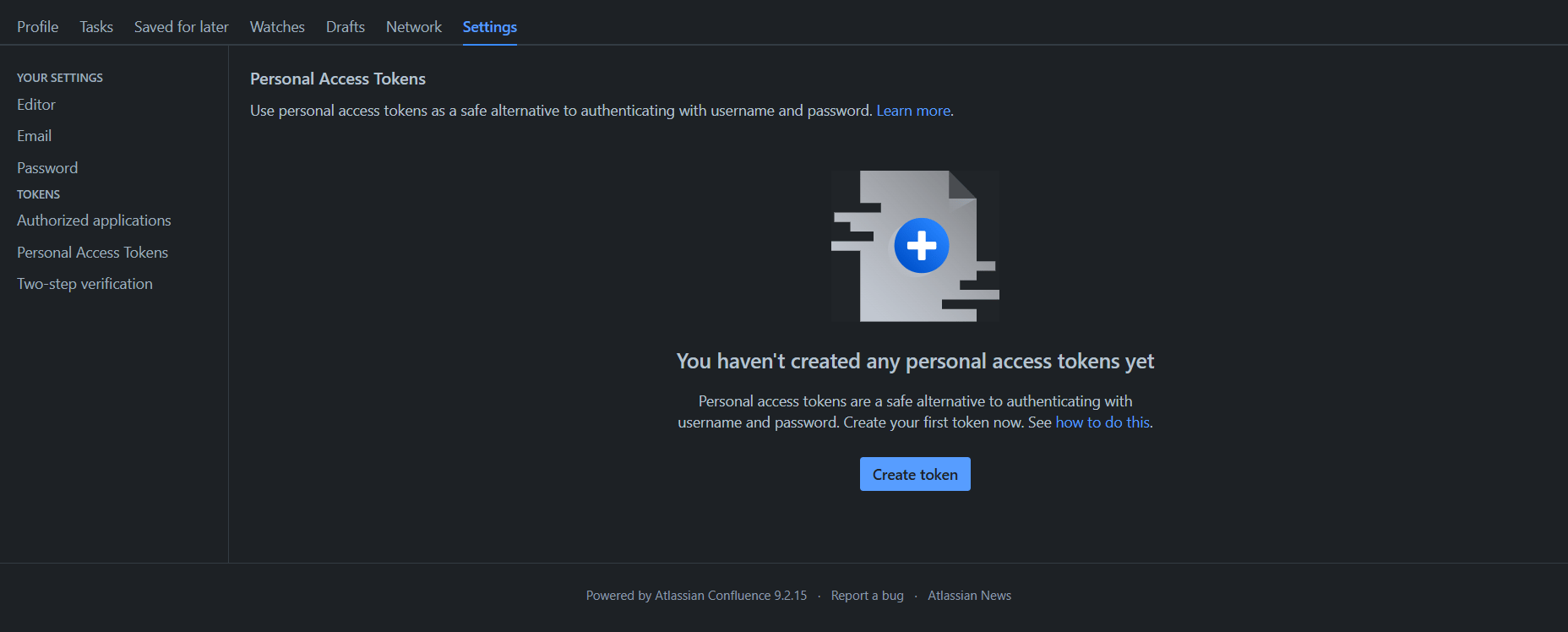
    2. Click your **profile picture** in the top right, then select **Settings**.
    3. Open the **Personal Access Tokens** tab.

    <div className="text-center">
      <img src="https://mintcdn.com/pipeshub/ImtR-JwH2wozwy1H/images/connectors/confluence-data-center/pat_profile_menu.png?fit=max&auto=format&n=ImtR-JwH2wozwy1H&q=85&s=f29e5adba8b0db815018b5fb2ffa520c" alt="Confluence Data Center profile settings — Personal Access Tokens" className="block mx-auto w-11/12" width="1856" height="748" data-path="images/connectors/confluence-data-center/pat_profile_menu.png" />
    </div>

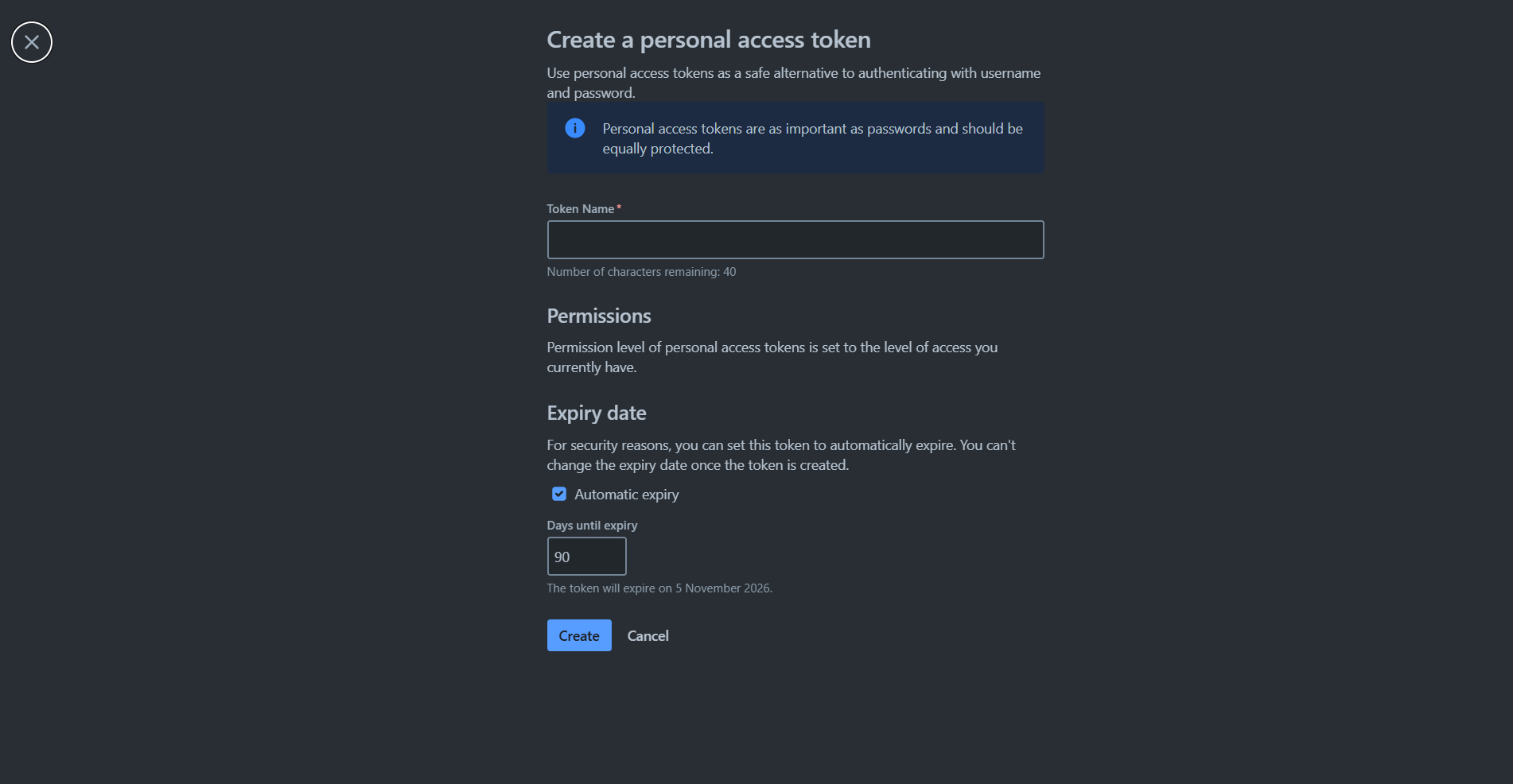
    4. Click **Create token**.
    5. Give it a name you will recognise, such as `PipesHub Confluence Connector`.
    6. Set an expiry, or turn off **Automatic expiry** if your policy allows tokens that do not expire.
    7. Click **Create**.

    <div className="text-center">
      <img src="https://mintcdn.com/pipeshub/ImtR-JwH2wozwy1H/images/connectors/confluence-data-center/pat_create_token.png?fit=max&auto=format&n=ImtR-JwH2wozwy1H&q=85&s=4d97daa6b4c9da58a03dde1809ad2997" alt="Create a Personal Access Token in Confluence Data Center" className="block mx-auto w-11/12" width="1902" height="986" data-path="images/connectors/confluence-data-center/pat_create_token.png" />
    </div>

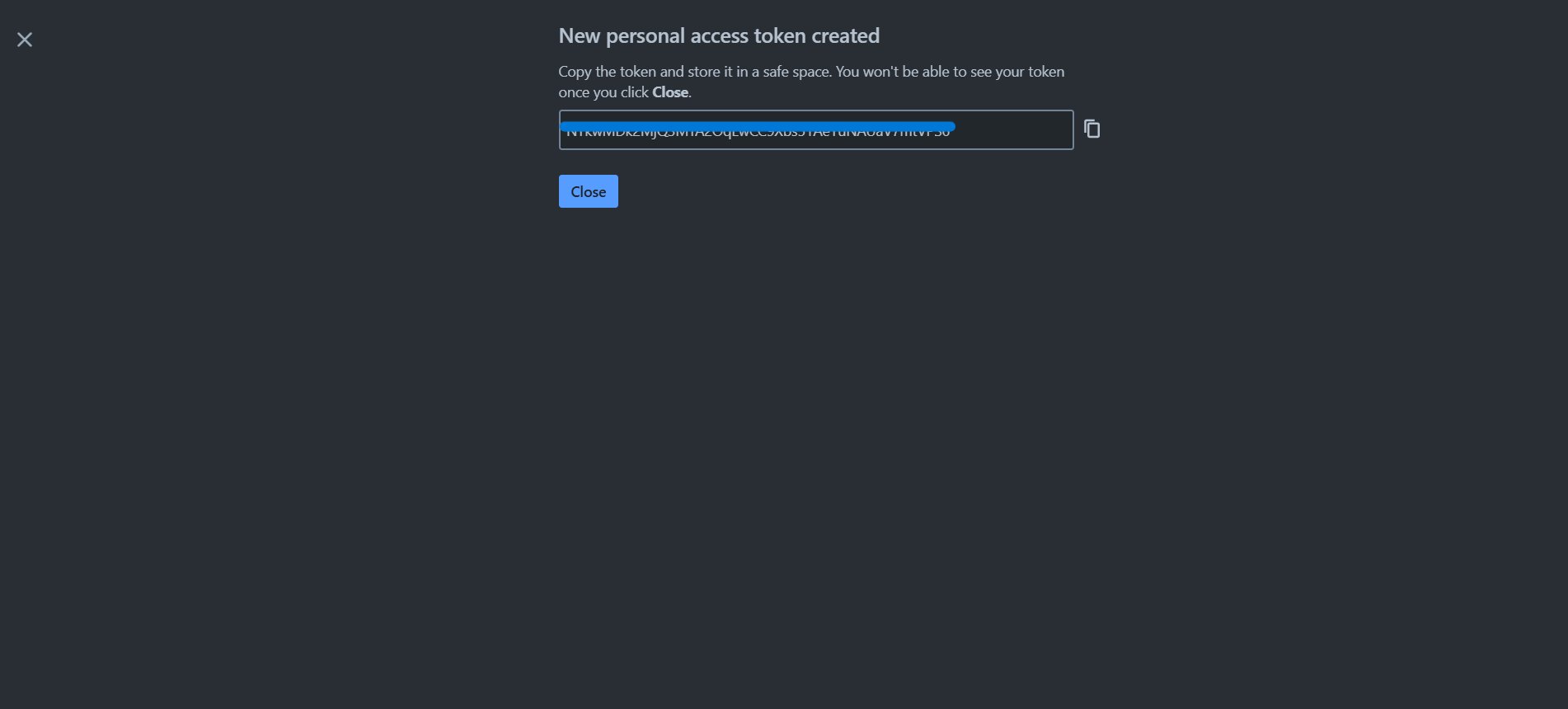
    8. Confluence shows the token **once**. Copy it and store it somewhere safe.

    <div className="text-center">
      <img src="https://mintcdn.com/pipeshub/ImtR-JwH2wozwy1H/images/connectors/confluence-data-center/pat_copy_token.png?fit=max&auto=format&n=ImtR-JwH2wozwy1H&q=85&s=0ef91ae112ecdb5f39309669c11b6515" alt="Copy the Personal Access Token — shown once" className="block mx-auto w-11/12" width="1902" height="860" data-path="images/connectors/confluence-data-center/pat_copy_token.png" />
    </div>

    <Warning>
      The token is shown only once. If you close the dialog before copying it, revoke it and create a new one.
    </Warning>

    <Info>
      A token has the same access as the account that created it. Create it from a Confluence admin account so the connector can read every space, the full user list, and the audit log.
    </Info>

    #### Step 2: Authenticate Instance tab — enter your credentials

    1. In PipesHub, go to **Workspace Settings** → **Connectors**, find **Confluence Data Center**, and click **+ Setup**.
    2. The connector panel opens as a drawer on the right.
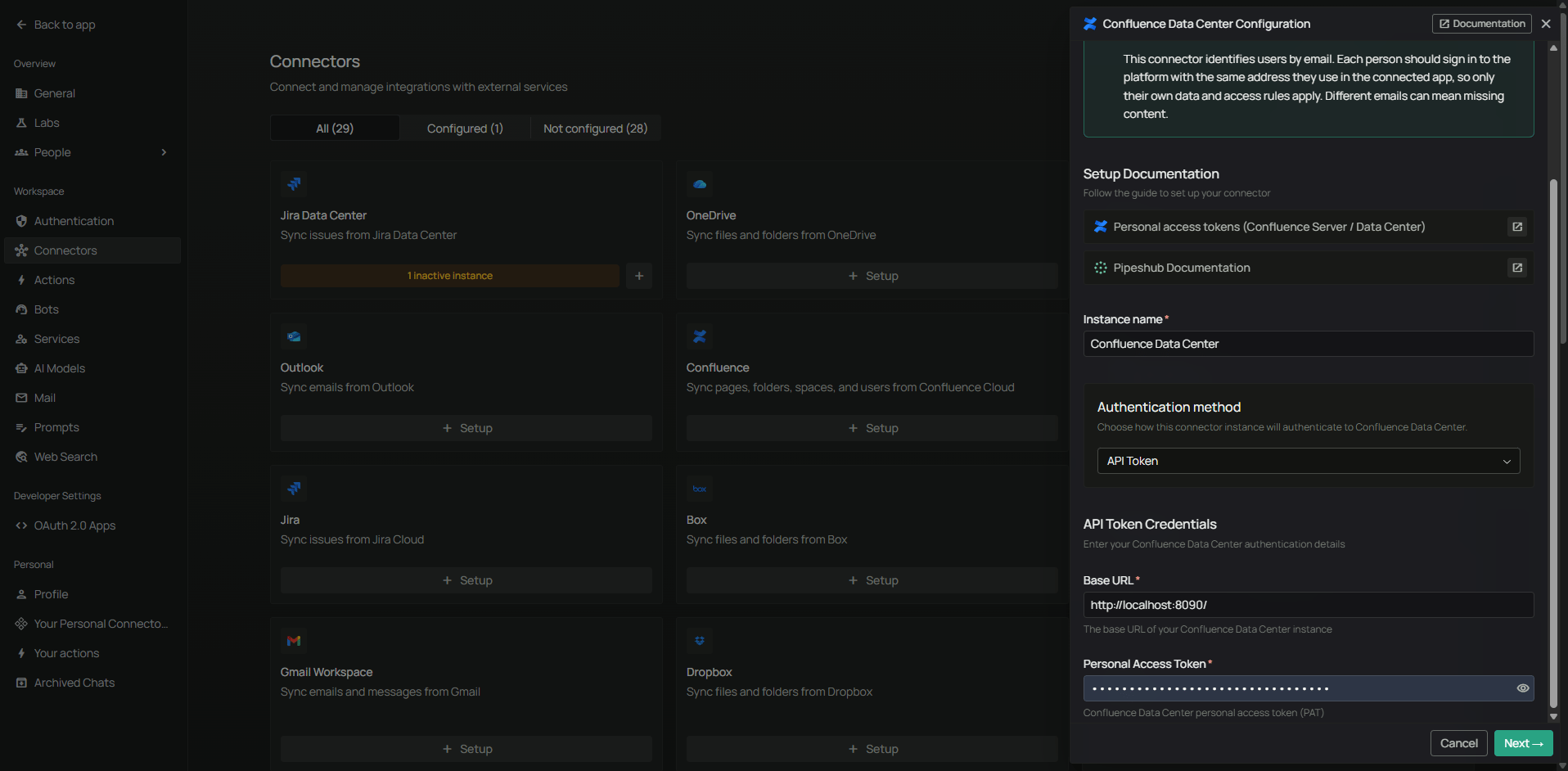
    3. On the **Authenticate Instance** tab, select **Personal Access Token** in the **Authentication method** dropdown.
    4. Enter:
       * **Base URL** — the root URL of your Confluence, such as `https://confluence.yourcompany.com`, with no trailing slash
       * **Personal Access Token** — the token you copied in Step 1
    5. Click **Next**. PipesHub checks the credentials and moves you to the **Configure Records** tab.

    <div className="text-center">
      <img src="https://mintcdn.com/pipeshub/ImtR-JwH2wozwy1H/images/connectors/confluence-data-center/connector_pat_form.png?fit=max&auto=format&n=ImtR-JwH2wozwy1H&q=85&s=5a7e8135a14831d5f87acc96dd21877c" alt="Authenticate Instance tab with Personal Access Token method — Base URL and token fields" className="block mx-auto w-11/12" width="1916" height="942" data-path="images/connectors/confluence-data-center/connector_pat_form.png" />
    </div>

    #### Step 3: Configure Records tab

    See [Configure Records](#configure-records) below. The options are the same for both sign-in methods.
  </Tab>

  <Tab title="Basic Authentication">
    Use this on instances that do not support Personal Access Tokens, or where an admin has turned off token creation.

    #### Step 1: Prepare the account

    1. Pick or create the Confluence account the connector will use. A dedicated service account works best.
    2. Check that the account can sign in to Confluence with a username and password.

    #### Step 2: Authenticate Instance tab — enter your credentials

    1. In PipesHub, go to **Workspace Settings** → **Connectors**, find **Confluence Data Center**, and click **+ Setup**.
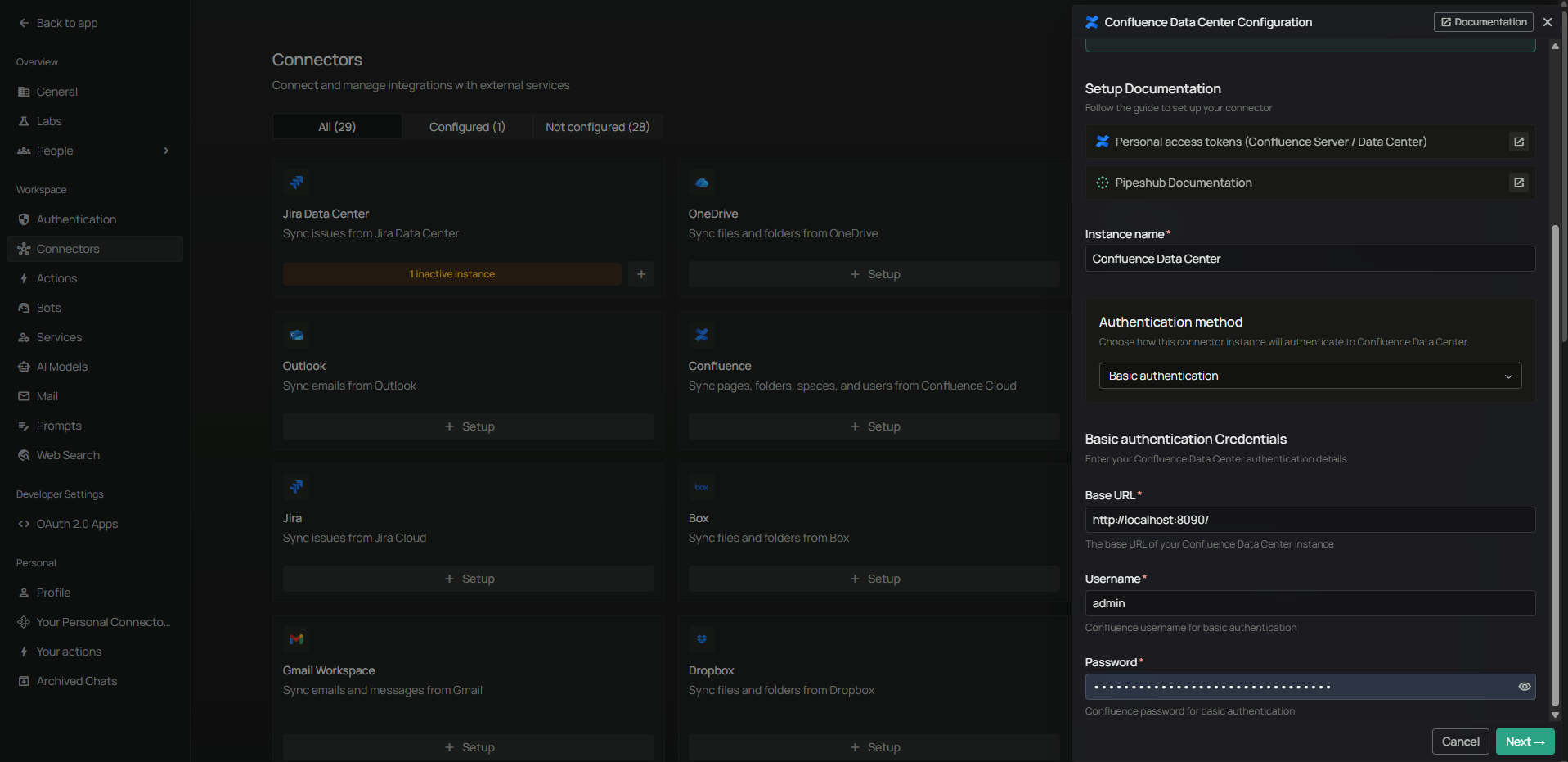
    2. On the **Authenticate Instance** tab, select **Basic Authentication** in the **Authentication method** dropdown.
    3. Enter:
       * **Base URL** — the root URL of your Confluence, such as `https://confluence.yourcompany.com`, with no trailing slash
       * **Username** — the Confluence username of the account
       * **Password** — the account password
    4. Click **Next**. PipesHub checks the credentials and moves you to the **Configure Records** tab.

    <div className="text-center">
      <img src="https://mintcdn.com/pipeshub/ImtR-JwH2wozwy1H/images/connectors/confluence-data-center/connector_basic_auth_form.png?fit=max&auto=format&n=ImtR-JwH2wozwy1H&q=85&s=b07cff60f01f52c8a300a797ffbfa571" alt="Authenticate Instance tab with Basic Authentication — Base URL, Username, Password fields" className="block mx-auto w-11/12" width="1917" height="931" data-path="images/connectors/confluence-data-center/connector_basic_auth_form.png" />
    </div>

    <Warning>
      Enter the Confluence **username**, not the email address. On many instances these are different.
    </Warning>

    #### Step 3: Configure Records tab

    See [Configure Records](#configure-records) below. The options are the same for both sign-in methods.
  </Tab>
</Tabs>

### Configure Records

On the **Configure Records** tab, you choose how often the connector syncs and what it syncs.

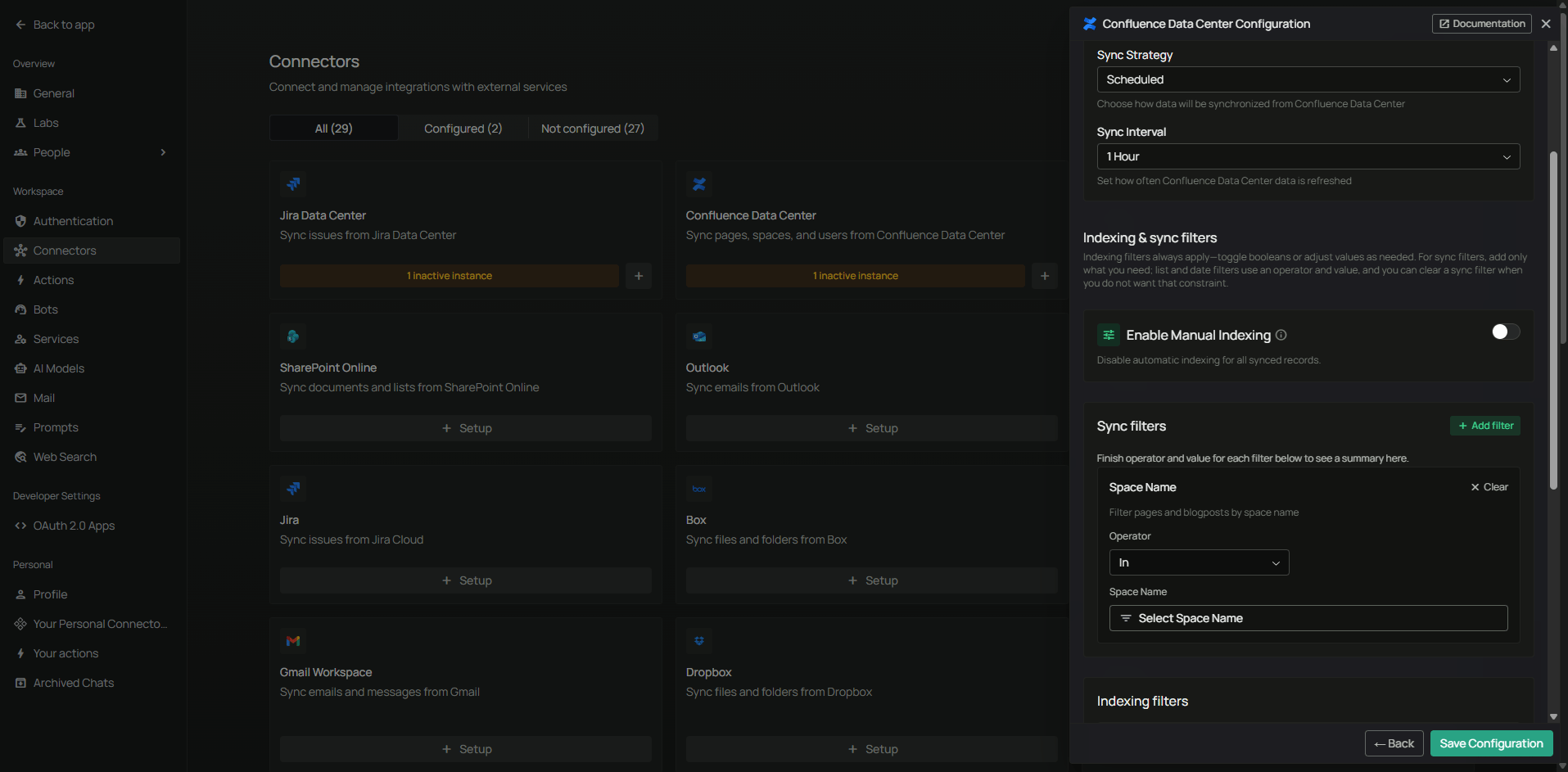
**Sync settings** — set these first:

1. **Sync Strategy** — `Scheduled` or `Manual`.
2. **Sync Interval** — how often to sync (default: 60 minutes).

<div className="text-center">
  <img src="https://mintcdn.com/pipeshub/ImtR-JwH2wozwy1H/images/connectors/confluence-data-center/connector_configure_sync_strategy.png?fit=max&auto=format&n=ImtR-JwH2wozwy1H&q=85&s=896e7f3c47aefc3eca44e3f680383686" alt="Configure Sync Strategy" className="block mx-auto w-11/12" width="1915" height="943" data-path="images/connectors/confluence-data-center/connector_configure_sync_strategy.png" />
</div>

<Note>
  **Scheduled sync** runs on its own at the interval you set. **Manual sync** runs only when you start it. Real-time sync is not available for Confluence Data Center.
</Note>

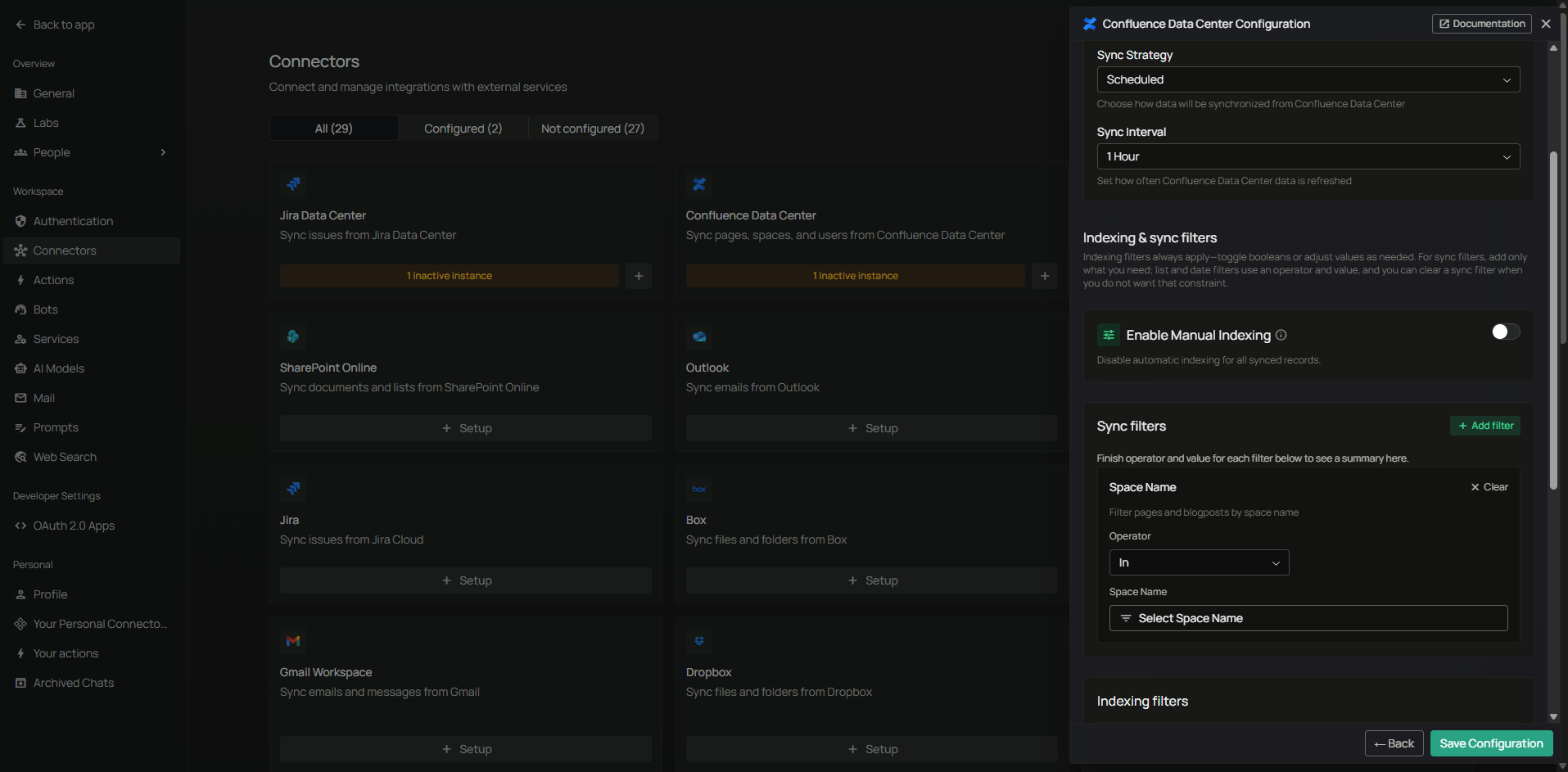
**Sync filters** — these decide what gets downloaded from Confluence. Anything a sync filter excludes is never downloaded.

<div className="text-center">
  <img src="https://mintcdn.com/pipeshub/ImtR-JwH2wozwy1H/images/connectors/confluence-data-center/confluence_dc_filters.png?fit=max&auto=format&n=ImtR-JwH2wozwy1H&q=85&s=c7fca3f44d3033cb83cfaa00d7b738a2" alt="Confluence Data Center filters configuration" className="block mx-auto w-11/12" width="1915" height="943" data-path="images/connectors/confluence-data-center/confluence_dc_filters.png" />
</div>

Available sync filters:

1. **Space Name** — pick which spaces to sync.
   * Operator: `In` to include only those spaces, or `Not In` to exclude them
   * Selection: a searchable dropdown of the spaces your account can see
2. **Page Name** — pick specific pages. Picking a page also includes its child pages.
3. **Blogpost Name** — pick specific blog posts.
4. **Modified Date** — filter by last change date. Operators: `Is After`, `Is Before`, `Is Between`.
5. **Created Date** — filter by creation date. Same operators.

<Info>
  In the Confluence Cloud connector you type space keys and page IDs by hand. Here you pick them from dropdowns instead. The lists are loaded from your instance, so you do not need to find keys or IDs in the URL.
</Info>

**Indexing filters** — these decide what gets prepared for AI search. Everything is synced, but only what you enable here is indexed.

* **Pages:** Index Pages / Index Page Attachments / Index Page Comments (all on by default)
* **Blog posts:** Index Blogposts / Index Blogpost Attachments / Index Blogpost Comments (all on by default)

**Examples:**

* *Sync only the Engineering space:* Space Name → `In` → select "Engineering"
* *Skip archived spaces:* Space Name → `Not In` → select the archived ones
* *Sync one documentation tree:* Page Name → `In` → select the parent page
* *Recent content only:* Modified Date → `Is After` → `2024-06-01`
* *Pages but not attachments:* turn off **Index Page Attachments**

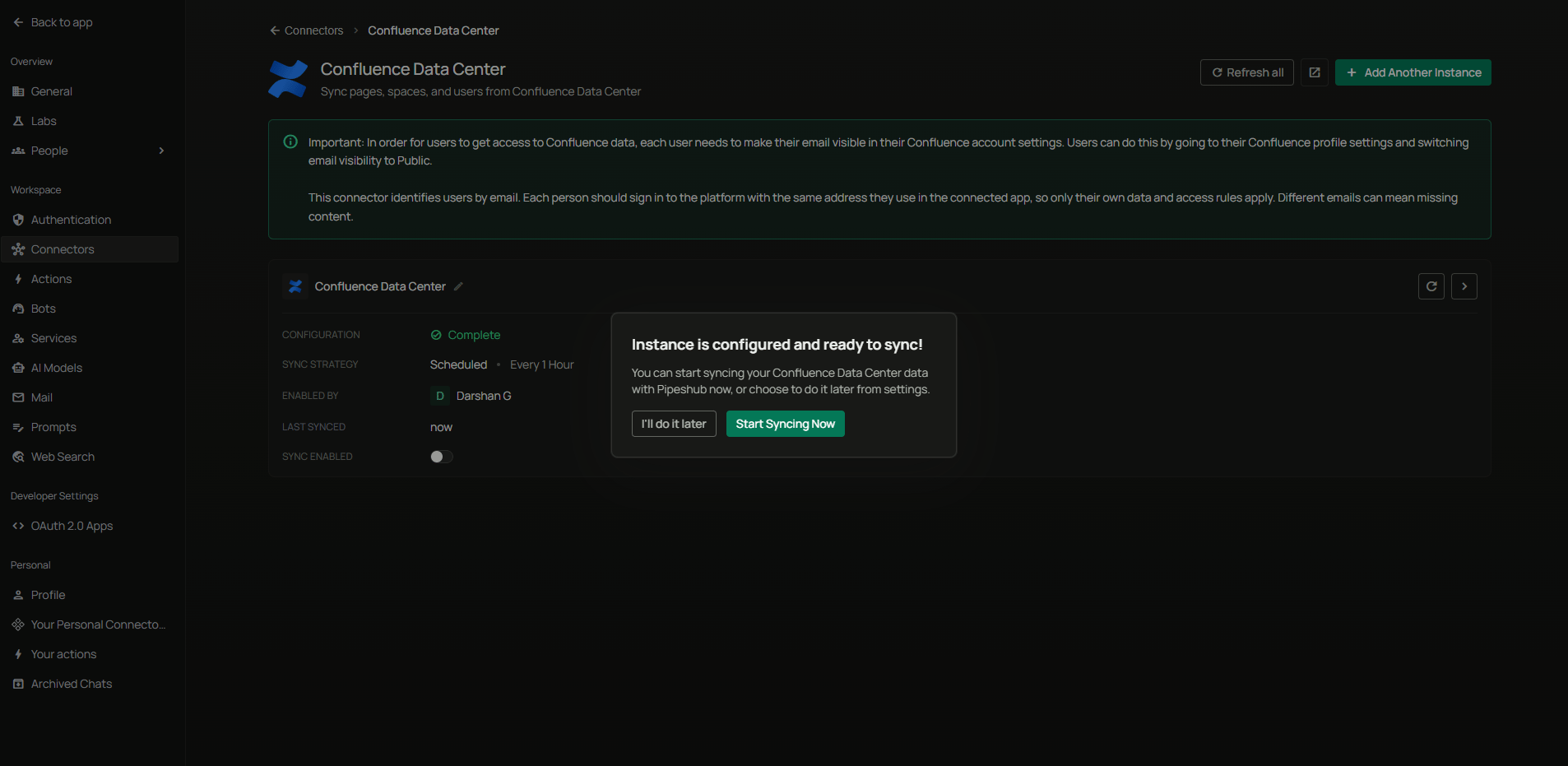
Click **Save**. PipesHub shows a dialog saying **"Instance is configured and ready to sync"**, with two choices: **I'll do it later** or **Start syncing now**.

<div className="text-center">
  <img src="https://mintcdn.com/pipeshub/ImtR-JwH2wozwy1H/images/connectors/confluence-data-center/enable_connector.png?fit=max&auto=format&n=ImtR-JwH2wozwy1H&q=85&s=f24a435de76c65fcd22aef8f67b544e2" alt="Instance is configured and ready to sync" className="block mx-auto w-11/12" width="1906" height="931" data-path="images/connectors/confluence-data-center/enable_connector.png" />
</div>

Pick **Start syncing now** to start straight away, or **I'll do it later** to turn the connector on without syncing yet. Watch **Indexing Progress** to see how the sync is going.

## Supported Features

The Confluence Data Center connector syncs:

* **Spaces** — every space your account can see, with their permissions
* **Pages** — full page content with formatting preserved
* **Blog Posts** — all blog post content and metadata
* **Comments** — footer and inline comments, including whether an inline comment is resolved
* **Attachments** — files attached to pages and blog posts
* **Users** — user profiles and account information
* **Groups** — user groups and memberships
* **Permissions** — space permissions and page or blog view restrictions
* **Audit Log** — used to spot permission changes between syncs

<Warning>
  **Folders are not synced.** They only exist in Confluence Cloud.
</Warning>

<Info>
  **Want agents to act in Confluence?** This connector only syncs data into PipesHub. To let agents create and update pages, set up the [Confluence Data Center toolset](/toolsets/confluence/confluence-data-center) as well.
</Info>

## Useful Links

* **Personal access tokens (Confluence Server/Data Center):** [confluence.atlassian.com/doc/using-personal-access-tokens-1007111435.html](https://confluence.atlassian.com/doc/using-personal-access-tokens-1007111435.html)
* **Confluence Server/DC REST API:** [developer.atlassian.com/server/confluence/confluence-server-rest-api/](https://developer.atlassian.com/server/confluence/confluence-server-rest-api/)
* **CONFSERVER-78176 (space permissions REST endpoint):** [jira.atlassian.com/browse/CONFSERVER-78176](https://jira.atlassian.com/browse/CONFSERVER-78176)

***

## Troubleshooting

<AccordionGroup>
  <Accordion title="Troubleshooting" icon="circle-exclamation">
    ### Common issues

    **Spaces fail to sync with a version error:**

    * Your Confluence is older than 9.1, so it cannot report space permissions over the REST API. The connector stops on purpose rather than syncing content with no permissions. Upgrade to 9.1 or later.

    **Base URL problems:**

    * Start with `https://`
    * No trailing slash. Use `https://confluence.yourcompany.com`, not `https://confluence.yourcompany.com/`
    * No page paths like `/display/SPACE` or `/pages/viewpage.action`
    * If Confluence runs under a path, include it: `https://company.com/confluence`

    **The Personal Access Token does not work:**

    * Check for extra spaces at the start or end of the token
    * The token may have expired or been revoked. Create a new one from **Settings → Personal Access Tokens**
    * Your Confluence version may be older than 7.9 and not support tokens. Use Basic Authentication instead

    **Basic Authentication does not work:**

    * Use the Confluence **username**, not the email address
    * The account may be CAPTCHA-locked after failed sign-ins. Sign in once in a browser to clear it

    **Connection times out, or you see a certificate error:**

    * Check that PipesHub can reach the base URL through your firewall, VPN, or allowlist
    * If your instance uses a self-signed or internal certificate, PipesHub needs to trust that certificate

    **Some users are missing after a sync:**

    * Users are skipped when email addresses are hidden. Ask a Confluence administrator to make them visible, then sync again
    * Their permissions are kept in the meantime and move onto their account once they sync

    **Nothing is syncing:**

    * Check that the connector shows **Active**
    * Check that the account can view the spaces you expect
    * Check that the spaces are not archived
    * Read the sync logs for the exact error

    **Some content says permission denied:**

    * Check that the account has read access to that content
    * Check the space permissions in Confluence
    * Check for page restrictions that limit who can see the page

    **Folders are missing:**

    * That is expected. Folders only exist in Confluence Cloud. Pages inside them sync as normal.

    <Warning>
      If you change the Personal Access Token or the account password, update it on the **Authenticate Instance** tab. Data Center credentials are not refreshed automatically.
    </Warning>
  </Accordion>
</AccordionGroup>

## Data Sync Behavior

<AccordionGroup>
  <Accordion title="Synchronization Process" icon="sync">
    ### Sync order

    Each sync runs these steps in order:

    | Step | Data Synced        | Purpose                                                                           |
    | ---- | ------------------ | --------------------------------------------------------------------------------- |
    | 1    | Users              | Sync user profiles. Users with no email address are skipped                       |
    | 2    | Groups             | Sync groups and who belongs to them                                               |
    | 3    | Spaces             | Sync spaces and their permissions                                                 |
    | 4    | Pages              | For each space: content, view restrictions, attachments, and comments             |
    | 5    | Blog posts         | For each space: content, view restrictions, attachments, and comments             |
    | 6    | Permission changes | Check the audit log for permission changes that did not change a page's timestamp |

    ### First sync

    * Fetches all content from every space your account can see
    * Indexes pages, blog posts, attachments, and comments based on your indexing filters
    * How long it takes depends on how much content you have

    ### Later syncs

    * Uses timestamps to find changed content
    * Only syncs pages and blog posts that are new or changed since the last sync
    * A separate audit log pass catches permission and restriction changes, because those do not change a page's last-modified time

    ### How permissions work

    * **Space permissions** come from `GET /rest/api/space/{spaceKey}/permissions`, which needs Confluence Data Center 9.1 or later
    * **Page and blog restrictions** are read as effective view restrictions. Only real read restrictions change who can see a page. A restriction that only limits editing still lets people read the page based on the space permissions
    * **Public spaces** — if a space allows anonymous read access, it is treated as public and per-user permissions are skipped
    * **Unknown users** — permissions for users whose email is not known yet are held on a placeholder and moved to the real user once that user syncs

    ### How Data Center differs from Confluence Cloud

    | Area              | Confluence Cloud                                      | Confluence Data Center                                                 |
    | ----------------- | ----------------------------------------------------- | ---------------------------------------------------------------------- |
    | REST API          | v2 (`/wiki/api/v2`)                                   | v1 only (`/rest/api`)                                                  |
    | Users             | CQL search (`/rest/api/search/user`)                  | `GET /rest/api/user/list`                                              |
    | Group members     | Identified by ID                                      | Identified by name                                                     |
    | Space permissions | `GET /wiki/api/v2/spaces/{id}/permissions`, paginated | `GET /rest/api/space/{key}/permissions`, one array, needs 9.1 or later |
    | Folders           | Synced                                                | Not available                                                          |
    | Sign-in           | OAuth 2.0 or API Token                                | Personal Access Token or Basic Authentication                          |
  </Accordion>
</AccordionGroup>

***

## FAQ

<AccordionGroup>
  <Accordion title="Can I use OAuth with this connector?">
    No. This connector supports **Personal Access Token** and **Basic Authentication** only. OAuth apps created in the Atlassian Developer Console are for Confluence Cloud and will not work here.
  </Accordion>

  <Accordion title="Should I use a Personal Access Token or Basic Authentication?">
    |                    | Personal Access Token                           | Basic Authentication                            |
    | ------------------ | ----------------------------------------------- | ----------------------------------------------- |
    | **Best for**       | Confluence 7.9 or later                         | Older instances, or where tokens are turned off |
    | **What you store** | A token you can revoke, with an optional expiry | A username and password                         |

    Use a **Personal Access Token** unless your instance cannot create them. Both sync the same data.
  </Accordion>

  <Accordion title="What is the difference between the Confluence Cloud and Confluence Data Center connectors?">
    | Aspect            | Confluence Cloud       | Confluence Data Center                        |
    | ----------------- | ---------------------- | --------------------------------------------- |
    | **Where it runs** | Atlassian hosts it     | You host it on your own servers               |
    | **Sign-in**       | OAuth 2.0 or API Token | Personal Access Token or Basic Authentication |
    | **API**           | REST v2                | REST v1                                       |
    | **Folders**       | Synced                 | Not available                                 |

    Pick the one that matches your setup. They cannot be swapped.
  </Accordion>

  <Accordion title="Why do I need Confluence Data Center 9.1 or later?">
    Space permissions were only added to the REST API in Confluence Data Center 9.1 ([CONFSERVER-78176](https://jira.atlassian.com/browse/CONFSERVER-78176)). Without that, the connector cannot tell who is allowed to see a space. If it indexed content anyway, that content would either be hidden from everyone or shown to too many people. So it stops with a clear error instead.
  </Accordion>

  <Accordion title="Can I sync only certain Confluence spaces?">
    Yes. On the **Configure Records** tab, use the **Space Name** filter with the `In` operator and pick the spaces you want. Use `Not In` to leave spaces out instead.
  </Accordion>

  <Accordion title="Can I sync only certain pages in a space?">
    Yes. Use the **Page Name** filter with the `In` operator and pick the pages you want. Picking a page also includes its child pages, so you can sync a single documentation tree.
  </Accordion>

  <Accordion title="My searches return nothing. What should I check?">
    Check these in order:

    1. **The sync has not finished.** Go to **Settings → Connectors** and check the sync status, then look in **All Records** for the pages you expect.
    2. **Email addresses are hidden.** If Confluence hides email addresses, you may not have been synced as a user yet. Ask a Confluence administrator to make them visible, then wait for the next sync.
    3. **Your filters are too narrow.** Check the **Space Name**, **Page Name**, and date filters on the **Configure Records** tab.
    4. **Indexing is off.** Check that **Index Pages** and the related toggles are turned on.
  </Accordion>
</AccordionGroup>

***

<div className="text-center mt-12 p-6 bg-gray-50 dark:bg-gray-800 border border-gray-200 dark:border-gray-700 rounded-lg max-w-2xl mx-auto">
  <h3 className="text-lg font-semibold mb-2">Ready to Get Started?</h3>

  <p className="text-gray-600 dark:text-gray-400">
    Connect your self-hosted Confluence Data Center instance to PipesHub in a few minutes. Follow the steps above to search every space and page across your Confluence content.
  </p>
</div>