

Drupal Wiki
Sync spaces, pages, and attachments from a self-hosted or cloud Drupal Wiki
✅ Ready📚 Documentation Available
Overview
Drupal Wiki (by KontextWork) is a knowledge management wiki that organizes content into spaces, each holding a tree of pages with file attachments. It runs self-hosted (often on a private network) or as a cloud service. The Drupal Wiki connector syncs users, groups, spaces, pages, and attachments into PipesHub, keeps the page hierarchy, and applies each space’s access rules. Private spaces are visible only to their members. Open spaces are visible to everyone in your PipesHub organization, which can include people who have no Drupal Wiki account and so couldn’t open those pages in the wiki (see Permissions).What gets synced
Page comments are not synced.
Configuration Guide
Prerequisites
- A Drupal Wiki whose REST API PipesHub can reach at
<your wiki address>/api/rest. If your wiki is on a private network, see Self-hosted wikis on a private network. - A Drupal Wiki user to own the token. The token acts with that user’s rights, so PipesHub can only sync what that user can see. Use a user who can see all the spaces you want to sync and their members; a wiki administrator is simplest. That user must also be able to list the wiki’s users, or the connection test fails.
- A PipesHub admin account, to set up a team connector.
Step 1: Create a personal access token in Drupal Wiki
- Sign in to Drupal Wiki as the user that will own the token.
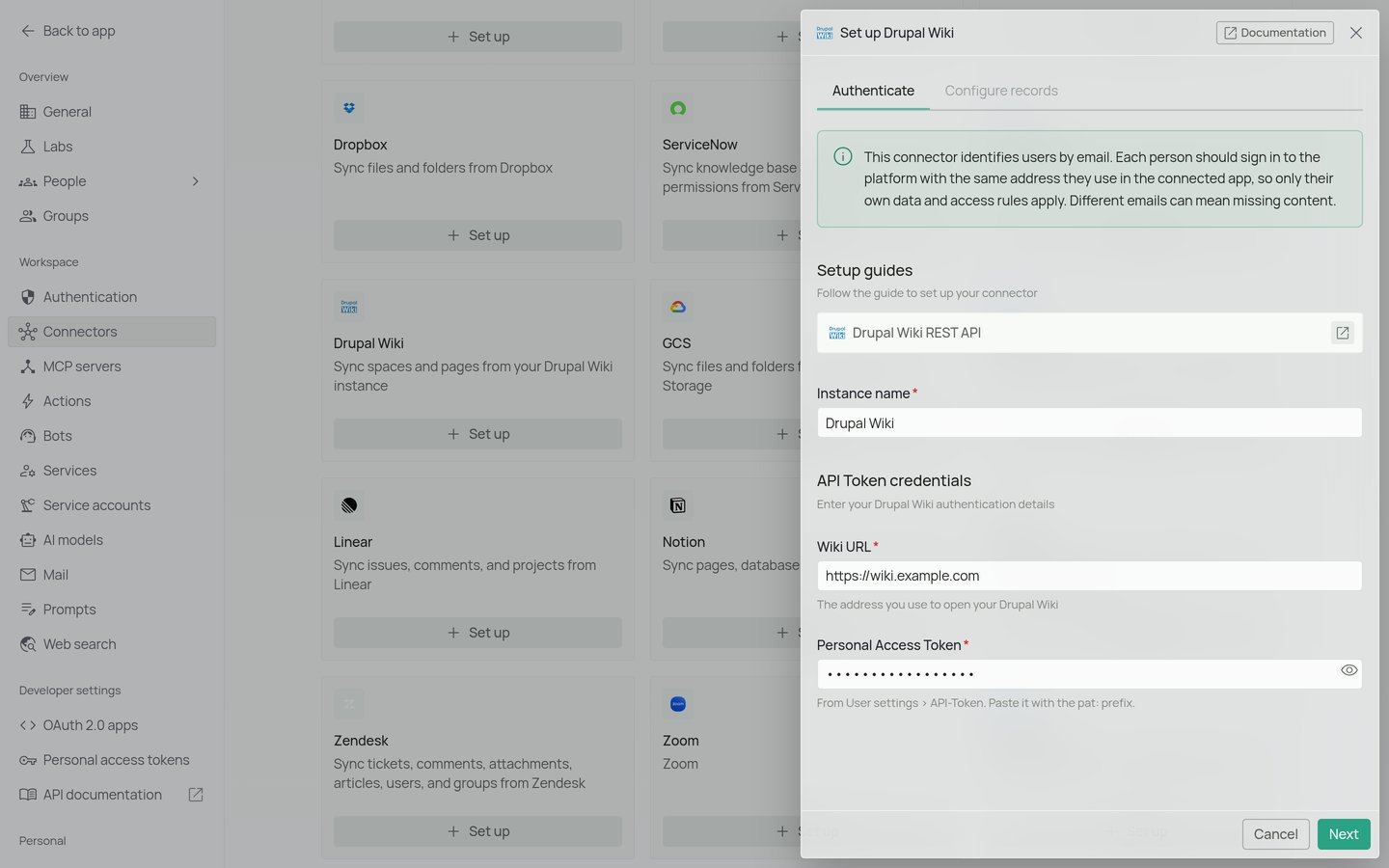
- Open your user settings and create an API token (User settings → API-Token).
- Copy the token right away, including its
pat:prefix (for examplepat:xxxxxxxx).
Step 2: Authenticate
- In PipesHub, go to Workspace settings → Connectors, find Drupal Wiki, and click Set up.
-
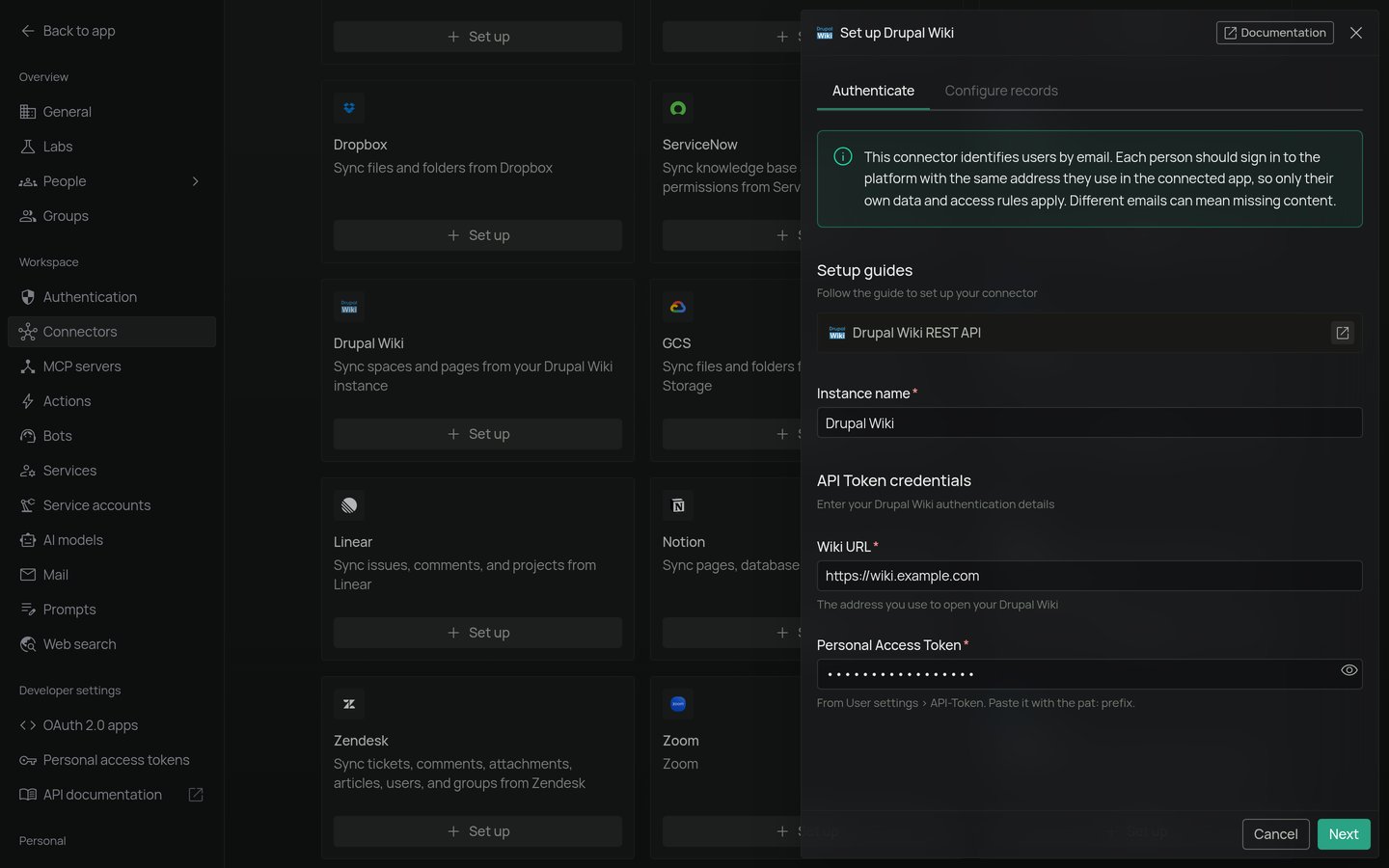
On the Authenticate tab, fill in:
- Click Next. Drupal Wiki uses a token, so there is no Authorize tab.
Step 3: Configure records
On the Configure records tab, set how and what to sync. Sync settings- Sync strategy: Scheduled (the default) or Manual.
- Sync interval: how often a scheduled sync runs. The default is 1 hour.
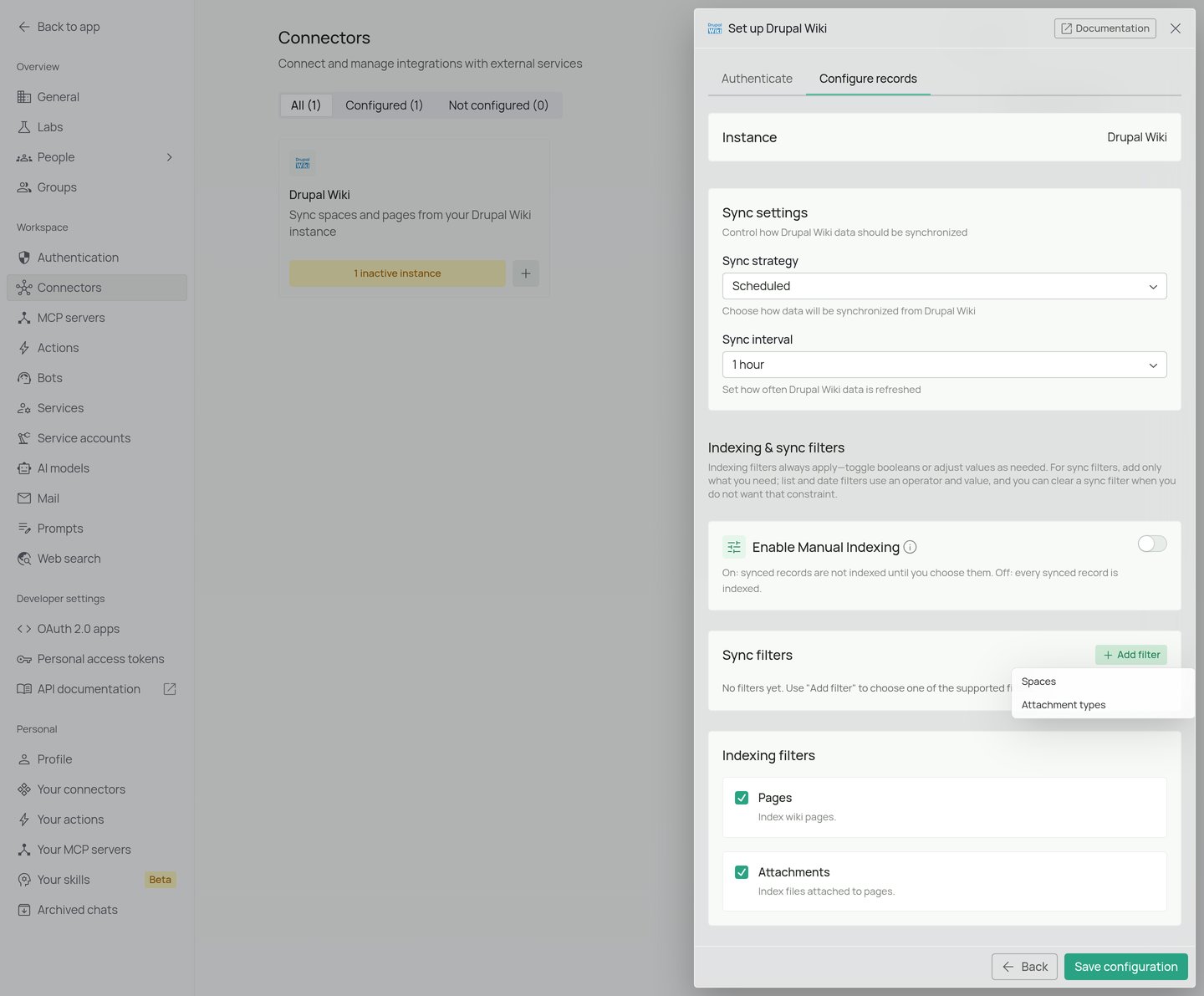
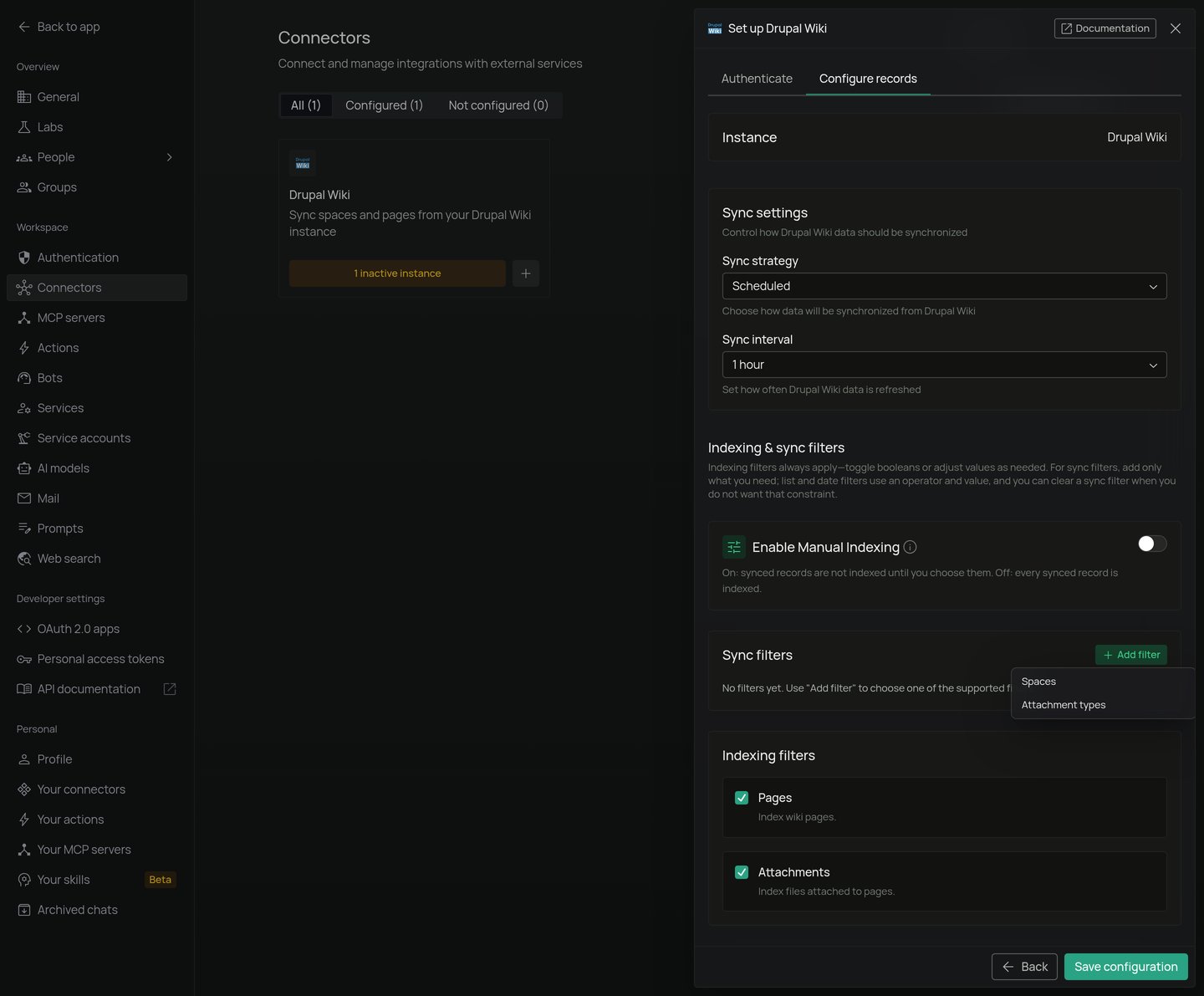
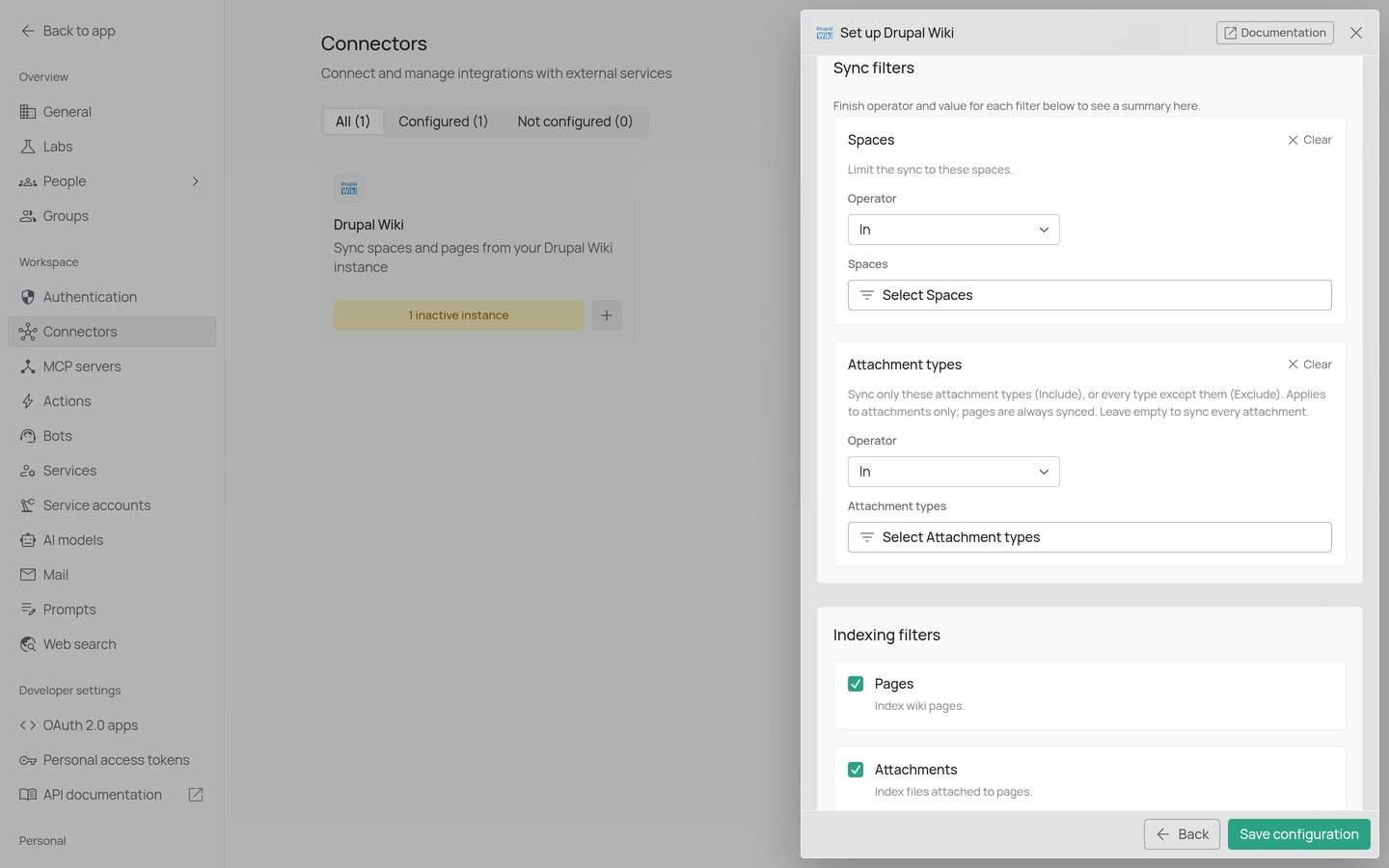
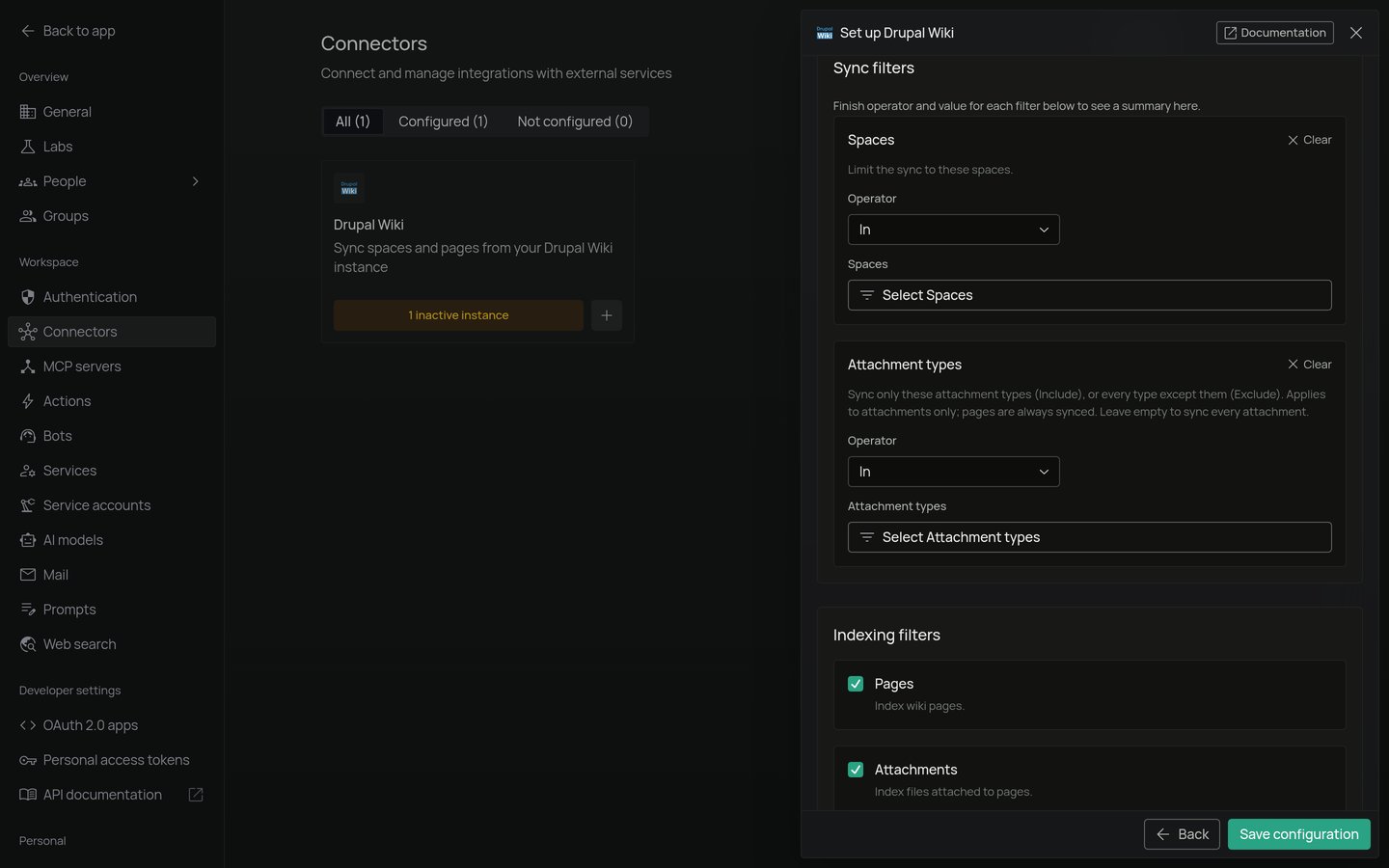
Click Save configuration. When PipesHub shows Instance is configured and ready to sync!, choose Start syncing now, or I’ll do it later to start the sync yourself later.
What the connection test checks
When you set up the connector, PipesHub checks that it can list one user and one space with your token:- The token is rejected (HTTP 401): “Drupal Wiki rejected the personal access token … Check that it is current and its user is not blocked.”
- The token’s user can’t list users (HTTP 403): “The Drupal Wiki token has no access to users … Use a token whose user can read the wiki.”
- Spaces can’t be listed: “Drupal Wiki could not list spaces …”
- A web page comes back instead of the API: a proxy or single sign-on (SSO) page in front of the wiki answered with HTML. The test fails; let PipesHub reach the wiki’s
/api/restaddress directly.
Self-hosted wikis on a private network
Many Drupal Wikis run on-premises. PipesHub can connect to a wiki on a private IP address, unless the PipesHub deployment hasPIPESHUB_BLOCK_PRIVATE_ADDRESSES turned on. Link-local and cloud metadata addresses are always refused.
Permissions
Drupal Wiki has no page-level rights: access is set per space. PipesHub copies each space’s access rules on every sync, and every page and attachment inherits them from its space.- A private space whose members can’t be read keeps the access it had after the previous sync. PipesHub doesn’t widen or remove access when it can’t read the member list, and the sync reports the problem.
- A space with no members is still synced, but nobody can find its pages. PipesHub sends the notification “Nobody can see pages in … Add members in Drupal Wiki.”
- A page shared into another space is synced only under its home space, and takes its access from that space only.
- Disabled users get no access to private spaces. An open space grants access to the whole organization, so it can’t exclude a disabled wiki user who still has a PipesHub account.
- Users without an email address in Drupal Wiki can’t be matched to a PipesHub account, so they get no access to private spaces until an email is added for them in Drupal Wiki.
Limitations
- Deletions aren’t picked up by a regular sync. A page, attachment, or space deleted in Drupal Wiki stays in PipesHub until a full sync runs and finishes without problems. The same applies to spaces you remove with the Spaces filter.
- No comments. Page comments aren’t synced.
- No real-time sync. Changes arrive on the next scheduled or manual sync. Drupal Wiki webhooks aren’t used.
- No automatic account linking. People are matched by email only (see the warning in Step 2).
- No agent actions. There is no Drupal Wiki action.
Troubleshooting
A sync stops with a personal access token rejected notification
A sync stops with a personal access token rejected notification
The notification is titled with your instance name followed by “personal access token rejected”. The token was revoked, or its user was blocked in Drupal Wiki. The sync stops and what already synced is unchanged. Create a new token in Drupal Wiki (User settings → API-Token) and update it in the connector settings in PipesHub.
The connection test says the token has no access to users
The connection test says the token has no access to users
The token’s user can’t list the wiki’s users. Create the token as a user with more rights, such as a wiki administrator.
A private space syncs, but nobody can find its pages
A private space syncs, but nobody can find its pages
Check the space’s members in Drupal Wiki. A space with no members gives nobody access, and PipesHub sends a “with no members” notification. If the sync instead reported that it couldn’t read who has access to the space, give the token’s user rights to see that space’s members.
I can't find pages that other people can
I can't find pages that other people can
Check that your PipesHub email matches your Drupal Wiki email, and that your Drupal Wiki account has an email address and is not disabled. Then check that you are a member of the page’s space, directly or through a group.
A deleted page still shows up in search
A deleted page still shows up in search
Deletions are removed only by a full sync that finishes without problems. Start a full sync from the connector in Workspace settings → Connectors.
The sync finished with problems
The sync finished with problems
PipesHub keeps syncing when one space, group, or page fails, then sends one notification listing the problems. A space that failed keeps its place, so the next sync picks it up from where it was. Fix the cause named in the notification (often a permission in Drupal Wiki) and run the sync again.
FAQ
Can I use OAuth or a username and password instead of a token?
Can I use OAuth or a username and password instead of a token?
No. Drupal Wiki’s API only accepts personal access tokens.
Does the token expire?
Does the token expire?
No. It works until it is revoked or its user is blocked in Drupal Wiki.
Do I paste the token with or without pat:?
Do I paste the token with or without pat:?
With it. Paste the token exactly as Drupal Wiki shows it, including the
pat: prefix.How often does the connector sync?
How often does the connector sync?
Every 60 minutes by default with the Scheduled strategy, or only when you start it with Manual. Each sync reads only the pages changed in each space since that space’s last successful sync.
Can I sync only some spaces?
Can I sync only some spaces?
Yes. Use the Spaces filter with In to pick the spaces to sync, or Not in to leave some out.
Are page comments synced?
Are page comments synced?
No. Only page content (title, body, tags, and categories) and attachments are synced.