> ## Documentation Index
> Fetch the complete documentation index at: https://docs.pipeshub.com/llms.txt
> Use this file to discover all available pages before exploring further.

# GCS

> Google Cloud Storage object storage service connector

<div className="max-w-2xl mx-auto mt-12">
  <div className="p-6 border border-gray-200 dark:border-gray-700 rounded-lg bg-blue-50 dark:bg-gray-800">
    <div className="flex items-center mb-4">
      <img src="https://mintcdn.com/pipeshub/c7djSmzbh5AIFxJr/logo/gcs.png?fit=max&auto=format&n=c7djSmzbh5AIFxJr&q=85&s=078688190c68ff31609cbdf7b025c898" alt="Google Cloud Storage Logo" className="w-8 h-8 mr-3 object-contain flex-shrink-0" width="3000" height="2000" data-path="logo/gcs.png" />

      <h2 className="text-2xl font-semibold m-0">Google Cloud Storage</h2>
    </div>

    <p className="text-lg text-gray-700 dark:text-gray-300 mb-4">Cloud object storage service</p>

    <div className="flex items-center gap-2">
      <span className="px-3 py-1 bg-green-100 dark:bg-green-900 text-green-800 dark:text-green-200 rounded-full text-sm font-medium">
        ✅ Ready
      </span>

      <span className="px-3 py-1 bg-blue-100 dark:bg-blue-900 text-blue-800 dark:text-blue-200 rounded-full text-sm font-medium">
        📖 Documentation Available
      </span>
    </div>
  </div>
</div>

## What is this?

**Google Cloud Storage (GCS)** is where a lot of teams keep their files in the cloud — documents, images, backups, anything.

This connector copies those files into PipesHub so you can **search them with AI**, just like any other file in your workspace.

### What you'll need before you start

* A Google Cloud account with access to the project that owns your GCS buckets
* Permission to create a **service account** in that project (usually a project owner or admin)
* About 10 minutes

### What gets synced

* **Files** of any type (PDFs, Word docs, images, videos, code, archives)
* **Folders** (including the nested folder structure inside each bucket)
* **Details** like file name, size, when it was last changed
* **Who can see what** — PipesHub respects the permissions already set in Google Cloud

***

## Step-by-step setup

<AccordionGroup type="single" collapsible>
  <Accordion title="Setup" defaultOpen>
    <div className="mt-4">
      ### How the connector signs in

      Instead of logging in with a password, the connector uses a **service account** — a kind of robot user inside Google Cloud that has its own key file.

      You'll create this service account, download its key (a small `.json` file), and upload that file into PipesHub. That's it.

      <Info>
        Service accounts are the standard way to let one system talk to Google Cloud on your behalf. Keep the key file safe — anyone who has it can read the buckets you give it access to.
      </Info>

      ### Part A — In Google Cloud (about 5 minutes)

      ### Step 1: Create a service account

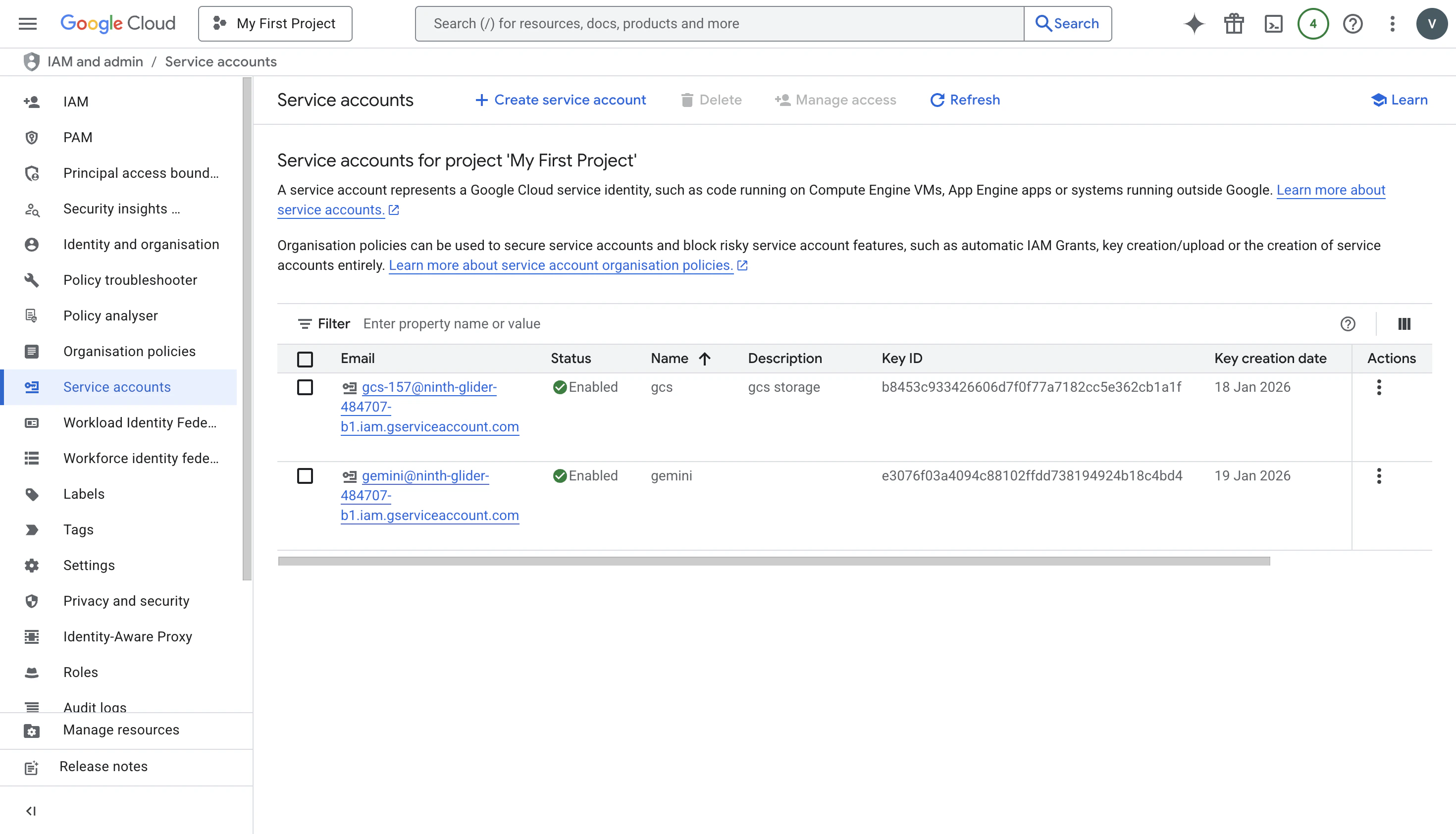
      1. Go to [console.cloud.google.com](https://console.cloud.google.com) and sign in.
      2. Click the menu (**☰**) in the top-left and pick **IAM & Admin → Service Accounts**.

      <div className="text-center">
        <img src="https://mintcdn.com/pipeshub/oYMVWTGiinzYyRHK/images/connectors/gcs/service_accounts.png?fit=max&auto=format&n=oYMVWTGiinzYyRHK&q=85&s=35e512eacfc42214ff1655d1a42cb694" alt="Google Cloud Service Accounts page" className="block mx-auto w-11/12" width="2940" height="1684" data-path="images/connectors/gcs/service_accounts.png" />
      </div>

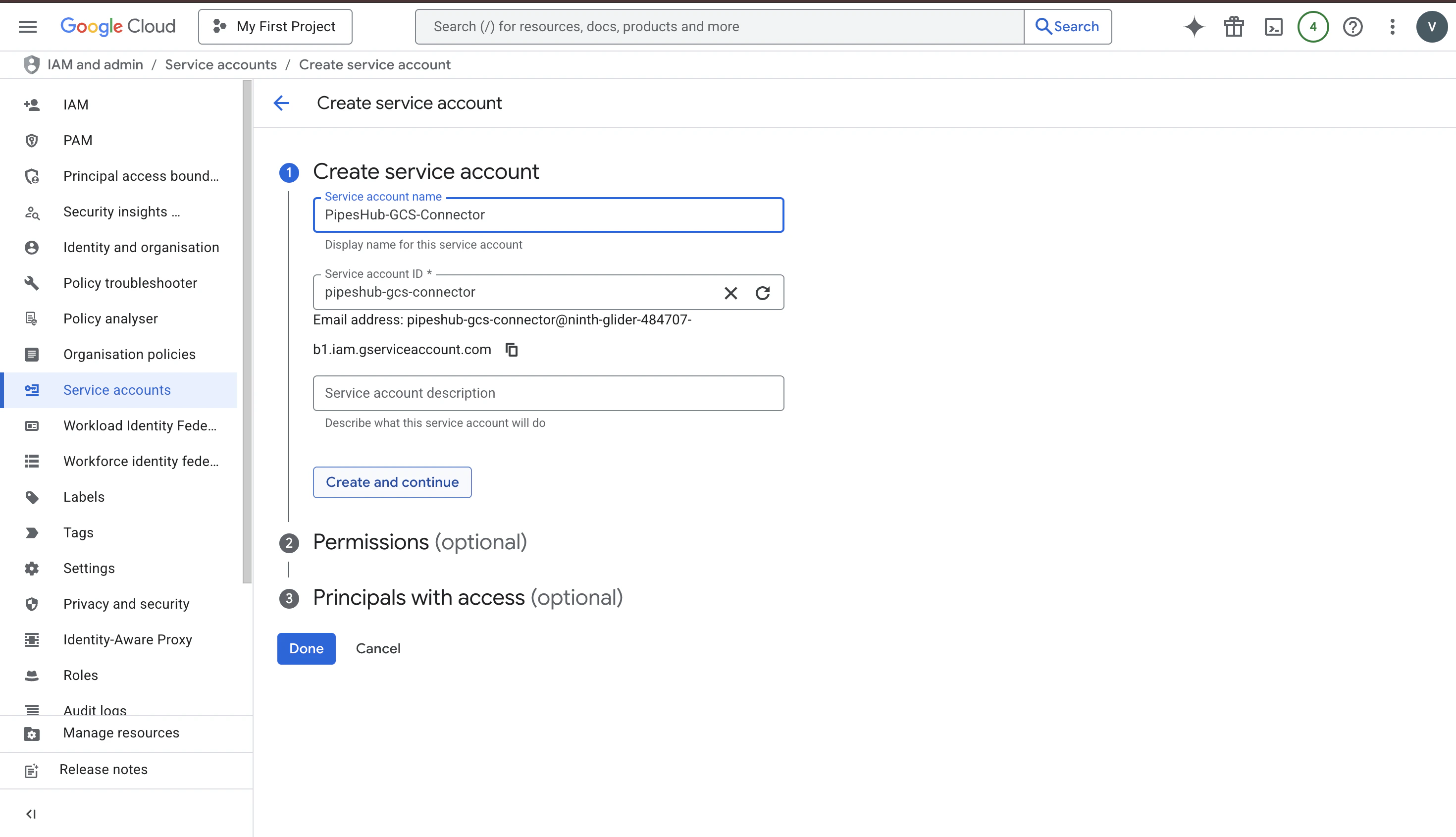
      3. Click **Create Service Account** at the top.
      4. Give it a name you'll recognise later, like **`pipeshub-gcs-connector`**. You can skip the description.
      5. Click **Create and Continue**.

      <div className="text-center">
        <img src="https://mintcdn.com/pipeshub/oYMVWTGiinzYyRHK/images/connectors/gcs/create_service_account.png?fit=max&auto=format&n=oYMVWTGiinzYyRHK&q=85&s=855124c36a78692b2e68e7e91b081242" alt="Create Service Account form" className="block mx-auto w-11/12" width="2940" height="1690" data-path="images/connectors/gcs/create_service_account.png" />
      </div>

      ### Step 2: Give it permission to read your files

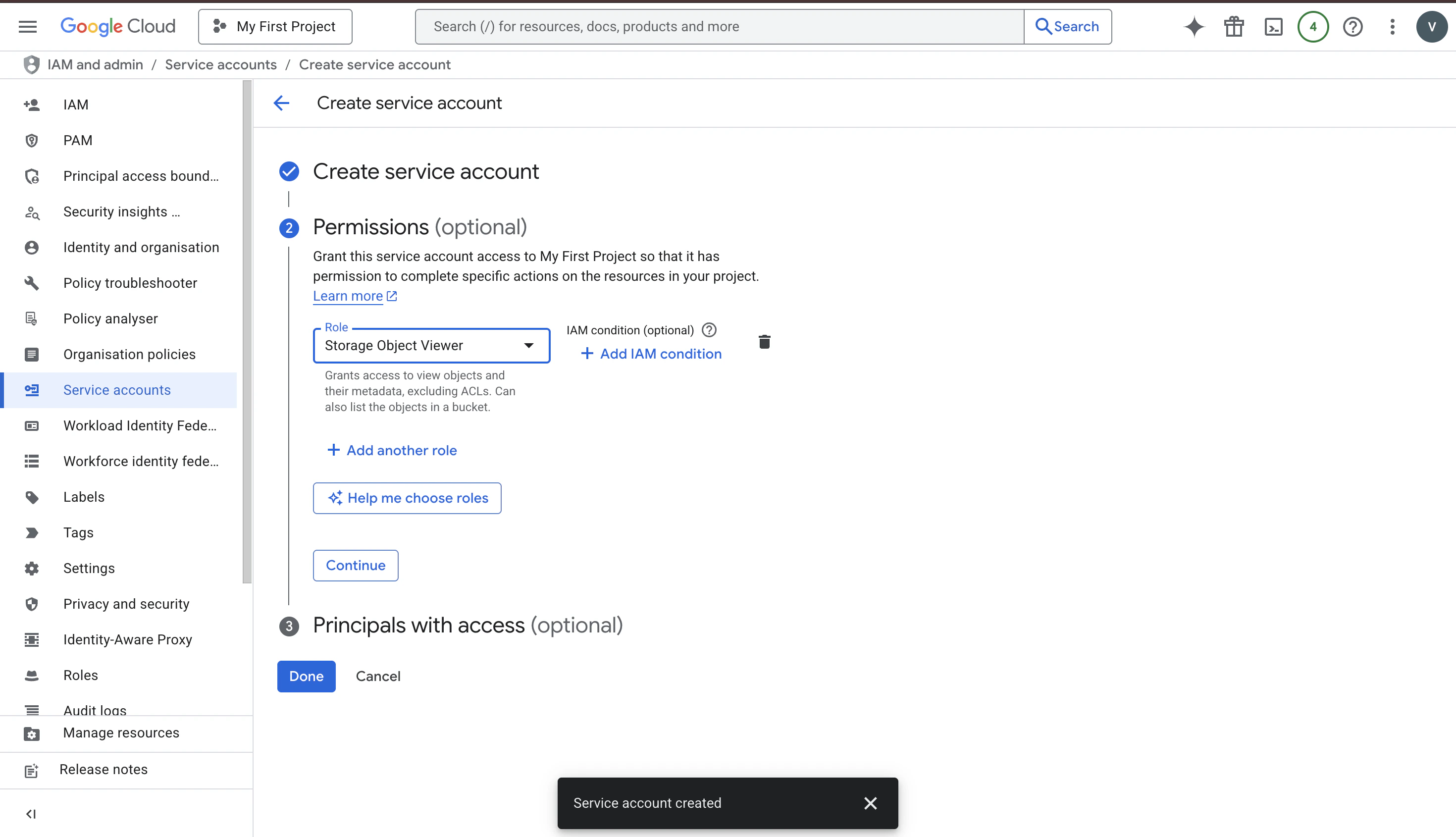
      Google Cloud needs to know what this service account is allowed to do. We only want it to **read** files — never write or delete.

      1. In the **Role** dropdown, search for and select **Storage Object Viewer**. This is read-only access to everything in GCS.
      2. Click **Continue**, then **Done**.

      <div className="text-center">
        <img src="https://mintcdn.com/pipeshub/oYMVWTGiinzYyRHK/images/connectors/gcs/grant_permissions.png?fit=max&auto=format&n=oYMVWTGiinzYyRHK&q=85&s=58351546fe1daebdf05317ac5bf0b227" alt="Grant Storage Object Viewer role" className="block mx-auto w-11/12" width="2940" height="1690" data-path="images/connectors/gcs/grant_permissions.png" />
      </div>

      <Info>
        Want to limit it to just one or two buckets instead of everything? See **Advanced Configuration** further down for a custom role.
      </Info>

      ### Step 3: Download the key file

      This is the file you'll upload to PipesHub.

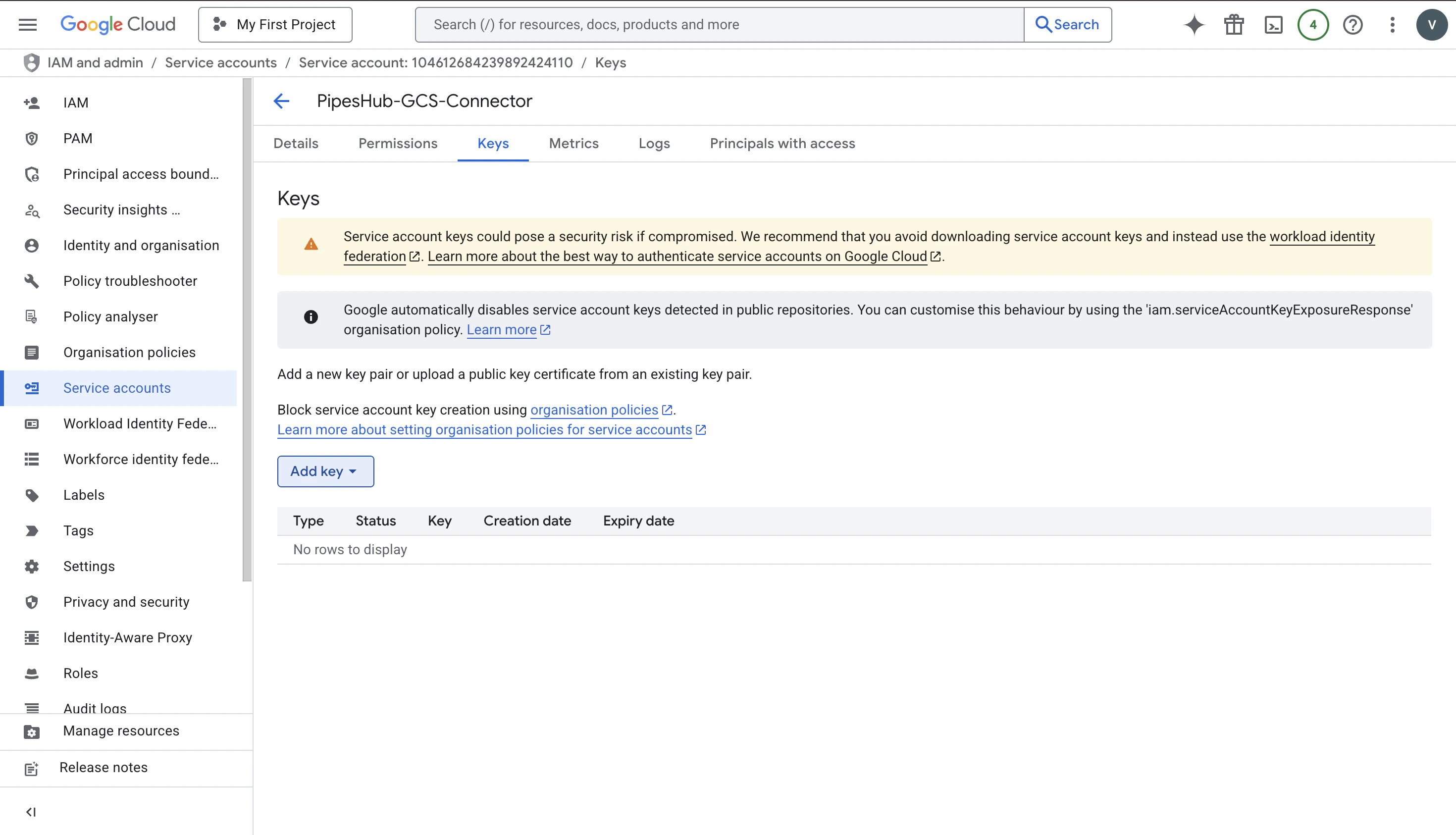
      1. You'll land on the list of service accounts. Click the one you just made.
      2. Open the **Keys** tab.
      3. Click **Add Key → Create new key**.

      <div className="text-center">
        <img src="https://mintcdn.com/pipeshub/oYMVWTGiinzYyRHK/images/connectors/gcs/add_key.png?fit=max&auto=format&n=oYMVWTGiinzYyRHK&q=85&s=faf953db370454b4ffe861f12d78d3a3" alt="Add Key menu open" className="block mx-auto w-11/12" width="2940" height="1686" data-path="images/connectors/gcs/add_key.png" />
      </div>

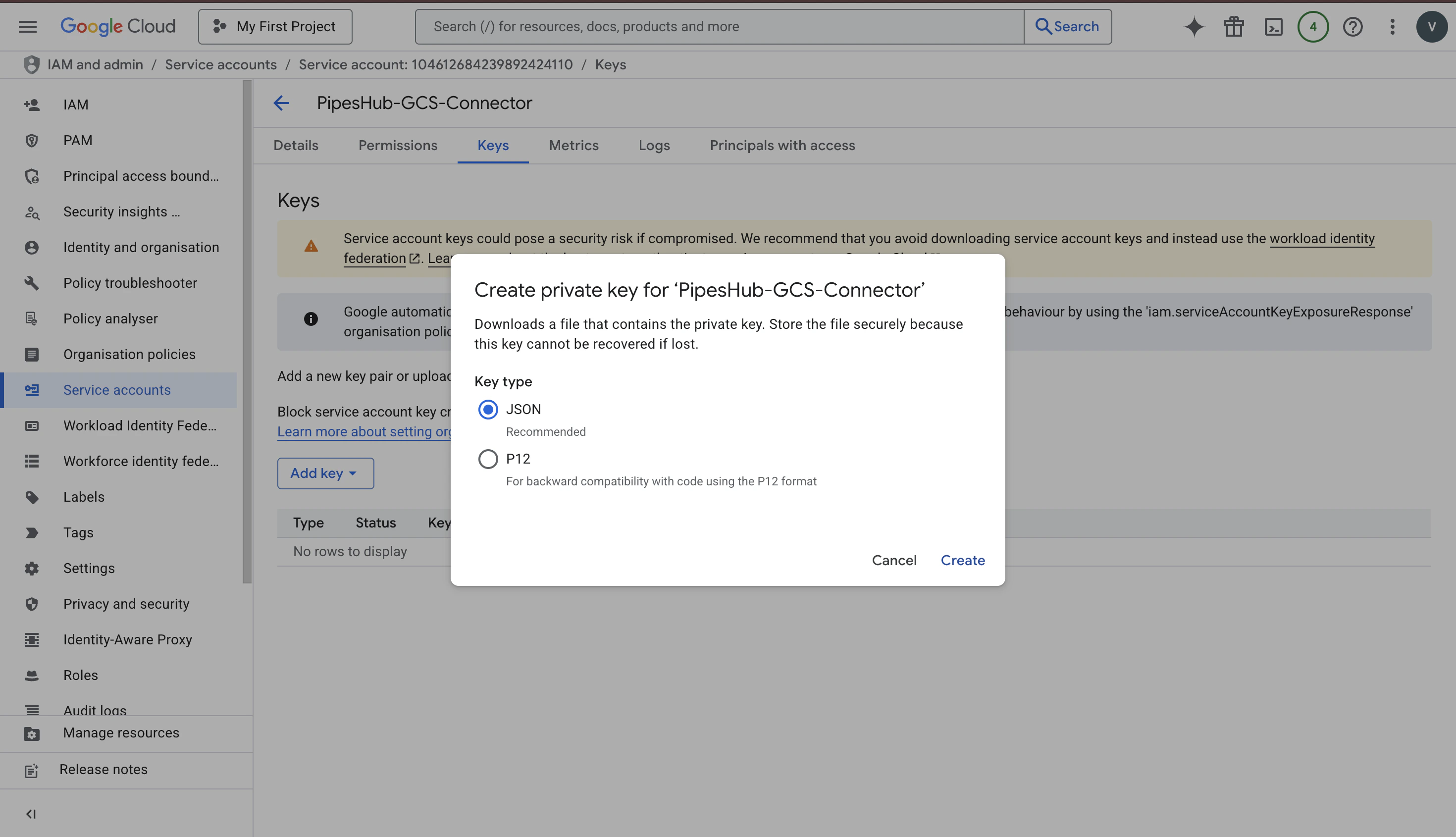
      4. Choose **JSON** and click **Create**.

      <div className="text-center">
        <img src="https://mintcdn.com/pipeshub/oYMVWTGiinzYyRHK/images/connectors/gcs/create_json_key.png?fit=max&auto=format&n=oYMVWTGiinzYyRHK&q=85&s=7998754d0af3ce7bb0dafc77f41125b7" alt="Create private key dialog with JSON selected" className="block mx-auto w-11/12" width="2940" height="1690" data-path="images/connectors/gcs/create_json_key.png" />
      </div>

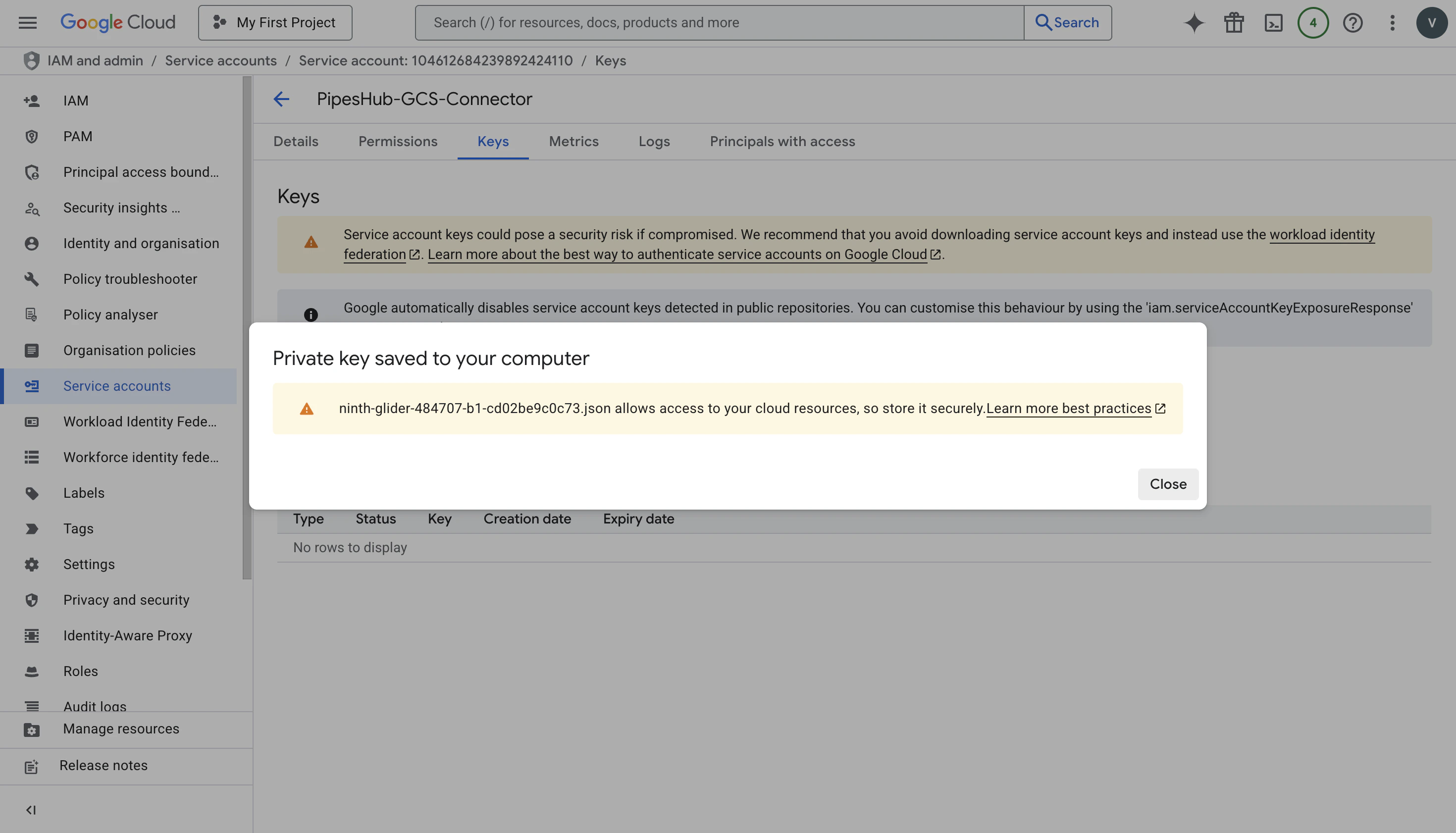
      5. A `.json` file downloads automatically. Keep it somewhere safe — you can't download it again later.

      <Warning>
        **Treat this file like a password.** Anyone who gets it can read the same files. Don't email it, don't check it into Git, don't paste it in chat. If you ever think it leaked, delete the key in Google Cloud and create a new one.
      </Warning>

      <div className="text-center">
        <img src="https://mintcdn.com/pipeshub/oYMVWTGiinzYyRHK/images/connectors/gcs/download_key.png?fit=max&auto=format&n=oYMVWTGiinzYyRHK&q=85&s=2250fa1f241cdc2a13b044b9ecf909e1" alt="Key file downloaded" className="block mx-auto w-11/12" width="2940" height="1682" data-path="images/connectors/gcs/download_key.png" />
      </div>

      That's the Google Cloud side done. Now over to PipesHub.

      ### Part B — In PipesHub (about 3 minutes)

      ### Step 4: Open the GCS connector

      1. In PipesHub, click **Workspace → Connectors** on the left sidebar.
      2. Find the tile called **GCS** ("Sync files and folders from Google Cloud Storage").
      3. Click **+ Setup** on that tile.

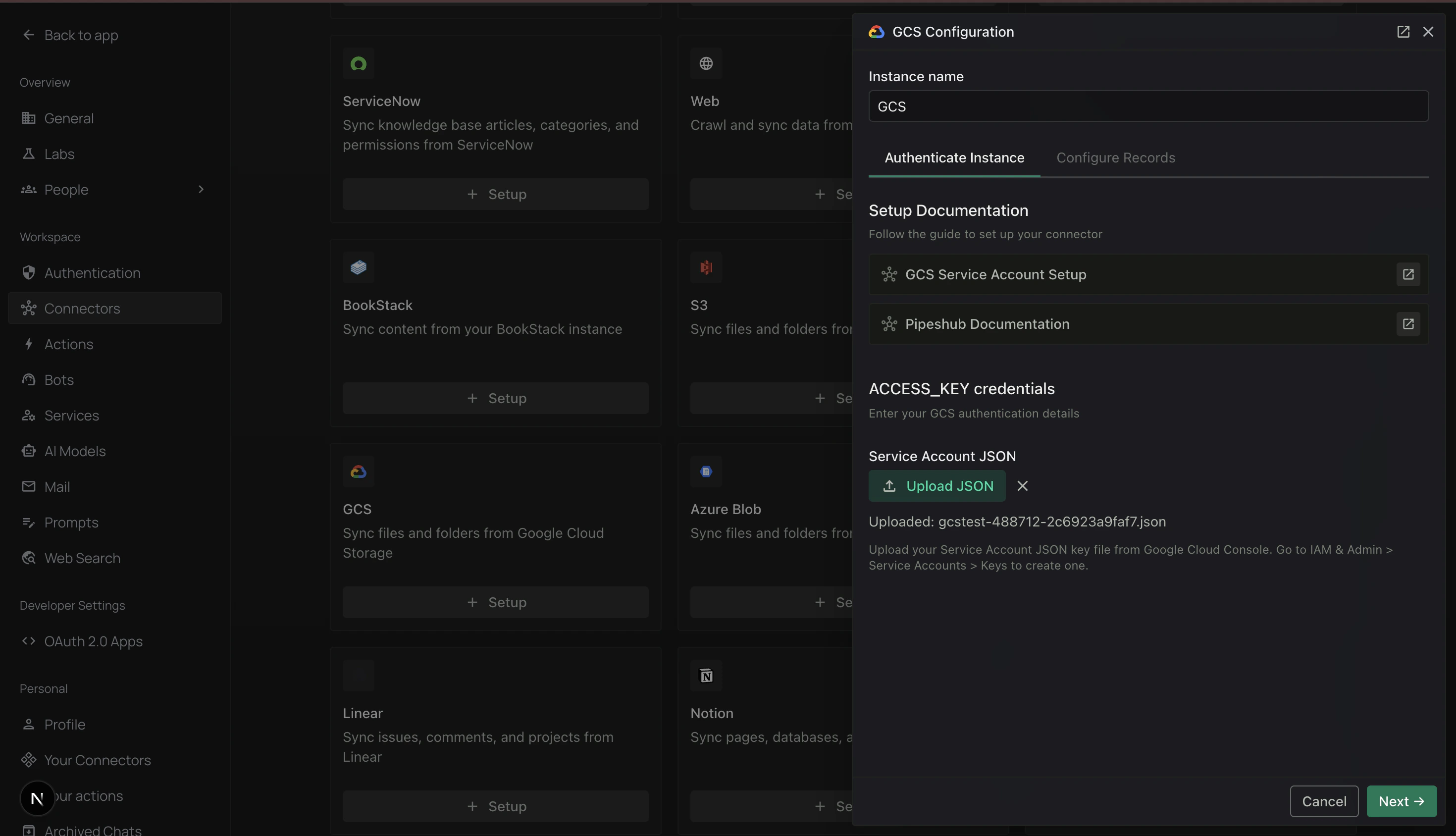
      A panel slides in from the right with two tabs: **Authenticate Instance** and **Configure Records**. You'll fill them in order.

      ### Step 5: Upload your key (Authenticate Instance tab)

      <div className="text-center">
        <img src="https://mintcdn.com/pipeshub/YDZ-RzmYoGDPDhvZ/images/connectors/gcs/authenticate_tab.png?fit=max&auto=format&n=YDZ-RzmYoGDPDhvZ&q=85&s=e95991b03d3413dc9091e4a5b0bc94eb" alt="Authenticate Instance tab with the Service Account JSON uploaded" className="block mx-auto w-11/12" width="2940" height="1688" data-path="images/connectors/gcs/authenticate_tab.png" />
      </div>

      1. **Instance name** — Type a friendly name like `GCS` or `Marketing GCS`. This is just a label for you.
      2. **Service Account JSON** — Click **Upload JSON** and pick the `.json` file you downloaded in Step 3. Once it's uploaded, you'll see its filename on screen.
      3. Click **Next →**.

      <Warning>
        Upload the **original file** Google gave you — don't copy-paste its contents into a new file. If any character is off, sign-in will fail.
      </Warning>

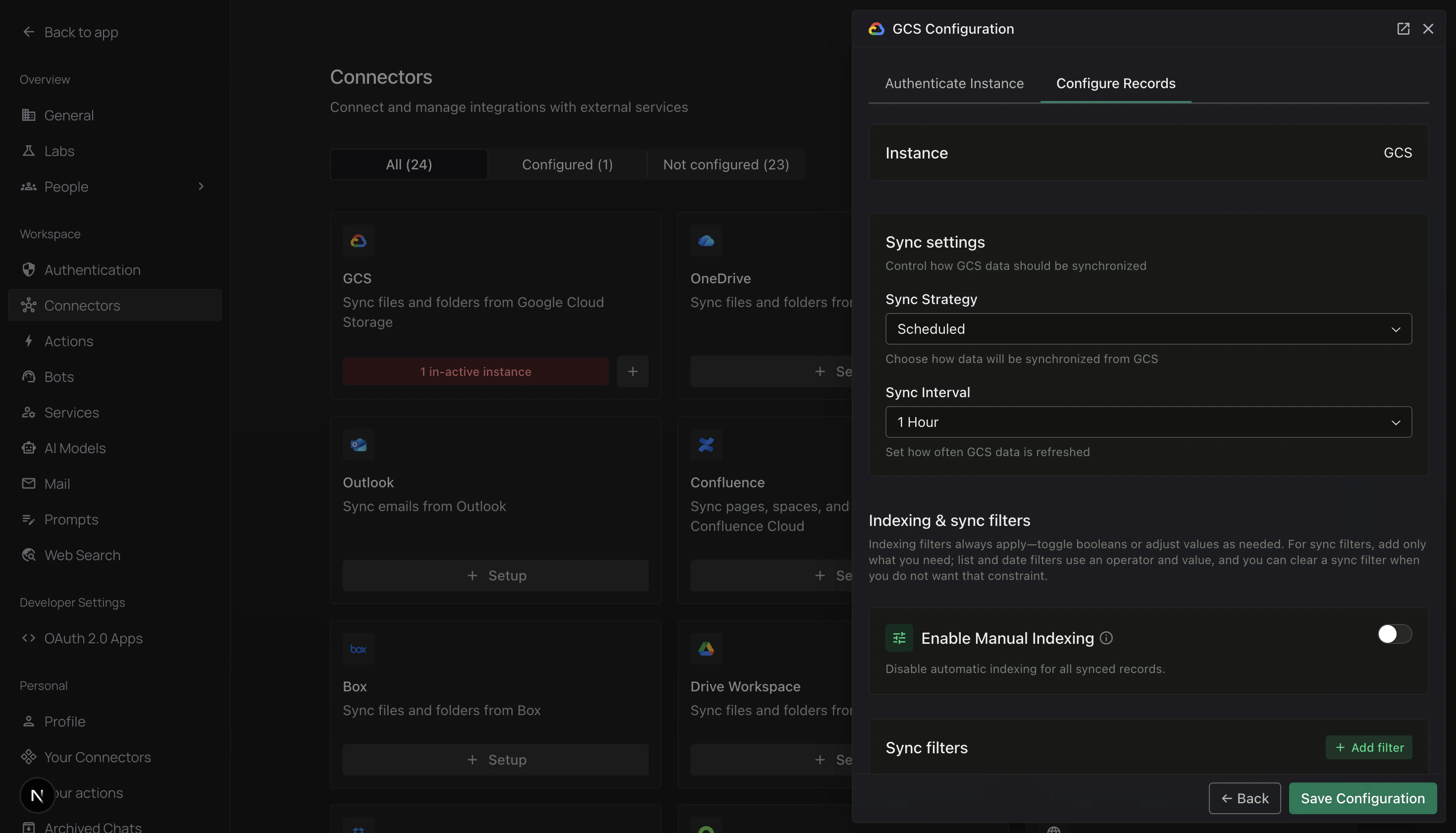
      ### Step 6: Decide how often to sync (Configure Records tab)

      <div className="text-center">
        <img src="https://mintcdn.com/pipeshub/YDZ-RzmYoGDPDhvZ/images/connectors/gcs/configure_tab.png?fit=max&auto=format&n=YDZ-RzmYoGDPDhvZ&q=85&s=380c68691fc44dd87344d9249ba58f1c" alt="Configure Records tab — Sync settings" className="block mx-auto w-11/12" width="2940" height="1682" data-path="images/connectors/gcs/configure_tab.png" />
      </div>

      At the top of this tab, set how the connector should keep PipesHub up to date:

      * **Sync Strategy**
        * **Scheduled** — runs on its own. (Recommended for most people.)
        * **Manual** — only runs when you click the sync button yourself.
      * **Sync Interval** — how often a scheduled sync happens. **1 Hour** is the default. You can pick 15 min, 30 min, 4 hours, or 24 hours.

      <Info>
        Not sure? Leave it on **Scheduled** every **1 Hour**. You can change it any time.
      </Info>

      ### Step 7: Choose what to pull in (still on Configure Records)
      <div className="text-center">
        <img src="https://mintcdn.com/pipeshub/YDZ-RzmYoGDPDhvZ/images/connectors/gcs/filters.png?fit=max&auto=format&n=YDZ-RzmYoGDPDhvZ&q=85&s=5c8ef2c0ae04972ea9c2a1e37e82b08a" alt="+ Add filter dropdown with Bucket Names, File Extensions, Modified Date, Created Date" className="block mx-auto w-11/12" width="2940" height="1678" data-path="images/connectors/gcs/filters.png" />
      </div>

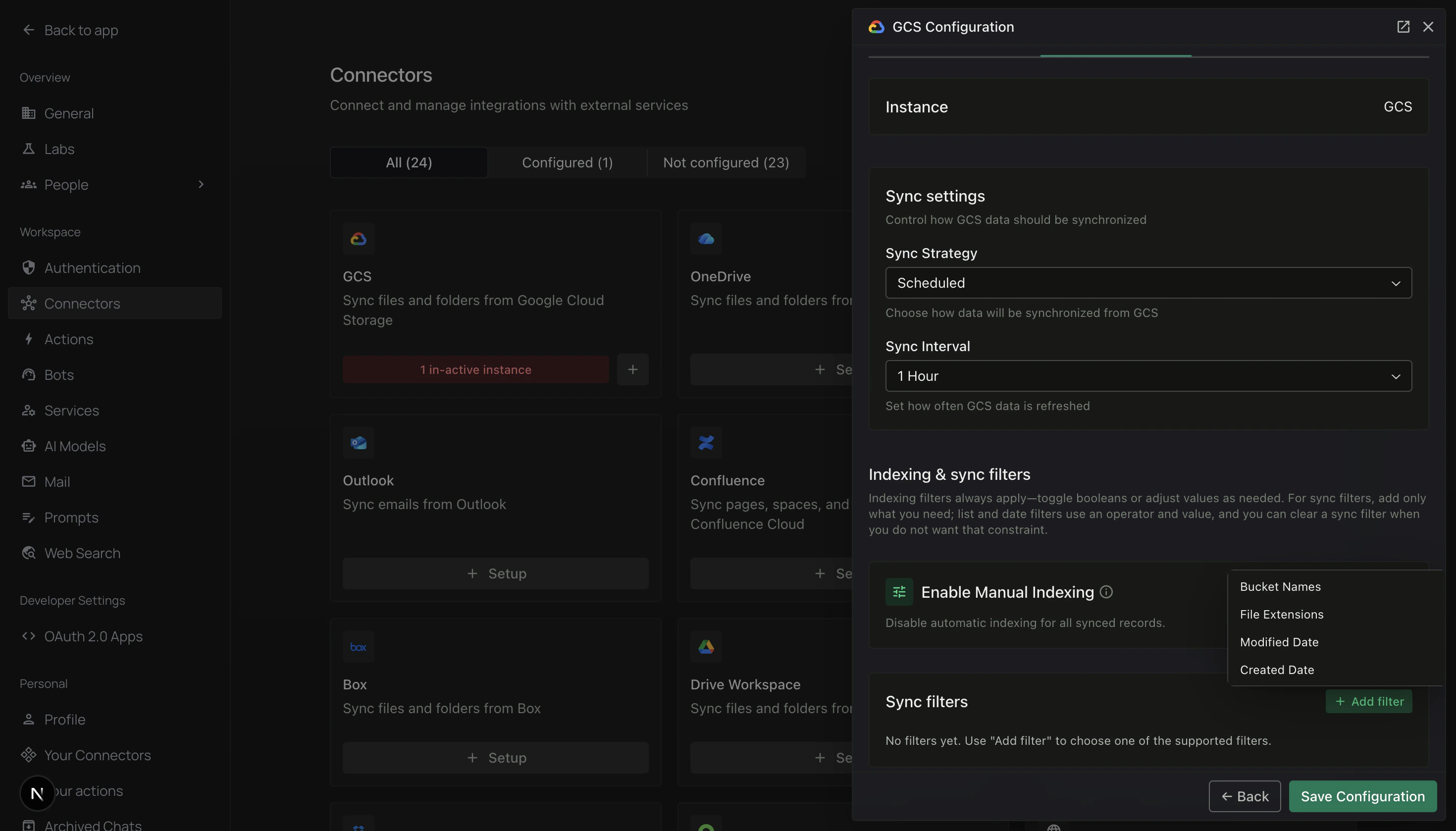
      Scroll down to **Indexing & sync filters**. By default, the connector will pull in **everything** it has access to. That's usually too much. Filters let you trim it down.

      Click **+ Add filter** and pick one or more:

      | Filter              | What it does                                                                               | When to use it                                     |
      | ------------------- | ------------------------------------------------------------------------------------------ | -------------------------------------------------- |
      | **Bucket Names**    | Only sync specific buckets. The list is auto-filled from your Google Cloud project.        | You only care about one or two buckets out of many |
      | **File Extensions** | Only sync certain file types. Enter extensions separated by commas, like `pdf, docx, txt`. | You only want documents, not images or videos      |
      | **Modified Date**   | Only sync files changed after/before/between certain dates.                                | You want to skip very old files                    |
      | **Created Date**    | Like Modified Date, but based on when the file was first uploaded.                         | Same idea, different timestamp                     |

      Each filter has an operator — usually **In** ("only these") or **Not In** ("everything except these").

      There's also an **Enable Manual Indexing** toggle. Leave it off unless someone on your team has told you otherwise — with it off, synced files become searchable automatically.

      When you're happy, click **Save Configuration**.

      <Info>
        **Start small.** Pick one bucket and maybe `pdf, docx, txt` for extensions. You can always loosen the filters later — but an initial sync over a huge bucket with no filters can take hours.
      </Info>

      ### Step 8: Turn sync on

      <div className="text-center">
        <img src="https://mintcdn.com/pipeshub/YDZ-RzmYoGDPDhvZ/images/connectors/gcs/instance_card.png?fit=max&auto=format&n=YDZ-RzmYoGDPDhvZ&q=85&s=be326024f21dc192c0251849da366681" alt="GCS instance card with the Sync Enabled toggle" className="block mx-auto w-11/12" width="2940" height="1682" data-path="images/connectors/gcs/instance_card.png" />
      </div>

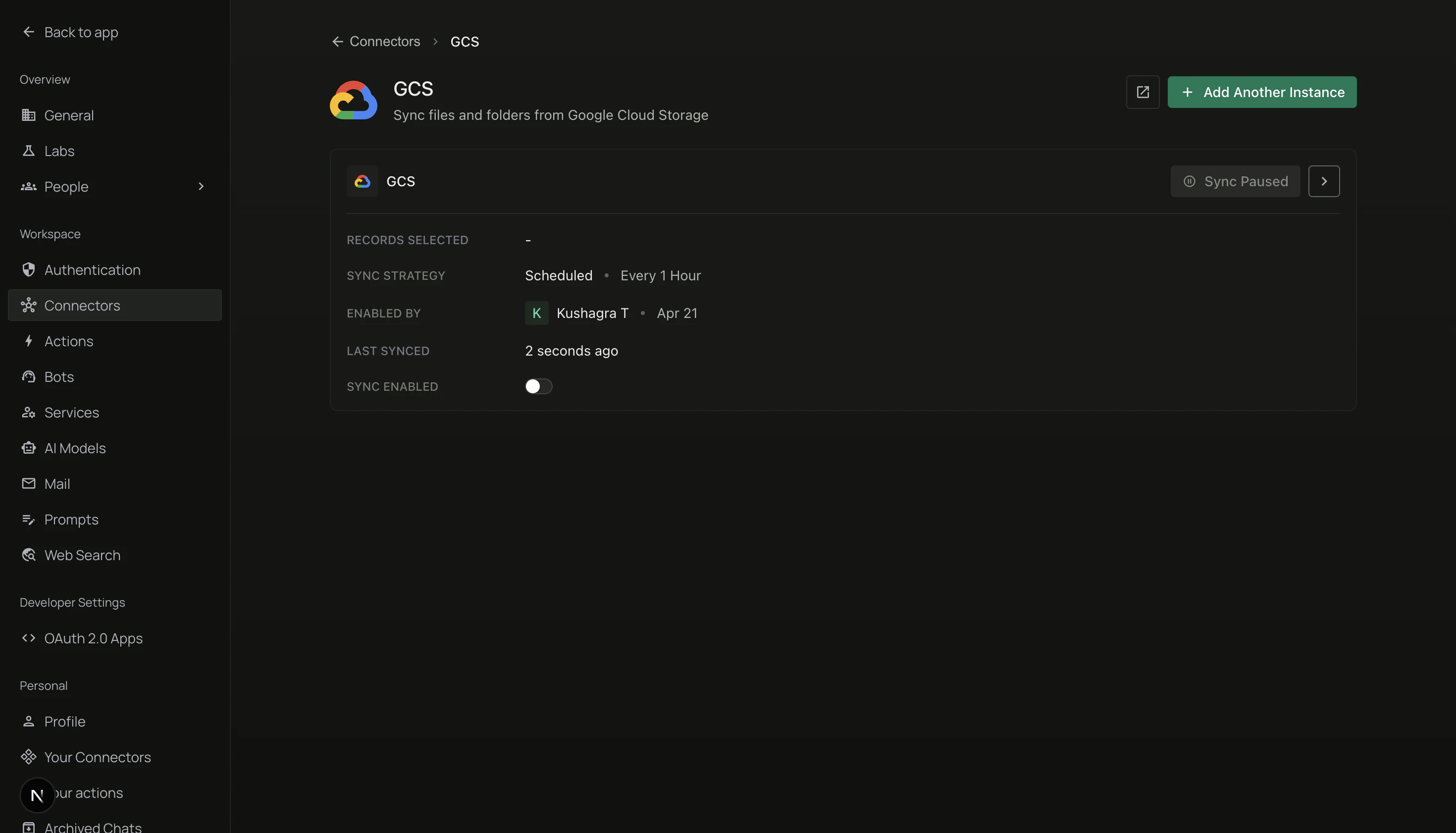
      After you save, you'll see a **GCS** card in the Connectors list. It starts out as **Sync Paused** — nothing is happening yet.

      1. Flip the **Sync Enabled** toggle on the card.
      2. The status changes to **Sync Enabled** and the initial sync starts in the background.

      Want to connect a second Google Cloud project too? Click **+ Add Another Instance** at the top and repeat from Step 4 — each instance has its own key, its own filters, its own on/off toggle.

      ### Step 9: Watch the sync progress

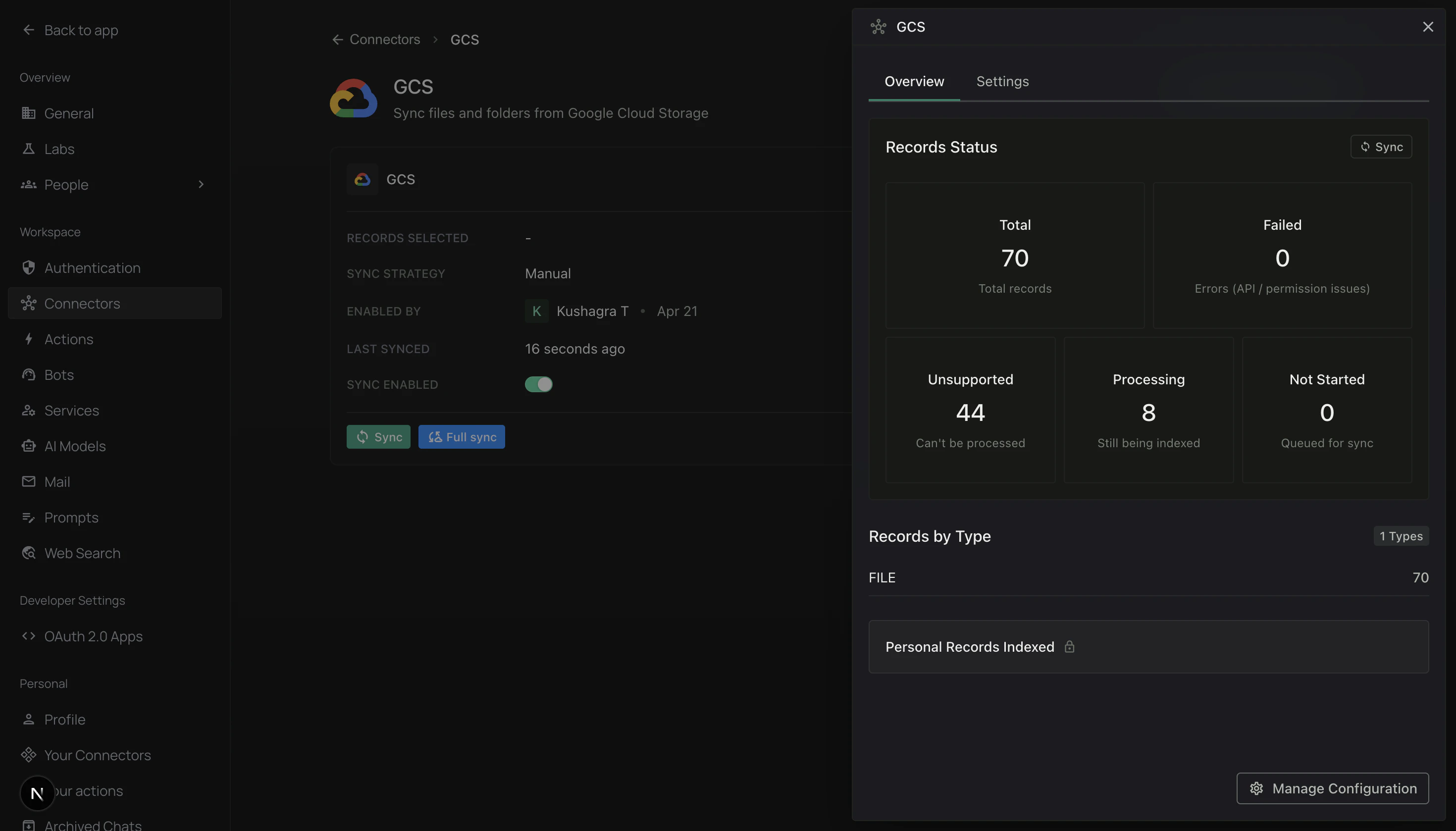
      Click the instance card to open the **Overview** panel. This is where you'll come back later to check on things.
      <div className="text-center">
        <img src="https://mintcdn.com/pipeshub/YDZ-RzmYoGDPDhvZ/images/connectors/gcs/instance_panel.png?fit=max&auto=format&n=YDZ-RzmYoGDPDhvZ&q=85&s=24f0344cd177a5f328577adc5e093b66" alt="Overview panel with Records Status tiles and Records by Type" className="block mx-auto w-11/12" width="2940" height="1678" data-path="images/connectors/gcs/instance_panel.png" />
      </div>

      **Records Status** — tells you how the sync is going:

      * **Total** — how many files the connector has picked up so far
      * **Failed** — files it couldn't read (usually a permission problem)
      * **Unsupported** — files it *can* store but can't read the text of (images, videos, archives)
      * **Processing** — files currently being read and indexed
      * **Not Started** — files waiting in the queue

      **Records by Type** — a breakdown of what kinds of files got indexed.

      **Buttons you'll use here:**

      * **Sync** — run an extra sync right now (only grabs what's changed)
      * **Full sync** — re-scan everything from scratch (use sparingly, it's slow)
      * **Manage Configuration** — re-opens the two tabs from Steps 5–7 so you can change credentials or filters later

      That's it — once **Not Started** and **Processing** both hit zero, your GCS files are fully searchable in PipesHub.
    </div>
  </Accordion>

  <Accordion title="Advanced Configuration">
    <div className="mt-4">
      ### Limiting access to specific buckets (custom role)

      **Storage Object Viewer** gives the service account read access to **every** bucket in the project. If that's more than you want, you can make a custom role with a narrower scope.

      Here's an example role with just the permissions the connector actually needs:

      ```yaml theme={null}
      title: "PipesHub GCS Read Only"
      description: "Read-only access for PipesHub's GCS connector"
      stage: "GA"
      includedPermissions:
        - storage.buckets.get
        - storage.buckets.list
        - storage.objects.get
        - storage.objects.list
      ```

      **How to apply it:**

      1. In Google Cloud Console, go to **IAM & Admin → Roles**.
      2. Click **Create Role**, paste in the permissions above, and save.
      3. Go to **IAM & Admin → Service Accounts**, open your service account, and assign the new role instead of (or in addition to) Storage Object Viewer.

      <Info>
        Want to scope the service account to one specific bucket? Skip the custom role and instead go to the bucket in GCS, open **Permissions**, and grant **Storage Object Viewer** to just your service account's email address. That's simpler than a custom role.
      </Info>
    </div>
  </Accordion>

  <Accordion title="How syncing actually works">
    <div className="mt-4">
      ### The initial sync

      When you turn the connector on, it does a full scan:

      1. Lists every bucket you gave it access to (or just the ones in your filter)
      2. Walks through every object (file) inside
      3. Grabs the file's text content so you can search it

      This is the slow one. A few thousand files takes minutes. A few million takes hours.

      <Info>
        **Want it faster?** Filters are the lever. Syncing only PDFs from one bucket is 90% quicker than syncing everything.
      </Info>

      ### Every sync after that

      Once the initial sync is done, the connector only asks Google Cloud: *"what's changed since last time?"* So scheduled syncs usually finish in 5–15 minutes no matter how big the bucket is.

      ### Who can see the synced files?

      PipesHub respects two things:

      1. **Google Cloud permissions** — the connector can only pull files the service account has access to.
      2. **The scope you picked when setting up the connector**:
         * **Personal** — only you can see the files in PipesHub
         * **Team** — everyone in your organization can see them

      Bucket-level IAM rules and ACLs in Google Cloud are also respected.

      ### Sync frequency — scheduled vs manual

      **Scheduled sync** (the default) runs on its own every hour (or whatever interval you picked). Set it and forget it.

      **Manual sync** only runs when you click **Sync** or **Full sync** on the Overview panel. Useful when:

      * You just uploaded a batch of files and want them searchable right now
      * You're testing filter changes
      * You're debugging why something didn't sync
    </div>
  </Accordion>
</AccordionGroup>

<Warning>
  If you ever rotate or delete the service account key in Google Cloud, **the connector stops working**. Open the Overview panel, click **Manage Configuration → Authenticate Instance**, and upload the new `.json` file.
</Warning>

### What this connector works with

* **All Google Cloud regions** worldwide
* **All storage classes** — Standard, Nearline, Coldline, and Archive (Archive / Coldline may be slower to read)
* **Encrypted buckets** — Google-managed encryption works out of the box

**Not supported:**

* Requester Pays buckets
* Customer-supplied encryption keys (CSEK)
* Customer-managed encryption keys (CMEK) need extra KMS permissions on the service account

### Useful links

* [Google Cloud Console](https://console.cloud.google.com)
* [GCS documentation](https://cloud.google.com/storage/docs)
* [Service account guide](https://cloud.google.com/iam/docs/service-accounts)
* [GCS IAM roles](https://cloud.google.com/storage/docs/access-control/iam-roles)
* [GCS bucket list](https://console.cloud.google.com/storage)

<div className="text-center mt-12 p-6 bg-gray-50 dark:bg-gray-800 border border-gray-200 dark:border-gray-700 rounded-lg max-w-2xl mx-auto">
  <h3 className="text-lg font-semibold mb-2">Ready to connect?</h3>

  <p className="text-gray-600 dark:text-gray-400">
    Follow the nine steps above and your GCS files will be searchable across your whole organization in minutes.
  </p>
</div>

<div className="mt-16 pt-12 border-t border-gray-200 dark:border-gray-700">
  ### Something not working?

  <AccordionGroup type="single" collapsible>
    <Accordion title="Troubleshooting" icon="circle-exclamation" defaultOpen>
      **"Invalid credentials" or "Authentication failed"**

      Usually means the JSON key file is wrong or out of date.

      * Make sure you uploaded the **original file** you downloaded from Google Cloud — not a copy-paste of the contents
      * Check the service account still exists in Google Cloud → IAM & Admin → Service Accounts
      * Check the key hasn't been deleted under the service account's **Keys** tab
      * Worst case, delete the old key, create a fresh one, and upload it via **Manage Configuration**

      ***

      **Some buckets are missing from the filter dropdown**

      The service account can only list buckets it has permission to see.

      * Give it **Storage Object Viewer** at the project level (or on each bucket individually)
      * Check you're in the right project — the connector talks to the project your JSON key came from
      * Reopen **+ Add filter → Bucket Names** to refresh the list

      ***

      **Connector shows "Sync Enabled" but no files show up**

      Walk through these in order:

      1. Are your filters too strict? Open **Manage Configuration** and check.
      2. Does the service account actually have read access to objects, not just buckets?
      3. Look at the **Failed** tile on the Overview panel — errors there will tell you why.
      4. Any files at all in the bucket you picked?

      ***

      **Initial sync is taking forever**

      Big buckets take real time. Things that help:

      * Limit to specific buckets with a **Bucket Names** filter
      * Limit to the file types you care about with **File Extensions** (e.g. `pdf, docx`)
      * Skip old files with a **Modified Date** filter
      * For gigantic buckets (millions of objects), raise the Sync Interval to 4–24 hours — less API usage, less cost

      As a rough guide, a bucket with 1 million objects takes 6–12 hours on the initial sync. Cutting it to 10% with filters gets that down to 1–2 hours.

      ***

      **Sync used to work, now it doesn't**

      Most often, the service account key was rotated or deleted in Google Cloud.

      * Check the service account's **Keys** tab — is the key you uploaded still there?
      * Create a new key and re-upload via **Manage Configuration → Authenticate Instance**
      * Also check the service account itself wasn't deleted or had its role removed

      ***

      **Files are synced but I can't find them in search**

      * **Processing** tile still above zero? Indexing hasn't finished yet — give it time.
      * Files showing as **Unsupported**? That's expected for images, videos, archives — they're stored but their content can't be read.
      * Password-protected or encrypted PDFs can't be indexed either.

      ***

      **Some files synced, others didn't**

      * Check file extension filters aren't excluding them
      * Check date filters aren't excluding them
      * Check the service account has access to those specific objects (some might live in a bucket with extra IAM rules)
      * Archive / Coldline files may take longer to fetch
    </Accordion>
  </AccordionGroup>

  ### Frequently asked questions

  <AccordionGroup type="single" collapsible>
    <Accordion title="How long does the initial sync take?" defaultOpen>
      Depends entirely on how many files are in the buckets you picked.

      | Bucket size         | Rough time    |
      | ------------------- | ------------- |
      | Under 1,000 files   | 5–15 minutes  |
      | 1,000 – 10,000      | 15–45 minutes |
      | 10,000 – 100,000    | 1–3 hours     |
      | 100,000 – 1,000,000 | 3–8 hours     |
      | 1,000,000+          | 8+ hours      |

      Using filters to sync only what you actually need is the biggest speedup.
    </Accordion>

    <Accordion title="Can I connect more than one Google Cloud project?">
      Yes. Each instance is linked to one project, but you can add as many instances as you like. Click **+ Add Another Instance** at the top of the GCS panel and repeat the setup with a different key file. Each instance has its own filters and its own on/off toggle.
    </Accordion>

    <Accordion title="Which file types can actually be searched?">
      **Fully searchable** (we can read the text):

      * Documents — PDF, DOCX, XLSX, PPTX, ODT, RTF
      * Text — TXT, MD, CSV, JSON, XML, HTML
      * Code — Python, JavaScript, Java, Go, and most others

      **Stored but not searchable by content** (they'll show up as **Unsupported**):

      * Images — JPG, PNG, GIF, SVG
      * Video and audio
      * Archives — ZIP, RAR, TAR
      * Anything password-protected or encrypted
    </Accordion>

    <Accordion title="How does the incremental sync know what's new?">
      Every file in GCS has an `updated` timestamp. After each sync, the connector remembers the most recent timestamp it saw. Next time it runs, it just asks Google Cloud for files with a newer timestamp than that. Fast and efficient.
    </Accordion>

    <Accordion title="Will it sync Archive and Coldline files?">
      Yes, but Archive and Coldline are designed for infrequent access — reading them can be slower and, depending on your Google Cloud billing, more expensive. For files you expect people to search often, Standard or Nearline storage is a better fit.
    </Accordion>

    <Accordion title="What happens when I delete a file from GCS?">
      On the next sync, the connector notices it's gone and removes it from PipesHub too — including from search results.

      If you use **object versioning** in GCS, older versions may still appear until they're also deleted.
    </Accordion>

    <Accordion title="Does it work with encrypted buckets?">
      * **Google-managed encryption** — yes, works by default
      * **Customer-managed keys (CMEK)** — yes, but the service account needs KMS decrypt permission on the key
      * **Customer-supplied keys (CSEK)** — not supported
    </Accordion>

    <Accordion title="Can I sync just one folder inside a bucket?">
      Not directly — filters work at the bucket level, not the folder level. A few workarounds:

      * Split content into separate buckets so you can pick the right one
      * Use a **File Extensions** filter if the folder you care about has a distinct file type
      * Use a **Modified Date** filter if the folder you care about has freshly-changed files

      Folder-level filtering is on our roadmap.
    </Accordion>
  </AccordionGroup>
</div>