> ## Documentation Index
> Fetch the complete documentation index at: https://docs.pipeshub.com/llms.txt
> Use this file to discover all available pages before exploring further.

# Local FS

> Index a folder on your computer for search in PipesHub

<div className="max-w-2xl mx-auto mt-12">
  <div className="p-6 border border-gray-200 dark:border-gray-700 rounded-lg bg-stone-50 dark:bg-gray-800">
    <div className="flex items-center mb-4">
      <span className="mr-3 inline-flex h-8 w-8 flex-shrink-0 items-center justify-center dark:hidden" aria-hidden="true">
        <img src="https://mintcdn.com/pipeshub/i_US5kPIyl7OSGCt/logo/local-fs.svg?fit=max&auto=format&n=i_US5kPIyl7OSGCt&q=85&s=212f15c7660211c5120f32b3988fc86d" alt="" width={32} height={32} className="h-8 w-8 object-contain" style={{ filter: 'brightness(0)' }} data-path="logo/local-fs.svg" />
      </span>

      <span className="mr-3 hidden h-8 w-8 flex-shrink-0 items-center justify-center dark:inline-flex" aria-hidden="true">
        <img src="https://mintcdn.com/pipeshub/i_US5kPIyl7OSGCt/logo/local-fs.svg?fit=max&auto=format&n=i_US5kPIyl7OSGCt&q=85&s=212f15c7660211c5120f32b3988fc86d" alt="" width={32} height={32} className="h-8 w-8 object-contain" style={{ filter: 'brightness(0) invert(1)' }} data-path="logo/local-fs.svg" />
      </span>

      <h2 className="text-2xl font-semibold m-0">Local FS</h2>
    </div>

    <p className="text-lg text-gray-700 dark:text-gray-300 mb-4">
      Index files from a folder on your computer
    </p>

    <div className="flex items-center gap-2">
      <span className="px-3 py-1 bg-green-100 dark:bg-green-900 text-green-800 dark:text-green-200 rounded-full text-sm font-medium">
        ✅ Ready
      </span>

      <span className="px-3 py-1 bg-blue-100 dark:bg-blue-900 text-blue-800 dark:text-blue-200 rounded-full text-sm font-medium">
        📖 Documentation Available
      </span>
    </div>
  </div>
</div>

## What is this?

**Local FS** lets you point PipesHub at a **folder on your computer** so you can **search the files in it from PipesHub chat and the knowledge base** — just like any other connector.

Three things to know up front:

* PipesHub only **reads** the folder. It doesn't move, rename, copy, or delete anything.
* There's **no login**. No password, no API key, no cloud account. You just give it a folder path.
* It's a **personal** connector — you set it up under **Workspace Settings → Your Connectors**, and the files you index are searchable by **you** inside PipesHub. It is not shared with the rest of your team.

### Words you'll see

| Word         | Means                                                                             |
| ------------ | --------------------------------------------------------------------------------- |
| **Folder**   | A regular folder on your machine (or on the machine running PipesHub).            |
| **Instance** | One Local FS setup pointing at one folder. You can have several — one per folder. |
| **Sync**     | The moment PipesHub reads the folder and updates what it knows about your files.  |

### One thing to check first — *which* computer?

The folder needs to be readable by the **machine running the PipesHub connector**, which isn't always the same as the laptop in front of you.

| How you run PipesHub                | What "the folder" means                                                                                    |
| ----------------------------------- | ---------------------------------------------------------------------------------------------------------- |
| **PipesHub on your own laptop**     | A normal folder path on your laptop, e.g. `/Users/you/Documents/notes`.                                    |
| **PipesHub Desktop app**            | Same — a folder on your laptop.                                                                            |
| **PipesHub in Docker / Kubernetes** | A folder that has been **mounted into the container**, e.g. host `/data` mounted as `/data` → use `/data`. |

If you're using Docker or a server deployment and you're not sure, ask whoever set PipesHub up. If it's just on your laptop, you're fine — pick any folder.

<Info>
  Quick check for Docker users: `docker compose exec <connectors-service> ls /path/you/will/use`. If that lists your files, you're good. If it says "No such file" or "Permission denied", the folder isn't mounted yet.
</Info>

### What you need before you start

1. A PipesHub account where you can open **Workspace Settings** (profile menu at the bottom of the main sidebar) and see **Your Connectors** under the **Personal** section.
2. A folder you want to make searchable.
3. About 2 minutes. There's no cloud setup at all.

***

## Setup

<AccordionGroup type="single" collapsible>
  <Accordion title="Setup" defaultOpen>
    <div className="mt-4">
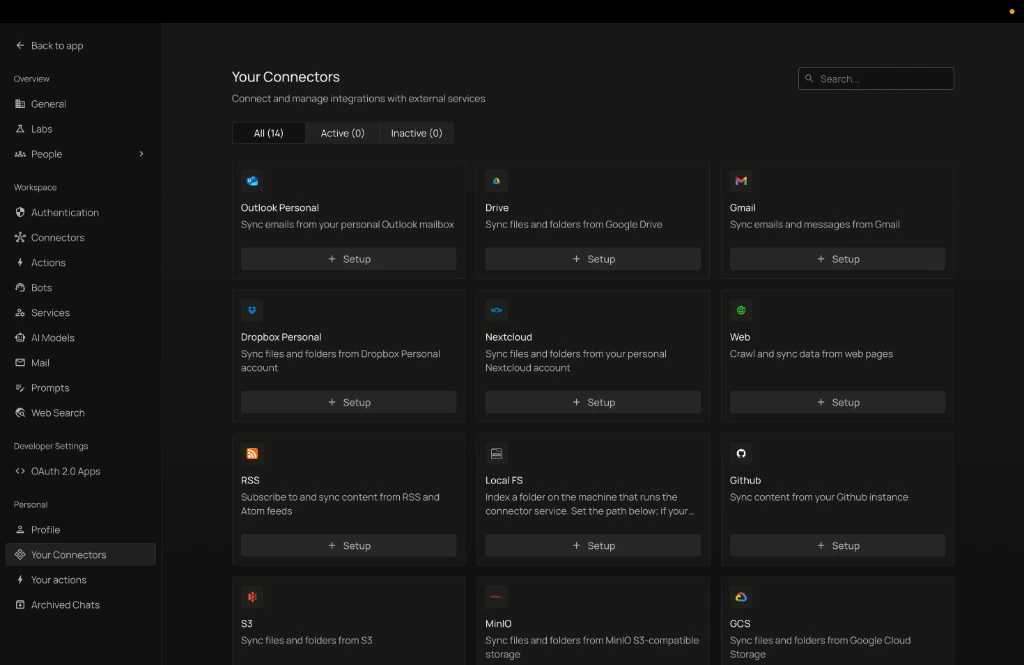
      ### Step 1 — Open Local FS in PipesHub

      1. In the main app, open your **user profile** menu at the bottom of the left sidebar, then choose **Workspace Settings**.
      2. In the workspace settings sidebar, under **Personal**, click **Your Connectors**.
      3. Find the **Local FS** card.
      4. Click **+ Setup** on the card.

      <div className="text-center">
        <img src="https://mintcdn.com/pipeshub/lfMHxjM8iO6E6DNY/images/connectors/local-fs/your_connectors_catalog.png?fit=max&auto=format&n=lfMHxjM8iO6E6DNY&q=85&s=da190a5ecaaa081236fa25ffde8513b9" alt="Your Connectors catalog with Local FS and + Setup" className="block mx-auto w-11/12" width="1024" height="665" data-path="images/connectors/local-fs/your_connectors_catalog.png" />
      </div>

      A panel slides in from the right with two tabs: **Authenticate Instance** and **Configure Records**. You'll fill them in order.

      <Info>
        Local FS is a **personal** connector — set it up from **Workspace Settings → Your Connectors**, not **Workspace Settings → Connectors** (team scope). Open Workspace Settings from the profile menu at the bottom of the main sidebar; do not use the **Personal** section of the main app sidebar (that area is for actions like toolsets, not connector setup).
      </Info>

      ***

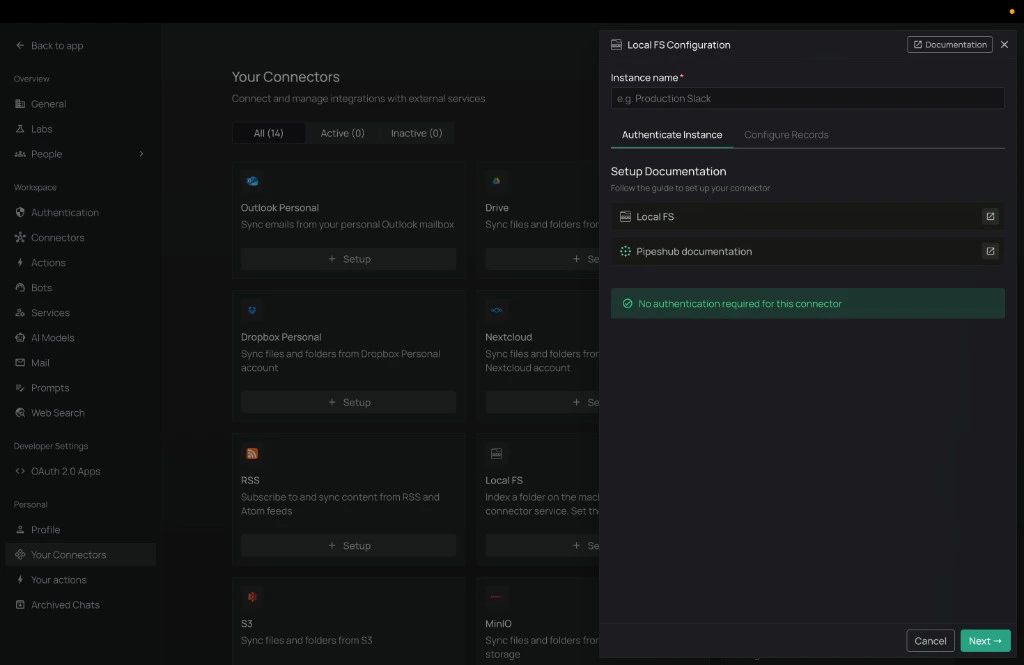
      ### Step 2 — Name the instance (Authenticate Instance tab)

      The first tab is **Authenticate Instance**. Local FS has no login, so you'll see a banner that says **No authentication required for this connector.** That's normal — there's nothing to paste.

      <div className="text-center">
        <img src="https://mintcdn.com/pipeshub/lfMHxjM8iO6E6DNY/images/connectors/local-fs/authenticate_tab.png?fit=max&auto=format&n=lfMHxjM8iO6E6DNY&q=85&s=e6378f0a05434a9848b81961df6556d7" alt="Authenticate Instance tab — no credentials needed" className="block mx-auto w-11/12" width="1024" height="665" data-path="images/connectors/local-fs/authenticate_tab.png" />
      </div>

      1. In **Instance name**, type a short name you'll recognise later (for example `My laptop` or `Work notes`).
      2. Click **Next →** at the bottom.

      <Info>
        The instance name is just a label for you. Pick something descriptive — when you add a second folder later, this is how you'll tell them apart.
      </Info>

      ***

      ### Step 3 — Pick the folder and how often to sync (Configure Records tab)

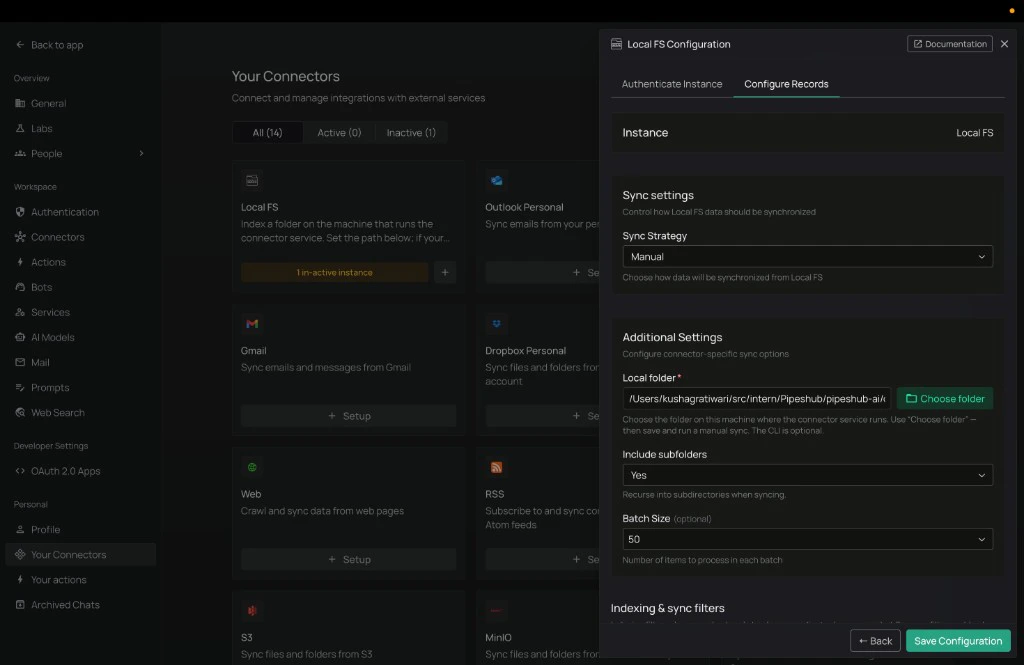
      The panel moves you to the **Configure Records** tab. This is the only tab where you actually have to make choices.

      <div className="text-center">
        <img src="https://mintcdn.com/pipeshub/lfMHxjM8iO6E6DNY/images/connectors/local-fs/configure_tab.png?fit=max&auto=format&n=lfMHxjM8iO6E6DNY&q=85&s=d8b08d63465557a0ab06773be01d30d2" alt="Configure Records tab with Sync settings and the Local folder field" className="block mx-auto w-11/12" width="1024" height="665" data-path="images/connectors/local-fs/configure_tab.png" />
      </div>

      Under **Sync settings** there are two choices:

      * **Sync Strategy**
        * **Scheduled** — PipesHub rescans the folder on its own. (Recommended.)
        * **Manual** — only rescans when you press **Sync** / **Full sync** yourself.
      * **Sync Interval** — how often a scheduled sync runs. **1 Hour** is a good starting point.

      Under **Additional settings**:

      * **Local folder** — the **path to the folder** you want to index. Use **Choose folder** if a picker is shown, or type the path directly. Make sure it's a path the **PipesHub connector** can see (see "Which computer?" above).
      * **Include subfolders** — leave this on to index everything inside the folder. Turn it off to index only the files at the top level.
      * **Batch size** — leave it as the default unless someone has told you otherwise.

      <Info>
        Not sure what to pick? **Scheduled**, **1 Hour**, **Include subfolders ON**, batch size as-is — that's the right answer for most people.
      </Info>

      <Warning>
        Just turning the connector "on" later won't read your files by itself. PipesHub still needs either a **manual sync** or a **schedule** to actually walk the folder. Step 6 covers running a sync.
      </Warning>

      ***

      ### Step 4 — (Optional) Narrow down what gets synced

      If your folder has lots of files you don't care about (build outputs, photos, downloads), you can tell PipesHub to skip them.

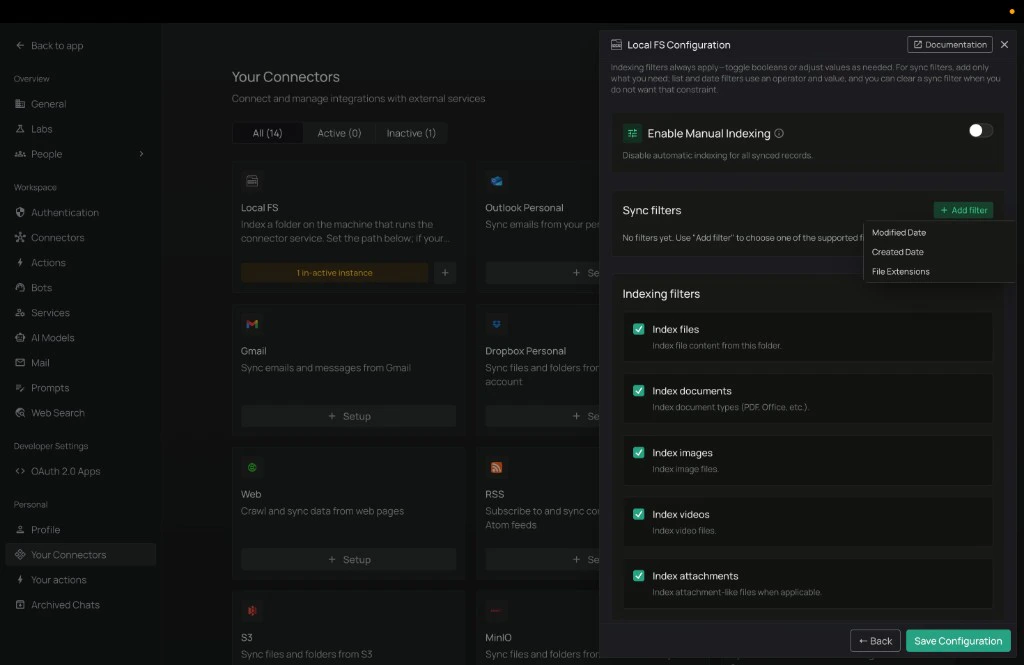
      Scroll to **Indexing & sync filters** and click **+ Add filter**.
      <div className="text-center">
        <img src="https://mintcdn.com/pipeshub/lfMHxjM8iO6E6DNY/images/connectors/local-fs/filters_section.png?fit=max&auto=format&n=lfMHxjM8iO6E6DNY&q=85&s=07d5476f098a20cb0d137f4bdaaba65a" alt="Indexing & sync filters with + Add filter" className="block mx-auto w-11/12" width="1024" height="665" data-path="images/connectors/local-fs/filters_section.png" />
      </div>

      Common filters:

      | Filter              | What it does                                                          | When to use it                                          |
      | ------------------- | --------------------------------------------------------------------- | ------------------------------------------------------- |
      | **File Extensions** | Only sync certain file types. Comma-separated, e.g. `pdf, docx, txt`. | You only want documents — not images, videos, archives. |
      | **Modified Date**   | Only sync files changed after / before / between certain dates.       | You want to skip very old files.                        |
      | **Created Date**    | Same idea as Modified Date but for the original creation time.        | Same idea, different timestamp.                         |

      Each filter has an operator — usually **In** ("only these") or **Not In** ("everything except these").

      Quick examples:

      * **PDFs only** — *File Extensions* · *In* · `pdf`
      * **Skip images and archives** — *File Extensions* · *Not In* · `jpg, png, gif, zip`
      * **Last year only** — *Modified Date* · *After* · pick a date

      When you're done, click **Save Configuration** at the bottom of the panel.

      <Info>
        No filters? That's fine for small folders. PipesHub will just sync everything it can read.
      </Info>

      ***

      ### Step 5 — Turn sync on

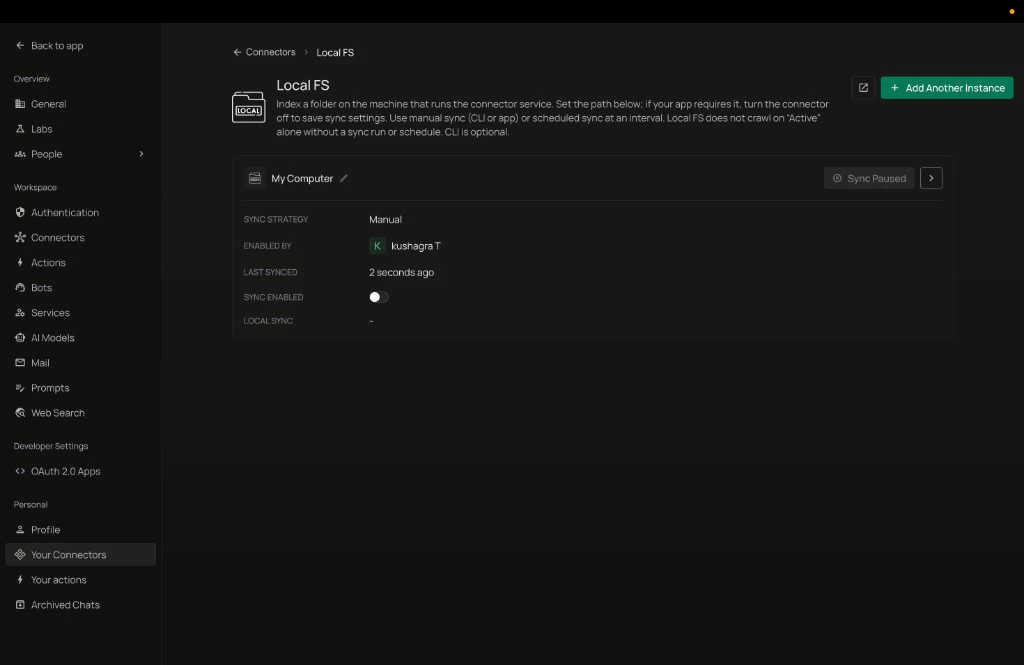
      After you save, you'll land on the **Local FS** instance page with one row — your new instance.

      <div className="text-center">
        <img src="https://mintcdn.com/pipeshub/lfMHxjM8iO6E6DNY/images/connectors/local-fs/instance_row.png?fit=max&auto=format&n=lfMHxjM8iO6E6DNY&q=85&s=6ee40c817c9c1f7397684f59ef2f0d65" alt="Local FS instance row with Sync Enabled toggle" className="block mx-auto w-11/12" width="1024" height="665" data-path="images/connectors/local-fs/instance_row.png" />
      </div>

      Right now the row shows **Sync Paused** — nothing is happening yet.

      1. Find the **Sync Enabled** toggle on the right of the row.
      2. Click it on.

      The status flips to **Sync Enabled** and PipesHub is ready to scan your folder.

      ***

      ### Step 6 — Run the first sync and watch progress

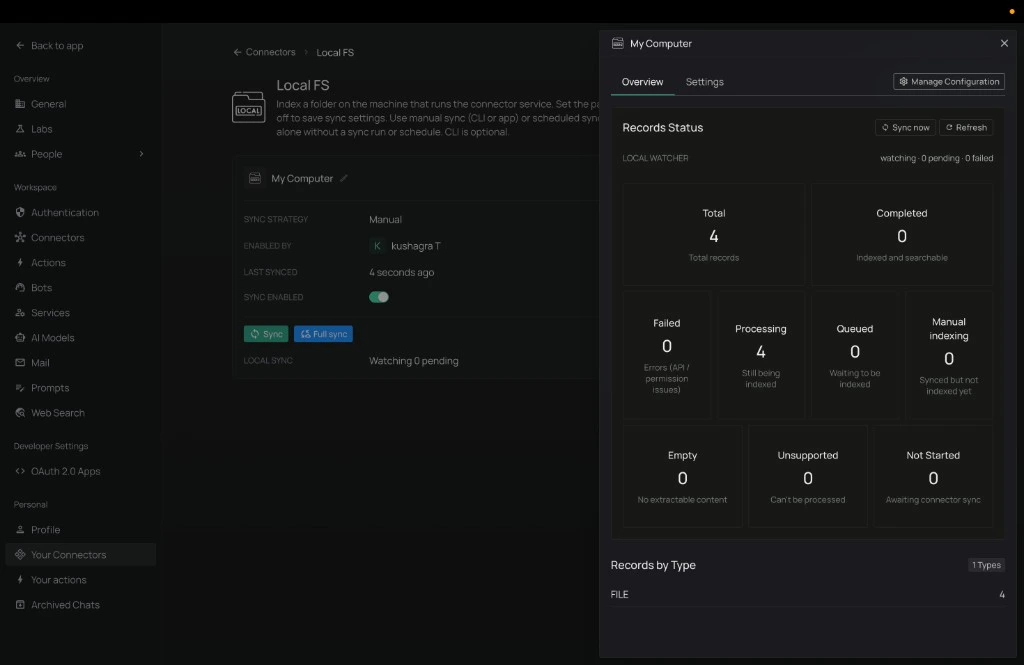
      Click anywhere on the instance row to open the **Overview** panel on the right.
      <div className="text-center">
        <img src="https://mintcdn.com/pipeshub/lfMHxjM8iO6E6DNY/images/connectors/local-fs/instance_overview.png?fit=max&auto=format&n=lfMHxjM8iO6E6DNY&q=85&s=36865c220890092f77852070cc1e9652" alt="Overview panel with record stats and sync actions" className="block mx-auto w-11/12" width="1024" height="665" data-path="images/connectors/local-fs/instance_overview.png" />
      </div>

      If you picked **Manual** sync strategy in Step 3, click **Sync** or **Full sync** here to kick off the first crawl. If you picked **Scheduled**, the next sync will run at the interval you set (or click **Sync** if you don't want to wait).

      In the panel you can see:

      * **Total** — how many files PipesHub has found.
      * **Completed** — files that are fully indexed and searchable.
      * **Processing** — files being read right now.
      * **Queued** / **Not Started** — files waiting their turn.
      * **Failed** — files PipesHub couldn't read (usually a permission issue, or a corrupt/protected file).
      * **Sync** / **Full sync** — re-run a sync any time. **Full sync** rescans everything; **Sync** picks up only what's changed.
      * **Manage Configuration** — re-opens the two tabs from Steps 2–4 if you want to change the folder or filters later.

      That's it! 🎉 Once **Processing** and **Queued** drop to zero, your folder is fully searchable in PipesHub.
    </div>
  </Accordion>

  <Accordion title="How syncing works">
    <div className="mt-4">
      ### First sync (full scan)

      The first time, PipesHub walks **every file** in the folder you chose (and every subfolder, if you left that option on). Bigger folders take longer:

      | Number of files  | Roughly how long     |
      | ---------------- | -------------------- |
      | Under 1,000      | A few minutes        |
      | 1,000 – 10,000   | 10 – 30 minutes      |
      | 10,000 – 100,000 | 30 minutes – 2 hours |
      | Over 100,000     | Several hours        |

      Tip: filtering by file extension (e.g. PDFs only) makes the first sync dramatically faster.

      ### Later syncs (just what changed)

      After the first sync, PipesHub only looks at **what's different** since last time:

      * New files — added to search.
      * Edited files — re-indexed.
      * Deleted files — removed from search.

      These are usually quick.

      ### Who can see the synced files?

      Local FS is registered as a **personal** connector. Only **your** PipesHub user can search the files indexed by your instance. It does not change permissions on disk in any way.

      ### Scheduled vs Manual

      **Scheduled** runs on its own at the interval you picked. Set it once and forget about it.

      **Manual** only runs when you click **Sync** or **Full sync**. Useful when:

      * You just dropped a batch of files into the folder and want them searchable now.
      * You're testing filter changes.
    </div>
  </Accordion>

  <Accordion title="What PipesHub can read">
    <div className="mt-4">
      ### Fully searchable (text inside the file)

      These get parsed so you can search the actual contents:

      * Documents — **PDF**, **DOCX**, **PPTX**, **XLSX**, **ODT**, **RTF**
      * Plain text — **TXT**, **MD**, **CSV**, **JSON**, **XML**, **HTML**
      * Code — **.py**, **.js**, **.ts**, **.java**, and most others

      ### Stored but not searched inside

      These show up by **filename and metadata**, but their contents aren't indexed:

      * Images (JPG, PNG, GIF, …)
      * Video and audio
      * Archives (ZIP, RAR, …)
      * Other binary files

      Password-protected PDFs and Office files can't be indexed unless they're unlocked.
    </div>
  </Accordion>
</AccordionGroup>

***

## Troubleshooting

<AccordionGroup type="single" collapsible>
  <Accordion title="The connector says it can't find my folder">
    This almost always means the path is on **your laptop** but PipesHub is running **somewhere else** (Docker, a server, Kubernetes).

    * If you're using Docker: the folder must be **mounted** into the container. Test with `docker compose exec <connectors-service> ls /your/path`.
    * Check Windows vs Mac/Linux path style matches the OS the connector is running on (e.g. don't paste `C:\Users\...` into a Linux container).
    * Make sure the user the connector runs as has **read permission** on the folder.
  </Accordion>

  <Accordion title="Sync runs but I see 0 files">
    * The folder might genuinely be empty, or all the files might live in subfolders while **Include subfolders** is off.
    * Your filters might be excluding everything — open **Manage Configuration** and double-check.
    * Confirm the files exist where you think they do (`ls` on Mac/Linux, File Explorer on Windows) on the **machine running the connector**.
  </Accordion>

  <Accordion title="Some files synced but they don't appear in search">
    * Allow a minute or two for indexing to finish — large files take longer.
    * Check the file type is one PipesHub can read inside (see **What PipesHub can read**).
    * Password-protected PDFs and Office files won't be indexed.
    * Files showing in **Failed** on the Overview panel will tell you why — usually a permissions problem.
  </Accordion>

  <Accordion title="Scheduled sync never seems to run">
    * Make sure **Sync Strategy** is set to **Scheduled** and **Sync Interval** has a value.
    * Confirm **Sync Enabled** on the instance card is on (not paused).
    * Check the connector process is running and healthy.
  </Accordion>

  <Accordion title="It worked locally but broke after a deploy">
    If you moved PipesHub to a new server or container, the old folder path probably doesn't exist there.

    * Re-mount your folder in the new environment (or copy the files).
    * Open the instance, click **Manage Configuration**, update **Local folder** to the new path, and save.
  </Accordion>
</AccordionGroup>

***

## Frequently asked questions

<AccordionGroup type="single" collapsible>
  <Accordion title="Does PipesHub modify or delete my files?">
    No. The connector only **reads** files to build search records. It never writes back to your folder.
  </Accordion>

  <Accordion title="Can I share the indexed files with my team?">
    Local FS is registered as a **personal** connector — only your PipesHub user can search files indexed by your instance. For team-wide file sharing, use a cloud connector (S3, GCS, Azure Blob, Google Drive, OneDrive, etc.).
  </Accordion>

  <Accordion title="What happens if I delete a file on disk?">
    On the next sync, PipesHub notices it's gone and removes it from search.
  </Accordion>

  <Accordion title="Can I connect more than one folder?">
    Yes. On the Local FS instance page click **+ Add Another Instance**, give it a different name, and point it at a different path. Each instance has its own filters and its own on/off toggle.
  </Accordion>

  <Accordion title="Is the folder path stored anywhere sensitive?">
    The path is saved in your PipesHub configuration. There are no credentials to leak — only the path string itself.
  </Accordion>
</AccordionGroup>

***

## Useful links

* **Connectors overview** — [Connectors overview](/connectors/overview)