> ## Documentation Index
> Fetch the complete documentation index at: https://docs.pipeshub.com/llms.txt
> Use this file to discover all available pages before exploring further.
# MariaDB
> Sync schema and tabular data from a MariaDB database into PipesHub
MariaDB
Tables sync from a MariaDB database
Ready
Database
## Overview
The MariaDB connector indexes schema metadata, table contents from a MariaDB database so your AI assistant can answer questions over structured data alongside your other knowledge sources.
Looking for query execution from agents (run SQL on demand, no indexing)? Use the [MariaDB Toolset](/toolsets/mariadb/mariadb) instead. Connector = sync & search. Toolset = run actions.
### What Gets Synced
| Content Type | Details |
| ------------ | ------------------------------------------------------------------------------ |
| **Tables** | Table names, columns, data types, primary and foreign keys |
| **Row data** | Row contents from selected tables, capped per table by the **Max rows** filter |
***
## Configuration Guide
If you already have a MariaDB server, skip this step.
### Option A: Docker (recommended for testing)
Run a local MariaDB container:
```bash theme={null}
docker run --name mariadb-test \
-e MARIADB_ROOT_PASSWORD=rootpass \
-e MARIADB_DATABASE=test_db \
-p 3306:3306 \
-d mariadb:latest
```
This starts MariaDB on `localhost:3306` with:
* Username: `root`
* Password: `rootpass`
* Database: `test_db`
### Option B: Install locally
Install MariaDB from the [official MariaDB downloads page](https://mariadb.org/download/) and follow the installer for your OS. After install, start the server and note your `host`, `port`, `username`, and `password`.
### Verify the connection
```bash theme={null}
mysql -h localhost -P 3306 -u root -p
```
Enter your password when prompted. If you reach the `MariaDB [(none)]>` prompt, the server is ready.
### Create a user for the connector
Create a dedicated read-only user for PipesHub. Run these as `root` (or any user with `CREATE USER` and `GRANT` privileges) against the target database:
```sql theme={null}
CREATE USER 'pipeshub_user'@'%' IDENTIFIED BY 'a_strong_password';
GRANT SELECT ON test_db.* TO 'pipeshub_user'@'%';
FLUSH PRIVILEGES;
```
The connector also reads schema metadata from `information_schema`, which is available to any authenticated user by default.
Replace `pipeshub_user`, `a_strong_password`, and `test_db` with your own values. Use `'pipeshub_user'@'localhost'` instead of `'%'` if PipesHub connects from the same host as the database.
1. In PipesHub, open **Connector Settings**.
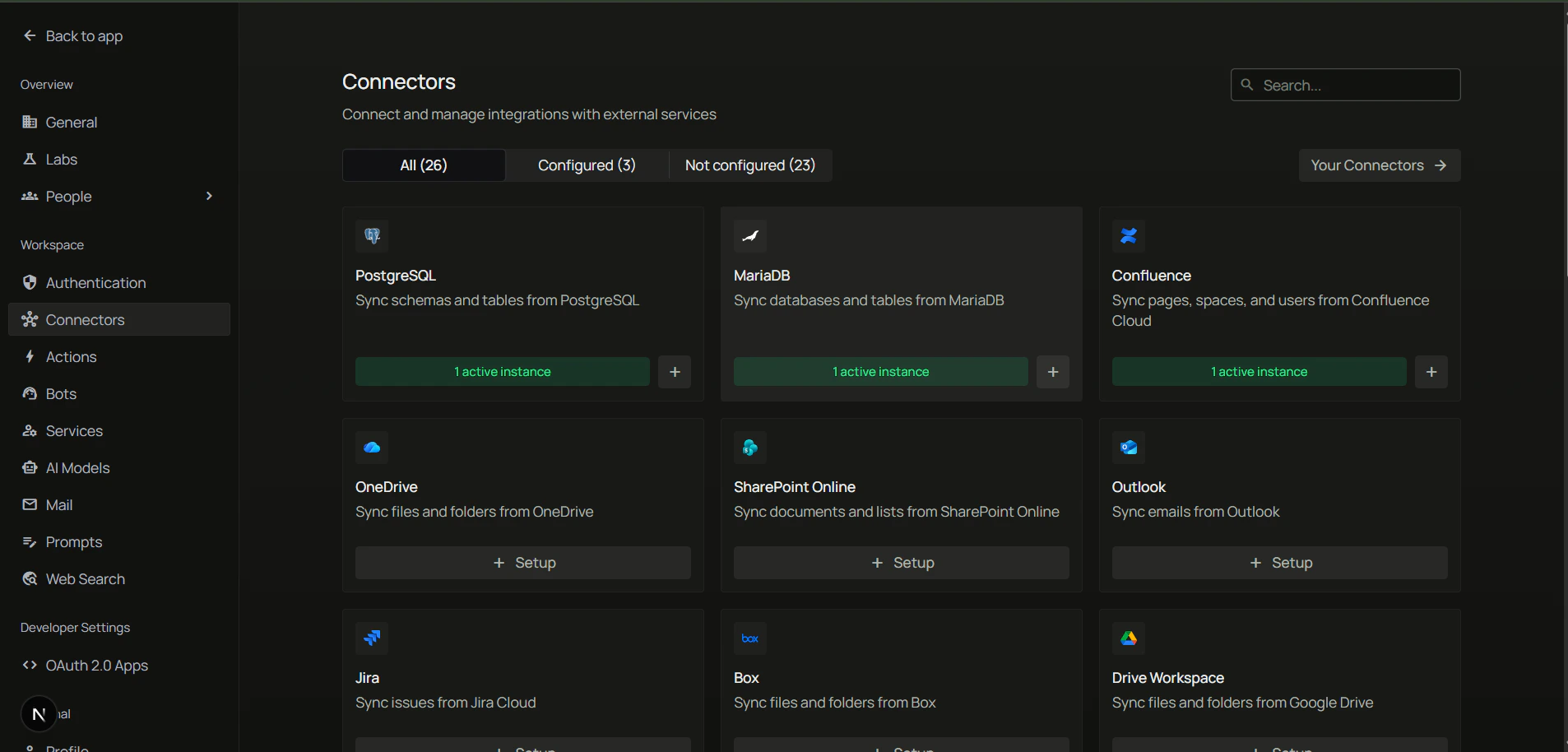
2. In the **Available** tab, find the **MariaDB** card and click **Configure**.
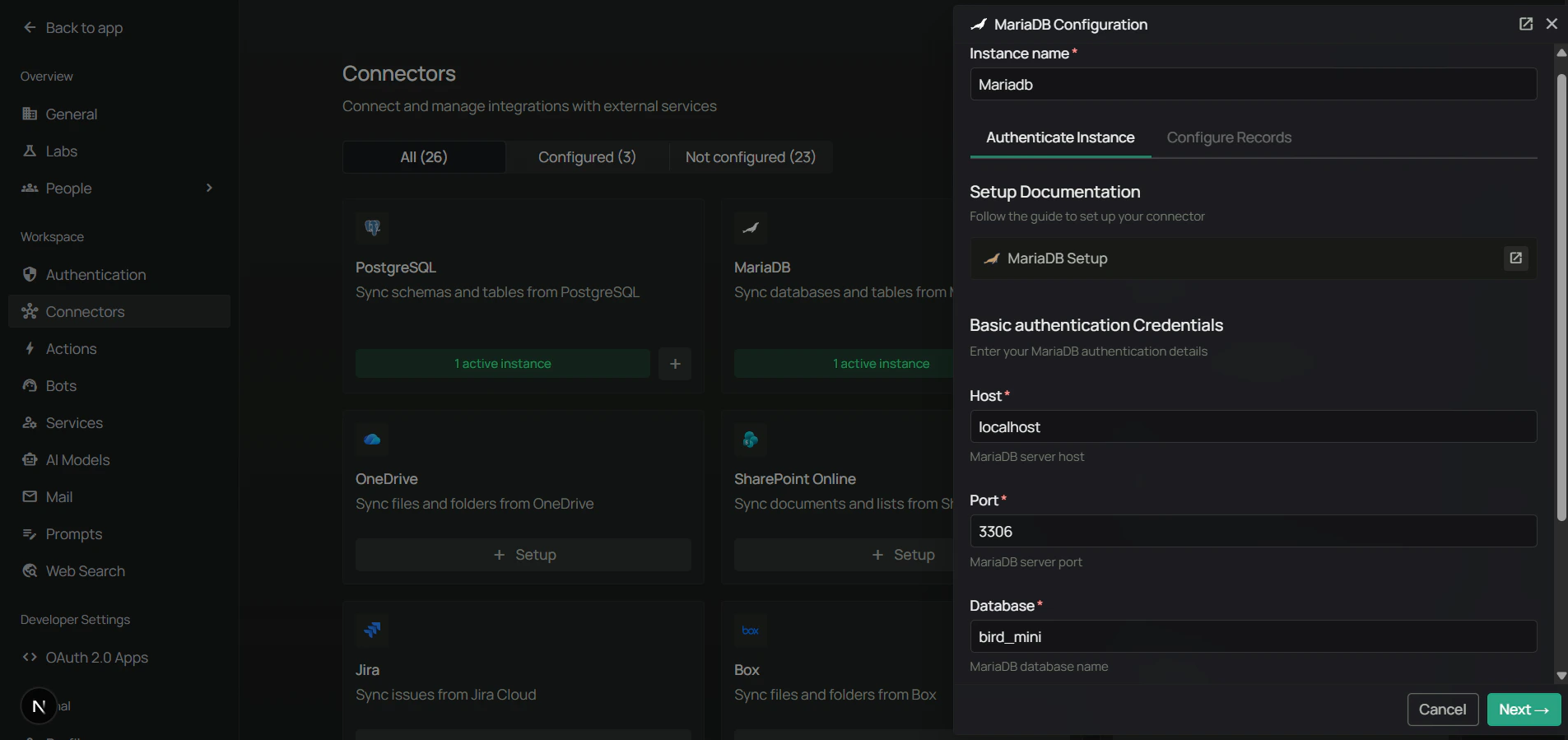
3. Fill in the connection details:
| Field | Example |
| ------------ | ------------------------------------------- |
| **Host** | `localhost` |
| **Port** | `3306` |
| **Database** | `test_db` |
| **User** | `pipeshub_user` |
| **Password** | the password you set when creating the user |
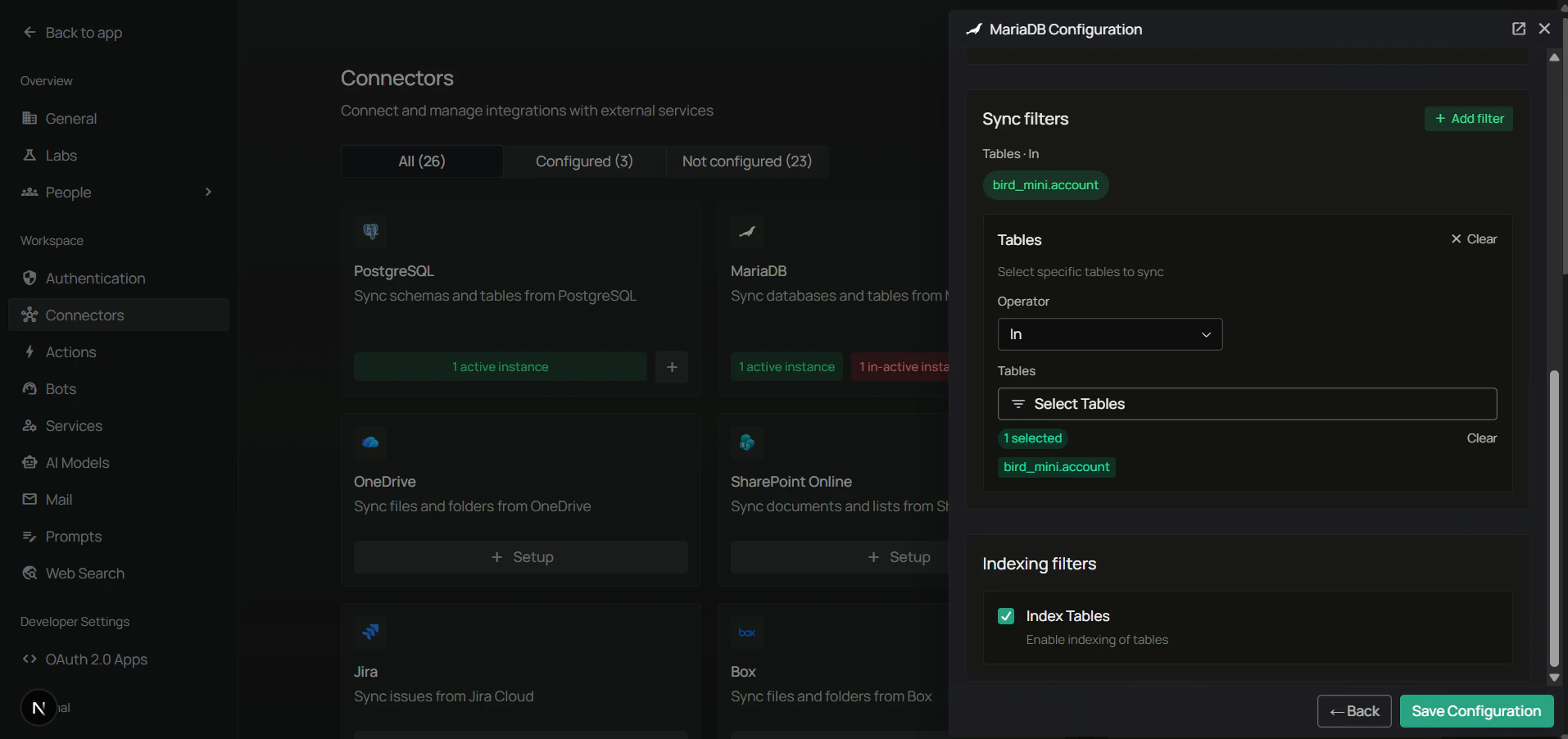
Sync filters control what is pulled from MariaDB. Anything excluded by a filter is never downloaded.
| Filter | Description | Default |
| ---------------------- | ----------------------------------------------------------------------------------------------------- | ---------- |
| **Tables** | Pick the tables to sync (e.g. `customers`, `orders`). Leave empty to sync all tables in the database. | All tables |
| **Max rows per table** | Maximum number of rows to fetch from each table. | 1000 |
| **Index tables** | When enabled, table content is indexed for AI search. When disabled, only schema metadata is indexed. | Enabled |
Use **Max rows per table** to keep initial syncs fast on large tables, or to cap the amount of data exposed to your assistant.
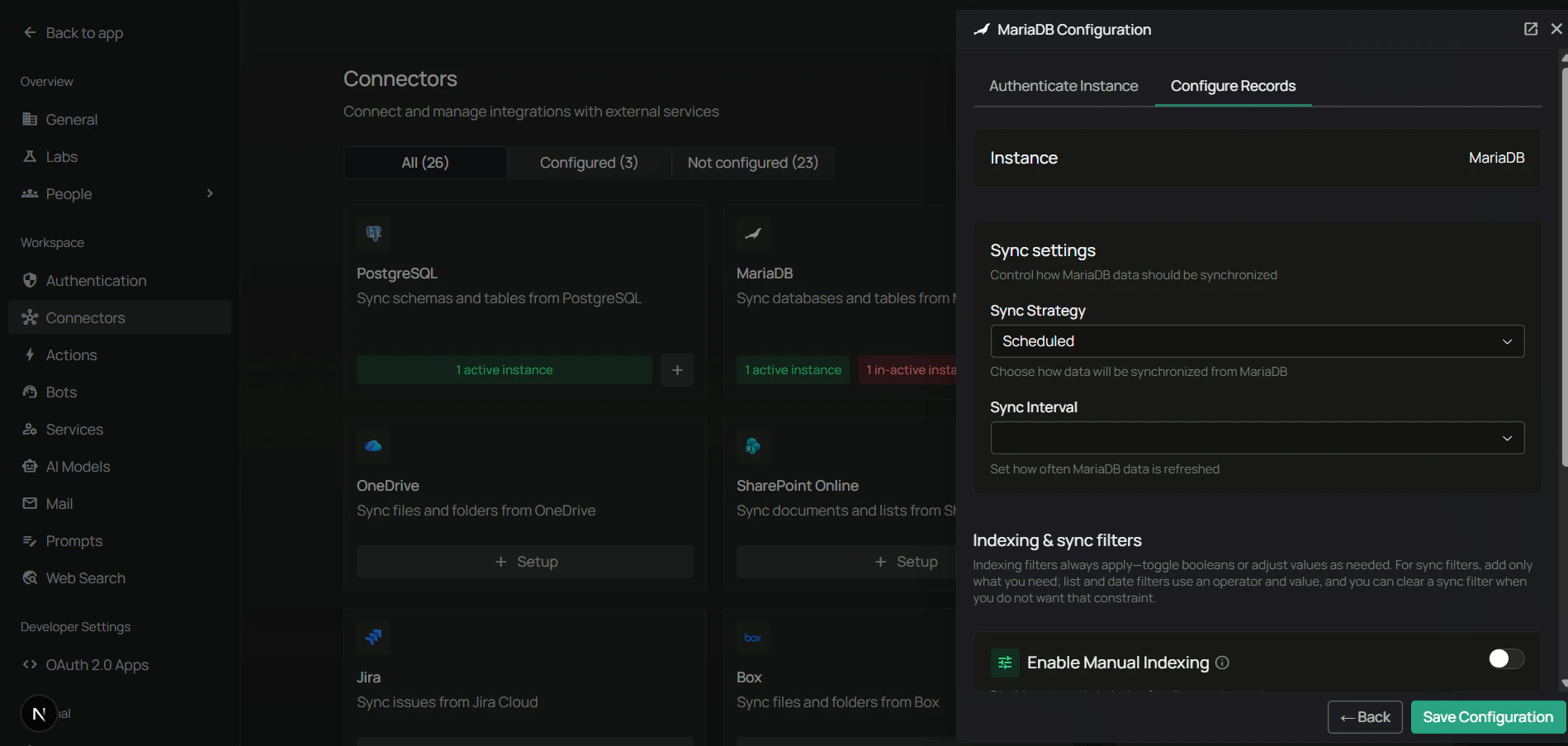
1. Pick **Scheduled** or **Manual** sync.
2. If scheduled, set the **Sync interval** (default: 60 minutes).
3. Click **Save** to enable the connector.
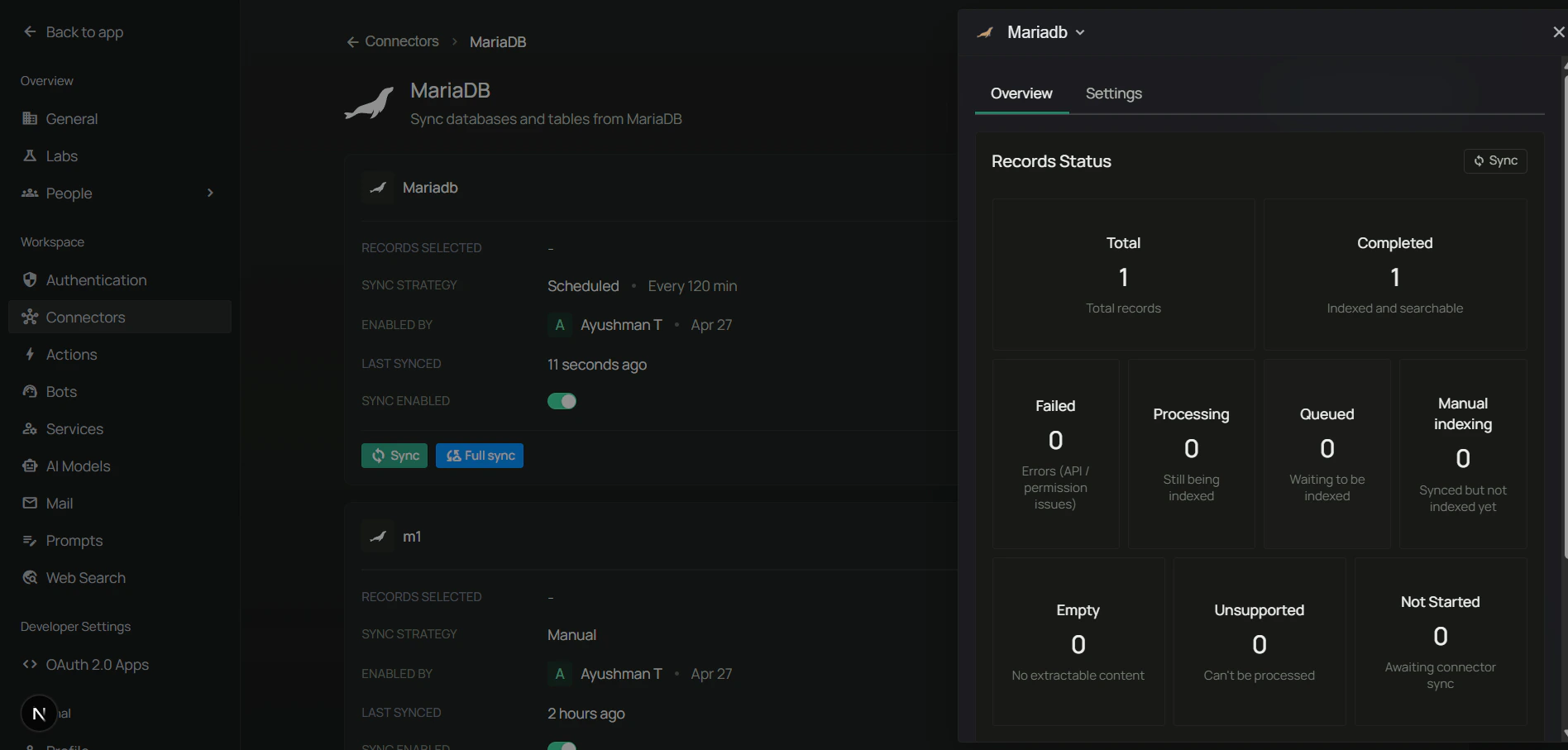
The connector verifies the connection, then runs the initial sync. Watch the **Indexing Progress** to track completion.
***
## FAQ
For read-only sync, `SELECT` on the target database is enough:
```sql theme={null}
GRANT SELECT ON test_db.* TO 'pipeshub_user'@'%';
```
The connector also reads schema metadata from `information_schema`, which is available to any authenticated user by default.
Yes. Use the public host and port of your MariaDB server. Make sure the server allows connections from the PipesHub deployment and that the user has the required privileges.
Use **Max rows per table** in sync filters to cap how many rows are fetched per table, and use the **Tables** filter to only sync the tables you actually need.
* **Connector** indexes your table and rows so they can be searched alongside your other knowledge.
* **Toolset** lets agents run live SQL against MariaDB at query time without indexing.
You can use both together — the connector for fast retrieval and the toolset when an agent needs to run a fresh query.