> ## Documentation Index
> Fetch the complete documentation index at: https://docs.pipeshub.com/llms.txt
> Use this file to discover all available pages before exploring further.
# SharePoint
> Document management and collaboration platform connector
Microsoft SharePoint
Document management and collaboration platform
✅ Ready
📝 Documentation Available
## Overview
SharePoint is a web-based collaborative platform developed by Microsoft. It's primarily used for document management and storage, acting as a secure place where teams can store, organize, share, and access information from almost any device.
### Key Functions of SharePoint
* **Intranets & Team Sites:** Serves as a centralized intranet and a secure digital space for team collaboration and internal communication.
* **Document Management:** Offers secure storage, version control, and organization for all documents and files.
* **Content & Data Tracking:** Allows users to create custom lists (e.g., tasks, contacts, issues) and manage company data.
* **Workflow Automation:** Enables the building of simple custom applications and forms to automate business processes.
The SharePoint connector uses OAuth 2.0 with Application Permissions via Microsoft Entra ID (formerly Azure AD), granting it the ability to execute background, server-to-server operations on SharePoint sites, lists, and documents without an interactive user sign-in.
***
## Configuration Setup
### Step 1: Register Application in Azure Portal
**Sign in to Azure Portal:**
* Navigate to [portal.azure.com](https://portal.azure.com) and sign in with your Microsoft 365 administrator account
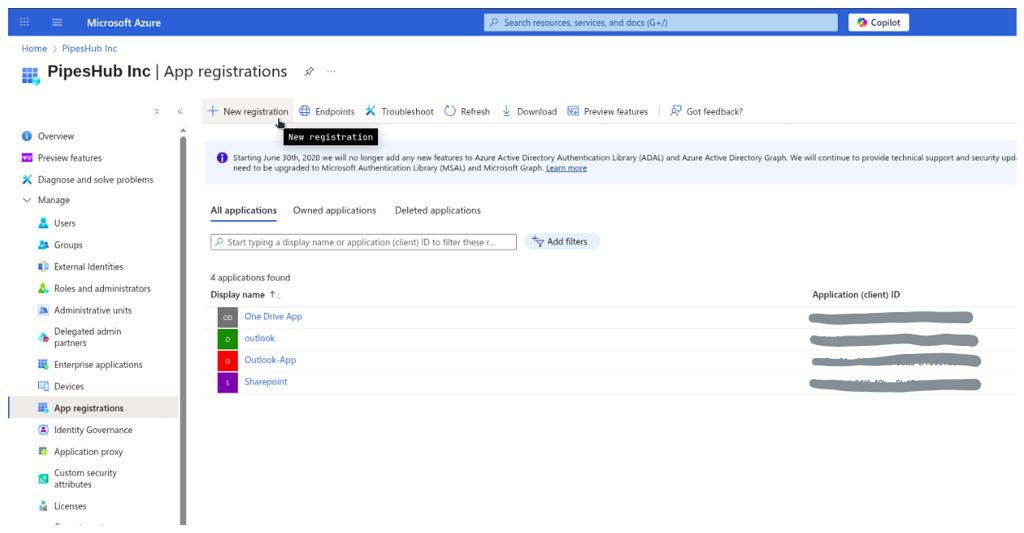
**Access App Registrations:**
* Search for "App registrations" in the top search bar
* Or navigate to Microsoft Entra ID → App registrations
**Create New Registration:**
* Enter application details:
* **Name:** Enter app name (e.g., "PipesHub Connector")
* **Supported account types:** Select "Accounts in this organizational directory only (Single tenant)"
* **Select a platform:** Web
* **Redirect URI:** Leave blank
* Click "Register"
Single-tenant configuration ensures the application only works within your organization for better security.
### Step 2: Copy Application Credentials
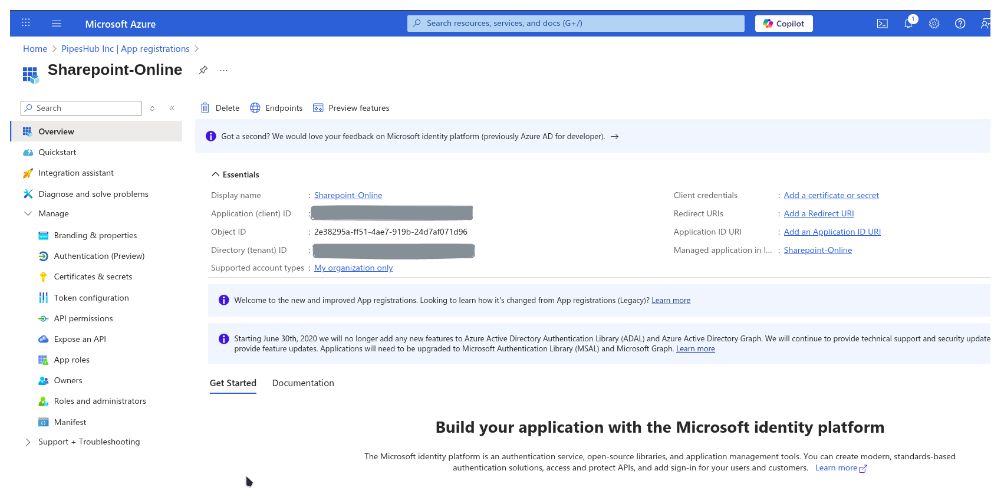
After registration, you'll see the Overview page. Copy the following values (you'll need these later):
* **Application (client) ID:** Found under "Essentials" section
* **Directory (tenant) ID:** Found under "Essentials" section
Copy the "Application (client) ID" NOT the "Object ID". These are different values.
### Step 3: Configure API Permissions
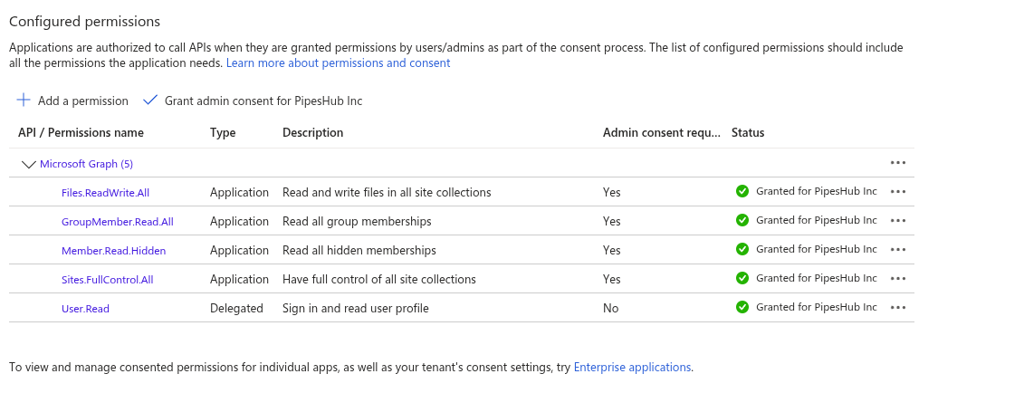
**Configure Microsoft Graph Permissions:**
* On the overview page, click on **Manage > API Permissions**
* Click **Add a permission**
* Select **Microsoft Graph**
* Choose **Application permissions** (not Delegated permissions) and add the following:
* `User.Read.All`
* `GroupMember.Read.All`
* `Group.Read.All`
* `Files.ReadWrite.All`
* `Reports.Read.All`
* `Sites.FullControl.All`
* `Member.Read.Hidden`
**Configure SharePoint Permissions:**
* Click **Add a permission** and select **SharePoint**
* Choose **Application permissions** and add the following:
* `Sites.FullControl.All`
* Click **Add permissions**
**Permission Requirements:**
* `Sites.FullControl.All` is strictly required by the SharePoint API to fetch granular site group permissions.
* `Files.ReadWrite.All` is required by the Microsoft Graph API to establish and renew webhook subscriptions for document libraries.
### Step 4: Grant Admin Consent
* On the API permissions page, click **"Grant admin consent for \[Your Organization]"**
* Confirm by clicking **"Yes"**
* Wait for the status to show green checkmarks
**Important:** The administrator granting consent should use the same email address as the PipesHub account configuring this connector. Using a different email will cause permission issues on the PipesHub platform.
Admin consent is required for application permissions. Only Global Administrators or Application Administrators can grant this consent.
### Step 5: Setup Certificate & Secret
**Install OpenSSL:**
OpenSSL is installed by default on Linux and OS X terminals. If you are using Windows, follow these instructions:
* Download the relevant OpenSSL installation manager for your version of Windows. OpenSSL offers a list of third-party binary distributions, with Shining Light Productions as an option.
* During the installation process, select the option to copy the OpenSSL binaries into the `/bin` directory.
* Open a new PowerShell instance. In PowerShell, you can run the following command to make use of OpenSSL binaries:
```powershell theme={null}
$env:Path += ";C:\\Program Files\\OpenSSL-Win64\\bin"
```
**Generate Certificate and Private Key:**
Run the following commands line by line. Microsoft SDK requires the certificate to be verified with a private key in PKCS#8 syntax:
```bash theme={null}
openssl genrsa -out tempprivatekey.key 2048
openssl pkcs8 -topk8 -inform PEM -outform PEM -in tempprivatekey.key -out privatekey.key -nocrypt
openssl req -new -key privatekey.key -out request.csr
openssl x509 -req -days 365 -in request.csr -signkey privatekey.key -out certificate.crt
```
**Verify Certificate Files:**
Verify that both `certificate.crt` and `privatekey.key` exist. Open each file, and ensure the files conform to the following formats:
* The certificate file must start with `BEGIN CERTIFICATE` and end with `END CERTIFICATE`
* The private key should begin with `BEGIN PRIVATE KEY` and end with `END PRIVATE KEY`. It must not include RSA in the headers, nor be encrypted.
**Upload to PipesHub:**
* Upload the `certificate.crt` in PipesHub under **Client Certificate**
* Upload the `privatekey.key` in PipesHub under **Private Key**
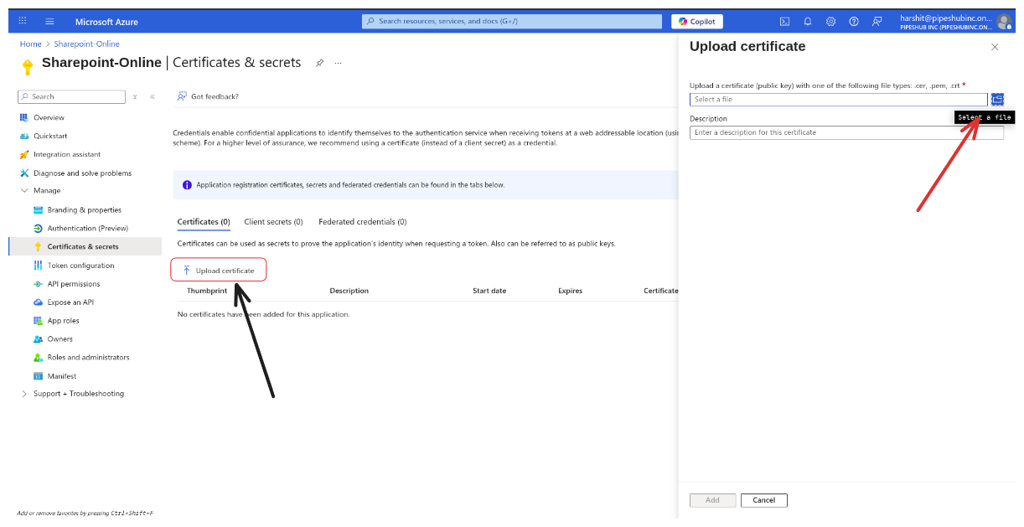
**Upload Certificate to Azure:**
* Navigate back to **Microsoft Entra ID > Manage > App registrations** and click on the app you created earlier
* Click **Manage > Certificates & secrets**
* Click the **Certificates** section and **Upload certificate**
* Upload the `certificate.crt` file that you generated
* After uploading, the application must now list the new certificate
### Step 6: Configure Connector in PipesHub
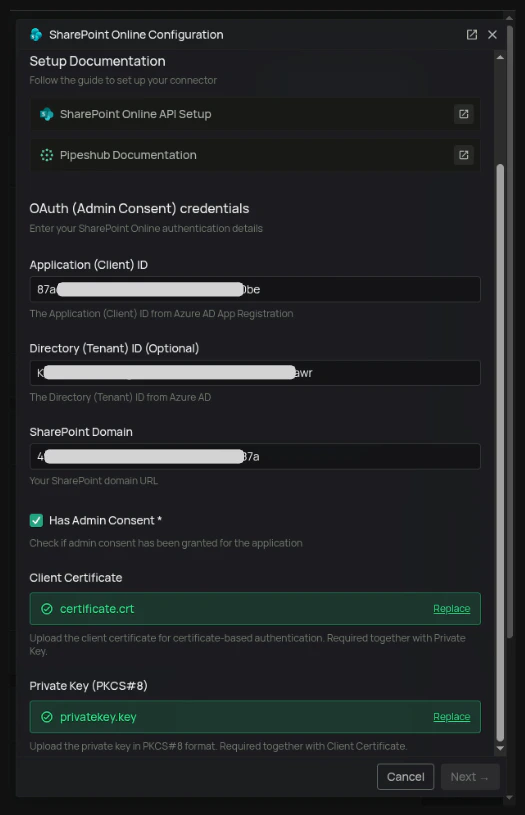
1. Navigate to **Workspace Settings** > **Connectors** in your application.
2. Find the **SharePoint** connector and click **"Setup"**
3. Enter the following details:
* Enter a name for your connector Instance
* **Application (Client) ID**: From Step 2
* **Directory (Tenant) ID**: From Step 2
* **SharePoint Domain**: The domain of your SharePoint site (e.g., `https://yourcompany.sharepoint.com`)
* Check the **"Has Admin Consent"** checkbox
* Upload the **Client Certificate** and **Private Key** that you generated in Step 5
4. Click **"Save"**
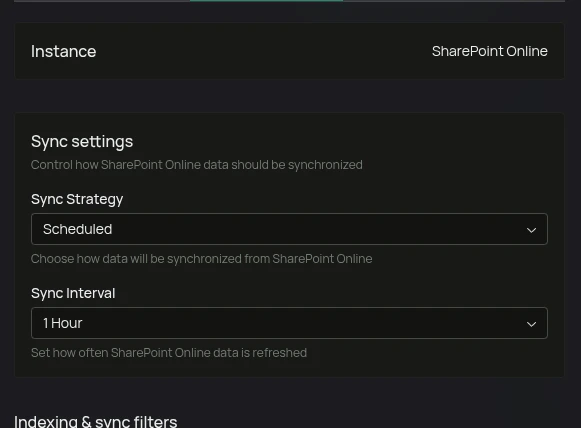
## Sync Settings
Sync settings allow you to control how the connector syncs data from SharePoint.
**Sync Strategy:**
* **Scheduled** - The connector will automatically sync data from SharePoint at the scheduled interval.
* **Manual** - The connector will sync data from SharePoint only when Admin manually triggers the sync from the connector settings page.
**Sync Interval:**
In what interval the connector will sync data (default: 60 minutes).
## Filters
Filters let you control exactly what PipesHub syncs and indexes from your SharePoint environment. They are split into two categories:
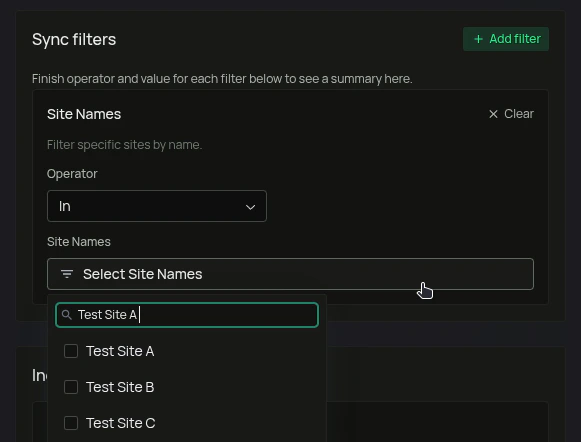
* **Sync filters** — applied during the sync phase. They determine which sites, libraries, files, and content are fetched from SharePoint.
* **Indexing filters** — applied after content is fetched. They determine which content types are actually indexed and made searchable.
***
### Sync Filters
These filters run before any data is pulled from SharePoint. Content that doesn't pass a sync filter is never fetched, saving time and API quota, also helps exclude unwanted content.
| Filter | Default | What it does |
| -------------------------- | -------------- | --------------------------------------------------------------------------------------------------------------------------------------------------------------------------------------------------------------------- |
| **Site Names** | All sites | Choose from a searchable dropdown list of all your SharePoint sites. Choose whether to **Include** or **Exclude** the selected sites from the sync process. If left empty, all sites are synced. |
| **Document Library Names** | All libraries | Choose from a searchable dropdown list of all your SharePoint document libraries. Choose whether to **Include** or **Exclude** the selected libraries from the sync process. If left empty, all libraries are synced. |
| **File Extensions** | All extensions | Filters files by their extension. Supports **Include** (only sync files with the listed extensions) and **Exclude** (sync everything except files with those extensions). e.g., Exclude: *jpg*, *mp4* |
| **Modified Date** | No restriction | Filters files and pages by their last modified date. You can set a start date, an end date, or both. Items modified outside the configured range are skipped. |
| **Created Date** | No restriction | Filters files and pages by their creation date. You can set a start date, an end date, or both. Items created outside the range are skipped. |
***
### Indexing Filters
These filters run after content has been fetched. They control which content types are passed to the indexing pipeline automatically and made available for search and AI queries.
| Filter | Default | What it does |
| -------------------------- | ------- | ----------------------------------------------------------------------------------------------------------------------------------------------- |
| **Enable Manual Indexing** | Off | When enabled, none of the records will be indexed automatically. You can then go to **All Records** section to index the records manually. |
| **Index Pages** | Enabled | When disabled, SharePoint pages are fetched during sync but not indexed. You can go to **All Records** section to index the pages manually. |
| **Index Documents** | Enabled | When disabled, files (Word docs, PDFs etc.) are fetched but not indexed. You can go to **All Records** section to index the documents manually. |
***
Once your settings are configured, click **Save Configuration**. PipesHub confirms the instance is ready with a final dialog — “Instance is configured and ready to sync” — offering two choices: I’ll do it later or Start syncing now.
***
## FAQ
There are three common causes:
1. **Email mismatch** - The email used during connector authentication doesn't match your PipesHub account email. This causes permission issues preventing you from accessing synced data.
* **Fix:** Reconfigure the connector and authenticate using the same email as your PipesHub account.
2. **Records show in "All Records" but not in search** - Documents display in the All Records section but don't appear in search query results.
* **Fix:** Verify sync filters in the connector settings and ensure indexing has completed. Check that the data matches your search query criteria.
3. **Data not yet indexed** - The connector is still syncing or hasn't completed the initial indexing process.
* **Fix:** Go to **Settings > Connectors**, check the sync status, and wait for indexing to complete.
Yes. When creating a SharePoint connector, the admin has the option to apply filters and select specific SharePoint sites for syncing. This allows you to limit the scope of synced data to only the sites that are relevant to your organization's needs.
Yes. You can achieve this by following these steps:
1. **Create a dedicated connector instance** — Create a SharePoint connector instance for the site that contains the subfolders you want to index.
2. **Select Manual Indexing** — When configuring the connector, choose the **Enable Manual Indexing** option. This gives you granular control over which content gets indexed.
3. **Select the SharePoint site** — Use the filters to select the specific SharePoint site that contains the subfolders you want to index.
4. **Navigate to specific folders** — Go to **All Records** in the navigation bar, then browse to the specific files or folders you want to index within the selected SharePoint site.
This approach gives you full control over exactly which subfolders and files are indexed from each SharePoint site.