> ## Documentation Index
> Fetch the complete documentation index at: https://docs.pipeshub.com/llms.txt
> Use this file to discover all available pages before exploring further.
# Claude.ai (Web)
> Connect Claude.ai to the PipesHub MCP server as a custom connector
Claude.ai supports custom connectors via remote MCP servers. This lets you use PipesHub tools directly in the Claude.ai web interface without any local setup.
This feature is currently in beta. Free plan users are limited to one custom connector.
Before you start, create an OAuth app in PipesHub and note your **Client ID** and **Client Secret**. See [MCP Server Overview](/mcp/overview#step-1-create-an-oauth-app).
 ## For Individual Users (Pro / Max Plans)
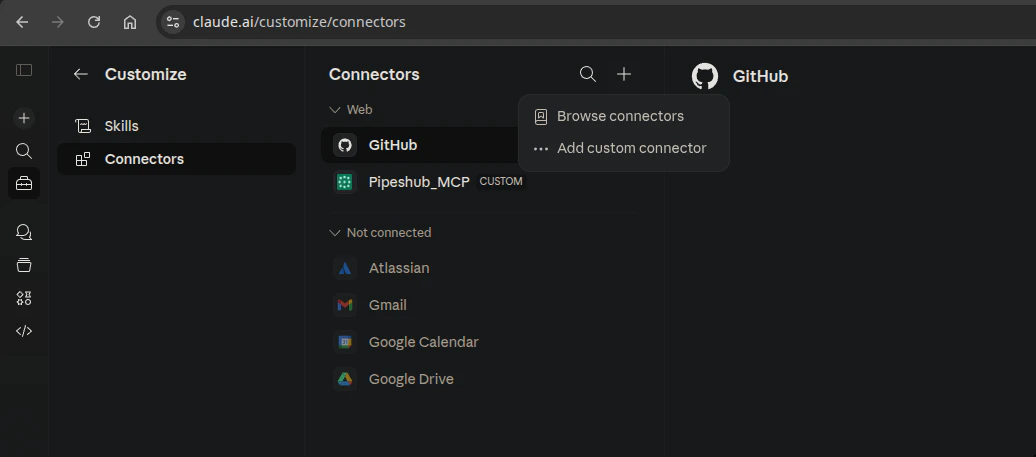
Go to [claude.ai](https://claude.ai) and navigate to **Settings > Connectors**.
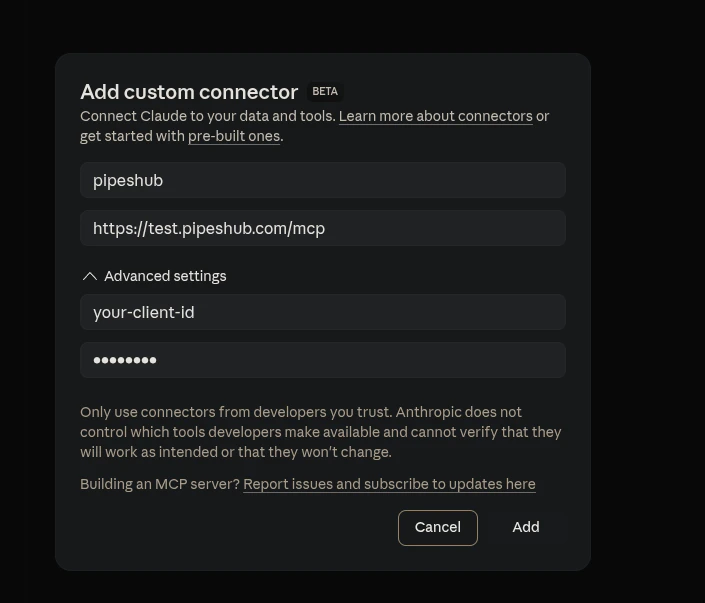
Click **Add custom connector** at the bottom of the Connectors section.
```
PIPESHUB_INSTANCE_URL/mcp
```
Click **Advanced settings** and enter your OAuth credentials:
* **OAuth Client ID**: `YOUR_CLIENT_ID`
* **OAuth Client Secret**: `YOUR_CLIENT_SECRET`
Click **Add**. You'll be redirected to PipesHub's login page to authenticate and grant permissions. After authenticating, the connector becomes active and PipesHub tools are available in your Claude.ai conversations.
## For Team / Enterprise Plans
**Organization Owners** must first add the connector:
Navigate to **Organization settings > Connectors**.
Click **Add custom connector** and enter the MCP server URL: `PIPESHUB_INSTANCE_URL/mcp`.
Click **Advanced settings** and enter the OAuth Client ID and Client Secret, then click **Add**.
**Team members** can then connect:
Go to **Settings > Connectors**.
Find the PipesHub connector (marked with a "Custom" label).
Click **Connect** to authenticate via PipesHub's OAuth login.
## Redirect URI
Claude.ai uses the following redirect URI for OAuth:
```
https://claude.ai/api/mcp/auth_callback
```
Register this as an allowed redirect URI in your PipesHub OAuth app.
## Security Notes
* Only connect to trusted MCP servers.
* Review the permissions requested during the OAuth authentication flow.
* Claude.ai interacts with PipesHub on your behalf using the granted OAuth token — your password is never shared.
## For Individual Users (Pro / Max Plans)
Go to [claude.ai](https://claude.ai) and navigate to **Settings > Connectors**.
Click **Add custom connector** at the bottom of the Connectors section.
```
PIPESHUB_INSTANCE_URL/mcp
```
Click **Advanced settings** and enter your OAuth credentials:
* **OAuth Client ID**: `YOUR_CLIENT_ID`
* **OAuth Client Secret**: `YOUR_CLIENT_SECRET`
Click **Add**. You'll be redirected to PipesHub's login page to authenticate and grant permissions. After authenticating, the connector becomes active and PipesHub tools are available in your Claude.ai conversations.
## For Team / Enterprise Plans
**Organization Owners** must first add the connector:
Navigate to **Organization settings > Connectors**.
Click **Add custom connector** and enter the MCP server URL: `PIPESHUB_INSTANCE_URL/mcp`.
Click **Advanced settings** and enter the OAuth Client ID and Client Secret, then click **Add**.
**Team members** can then connect:
Go to **Settings > Connectors**.
Find the PipesHub connector (marked with a "Custom" label).
Click **Connect** to authenticate via PipesHub's OAuth login.
## Redirect URI
Claude.ai uses the following redirect URI for OAuth:
```
https://claude.ai/api/mcp/auth_callback
```
Register this as an allowed redirect URI in your PipesHub OAuth app.
## Security Notes
* Only connect to trusted MCP servers.
* Review the permissions requested during the OAuth authentication flow.
* Claude.ai interacts with PipesHub on your behalf using the granted OAuth token — your password is never shared.