> ## Documentation Index
> Fetch the complete documentation index at: https://docs.pipeshub.com/llms.txt
> Use this file to discover all available pages before exploring further.
# SMTP
> Configure email capabilities for authentication and notifications
# SMTP Configuration
Your AI agent application requires SMTP configuration to enable email-based features like One-Time Password (OTP) authentication, password reset, and notifications.
SMTP (Simple Mail Transfer Protocol) configuration is essential for all
email-based functionality in your application.
When properly configured, your application can send automated emails to users for:
* One-Time Password (OTP) authentication
* Password reset requests
* Send invitations to the users to your organisation
## Configuration Options
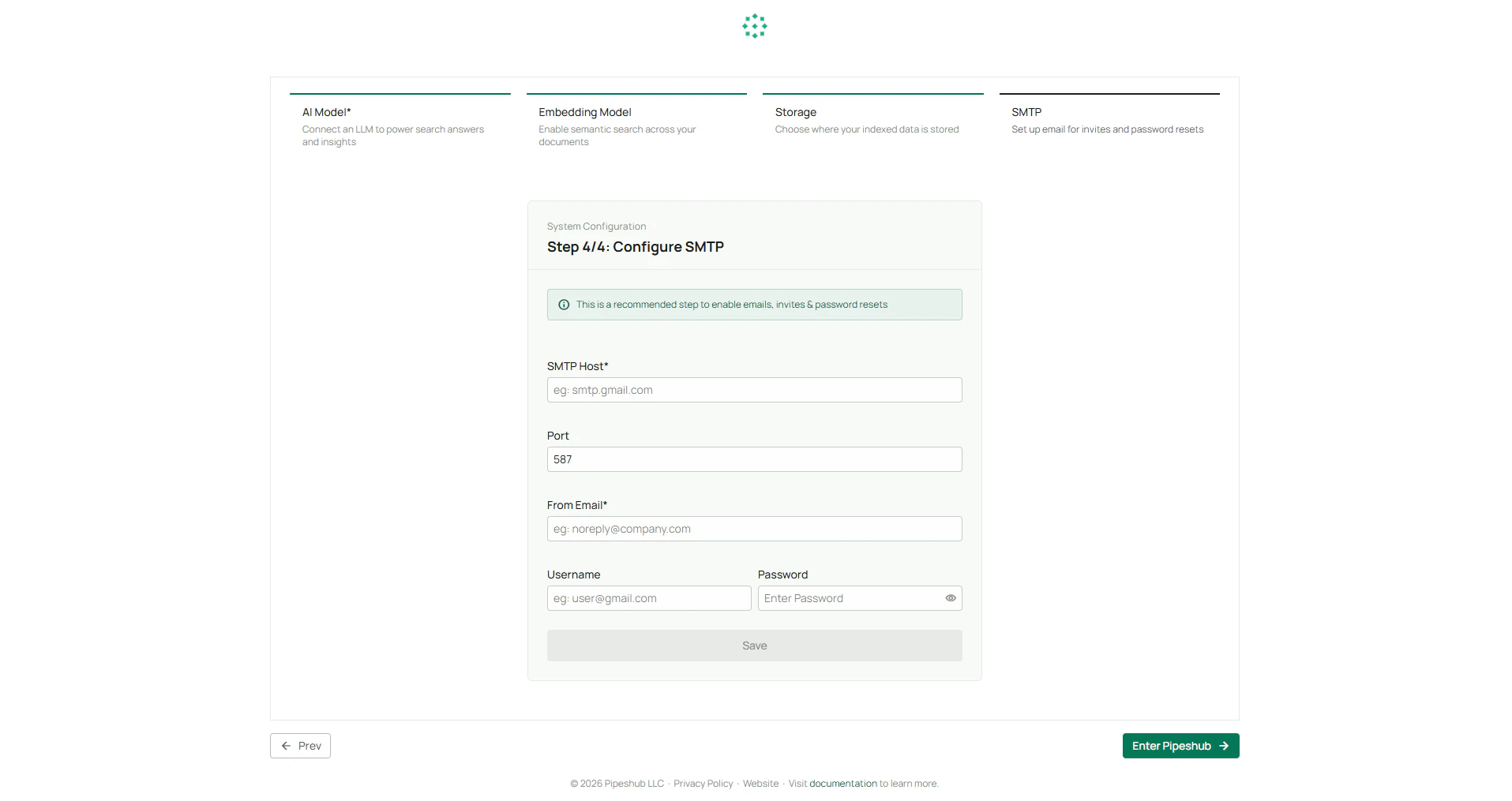
### Configuring SMTP During Onboarding
At the time of setting up your app for the first time onboarding configuration dialog will open automatically
After completing the LLM, Storage, and Connector setup steps in the onboarding process, you will reach the SMTP configuration screen.
Enter the necessary SMTP details:
* **SMTP Host** (*required*) - The address of your email server (e.g., smtp.gmail.com)
* **Port** (*required*) - The port number for your SMTP server (Default: 587)
* **From Email Address** (*required*) - The email address that will appear as the sender
If your email server requires authentication:
* **SMTP Username** (optional) - Username for SMTP authentication
* **SMTP Password** (optional) - Password for SMTP authentication
Click "Save" to save your configuration and proceed with the onboarding process.
You can skip this configuration during onboarding, but email-based features will not work until SMTP is properly configured.
### Configuring SMTP in Settings
If you skipped SMTP configuration during onboarding or need to modify your settings later:
1. Navigate to the sidebar menu
2. Select "Settings"
3. Click on "Authentication" in the submenu
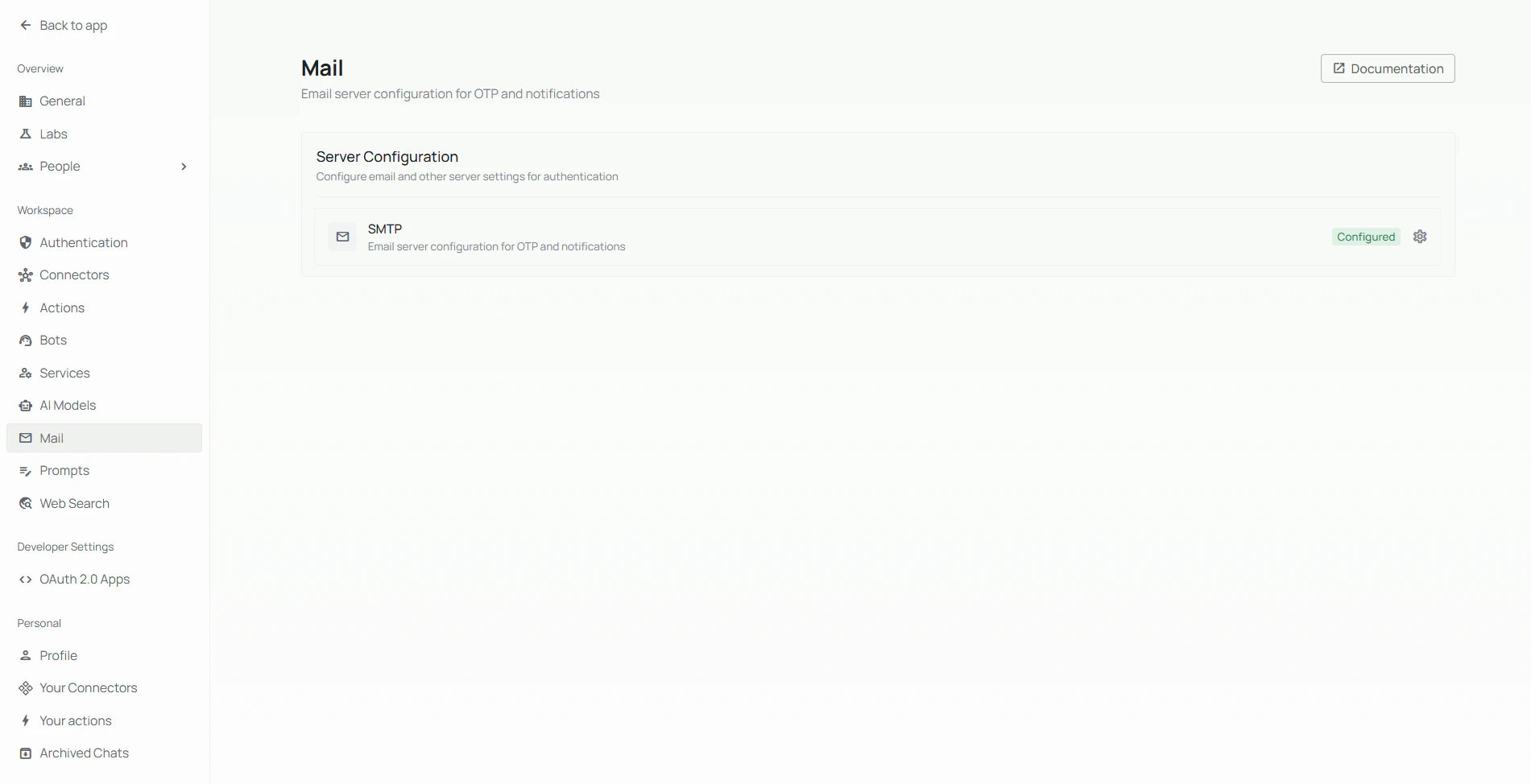
Scroll down to the "Server Configuration" section and find the SMTP configuration option.
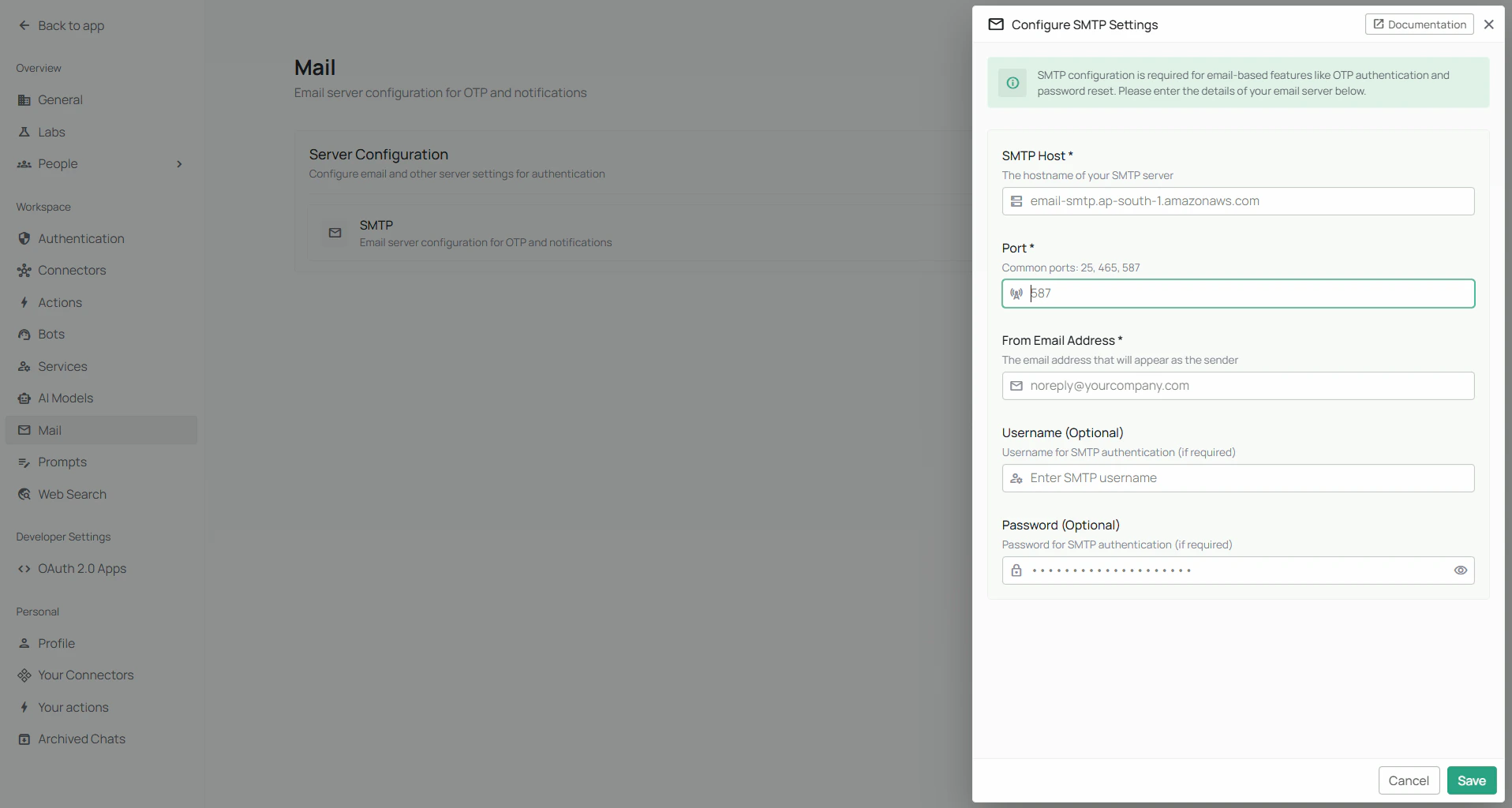
Click the settings icon next to the SMTP configuration to open the configuration modal.
Enter or update the required fields:
* **SMTP Host** (*required*)
* **Port** (*required*, default 587)
* **From Email Address** (*required*)
* **Username** (optional)
* **Password** (optional)
Click **Save** to apply your new SMTP configuration.
If the Smtp box shows configured, then your smtp configuration has been successfully added.
## Required vs Optional Fields
- **SMTP Host** - The address of your email server
- **Port** - The port number (common: 25, 465, 587)
- **From Email Address** - Sender email address
- **SMTP Username** - For server authentication
- **SMTP Password** - For server authentication
## Common SMTP Providers
The table below lists settings for popular email providers:
| Provider | SMTP Host | Port | Security |
| ------------------ | ------------------------------- | ---- | -------- |
| Gmail | smtp.gmail.com | 587 | TLS |
| Outlook/Office 365 | smtp.office365.com | 587 | TLS |
| Amazon SES | email-smtp.region.amazonaws.com | 587 | TLS |
| SendGrid | smtp.sendgrid.net | 587 | TLS |
For Gmail and some other providers, you may need to create an "App Password"
instead of using your regular account password.
## Best Practices
For optimal SMTP configuration:
* Use a dedicated email address for system notifications (e.g., [noreply@yourcompany.com](mailto:noreply@yourcompany.com))
* Check with your email provider for specific SMTP settings and requirements
* Test your configuration by sending a test email after setup
* Use secure connections when possible (Port 465 for SSL or 587 for TLS)
* Check spam filters if users report not receiving emails
## Troubleshooting
If users are not receiving system emails, try these troubleshooting steps:
1. Verify your SMTP settings are correct
2. Ensure the "From Email Address" is properly configured
3. Check if your email provider restricts automated sending
4. Look for error messages in your application logs
5. Test your SMTP server connection using external tools