> ## Documentation Index
> Fetch the complete documentation index at: https://docs.pipeshub.com/llms.txt
> Use this file to discover all available pages before exploring further.
# Google Calendar Toolset
> Calendar and scheduling integration for AI agents
Google Calendar Toolset
Calendar and event management
Documentation in Progress
Google Workspace
## Overview
The Google Calendar toolset enables AI agents to manage calendar events and scheduling.
### Key Capabilities
* View upcoming events and schedules
* Create and schedule new events
* Update and delete existing events
* Create Google Meet links for events
* Manage multiple calendars
***
## Available Tools
| Tool | What it does |
| ------------------------- | ----------------------------------------------------------- |
| `get_calendar_events` | Get upcoming calendar events |
| `create_calendar_event` | Create a new calendar event |
| `update_calendar_event` | Update a calendar event |
| `create_meet_link` | Create a Google Meet link and attach it to a calendar event |
| `delete_calendar_event` | Delete a calendar event |
| `get_calendar_list` | List all calendars |
| `get_calendar_list_by_id` | Get a specific calendar by ID |
***
## Setup
### Step 1: Create Google Cloud Project
1. Go to [Google Cloud Console](https://console.cloud.google.com/)
2. Create a new project or select an existing one
3. Note your project ID
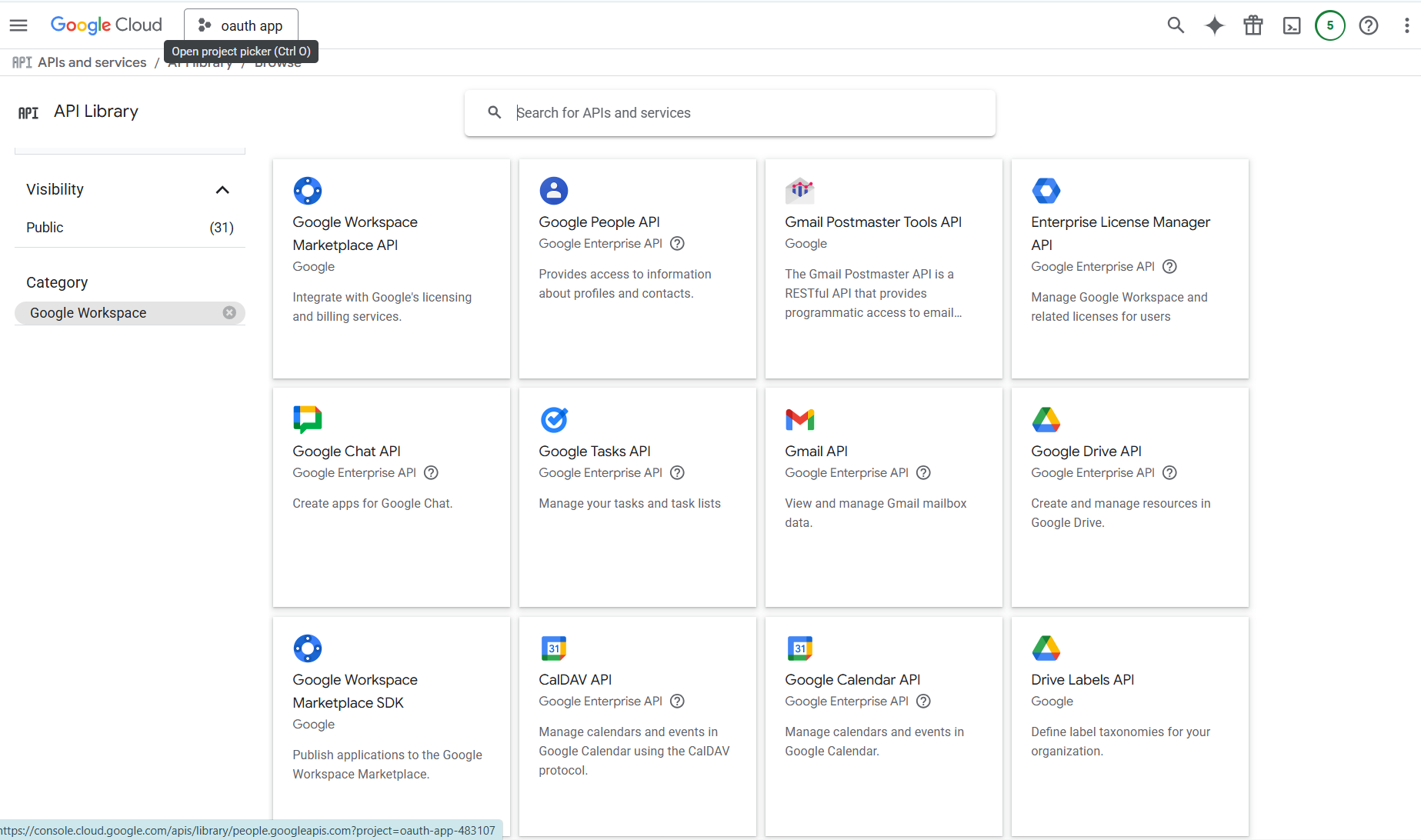
### Step 2: Enable Google Calendar API
1. Navigate to **APIs & Services > Library**
2. Search for **"Google Calendar API"**
3. Click **"Enable"**
### Step 3: Configure OAuth Consent Screen
1. Navigate to **APIs & Services > OAuth consent screen**
2. Configure the OAuth consent screen with your app information
3. Add the required scopes (see Step 6)
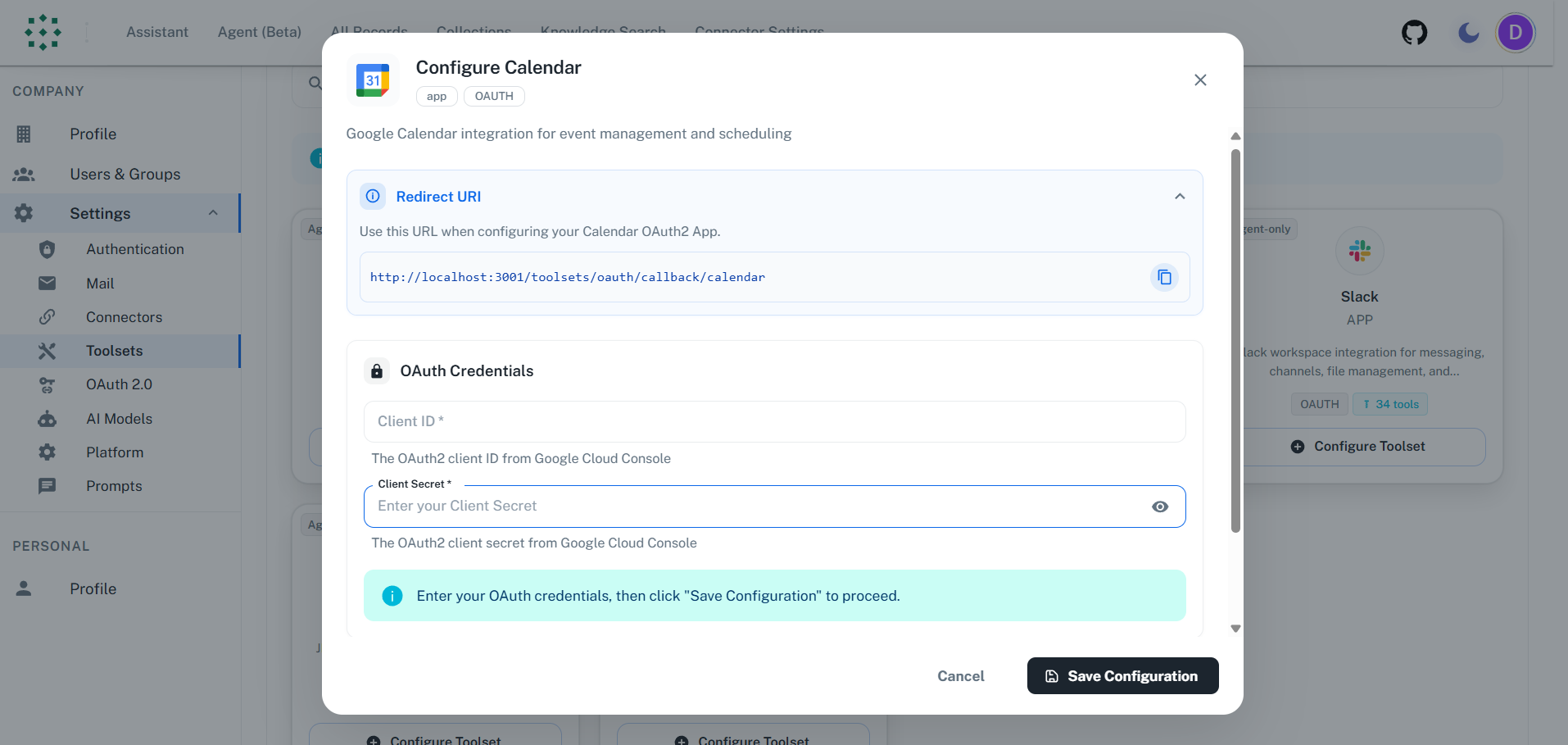
### Step 4: Get Redirect URI from PipesHub
1. In PipesHub, go to **Settings > Toolsets**
2. Find **Calendar** and click **"Configure"**
3. Copy the **Redirect URI** shown in the dialog
### Step 5: Create OAuth Client ID
1. Navigate to **APIs & Services > Credentials**
2. Click **"Create Credentials"** > **"OAuth client ID"**
3. Select **"Web application"**
4. Set the **Authorized redirect URI** to the URI from PipesHub
5. Click **"Create"**
6. Copy your **Client ID** and **Client Secret**
The redirect URI must match exactly your PipesHub URL.
### Step 6: Add Required Scopes
Add these OAuth scopes in the **OAuth consent screen > Scopes** section:
**Required Scopes:**
* `https://www.googleapis.com/auth/calendar` - Full calendar access
* `https://www.googleapis.com/auth/calendar.events` - Manage events
* `https://www.googleapis.com/auth/gmail.send` - Send calendar invites and notifications
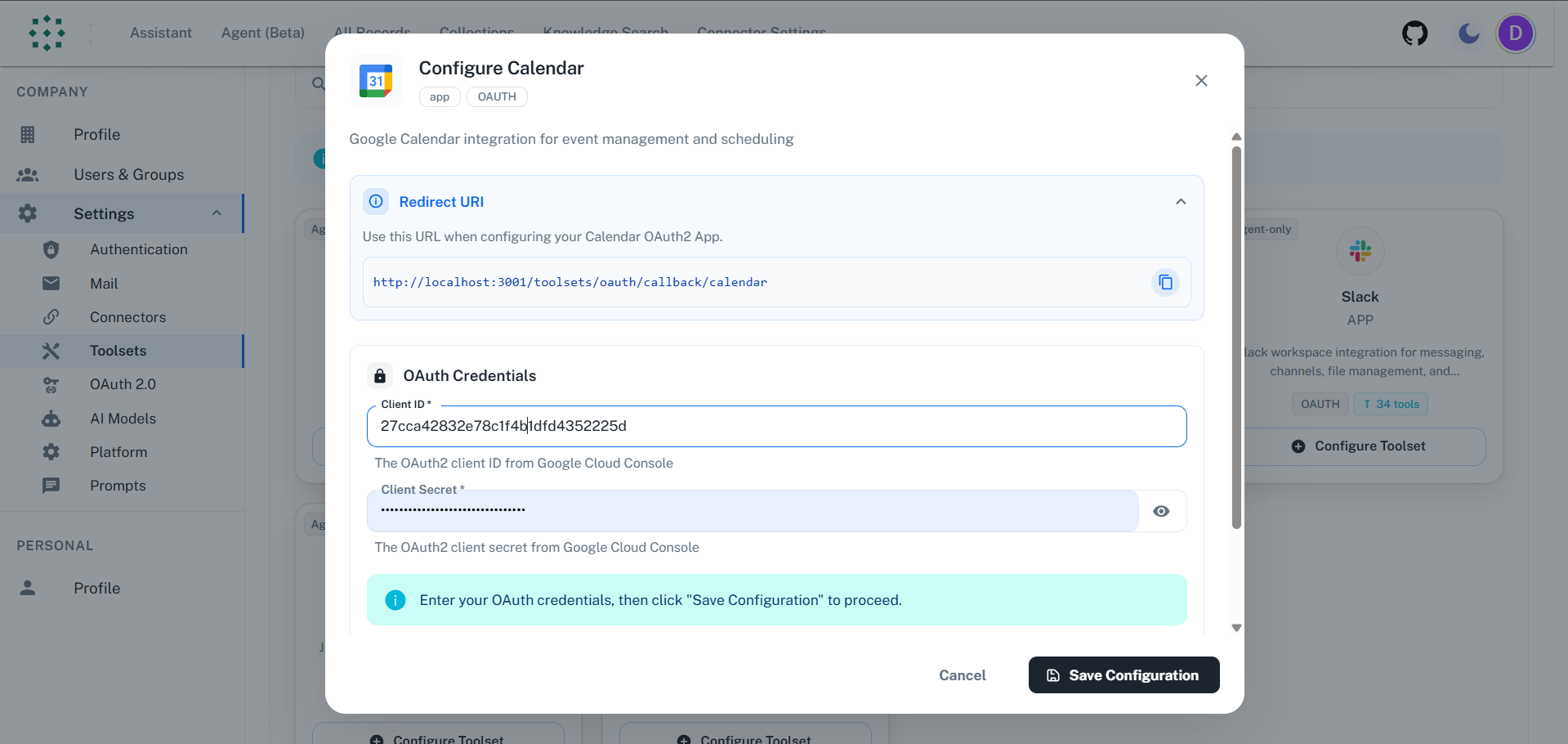
### Step 7: Configure in PipesHub
1. Return to the PipesHub Calendar configuration dialog
2. Enter your **Client ID** and **Client Secret**
3. Click **"Authenticate"**
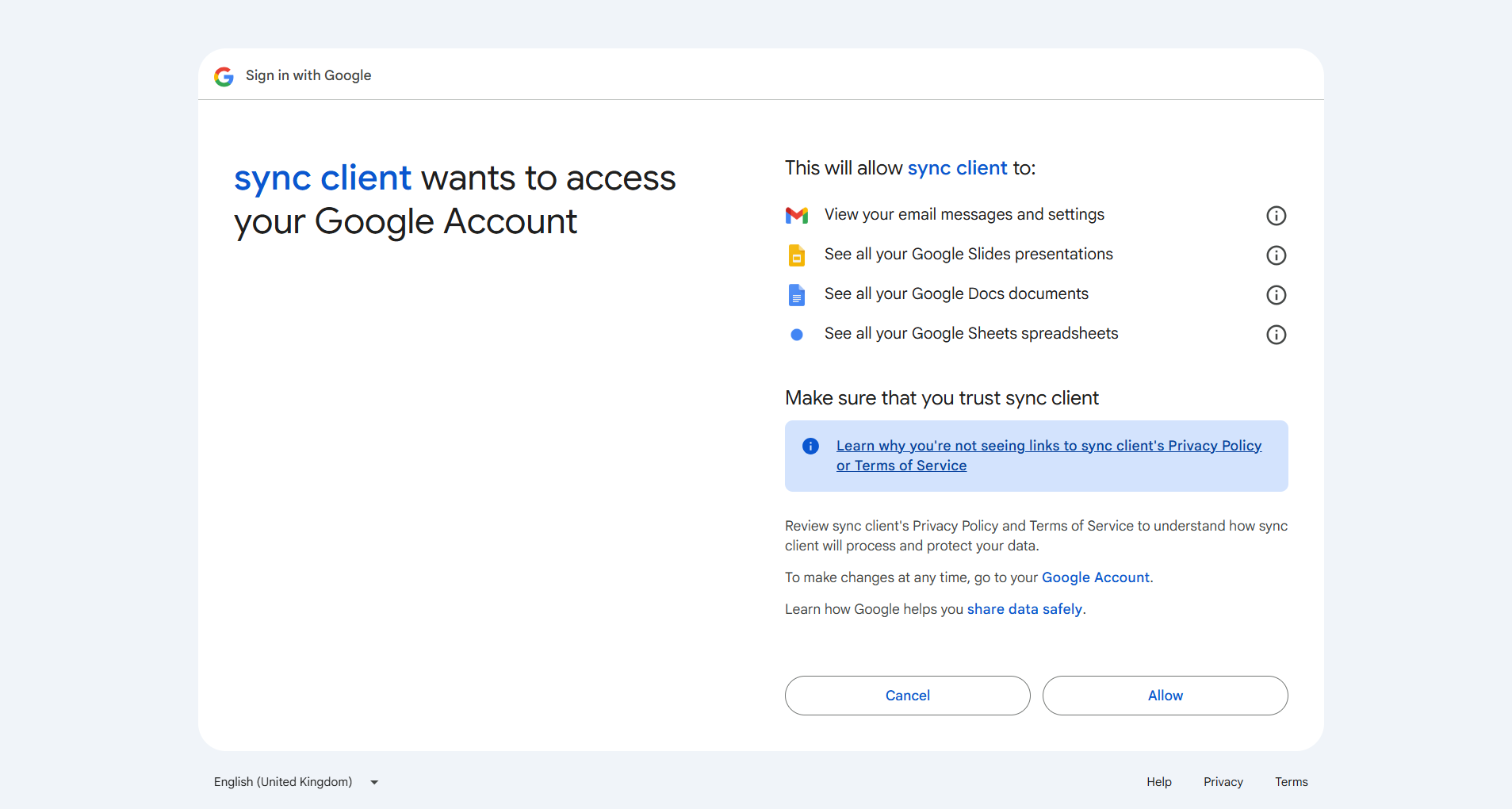
### Step 8: Authorize Access
1. A popup will open to Google's consent screen
2. Sign in and grant permission for Calendar access
3. Click **"Allow"**
4. You'll be redirected back to PipesHub
5. The toolset will show **"Authenticated"** status
***
## FAQ
| Aspect | Calendar Connector | Calendar Toolset |
| --------------- | ----------------------------------------- | ----------------------------------------------- |
| **Purpose** | Sync and index calendar events for search | Enable agents to perform calendar actions |
| **Data Flow** | One-way (import data into PipesHub) | Two-way (read and write via API) |
| **When to Use** | Query/search events and meetings | Create events, update meetings, manage calendar |
**Example:** Use **Calendar Connector** to search past and upcoming events. Use **Calendar Toolset** to let agents schedule meetings or update event details.
***
## Usage Tips
**How do I create an event?**\
Ask your agent to "schedule a meeting" and provide the date, time, title, and attendees. For example: "schedule a team meeting tomorrow at 2pm with [john@example.com](mailto:john@example.com)".
**How do I update an event?**\
Ask to "move my 2pm meeting to 3pm" or "add [sarah@example.com](mailto:sarah@example.com) to the team meeting". The agent will find and update the event.