> ## Documentation Index
> Fetch the complete documentation index at: https://docs.pipeshub.com/llms.txt
> Use this file to discover all available pages before exploring further.

# MariaDB Toolset

> Query and explore MariaDB databases from your AI agents

<div className="max-w-2xl mx-auto mt-12">
  <div className="p-6 border border-gray-200 dark:border-gray-700 rounded-lg bg-amber-50 dark:bg-gray-800">
    <div className="flex items-center mb-4">
      <img src="https://mintcdn.com/pipeshub/j8n3yMqJ2bbn6Vp0/logo/mariadb.png?fit=max&auto=format&n=j8n3yMqJ2bbn6Vp0&q=85&s=10073c75b97ba284c5f33faa927a592a" alt="MariaDB Logo" className="w-8 h-8 mr-3 object-contain flex-shrink-0" width="770" height="512" data-path="logo/mariadb.png" />

      <h2 className="text-2xl font-semibold m-0">MariaDB Toolset</h2>
    </div>

    <p className="text-lg text-gray-700 dark:text-gray-300 mb-4">Schema introspection and SQL execution on MariaDB</p>

    <div className="flex items-center gap-2">
      <span className="px-3 py-1 bg-green-100 dark:bg-green-900 text-green-800 dark:text-green-200 rounded-full text-sm font-medium">
        Ready
      </span>

      <span className="px-3 py-1 bg-blue-100 dark:bg-blue-900 text-blue-800 dark:text-blue-200 rounded-full text-sm font-medium">
        Database
      </span>
    </div>
  </div>
</div>

## Overview

The MariaDB toolset lets AI agents read schema information and run SQL queries against a MariaDB database. Use it to answer analytical questions, explore table structures, and fetch data in natural language.

### Key Capabilities

* Ask questions about your data in plain English
* Run complex queries, joins, and aggregations across tables
* Explore the database structure and relationships between tables
* Generate reports and summaries from live data
* Download query results as CSV when they are too large to render in chat

***

## Available Tools

| Tool                | Description                                                            |
| ------------------- | ---------------------------------------------------------------------- |
| `execute_query`     | Run a SQL query against the configured MariaDB database                |
| `list_tables`       | List all tables in the database                                        |
| `fetch_db_schema`   | Fetch schema for the database: tables, columns, keys                   |
| `get_tables_schema` | Fetch schema (columns, primary keys, foreign keys) for specific tables |
| `get_table_ddl`     | Get the `CREATE TABLE` statement for a table                           |

***

## Configuration Guide

<AccordionGroup>
  <Accordion title="Step 1: Set up MariaDB (for testing)" icon="database">
    If you already have a MariaDB server, skip this step.

    ### Option A: Docker (recommended for testing)

    Run a local MariaDB container:

    ```bash theme={null}
    docker run --name mariadb-test \
      -e MARIADB_ROOT_PASSWORD=rootpass \
      -e MARIADB_DATABASE=test_db \
      -p 3306:3306 \
      -d mariadb:latest
    ```

    This starts MariaDB on `localhost:3306` with:

    * Username: `root`
    * Password: `rootpass`
    * Database: `test_db`

    ### Option B: Install locally

    Install MariaDB from the [official MariaDB downloads page](https://mariadb.org/download/) and follow the installer for your OS. After install, start the server and note your `host`, `port`, `username`, and `password`.

    ### Verify the connection

    ```bash theme={null}
    mysql -h localhost -P 3306 -u root -p
    ```

    Enter your password when prompted. If you reach the `MariaDB [(none)]>` prompt, the server is ready.
  </Accordion>

  <Accordion title="Step 2: Create the toolset (admin only)" icon="gear">
    <Note>
      Only an admin creates the MariaDB toolset instance. Once created, every user in the workspace can authenticate with their own database credentials.
    </Note>

    ### Navigate to Actions

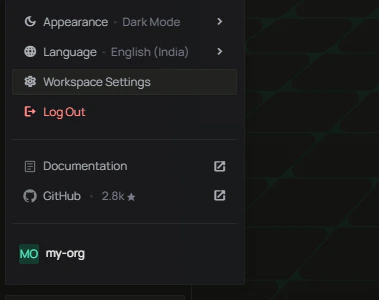
    1. Click your profile icon and select **Workspace Settings**

    <div className="text-center">
      <img src="https://mintcdn.com/pipeshub/ZQO-GpMYkqRfN8Qv/images/toolsets/mariadb/open-workspace-settings.png?fit=max&auto=format&n=ZQO-GpMYkqRfN8Qv&q=85&s=7957c136c2ad60dc227769dfa6b8042b" alt="Open Workspace Settings from profile menu" className="block mx-auto w-11/12" width="379" height="300" data-path="images/toolsets/mariadb/open-workspace-settings.png" />
    </div>

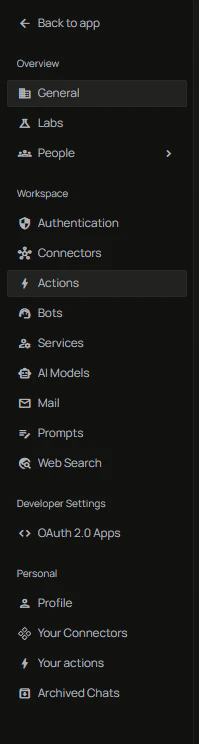
    2. In the sidebar, click **Actions**

    <div className="text-center">
      <img src="https://mintcdn.com/pipeshub/ZQO-GpMYkqRfN8Qv/images/toolsets/mariadb/navigate-to-actions.png?fit=max&auto=format&n=ZQO-GpMYkqRfN8Qv&q=85&s=80180f03fe24b3142beb390b72f9cd54" alt="Navigate to Actions in Workspace Settings sidebar" className="block mx-auto w-11/12" width="199" height="744" data-path="images/toolsets/mariadb/navigate-to-actions.png" />
    </div>

    ### Find MariaDB and click Setup

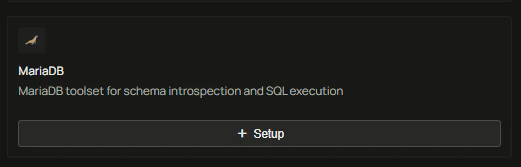
    Locate the **MariaDB** card in the list of available toolsets and click **+ Setup**.

    <div className="text-center">
      <img src="https://mintcdn.com/pipeshub/ZQO-GpMYkqRfN8Qv/images/toolsets/mariadb/mariadb-setup-card.png?fit=max&auto=format&n=ZQO-GpMYkqRfN8Qv&q=85&s=831ef9a6d3c51ca646ec3d1ed1d8e530" alt="MariaDB toolset setup card" className="block mx-auto w-11/12" width="521" height="167" data-path="images/toolsets/mariadb/mariadb-setup-card.png" />
    </div>

    ### Configure the instance

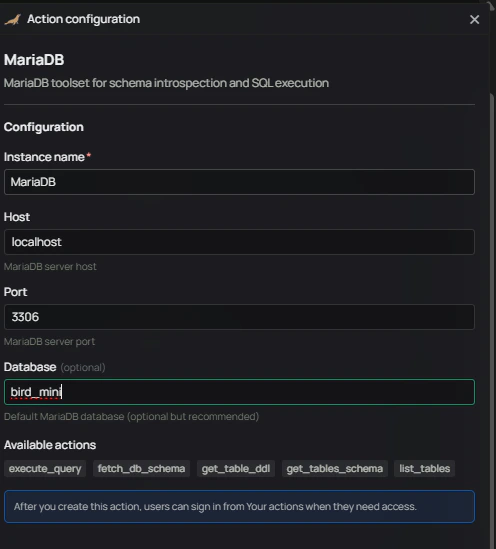
    Fill in the action configuration form:

    | Field             | Description                                       |
    | ----------------- | ------------------------------------------------- |
    | **Instance name** | A name for this toolset instance (e.g. `MariaDB`) |
    | **Host**          | MariaDB server host (e.g. `localhost`)            |
    | **Port**          | MariaDB server port (default `3306`)              |
    | **Database**      | Database name                                     |

    Click **Create** to save.

    <div className="text-center">
      <img src="https://mintcdn.com/pipeshub/ZQO-GpMYkqRfN8Qv/images/toolsets/mariadb/create-toolset-instance.png?fit=max&auto=format&n=ZQO-GpMYkqRfN8Qv&q=85&s=fdcb68774455407bf72c2e73a3f06565" alt="MariaDB action configuration form" className="block mx-auto w-11/12" width="496" height="549" data-path="images/toolsets/mariadb/create-toolset-instance.png" />
    </div>

    <Info>
      The admin only provides connection details (host, port, database). Username and password are entered by each user when they authenticate.
    </Info>
  </Accordion>

  <Accordion title="Step 3: Authenticate (each user)" icon="key">
    After the admin creates the toolset, every user must authenticate with their own MariaDB username and password before using it.

    ### Find the MariaDB card

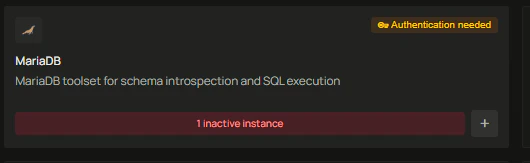
    In **Workspace Settings > Actions**, locate the MariaDB card. It will show **1 inactive instance**, meaning the toolset is set up but not yet authenticated for your user.

    <div className="text-center">
      <img src="https://mintcdn.com/pipeshub/ZQO-GpMYkqRfN8Qv/images/toolsets/mariadb/mariadb-inactive-card.png?fit=max&auto=format&n=ZQO-GpMYkqRfN8Qv&q=85&s=baab42b00c954cb1027fd80211c897c9" alt="MariaDB card showing 1 inactive instance" className="block mx-auto w-11/12" width="530" height="163" data-path="images/toolsets/mariadb/mariadb-inactive-card.png" />
    </div>

    ### Open the MariaDB toolset

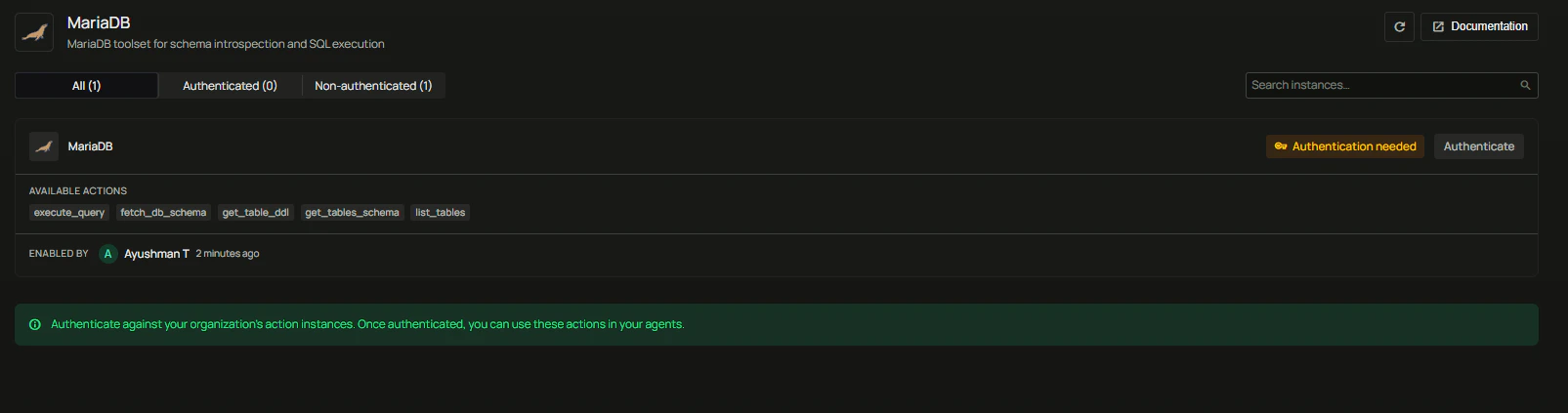
    Click the card to open it. You will see the instance marked as **Authentication needed**.

    <div className="text-center">
      <img src="https://mintcdn.com/pipeshub/ZQO-GpMYkqRfN8Qv/images/toolsets/mariadb/mariadb-toolset-page.png?fit=max&auto=format&n=ZQO-GpMYkqRfN8Qv&q=85&s=b6818f2047164793cdd93a81c62da056" alt="MariaDB toolset page showing authentication needed" className="block mx-auto w-11/12" width="1605" height="423" data-path="images/toolsets/mariadb/mariadb-toolset-page.png" />
    </div>

    ### Enter your credentials

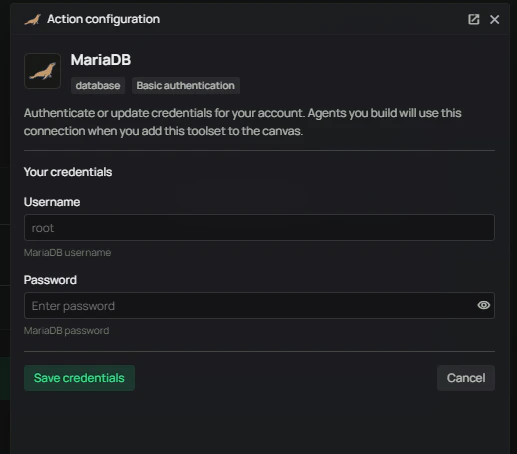
    Click **Authenticate** and enter your MariaDB **Username** and **Password**, then click **Save credentials**.

    <div className="text-center">
      <img src="https://mintcdn.com/pipeshub/ZQO-GpMYkqRfN8Qv/images/toolsets/mariadb/mariadb-user-auth.png?fit=max&auto=format&n=ZQO-GpMYkqRfN8Qv&q=85&s=3b33f308b5771009b2984a32dea3a5b4" alt="Enter MariaDB username and password" className="block mx-auto w-11/12" width="517" height="454" data-path="images/toolsets/mariadb/mariadb-user-auth.png" />
    </div>

    Once saved, the toolset status changes to **Authenticated** and is ready to use in agents.

    <div className="text-center">
      <img src="https://mintcdn.com/pipeshub/ZQO-GpMYkqRfN8Qv/images/toolsets/mariadb/mariadb-authenticated.png?fit=max&auto=format&n=ZQO-GpMYkqRfN8Qv&q=85&s=977bf13f2aa7b63f42c7fc8ac2286f7d" alt="MariaDB toolset authenticated" className="block mx-auto w-11/12" width="1601" height="289" data-path="images/toolsets/mariadb/mariadb-authenticated.png" />
    </div>
  </Accordion>

  <Accordion title="Step 4: Use MariaDB in an agent" icon="robot">
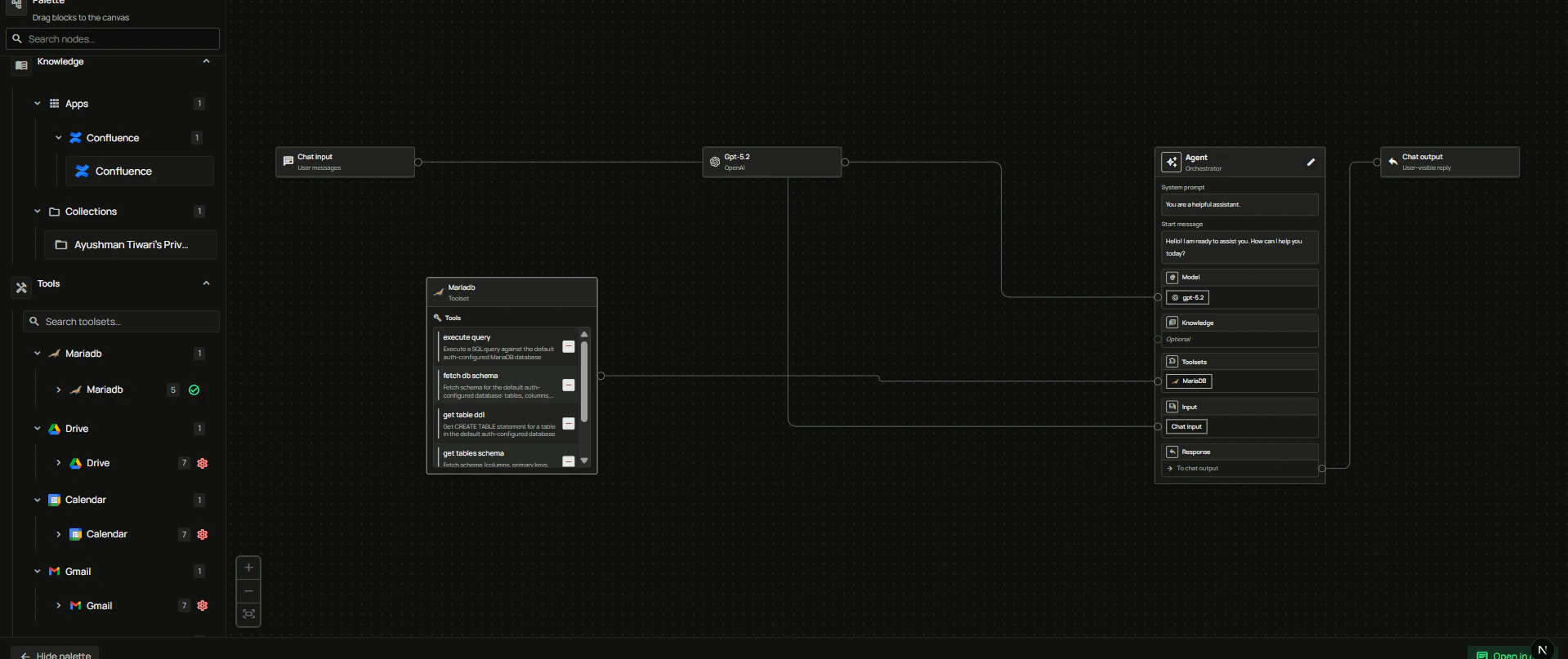
    1. Open the **Agent Builder**
    2. In the left sidebar, expand **Tools**
    3. Drag the **MariaDB** toolset onto the canvas
    4. Connect it to your agent

    <div className="text-center">
      <img src="https://mintcdn.com/pipeshub/ZQO-GpMYkqRfN8Qv/images/toolsets/mariadb/mariadb-in-agent.png?fit=max&auto=format&n=ZQO-GpMYkqRfN8Qv&q=85&s=59a9c92a672b17a4635a858f9940609e" alt="MariaDB toolset connected in Agent Builder" className="block mx-auto w-11/12" width="1919" height="807" data-path="images/toolsets/mariadb/mariadb-in-agent.png" />
    </div>

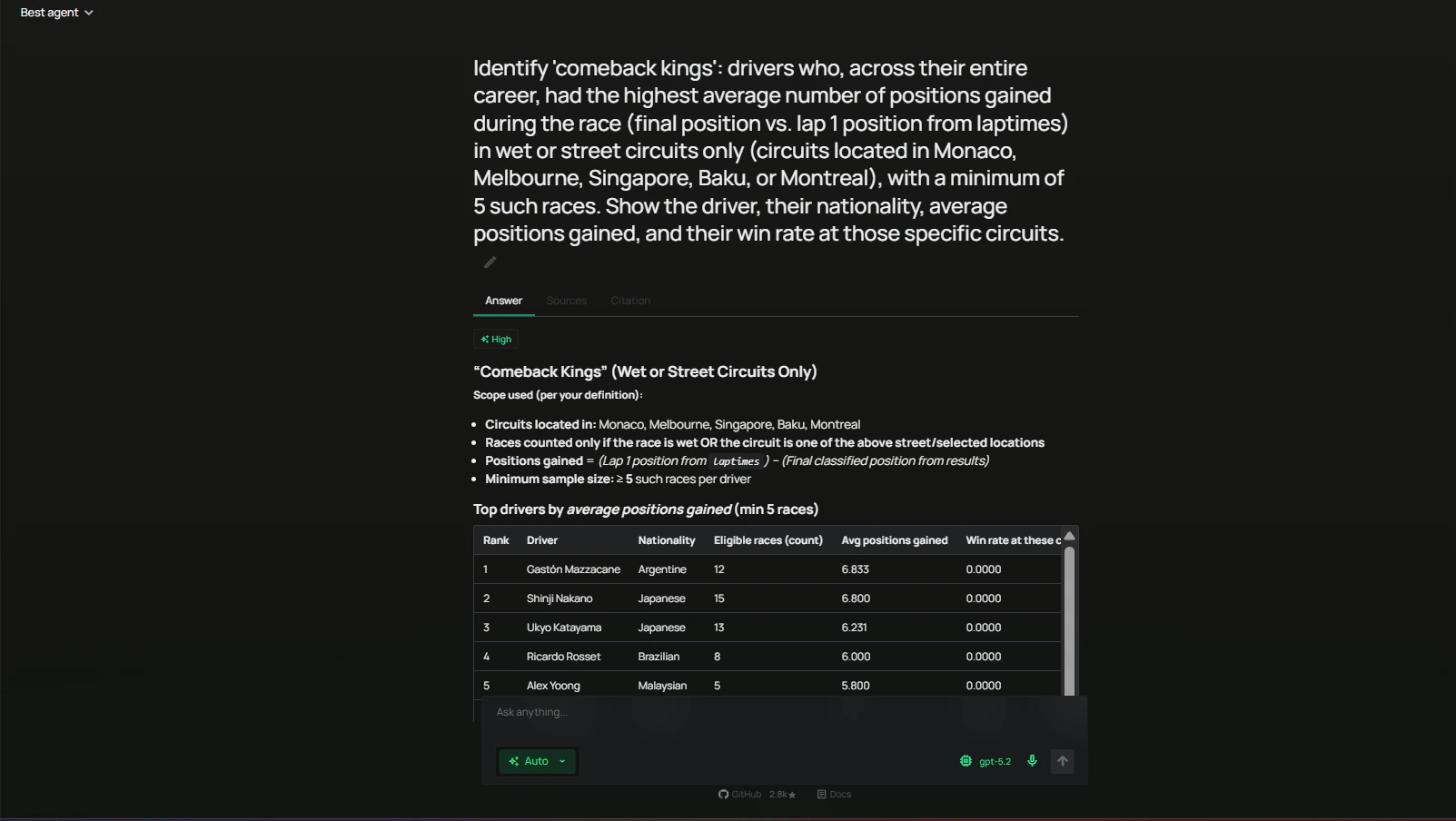
    Ask the agent natural-language questions — it will generate SQL, run it, and return results.

    <div className="text-center">
      <img src="https://mintcdn.com/pipeshub/ZQO-GpMYkqRfN8Qv/images/toolsets/mariadb/mariadb-agent-query.png?fit=max&auto=format&n=ZQO-GpMYkqRfN8Qv&q=85&s=3b5115063a4bd005f3b65583f8cfadb6" alt="Agent answering a question using MariaDB" className="block mx-auto w-11/12" width="1603" height="904" data-path="images/toolsets/mariadb/mariadb-agent-query.png" />
    </div>
  </Accordion>
</AccordionGroup>

***

## FAQ

<AccordionGroup>
  <Accordion title="Who creates the toolset and who authenticates?">
    * **Admin** creates the toolset instance with connection details (host, port, database).
    * **Each user** authenticates separately with their own MariaDB username and password.

    This way, every user queries the database with their own permissions.
  </Accordion>

  <Accordion title="Can I connect to a remote MariaDB server?">
    Yes. Use the public host and port of your MariaDB server. Make sure the server allows connections from the PipesHub deployment and that the user account has the required privileges.
  </Accordion>

  <Accordion title="What privileges should the MariaDB user have?">
    Grant the minimum privileges required for your use case. For read-only analytics, `SELECT` on the relevant database is usually enough:

    ```sql theme={null}
    GRANT SELECT ON test_db.* TO 'username'@'%';
    ```
  </Accordion>

  <Accordion title="Can I change the database after creating the toolset?">
    Yes. An admin can update the instance configuration from **Workspace Settings > Actions**. Users may need to re-authenticate after a change.
  </Accordion>
</AccordionGroup>

***

## Usage Tips

**How do I list all tables?**
Ask the agent "list all tables in the database".

**How do I explore a table's structure?**
Ask "show me the schema for the `orders` table" or "get the CREATE TABLE for `customers`".

**How do I run a query?**
Describe the question in natural language, for example: "what are the top 10 customers by total order value?" — the agent will generate and run the SQL.

**How do I limit the scope of a query?**
Mention a specific table or time range in your question, e.g. "from the `events` table in the last 30 days".