> ## Documentation Index
> Fetch the complete documentation index at: https://docs.pipeshub.com/llms.txt
> Use this file to discover all available pages before exploring further.
# Microsoft Teams actions
> Microsoft Teams and Microsoft 365 collaboration integration for AI agents
Microsoft Teams actions
Team channels, chats, meetings, and calendar via Microsoft Graph
Ready
Microsoft 365
## Overview
The Microsoft Teams **action** lets AI agents work with your organization through **Microsoft Graph**: post and read channel messages, manage chats, search conversations, manage teams and channels, and work with calendar events, online meetings, transcripts, and attendance.
Administrators enable the integration under **Workspace → Actions** in the web app. Each user completes sign-in under **Your actions** so agents run with that user’s Microsoft identity and permissions.
### Key Capabilities
* **Channel messaging** — Send messages, reply in threads, update text, reactions, permalinks, and search across channels
* **Direct chats** — Message users by name or email, read chat history with a person, create 1:1 or group chats
* **Teams and channels** — List teams and channels, create or rename channels, create teams, list and add members
* **Users** — Look up a user or list directory users in the tenant
* **Meetings and calendar** — List and filter meetings, search events by name in a date range, create or edit calendar events, schedule channel meetings
* **Meeting insights** — Transcripts, invited attendees, and attendance for Teams online meetings
***
## Available tools
These are the Graph-backed **tools** your agents can call once the Microsoft Teams action is configured and the user has authenticated. In the product UI they appear under **Available actions** for this integration.
| Tool | Description | Type |
| ----------------------------------- | --------------------------------------------------------------------------------------- | ------ |
| `get_user_info` | Get information about a Teams/Entra user | Search |
| `get_users_list` | Get list of users available in Microsoft Entra/Teams tenant | Search |
| `get_user_conversations` | Get conversation messages with a Teams user | Search |
| `get_user_channels` | Get channels accessible to the authenticated Teams user | Search |
| `get_meetings` | Get meetings with optional filters (date range, deleted, cancelled, recurring/one-time) | Search |
| `search_calendar_events_in_range` | Search calendar events by partial subject within a time range | Search |
| `get_my_meeting_transcripts` | Get transcript records, content, and metadata for the user’s online meetings | Search |
| `get_people_attended` | Get attendance records for a Teams online meeting | Search |
| `get_people_invited` | Get people invited to a Teams meeting | Search |
| `get_teams` | List Microsoft Teams the authenticated user has joined | Search |
| `get_team` | Get details for a specific Microsoft Team | Search |
| `get_members` | List members in a Microsoft Team or channel | Search |
| `get_channels` | List channels in a Microsoft Team | Search |
| `search_messages` | Search messages in Microsoft Teams channels | Search |
| `get_reactions` | Get reactions for a Microsoft Teams channel message | Search |
| `get_channel_messages` | List messages from a Microsoft Teams channel | Search |
| `get_thread_replies` | Get replies in a Microsoft Teams message thread | Search |
| `get_message_permalink` | Get a permalink/URL for a Microsoft Teams channel message | Search |
| `get_chat` | Get details of a specific Microsoft Teams chat | Search |
| `create_event` | Create a calendar event/meeting for the authenticated user | Action |
| `create_channel_meeting` | Schedule an online meeting for a Teams channel in a team | Action |
| `edit_event` | Edit or update an existing calendar event | Action |
| `create_team` | Create a new Microsoft Team | Action |
| `add_member` | Add a member to a Microsoft Team or channel (team, standard, or private channel) | Action |
| `create_channel` | Create a new channel in a Microsoft Team | Action |
| `update_channel` | Update a channel display name or description | Action |
| `send_channel_message` | Send a message to a Microsoft Teams channel | Action |
| `send_user_message` | Send a direct message to a Microsoft Teams user | Action |
| `reply_to_message` | Reply to a specific message in a Microsoft Teams channel thread | Action |
| `send_message_to_multiple_channels` | Send the same message to multiple channels in a Microsoft Team | Action |
| `add_reaction` | Add a reaction to a Microsoft Teams channel message | Action |
| `remove_reaction` | Remove a reaction from a Microsoft Teams channel message | Action |
| `update_message` | Update an existing Microsoft Teams message in a channel or direct chat | Action |
| `create_chat` | Create a 1:1 or group chat in Microsoft Teams | Action |
***
## Configuration Guide
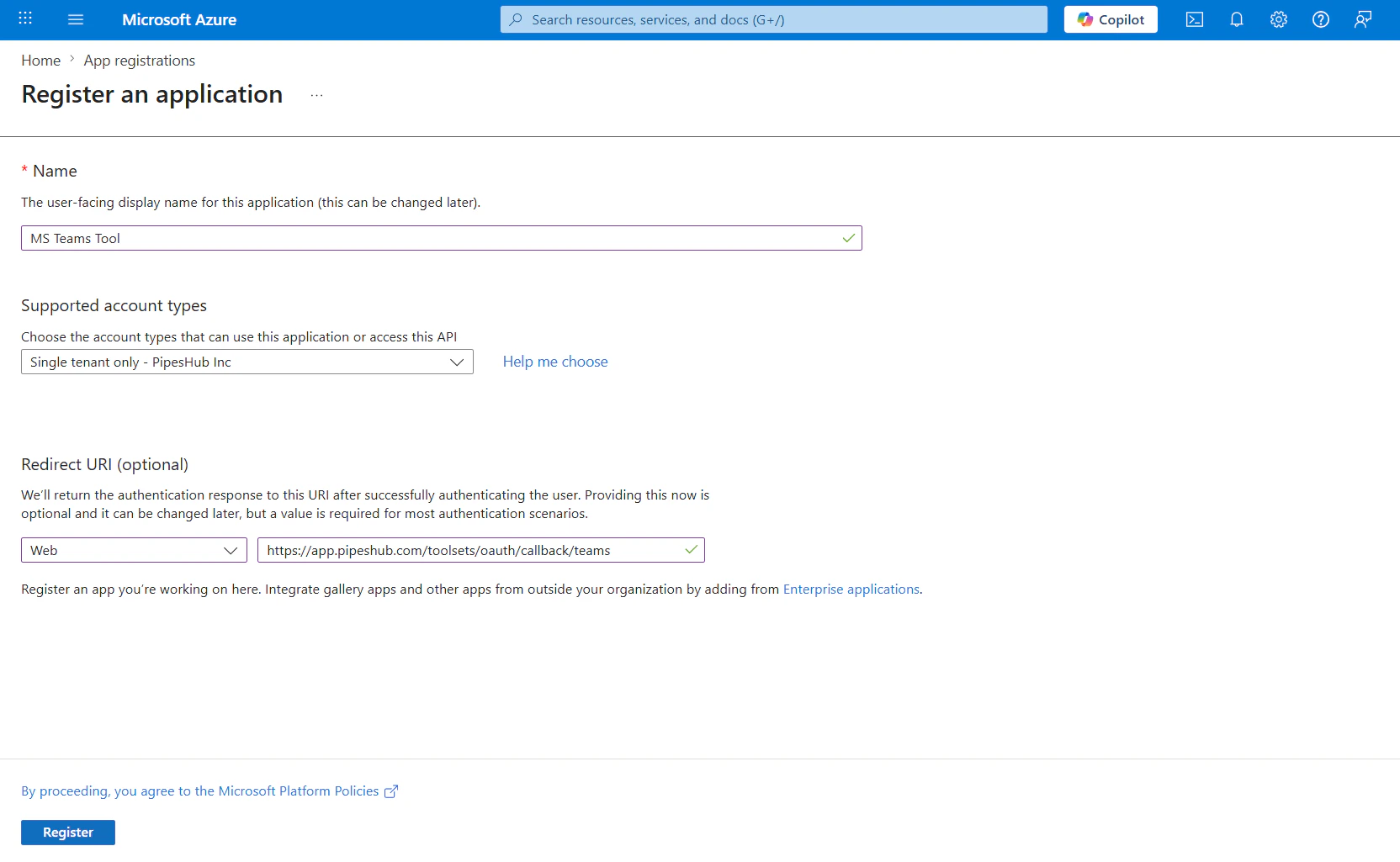
### Step 1: Register an application in Microsoft Entra ID
1. Sign in to the [Azure portal](https://portal.azure.com) as an administrator (or a user who can register apps).
2. Open **Microsoft Entra ID** (Azure Active Directory).
3. Under **Manage**, select **App registrations** → **New registration**.
4. Enter a name (for example, “PipesHub Teams actions”), choose **Accounts in any organizational directory and personal Microsoft accounts** if you need the broadest sign-in audience (or a stricter option for your tenant), then register.
5. Copy the **Application (client) ID** for later.
### Step 2: Add Microsoft Graph API permissions
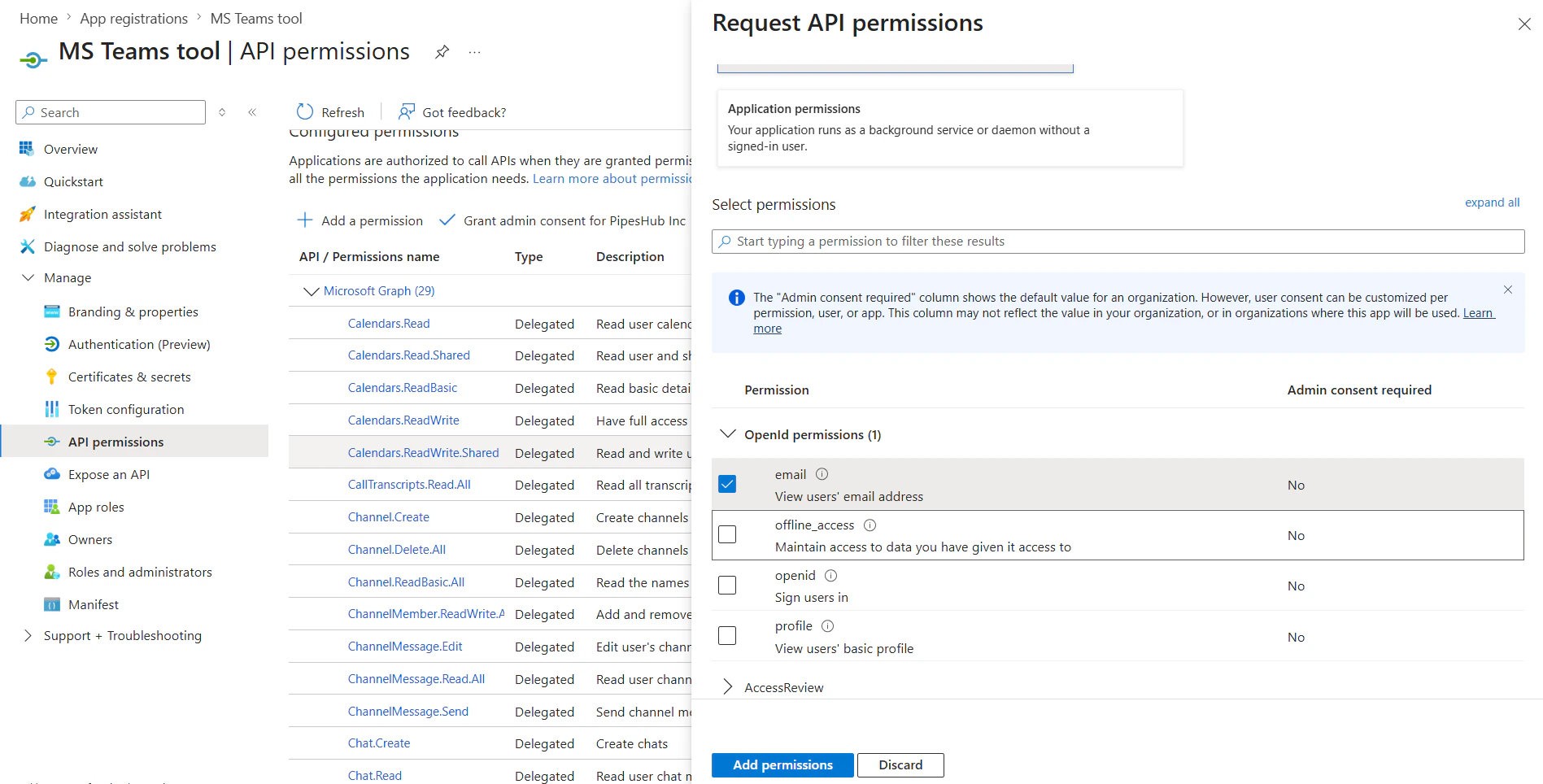
1. In the app registration, open **API permissions**.
2. Click **Add a permission** → **Microsoft Graph** → **Delegated permissions**.
3. Add the permissions required by the Teams action (see the table below). Add each permission that appears in your product version; your administrator may consolidate or adjust these over time.
4. Click **Add permissions**.
#### Delegated permissions (reference)
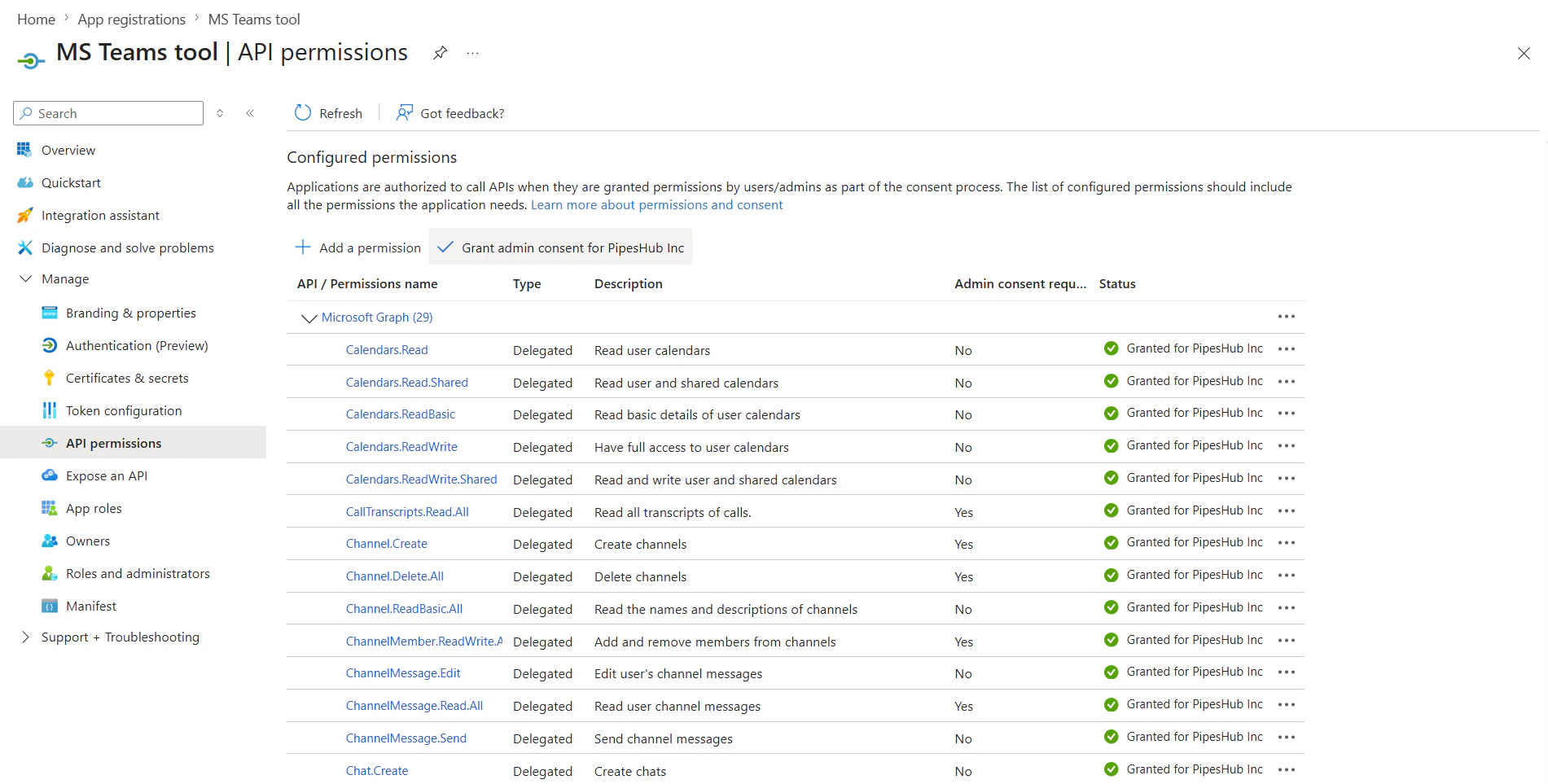
These align with the agent OAuth scope configuration for the Microsoft Teams action. Several permissions are commonly granted via **admin consent**. See the [Microsoft Graph permissions reference](https://learn.microsoft.com/en-us/graph/permissions-reference) for details.
| Permission | Typical use |
| ---------------------------------- | ---------------------------------------------- |
| `Team.ReadBasic.All` | Read basic team properties |
| `Channel.ReadBasic.All` | Read basic channel properties |
| `Channel.Create` | Create channels |
| `Channel.Delete.All` | Delete channels |
| `ChannelMessage.Read.All` | Read channel messages |
| `ChannelMessage.Send` | Send channel messages |
| `TeamMember.ReadWrite.All` | Add or manage team members |
| `Group.ReadWrite.All` | Create and manage Microsoft 365 groups / teams |
| `Chat.ReadWrite` | Read and send chat messages |
| `Chat.Create` | Create chats |
| `offline_access` | Refresh tokens for long-lived sessions |
| `User.Read` | Sign-in profile for the signed-in user |
| `User.ReadBasic.All` | Read basic profiles of other users |
| `Calendars.Read` | Read user calendars |
| `Calendars.Read.Shared` | Read calendars the user can access |
| `Calendars.ReadBasic` | Basic calendar read |
| `Calendars.ReadWrite` | Create and update events |
| `OnlineMeetings.Read` | Read online meeting properties |
| `OnlineMeetingTranscript.Read.All` | Read meeting transcripts |
| `OnlineMeetingArtifact.Read.All` | Read meeting artifacts |
| `ChannelMember.ReadWrite.All` | Add or manage channel members |
### Step 3: Grant admin consent (if required)
1. On **API permissions**, review **Status** for each permission.
2. If your tenant requires it, click **Grant admin consent for \[your organization]** and confirm.
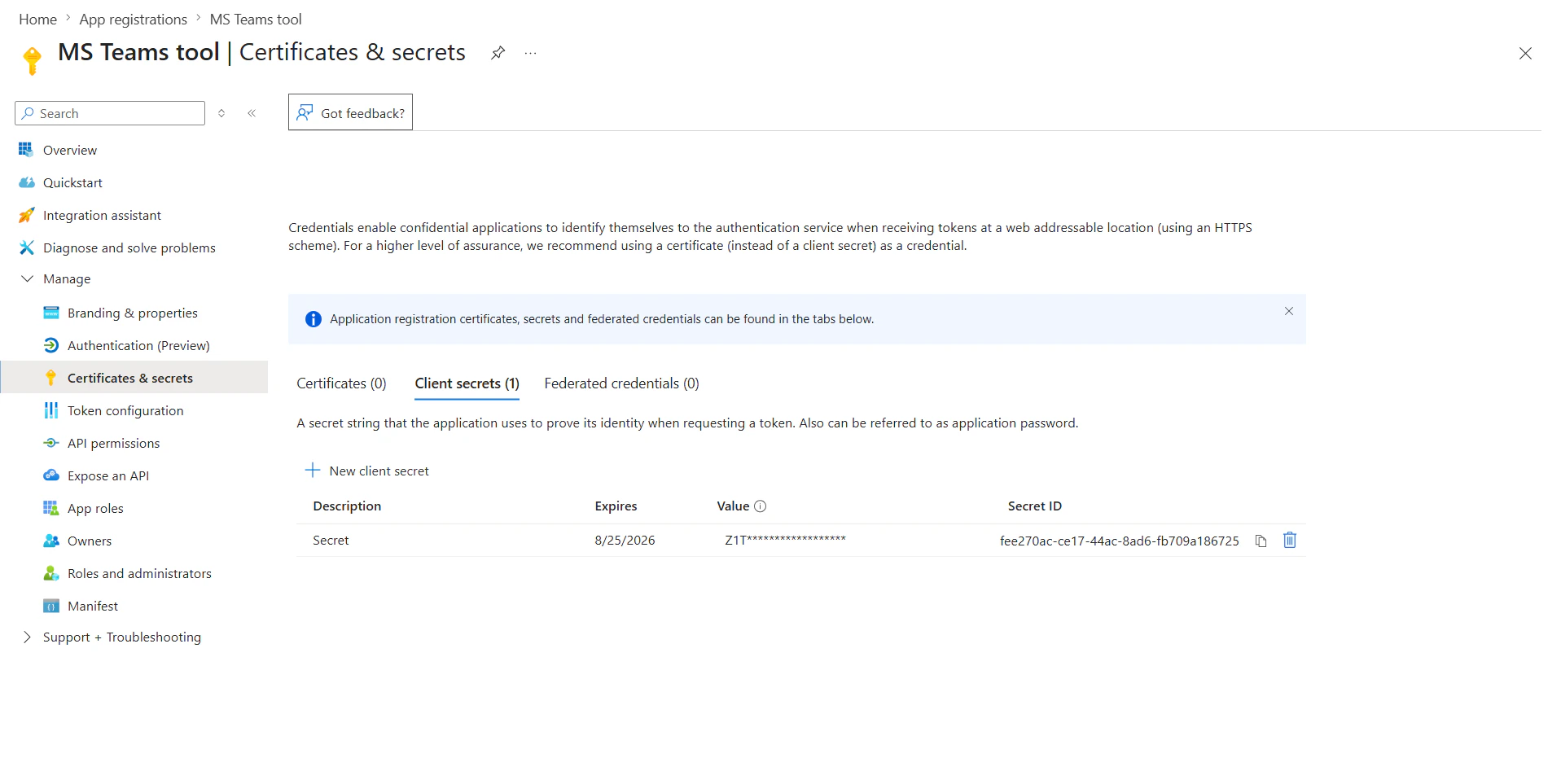
### Step 4: Create a client secret
1. Open **Certificates & secrets**.
2. Under **Client secrets**, click **New client secret**, add a description and expiry, then **Add**.
3. **Copy the secret value immediately**; it is shown only once.
### Step 5: Create the Microsoft Teams action in PipesHub
These steps require a **workspace administrator**. Open **Workspace → Actions** (or `/workspace/actions/team`). Use the path that matches whether your organization already has a Microsoft Teams **org instance**.
#### Case A — Organization does not have a Microsoft Teams instance yet
1. In the sidebar, open **Workspace**, then **Actions**.
2. On the catalog, find **Microsoft Teams**. With no org instance yet, the card is **Not configured** and the primary control is **Setup**.
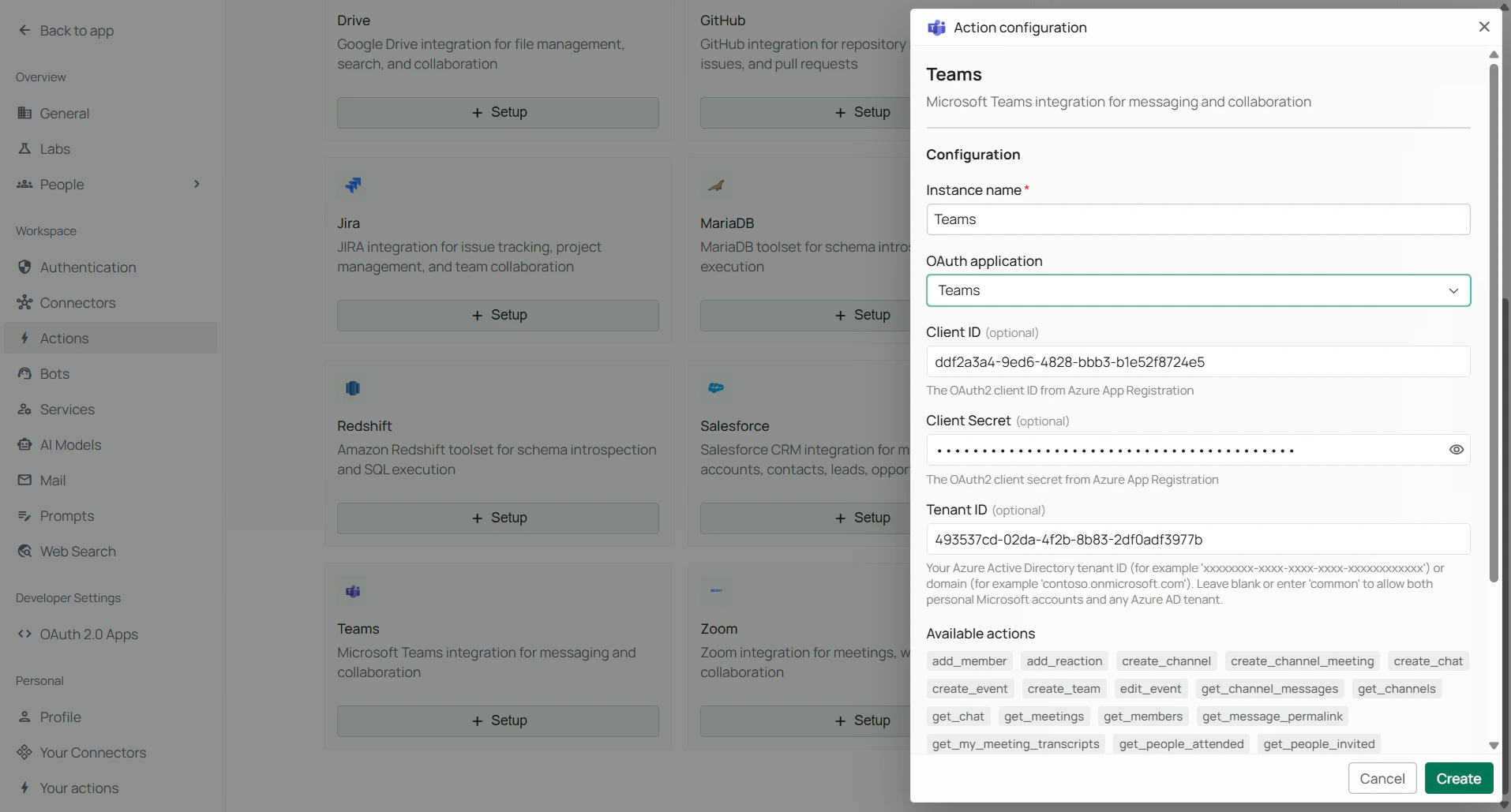
3. Click **Setup** on the Microsoft Teams card (or open the card and start setup). The **Action configuration** drawer opens.
#### Case B — Organization already has at least one Microsoft Teams instance
1. In the sidebar, open **Workspace**, then **Actions**.
2. Find **Microsoft Teams** in the catalog. When an org instance already exists, clicking the card opens the **Microsoft Teams** type page (instances list) instead of launching setup immediately.
3. On the type page, click **Add instance**. The **Action configuration** drawer opens.
#### Complete configuration (both cases)
4. In the **Action configuration** drawer, set **Instance name** (for example, “Production Teams”).
5. Enter **Client ID** and **Client secret** from Entra (and **Tenant ID** if the form shows it—your directory GUID, domain, or **`common`** for the default multi-tenant and personal Microsoft account behavior, as described in the product UI).
6. Click **Create** to save the organization action instance.
After you create an OAuth-backed action, the product may remind you that each user must sign in from **Your actions** before they can use it in agents.
### Step 6: Copy the Redirect URI and register it in Azure
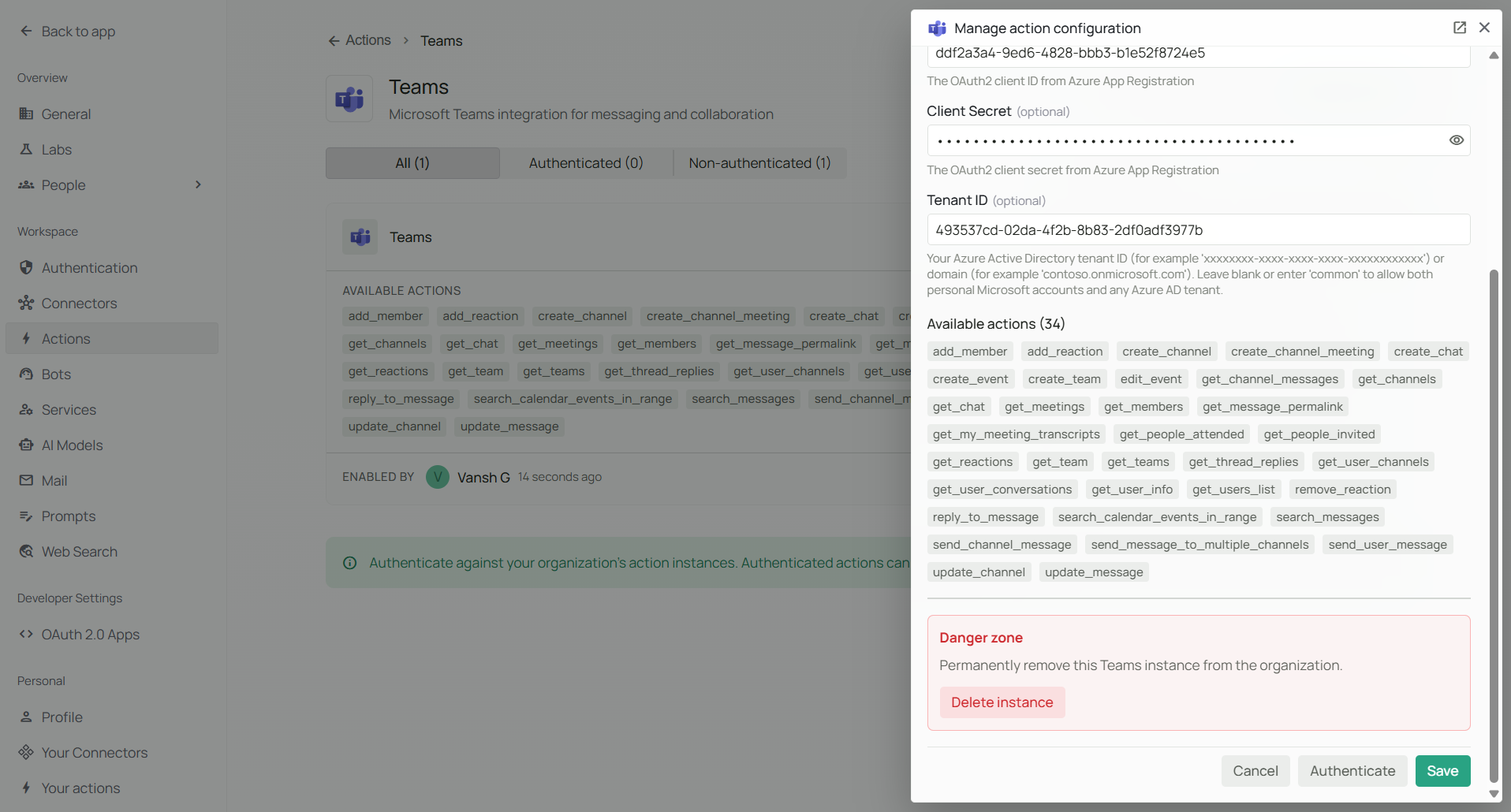
The **Action configuration** drawer does not show the redirect URL; you copy it from **Manage action configuration** after the instance exists.
1. On the Microsoft Teams action page, find your new instance in the list.
2. Open **Manage action configuration** (the settings control on the instance row).
3. Under **Redirect URI**, copy the value (or use **Copy**). It matches your deployment host and this pattern:
`https:///toolsets/oauth/callback/teams`
The path segment `teams` matches the Microsoft Teams action type. The value must match what you register in Entra **exactly** (scheme, host, path; no stray trailing slash unless your deployment includes one).
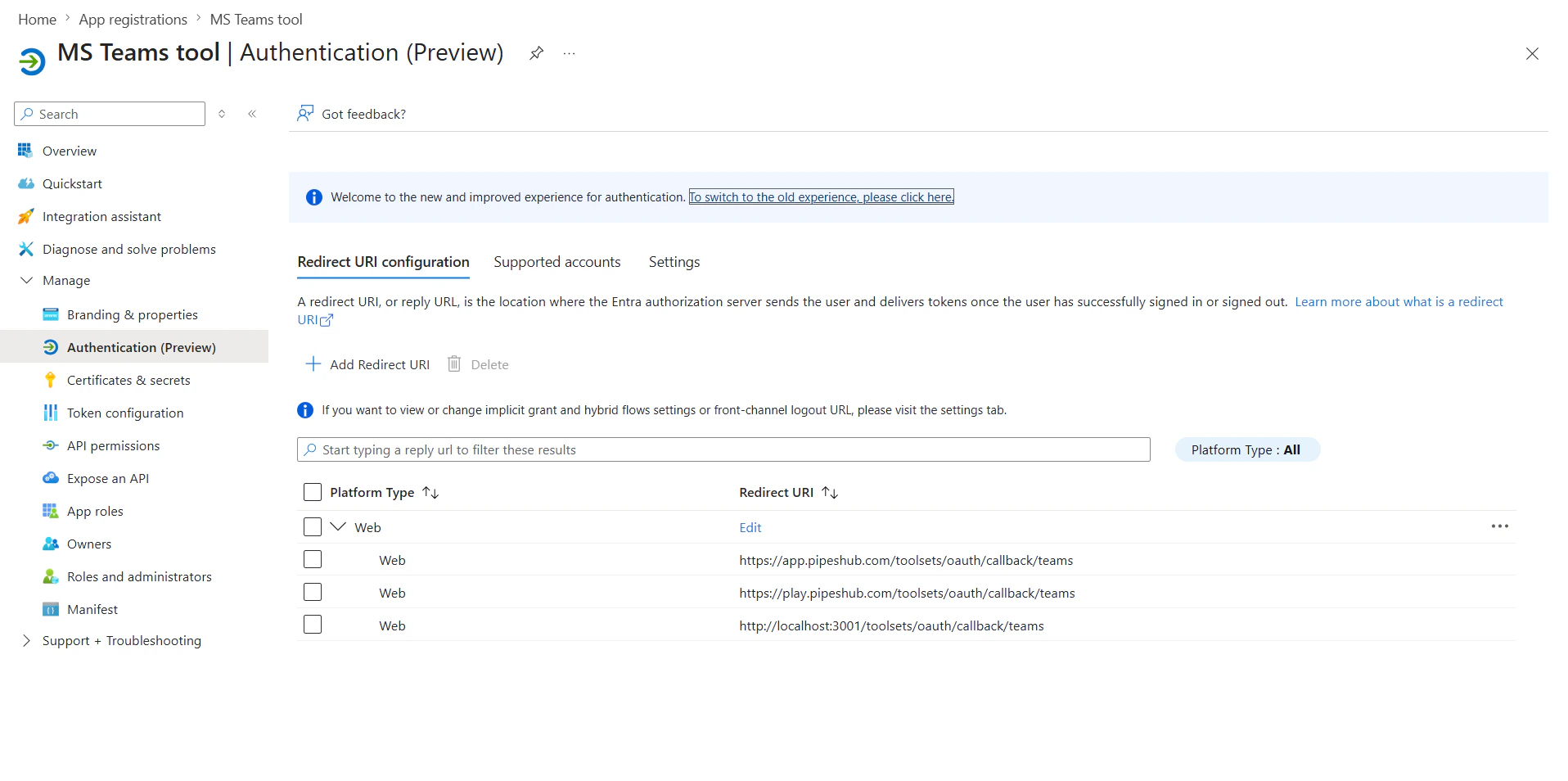
4. In the Entra app registration, open **Authentication**.
5. Under **Platform configurations**, add a **Web** platform if needed.
6. Under **Redirect URIs**, paste the **exact** Redirect URI from PipesHub.
7. For a web-based OAuth callback, you can enable **Access tokens** and **ID tokens** under **Implicit grant and hybrid flows** only if your organization’s security policy requires it; many confidential-client flows use the authorization code flow only.
8. Save the **Authentication** blade.
The Redirect URI in Azure must match the value from PipesHub **exactly** (including scheme, host, path, and trailing slashes).
### Step 7: Sign in and authorize
**Administrators (org instance)**\
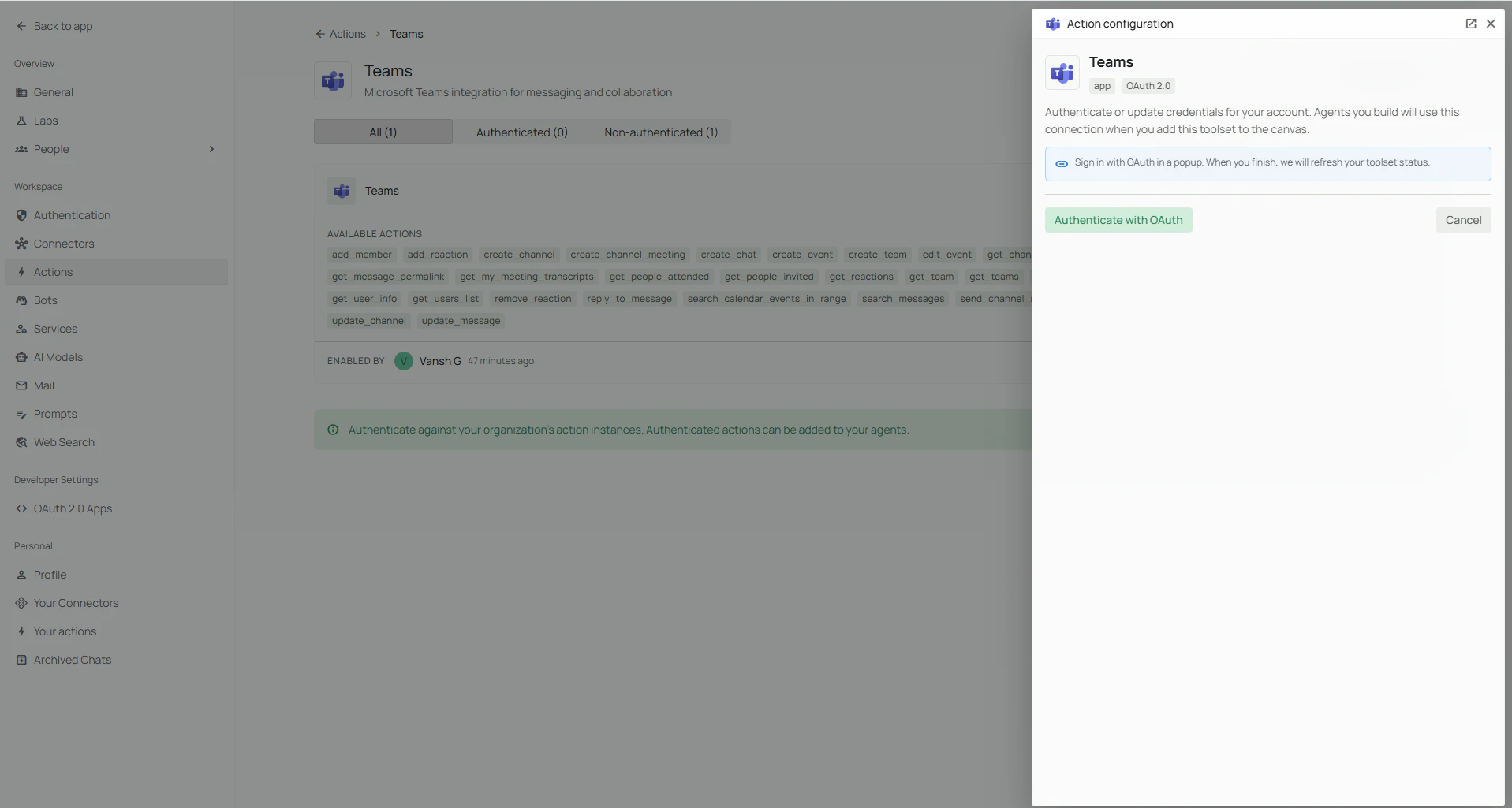
On **Workspace → Actions**, open Microsoft Teams, select your instance, and use **Authenticate** to complete the Microsoft sign-in and consent flow. After redirect back to PipesHub, the instance should show as authenticated.
**End users**\
Each person who should use Microsoft Teams in agents opens **Your actions** in the workspace sidebar (`/workspace/actions/personal`), finds Microsoft Teams, and completes **Authenticate** for the organization instance they need.
***
## FAQ
| Aspect | Teams Connector | Microsoft Teams action |
| --------------- | ---------------------------------------------------------------- | ------------------------------------------------------------------------------------------------- |
| **Purpose** | Sync and index Teams-related content for search in PipesHub | Let agents call Microsoft Graph in real time (messages, meetings, membership, and more) |
| **Data flow** | Primarily one-way import into PipesHub | Two-way: read and write through APIs |
| **When to use** | Search historical Teams or Microsoft 365 content already indexed | Create events, post messages, add members, fetch live meeting transcripts, and similar operations |
Use a **connector** when you need retrieval over indexed data; use the **Microsoft Teams action** when the agent should **act** in Teams or Graph on behalf of the signed-in user (within granted permissions).
***
Channel message search scans recent messages per channel (bounded by the tool’s parameters). Ask for a specific team or channel when possible so results stay focused.
***
## Usage Tips
**How do I post in a Teams channel?**\
Ask the agent to send a message to the right team and channel. It can use `get_teams` and `get_channels` to resolve IDs, then `send_channel_message`.
**How do I direct-message someone?**\
Ask to “DM” or “chat with” a person by display name, email, or UPN. The Microsoft Teams action uses `send_user_message` and resolves the user when possible.
**How do I reply in a thread?**\
Ask to reply to a specific message or thread in a channel. The agent uses `reply_to_message` with the parent message ID when it is known, or reads the thread with `get_channel_messages` / `get_thread_replies` first.
**How do I find or schedule a meeting?**\
Use natural language with a time range. The agent can call `get_meetings`, `search_calendar_events_in_range`, `create_event`, or `create_channel_meeting` depending on whether the meeting is personal or tied to a channel.
**How do I get a meeting transcript or who attended?**\
Ask for the transcript or attendance for a specific online meeting. The agent uses `get_my_meeting_transcripts`, `get_people_attended`, or `get_people_invited` as appropriate, often after resolving the meeting from calendar or join information.
**How do I add someone to a team or private channel?**\
Ask to add the user by email or ID and specify the team (and private channel if needed). The agent uses `add_member`; use `get_members` to inspect membership first if helpful.