> ## Documentation Index
> Fetch the complete documentation index at: https://docs.pipeshub.com/llms.txt
> Use this file to discover all available pages before exploring further.
# Users
> Invite, manage, and remove users in your PipesHub workspace
The **Users** page lists everyone who has been invited to or is part of your workspace. Administrators can invite new members, manage existing ones, and act on pending invites from a single view.
## Navigating to Users
1. Sign in to your PipesHub account with administrator credentials
2. Open the user menu and click **Workspace Settings**
3. In the workspace sidebar, expand the **People** section and select **Users**
The page shows a table of all workspace users with the following columns:
| Column | Description |
| --------------- | ------------------------------------------ |
| **User** | Avatar, display name, and email |
| **Role** | `Admin` or `Member` |
| **Groups** | Number of user groups this user belongs to |
| **Status** | `Active`, `Pending`, or `Blocked` |
| **Last Active** | Date of the user's most recent activity |
| **Date Joined** | Date the user was added or invited |
Use the **search** field in the header to look up users by name or email, and the **filters** above the table to narrow results by group, status, last active date, or date joined. Clicking any row opens that user's **profile** panel on the right.
## Inviting Users
1. On the **Users** page, click the **Invite** button in the top-right corner
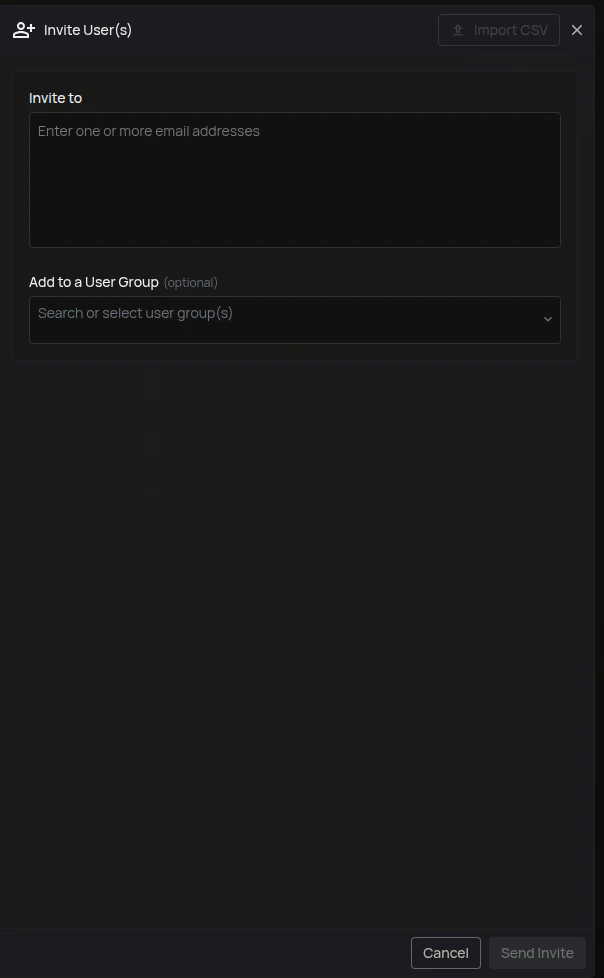
2. The **Invite User(s)** panel opens on the right
3. In the **Invite to** field, type or paste one or more email addresses (separated by comma, space, or Enter). Invalid addresses are flagged inline
4. (Optional) In **Add to a User Group**, search and select one or more groups. New users inherit access from the groups they are added to
5. Click **Send Invite**
Each invited user receives an email with instructions to join the workspace. Until they sign in, their status on the Users page is **Pending**.
## Managing Pending Invites
Click the row actions menu (**⋯**) next to a user with status **Pending** to access invite-specific actions:
* **Resend Invite** — Sends a fresh invitation email to the same address.
* **Cancel Invite** — Revokes the outstanding invitation.
If an invitation expires, the same **Resend Invite** and **Cancel Invite** options appear so you can extend or revoke the invite.
## Bulk Actions
Select one or more rows using the checkboxes. A floating action bar appears at the bottom of the table:
* If every selected row is a **Pending** invite: **Resend Invite** or **Cancel Invite**.
* Otherwise: **Remove from Workplace** (disabled when the selection contains any Admin).
## Managing Active Users
For an active (non-admin) user, the row actions menu offers:
* **View Profile** — Opens the user's profile panel on the right
* **Deactivate** — Temporarily disables the account (coming soon)
* **Remove from Workplace** — Permanently removes the user. A confirmation dialog asks you to confirm.
Admin users only expose **View Profile** in the row actions menu; admins cannot be removed from this screen.
## Unblocking Users
If a user is **Blocked**, open the row actions menu and choose **Unblock**. A confirmation dialog asks you to type the user's display name before the action is applied.
## Removing a User
1. Open the row actions menu (**⋯**) for the user
2. Click **Remove from Workplace**
3. In the confirmation dialog, click **Remove**
Removing a user is immediate. They lose access to the workspace and their group memberships are cleared. Admin accounts cannot be removed from the Users page.