

Dropbox Personal
Sync files and folders from individual accounts
✅ Ready📚 Documentation Available
Overview
The Dropbox Personal connector allows you to sync files and folders from a single, individual Dropbox account. Unlike the Team connector, this focuses on your personal “Home” drive and does not import organization-wide team structures or groups.Configuration Guide
Understanding Dropbox Personal API
Understanding Dropbox Personal API
User Client
This connector uses the Dropbox User Client. It is designed to interact with a specific user’s account data. It treats the root of your Dropbox as the “Record Group” (Drive) and syncs content recursively from there.APIs Documentation
- Dropbox HTTP API: https://www.dropbox.com/developers/documentation/http/documentation
Concept of Cursor
A cursor is a short string that acts like a bookmark for keeping track of changes in a folder.- When you first list the contents of a folder, the API response includes a cursor.
- This cursor represents the exact state of that folder at that moment.
- Instead of re-downloading the entire list of files to check for changes, the connector passes that cursor to the
/files/list_folder/continueendpoint. - The API then returns only the files and folders that have been added, modified, or deleted since the last sync.
Create Dropbox App
Create Dropbox App
This guide will walk you through creating a Dropbox application to connect your personal account to PipesHub.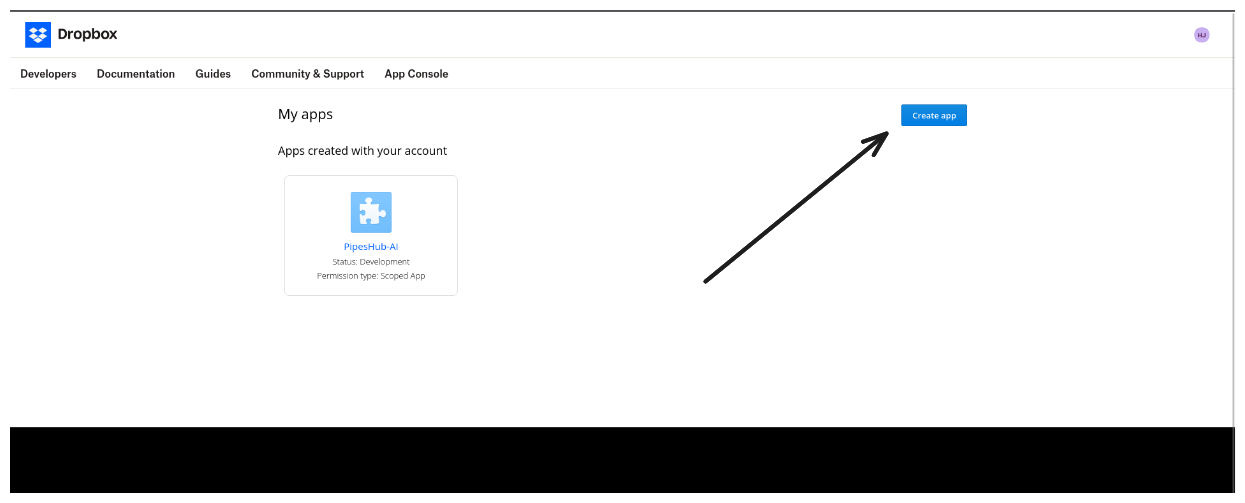

Step 1: Create a Dropbox App
- Navigate to the Dropbox App Console and sign in with your Dropbox credentials.
- Click the Create app button on the top right.
-
Configure your new app with the following settings:
- Choose an API: Select Scoped access.
- Type of access: Select Full Dropbox. (This allows access to all files in your account, not just a specific app folder).
- Name your app: Enter a unique name, for example, “Pipeshub Personal Connector”.
- Click Create app. You will be redirected to your new app’s settings page.
Step 2: Configure Permissions
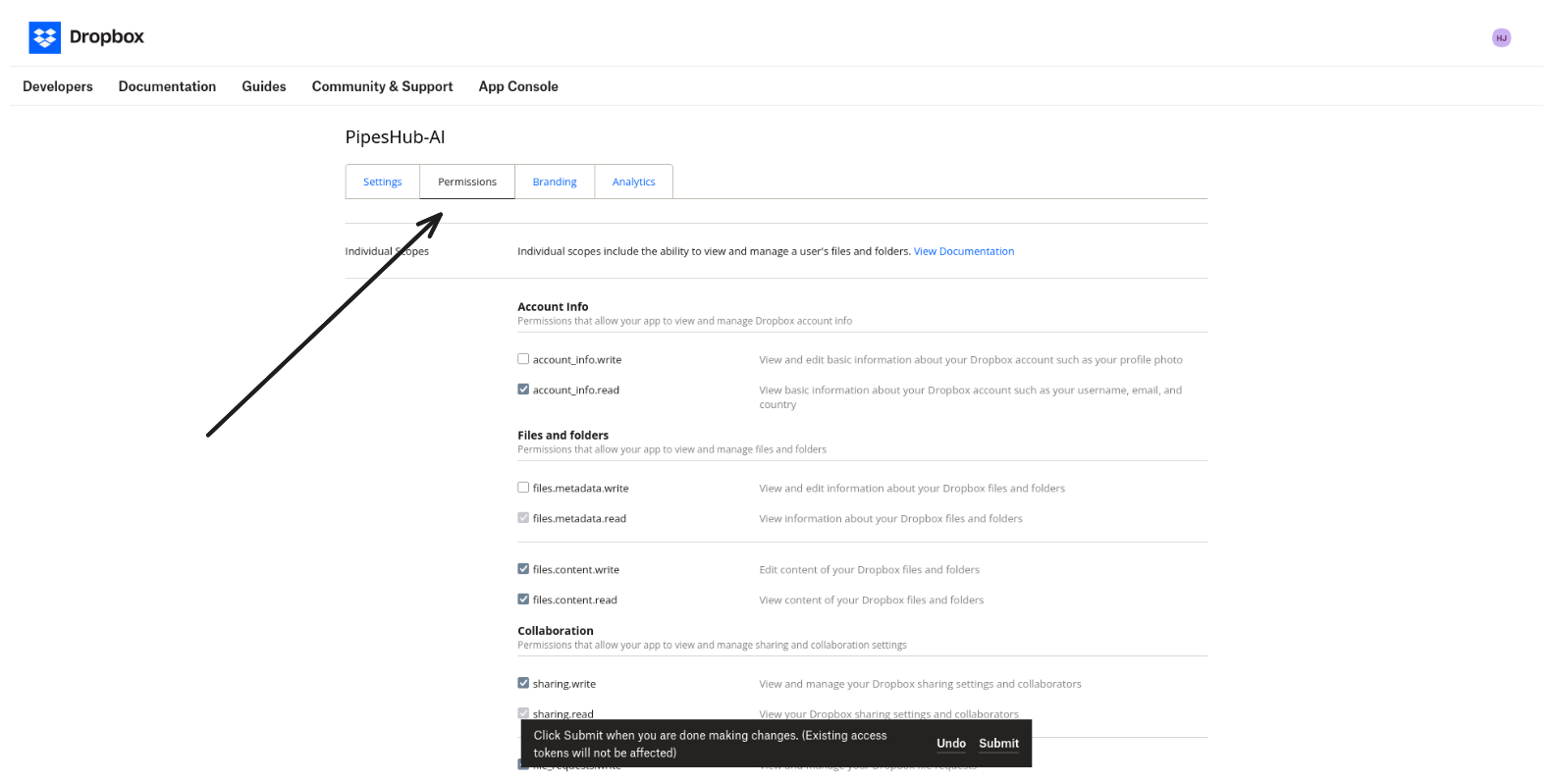
- On your app’s page, navigate to the Permissions tab.
-
You must enable the following Individual Scopes by checking their boxes to allow PipesHub to access your data:
-
account_info.read(Required to identify your user ID and email) -
files.content.read(Required to download file content) -
files.metadata.read(Required to track file names, types, and updates) -
sharing.read(Required to detect shared link permissions) -
sharing.write(Required to create preview links)
Note: You do not need to check any “Team Scopes” as this connector is for individual accounts only.
-
- Click Submit at the bottom of the page to save these changes.
Step 3: Configure Redirect URI
- Go to the Settings tab and find the OAuth 2 section.
- Add the following URL to the Redirect URIs field (replace
{your_pipeshub_base_url}with your actual domain):
Important: Ensure the URL matches exactly what is configured in your connector code (specifically the Dropbox%20Personal suffix).
- Click Add to save the URI.
Step 4: Copy App Key and Secret
- While in the Settings tab, locate the App key and App secret.
- Click Show to reveal the secret.
- Copy these credentials for the next step.
Connect to PipesHub
Connect to PipesHub
Step 1: Configure Connection
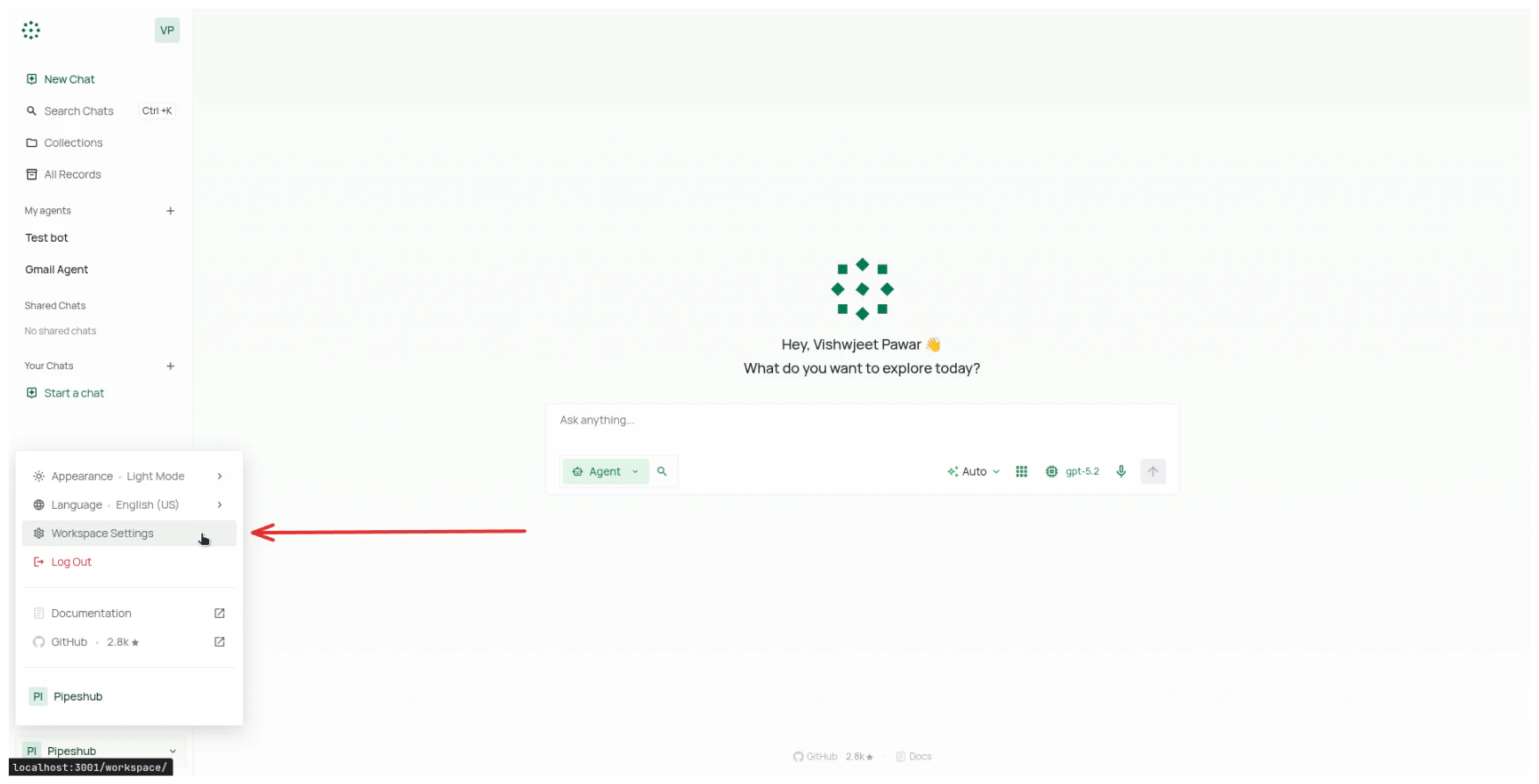
- Navigate to Workspace Settings > Under Personal section in sidebar > Your Connectors in your application.
- You will see a list of connectors with Individual Setup.
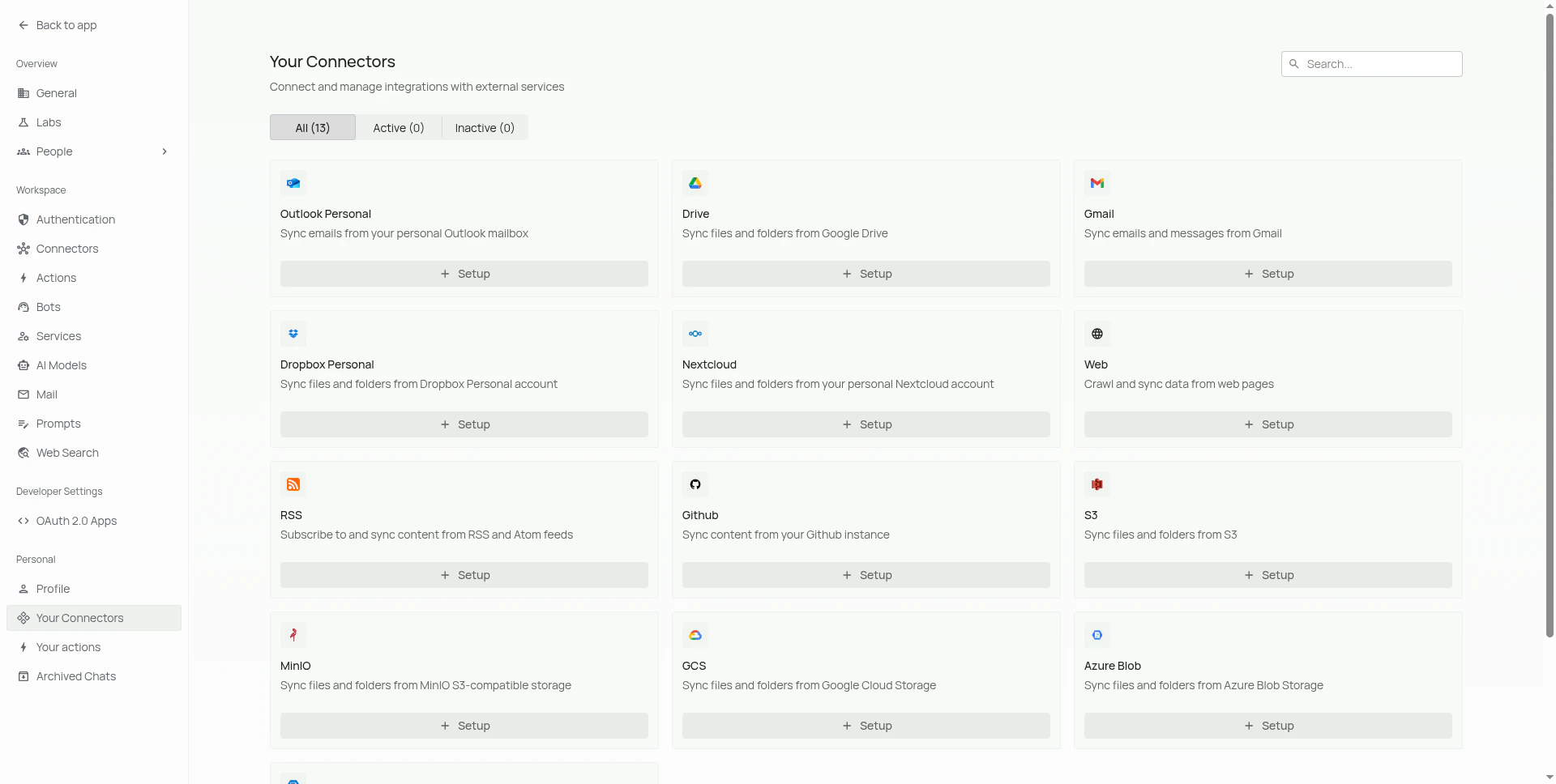
- Search for the Dropbox connector and click on Setup to configure a connector instance.
-
In the configuration dialog that opens:
- Enter an Instance Name for your connector (e.g., “Dropbox Personal”)
- Enter the App key from your Dropbox App Console
- Enter the App secret from your Dropbox App Console
- Click on the Next button to save the configuration and move to Authorize page.
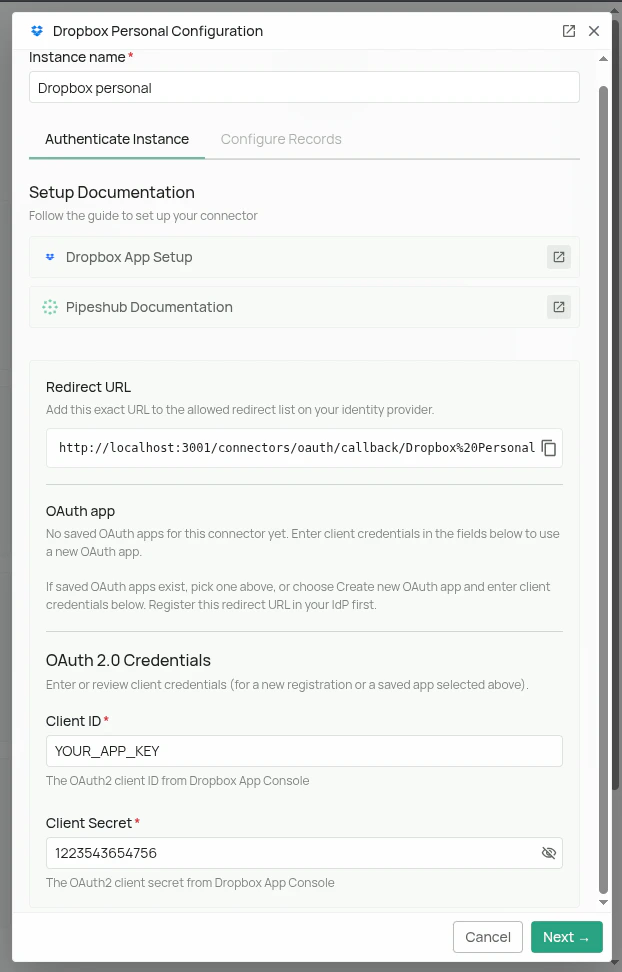
Step 2: Authorize Dropbox
- In the Authorize page that opens:
- Click on Authenticate Dropbox to Proceed button
- You will be redirected to Dropbox’s consent screen where you need to sign in and grant permission for Dropbox and related document access
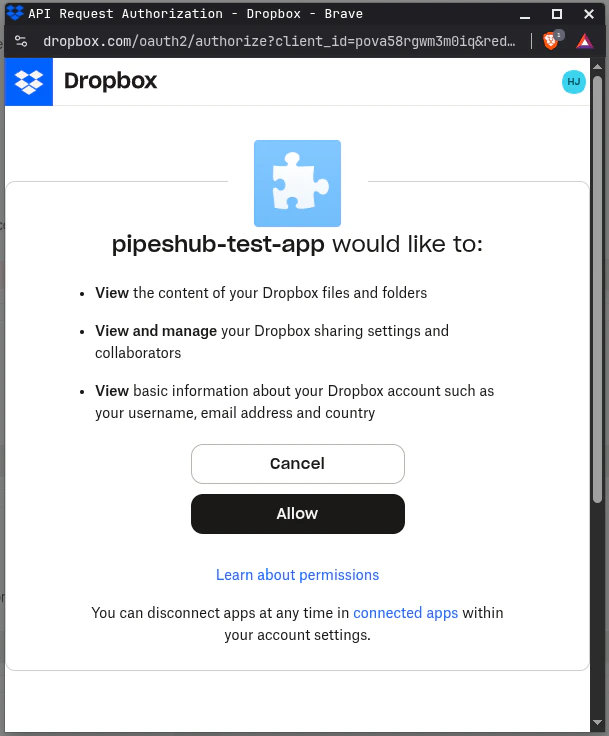
Configuring OAuth App can only be performed by Admins. If you are not an Admin, you must request an Admin to configure the OAuth App for you. You can then access configured OAuth Apps via a dropdown menu.
- After giving consent, you can click on Continue to configuration to configure connector settings. More about it in the next section.
Connector Settings
Connector Settings
Sync Settings
Sync settings allow you to control how the connector syncs data from Dropbox.Sync Strategy:- Scheduled - The connector will automatically sync data from Dropbox at the scheduled interval.
- Manual - The connector will sync data from Dropbox only when Admin manually triggers the sync from the connector settings page.
Sync Filters
Sync filters control which files are fetched from Dropbox. Files that don’t match are skipped entirely. Folders are always synced regardless of these settings to preserve directory structure.Created Date
Filters files by when they were created. Accepts operators likeLast 365 Days, Is After, Is Before, or Is Between for a specific range.For example, set Last 365 Days to fetch only files created in the last year.Modified Date
Same as Created Date but filters by the file’s last modified timestamp. UseLast 30 Days or Is After to limit sync to recently updated files.File Extensions
Extensions filter support 2 options:In (only sync listed extensions) or Not In (sync everything except listed extensions). After selecting your desired option, you can select your desired extensions from a list of supported extensions.Unsupported extensions are excluded under
In and allowed through under Not In.Indexing Filters
Indexing filters control which synced files are made searchable. Unlike sync filters, these don’t prevent files from being fetched — files are still recorded in the system but their indexing status is set to Manual Indexing.They can be manually indexed later from the All Records section.Manual Indexing
When enabled, files are synced but not automatically indexed. They won’t appear in search results until explicitly indexed.This can allow you to explicitly control which files and folders are indexed for search, by going to the All Records section and indexing the records manually.Index Shared Items
When enabled, files shared with others are indexed alongside personal files. Disable this to exclude shared content and index only files originating from a user’s own drive.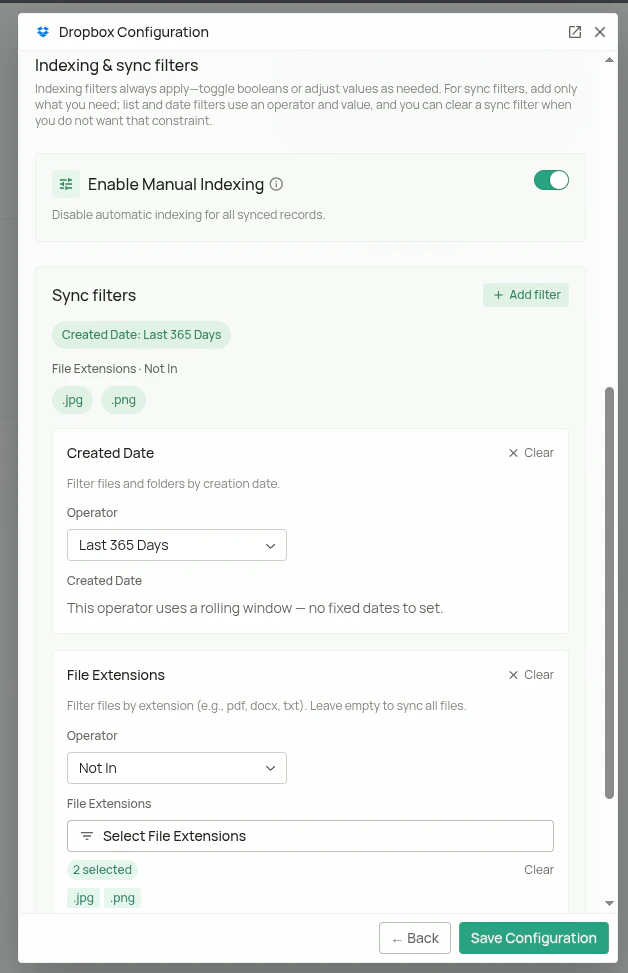
Connector Workflow
Synchronization Process
Synchronization Process
How Does Dropbox Personal Connector Work?
TheDropboxIndividualConnector inherits from BaseConnector but is simplified for single-user contexts. It implements the standard lifecycle methods:init_get_current_user_inforun_sync_run_sync_with_cursor_process_dropbox_items_generator
Connector Initialization
The workflow is straightforward compared to the Teams version.run_sync - Syncs 3 main elements:- User Identity (The account owner)
- Record Group (The “Personal Drive”)
- Files and Folders (Recursive sync)
- Full Sync: If no cursor is initialized, it runs a full sync.
- Incremental Sync: If a cursor exists, it only fetches the delta (changes).
User & Record Group Sync Workflow
Unlike the Team connector which iterates through member directories, this connector focuses on the authenticated user.Identity Resolution
The sync begins by callingusers/get_current_account. This verifies the token and retrieves the account_id and email of the owner.Drive Creation
Once the user is identified, the system ensures a “Record Group” exists:- Name: “Dropbox -
{User Email}” - Type: Drive
- Permission: The user is assigned as the OWNER.
Files and Folders Sync Workflow
Workflow Overview
- Cursor Check: The connector checks
dropbox_cursor_sync_pointto see if a previous sync has occurred. - Data Fetching:
- Full Sync: If no cursor exists, it calls
files/list_folderwithrecursive=Trueto fetch the entire drive hierarchy. - Incremental Sync: If a cursor exists, it calls
files/list_folder/continue. Dropbox returns only items that changed since the last run.
- Generator Processing: The results are passed to
_process_dropbox_items_generatorwhich yields items one by one to manage memory usage.
Detailed Item Processing
For each entry, the system determines the specific metadata type and handles it accordingly:- File Metadata (
FileMetadata):
- Duplicate Check: Calls
get_record_by_external_idto see if the file is already in the database. - Metadata Extraction: Extracts MimeType (based on extension) and
server_modifiedtimestamps. - Preview Generation: Attempts to generate a web-viewable link using
sharing/create_shared_link_with_settings.
- Folder Metadata (
FolderMetadata):
- Processed similarly to files but marked as a container type to maintain directory structure.
- Deleted Metadata (
DeletedMetadata):
- If Dropbox sends a deletion event, the record is flagged for removal.
Database Updates
- New Records: Batched (default 100) and sent to
on_new_records. - Updates: If the file hash or name changed,
on_record_content_updateoron_record_metadata_updateis triggered. - Deletions: Records marked as deleted are removed via
on_record_deleted.
Sharing & Permissions Sync
Simplified Model
Unlike the Teams connector which maps complex organizational roles (e.g., Editor, Viewer, Commenter), the Personal connector uses a simplified permission model.- Default Ownership: Since this connector syncs a private drive, the authenticated user is automatically assigned OWNER permissions for every file and folder.
- Shared Links: The connector uses
sharing.readto detect if a file has shared links. While it does not import the list of external users, it ensures the file metadata reflects that it is shared.
FAQ
Queries not returning results. What could be wrong?
Queries not returning results. What could be wrong?
There are three common causes:
-
Email mismatch - The email used during connector authentication doesn’t match your PipesHub account email. This causes permission issues preventing you from accessing synced data.
- Fix: Reconfigure the connector and authenticate using the same email as your PipesHub account.
-
Records show in “All Records” but not in search - Documents display in the All Records section but don’t appear in search query results.
- Fix: Verify sync filters in the connector settings and ensure indexing has completed. Check that the data matches your search query criteria.
-
Data not yet indexed - The connector is still syncing or hasn’t completed the initial indexing process.
- Fix: Go to Settings > Connectors, check the sync status, and wait for indexing to complete.