


















Overview
Box is an enterprise-grade cloud content management and file sharing service. It provides secure collaboration, workflow automation, and content sharing capabilities designed for businesses of all sizes.Configuration Guide
Understanding Box API
Understanding Box API
Box Platform Architecture
Box provides a comprehensive platform for content management and collaboration. The Box API allows applications to interact with files, folders, users, groups, and collaboration features programmatically.Enterprise Access is required for full team management capabilities. The Box connector uses OAuth 2.0 with Client Credentials Grant (CCG) to access enterprise resources.APIs Documentation
- Box Platform API: https://developer.box.com/reference/
- Box Authentication Guide: https://developer.box.com/guides/authentication/
- Box Enterprise Events: https://developer.box.com/guides/events/enterprise-events/
Concept of Event Stream
The Enterprise Event Stream is Box’s real-time change tracking mechanism that allows applications to monitor all activities across an enterprise account.When you first access the event stream, Box provides a stream_position (similar to a cursor). This position represents a specific point in time within your enterprise’s event history.Instead of repeatedly fetching all files and folders to check for changes, you can use this stream_position to retrieve only events that occurred since your last sync. The API returns activities like file uploads, deletions, moves, sharing changes, and collaboration updates. This makes incremental syncing highly efficient as you only process what has changed.Upcoming Features
The following features are currently under development and will be available in future releases:- Box Notes: Native Box Notes content extraction and indexing
- Comments: File and folder comment thread synchronization
Create Box App
Create Box App
This guide will walk you through the process of creating a Box application and connecting it to PipesHub to sync your enterprise files, folders, users, and permissions.




Box Enterprise Account
Step 1: Create a Box Application
- Navigate to the Box Developer Console and sign in with your Box admin credentials.
- Click the Create New App button.
-
Configure your new app with the following settings:
- Select App Type: Choose Custom App.
- Authentication Method: Select OAuth 2.0 with Client Credentials Grant.
- Name your app: Enter a unique name for your application, for example, “PipesHub Connector”.
- Click Create App. You will be redirected to your new app’s configuration page.
Step 2: Configure Application Settings
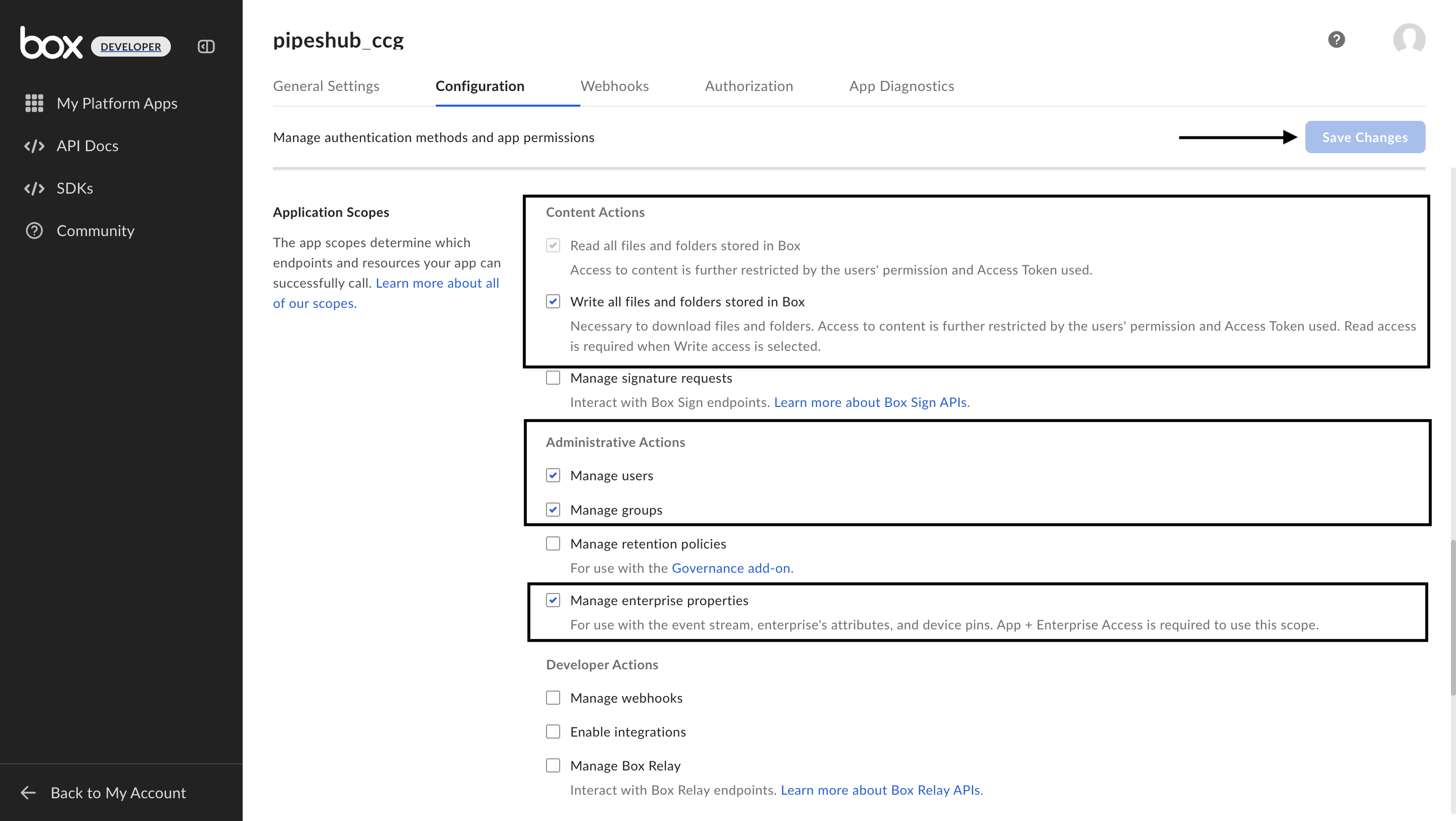
- On your app’s Configuration page, scroll to the Application Scopes section.
-
Enable the following scopes that PipesHub needs:
- Content Actions:
- Read all files and folders stored in Box
- Write all files and folders stored in Box
- Administrative Actions:
- Manage users
- Manage groups
- Manage enterprise properties
- Content Actions:
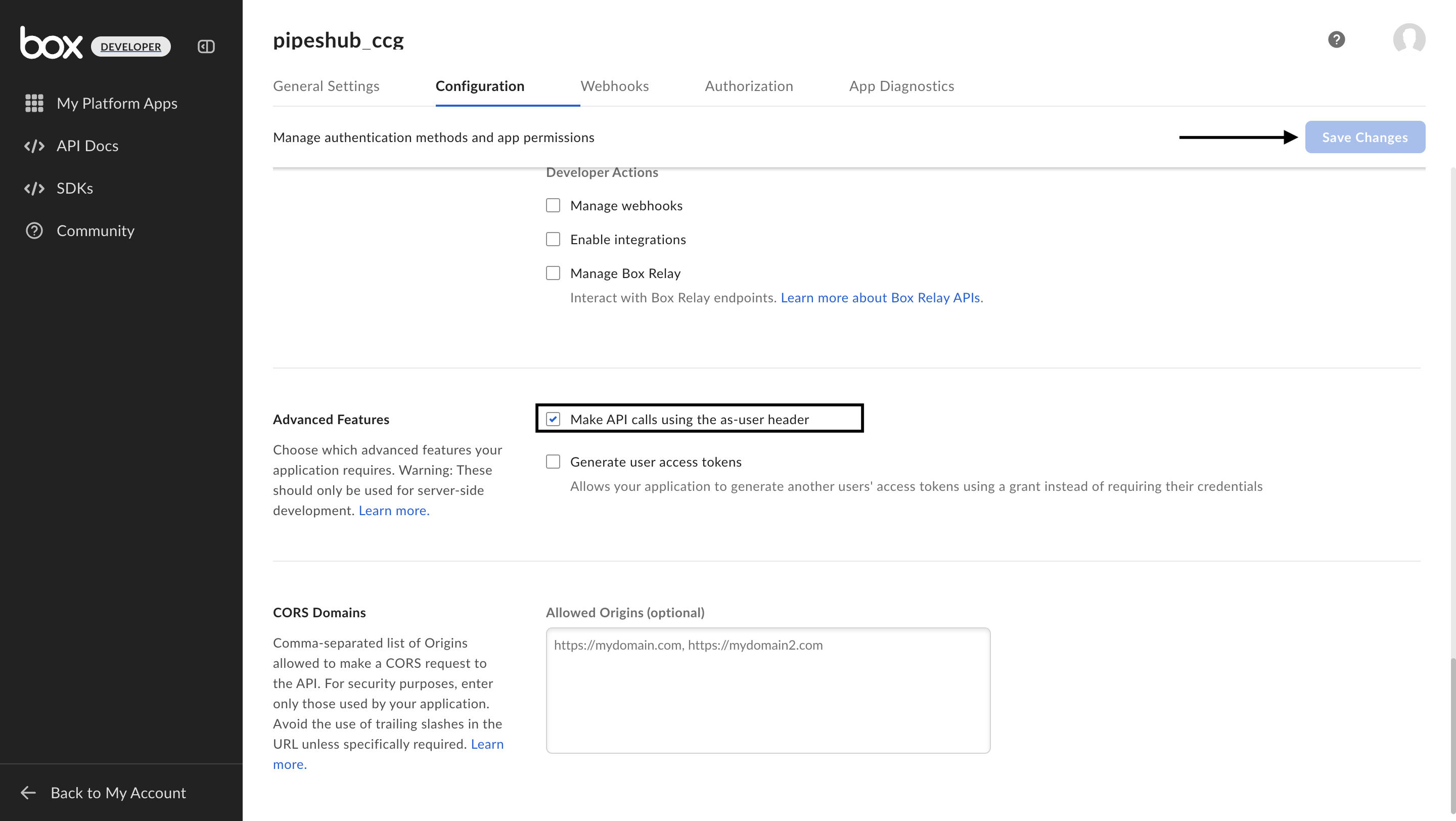
- Under Advanced Features, enable:
- Perform actions as users
- In the App Access Level section, select App + Enterprise Access.
Step 3: Get Application Credentials
-
In the OAuth 2.0 Credentials section:
- Note your Client ID
- Click Fetch Client Secret to reveal your Client Secret
- Copy both values for later use
-
Find your Enterprise ID:
- Go to your Box Admin Console
- Navigate to General Settings → App Info
- Copy your Enterprise ID
Step 4: Admin Authorization
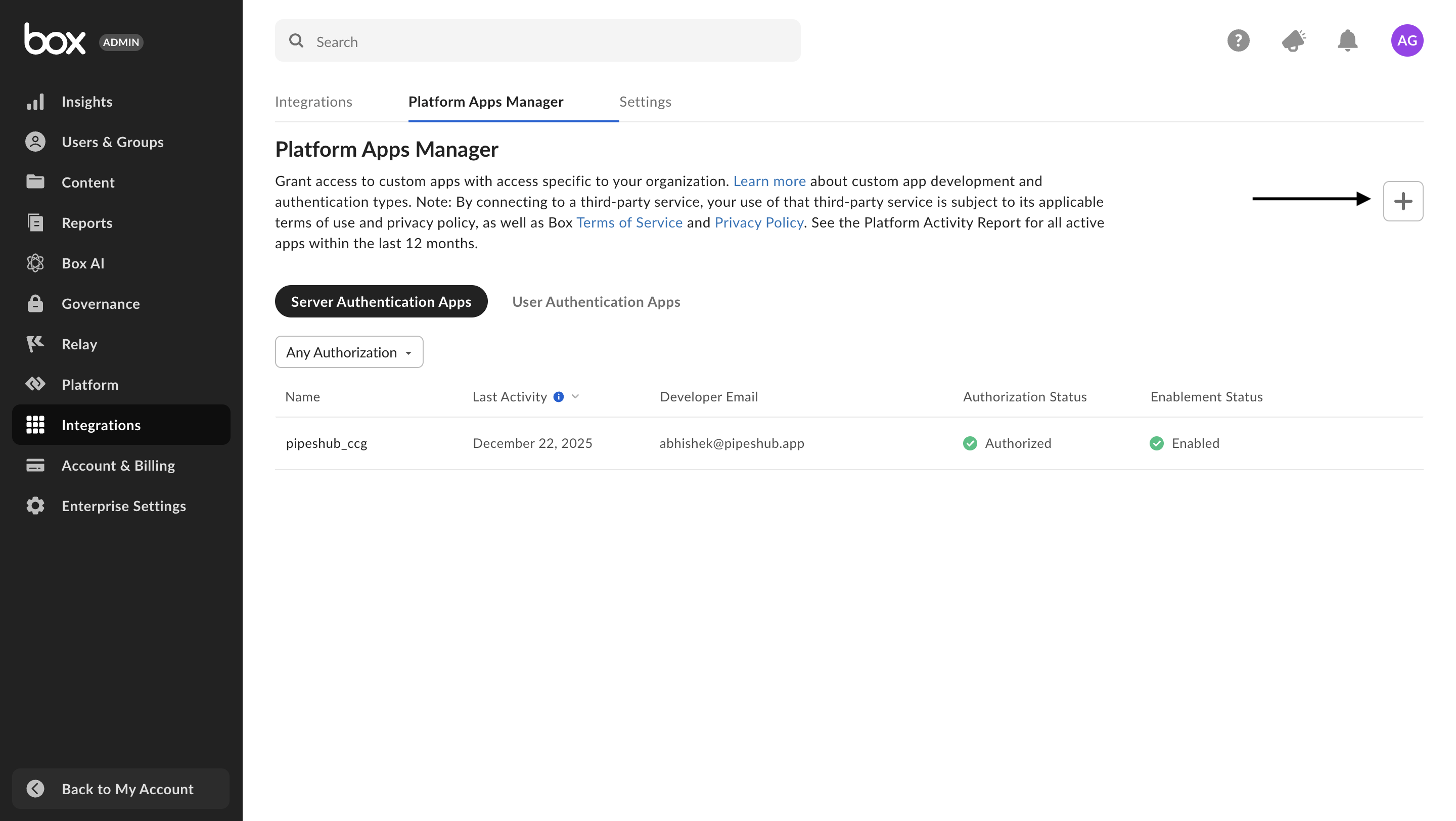
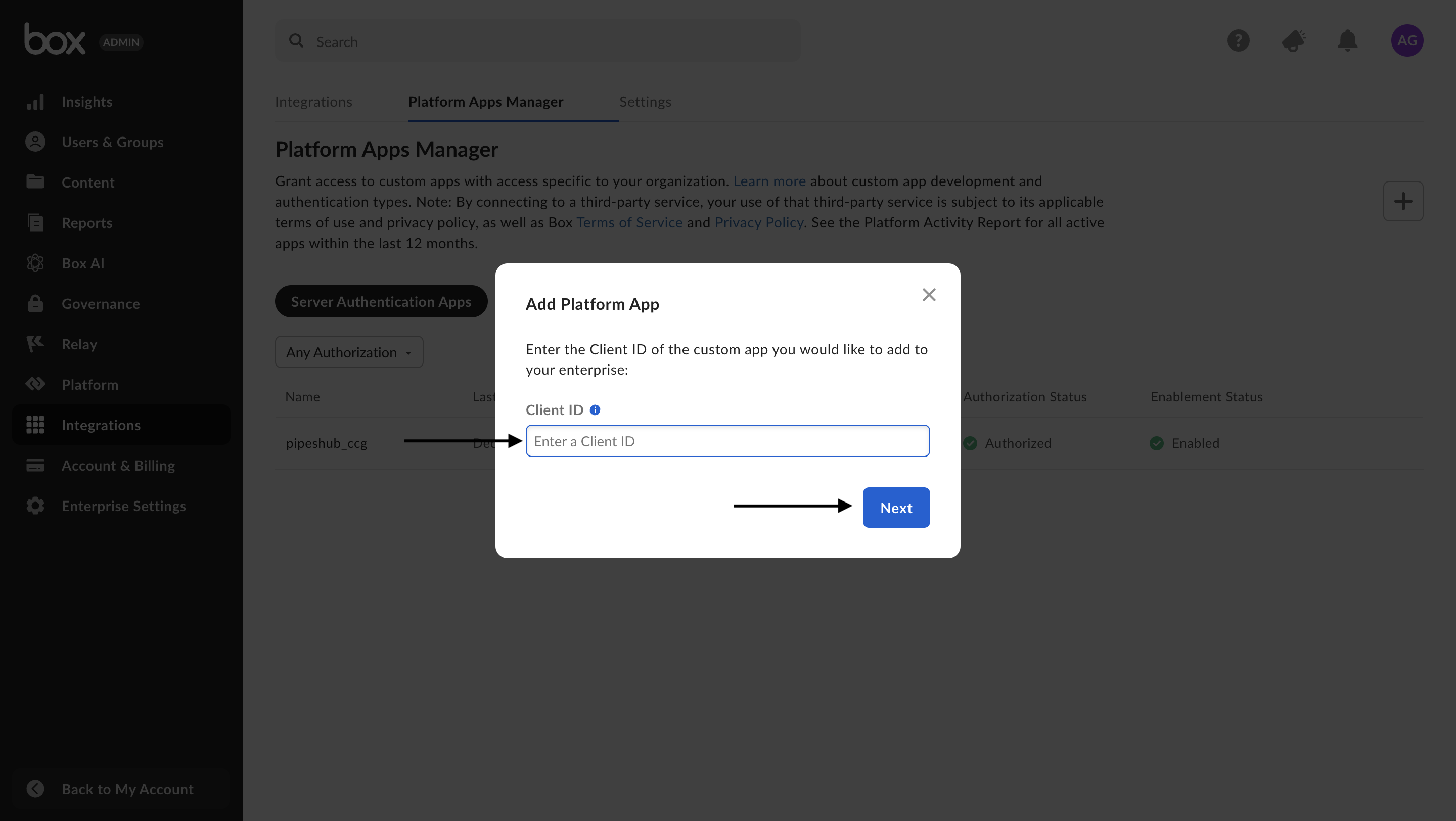
- As an admin, approve the app:
- Go to the Admin Console
- Navigate to Apps → Custom Apps
- Find your application and click Authorize
Connect Box to PipesHub
Connect Box to PipesHub
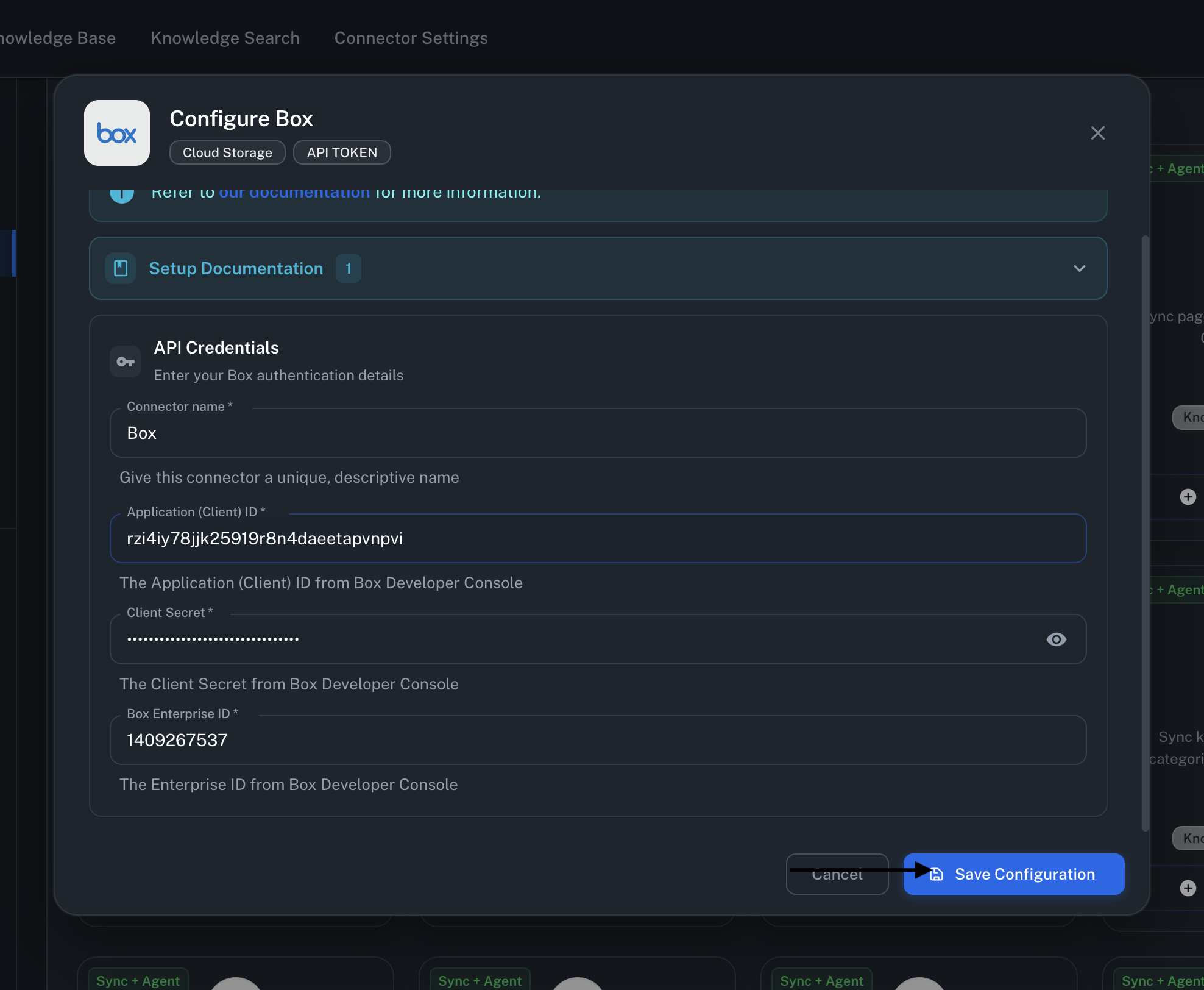
Step 1: Configure Connection
- Open your PipesHub application and navigate to Connection Settings.
- Select Box from the list of available data sources.
-
Enter the required credentials:
- Client ID: Paste the Application (Client) ID from Box Developer Console
- Client Secret: Paste the Client Secret from Box Developer Console
- Enterprise ID: Paste your Box Enterprise ID
Step 2: Set Sync Strategy
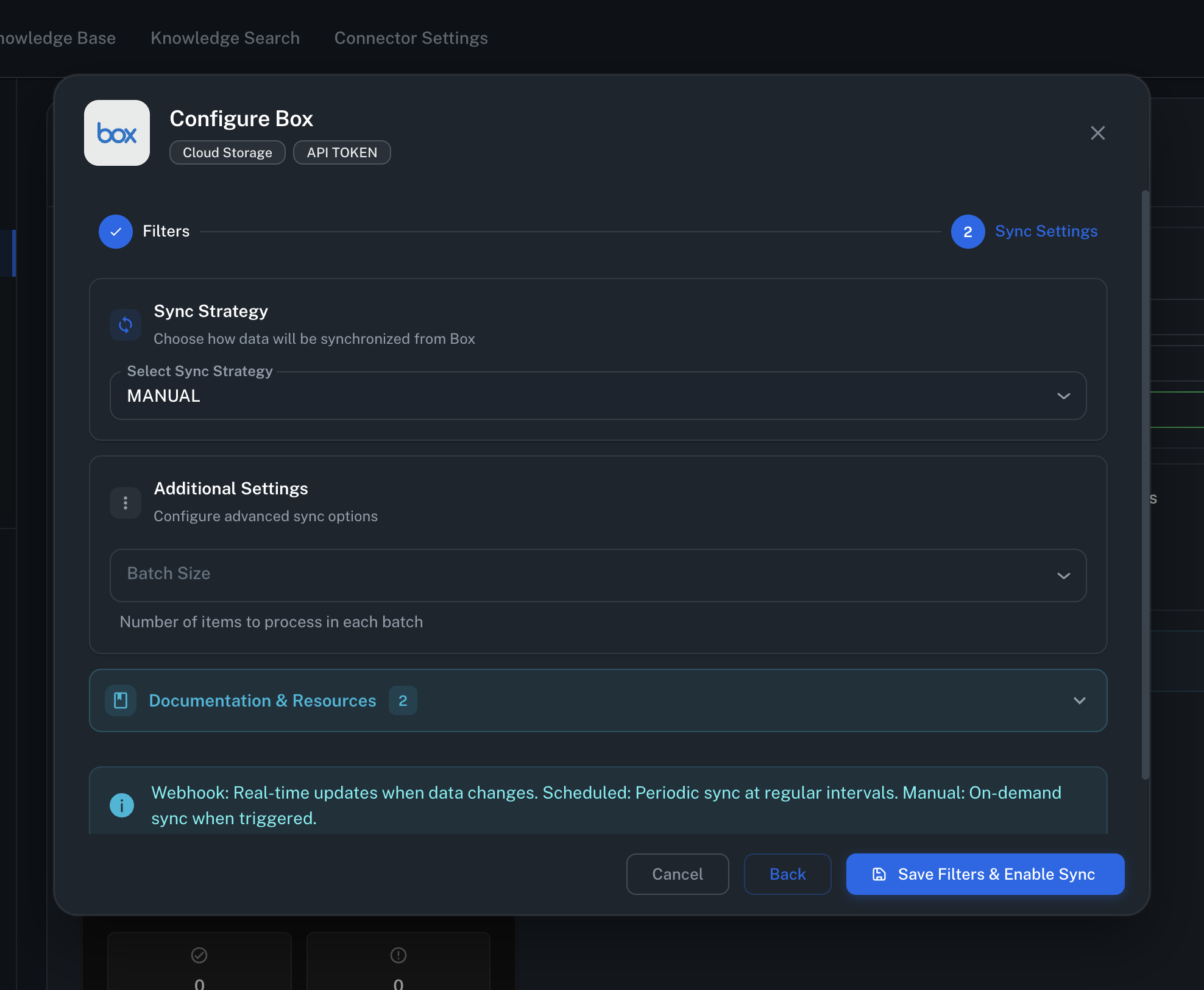
Click Next to configure your sync strategy:- Manual: Trigger syncs manually when needed
- Scheduled: Automatically run syncs at regular intervals (15 min, 30 min, 1 hr, 4 hr, etc.)
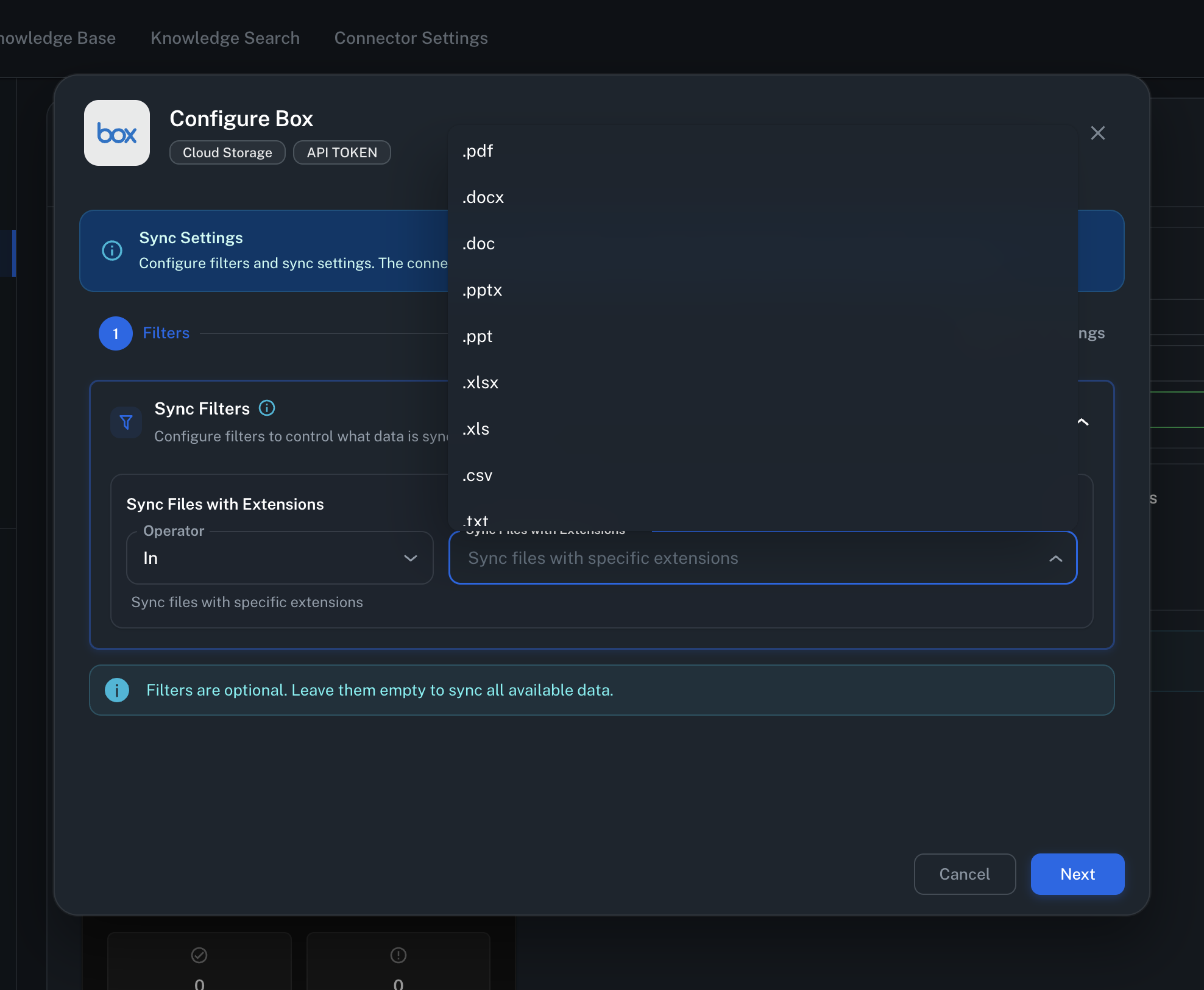
Step 3: Configure Filters (Optional)
Set up file filters to control what content gets synced:- File Extensions: Limit sync to specific file types (e.g.,
.pdf,.docx,.xlsx)
Step 4: Enable Connection
- Click Save Configuration.
- Click Enable to activate the connector.
- Your Box enterprise content will start syncing based on your configured strategy.
Connector Workflow
Synchronization Process
Synchronization Process
How Does Box Connector Work?
TheBoxConnector is a concrete implementation that inherits from BaseConnector. It implements the following core methods:init- Initialize Box client with credentialstest_connection_and_access- Verify connectivity and permissionsget_signed_url- Generate temporary download URLsstream_record- Stream file contentrun_sync- Execute full or smart synchronizationrun_incremental_sync- Process only changes since last synccleanup- Clean up resourcescreate_connector- Factory method for connector creation
Box Connector Initialization
The Box sync workflow operates in the following sequence:run_sync - Smart Sync that synchronizes 4 main entities:- Users - Enterprise users and their profiles
- User Groups - Enterprise groups and memberships
- Record Groups - Root folders (user drives)
- Files and Folders - Complete file hierarchy for all users
box_cursor_sync_point- For file/folder eventsuser_sync_point- For user changesuser_group_sync_point- For group changes
User Sync Workflow
Users are fetched from Box Enterprise API and converted toAppUser entities.First Sync
- Fetch All Users: Retrieves complete user list from Box Enterprise using pagination.
-
Process User Data: Converts Box user objects to
AppUserformat with profile information. -
Batch Submission: Sends all users to
data_entities_processor.on_new_app_users. - Initialize Cursor: Saves initial sync point for future incremental syncs.
Incremental Sync
User sync currently operates as a full sync on each run. The connector fetches all active users from Box Enterprise and updates their status in PipesHub. Users marked as inactive in Box will be reflected accordingly in the system.User Group Sync Workflow
Full Sync (Initial Run)
A full sync executes when no cursor exists:- Fetch All Groups: Retrieves complete list of enterprise groups from Box API with pagination.
- Fetch Group Memberships: For each group, fetches all members and their roles.
- Process Permissions: Maps Box group roles to PipesHub permission types (Admin, Member).
- Batch Processing: Collects all groups and memberships into a single batch.
-
Submit to Processor: Sends the complete batch to
data_entities_processor.on_new_user_groups.
Incremental Sync
Once a cursor is established, incremental sync processes only new events:- Fetch Events: Retrieves group-related events from Enterprise Event Stream since last sync.
-
Process Changes: Handles various event types:
- Group creation and deletion
- Group name changes
- Membership additions and removals
- Role/permission updates
- Update State: Saves the new cursor position for next sync cycle.
- Reconciliation: Periodically validates that all Box groups exist in the database and removes orphaned entries.
Record Groups Sync Workflow
Record Groups in Box represent user “drives” - the root “All Files” folder (ID: 0) for each user.Full Sync
- Fetch Active Users: Retrieves list of all active enterprise users.
-
Create Record Groups: For each user, creates a
RecordGrouprepresenting their root folder. - Set Permissions: Assigns OWNER permission to each user for their own drive.
- Batch Submission: Sends all record groups to the processor with full permission mappings.
Incremental Sync
Record groups sync operates as a full sync, re-processing all active users to ensure record groups are up-to-date.Files and Folders Sync Workflow
Workflow Overview
- User Processing: The connector processes users sequentially to avoid API conflicts when using “As-User” impersonation.
- Folder Traversal: For each user, starts from their root folder (ID: 0) and recursively traverses the entire folder tree.
- Change Detection: During full sync, the connector recursively fetches all items. For incremental sync, it uses the Box Enterprise Event Stream to detect changes.
Detailed Process
Initial Sync
- Start from Root: Begins at each user’s root folder (All Files).
-
Recursive Fetch: For each folder:
- Fetches folder contents using
client.folder(folder_id).get_items() - Processes files and subfolders
- Recursively descends into subfolders
- Fetches folder contents using
-
Item Processing: For each item:
- Metadata Extraction: Collects file/folder properties (name, size, timestamps, path, etag, sha1)
- Permission Fetching: Retrieves collaborations and sharing settings via
client.folder(id).get_collaborations() - Conversion: Maps Box permissions to PipesHub permission types:
owner→ OWNERco-owner→ OWNEReditor→ WRITEviewer uploader→ WRITEpreviewer uploader→ WRITEviewer→ READpreviewer→ READ
-
Change Detection: Compares etag and modified timestamps with existing database records to identify:
- New files/folders
- Modified content
- Moved items
- Permission changes
-
Batch Processing: Items are batched (default 100 per batch) and sent to:
data_entities_processor.on_new_records- For new itemsdata_entities_processor.on_record_content_update- For modificationsdata_entities_processor.on_record_metadata_update- For metadata changes
Incremental Sync
Box uses a global Enterprise Event Stream with a singlestream_position cursor for all incremental sync operations:-
Event Listening: Monitors event stream for file/folder activities:
FILE.UPLOADEDFILE.DELETEDFILE.MOVEDFILE.COPIEDFOLDER.CREATEDFOLDER.DELETEDFOLDER.MOVEDCOLLABORATION.CREATEDCOLLABORATION.ACCEPTEDCOLLABORATION.REMOVED
- Event Deduplication: Groups events by item ID to process each item only once per sync cycle.
- Owner Impersonation: Uses “As-User” header to fetch items on behalf of their owners, ensuring proper permission context.
- Parent Folder Validation: Before processing files, ensures all parent folders exist in the database, creating them recursively if needed.
-
Targeted Fetching: For modified items:
- Fetches fresh metadata from Box API
- Re-processes permissions
- Updates database records
- Deletion Handling: Processes deletion events by marking records as deleted in the database.
-
Stream Position Update: After processing all events, saves the new
stream_positioncursor for the next incremental sync cycle. This single cursor tracks the state of the entire enterprise event stream, not individual folders.
Permission & Collaboration Sync
Box permissions are managed through collaborations - explicit grants that give users or groups access to files and folders.Permission Hierarchy
- Direct Collaborations: Explicit permissions set on individual items.
- Inherited Permissions: Permissions flow down from parent folders to children.
- Group Memberships: Users inherit permissions through group collaborations.
- Public/Company Links: Shared links can grant broader access.
Sync Process
- Fetch Collaborations: For each file/folder, retrieves all collaborations via API.
-
Map Accessible By: Identifies who has access:
- Individual users
- User groups
- Organization-wide (company shared links)
- Public (external sharing)
-
Virtual Groups: Creates system groups for special access types:
PUBLIC_ACCESS_GROUP- For publicly shared itemsORGANIZATION_ACCESS_GROUP- For company-wide shared items
-
Permission Updates: When collaboration events occur:
- Fetches latest collaboration list
- Re-processes all permissions for the affected item
- Handles recursive permission removal when folder access is revoked
-
Recursive Revocation: When a user loses access to a folder:
- Removes permissions from the folder
- Recursively removes permissions from all descendant files and folders
- Ensures access control consistency
File Filtering & Sync Optimization
File Filtering & Sync Optimization
File Extension Filtering
The Box connector supports filtering files by extension during sync:-
Configuration: Set allowed file extensions in connector settings (e.g.,
.pdf,.docx,.xlsx). - Filter Application: Files are filtered during the sync process based on their extensions.
- Folder Handling: Folders are always synced regardless of filters to maintain proper hierarchy.
Batch Processing
The connector uses intelligent batching to optimize performance:- Batch Size: Configurable (default 100 items)
- Concurrent Batches: Processes multiple batches for different users in parallel
- Rate Limiting: Respects Box API rate limits (50 requests per second)
Smart Sync Strategy
The connector automatically determines the optimal sync approach:- No Cursor: Performs full sync
- Has Cursor: Performs incremental sync using event stream
- Cursor Expired: Falls back to full sync and establishes new cursor
Troubleshooting
Common Issues
Common Issues
Authentication Errors
Problem: “Failed to fetch access token” or “Invalid credentials”Solutions:- Verify Client ID, Client Secret, and Enterprise ID are correct
- Ensure the app has been authorized by your Box admin
- Check that the app has not been deauthorized in Box Admin Console
- Verify your enterprise account is active
Permission Errors
Problem: “Insufficient permissions” or “Access denied”Solutions:- Ensure all required scopes are enabled in Box Developer Console
- Verify “Perform actions as users” is enabled
- Check that App Access Level is set to “App + Enterprise Access”
- Re-authorize the application if scopes were changed
Sync Issues
Problem: Files not appearing or sync taking too longSolutions:- Check the sync logs for specific errors
- Verify users are active in Box
- Ensure folders are not restricted by admin policies
- Try triggering a manual full sync
- Adjust batch size if processing large datasets
Rate Limiting
Problem: “Rate limit exceeded” errorsSolutions:- The connector has built-in rate limiting (50 req/s)
- Increase sync interval for scheduled syncs
- Contact Box support to request higher rate limits for your enterprise
Best Practices
Optimization Tips
Optimization Tips
Sync Strategy
- Use Incremental Sync: After initial setup, rely on incremental syncs for efficiency
- Schedule Syncs Wisely: Set sync intervals based on your team’s activity patterns. For large datasets, consider running scheduled syncs during off-peak hours
Filter Configuration
- Be Specific: Only sync file types you need to index
- Exclude Large Files: Consider excluding video and large binary files if not needed
- Review Regularly: Audit your filters to ensure they match current needs
Monitoring
- Check Logs: Regularly review sync logs for errors or warnings
- Monitor Performance: Track sync duration and adjust batch size if needed
- Validate Data: Periodically verify that critical files are being synced correctly
FAQ
Queries not returning results. What could be wrong?
Queries not returning results. What could be wrong?
There are three common causes:
-
Email mismatch - The email used during connector authentication doesn’t match your PipesHub account email. This causes permission issues preventing you from accessing synced data.
- Fix: Reconfigure the connector and authenticate using the same email as your PipesHub account.
-
Records show in “All Records” but not in search - Documents display in the All Records section but don’t appear in search query results.
- Fix: Verify sync filters in the connector settings and ensure indexing has completed. Check that the data matches your search query criteria.
-
Data not yet indexed - The connector is still syncing or hasn’t completed the initial indexing process.
- Fix: Go to Settings > Connectors, check the sync status, and wait for indexing to complete.