
















Nextcloud
Sync files and folders from your personal Nextcloud account
✅ Ready📚 Documentation Available
Overview
Nextcloud is a self-hosted file sync and share platform that provides secure collaboration and content management. This connector allows you to sync files and folders from your personal Nextcloud account using App Passwords for secure authentication.Configuration Guide
Understanding Nextcloud API
Understanding Nextcloud API
WebDAV Client
This connector uses the Nextcloud WebDAV API for file operations. WebDAV (Web Distributed Authoring and Versioning) is a standard protocol that allows you to access, manage, and sync files over HTTP.APIs Documentation
- Nextcloud WebDAV Documentation: https://docs.nextcloud.com/server/latest/user_manual/en/files/access_webdav.html
- Nextcloud Developer Manual: https://docs.nextcloud.com/server/latest/developer_manual/
Concept of Cursor
A cursor (activity ID) is used to track changes between syncs.- When you first sync, the connector fetches all files and folders using WebDAV PROPFIND.
- After the sync completes, the connector saves the latest activity ID as a cursor.
- Instead of re-downloading the entire file list to check for changes, the connector queries the Activity API with this cursor.
- The API returns only the files and folders that have been added, modified, or deleted since the last sync.
Generate App Password
Generate App Password
This guide will walk you through generating an App Password to connect your Nextcloud account to PipesHub.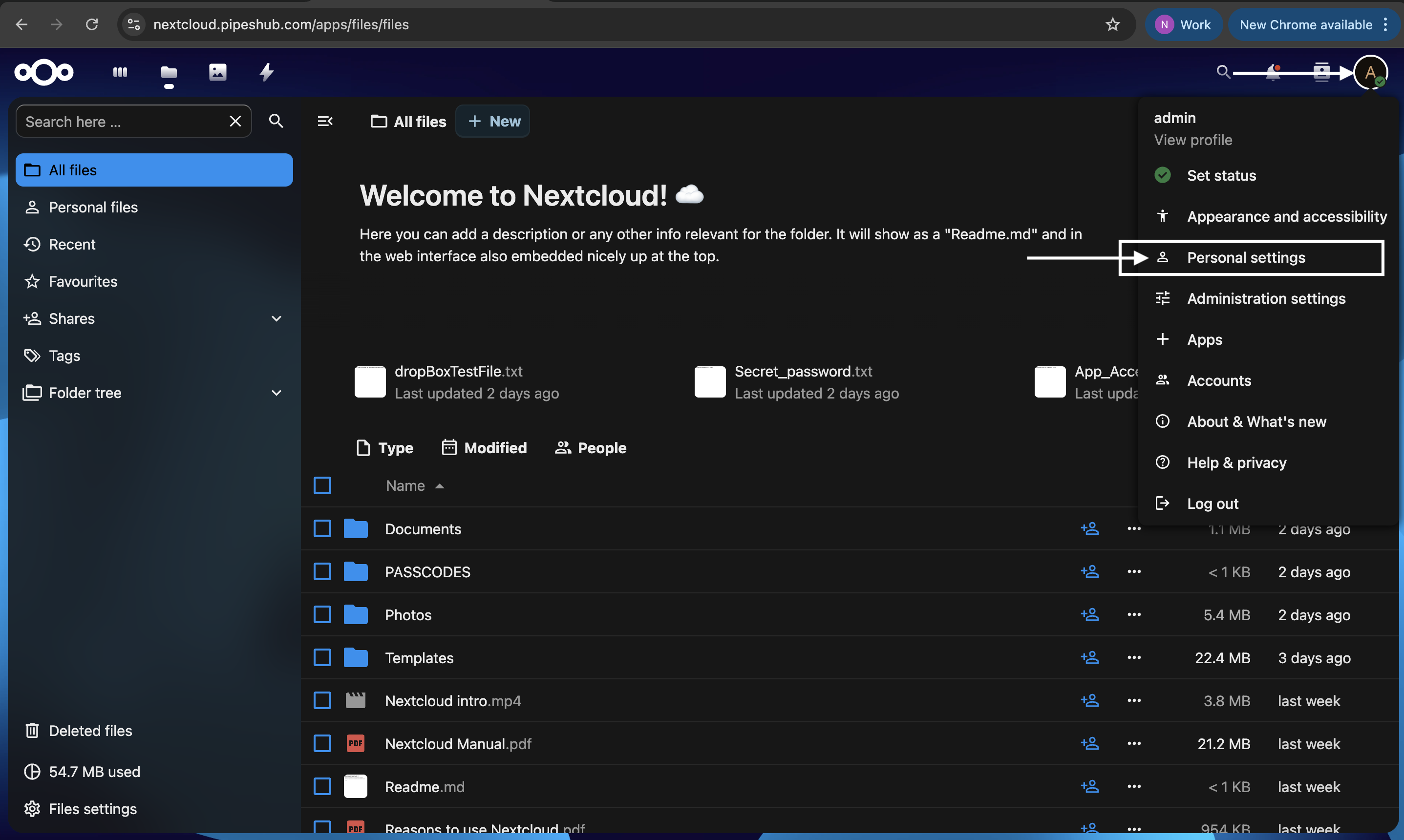
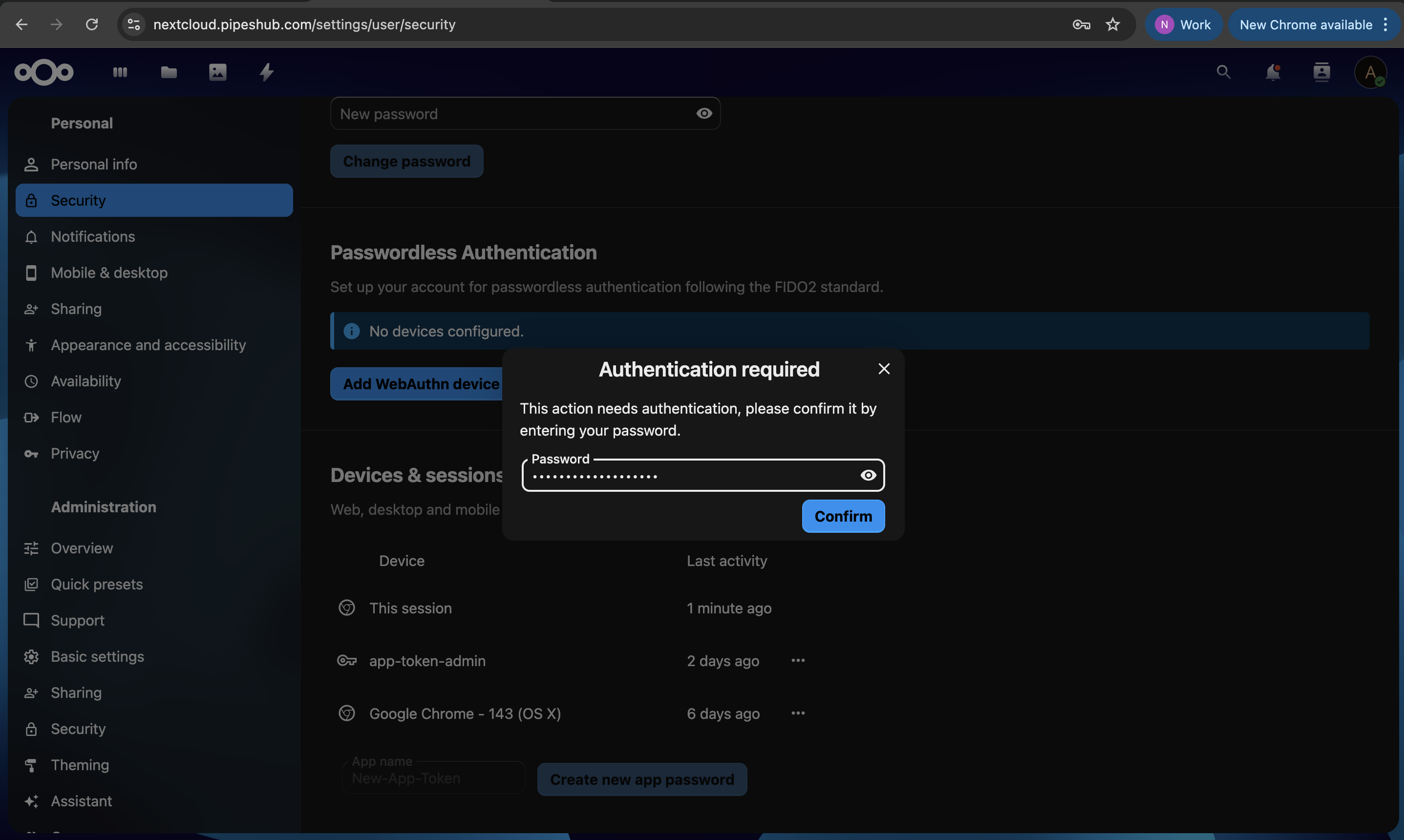
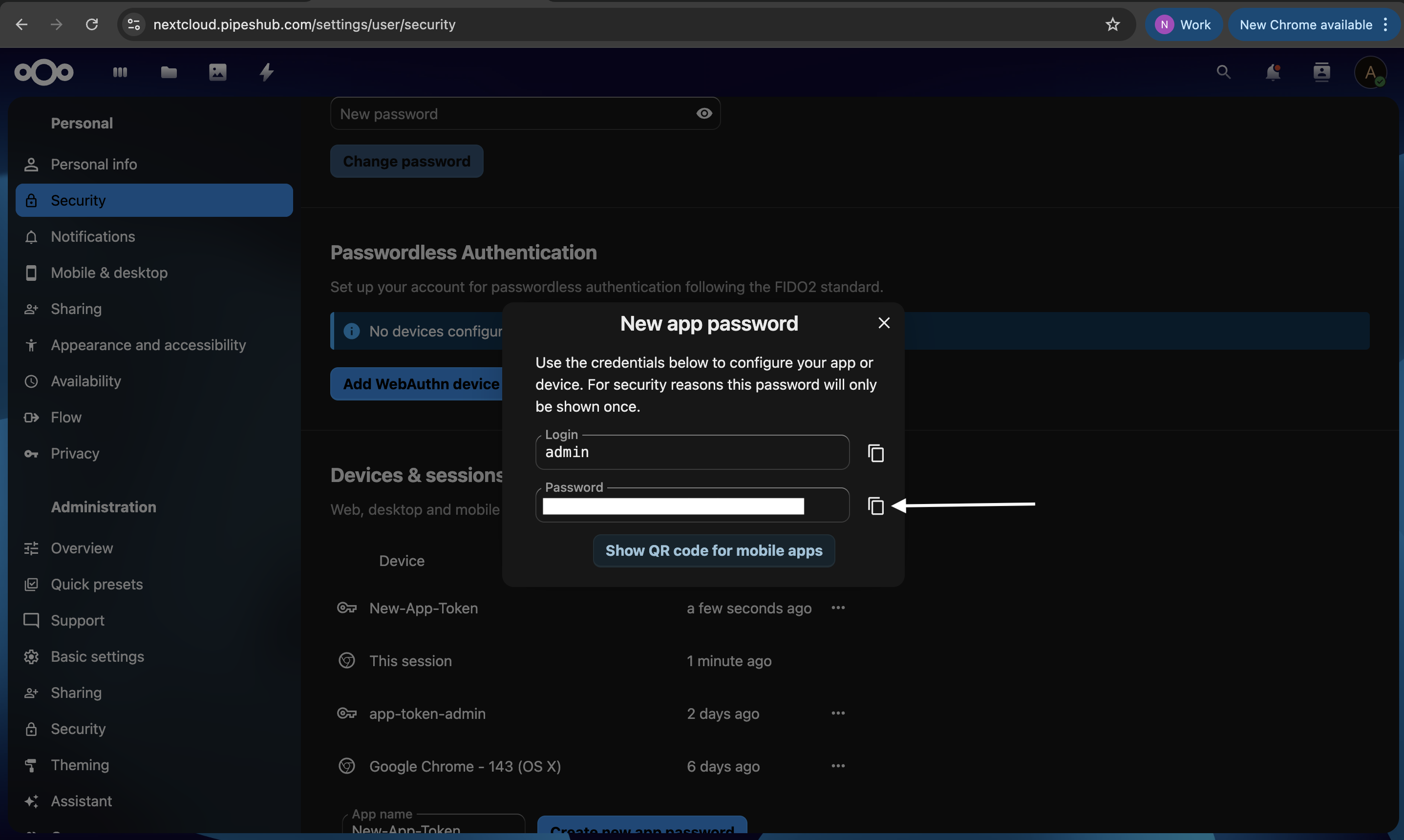
Step 1: Access Your Nextcloud Account
- Sign in to your Nextcloud instance with your credentials.
- Click on your profile icon in the top-right corner.
Step 2: Navigate to Security Settings
- From the dropdown menu, select Personal settings.
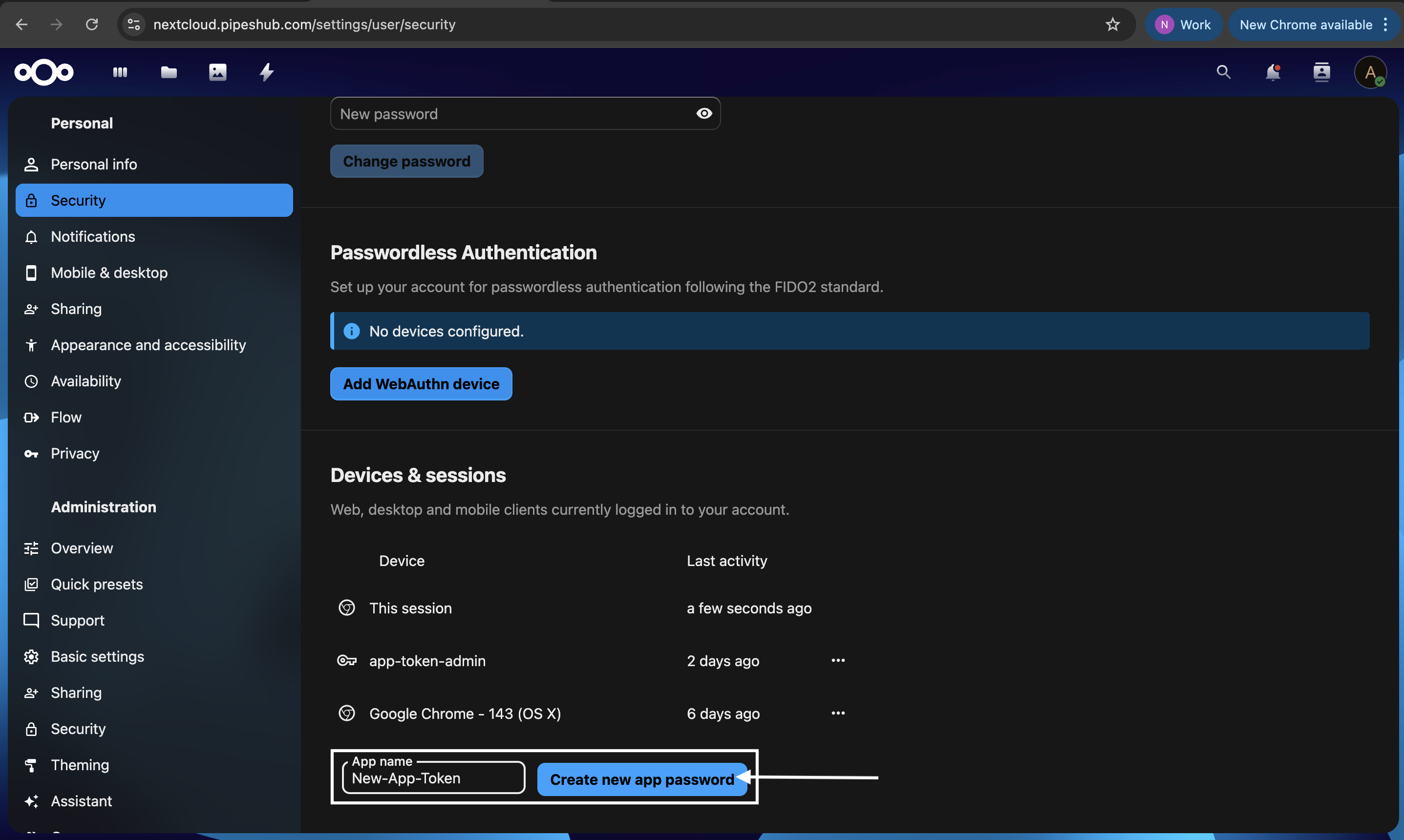
- In the left sidebar, click on Security.
Step 3: Create App Password
- Scroll down to the Devices & sessions section.
- In the App name field, enter a descriptive name for this connection (e.g., “PipesHub Connector”).
- Click the Create new app password button.
- You may be prompted to re-enter your Nextcloud password for security verification.
- After confirmation, Nextcloud will generate an App Password (typically in the format
xxxx-xxxx-xxxx-xxxx).
- Important: Copy this password immediately as it will only be shown once.
Step 4: Save Your Credentials
Keep the following information ready for the next step:- Base URL: Your Nextcloud instance URL (e.g.,
https://cloud.example.com) - Username: Your Nextcloud username
- App Password: The generated app password from Step 3
Connect to PipesHub
Connect to PipesHub
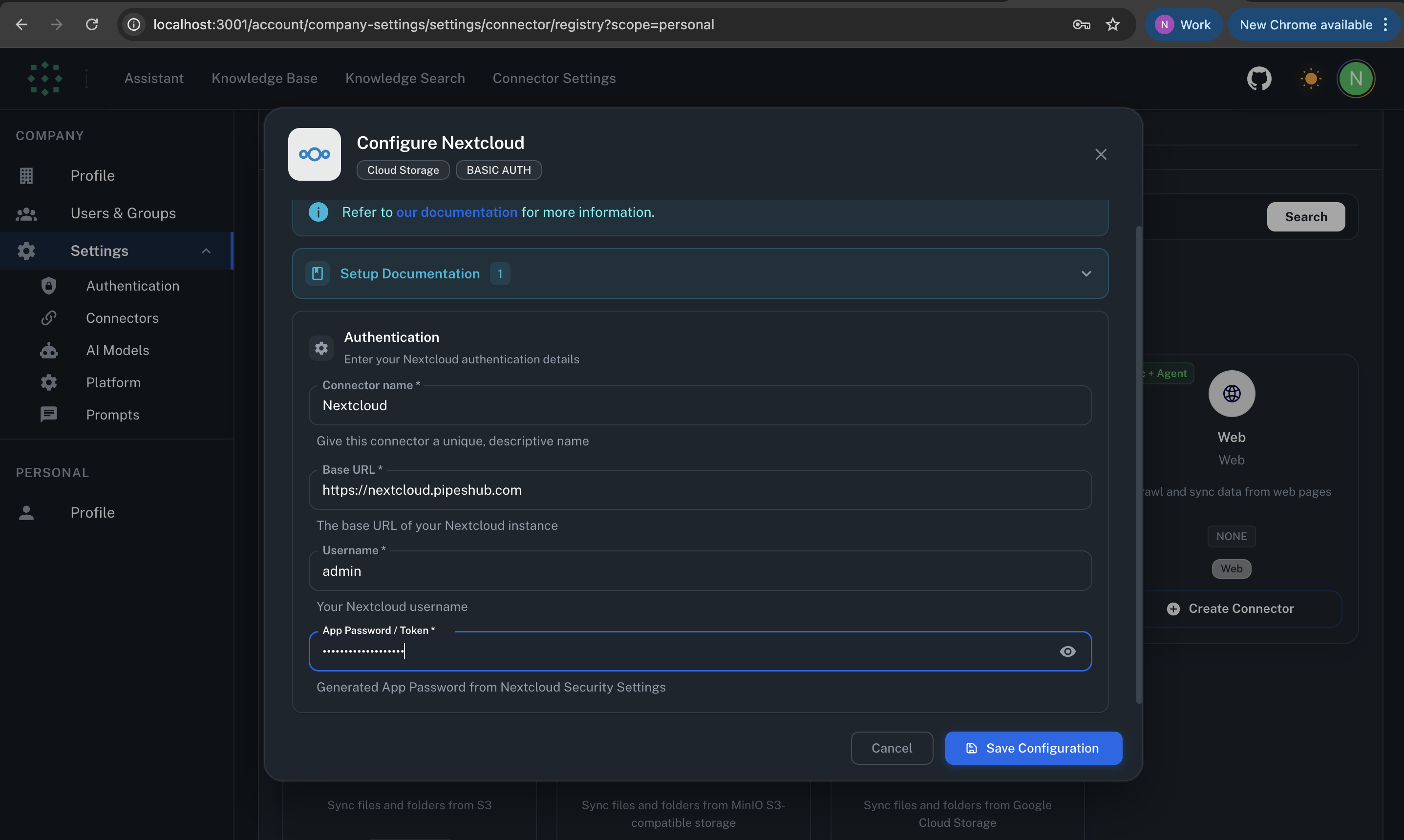
Step 1: Configure Connection
- Open your PipesHub application and navigate to Connection Settings.
- Select Nextcloud.
- Enter your credentials:
- Base URL: Your Nextcloud instance URL (e.g.,
https://cloud.example.com) - Username: Your Nextcloud username
- App Password: The app password you generated in the previous step
- Base URL: Your Nextcloud instance URL (e.g.,
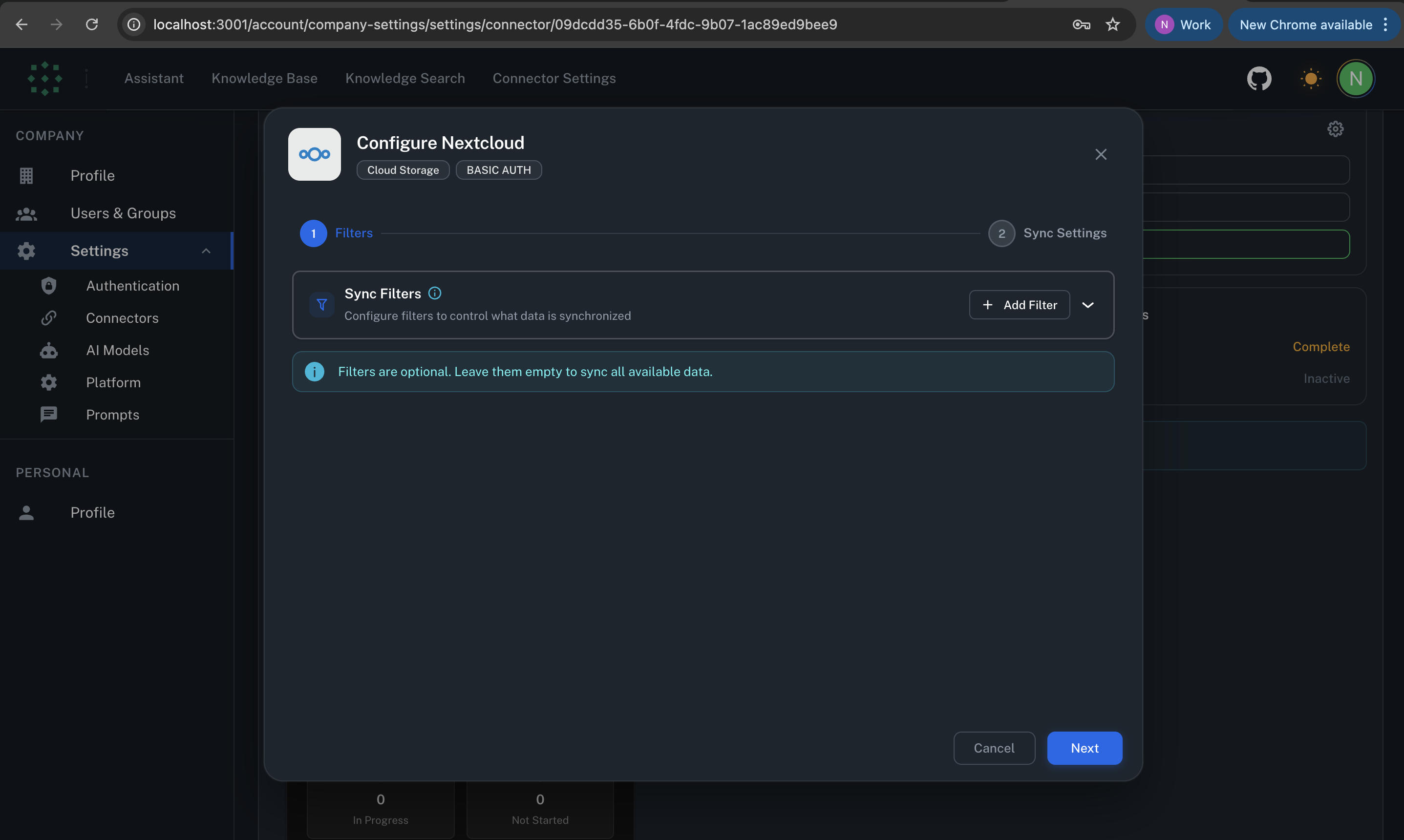
Step 2: Configure Filters (Optional)
You can optionally configure filters to control which files are synced:- Modified Date Filter: Only sync files modified within a specific date range
- Created Date Filter: Filter files by creation date
- File Extension Filter: Include or exclude specific file types (e.g.,
.pdf,.docx)
Step 3: Set Sync Strategy
Click Next. You can configure your sync strategy:- Sync Type: Choose between Manual or Scheduled
- Batch Size: Number of files processed in one transaction (default: 100)
- Schedule Interval: For scheduled syncs, set the interval (e.g., every 60 minutes)
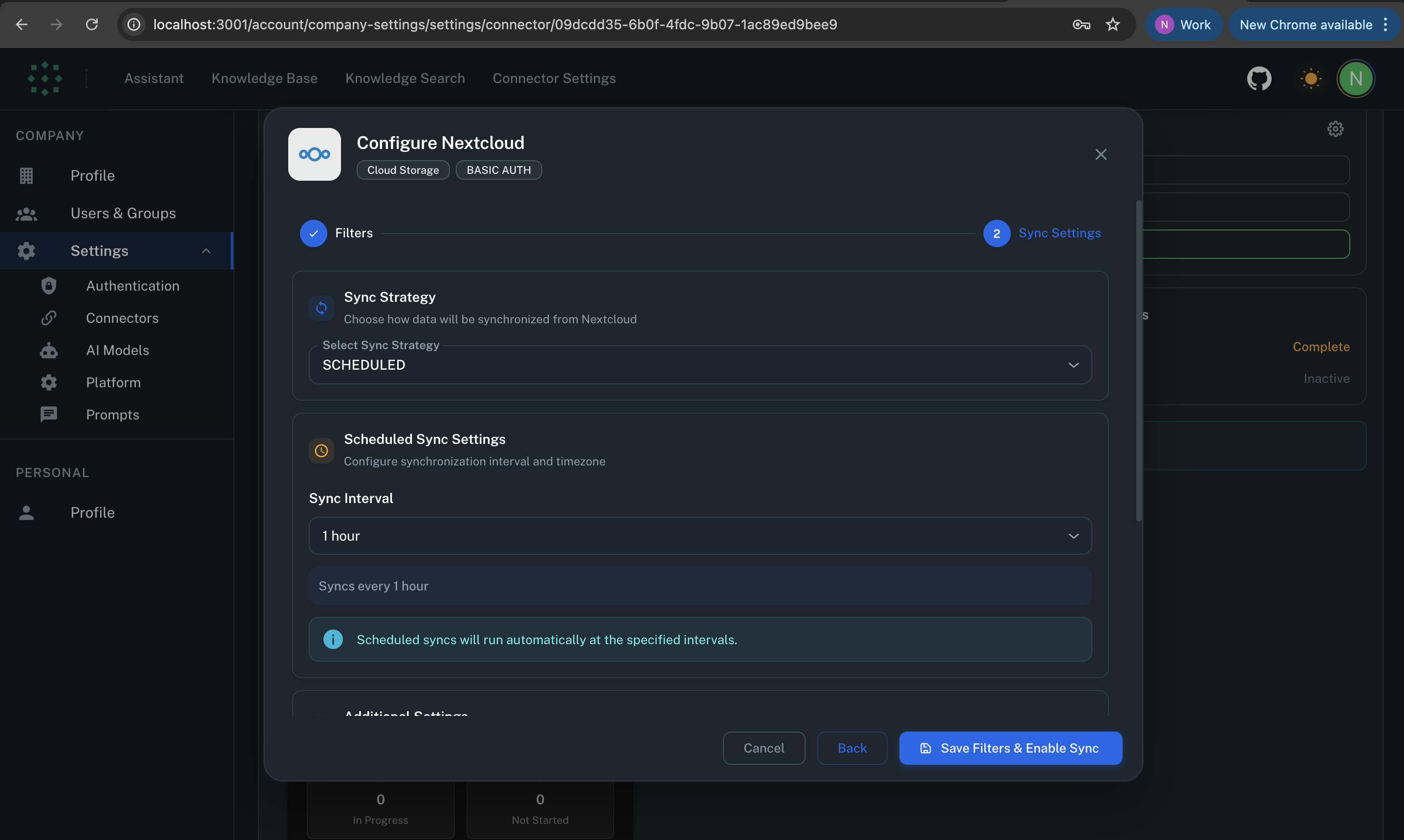
Step 4: Save and Sync
- Click Save Configuration.
- The connection will be tested automatically to verify your credentials.
- Once verified, click Start Sync to begin the initial synchronization.
- The first sync will be a full sync, fetching all files and folders from your Nextcloud account.
Connector Workflow
Synchronization Process
Synchronization Process
How Does Nextcloud Connector Work?
TheNextcloudConnector inherits from BaseConnector and implements smart synchronization with automatic detection of sync mode. It implements the standard lifecycle methods:initrun_sync_run_full_sync_internal_run_incremental_sync_internal_process_nextcloud_items_generator
Connector Initialization
Theinit method:- Validates credentials from configuration
- Creates a Nextcloud REST client with username and app password
- Retrieves current user information
- Initializes the data source for WebDAV operations
Smart Sync Strategy
run_sync - Automatically determines sync type:- User Identity (The account owner)
- Record Group (The “Personal Drive”)
- Files and Folders (Smart sync based on cursor state)
- Full Sync: If no cursor exists, performs complete WebDAV PROPFIND
- Incremental Sync: If cursor exists, queries Activity API for changes only
User and Record Group Sync Workflow
Identity Resolution
The sync begins by authenticating with the provided username and app password. The system:- Validates the connection with a test WebDAV request
- Retrieves user email from Nextcloud (if available)
- Uses username as the primary identifier
Drive Creation
Once the user is identified, the system creates a “Record Group”:- Name: “Nextcloud -
{Username}” - Type: Drive
- Permission: The user is assigned as the OWNER
Files and Folders Sync Workflow
Workflow Overview
- Cursor Check: The connector checks the activity sync point to determine if a previous sync has occurred.
-
Data Fetching:
- Full Sync: If no cursor exists, uses WebDAV PROPFIND with
Depth: infinityto fetch the entire directory tree. - Incremental Sync: If a cursor exists, queries the Activity API for changes since the last sync.
- Full Sync: If no cursor exists, uses WebDAV PROPFIND with
- Hierarchical Processing: Entries are sorted by depth (folders before files) to ensure parent records exist before children are processed.
-
Generator Processing: Results are processed through
_process_nextcloud_items_generatorfor memory-efficient batch handling.
Detailed Process
Initial Sync
- WebDAV PROPFIND: Fetches all files and folders recursively from the user’s root directory.
-
For Each Item:
- Metadata Extraction: Collects file/folder properties:
- File ID (unique identifier)
- Path (full WebDAV path)
- ETag (version identifier for change detection)
- Size (file size in bytes)
- Modified Time (last modification timestamp)
- Resource Type (file or folder)
- Parent Resolution: Extracts parent path and looks up parent record ID
- MIME Type Detection: Determines file type from extension or content-type header
- Permission Assignment: Assigns OWNER permission to the authenticated user
- Metadata Extraction: Collects file/folder properties:
-
Change Detection: Compares ETag and modified timestamps with existing database records to identify:
- New files/folders
- Modified content
- Moved items
- Metadata changes
-
Batch Processing: Items are batched (default 100 per batch) and sent to:
data_entities_processor.on_new_records- For new itemsdata_entities_processor.on_record_content_update- For content modificationsdata_entities_processor.on_record_metadata_update- For metadata changes
- Cursor Initialization: After successful full sync, saves the latest activity ID as cursor for future incremental syncs.
Incremental Sync
Nextcloud uses the Activity API to track changes:-
Event Listening: Monitors activity stream for file/folder activities:
file_created- New files addedfile_changed- File content modifiedfile_deleted- Files removedfile_restored- Deleted files restored
- Path Extraction: Parses activity objects to extract affected file paths.
-
Targeted Fetching: For modified items:
- Fetches fresh metadata using WebDAV PROPFIND
- Re-processes permissions
- Updates database records
- Deletion Handling: Processes deletion events by marking records as deleted in the database.
- Activity Cursor Update: After processing all events, saves the latest activity ID for the next incremental sync cycle.
Sharing and Permissions Sync
Simplified Personal Model
Since this is a personal connector:- Default Ownership: The authenticated user is assigned OWNER permissions for all files and folders
- Share Information: The connector can detect shares via Nextcloud’s OCS Share API
- Permission Types: Maps Nextcloud permissions (READ, UPDATE, DELETE, SHARE) to PipesHub permission types
Nextcloud Permission Mapping
- Permission 31 (ALL): Maps to OWNER
- Permissions with DELETE or UPDATE: Maps to WRITE
- Permission with READ only: Maps to READ
Incremental Sync with Activity API
Activity-Based Change Detection
The incremental sync uses Nextcloud’s Activity API to efficiently detect changes:- Activity Query: Fetches activities since last sync cursor
-
Activity Types Processed:
file_created: New files addedfile_changed: File content modifiedfile_deleted: Files removedfile_restored: Deleted files restored
- Path Extraction: Parses activity objects to extract affected file paths
- Targeted Updates: Only fetches fresh metadata for changed files
- Cursor Update: Saves latest activity ID for next incremental sync
Performance Optimization
- Path Cache: Maintains in-memory map of paths to record IDs
- Batch Processing: Groups updates into configurable batch sizes
- Rate Limiting: Respects API rate limits (50 requests/second default)
- Concurrent Batches: Processes up to 5 batches simultaneously
File Downloads
File Downloads
Streaming Support
The connector provides authenticated file downloads:- WebDAV Download: Uses authenticated WebDAV GET requests
- Streaming Response: Files are streamed to avoid memory issues with large files
- Folder Handling: Folders cannot be downloaded (only individual files)
Usage
- Files can be downloaded through the
stream_recordmethod - No public signed URLs (authentication required for all downloads)
- Maintains security by requiring valid credentials for every download
Supported Features
| Feature | Supported | Notes |
|---|---|---|
| File Sync | ✅ | Full WebDAV support |
| Folder Sync | ✅ | Hierarchical structure maintained |
| Incremental Sync | ✅ | Activity API-based |
| File Extension Filters | ✅ | Include/exclude by extension |
| Date Filters | ✅ | Modified and created date filters |
| Permission Sync | ✅ | Personal account ownership |
| File Download | ✅ | Authenticated streaming |
| Webhook Support | ❌ | Use scheduled sync instead |
| Real-time Sync | ❌ | Scheduled only |
Troubleshooting
Connection Issues
Connection Issues
Invalid Credentials
Symptom: Authentication fails with 401 errorSolutions:- Verify your username is correct
- Ensure you’re using an App Password, not your main password
- Check that the app password hasn’t been revoked in Nextcloud Security settings
- Verify the Base URL is correct (should not end with
/)
Base URL Incorrect
Symptom: Connection test fails or 404 errorsSolutions:- Ensure Base URL includes protocol (e.g.,
https://) - Verify the Nextcloud instance is accessible from your network
- Check for any proxy or firewall restrictions
Performance Optimization
Performance Optimization
Slow Sync Performance
Solutions:- Adjust batch size - smaller batches for limited memory, larger for better throughput
- Configure file extension filters to exclude unnecessary file types
- Use date filters to limit scope of sync
- Check rate limiting settings and adjust if needed
High Memory Usage
Solutions:- Reduce batch size from default 100 to 50 or lower
- Limit concurrent batch processing
- Enable file extension filters to reduce total file count
- Consider splitting large folder structures across multiple connectors
Best Practices
Best Practices
Sync Strategy
- Use Incremental Sync: After initial setup, rely on incremental syncs for efficiency
- Schedule Syncs Wisely: Set sync intervals based on your activity patterns (e.g., every 60 minutes for continuous updates)
Filter Configuration
- Be Specific: Only sync file types you need to index using file extension filters
- Use Date Filters: Apply date filters to optimize sync scope and performance
- Review Regularly: Audit your filters to ensure they match current needs
Monitoring
- Monitor First Sync: The initial full sync may take time depending on your file count
- Test Connection: Always test the connection after configuration changes
- Check Logs: Regularly review sync logs for errors or warnings
Security
- Use App Passwords: Always use generated app passwords rather than your main Nextcloud password
- Revoke Unused Tokens: Regularly review and revoke unused app passwords in Nextcloud Security settings
- Secure Transmission: All API calls use HTTPS for encrypted communication
Queries not returning results. What could be wrong?
Queries not returning results. What could be wrong?
There are three common causes:
-
Email mismatch - The email used during connector authentication doesn’t match your PipesHub account email. This causes permission issues preventing you from accessing synced data.
- Fix: Reconfigure the connector and authenticate using the same email as your PipesHub account.
-
Records show in “All Records” but not in search - Documents display in the All Records section but don’t appear in search query results.
- Fix: Verify sync filters in the connector settings and ensure indexing has completed. Check that the data matches your search query criteria.
-
Data not yet indexed - The connector is still syncing or hasn’t completed the initial indexing process.
- Fix: Go to Settings > Connectors, check the sync status, and wait for indexing to complete.