


















Overview
Jira is the leading project management and issue tracking platform developed by Atlassian. It’s widely used by software development teams, IT departments, and business teams to plan, track, and manage work through customizable workflows.Jira Data Structure
The connector understands Jira’s hierarchical data model: Projects → Issues → Comments/Attachments| Entity | Description |
|---|---|
| Projects | Top-level containers for organizing work (e.g., Engineering, Marketing) |
| Issues | Work items including bugs, tasks, stories, epics, and custom types |
| Comments | Discussion threads attached to issues |
| Attachments | Files, images, and documents attached to issues |
| Users & Groups | Team members and their group memberships |
| Project Roles | Role-based access control for project permissions |
What Gets Synced
The connector indexes the following content for AI-powered search:- Issue Content: Summary, description (with rich text/ADF support), status, priority, labels
- Issue Metadata: Reporter, assignee, created/updated dates, custom fields
- Comments: Full comment threads with author information
- Attachments: All file types attached to issues (PDFs, images, documents)
- Permissions: Project-level and issue-level access controls are preserved
Configuration Guide
Setup
Setup
Getting Started
The Jira connector provides access to your organization’s Jira Cloud workspace through OAuth 2.0 (3LO) authentication. It syncs projects, issues, comments, attachments, and user information, enabling comprehensive project management search and access across your Jira content.Authentication Method
The Jira connector uses OAuth 2.0 with 3-legged OAuth (3LO) for secure authentication. This allows users to authorize the connector to access Jira data on their behalf while maintaining fine-grained control over permissions through Atlassian’s granular API scopes.OAuth 2.0 (3LO) is the recommended authentication method by Atlassian. It provides secure, token-based access without requiring users to share their passwords.
⚠️ Critical User Configuration Requirement
Why Email Visibility Matters
PipesHub uses email addresses to match Jira users with their permissions. If a user’s email is hidden:- PipesHub cannot identify the user when syncing permissions
- Records will appear invisible to that user even if they have proper access in Jira
- The user won’t be able to see any content they should have access to
How to Configure Email Visibility
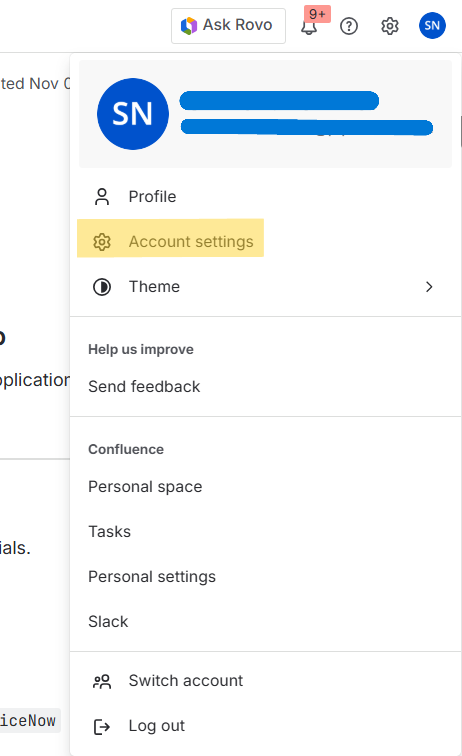
Every user must complete these steps in their Atlassian account:- Click on your profile picture in the top right → Select “Account Settings”
- Select the “Profile and visibility” tab
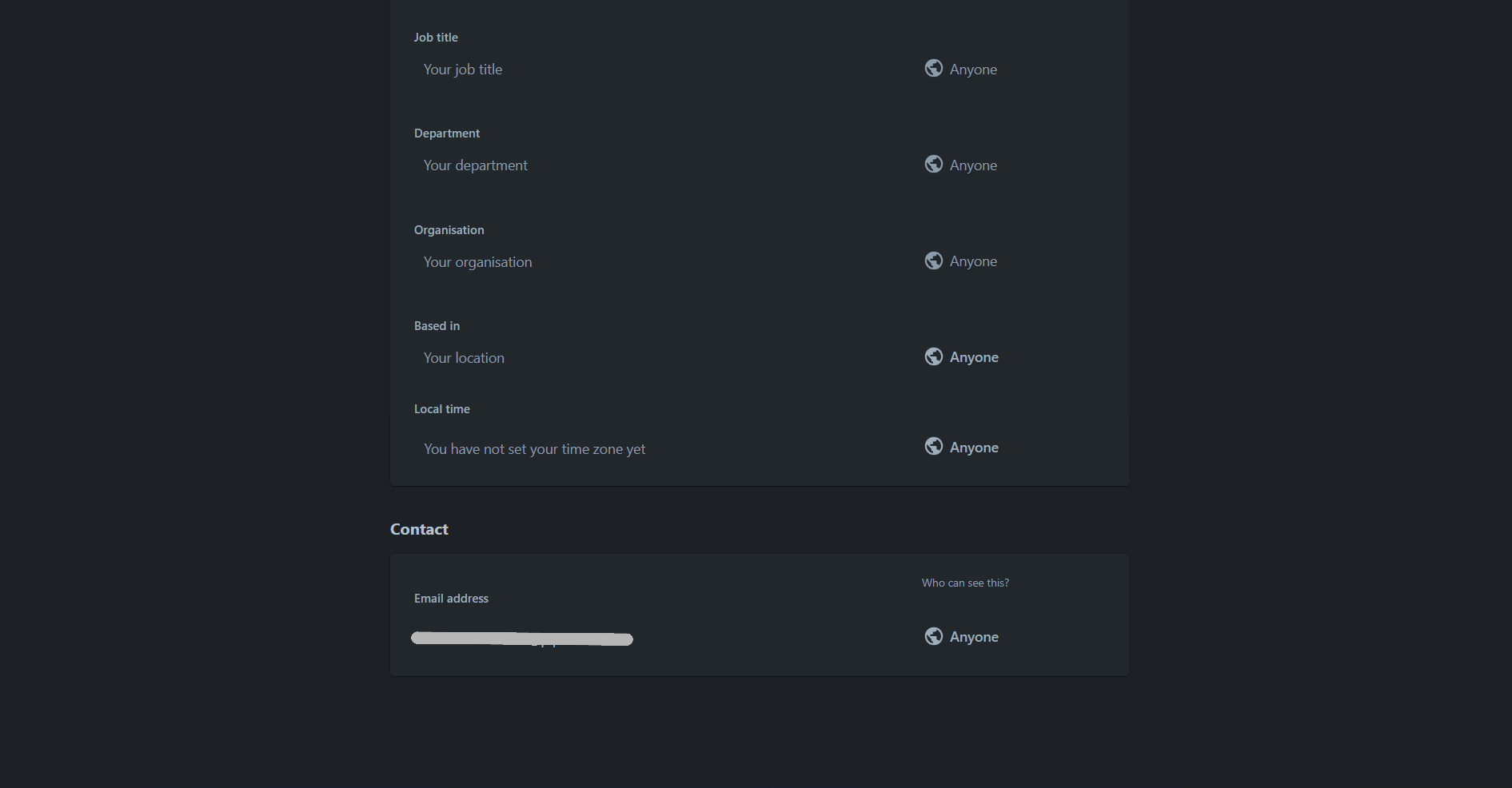
- Scroll down to the “Contact” section
- In the “Who can see this?” dropdown for your email address, select either:
- “Anyone” (recommended), OR
- “Your organization”
This is a per-user setting that must be configured by each individual user in your organization. Administrators cannot change this setting for other users. We recommend communicating this requirement to your team during the Jira connector rollout.
Step 1: Access Atlassian Developer Console
-
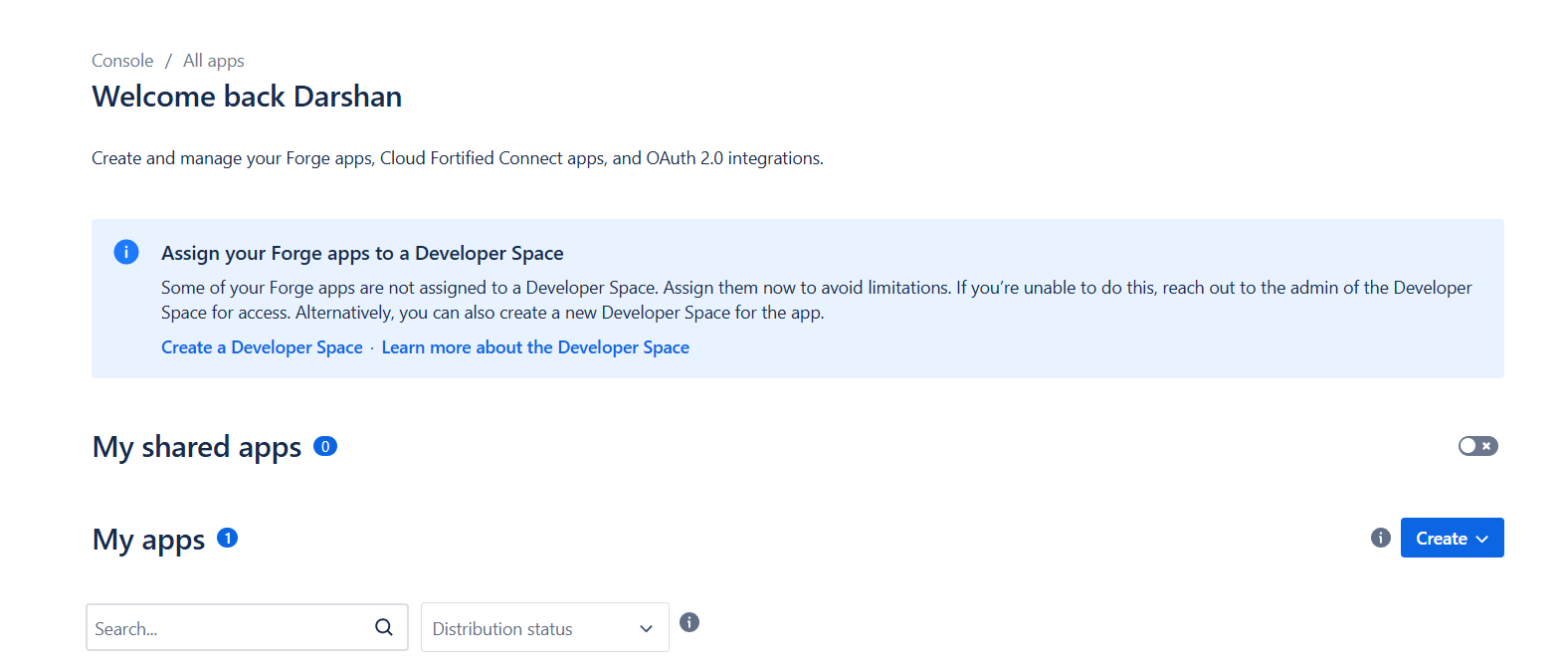
Navigate to the Developer Console:
Go to developer.atlassian.com/console/myapps/ and sign in with your Atlassian account that has administrator access to your Jira workspace. - View Your Apps: You’ll see the “My apps” page where you can create and manage OAuth 2.0 integrations.
Step 2: Create a New OAuth 2.0 Integration
- Click the “Create” button in the top right corner
- Select “OAuth 2.0 integration” from the dropdown menu
- Fill in the application details:
- Name: Enter a meaningful name (e.g., “PipesHub Jira Connector”)
- Check the box to agree to Atlassian’s developer terms
- Click “Create” to proceed
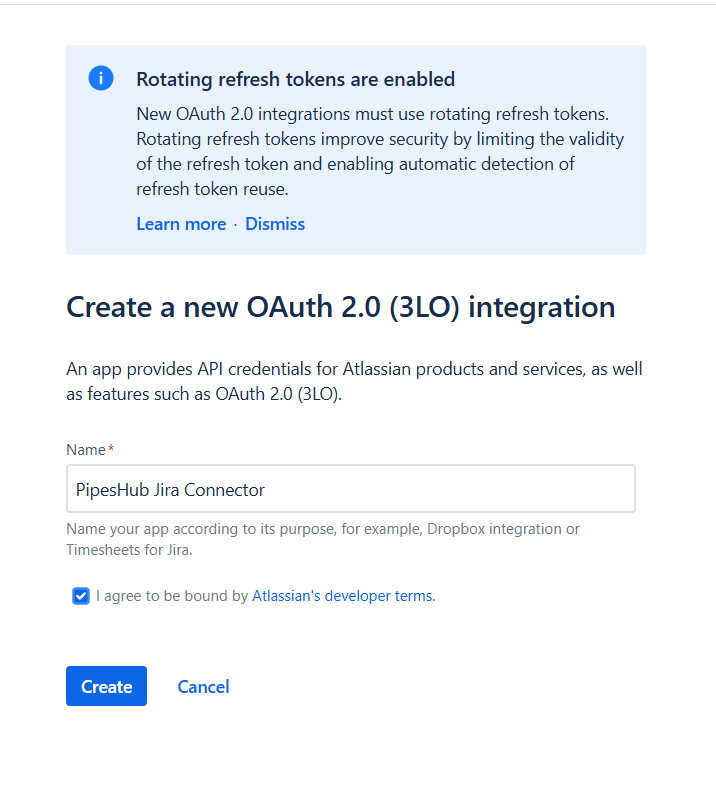
OAuth 2.0 (3LO) integrations use rotating refresh tokens by default, which improves security by limiting token validity and enabling automatic detection of refresh token reuse.
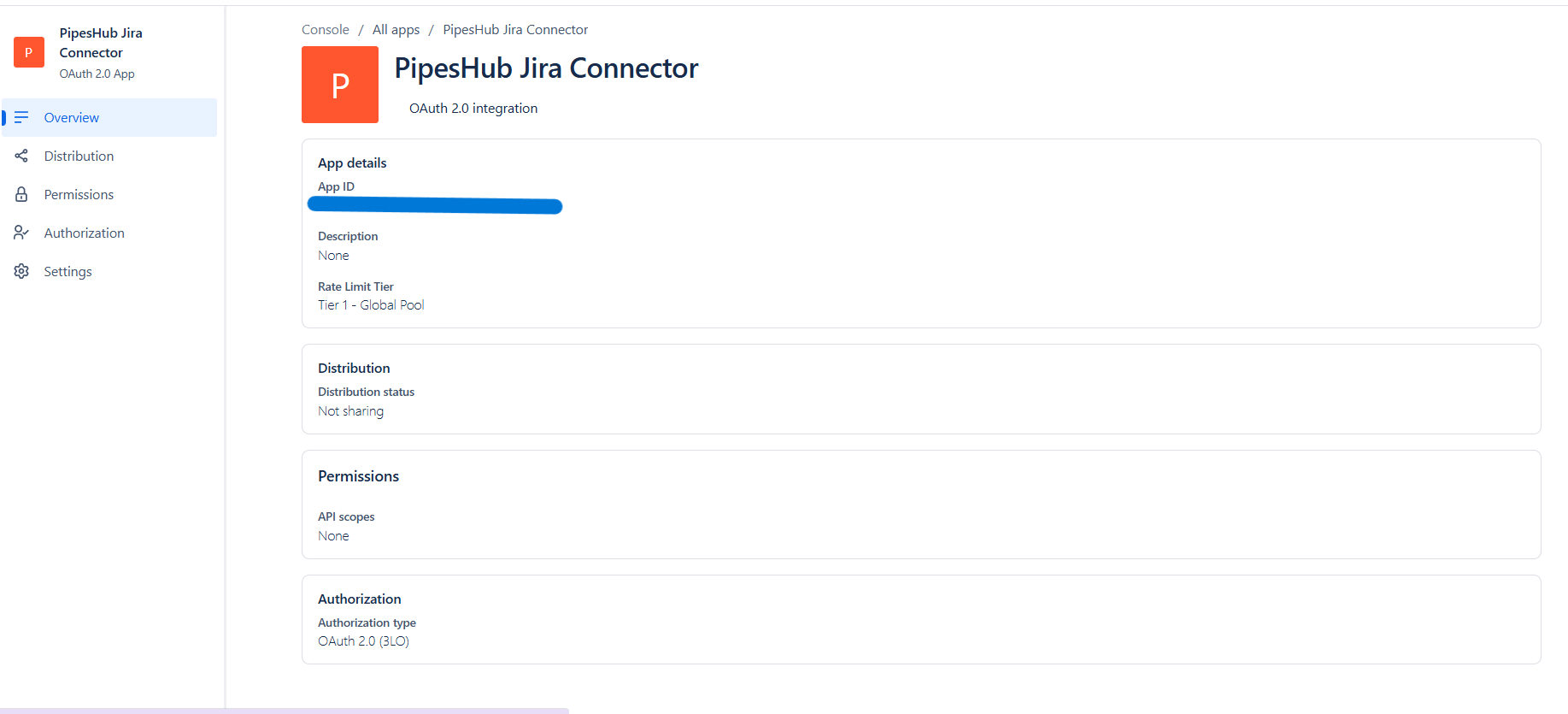
Step 3: Review Application Overview
After creation, you’ll be taken to the app overview page. This page displays:- App ID: Your application’s unique identifier
- Distribution status: Whether the app is shared publicly
- Permissions: API scopes configured for the app
- Authorization: OAuth 2.0 (3LO) authorization settings
Step 4: Configure OAuth 2.0 Authorization
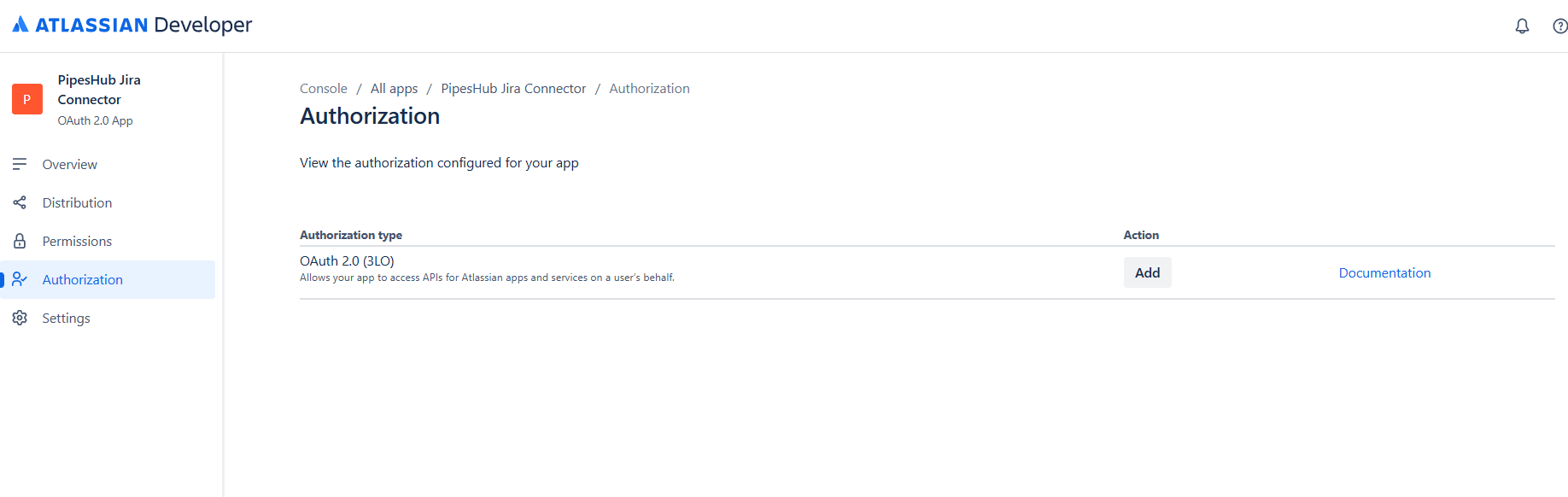
- In the left sidebar, click “Authorization”
- Find “OAuth 2.0 (3LO)” in the authorization types list
- Click “Add” to enable OAuth 2.0 authorization for your app
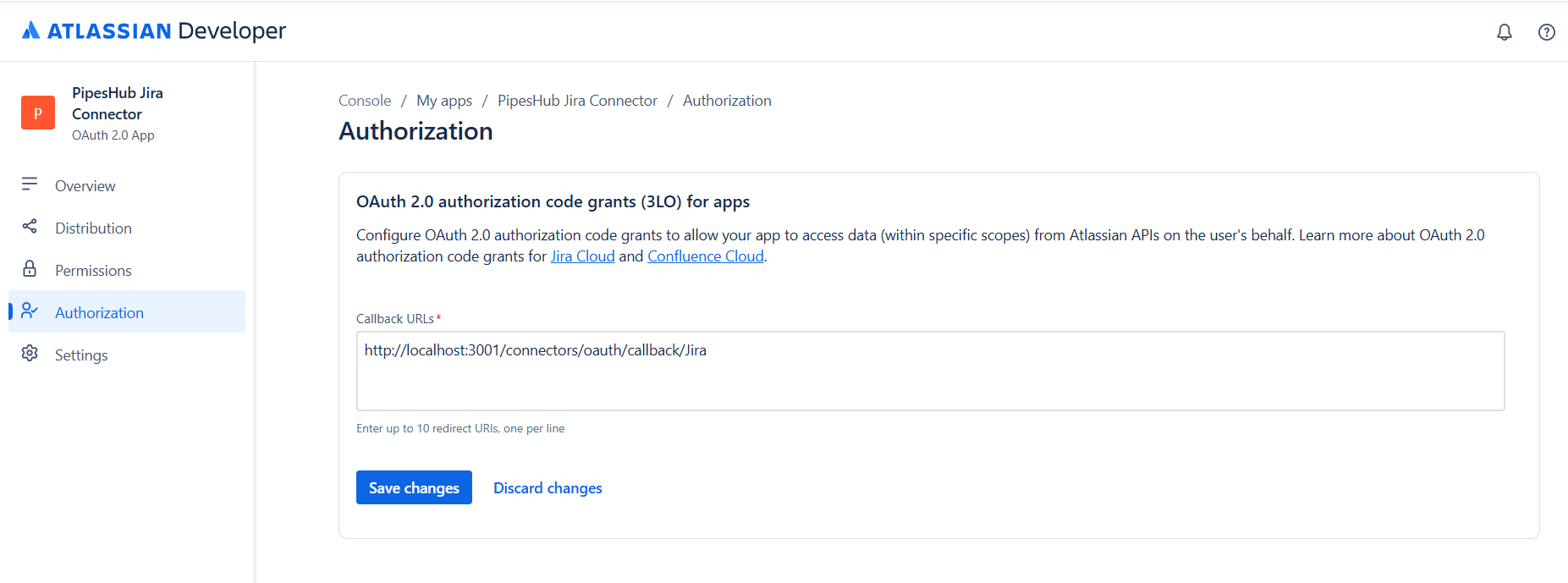
- Set the Callback URL:
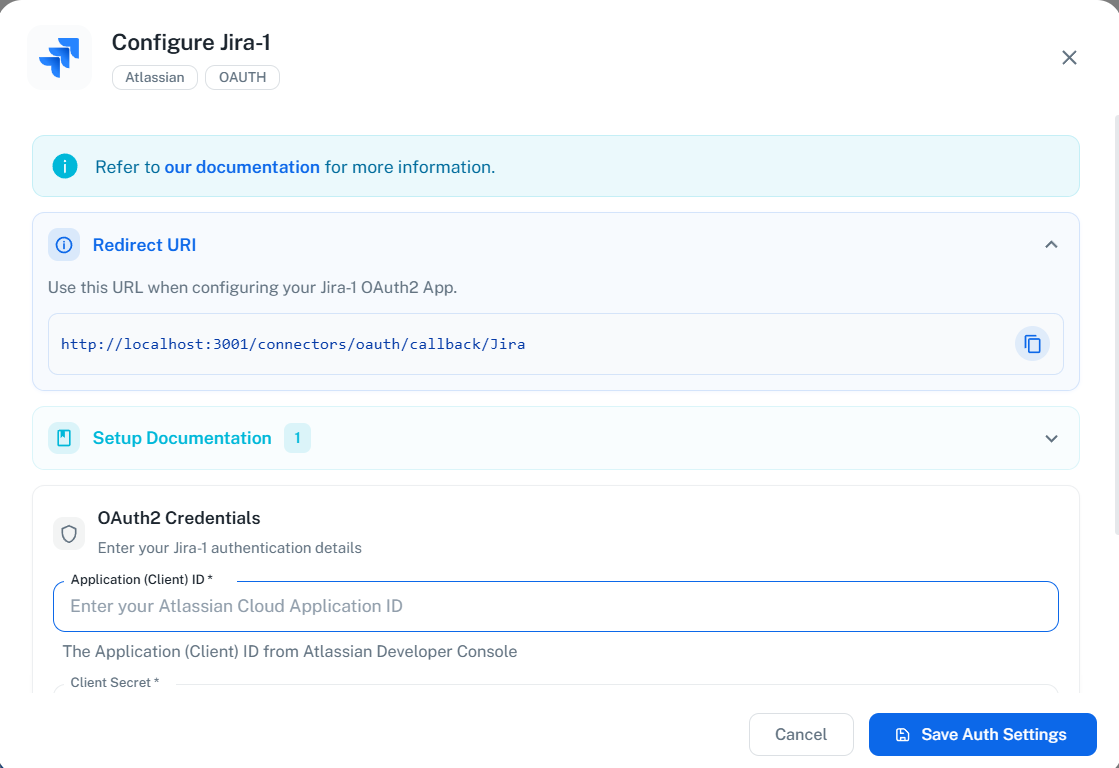
- You need to enter the redirect URI provided by PipesHub
- To get this URL, open PipesHub in another tab, navigate to Settings → Connectors, find the Jira connector, and click “Configure”
- Copy the Redirect URI shown in the configuration dialog:
- Paste the copied Redirect URI into the Callback URL field in Atlassian Developer Console
- Click “Save changes”
Step 5: Add API Permissions
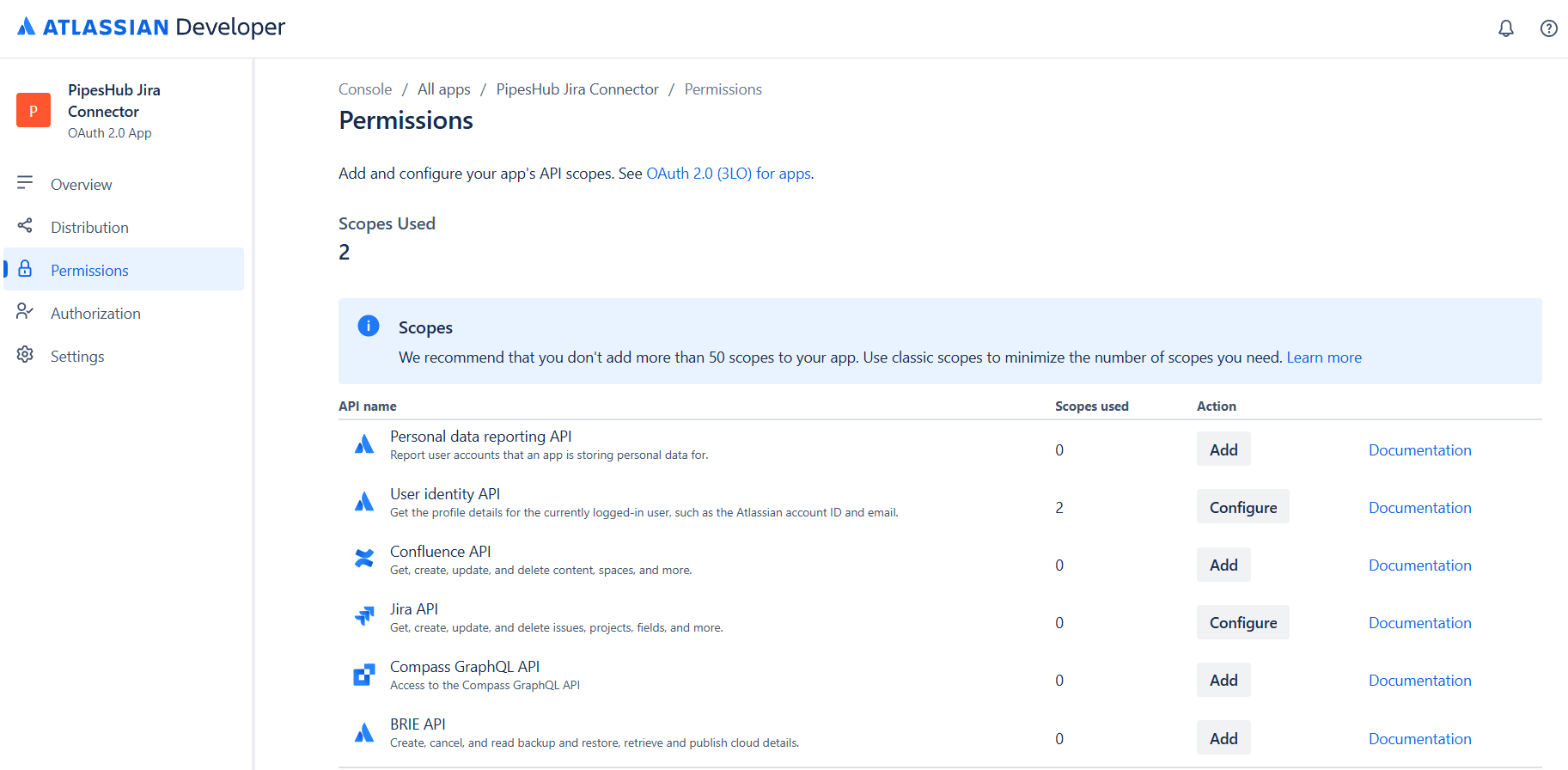
- In the left sidebar, click “Permissions”
- You’ll see a list of available Atlassian APIs
- Add scopes for both User identity API and Jira API
User Identity API Scopes
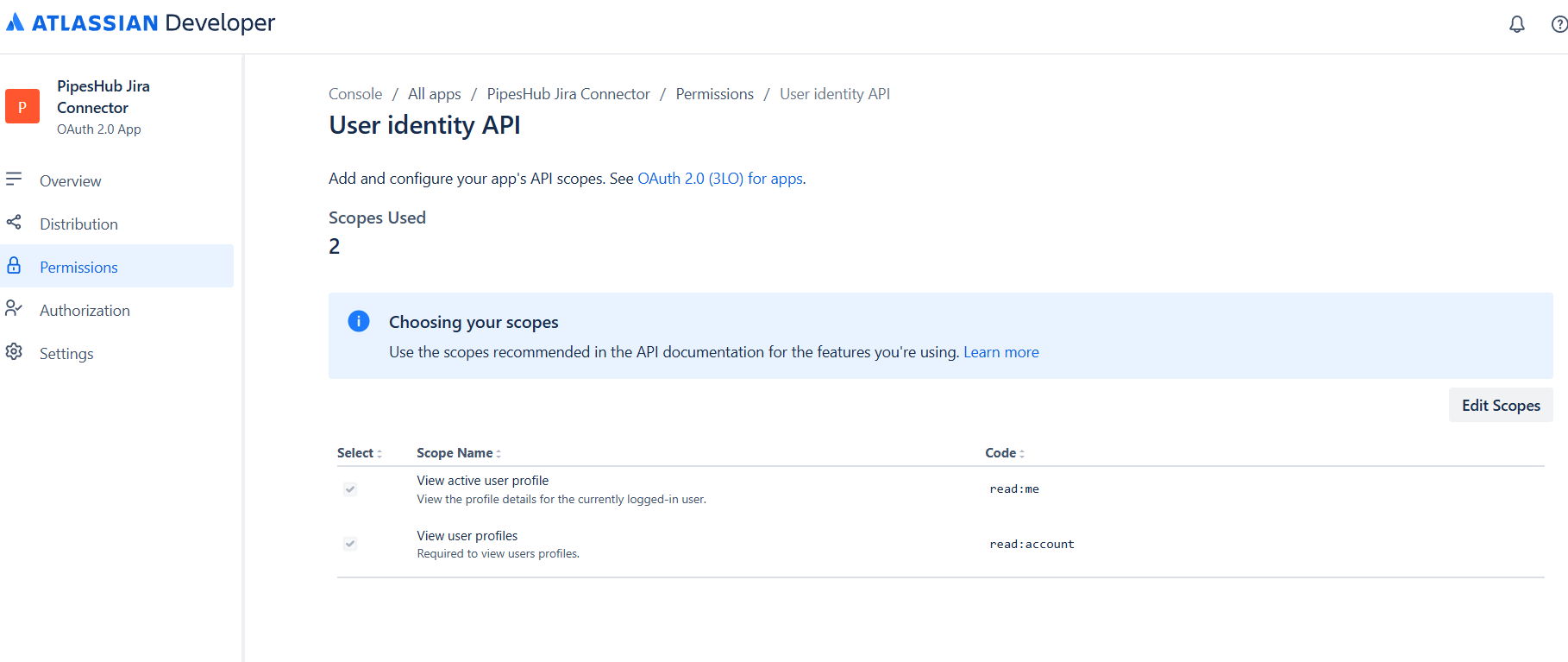
Click “Add” next to User identity API and select the following scope:| Scope | Description |
|---|---|
read:account | View user profiles (required for user identification) |
The
offline_access scope is automatically included when you configure OAuth 2.0 (3LO). It enables refresh tokens for scheduled synchronization to work when users are not actively logged in.Jira API Scopes
Click “Add” next to Jira API. You’ll see two tabs: “Classic scopes” and “Granular scopes”. You need to configure scopes from both tabs.Classic Scopes
First, select the “Classic scopes” tab and add the following scopes:| Scope | Description |
|---|---|
read:jira-work | Read Jira project and issue data, search issues, attachments, worklogs |
read:jira-user | Read Jira user information (usernames, emails, avatars) |
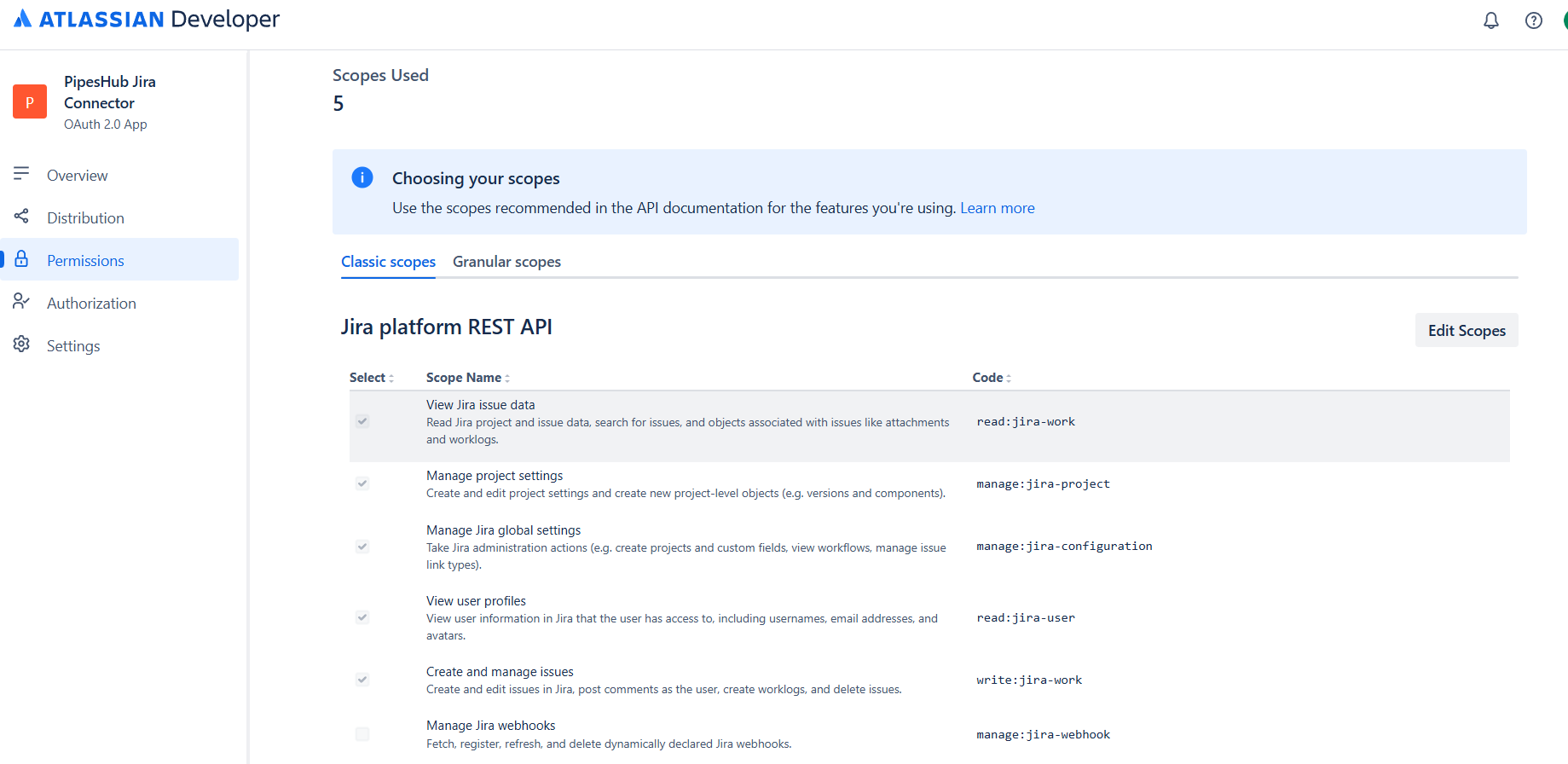
The connector uses only read-only classic scopes. It does not require any write or manage permissions. These two scopes provide broad access to Jira projects, issues, and user data.
Granular Scopes
Next, select the “Granular scopes” tab and add the following read permissions for more fine-grained access control:| Scope | Description |
|---|---|
read:user:jira | View user details |
read:group:jira | View groups and group members |
read:avatar:jira | View user and project avatars |
read:audit-log:jira | Read audit logs (for detecting deleted issues) |
read:application-role:jira | Read application roles |
read:project-role:jira | Read project roles and role assignments |
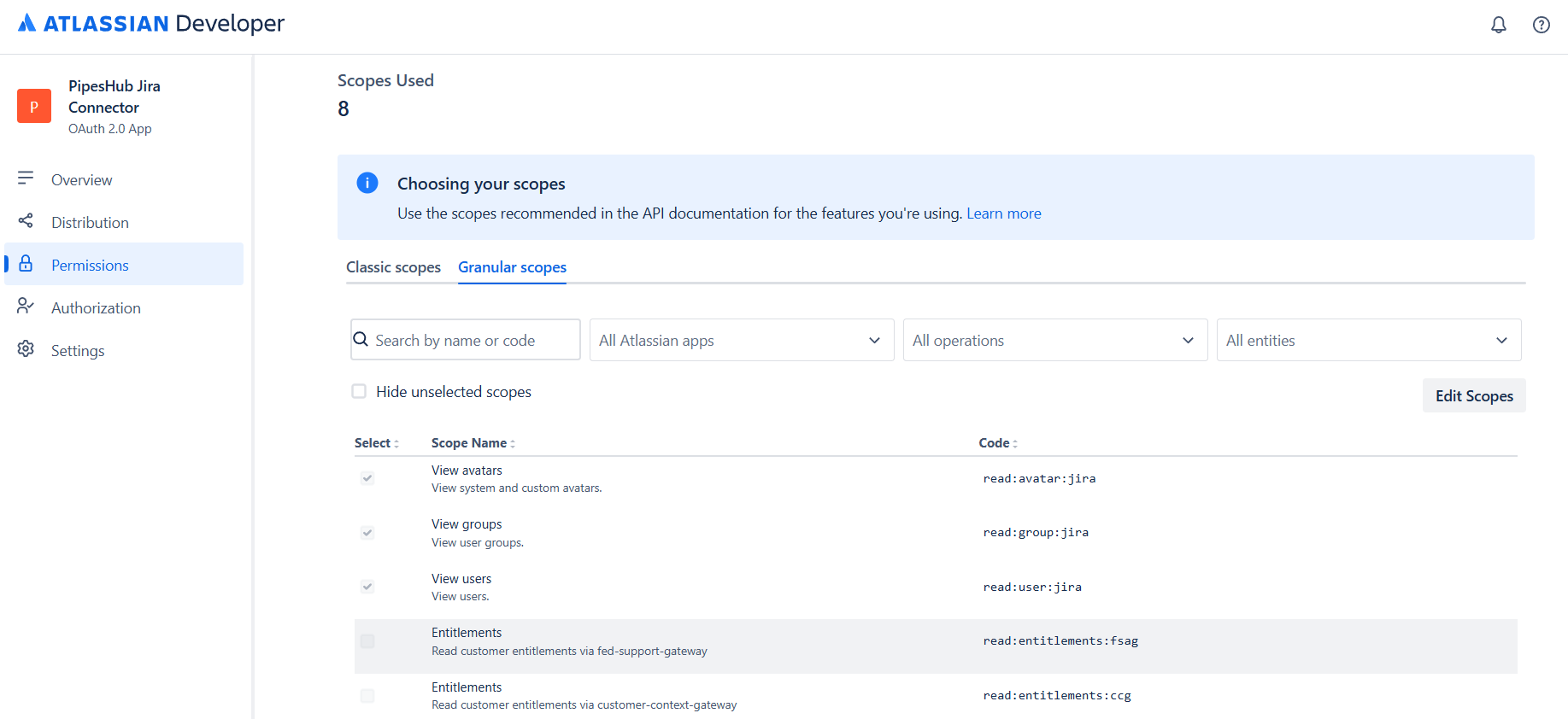
The connector uses a combination of Classic and Granular scopes for full functionality. Classic scopes (
read:jira-work, read:jira-user) provide the primary data access, while Granular scopes enable specific features like user lookup, group membership resolution, audit log access for deletion detection, and project role permissions.Step 6: Get OAuth 2.0 Credentials
- In the left sidebar, click “Settings”
- Scroll down to the “Authentication details” section
- Copy the following credentials:
- Client ID: Your app’s unique identifier
- Secret: Your app’s client secret (click the copy button)
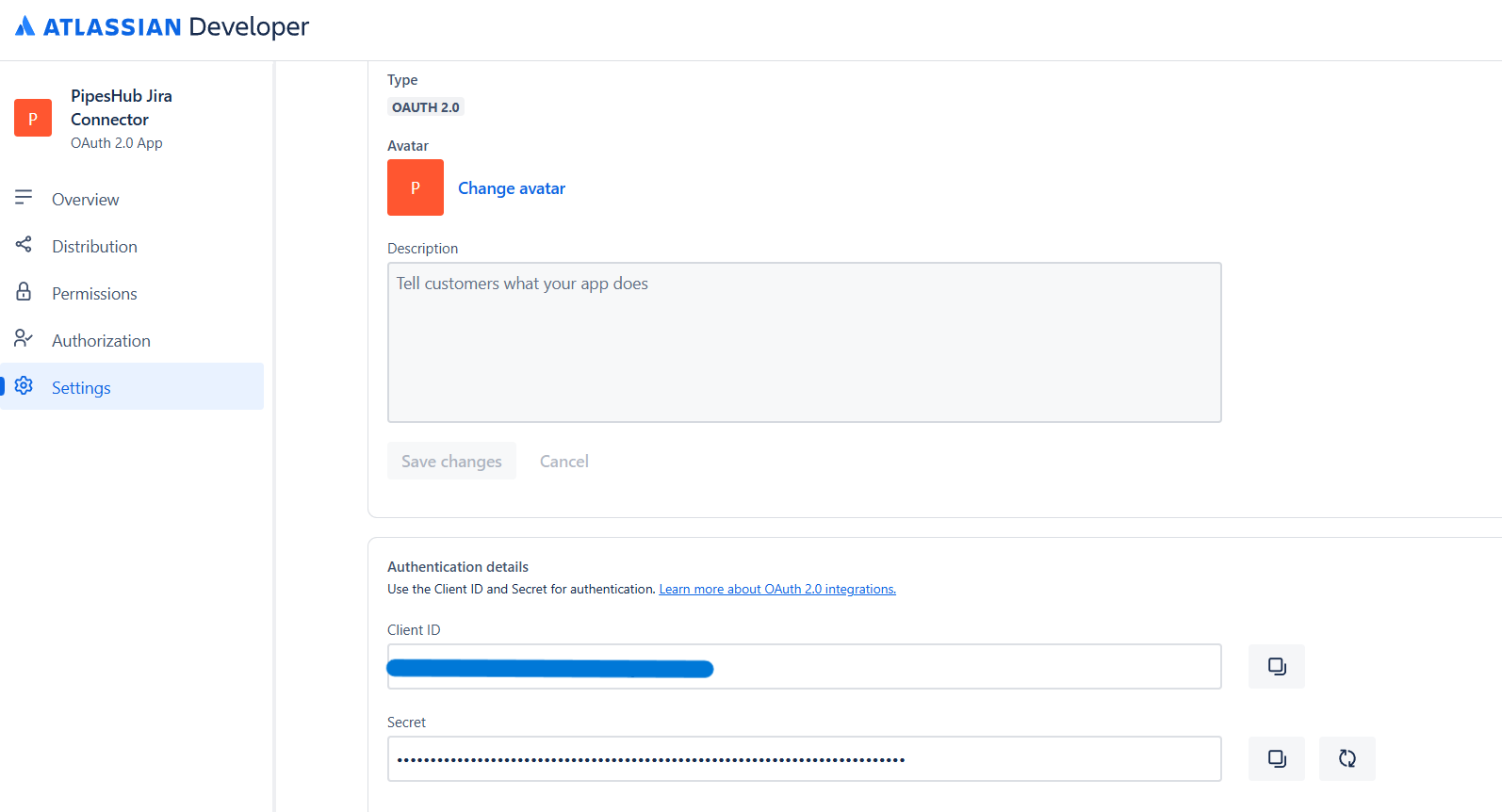
Step 7: Configure Connector in PipesHub
- Return to the PipesHub Jira configuration dialog (if you closed it, navigate to Settings → Connectors and click “Configure” on the Jira connector)
-
The configuration dialog has two steps:
- Step 1: Authentication - Enter OAuth credentials
- Step 2: Sync Settings - Configure synchronization
- Verify the Redirect URI displayed matches the callback URL you configured in Atlassian Developer Console (Step 4)
-
Enter your OAuth 2.0 credentials:
- Application (Client) ID: From Step 6
- Client Secret: From Step 6
- Atlassian Domain: Your Jira instance URL (e.g.,
https://your-domain.atlassian.net)
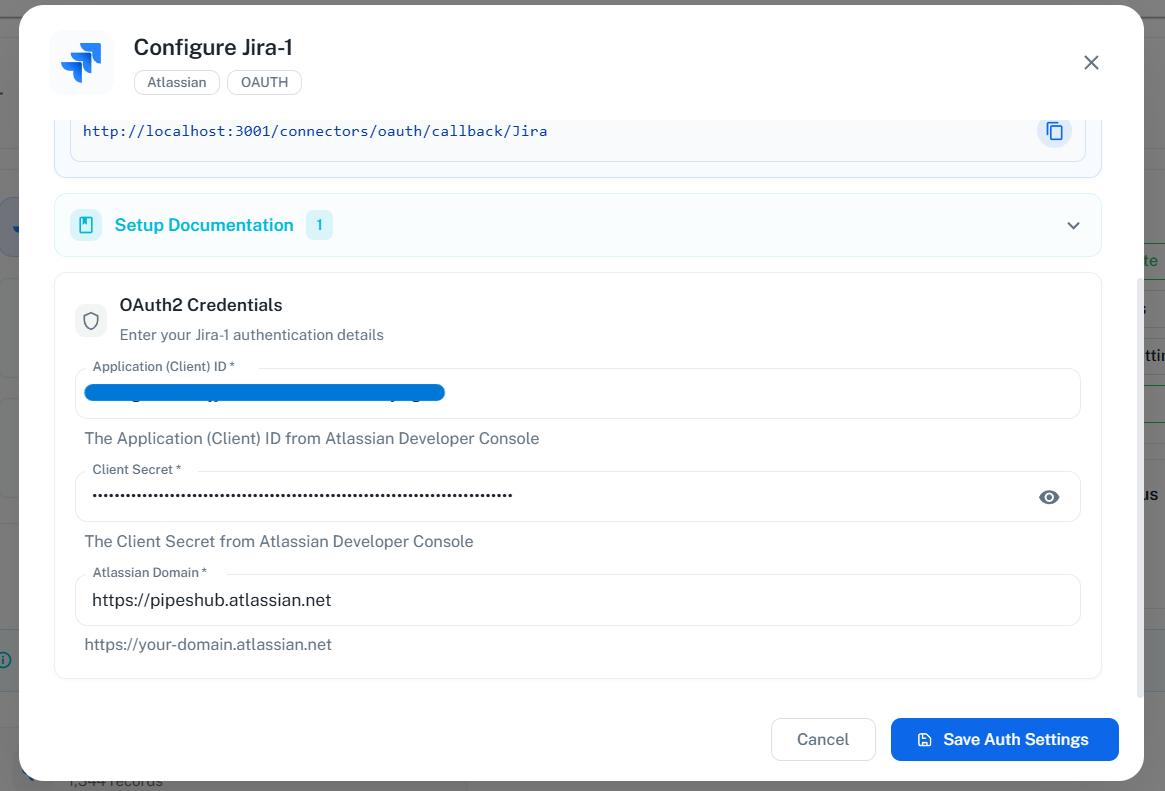
- Click “Save Auth Settings” to save auth setting
Step 8: Authorize the Connection
- After saving the configuration, click “Authenticate” from the Quick Actions panel
- You’ll be redirected to Atlassian’s authorization page
- Select your Jira site from the dropdown menu
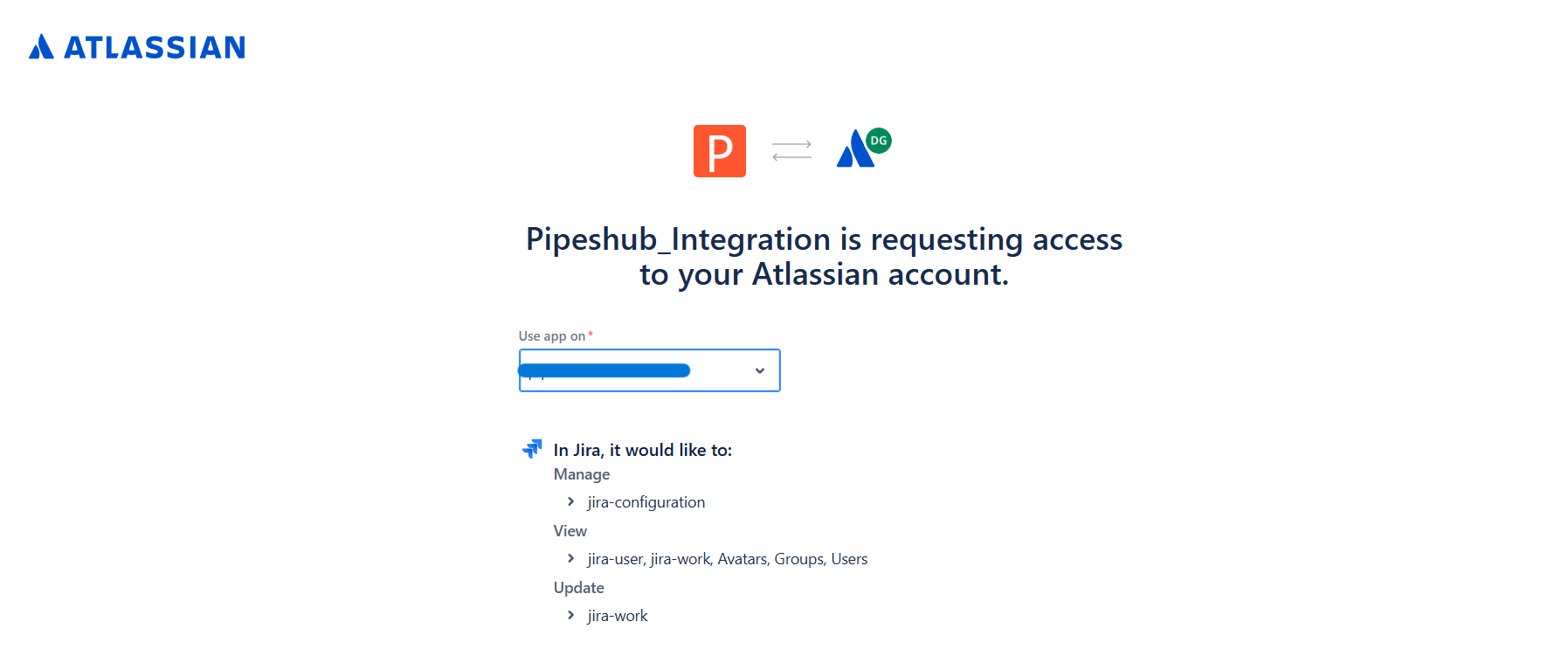
- Review the permissions being requested by the connector
- Click “Accept” to grant access
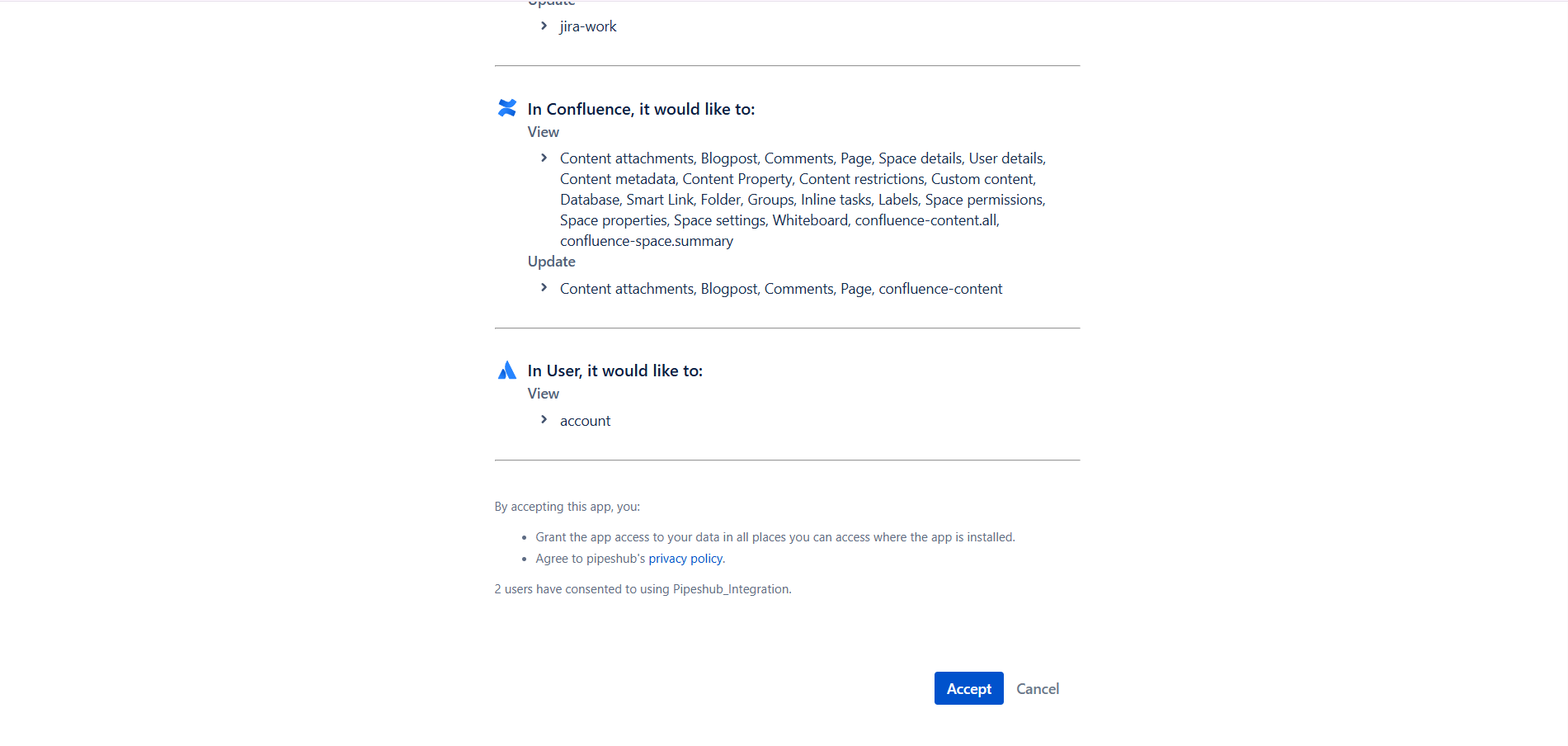
The authorization page shows all the Jira and User permissions your connector will have. Review these carefully before accepting to ensure they align with your data access requirements.
- You’ll be redirected back to PipesHub with a success message
- The connector status will update to show “Reauthenticate”
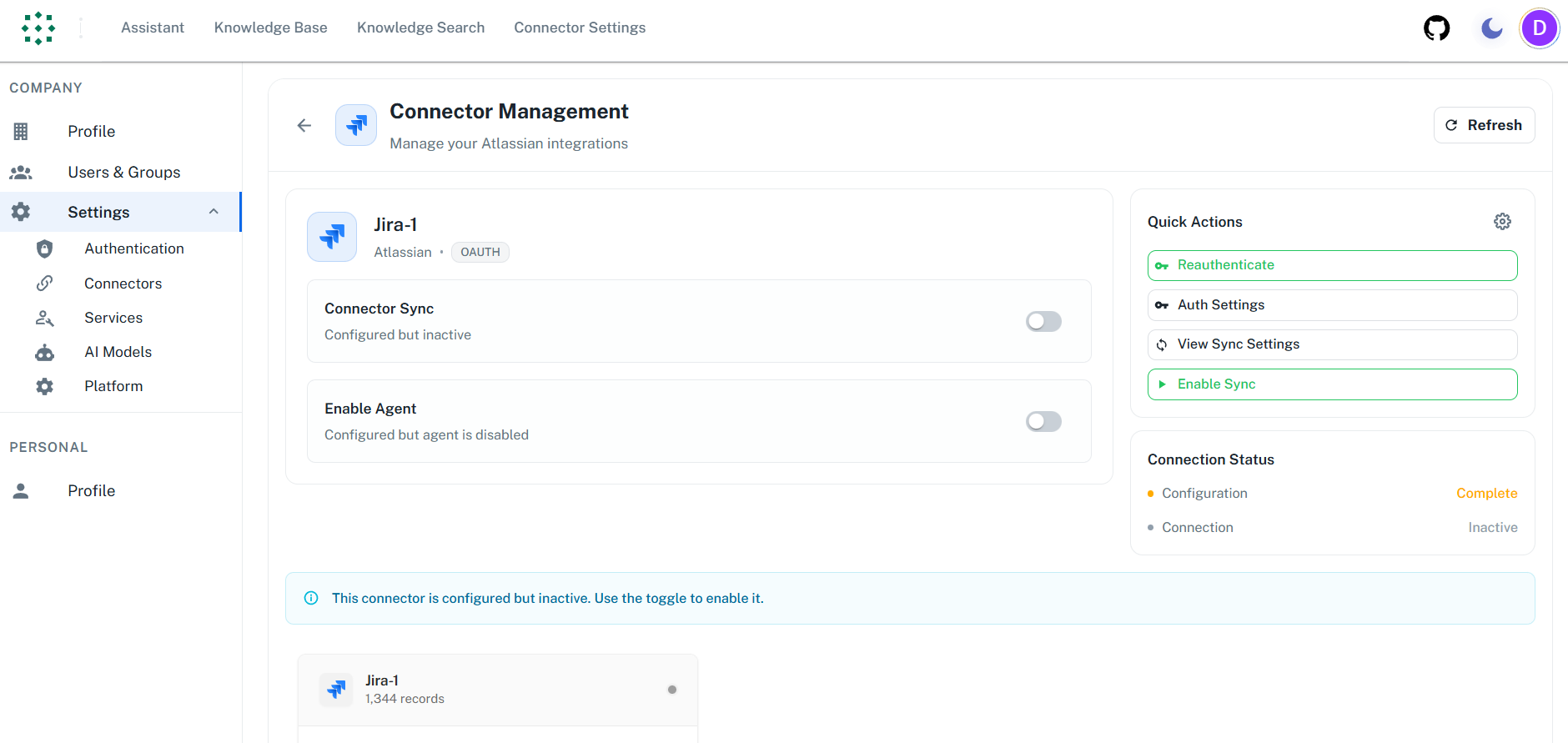
Step 9: Enable and Configure the Connector
- After successful authentication, click “Enable Sync” to activate the connector
- A configuration dialog will appear with two sections:
- Filters - Control what data is synced
- Sync Settings - Configure synchronization schedule
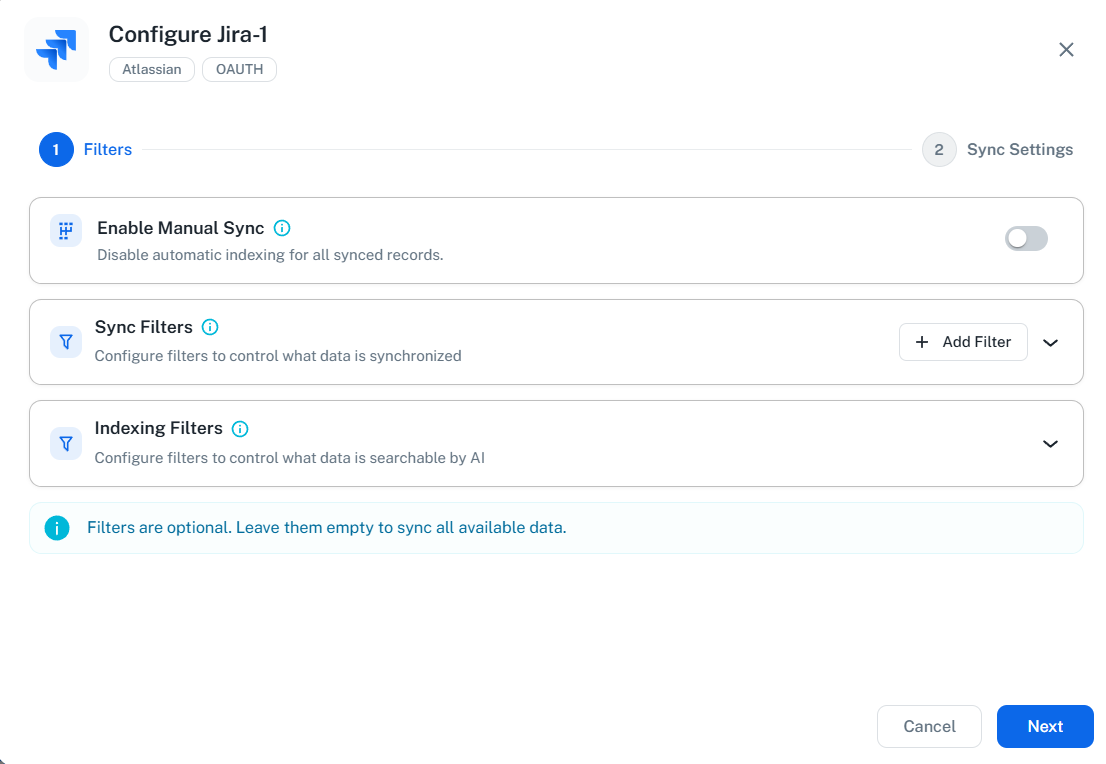
Sync Filters
Sync filters determine which content is downloaded from Jira. Data excluded by sync filters is never downloaded.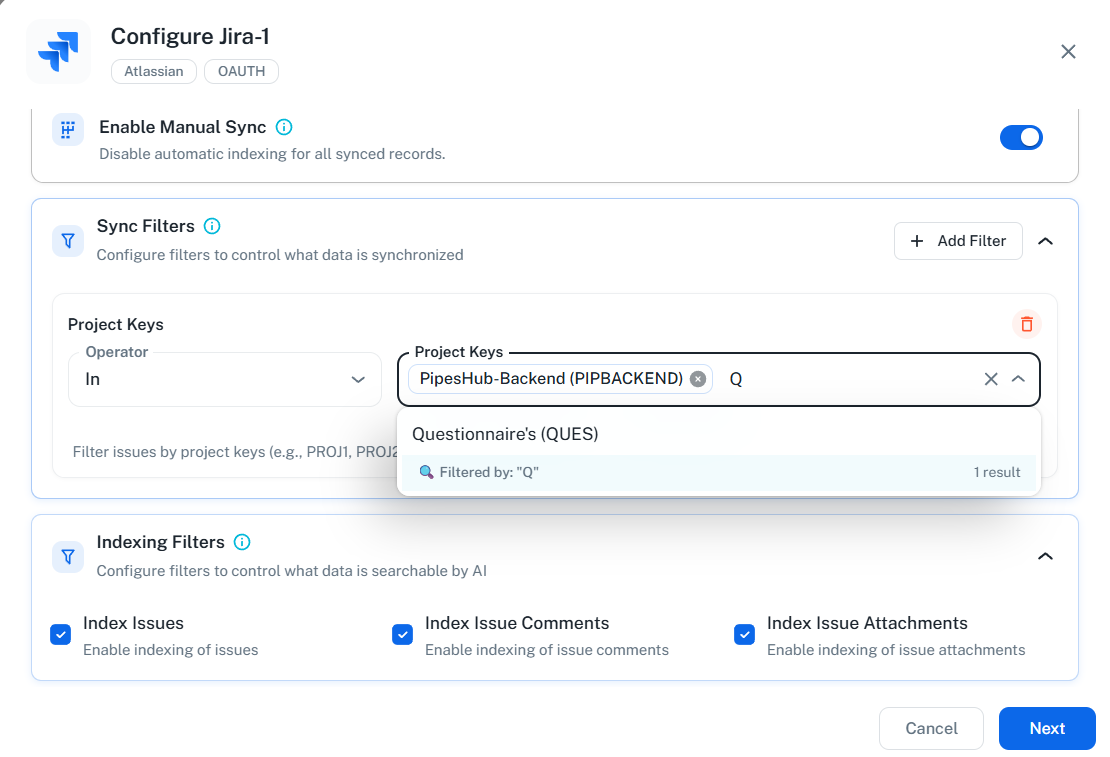
- Project Keys - Filter by Jira projects
- Operator:
In(include only) orNot In(exclude) - Selection: Choose from a searchable dropdown list of all your Jira projects
- The dropdown displays project names with their keys (e.g., “Engineering (ENG)”)
- Type to search and filter projects by name or key
- Select multiple projects as needed
- Operator:
The project list is dynamically fetched from your Jira workspace. You don’t need to manually enter project keys - simply search and select from the dropdown.
-
Modified Date - Filter by last modification date
- Operators:
Is After,Is Before, orIs Between - Use case: Sync only recently updated issues (e.g., issues modified in the last 6 months)
- Operators:
-
Created Date - Filter by creation date
- Operators:
Is After,Is Before, orIs Between - Use case: Sync only newly created issues or exclude legacy tickets
- Operators:
Indexing Filters
Indexing filters control what synced data gets processed for AI search. All data is synced, but only enabled content types are indexed.Available Indexing Filters:- Index Issues (default: enabled) - Include issue content (description and comments) in search
- Index Issue and Comment Attachments (default: enabled) - Include attachments from issues and comments in search
Comments are stored as part of the issue content (not as separate records). When “Index Issues” is enabled, both issue descriptions and comments are indexed together.
- Sync only Engineering project: Project Keys → Operator:
In, select “Engineering” from dropdown - Exclude archived projects: Project Keys → Operator:
Not In, select archived projects from dropdown - Recent issues only: Modified Date → Operator:
Is After, Date:2024-06-01 - Index issues but not attachments: Disable “Index Issue and Comment Attachments” toggle
Filters can be configured during initial setup or modified later. Changes to filters will take effect on the next sync.
Sync Settings
Configure your synchronization preferences:- Sync Strategy: Choose between “Scheduled” or “Manual”
- Sync Interval: Choose how often to sync (default: 60 minutes)
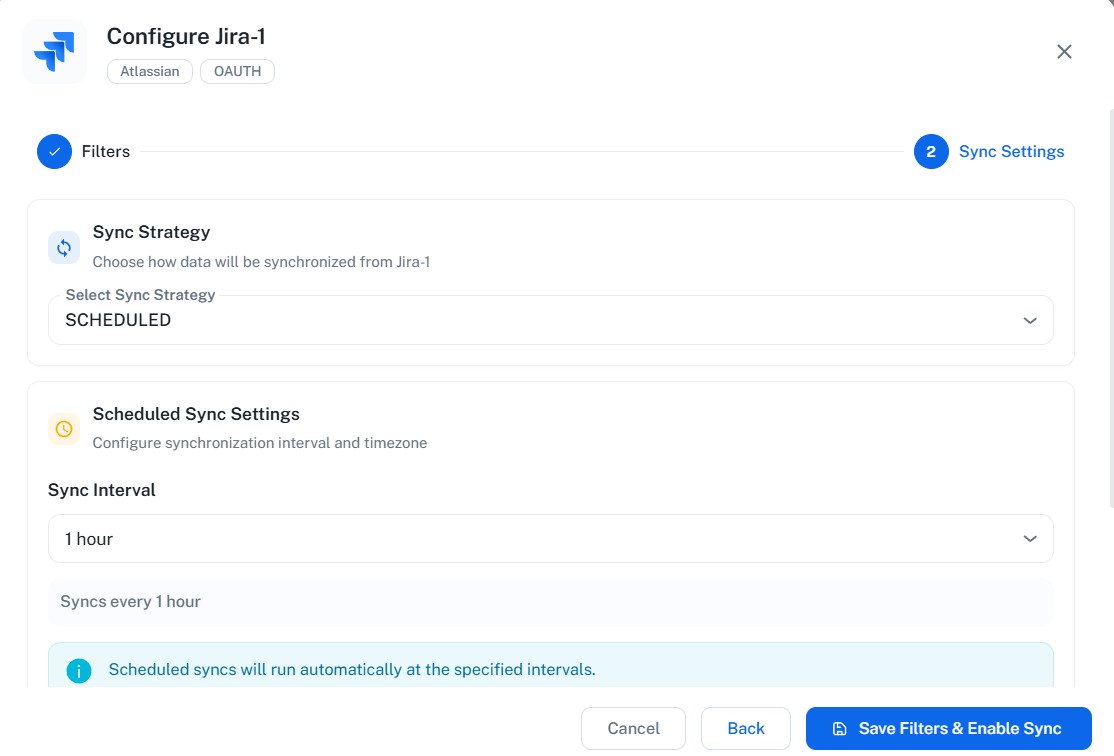
Scheduled sync runs automatically at the specified intervals, keeping your data up-to-date without manual intervention. Manual sync requires you to trigger synchronization on-demand.
Save and Activate
- Click “Save” to save your configuration and enable the connector
- The connector will verify credentials and begin initial synchronization
- Wait for the status to show “Disable Sync”
- Monitor the Indexing Progress to track sync completion
Supported Features
The Jira connector syncs the following data from your Jira Cloud workspace:- Projects: All accessible projects with their configurations and permission schemes
- Issues: Full issue content including summary, description, status, priority, and custom fields
- Comments: All comments on issues with author information
- Attachments: Files attached to issues (images, documents, etc.)
- Users: User profiles and account information
- Groups: User groups and memberships
- Project Roles: Role assignments for project access control
- Permissions: Project permissions and issue-level access controls
Useful Links
- Atlassian Developer Console: developer.atlassian.com/console/myapps/
- OAuth 2.0 (3LO) Documentation: developer.atlassian.com/cloud/jira/platform/oauth-2-3lo-apps/
- Jira API Scopes Reference: developer.atlassian.com/cloud/jira/platform/scopes-for-oauth-2-3LO-and-forge-apps/
- Jira REST API v3 Documentation: developer.atlassian.com/cloud/jira/platform/rest/v3/
Troubleshooting
Troubleshooting
Troubleshooting
Common Issues
Invalid client credentials error:- Verify Client ID and Client Secret are correct
- Ensure you copied the full values without extra spaces
- Check that the OAuth app is active in Atlassian Developer Console
- Regenerate the secret if necessary and update PipesHub
- Ensure the Redirect URI in PipesHub exactly matches the callback URL in Atlassian
- Check for trailing slashes or protocol differences (http vs https)
- Update both configurations to use the same URL
- Verify you’re signing in with an account that has Jira access
- Ensure your Jira site is selected during authorization
- Check that all required API scopes are configured
- Verify the connector status shows “Active”
- Check that the authenticating user has access to Jira projects
- Ensure projects are not restricted or archived
- Review sync logs for specific error messages
- OAuth 2.0 tokens may expire based on Atlassian’s policies
- Disable and re-enable the connector to re-authenticate
- Check if the OAuth app is still active in Developer Console
- Verify the authenticating user has read access to the issues
- Check project permissions in Jira
- Review issue security schemes that may limit access
- Verify indexing filters are enabled for comments and attachments
- Check that the user has permission to view comments/attachments
- Ensure attachment size limits are not exceeded
Connector Workflow
Synchronization Process
Synchronization Process
The Jira connector follows a structured synchronization process to ensure all data is accurately synced and permissions are properly maintained.
Sync Overview
Therun_sync method executes a complete synchronization cycle in a specific order:| Step | Function | Data Synced | Purpose |
|---|---|---|---|
| 1 | _fetch_users() | Users | Sync all Jira users with their profiles |
| 2 | _sync_user_groups() | Groups | Sync groups and user-group memberships |
| 3 | _fetch_projects() | Projects | Fetch projects (filtered if configured) |
| 4 | _sync_project_roles() | Roles | Sync project role assignments |
| 5 | _sync_project_lead_roles() | Lead Roles | Assign project lead permissions |
| 6 | _sync_project_issues() | Issues | Sync issues, comments, and attachments |
| 7 | _handle_issue_deletions() | Deletions | Detect and remove deleted issues |
Full Sync vs Incremental Sync
The connector automatically determines whether to perform a full or incremental sync:Full Sync occurs when:- First-time synchronization (no sync checkpoint exists)
- Sync filters have been modified since last sync
- Manual full sync is triggered
- A valid sync checkpoint exists
- Filters haven’t changed
- Uses JQL queries with
updated >= "last_sync_time"to fetch only changes
User & Group Synchronization
- User Fetch: Retrieves all users from Jira with their account IDs, emails, and display names
- Group Sync: Fetches all groups and their member lists
- Membership Mapping: Creates user-to-group relationships for permission resolution
Project Synchronization
- Project Fetch: Retrieves projects (filtered by project keys if configured)
- Permission Scheme: Extracts project permission schemes for access control
- Role Assignment: Syncs project-specific roles (Admin, Developer, Viewer, etc.)
- Lead Roles: Assigns project lead permissions to designated users
Issue Synchronization
For each project, the connector:- Builds JQL Query: Constructs query with date filters and project scope
- Batched Fetching: Retrieves issues in batches (default: 100 per request)
- Content Processing:
- Parses issue description (ADF format → Markdown with embedded images)
- Extracts metadata (status, priority, labels, etc.)
- BlockGroup Structure: Creates hierarchical content structure:
- Description BlockGroup (index=0): Contains issue description with inline attachments
- Comment Thread BlockGroups: Each thread gets its own BlockGroup with
parent_index=0 - Comment Blocks: Individual comments stored as Blocks within their thread BlockGroup
- Attachment Processing: Maps attachments to their correct location (description or specific comments)
- Permission Assignment: Applies project and issue-level permissions
Comments are stored as Blocks within the issue’s BlocksContainer (not as separate records). This enables efficient threaded comment organization and ensures comments are deleted automatically when the parent issue is removed.
Deletion Detection
The connector uses Jira’s Audit Log API to detect deleted issues:- Queries audit log for
ISSUE_DELETEevents since last sync - Identifies deleted issue keys from audit records
- Removes issue records from the index
- Comments are automatically deleted with the issue (stored as Blocks within the issue)
Checkpoint Management
After each successful sync:- Stores the latest issue update timestamp as checkpoint
- Records current filter configuration to detect changes
- Per-project checkpoints enable resumable syncs on failures
FAQ
What's the difference between Jira Connector and Jira Toolset?
What's the difference between Jira Connector and Jira Toolset?
| Aspect | Jira Connector | Jira Toolset |
|---|---|---|
| Purpose | Sync and index Jira data for search | Enable agents to perform actions in Jira |
| Data Flow | One-way (import data into PipesHub) | Two-way (read and write via API) |
| When to Use | Query/search issues, projects, comments | Create issues, update tickets, add comments |
Queries not returning results. What could be wrong?
Queries not returning results. What could be wrong?
There are three common causes:
-
Email mismatch - The email used during connector authentication doesn’t match your PipesHub account email. This causes permission issues preventing you from accessing synced data.
- Fix: Reconfigure the connector and authenticate using the same email as your PipesHub account.
-
Records show in “All Records” but not in search - Documents display in the All Records section but don’t appear in search query results.
- Fix: Verify sync filters in the connector settings and ensure indexing has completed. Check that the data matches your search query criteria.
-
Data not yet indexed - The connector is still syncing or hasn’t completed the initial indexing process.
- Fix: Go to Settings > Connectors, check the sync status, and wait for indexing to complete.
How long does the initial sync take?
How long does the initial sync take?
The initial sync duration depends on the size of your Jira workspace:
Tip: Use project filters to sync only the projects you need, significantly reducing initial sync time.
| Workspace Size | Estimated Time |
|---|---|
| Small (< 1,000 issues) | 1-5 minutes |
| Medium (1,000 - 10,000 issues) | 5-15 minutes |
| Large (10,000 - 50,000 issues) | 15-45 minutes |
| Enterprise (50,000+ issues) | 45+ minutes |
Does the connector support Jira Server or Data Center?
Does the connector support Jira Server or Data Center?
No, this connector is designed exclusively for Jira Cloud.Jira Server and Jira Data Center (on-premise deployments) use different authentication mechanisms and APIs. If you need support for on-premise Jira, please contact our support team to discuss options.
Why do I see no issues after authenticating?
Why do I see no issues after authenticating?
The most common causes are missing scopes or selecting the wrong Jira site during consent. Re-run authentication, ensure the required Jira and User scopes are granted, and pick the correct site when prompted.
Why are comments or attachments missing from search?
Why are comments or attachments missing from search?
Comments are indexed as part of the issue content (not separately). Ensure:
- Index Issues filter is enabled (this includes comments)
- Index Issue and Comment Attachments filter is enabled for attachment search
- The authenticating user has permission to view the issues and their comments in Jira
Is it possible to index only specific Jira projects?
Is it possible to index only specific Jira projects?
Yes. When creating a Jira connector, the admin has the option to apply filters and select specific Jira projects for indexing. This allows you to limit the scope of indexed content to only the projects that are relevant to your organization’s needs.
Ready to Get Started?
Connect your Jira workspace to PipesHub in just a few minutes. Follow the step-by-step guide above to enable organization-wide project and issue search across all your Jira content.