
🛠️
Agent Setup Guide
Create your first AI agent with the visual flow builder
Prerequisites
Before creating an agent, ensure you have:- AI Models Configured - At least one reasoning-enabled LLM provider set up in your organization
- Toolsets Configured (optional) - Any external toolsets you want the agent to use
- Knowledge Sources (optional) - Connectors or collections for document search
Step 1: Navigate to Agents
- From the main navbar, click “Agent (Beta)”
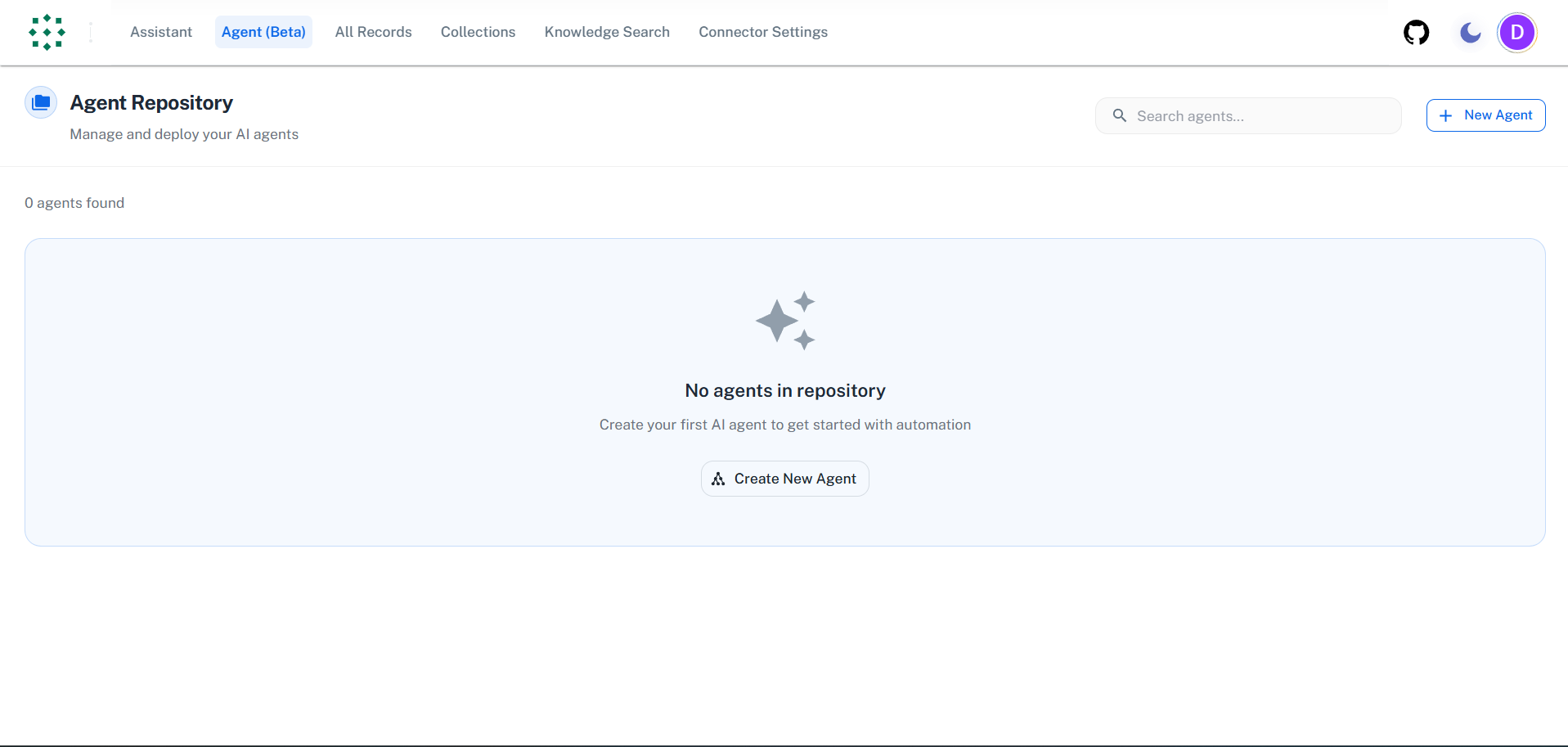
- You’ll land on the Agents Management page showing your existing agents (if any)
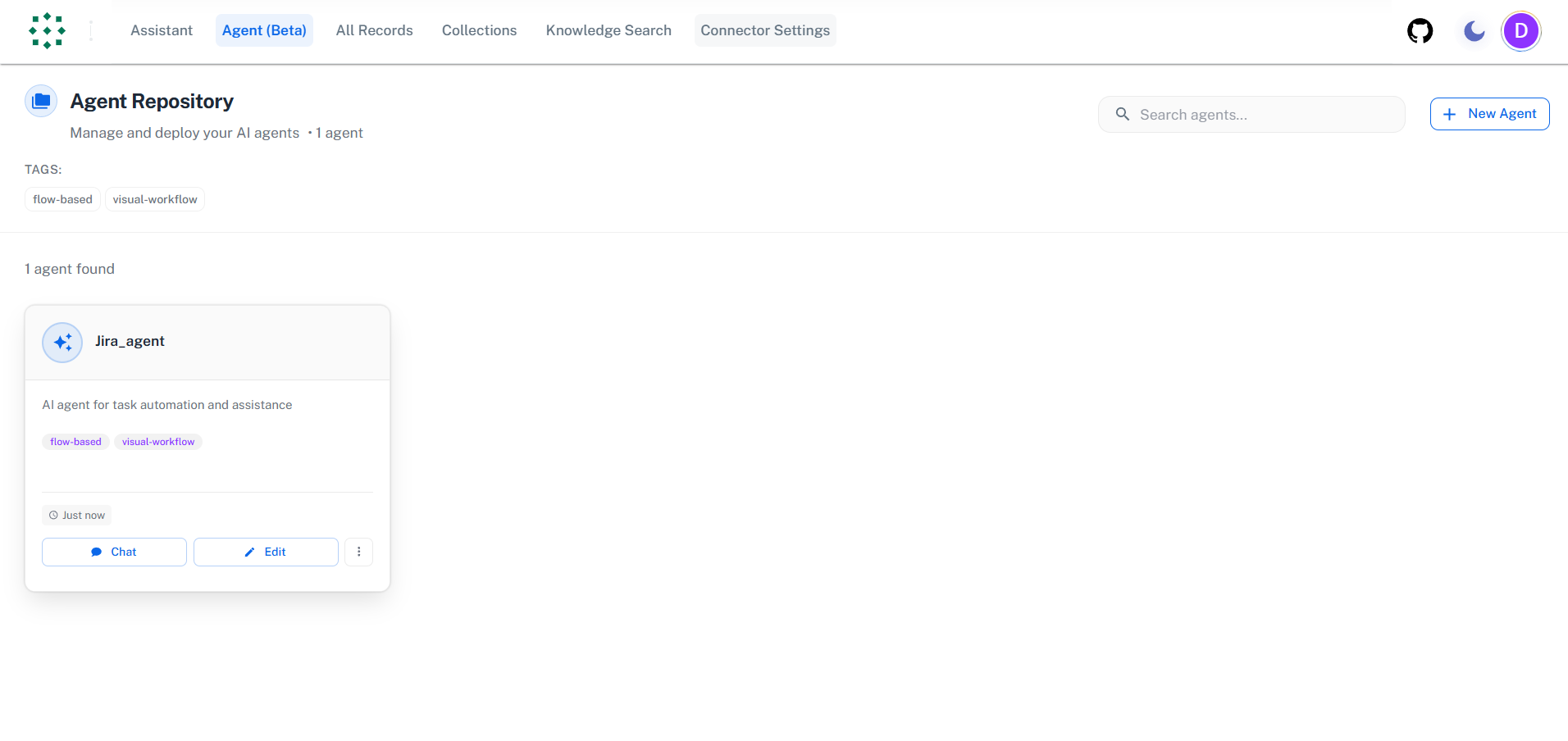
Step 2: Create New Agent
Click the ”+ New Agent” button in the top-right corner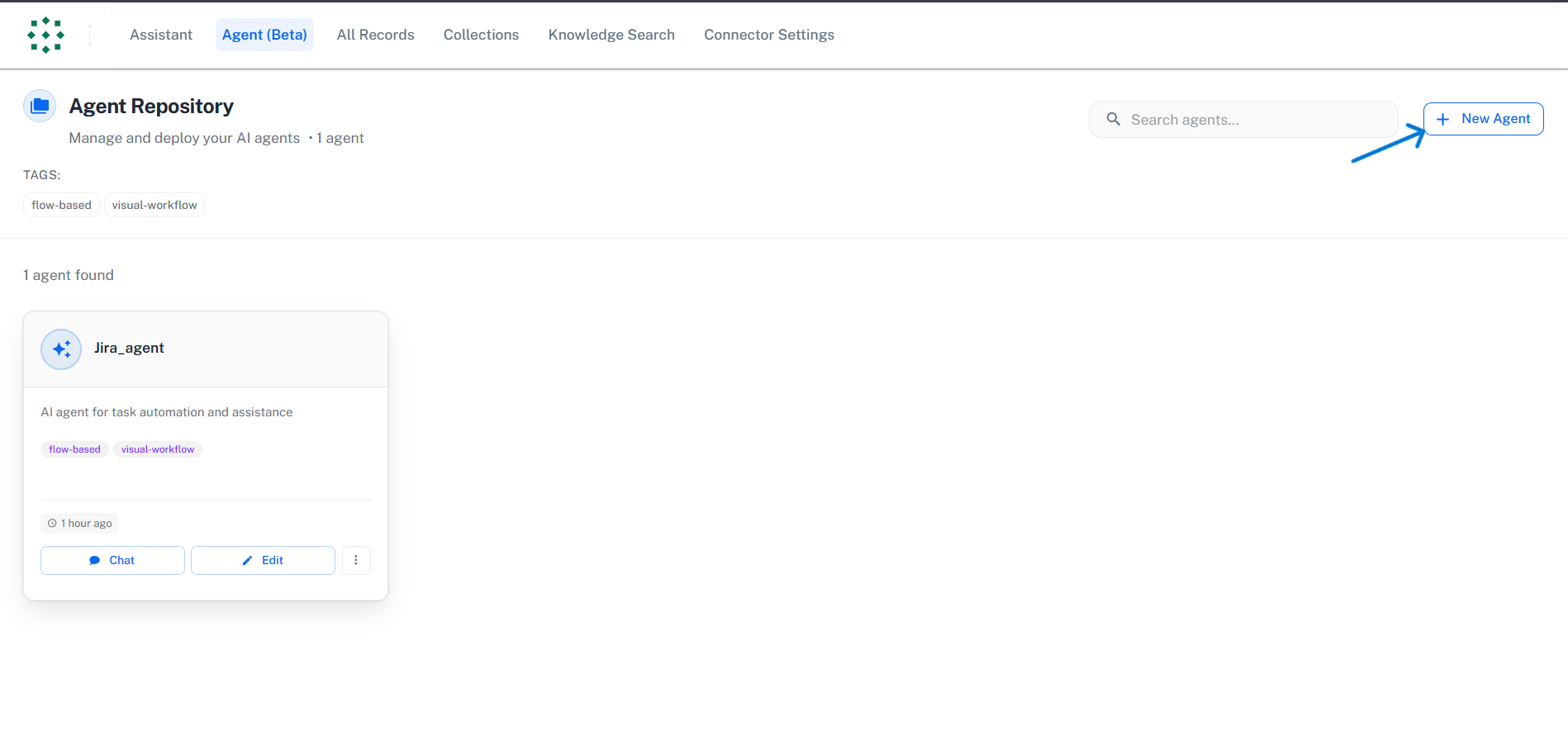
Step 3: Configure Agent Core
The Agent Builder opens with a visual flow canvas. You’ll see an Agent Core node already placed on the canvas.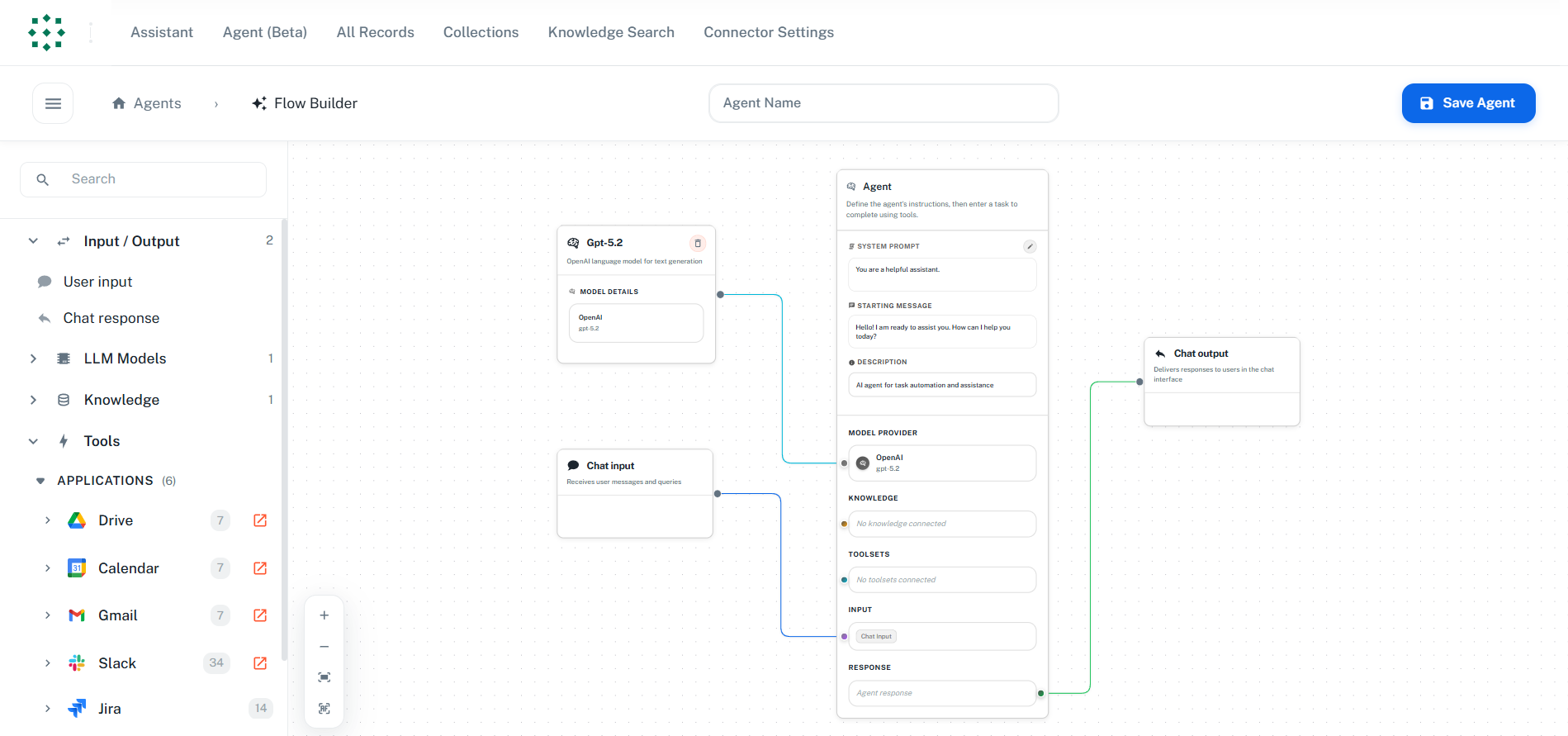
Configure the Agent Core
- Click the edit pencil icon near the System Prompt section to open the configuration dialog
- Fill in the following fields:
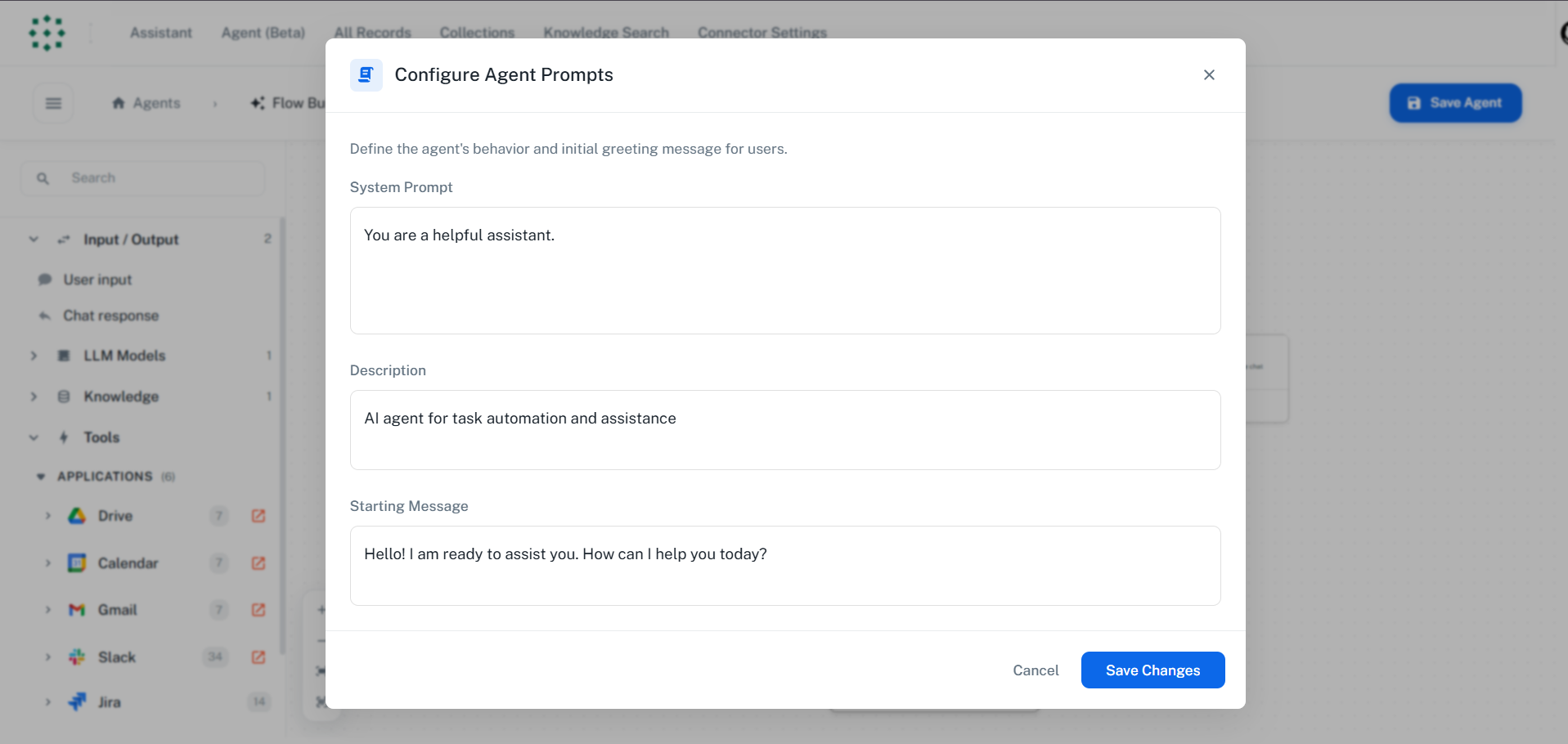
- Click “Save Changes” to apply the configuration
The System Prompt is crucial for defining your agent’s behavior. Be specific about what the agent should and shouldn’t do, its tone, and any constraints.
Step 4: Add Reasoning LLM Model
Every agent needs at least one reasoning-enabled LLM model to power its intelligence.- In the left sidebar, expand the “LLM Models” section
- Drag a LLM model node onto the canvas
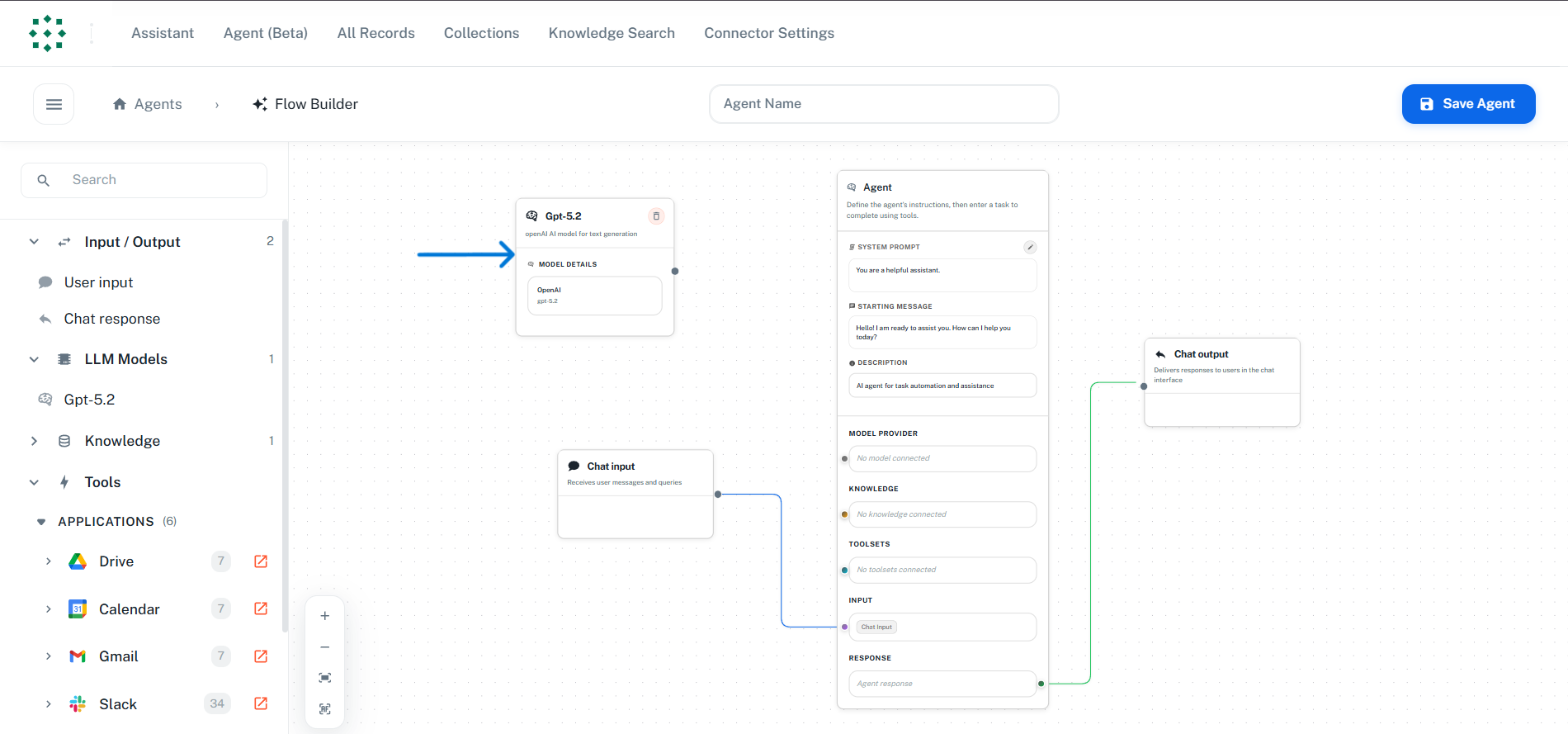
- Connect the reasoning LLM model node to the Agent Core:
- Click and drag from the output handle of the Agent Core node
- Connect to the input handle of the MODEL PROVIDER node
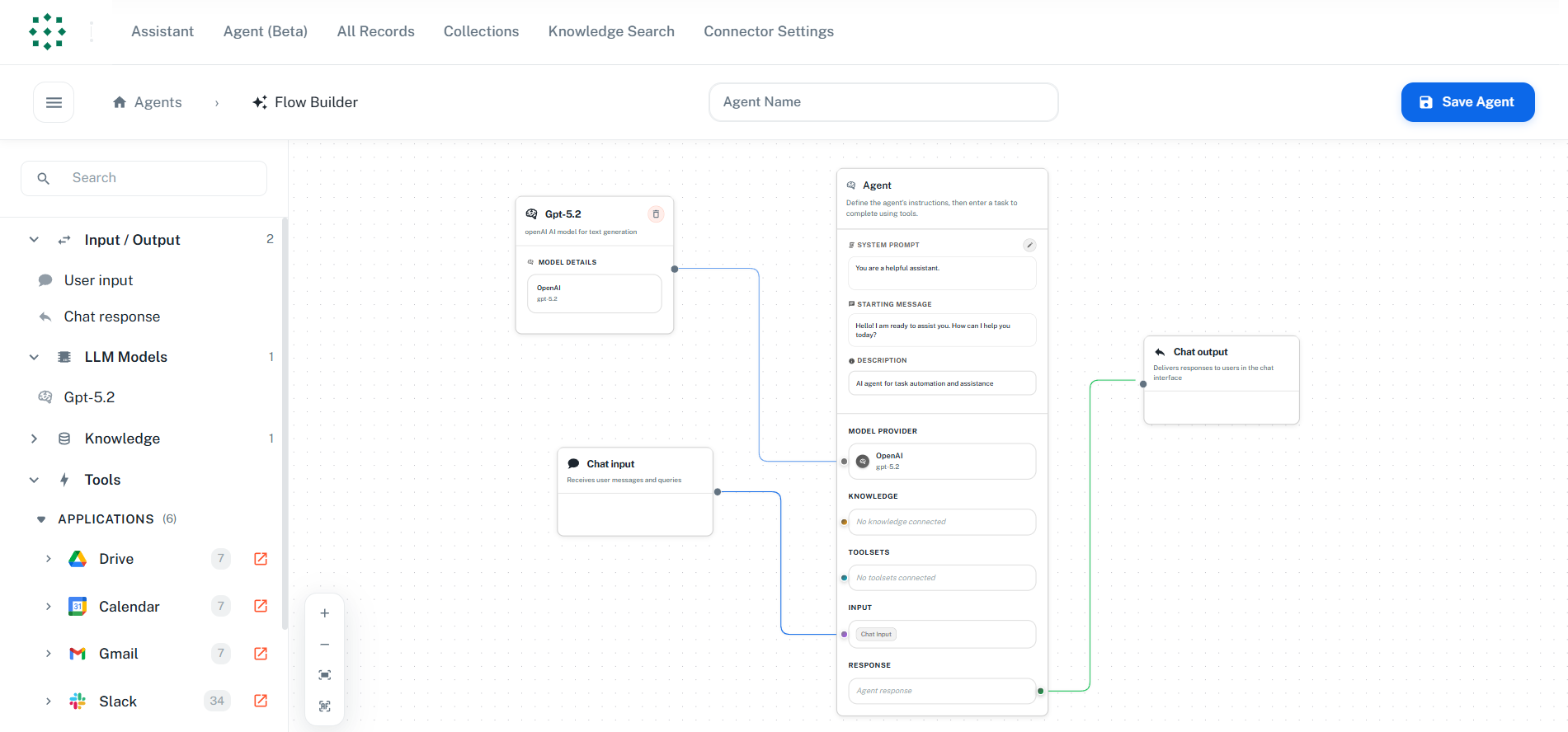
Reasoning models are LLM models with reasoning capabilities enabled, allowing the agent to think through complex problems step-by-step before responding.
Step 5: Add Toolsets (Optional)
Toolsets give your agent the ability to interact with external applications.Viewing Available Toolsets
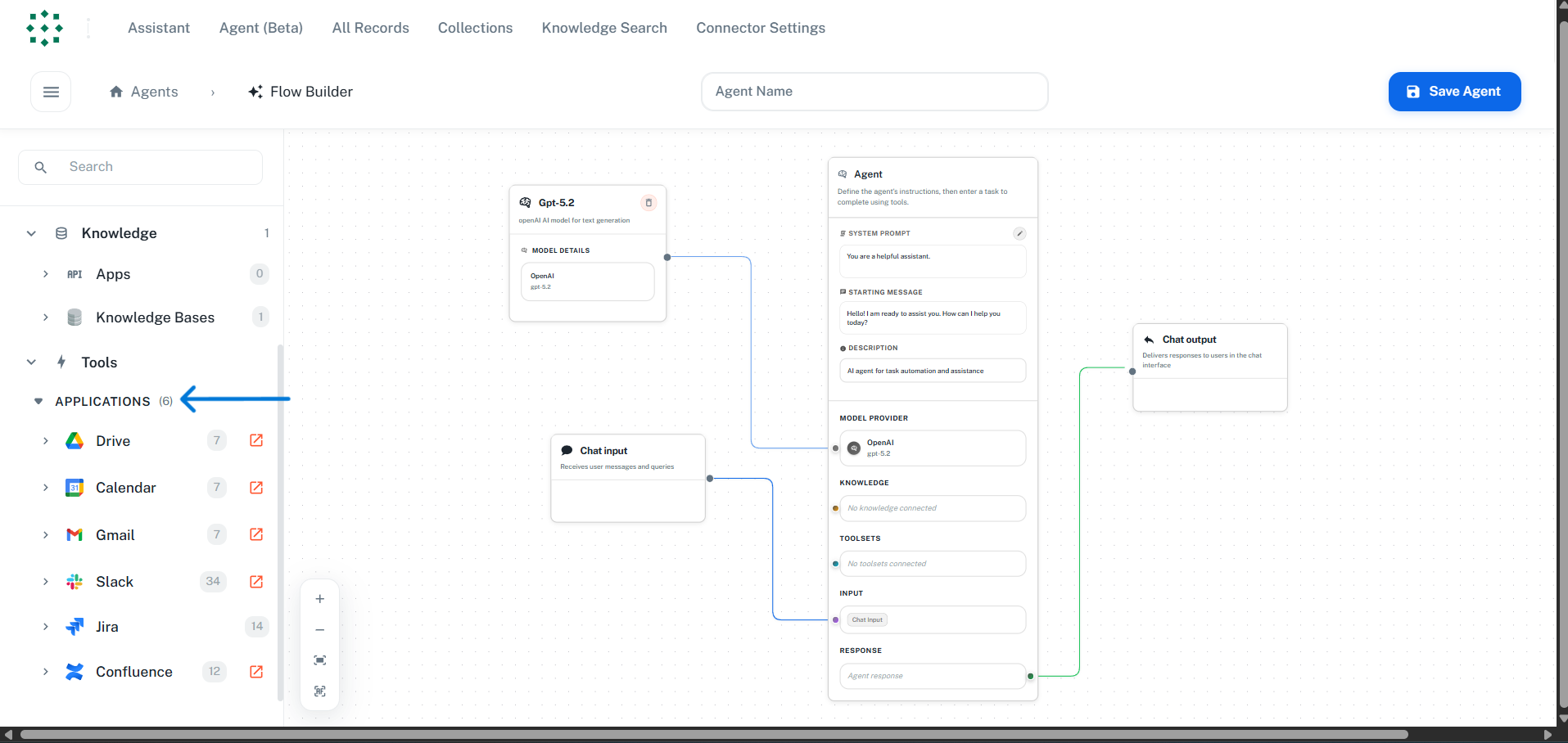
- In the left sidebar, expand the “Tools” section
- Expand “APPLICATIONS” to see authenticated toolsets with the number of tools each provides:
Adding Toolsets to Your Agent
You have two options for adding tools: Option 1: Drag Entire Toolset- Drag the entire toolset onto the canvas to add all its tools
- Connect the toolset node to your Agent Core
- Expand a toolset to see its individual tools
- Drag specific tools you need onto the canvas
- This gives you more control over which tools the agent can use
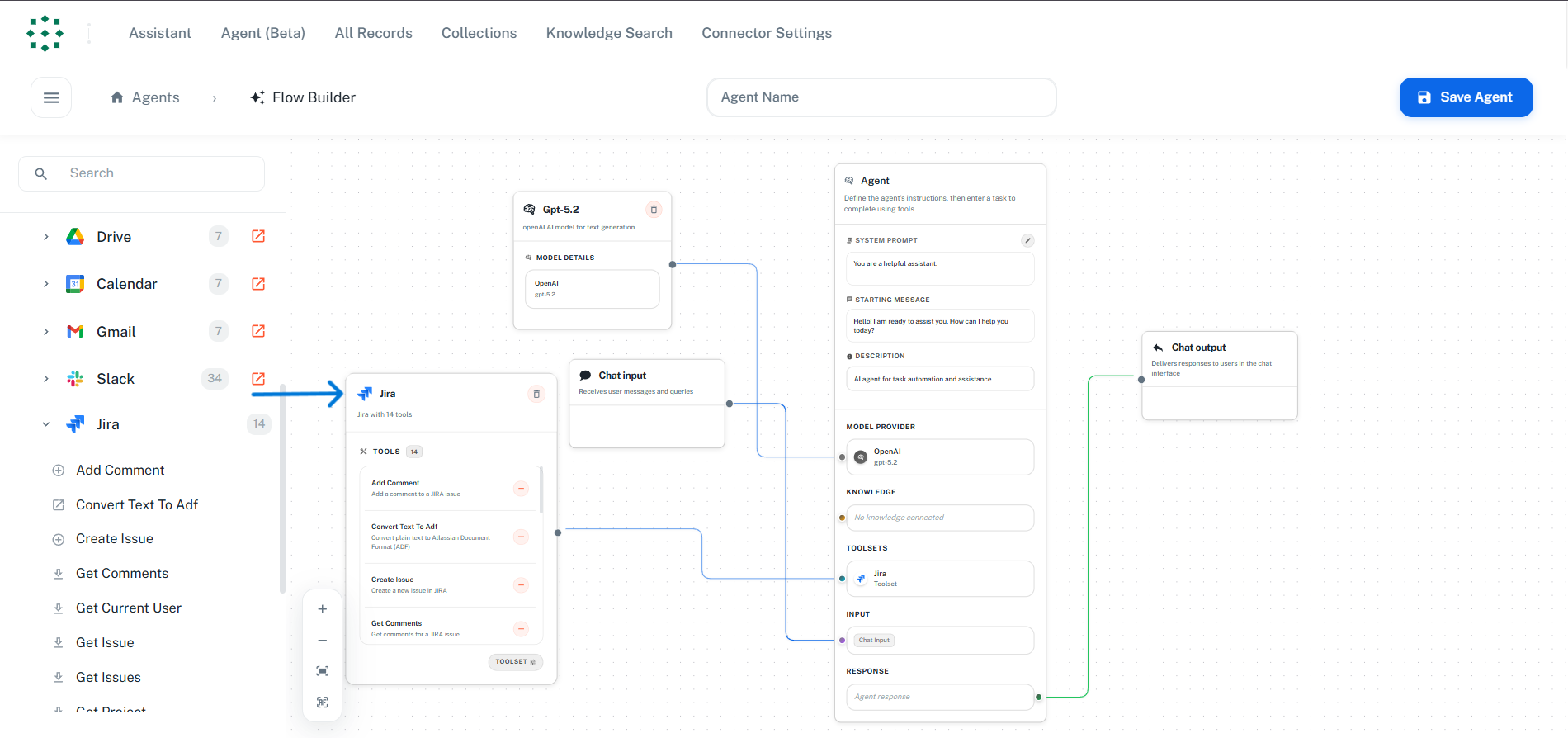
Managing Tools
- Remove individual tool: Click the remove button on the right side of any tool in the toolset node
- Remove entire toolset: Click the delete button in the top-right corner of the toolset node
See the individual Toolset Documentation for complete details on each toolset’s tools and capabilities.
Step 6: Add Knowledge Sources (Optional)
Give your agent access to your indexed documents and collections.- In the left sidebar, expand the “Knowledge” section
- You’ll see:
- Apps - Indexed content from connected applications
- Collections - Your custom document collections
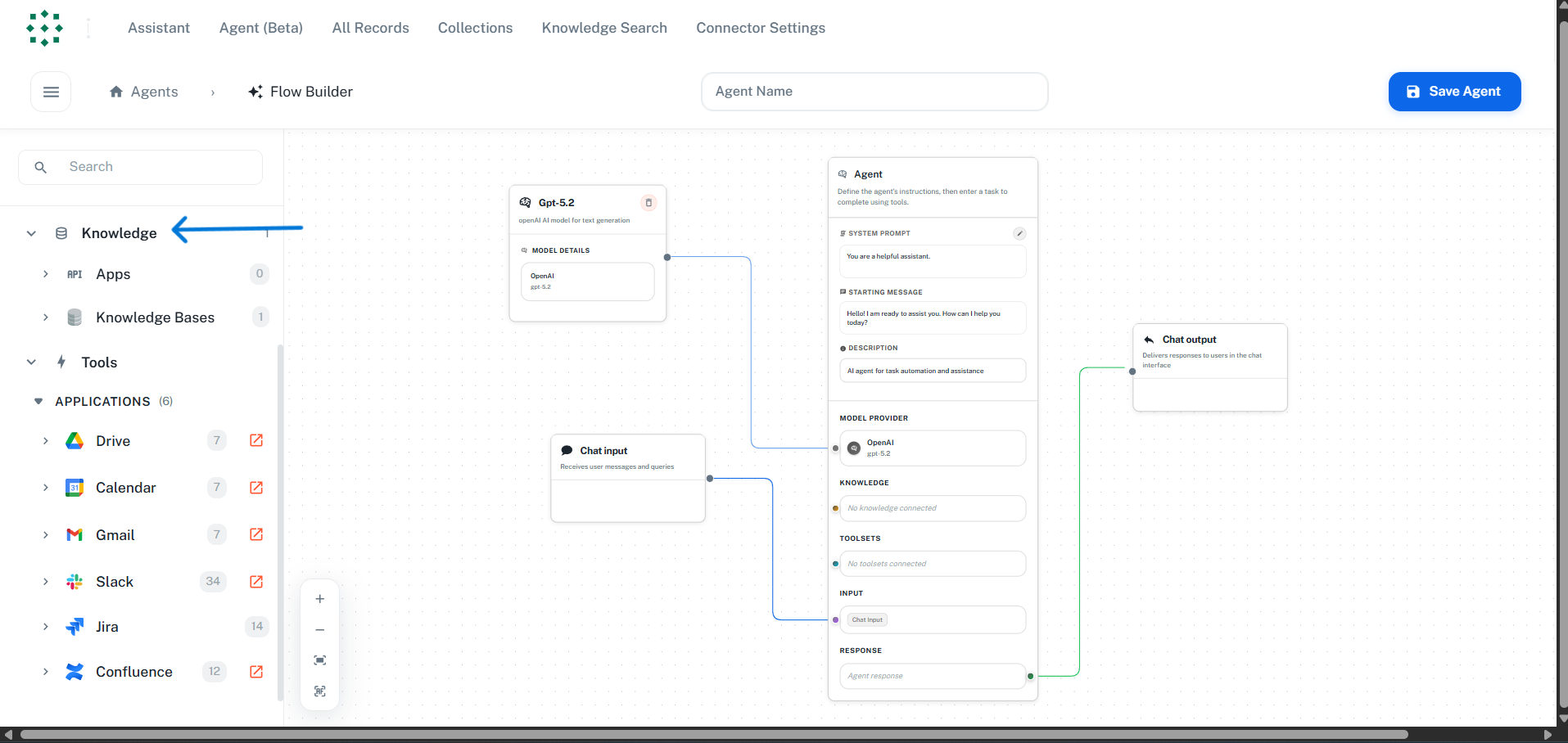
- Drag the knowledge source onto the canvas
- Connect it to your agent flow
Step 7: Save Your Agent
- Enter a name for your agent in the header input field (top of the page)
- Click the “Save Agent” button
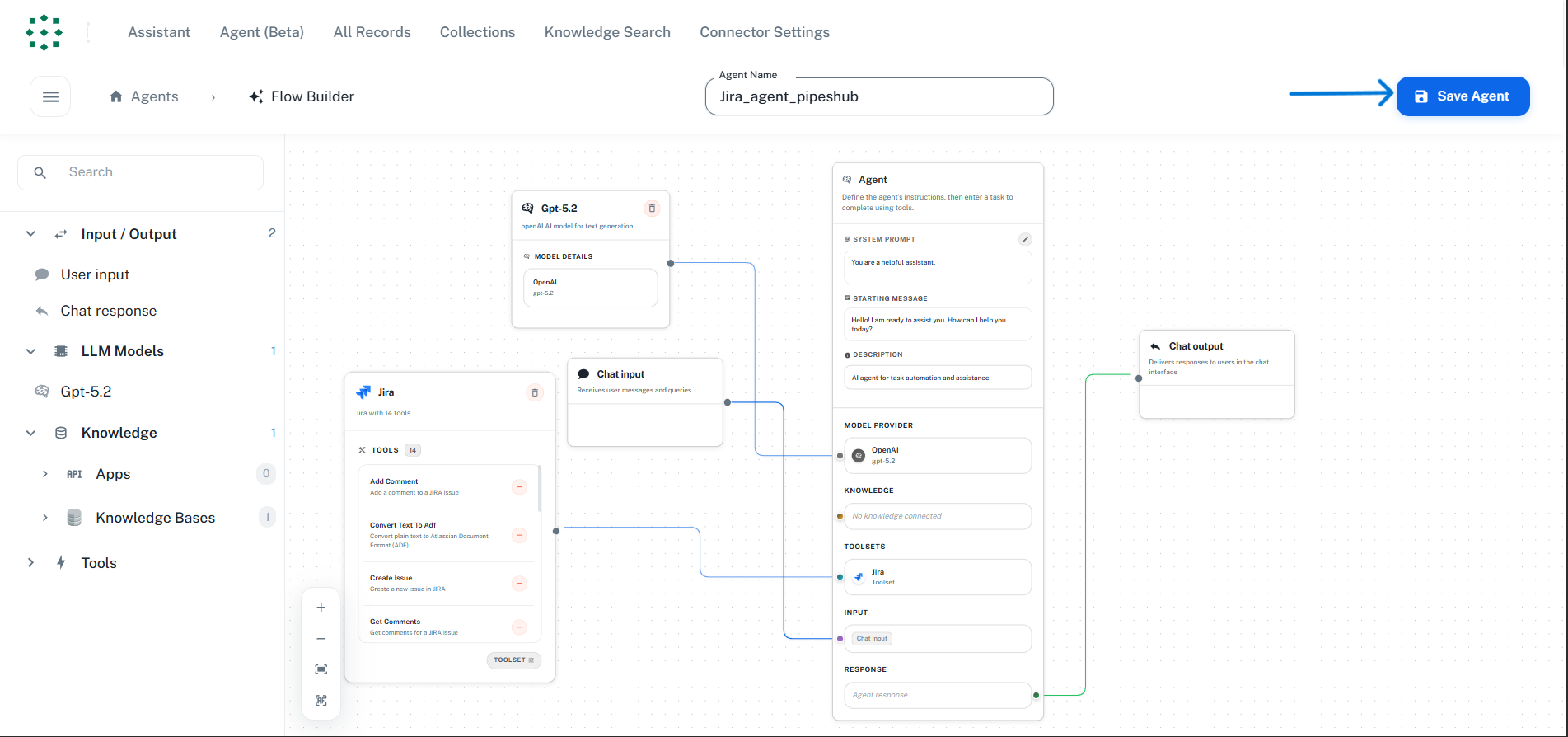
- Your agent is now saved and ready to use!
Step 8: Test Your Agent
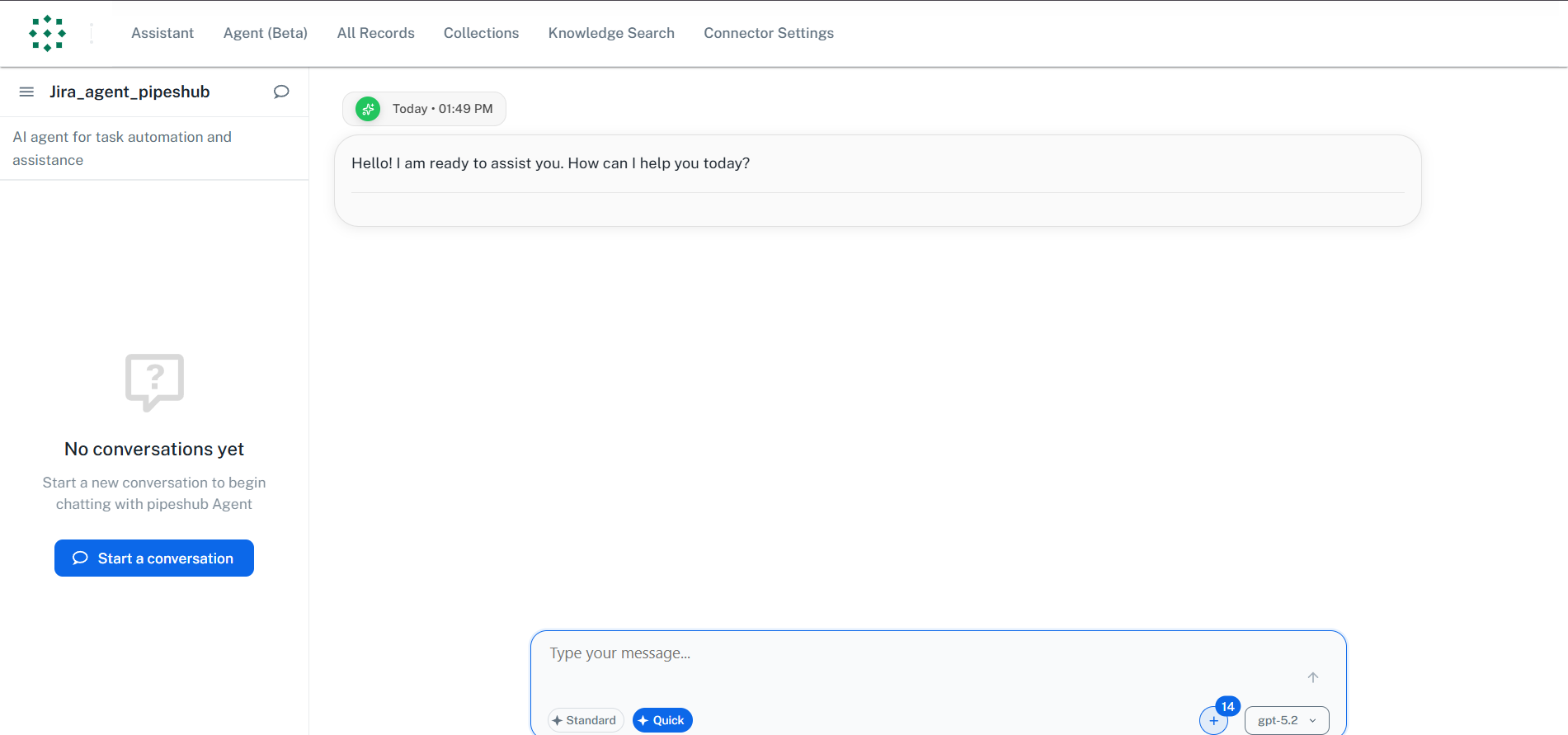
- After saving, you can navigate to the agent’s chat interface
- Click on your agent from the Agents Management page
- Start a conversation to test its capabilities
Troubleshooting
Agent not responding or timing out
Agent not responding or timing out
Possible causes:
- Reasoning model not properly configured or reasoning not enabled
- Toolset authentication expired
- System prompt causing issues
- Check that your LLM provider is properly configured with reasoning enabled in Settings > AI Models
- Re-authenticate any toolsets that may have expired tokens
- Simplify the system prompt and test again
Knowledge retrieval returning no results
Knowledge retrieval returning no results
Possible causes:
- No content indexed for the connected sources
- Filters too restrictive
- Indexing still in progress
- Check Connector Settings to verify connectors are synced
- Verify collections have content
- Wait for indexing to complete if recently added
Cannot save agent
Cannot save agent
Possible causes:
- Missing required fields (name, reasoning model)
- Invalid node connections
- Ensure the agent has a name
- Verify at least one reasoning model is connected to the Agent Core
- Check all node connections are valid