
🔧
PipesHub Toolsets
Give your AI agents the ability to interact with external applications
What are Toolsets?
Toolsets are collections of tools that enable AI agents to perform actions in external applications. Each toolset provides a set of actions (tools) that agents can use to read data, create content, and perform operations in connected services. Use Toolsets when you want agents to take action on data — sending emails, creating tickets, updating documents, or modifying content in external services. Key characteristics:- Two-way API access - Read and write data in real-time
- Action-oriented - Send emails, create tickets, update documents
- OAuth callback URL required - Secure authorization flow
- Instant execution - Actions happen immediately when agents invoke tools
Need to search or query through documents or emails? You need Connectors instead. Connectors index data for knowledge retrieval, while Toolsets enable actions.
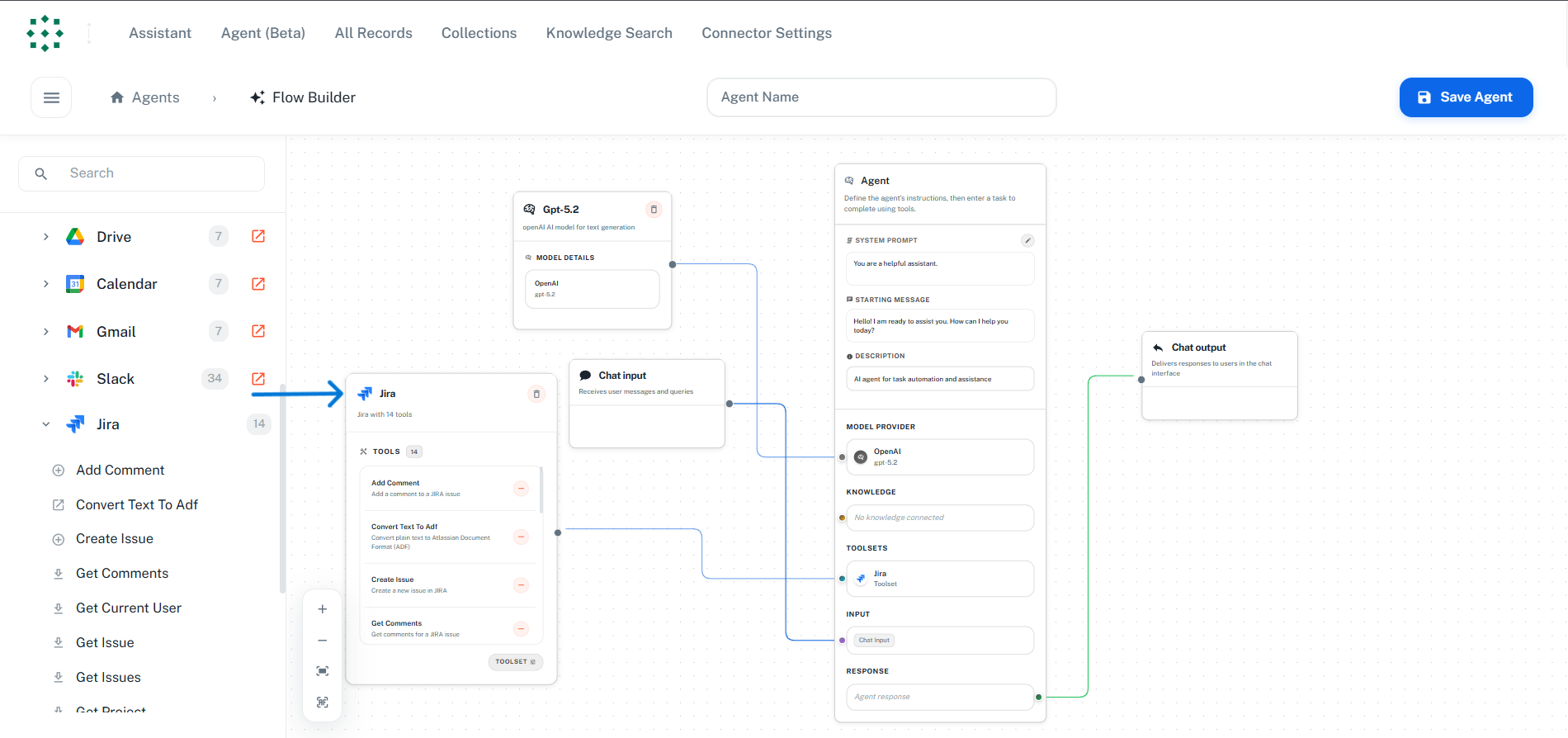
When you want to use both Connector and Toolset: In the Agent Builder add nodes from Knowledge (Collections, API Apps) for document search and context retrieval, and add nodes from Tools for performing actions. Connect both to your Agent Core so the agent can search context and take action in the same conversation.
Available Toolsets
Tool counts come from the toolsets themselves. Every agent also gets a set of built-in capabilities it did not have to be given. They do not appear under Workspace settings → Actions and there is nothing to configure. They are listed here so you know what an agent can already do before you attach anything.
Two of these change how you write a prompt. Calculator exists because language
models are unreliable at arithmetic, so an agent that must produce exact numbers
should be told to use it. Image Generator needs an image model configured under
Workspace → AI Models → Image Generation before it will work.
One more is added only when the agent has knowledge attached to it. Knowledge
Graph (4 tools) lets the agent search indexed content and walk the structure it
sits in. An agent with no knowledge sources does not get it, because there would be
nothing to search.
Everything below is a catalogue toolset: you authorise it under Actions and
then attach it to an agent from the Tools panel.
Google Workspace
Microsoft 365
Atlassian
Work and customer systems
Databases
That is 19 catalogue toolsets carrying 342 tools that you authorise and attach, on top of the built-in capabilities above.
Two kinds of toolset are deliberately absent from Actions, for different reasons.Internal toolsets — the first group above — are excluded by design. They are
attached to every agent already, so there is nothing to configure.Unreleased implementations — Notion, Linear, GitLab, Dropbox, Box, S3, Zendesk
and others — exist in the repository but are commented out of the toolset discovery
list, so they are not loaded and cannot be added to an agent yet.
Configuring Toolsets
Step 1: Open Actions
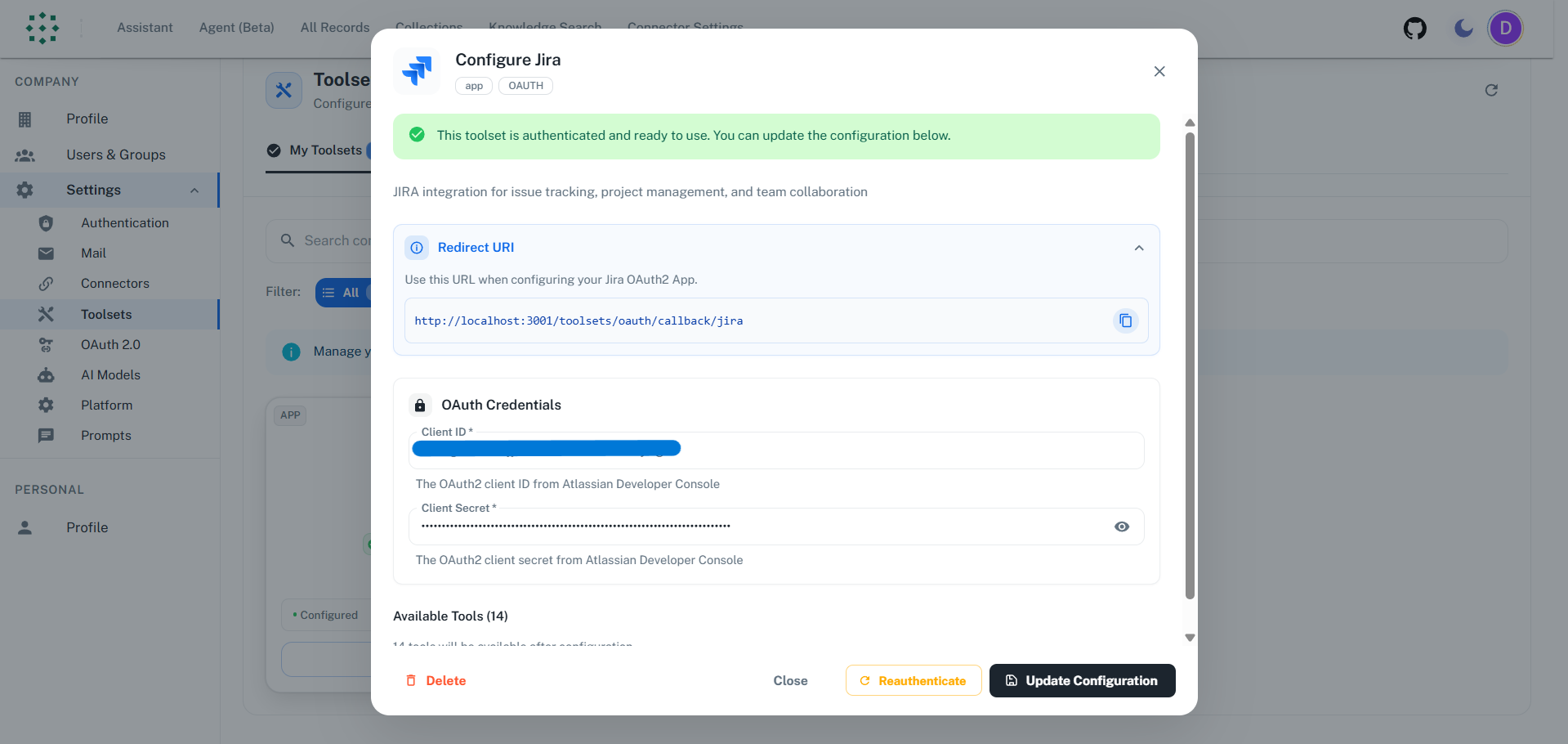
Go to Workspace settings → Actions. Team-wide toolsets live there and require an administrator; your own live under Your Actions, which filters by All, Authenticated and Not authenticated rather than by configuration state.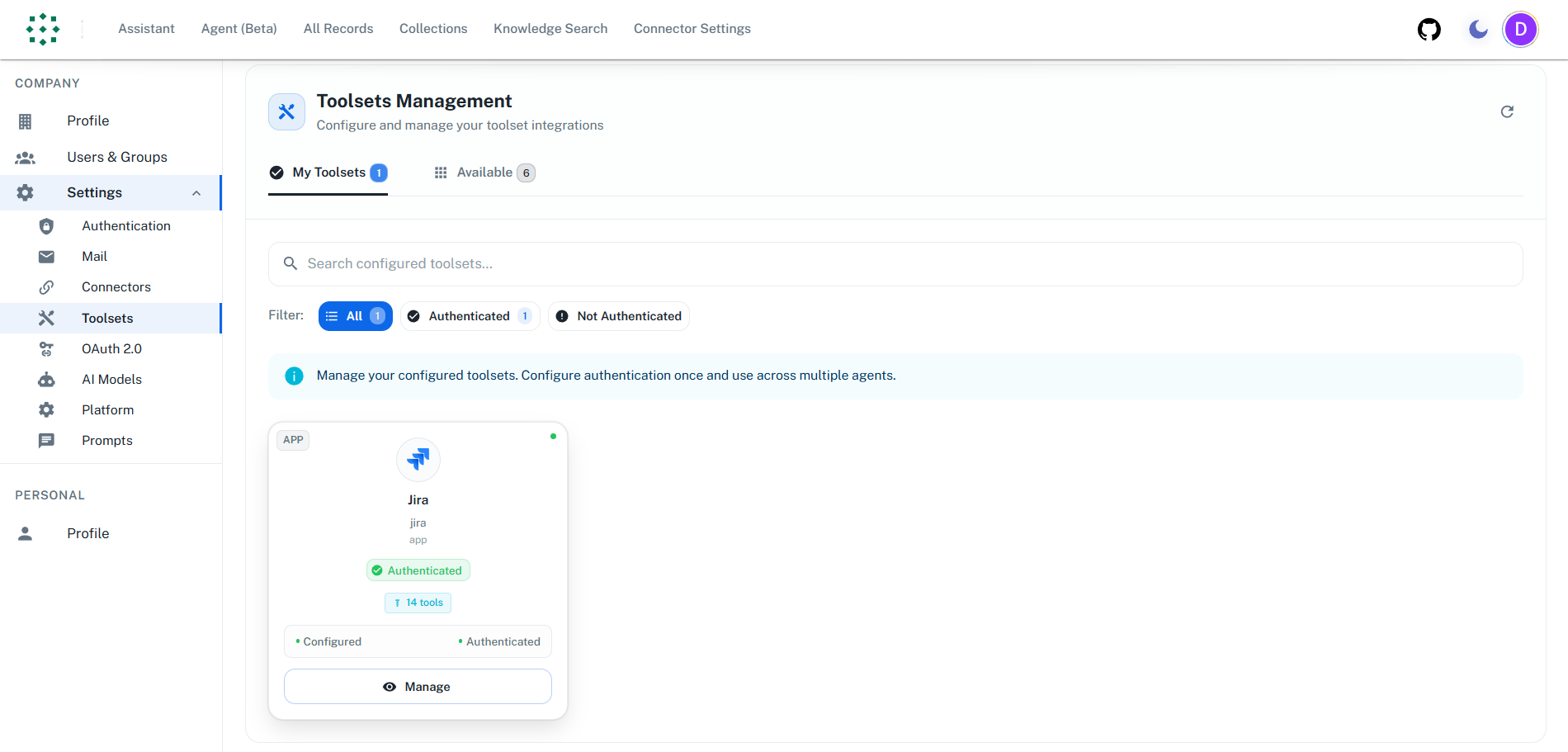
Step 2: Browse Available Toolsets
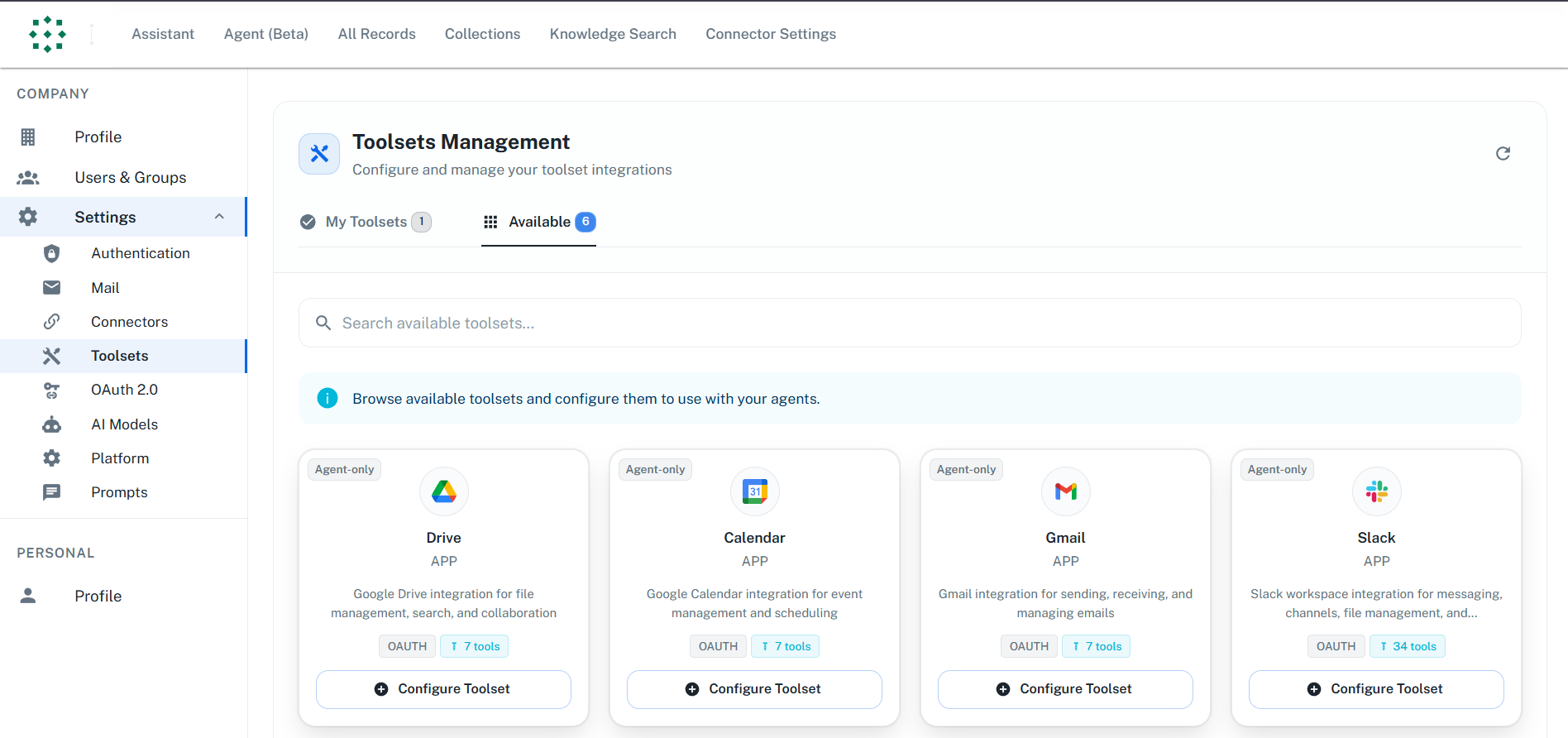
The Actions page filters by configuration state:- All - every toolset in the catalogue
- Configured - the ones already set up
- Not configured - the ones still to authorise
Step 3: Configure a Toolset
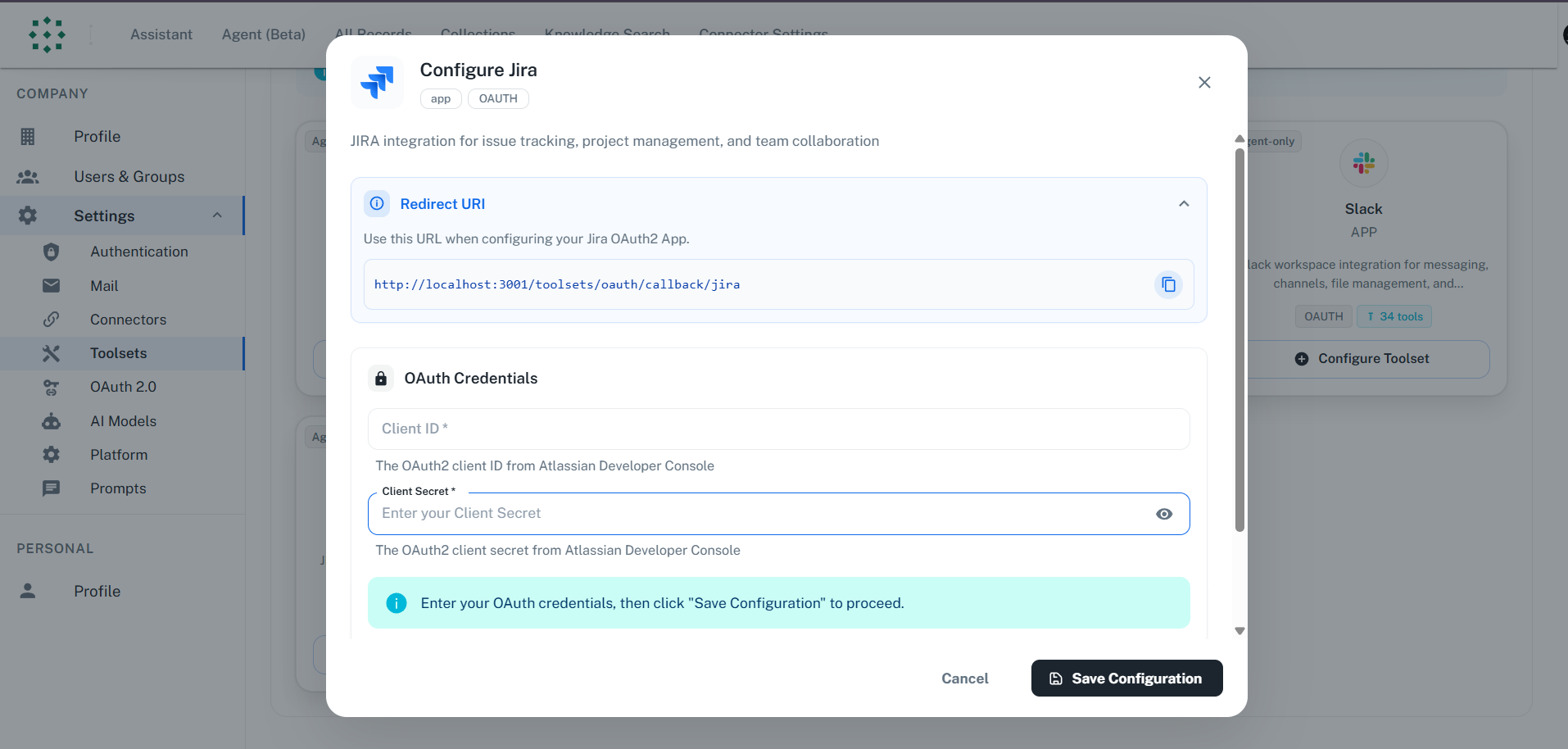
- Find the toolset you want to configure under the Not configured filter
- Click the “Configure” button on the toolset card
- The Configuration Dialog will open
Step 4: Authenticate
Follow the authentication flow for the toolset:- Enter the required credentials in the configuration dialog (e.g., Client ID and Client Secret, or Username and Password)
- Click “Authenticate”
- For OAuth toolsets, a popup window opens for authorization
- Grant the requested permissions (OAuth flow)
- You’ll be redirected back to PipesHub with authentication confirmed
Each toolset may have different authentication requirements. See individual toolset documentation for specific setup steps and credentials needed.
Step 5: Verify Configuration
Once configured, the toolset will appear under the Configured filter with an “Authenticated” status.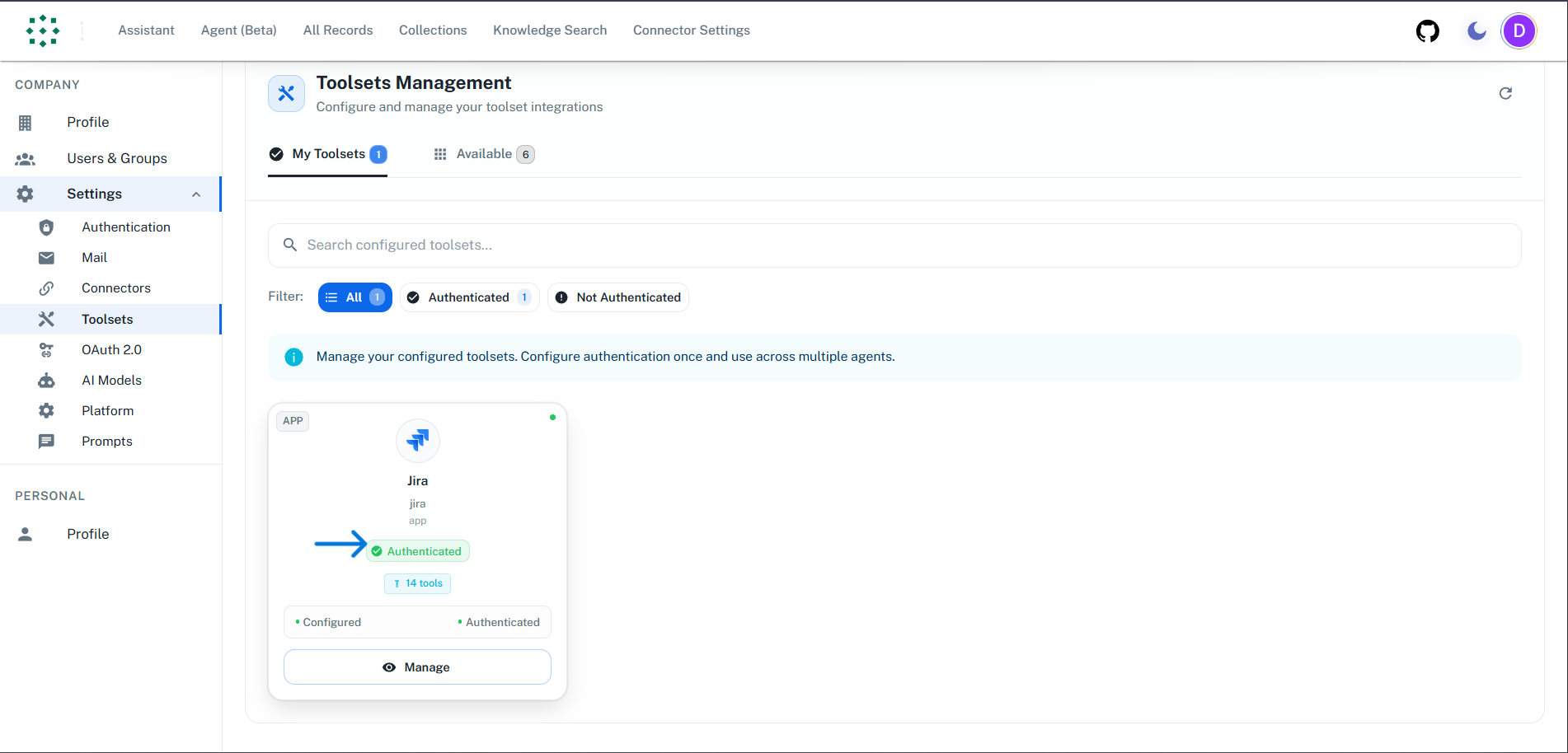
Managing Toolset Configuration
You can manage your toolset by clicking on it under the Configured filter to open the configuration dialog. Available actions:- Update Configuration - Modify credentials or settings
- Reauthenticate - Refresh authentication if it expires or encounters issues
- Delete - Remove the toolset configuration entirely
Using Toolsets in Agents
Once a toolset is configured, it becomes available in the Agent Builder:- Open the Agent Builder (create new or edit existing agent)
- In the left sidebar, expand the “Tools” section
- Find your configured toolset and drag it onto the canvas
- Connect it to your agent flow
Authentication Types
OAuth 2.0
OAuth 2.0 is the recommended authentication method for most toolsets. It provides:- Secure token-based access - No passwords stored
- Automatic token refresh - Tokens are refreshed automatically
- Granular permissions - Only request necessary scopes
- User authorization - Users explicitly grant access
- Create an OAuth application in the service’s developer console
- Configure redirect URI (provided by PipesHub)
- Obtain Client ID and Client Secret
Basic Auth
Basic Auth is used by toolsets like MariaDB. It works as follows:- Per-user credentials - Each user enters their own username and password
- Secure credential handling - Credentials are stored securely and scoped to the authenticated user
- Admin and user separation - Admin creates the shared toolset instance; users authenticate their own accounts
- No credential sharing - One user’s credentials are not visible to other users
- Admin creates the toolset instance (host, port, database)
- Each user provides valid username and password for that data source
Frequently Asked Questions
What's the difference between Connectors and Toolsets?
What's the difference between Connectors and Toolsets?
Example: Use a Gmail Connector to index and search your email history. Use a Gmail Toolset to send new emails through an agent.
When should I use a Connector vs a Toolset?
When should I use a Connector vs a Toolset?
Connector — Use when you need document context search: connectors sync and index your documents, emails, and pages so your assistant can find and use that context, and they do not perform actions.Toolset — When you need actions: create or update content, send messages, or run analytical queries (e.g. JQL, CQL, reports).Quick takeaway: Search & context → Connector. Actions → Toolset.
Where do I find the callback URL to add in the OAuth app?
Where do I find the callback URL to add in the OAuth app?
The callback URL is displayed in PipesHub when configuring a toolset:
- Go to Settings > Toolsets
- Click “Configure” on the toolset you want to set up
- Copy the Redirect URI shown in the dialog
- Add it to your OAuth app’s allowed redirect URIs in the service’s developer console
What OAuth scopes do Toolsets require?
What OAuth scopes do Toolsets require?
Toolsets need read, write and delete permissions to perform actions on your behalf:
- Read permissions - Access existing data (messages, tickets, files)
- Write permissions - Create and update content (send emails, create tickets)
- Delete permissions - Remove items (delete messages, delete comment)
Why can't I drag and use a Toolset in Agent Builder?
Why can't I drag and use a Toolset in Agent Builder?
Toolsets appear in the Agent Builder but can only be used after authentication:
- Check Settings > Toolsets for the authentication status
- If not “Authenticated”, click “Configure” and complete the OAuth flow
- If expired, click “Reauthenticate”
- Return to Agent Builder and the toolset will be available to drag and connect