
Who Can Manage OAuth Applications
OAuth application management is available exclusively to administrators. Only users with admin privileges can create, edit, suspend, or delete OAuth applications within the organization.Navigating to OAuth Settings
To access the OAuth application management page:- Sign in to your PipesHub account with administrator credentials
- Navigate to Workspace-settings
- Select OAuth 2.0 Apps under the Developer Settings section
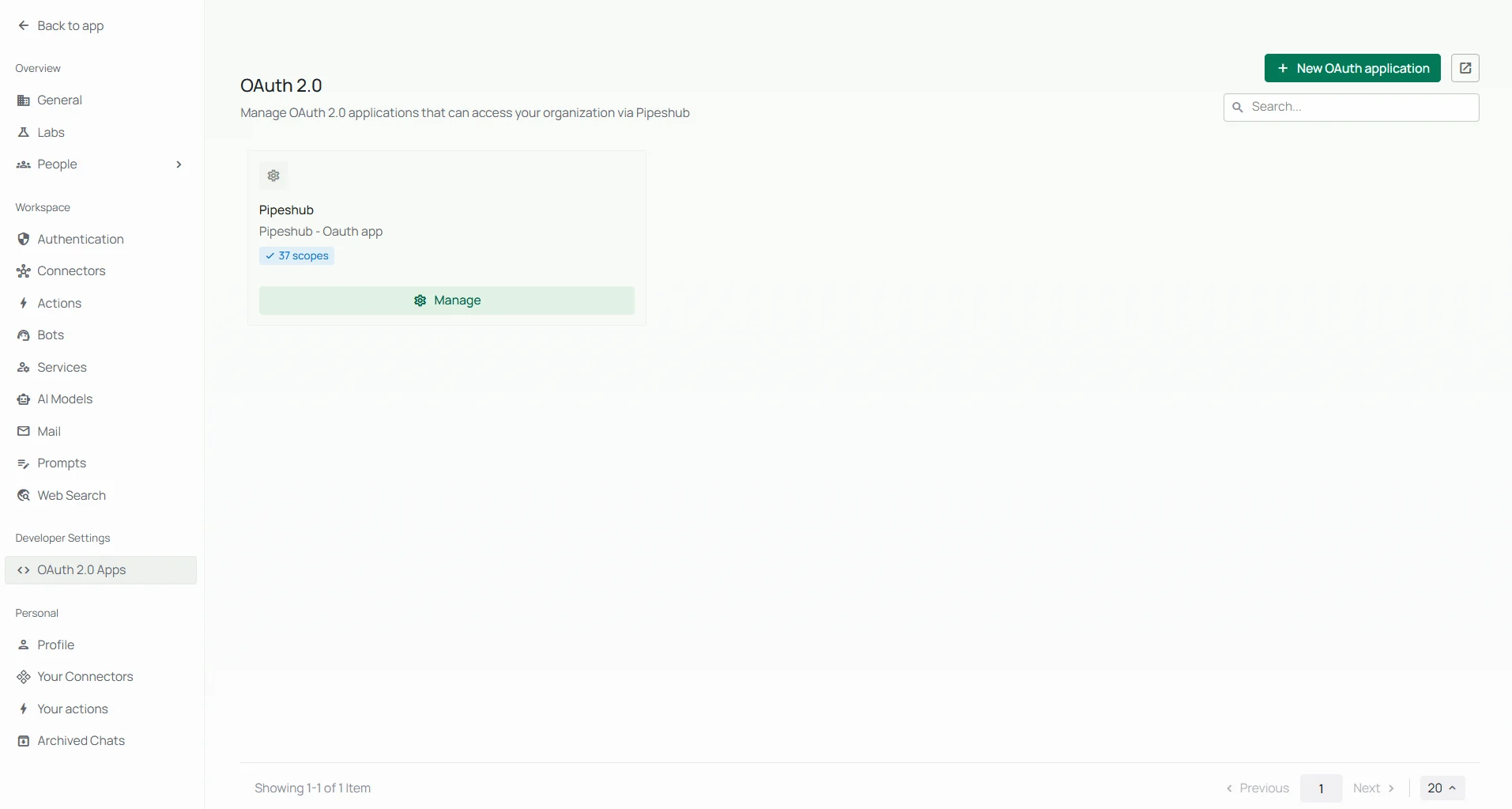
Creating a New OAuth Application
Follow these steps to register a new OAuth application.Step 1: Open the Application Registration Form
From the OAuth 2.0 Apps page, click the New OAuth application button.Step 2: Provide Application Details
Fill in the following fields: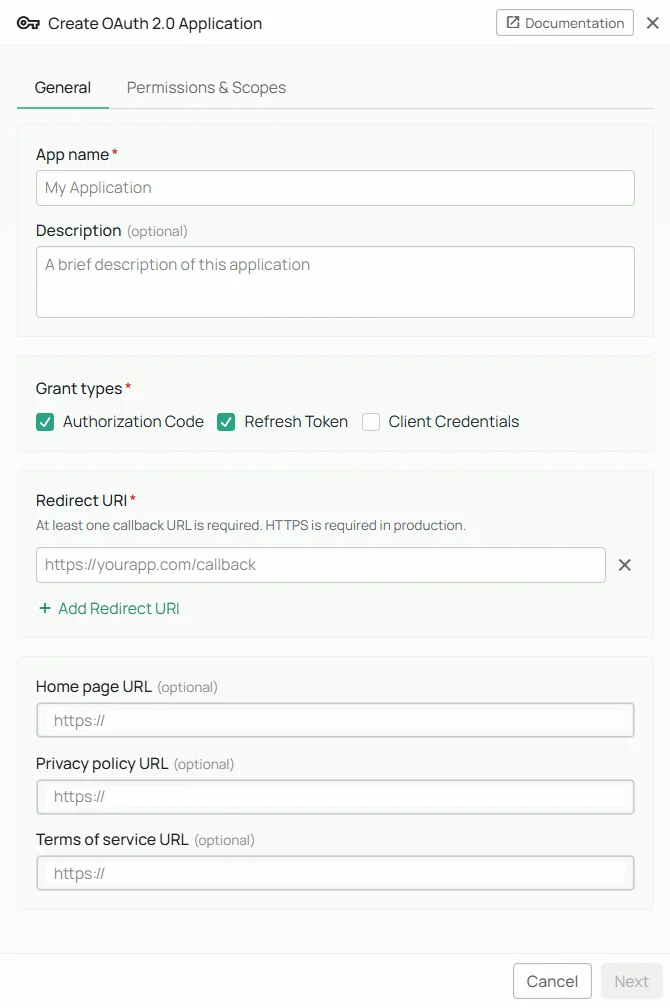
Step 3: Configure Grant Types
Select the authorization grant types that your application requires:Client Credentials
Client Credentials
The Client Credentials grant is designed for server-to-server communication where no user interaction is involved. The application authenticates directly using its client ID and client secret.When to use:
- Background services or automation scripts
- Machine-to-machine integrations
- Scheduled tasks that access organizational data
Refresh Token
Refresh Token
The Refresh Token grant allows your application to obtain a new access token without requiring the user to re-authenticate. This is enabled automatically when the
offline_access scope is requested during the authorization code flow.Key details:- Refresh tokens are rotated on each use — the old token is revoked and a new one is issued
- Your application should always store the latest refresh token
- Refresh tokens have a default lifetime of 30 days (configurable per application)
Step 4: Add Redirect URIs
Redirect URIs define where PipesHub sends users after they authorize (or deny) access. You may register up to 10 redirect URIs per application.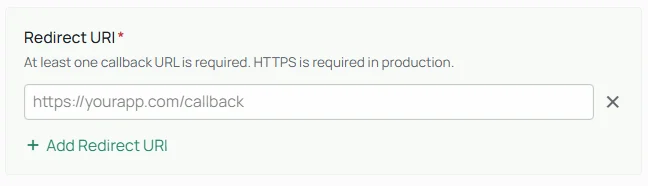
- All redirect URIs must use HTTPS, except for
localhostand127.0.0.1(permitted for local development) - The URI provided during the authorization request must exactly match one of the registered URIs
- Redirect URIs are required when the Authorization Code grant type is enabled
Step 5: Select Scopes
Scopes define the specific permissions your application is requesting. Select only the scopes your application genuinely needs — following the principle of least privilege.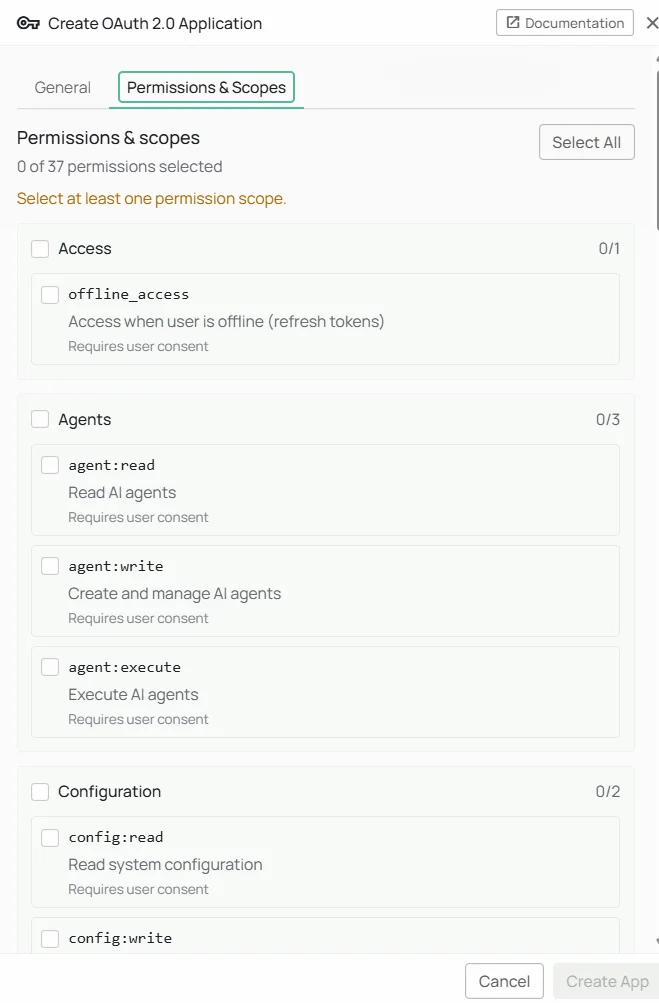
Identity & Access Scopes
Identity & Access Scopes
Organization Scopes
Organization Scopes
User Management Scopes
User Management Scopes
User Groups & Teams Scopes
User Groups & Teams Scopes
Knowledge Base Scopes
Knowledge Base Scopes
Search & Conversations Scopes
Search & Conversations Scopes
Agents Scopes
Agents Scopes
Connectors Scopes
Connectors Scopes
Configuration & Storage Scopes
Configuration & Storage Scopes
Crawling Scopes
Crawling Scopes
Step 6: Save and Store Credentials
After submitting the form, PipesHub generates a unique Client ID and Client Secret for your application.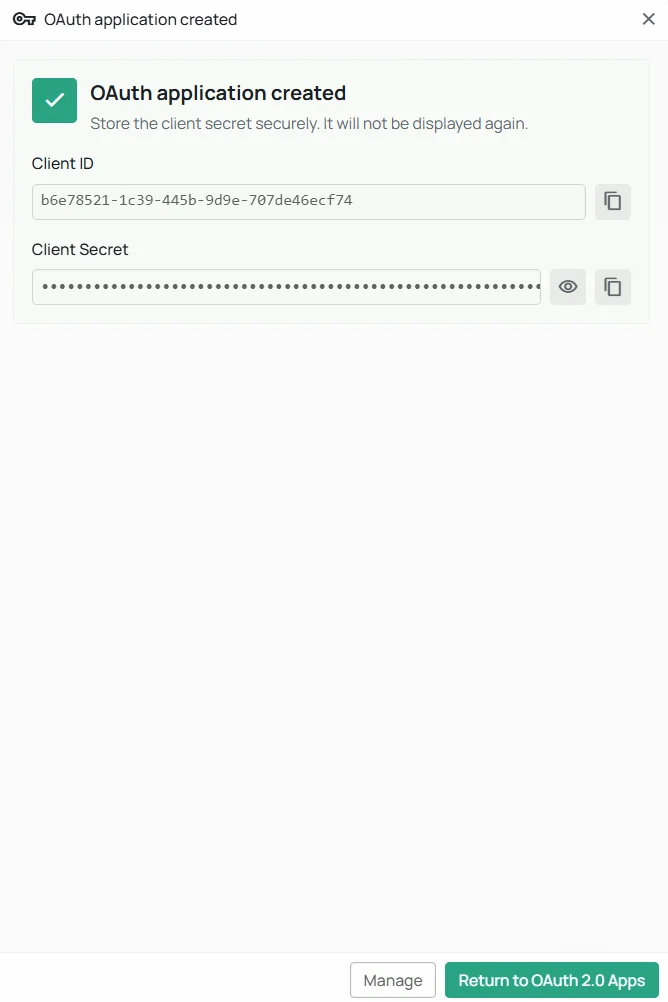
Authorization Flow
The following diagram illustrates how the OAuth 2.0 Authorization Code flow operates within PipesHub.Step-by-Step Breakdown
1
Initiate Authorization
Your application redirects the user’s browser to PipesHub’s authorization endpoint with the required parameters:For public clients (PKCE), include additional parameters:
2
User Authentication
If the user is not already signed in to PipesHub, they are redirected to the sign-in page. After successful authentication, they are directed to the consent screen.
3
User Consent
The consent screen displays your application’s name, description, and the specific permissions being requested. The user can choose to Allow or Deny access.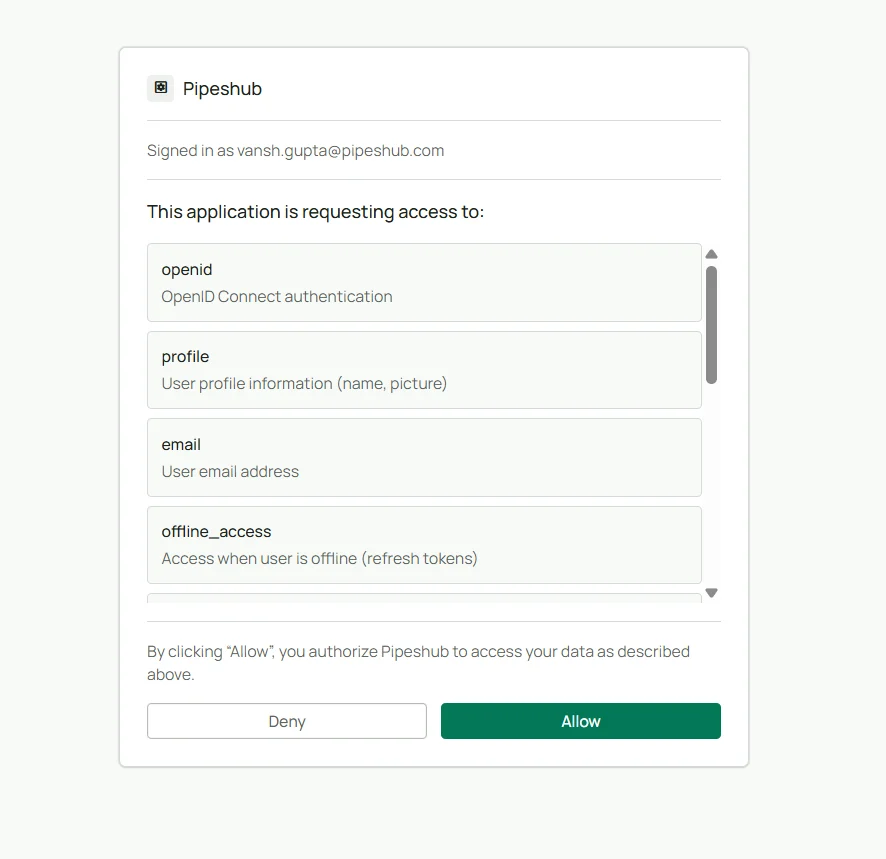
4
Authorization Code
Upon approval, PipesHub redirects the user’s browser back to your registered redirect URI with a temporary authorization code:
5
Exchange Code for Tokens
Your application exchanges the authorization code for tokens by making a server-side request:For PKCE, include the Successful response:
code_verifier instead of client_secret:6
Access Protected Resources
Use the access token to make API requests on behalf of the user:
Client Credentials Flow
For server-to-server integrations that do not require user context:Refreshing Tokens
When an access token expires, use the refresh token to obtain a new one without requiring user interaction:Revoking Tokens
To revoke an access token or refresh token when it is no longer needed:token_type_hint to either access_token or refresh_token to help the server identify the token type more efficiently.
OpenID Connect Discovery
PipesHub supports OpenID Connect Discovery, enabling clients to automatically discover OAuth endpoints and configuration:
These endpoints are publicly accessible and do not require authentication. They are particularly useful for MCP (Model Context Protocol) clients and other automated integrations that need to discover authorization server capabilities dynamically.
Managing OAuth Applications
Viewing Application Details
Click on any application from the list to view its configuration, including the client ID, allowed scopes, grant types, redirect URIs, and token settings.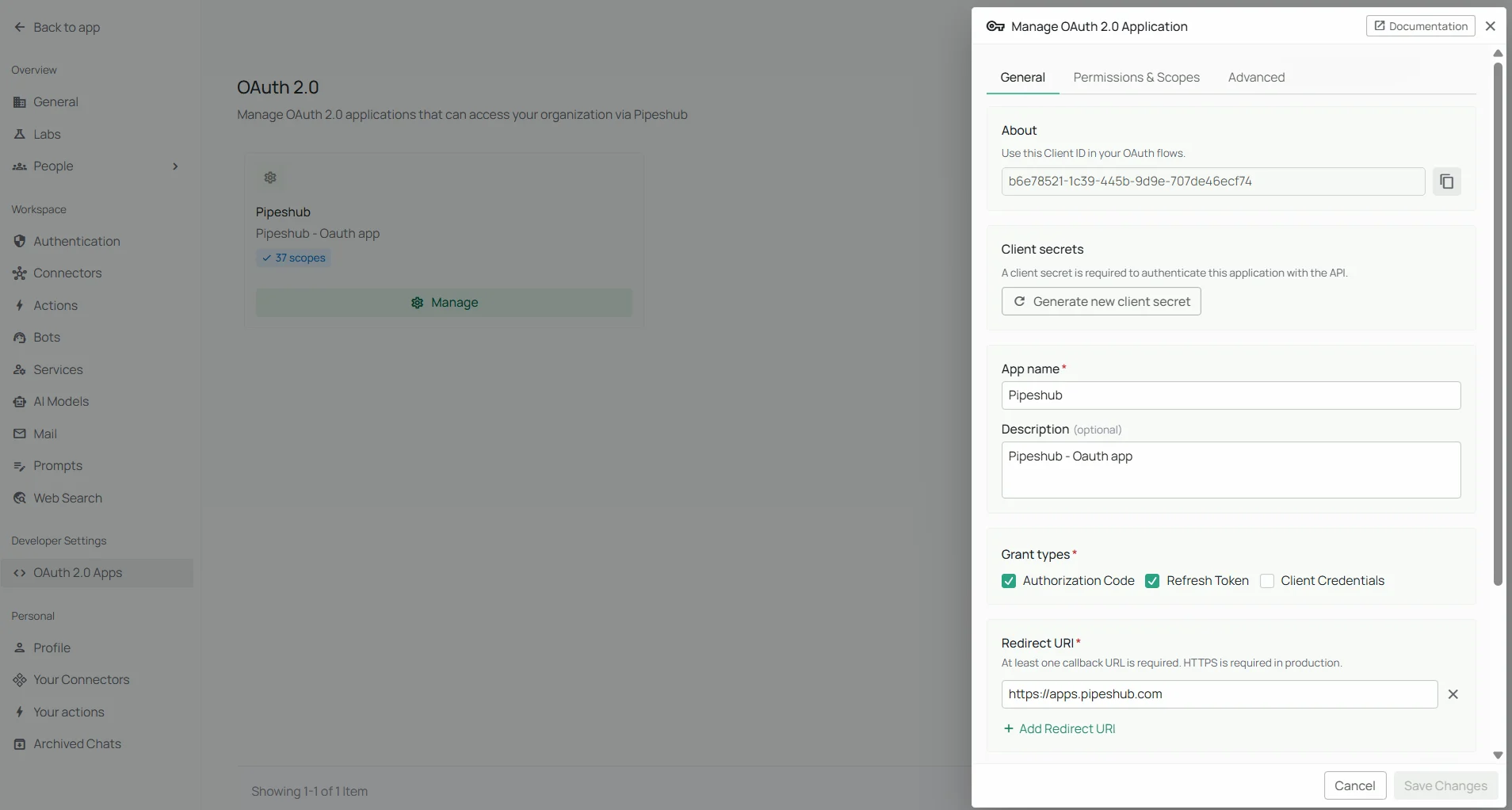
Regenerating the Client Secret
If your client secret has been compromised or needs to be rotated:- Open the application detail page
- Click Generate new client secret
- Copy and securely store the new secret immediately
Suspending an Application
If you need to temporarily disable an application without deleting it:- Open the application detail page
- Go to Advanced section in sidebar
- Click Suspend Application
Deleting an Application
Deleting an OAuth application:- Revokes all active access tokens and refresh tokens associated with the application
- Permanently marks the application as revoked
- Open the application detail page
- Go to Advanced section in sidebar
- Click Delete Application
- Confirm by putting the application name in dialog box
Revoking Active Tokens
From the application detail page, administrators can:- Revoke all tokens at once, which is useful in the event of a security incident
- Open the application detail page
- Go to Advanced section in sidebar
- Click Revoke all tokens
- Confirm by putting the application name in dialog box
Security Best Practices
Store Secrets Securely
Never expose client secrets in frontend code, public repositories, or client-side applications. Use environment variables or a dedicated secrets manager.
Use PKCE for Public Clients
Public clients (mobile apps, SPAs) must use PKCE with the S256 challenge method to protect against authorization code interception attacks.
Request Minimal Scopes
Only request the scopes your application genuinely needs. Users are more likely to trust and approve applications with narrowly defined permissions.
Validate the State Parameter
Always generate a unique, unpredictable
state value for each authorization request and verify it in the callback to prevent cross-site request forgery (CSRF) attacks.Handle Token Rotation
Always store the latest refresh token after each refresh operation. Using an outdated refresh token will fail and may trigger a security alert.
Revoke Tokens on Sign-Out
When users sign out of your application or disconnect the integration, revoke both access and refresh tokens to maintain a clean security posture.
API Endpoints Reference
The following table provides a quick reference for all OAuth 2.0 endpoints:Troubleshooting
Token exchange fails with 'invalid_grant'
Token exchange fails with 'invalid_grant'
Common causes:
- The authorization code has expired (codes are valid for 10 minutes)
- The authorization code has already been used
- The
redirect_uriin the token request does not match the one used during authorization - For PKCE: the
code_verifierdoes not match the originalcode_challenge
Refresh token is rejected
Refresh token is rejected
Common causes:
- The refresh token has been rotated and the old token was used instead of the most recent one
- The refresh token has expired
- The application or its tokens have been revoked by an administrator
API request returns 403 Forbidden
API request returns 403 Forbidden
Common causes:
- The access token does not include the required scope for the requested endpoint
- The user does not have sufficient permissions within the organization
FAQ
Can non-admin users create OAuth applications?
Can non-admin users create OAuth applications?
No. OAuth application management is restricted to organization administrators. Regular users can only interact with OAuth applications during the consent flow when an application requests access to their data.
What happens when I regenerate a client secret?
What happens when I regenerate a client secret?
The previous secret is immediately invalidated. Any integration using the old secret will receive authentication errors. You must update all services that use the old secret with the new one.
Is there a limit on the number of OAuth applications?
Is there a limit on the number of OAuth applications?
There is no fixed limit on the number of OAuth applications per organization. However, each application can have a maximum of 10 registered redirect URIs.
Does PipesHub support PKCE?
Does PipesHub support PKCE?
Yes. PKCE (Proof Key for Code Exchange) is fully supported and is required for public (non-confidential) clients. PipesHub supports both
S256 and plain challenge methods, though S256 is strongly recommended.