

Google Calendar Toolset
Calendar and event management
ReadyGoogle Workspace
Overview
The Google Calendar toolset enables AI agents to manage calendar events and scheduling.Key Capabilities
- View upcoming events and schedules
- Create and schedule new events
- Update and delete existing events
- Create Google Meet links for events
- Manage multiple calendars
Available Tools
Setup
Setup
Setup
Step 1: Create Google Cloud Project
- Go to Google Cloud Console
- Create a new project or select an existing one
- Note your project ID
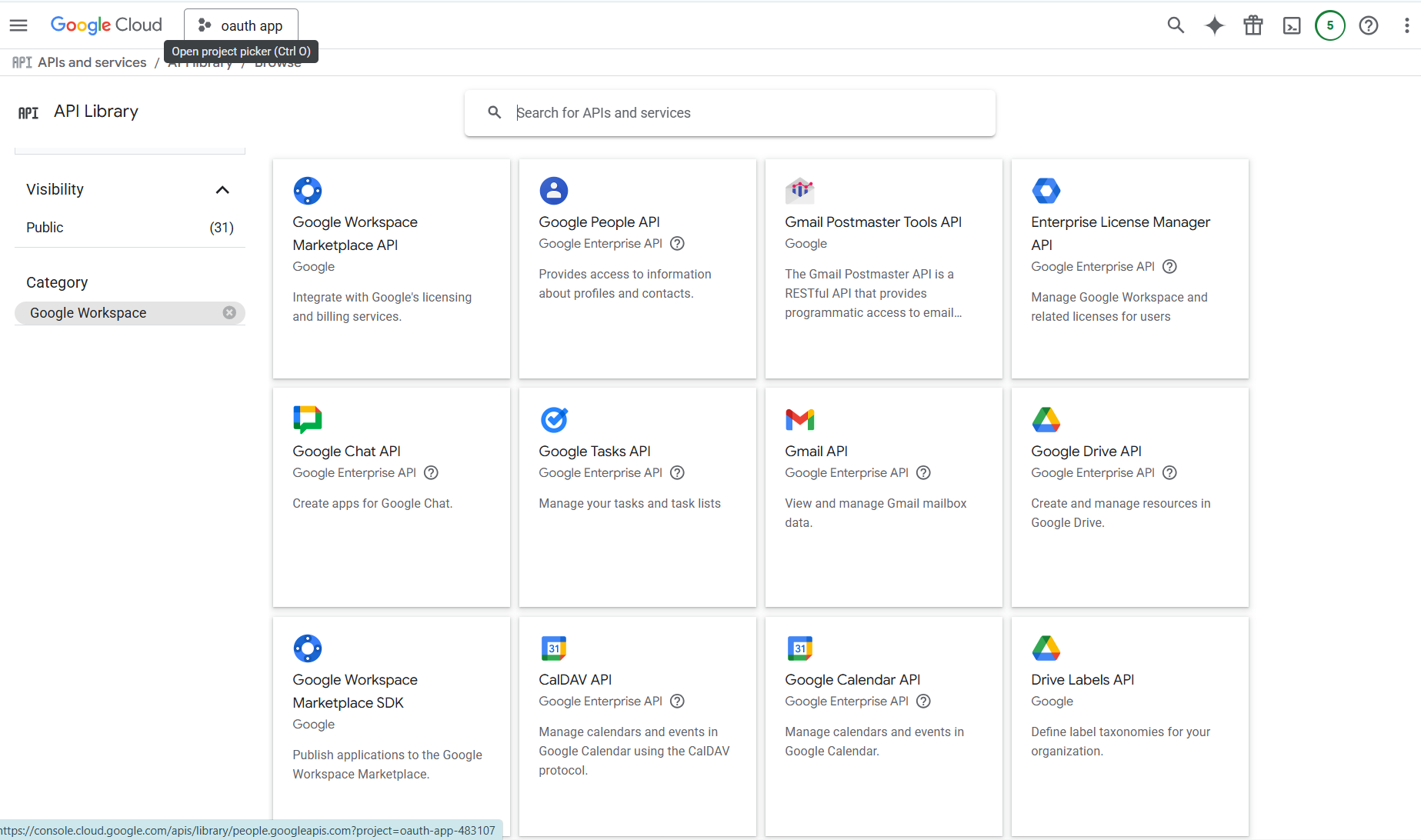
Step 2: Enable Google Calendar API
- Navigate to APIs & Services > Library
- Search for “Google Calendar API”
- Click “Enable”
Step 3: Configure OAuth Consent Screen
- Navigate to APIs & Services > OAuth consent screen
- Configure the OAuth consent screen with your app information
- Add the required scopes (see Step 6)
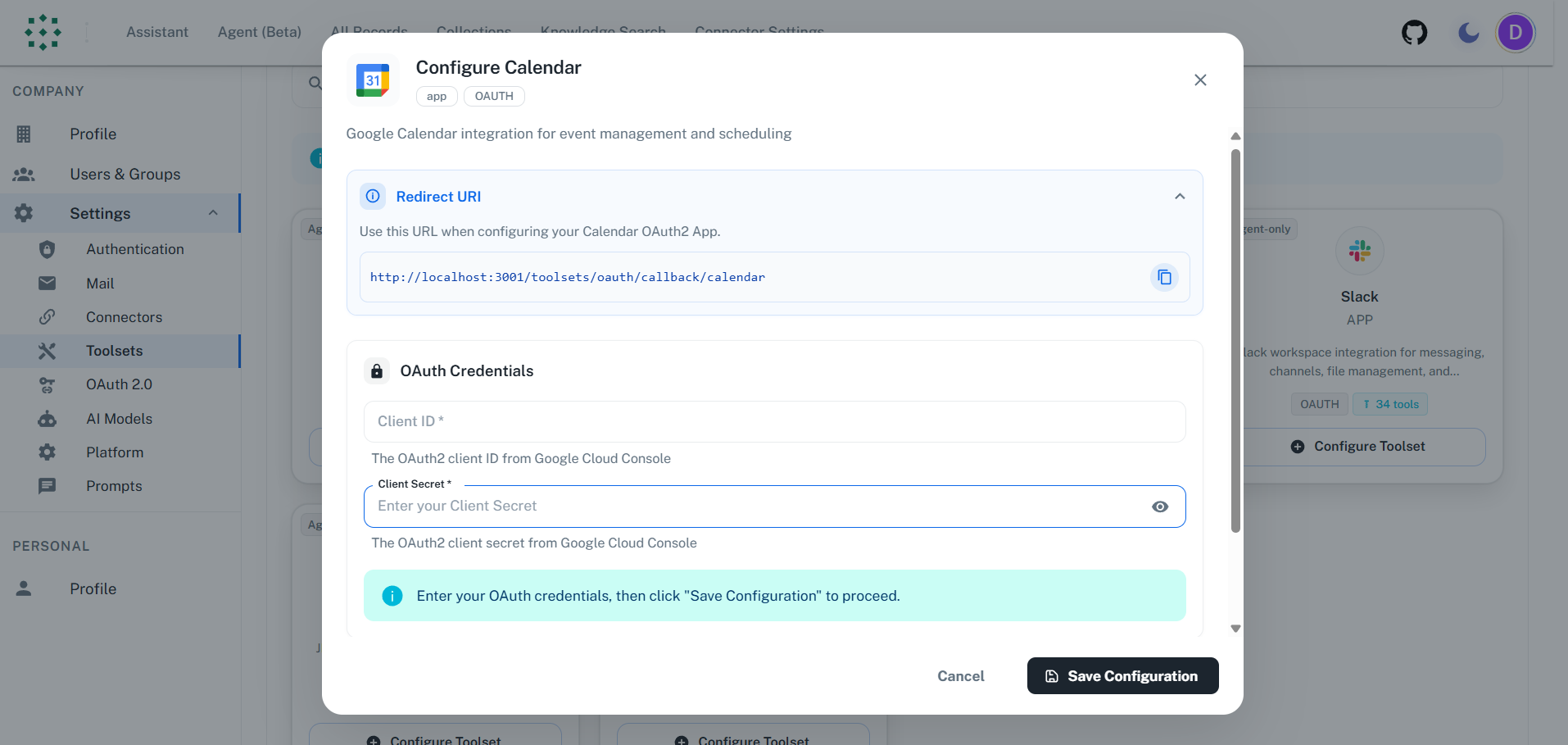
Step 4: Get Redirect URI from PipesHub
- In PipesHub, go to Settings > Toolsets
- Find Calendar and click “Configure”
- Copy the Redirect URI shown in the dialog
Step 5: Create OAuth Client ID
- Navigate to APIs & Services > Credentials
- Click “Create Credentials” > “OAuth client ID”
- Select “Web application”
- Set the Authorized redirect URI to the URI from PipesHub
- Click “Create”
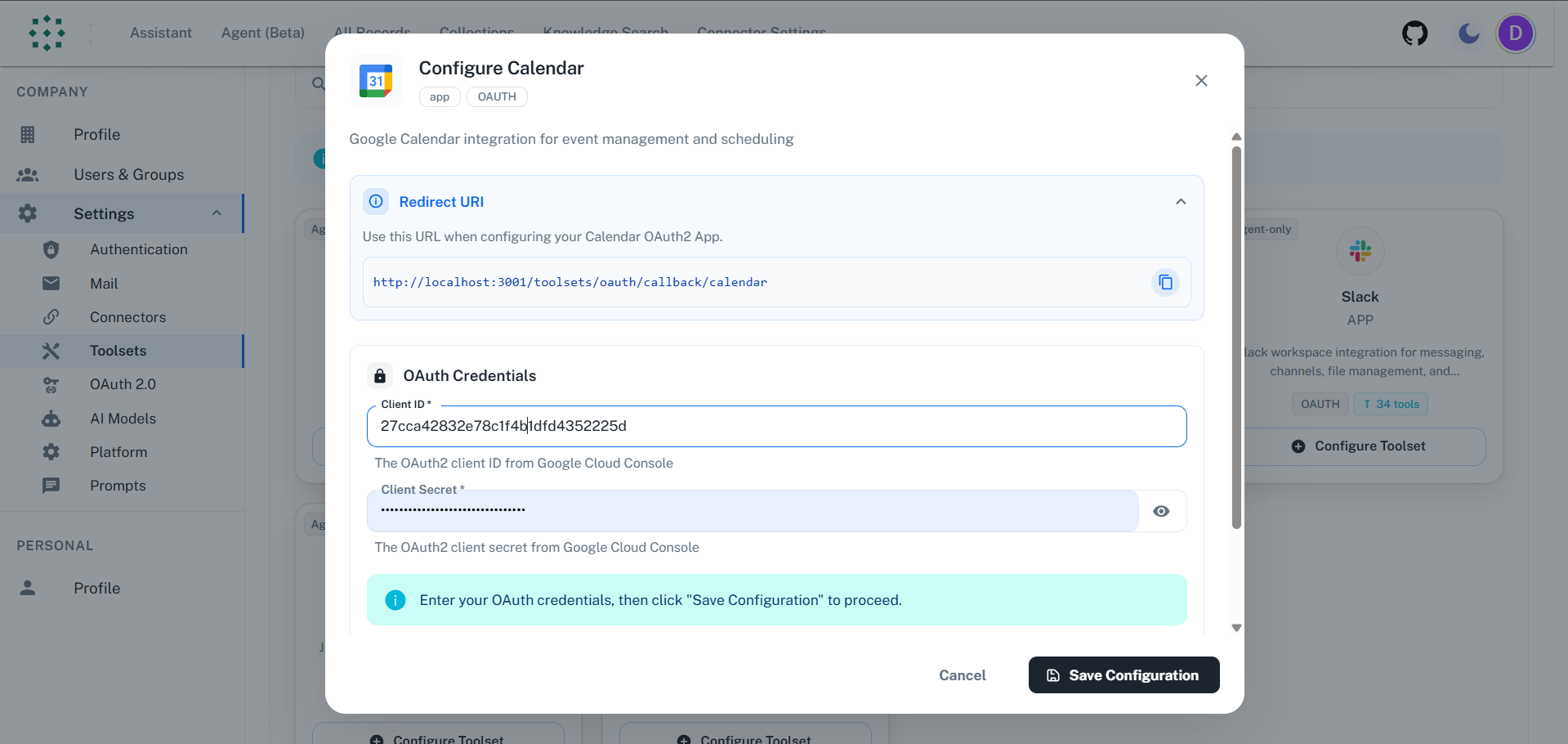
- Copy your Client ID and Client Secret
The redirect URI must match exactly your PipesHub URL.
Step 6: Add Required Scopes
Add these OAuth scopes in the OAuth consent screen > Scopes section:Required Scopes:https://www.googleapis.com/auth/calendar- Full calendar accesshttps://www.googleapis.com/auth/calendar.events- Manage eventshttps://www.googleapis.com/auth/gmail.send- Send calendar invites and notifications
Step 7: Configure in PipesHub
- Return to the PipesHub Calendar configuration dialog
- Enter your Client ID and Client Secret
- Click “Authenticate”
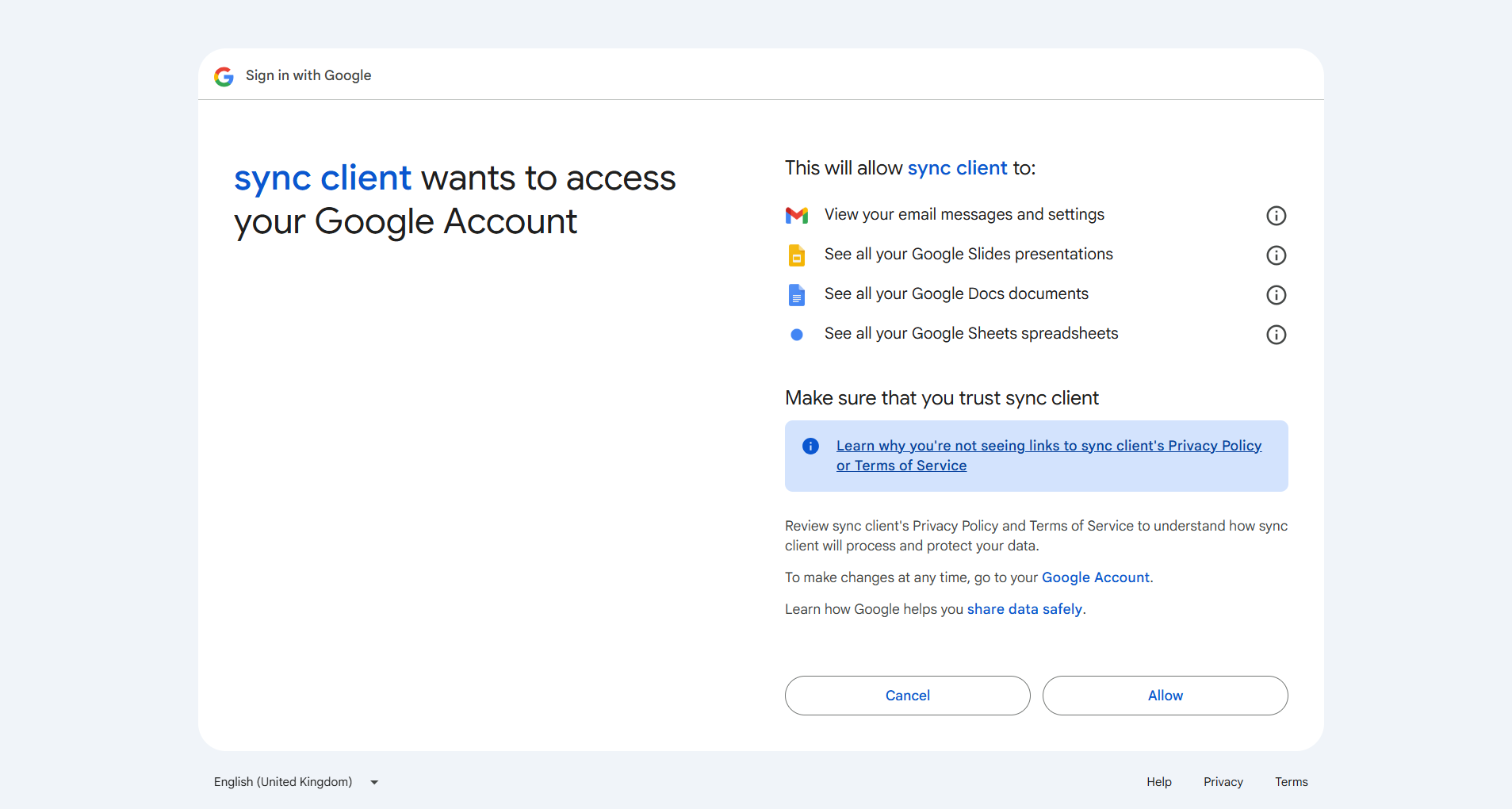
Step 8: Authorize Access
- A popup will open to Google’s consent screen
- Sign in and grant permission for Calendar access
- Click “Allow”
- You’ll be redirected back to PipesHub
- The toolset will show “Authenticated” status
FAQ
What's the difference between Calendar Connector and Calendar Toolset?
What's the difference between Calendar Connector and Calendar Toolset?
Example: Use Calendar Connector to search past and upcoming events. Use Calendar Toolset to let agents schedule meetings or update event details.
Usage Tips
How do I create an event?Ask your agent to “schedule a meeting” and provide the date, time, title, and attendees. For example: “schedule a team meeting tomorrow at 2pm with john@example.com”. How do I update an event?
Ask to “move my 2pm meeting to 3pm” or “add sarah@example.com to the team meeting”. The agent will find and update the event. To move an event, the agent needs both the new start and the new end time; with only one of them, the event is left as it is and the agent is told to send both. Which time zone are times in?
Say your time zone when it matters, for example “10:00 India time” or “10:00 Asia/Kolkata”. A time without an offset is read in the time zone the agent passes with the event, and in UTC if it passes none; Google then shows the event in that zone. Times can also be given as Unix timestamps. An unknown time zone, or an end before the start, is refused before anything is sent to Google. What about all-day events?
All-day events keep the date you asked for in your time zone, and a one-day event covers that whole day. What if something goes wrong?
The agent gets a plain explanation with the next step, for example that Google is rate-limiting (and how long it asked to wait), that the Google sign-in expired and needs reconnecting, or that the connected account hasn’t given permission for that action. If an event was created but reading back its meeting link failed, the agent is told the event exists, so it doesn’t create it (and send the invites) a second time.