

Google Drive Toolset
Cloud file storage and management
ReadyGoogle Workspace
Overview
The Google Drive toolset enables AI agents to manage files and folders in Google Drive.Key Capabilities
- List and search files across Drive
- View file details and metadata
- Create folders and organize content
- Check file permissions and sharing settings
- Access shared drives
Available Tools
Setup
Setup
Setup
Step 1: Create Google Cloud Project
- Go to Google Cloud Console
- Create a new project or select an existing one
- Note your project ID
Step 2: Enable Google Drive API
- Navigate to APIs & Services > Library
- Search for “Google Drive API”
- Click “Enable”
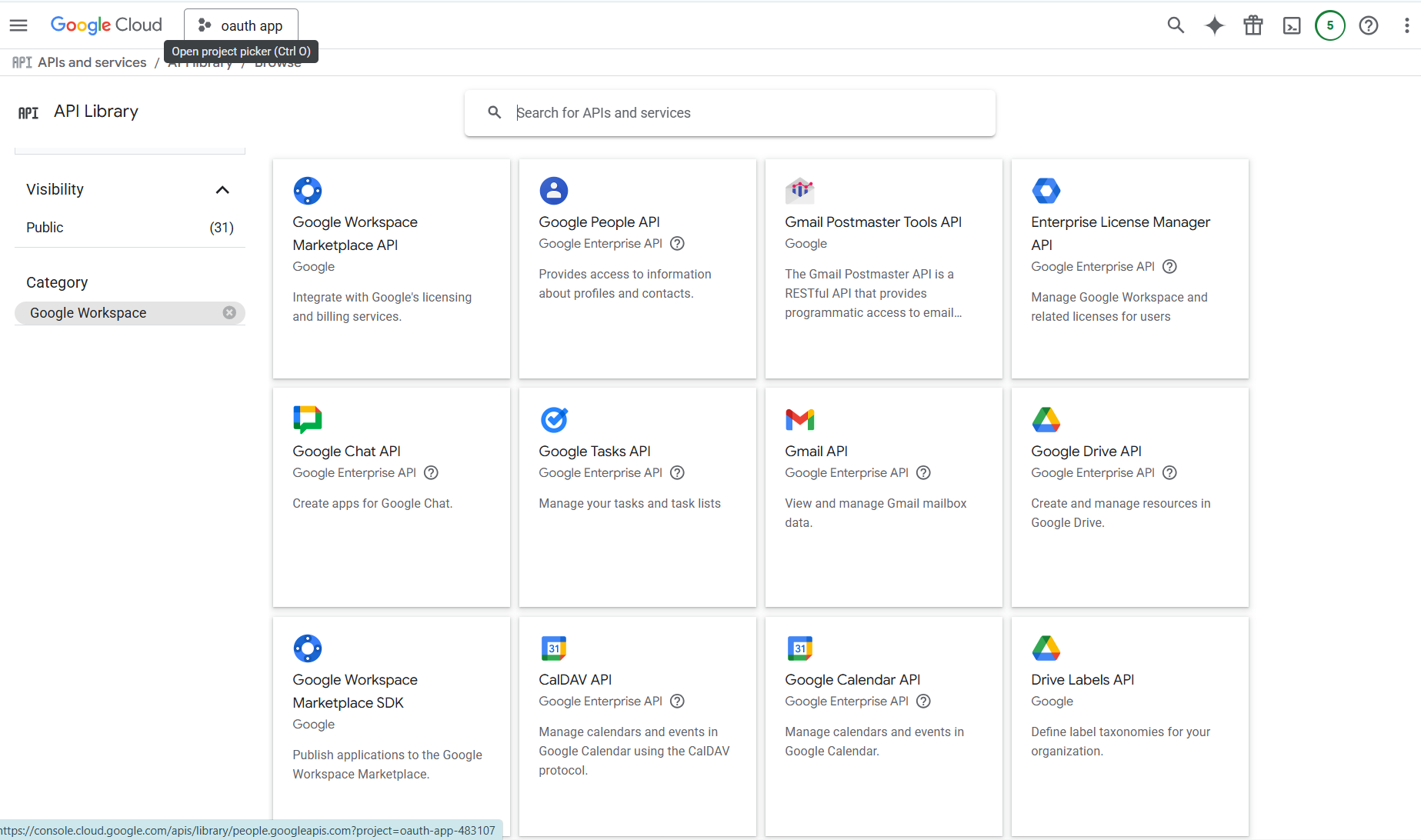
Step 3: Configure OAuth Consent Screen
- Navigate to APIs & Services > OAuth consent screen
- Configure the OAuth consent screen with your app information
- Add the required scopes (see Step 6)
Step 4: Get Redirect URI from PipesHub
- In PipesHub, go to Settings > Toolsets
- Find Drive and click “Configure”
- Copy the Redirect URI shown in the dialog
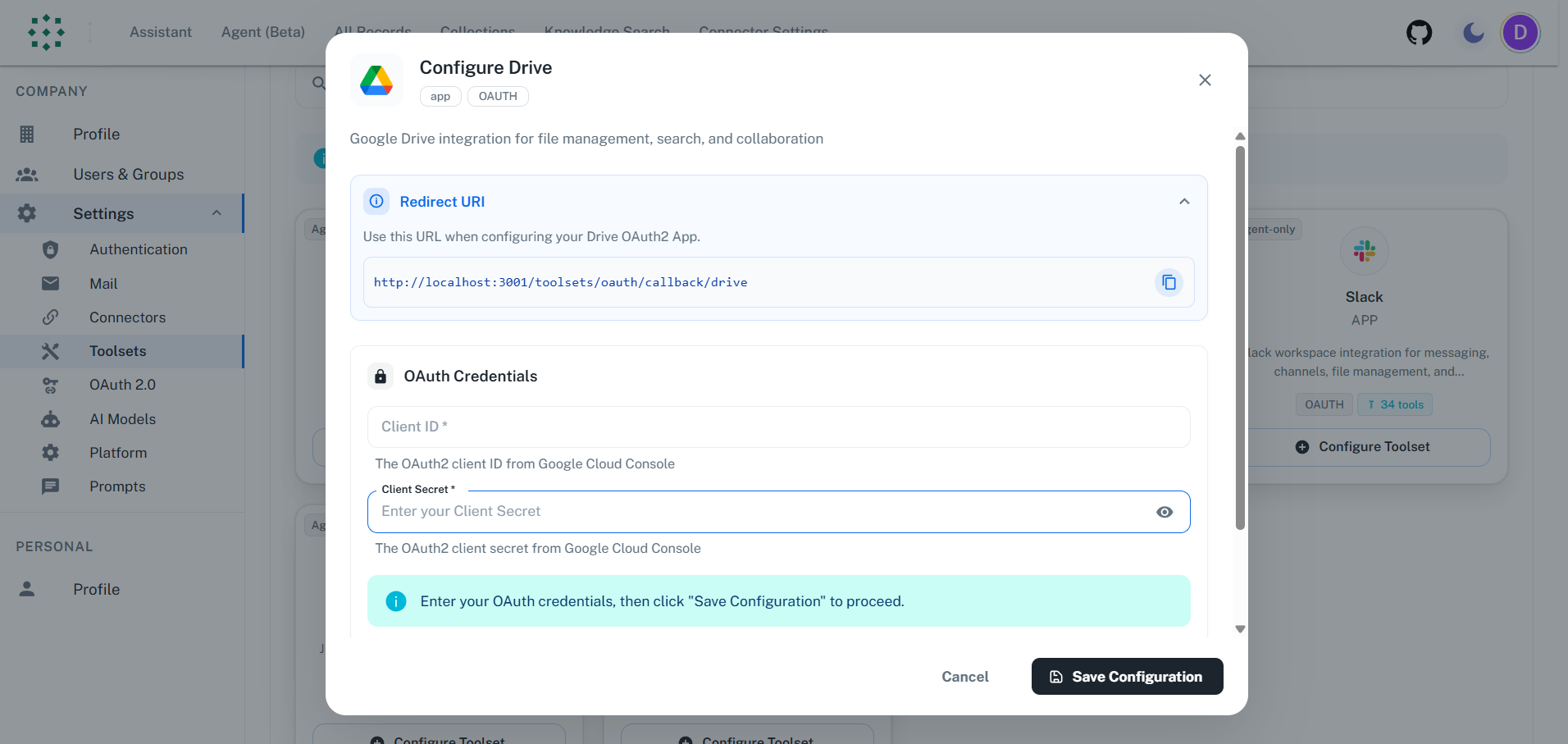
Step 5: Create OAuth Client ID
- Navigate to APIs & Services > Credentials
- Click “Create Credentials” > “OAuth client ID”
- Select “Web application”
- Set the Authorized redirect URI to the URI from PipesHub
- Click “Create”
- Copy your Client ID and Client Secret
The redirect URI must match exactly your PipesHub URL.
Step 6: Add Required Scopes
Add these OAuth scopes in the OAuth consent screen > Scopes section:Required Scopes:https://www.googleapis.com/auth/drive- Full Drive accesshttps://www.googleapis.com/auth/drive.file- Access files created by the apphttps://www.googleapis.com/auth/drive.metadata.readonly- Read file metadata
Step 7: Configure in PipesHub
- Return to the PipesHub Drive configuration dialog
- Enter your Client ID and Client Secret
- Click “Authenticate”
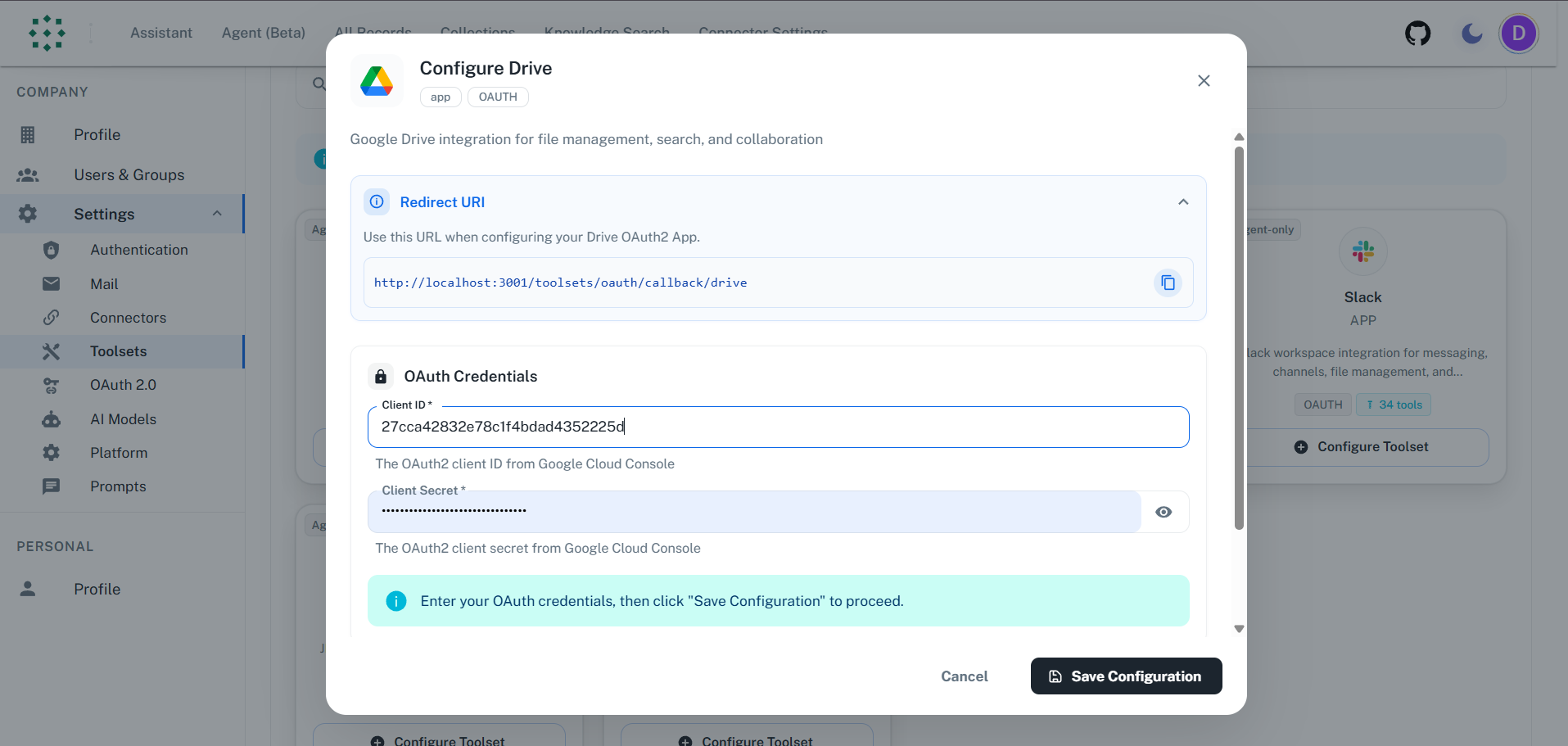
Step 8: Authorize Access
- A popup will open to Google’s consent screen
- Sign in and grant permission for Drive access
- Click “Allow”
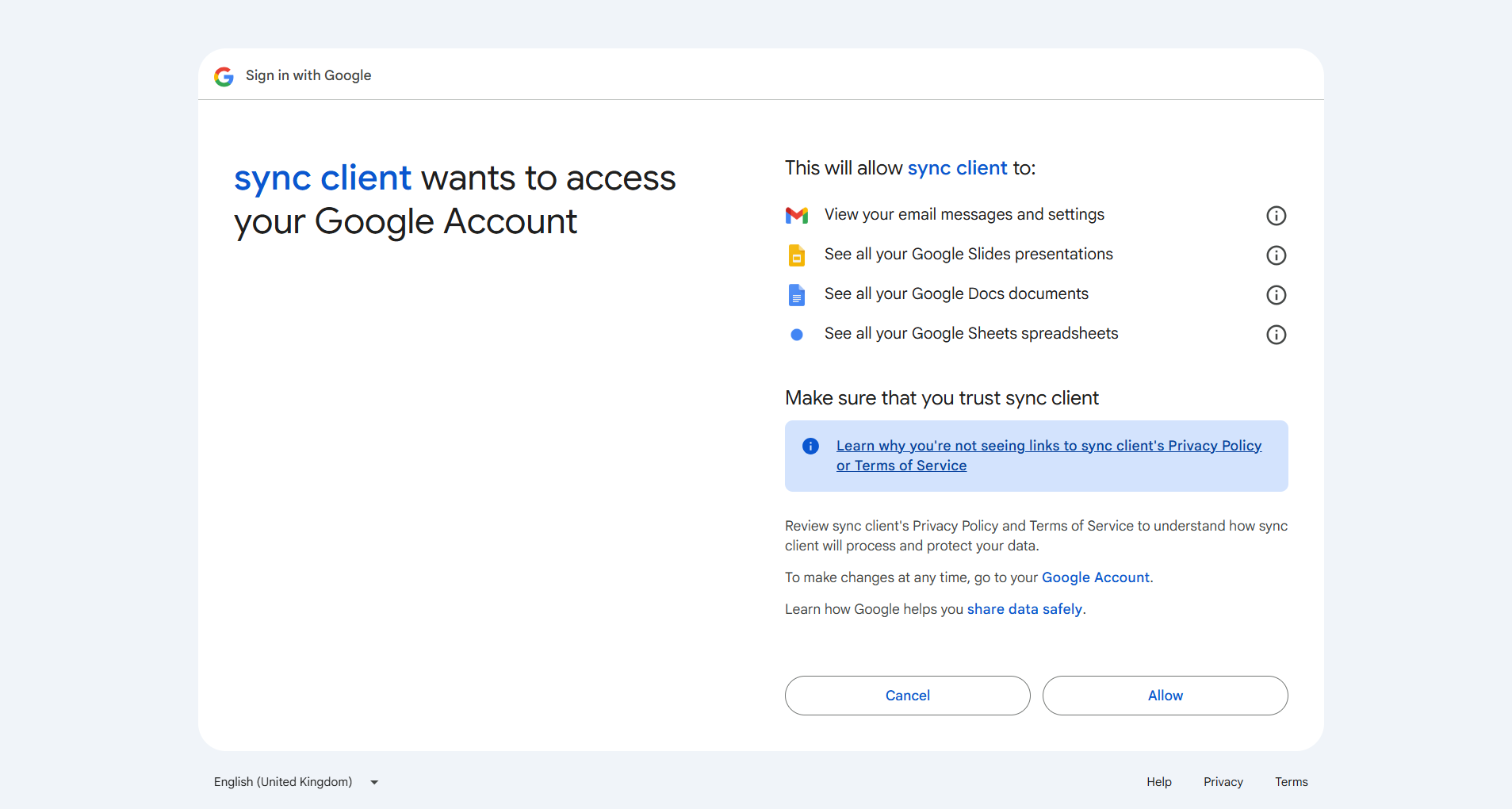
- You’ll be redirected back to PipesHub
- The toolset will show “Authenticated” status
FAQ
What's the difference between Drive Connector and Drive Toolset?
What's the difference between Drive Connector and Drive Toolset?
Example: Use Drive Connector to search and retrieve document content. Use Drive Toolset to let agents create new documents or manage folders.
Usage Tips
How do I find files?Ask your agent to “search Drive for [filename]” or “find my presentation about Q4 results”. The agent searches both file names and content. How do I create folders?
Ask to “create a folder called Project Files” and specify the parent folder if needed. Folders help organize your Drive content.