

Gmail Toolset
Email management and communication
ReadyGoogle Workspace
Overview
The Gmail toolset enables AI agents to send, read, and manage emails in Gmail.Key Capabilities
- Send and reply to emails
- Create draft emails
- Search and read messages
- Access email attachments
- View user profile information
Available Tools
Setup
Setup
Setup
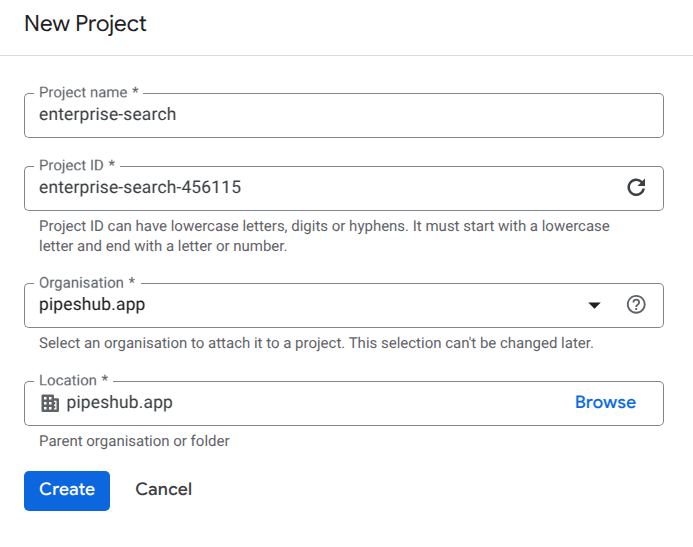
Step 1: Create Google Cloud Project
- Go to Google Cloud Console
- Click the project dropdown and select “New Project”
- Enter a project name
- Click “Create”
Step 2: Enable Gmail API
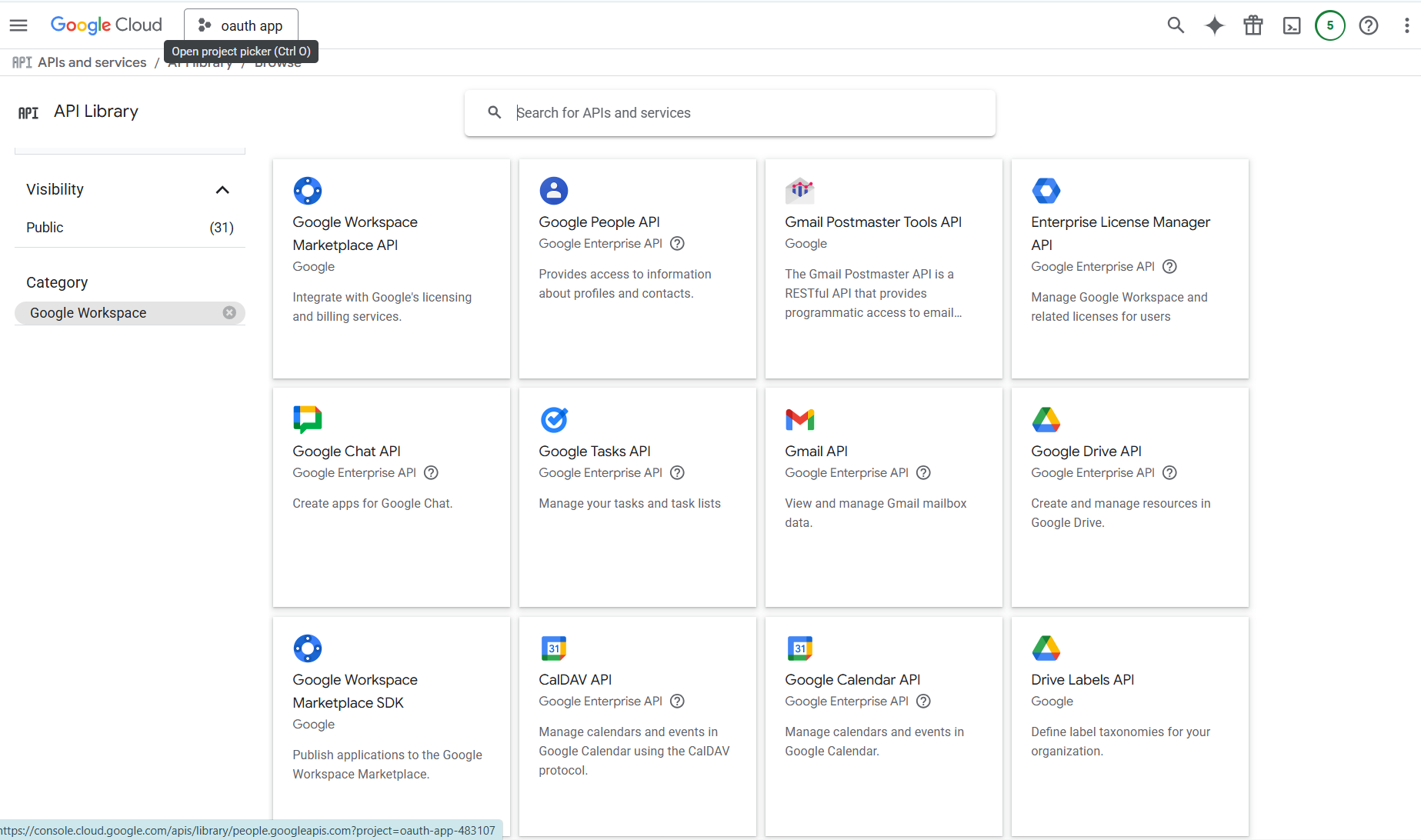
- Navigate to APIs & Services > Library
- Search for “Gmail API”
- Click on it and click “Enable”
Step 3: Configure OAuth Consent Screen
- Navigate to APIs & Services > OAuth consent screen
- Choose External user type (or Internal for Workspace accounts)
- Fill in app information:
- App name: e.g., “PipesHub Gmail Toolset”
- User support email: Your email
- Developer contact email: Your email
- Click “Save and Continue”
Step 4: Add Required Scopes
- On the Scopes page, click “Add or Remove Scopes”
- Search and add these Gmail API scopes:
https://www.googleapis.com/auth/gmail.send- Send emailshttps://www.googleapis.com/auth/gmail.readonly- Read emailshttps://www.googleapis.com/auth/gmail.modify- Modify labels and metadata
- Click “Update” and “Save and Continue”
Step 5: Get Redirect URI from PipesHub
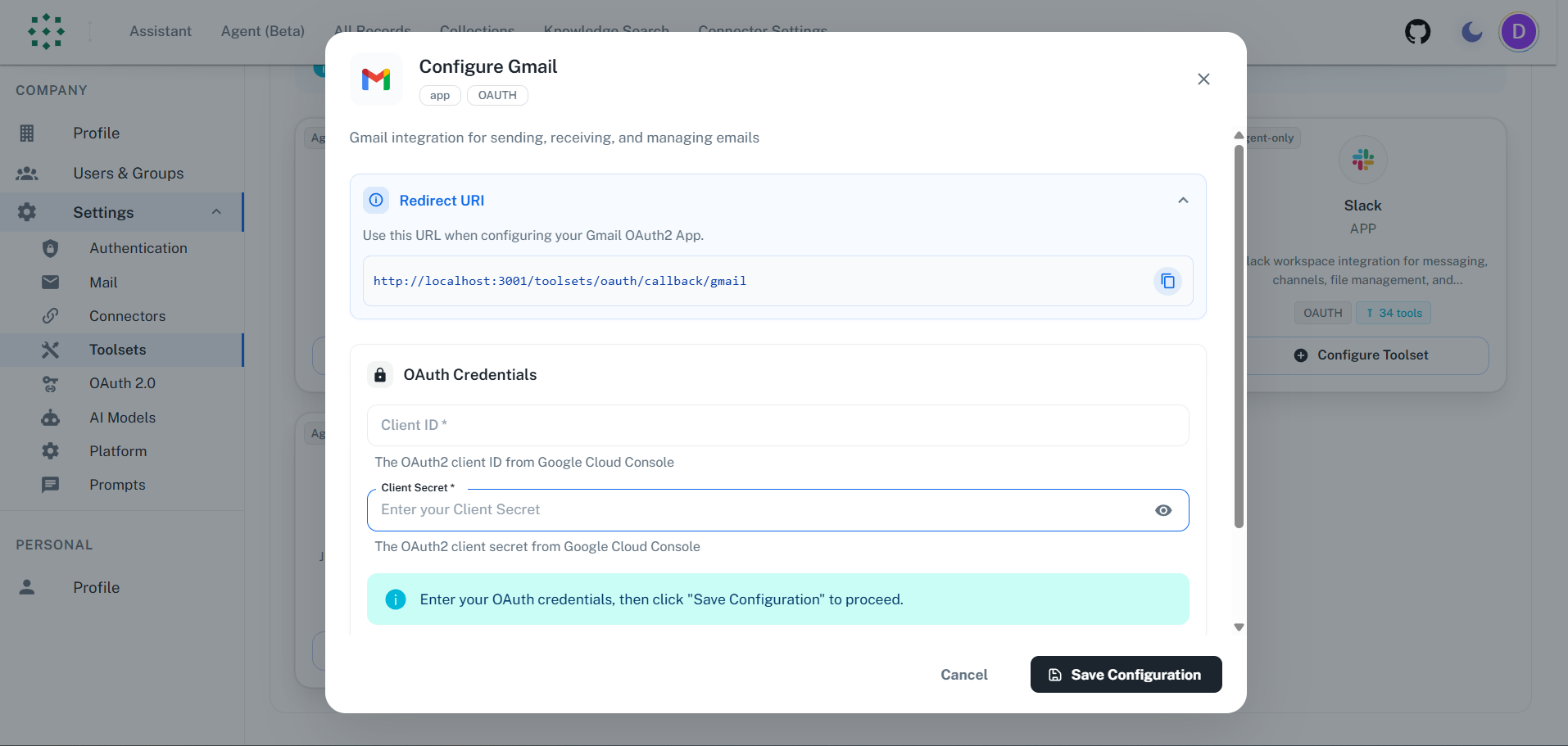
- In PipesHub, go to Settings > Toolsets
- Find Gmail and click “Configure”
- Copy the Redirect URI shown in the dialog
Step 6: Create OAuth Client ID
- Navigate to APIs & Services > Credentials
- Click “Create Credentials” > “OAuth client ID”
- Select “Web application”
- Enter a name (e.g., “PipesHub Gmail”)
- Under “Authorized redirect URIs”, click “Add URI”
- Paste the Redirect URI from PipesHub
- Click “Create”
The redirect URI must match exactly. Any mismatch will cause authentication to fail.
- Copy the Client ID and Client Secret from the popup
Step 7: Configure in PipesHub
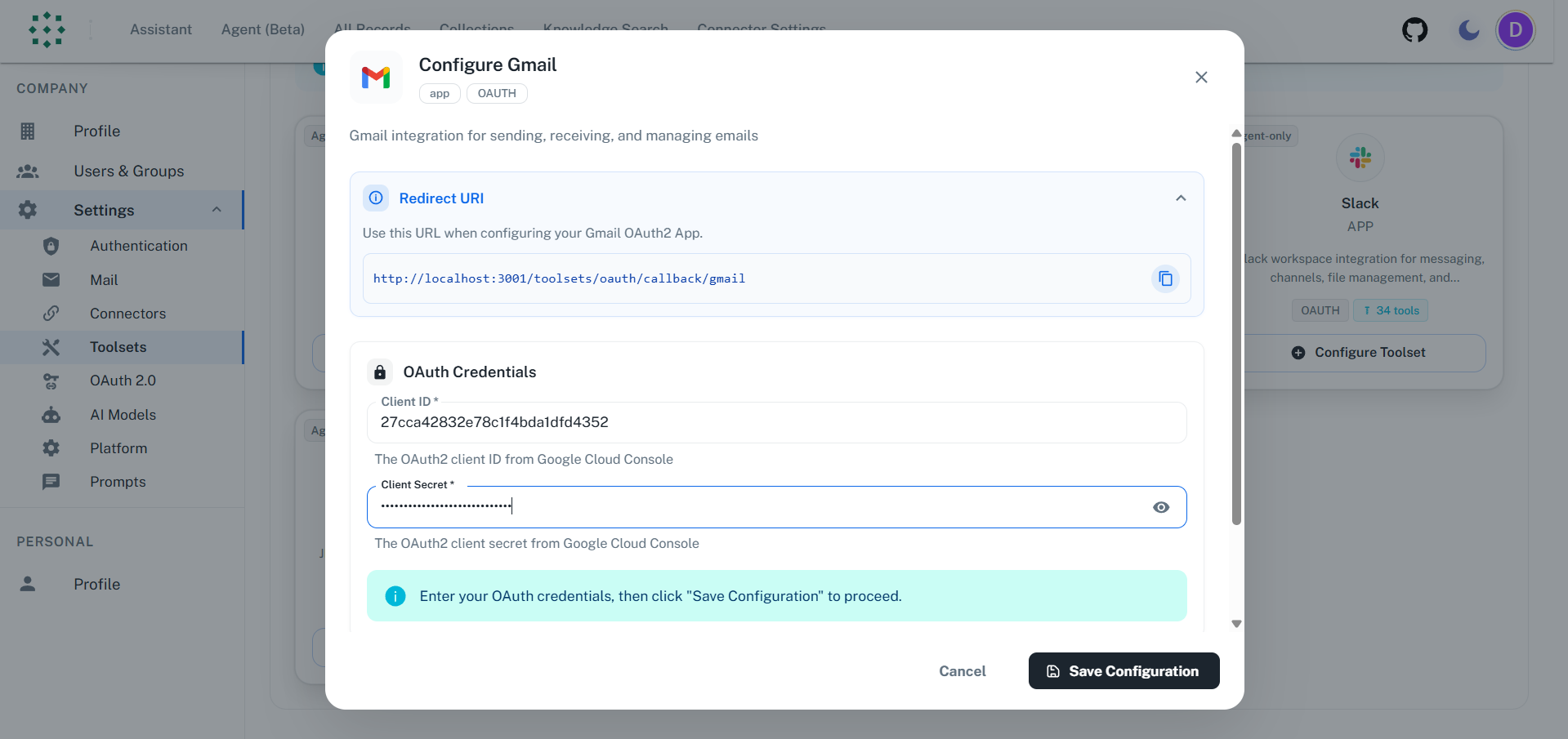
- Return to the PipesHub Gmail configuration dialog
- Enter your Client ID and Client Secret
- Click “Authenticate”
Step 8: Authorize Access
- A popup window will open to Google’s authorization page
- Sign in with your Google account
- Review the permissions and click “Allow”
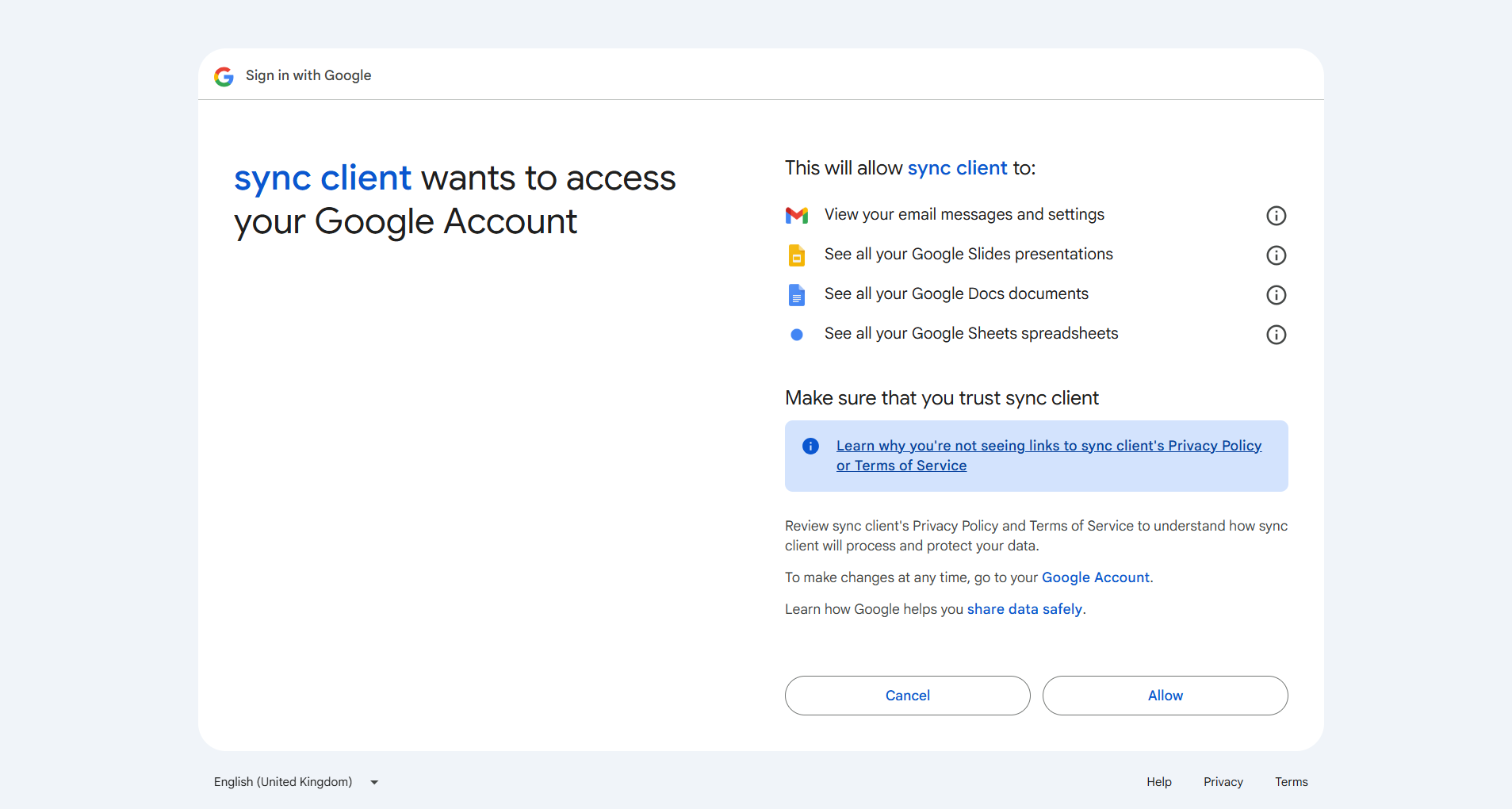
- You’ll be redirected back to PipesHub
- The toolset will show “Authenticated” status
FAQ
What's the difference between Gmail Connector and Gmail Toolset?
What's the difference between Gmail Connector and Gmail Toolset?
Example: Use Gmail Connector to search past email conversations. Use Gmail Toolset to let agents send replies or forward messages.
Usage Tips
How do I send an email?Ask your agent to “send an email to user@example.com” and provide the subject and message. How do I search for emails?
Ask to “search my emails for [keyword]” or use specific criteria like “find emails from john@example.com with subject report”.