















Configuration Guide
Enterprise Setup
Enterprise Setup
Overview
The Gmail connector allows you to access, manage, and synchronize email data from Gmail, including attachments and embedded documents.Gmail is Google’s email service that provides access to emails, attachments, and related content. This connector enables synchronization of Gmail data including emails and their associated documents (Google Docs, Sheets, and Slides).Authentication
The Gmail connector uses OAuth 2.0 for authentication. This requires users to grant permission for the application to access their Gmail data within the scopes specified.How to configure and enable the Gmail Connector
Step 1: Create a Google Cloud Project & Set Up Admin Access
-
Sign in as Super Administrator:
Log in to the Google Cloud Console using an account with super administrator privileges. -
Create a New Project:
- Click on the project dropdown at the top of the console and select New Project
- Enter a project name and (optionally) assign it to a folder or organization
- Click Create
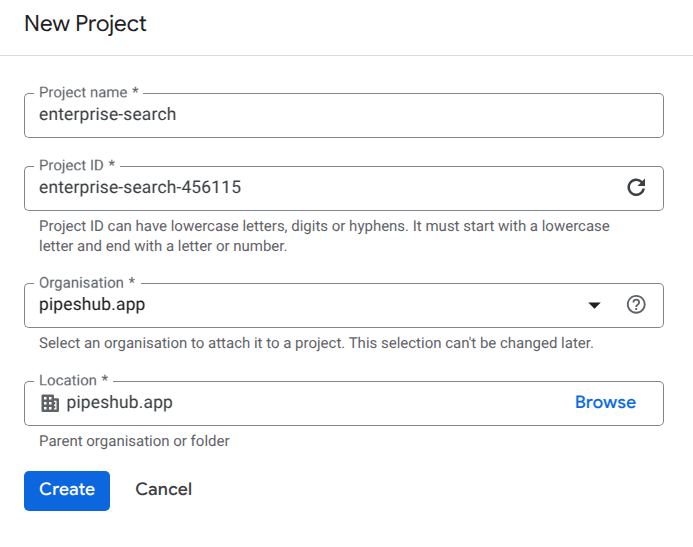
Only the project creator has full control by default. It is recommended to add at least one additional administrator (using the IAM settings) to ensure continued access even if the original creator leaves your organization.
Step 2: Enable Required APIs
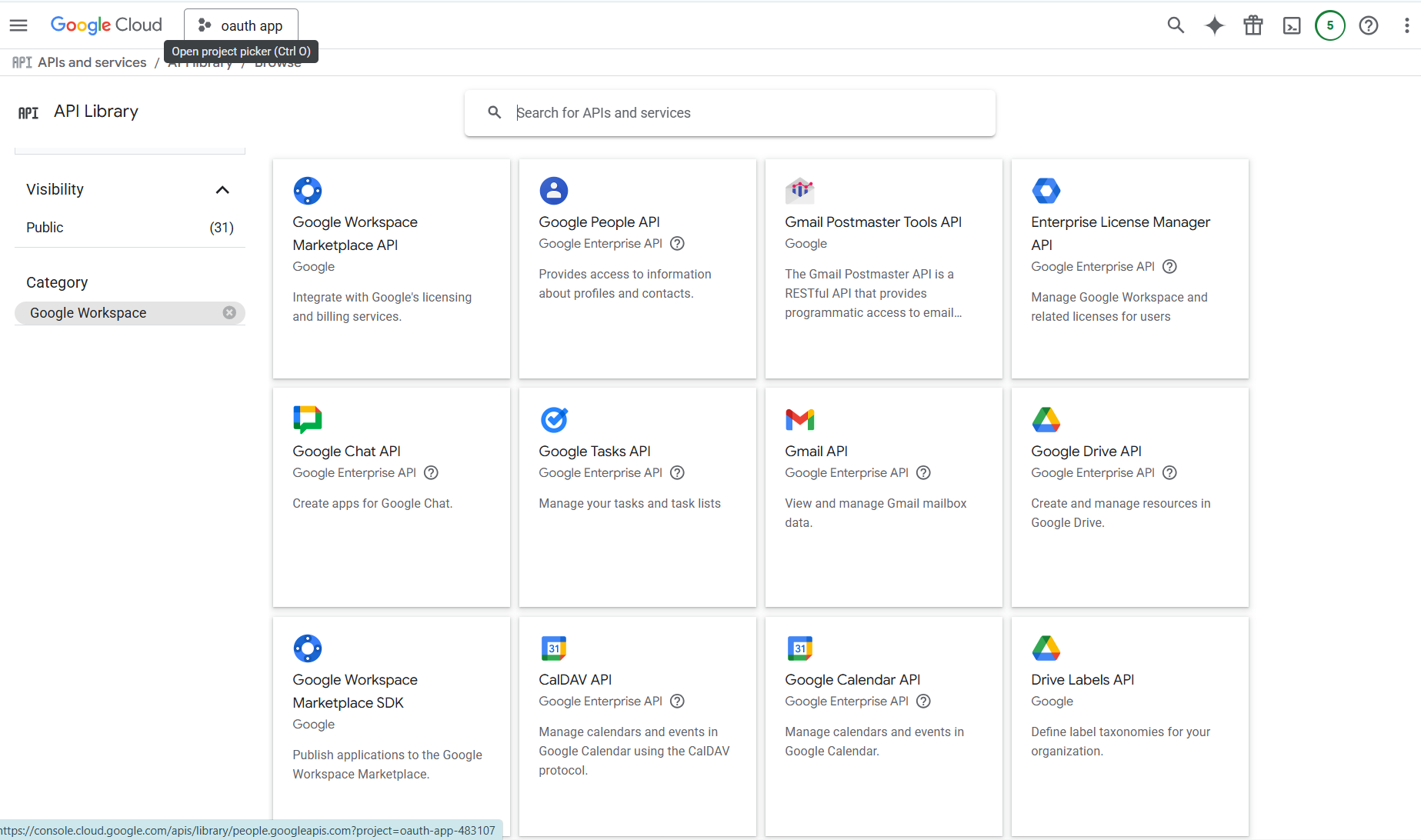
- Navigate to APIs & Services > Library in the Cloud Console
-
Search for and enable the following APIs required for Gmail sync:
- Gmail API (required for email access)
- Google Docs API (required for Google Docs attachments)
- Google Sheets API (required for Google Sheets attachments)
- Google Slides API (required for Google Slides attachments)
- Admin SDK API (required for domain-wide delegation)
Step 3: Create a Service Account
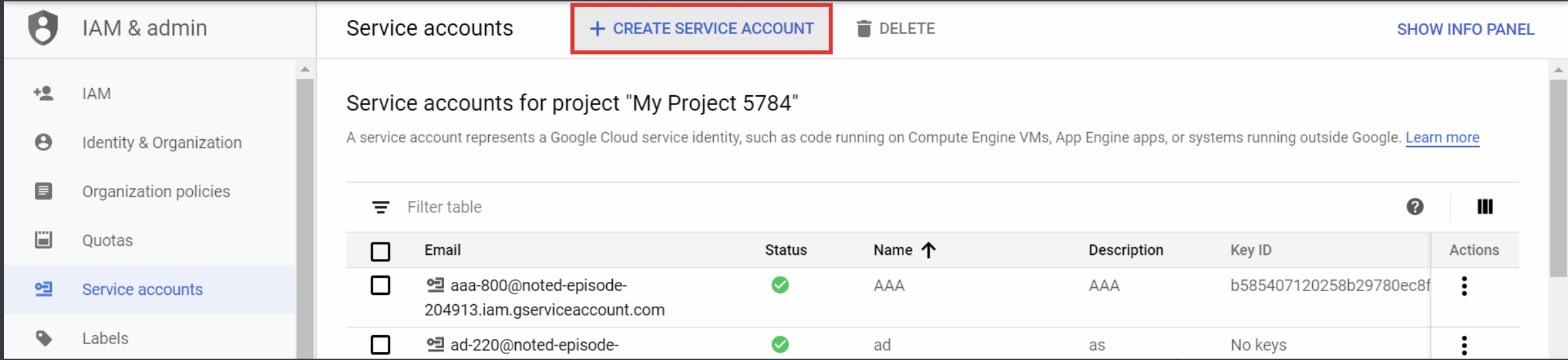
- Navigate to IAM & Admin > Service Accounts in the Cloud Console
- Click Create Service Account
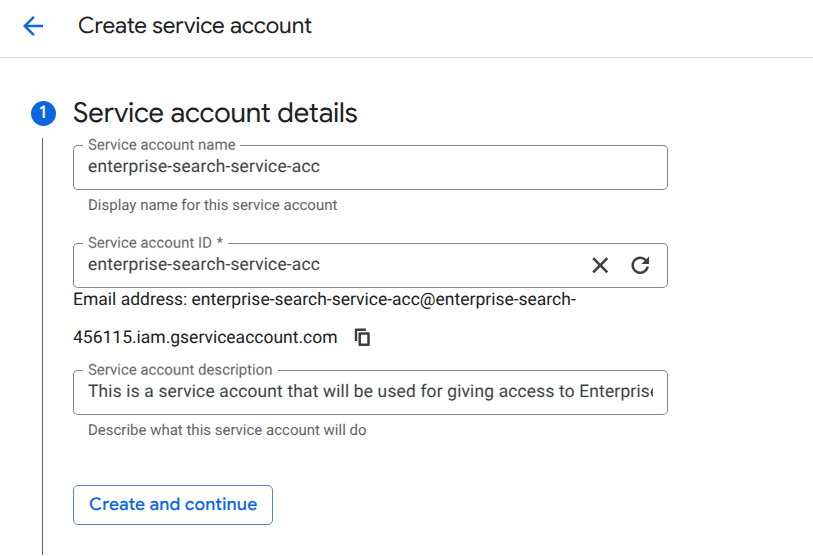
- Enter a Service Account Name and an optional Description
- Click Create and Continue, then Done
- Copy the Unique ID for use in the next step
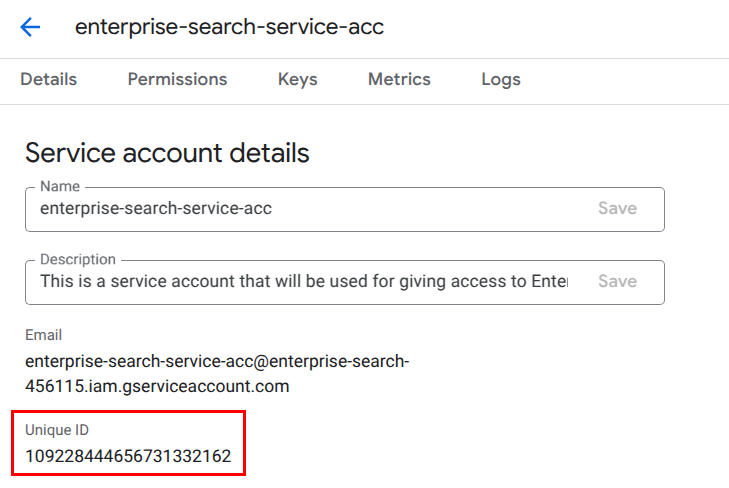
Step 4: Delegate Domain-Wide Authority
- Sign in to the Google Admin Console with a super administrator account
- Navigate to Security > Access and data control > API controls
- Click Manage Domain Wide Delegation
- Click Add new and paste the service account’s client ID
- Add the following OAuth scopes required for Gmail sync:
These scopes are required for Gmail synchronization:
gmail.readonly: Access to read Gmail messagesdocuments.readonly: Access to Google Docs files attached to emailsspreadsheets.readonly: Access to Google Sheets files attached to emailspresentations.readonly: Access to Google Slides files attached to emails- Admin scopes: Required for domain-wide delegation
- Click Authorize
Domain-wide delegation lets your service account impersonate users within your domain. Make sure that both the service account and the end user email belong to the same domain.
Step 5: Create a JSON Key for the Service Account
- In the Service Accounts list, select your newly created service account
- Click on the Keys tab
- Click Add Key and select Create new key
- Choose JSON as the key type and click Create
- Save the automatically downloaded JSON key file
It might be that while creating the key you get the error: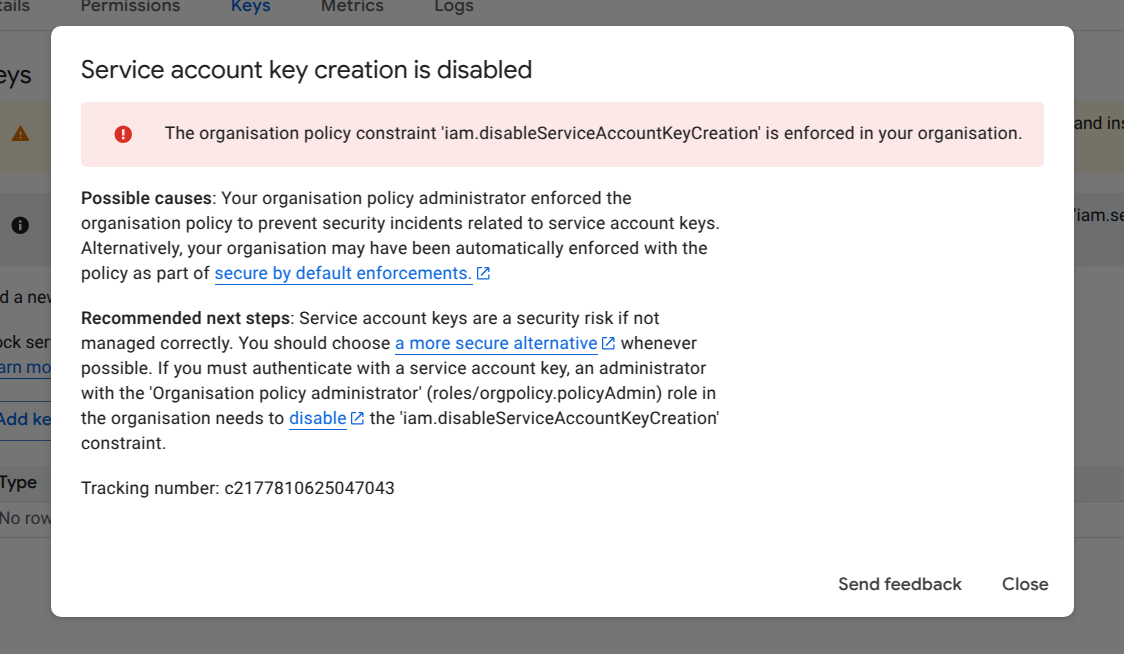
If your key was successfully created and downloaded, you can use that key in the enterprise search application.
If your key was successfully created and downloaded, you can use that key in the enterprise search application.
Configuring and enabling connector
- Navigate to the Connectors page in your account settings:
- Go to Account > Company Settings > Settings > Connectors
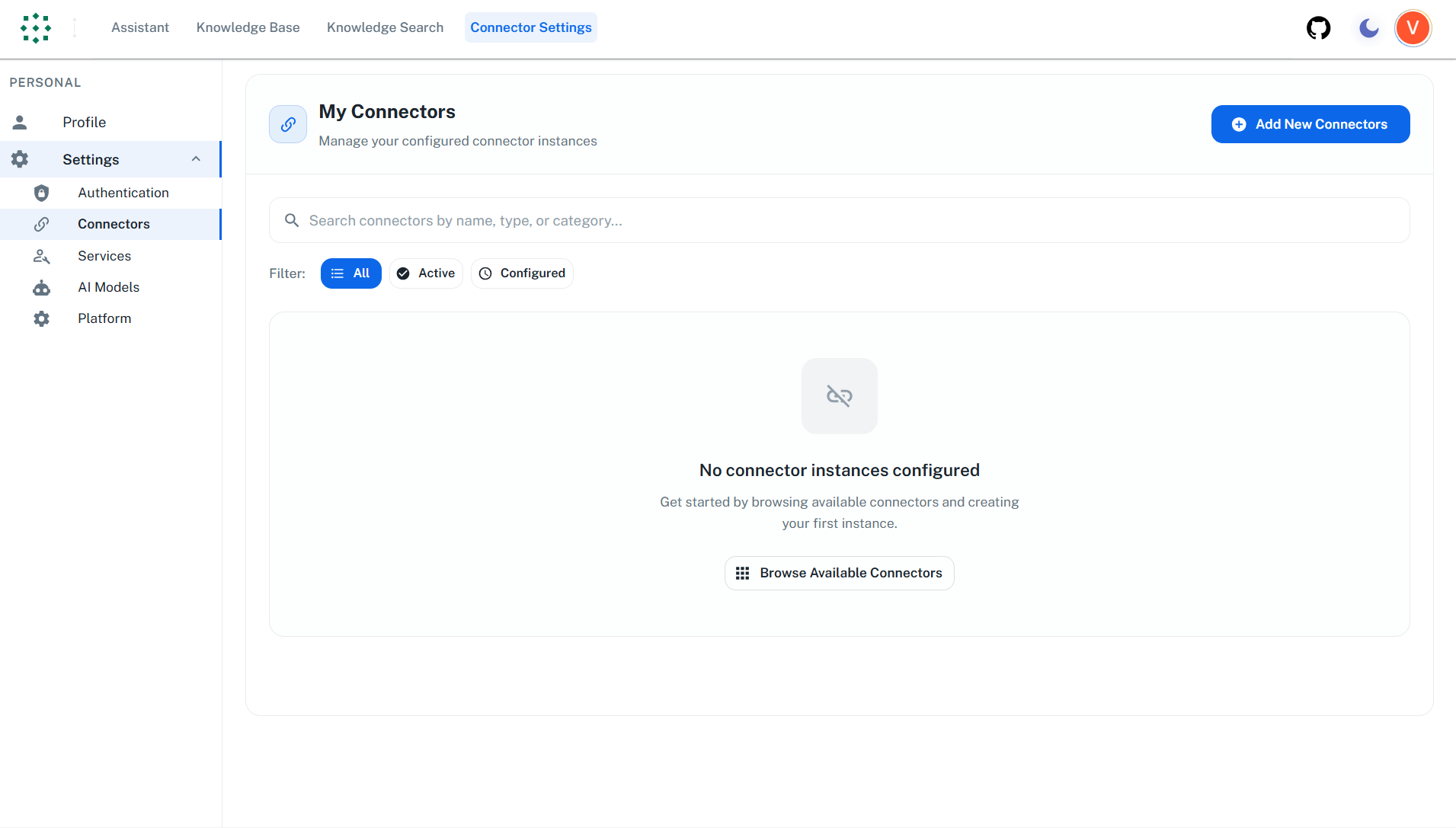
- Click on “Add New Connectors” or “Browse Available Connectors” view available connectors
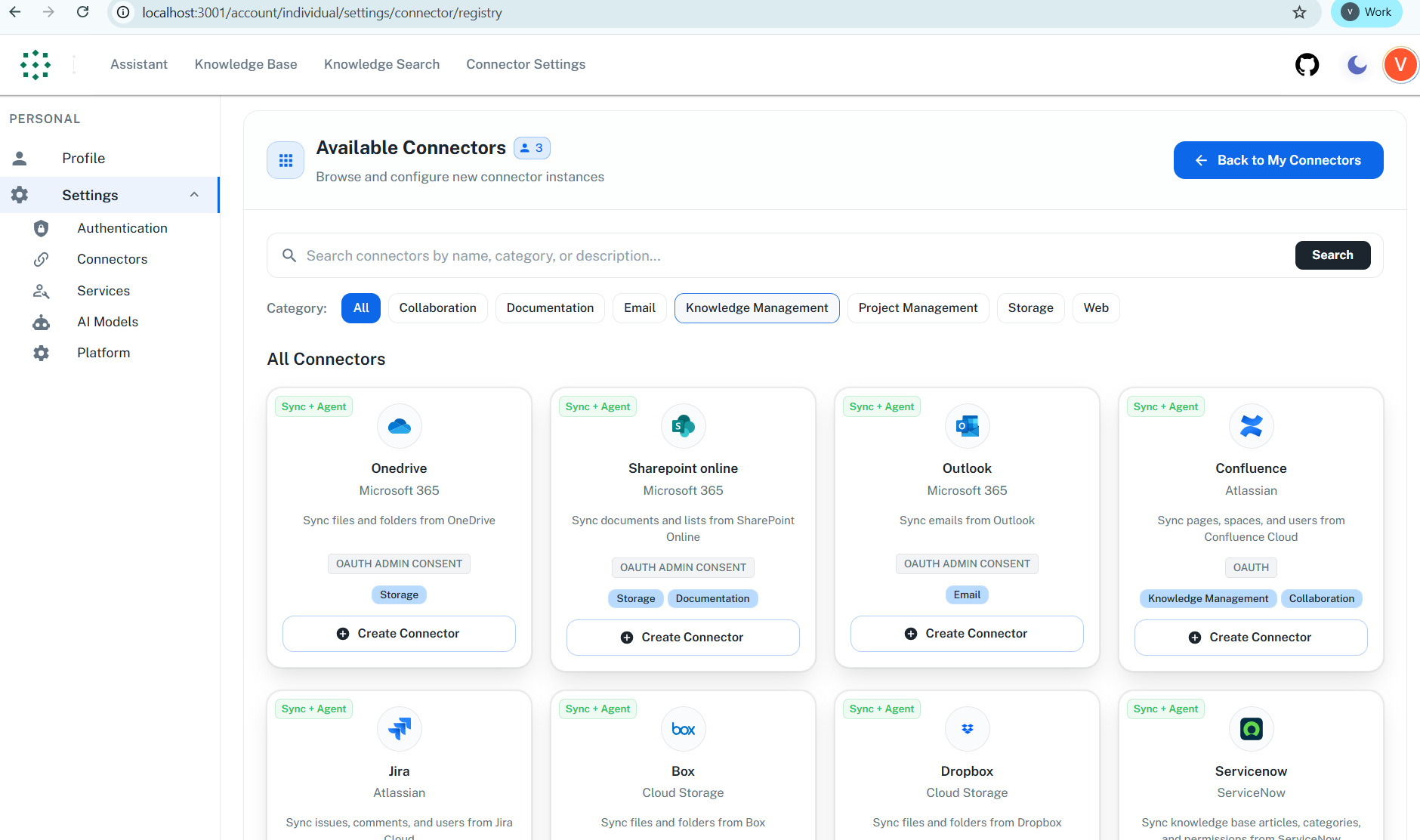
- Find and click on the Gmail connector card to create a new connector instance
-
In the configuration dialog that opens:
- Enter an Instance Name for your connector (e.g., “Company Gmail”)
- Enter the Admin Email (Admin user’s email with which you created the Google Cloud credentials)
- Select the JSON key file to upload
- Click on Save button to save the configuration
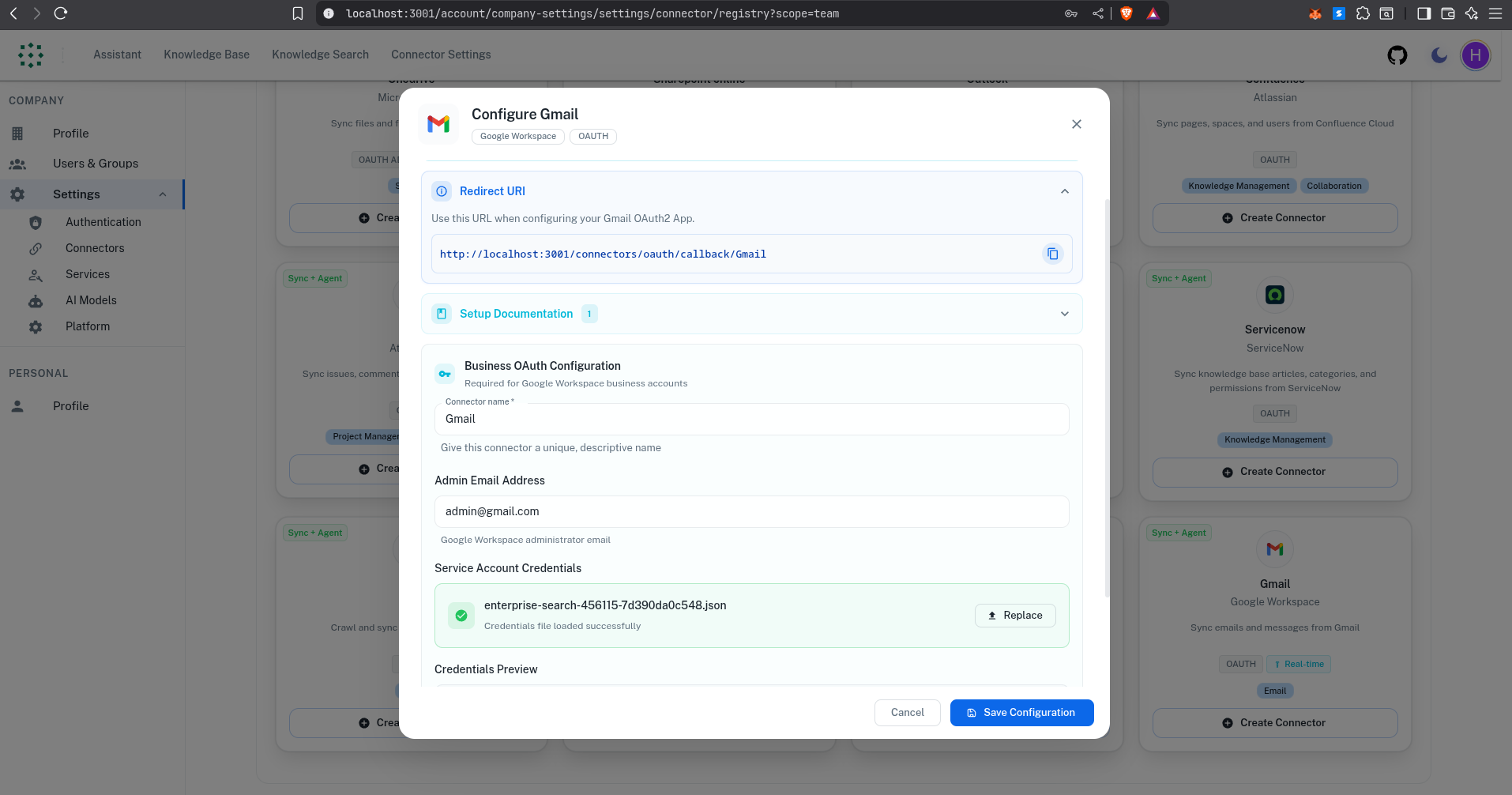
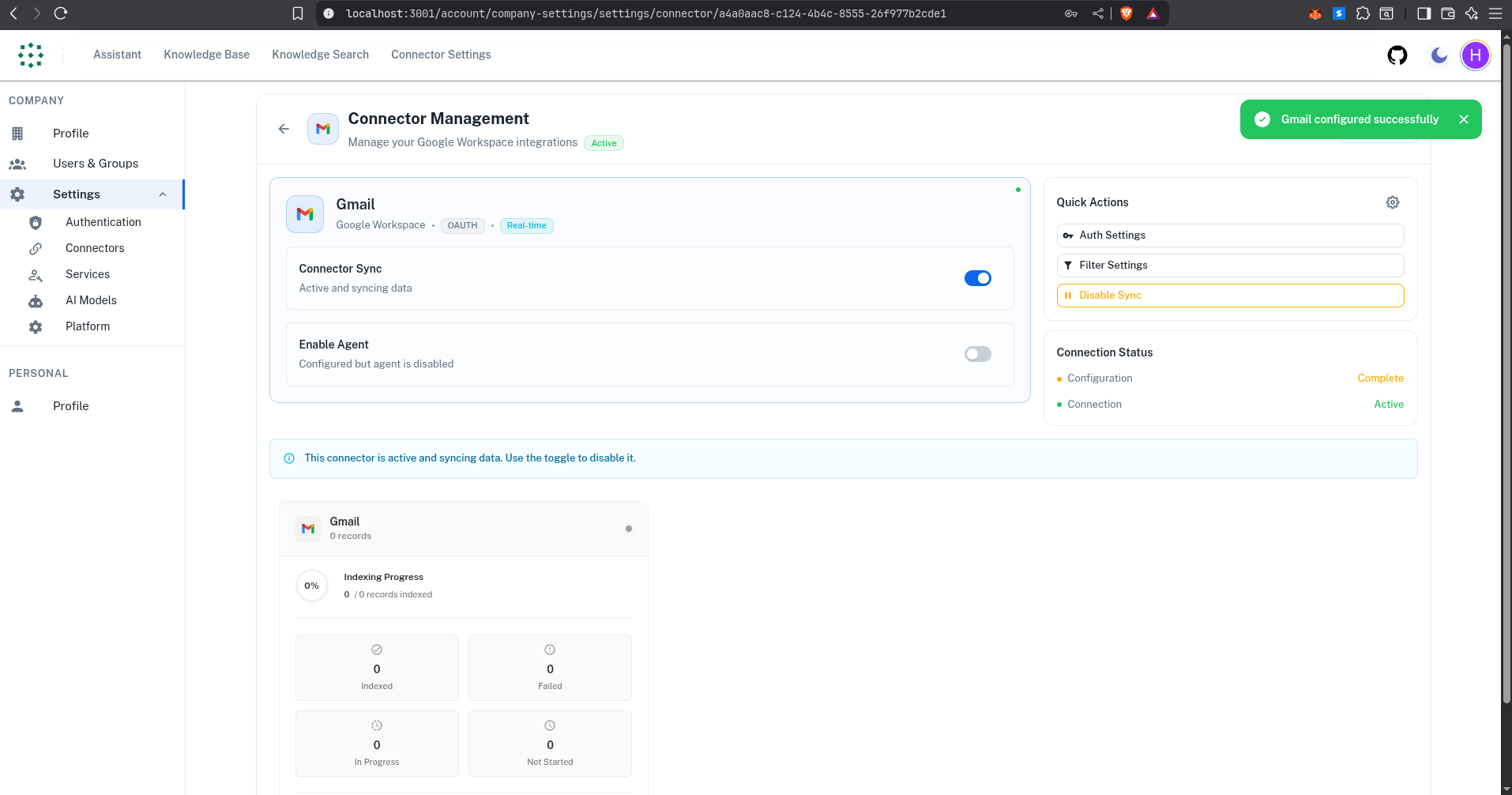
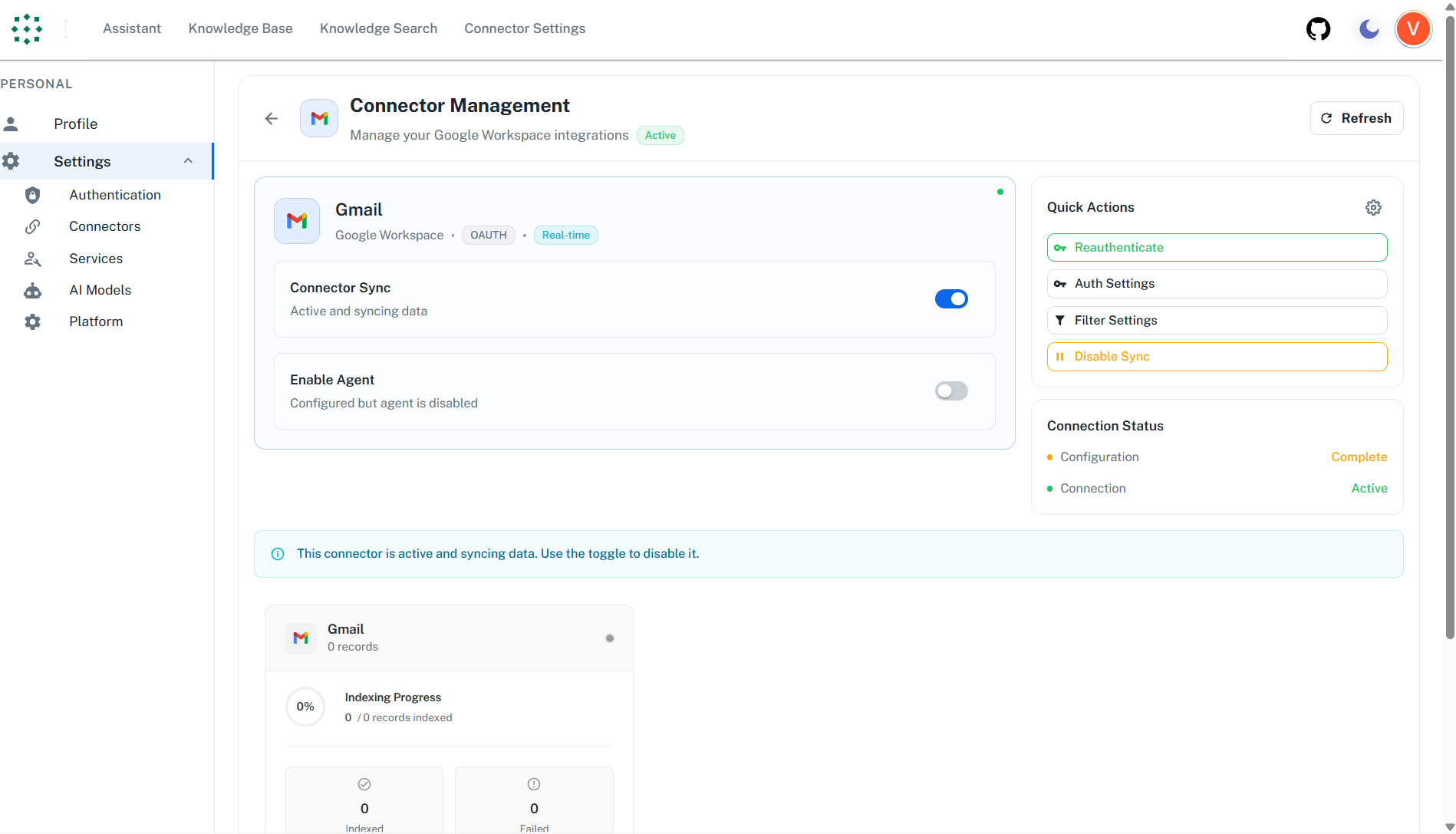
- After saving, you will be redirected to the connector instance page. To enable the connector:
- Use the Sync toggle switch to enable data synchronization
- The connector will start syncing Gmail data once enabled
Enable Service Account Key Creation
If you encounter an error while creating the service account key due to organization policy constraints, follow these steps:1. Switch to the Organization Context
At the top of the Google Cloud Console (where the project name is shown), click the drop-down to see a list of organizations and projects.Select your organization rather than a specific project.If you don’t see an organization listed, make sure you’re signed in with an account that has access to the organization.2. Add Organisation Policy Administrator Role
Navigate to IAM & Admin > IAM in the Cloud ConsoleFind the current user and Click on the Pencil icon.Click on the Add another role button.Search for the Organisation Policy Administrator role.Click on the Add button.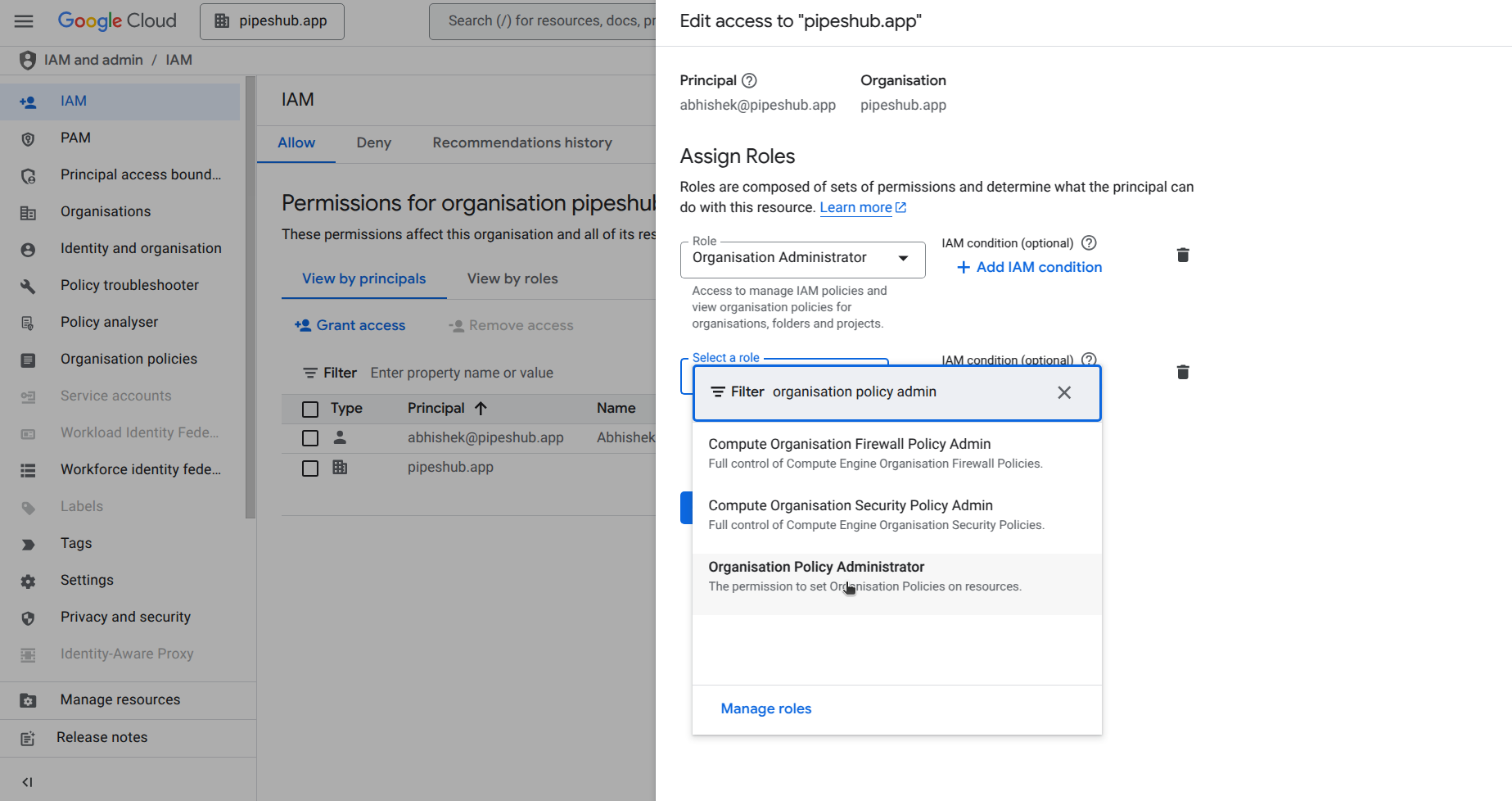
3. Disable the Service Account Key Creation constraint
Navigate to IAM & Admin > Organization Policies in the Cloud ConsoleSearch for"iam.disableServiceAccountKeyCreation"Select the policyClick on the Manage Policy buttonIn Policy source, Select Override parent’s policy. Add a rule and set the enforcement to “Off”Click on the Save buttonAfter completing these steps, return to Step 5 and try creating the service account key again.Google PubSub Configuration
PubSub setup enables real-time updates for Gmail content. While optional, it’s highly recommended for maintaining up-to-date content in Enterprise search.Step 1: Set Up a Cloud Pub/Sub Topic
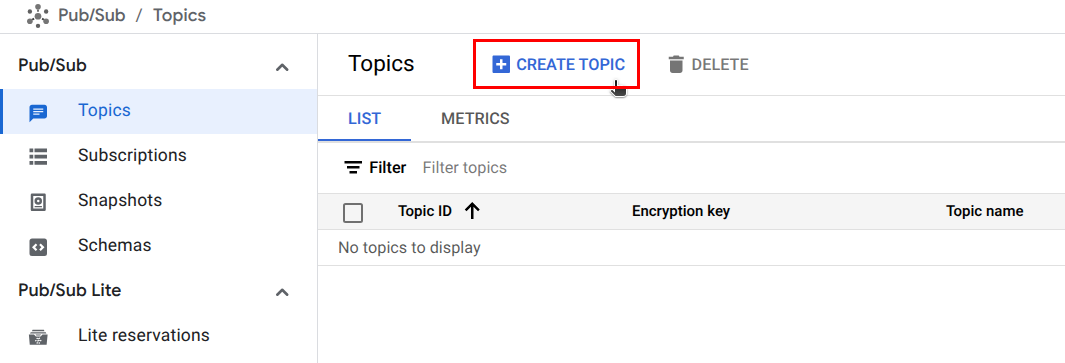
- Navigate to Pub/Sub > Topics in the Cloud Console sidebar
- Click Create Topic
- Enter a unique name (e.g.,
projects/your-project-id/topics/gmail-webhook-topic) - Check “Add a default subscription”
- Click Create to confirm
Step 2: Configure the Subscription
- Go to Pub/Sub > Topics
- Select the subscription created with the topic
- Click Edit
- Change Delivery type to “Push”
- Set Endpoint URL as “your_base_url/gmail/webhook”
- Adjust Expiry Period as needed
- Click Update
Step 3: Set Topic Permissions
- In Pub/Sub > Topics, select your topic
- Open the Info Panel (right side)
- Click Add Principals
- Add
gmail-api-push@system.gserviceaccount.com - Assign the Pub/Sub Publisher role
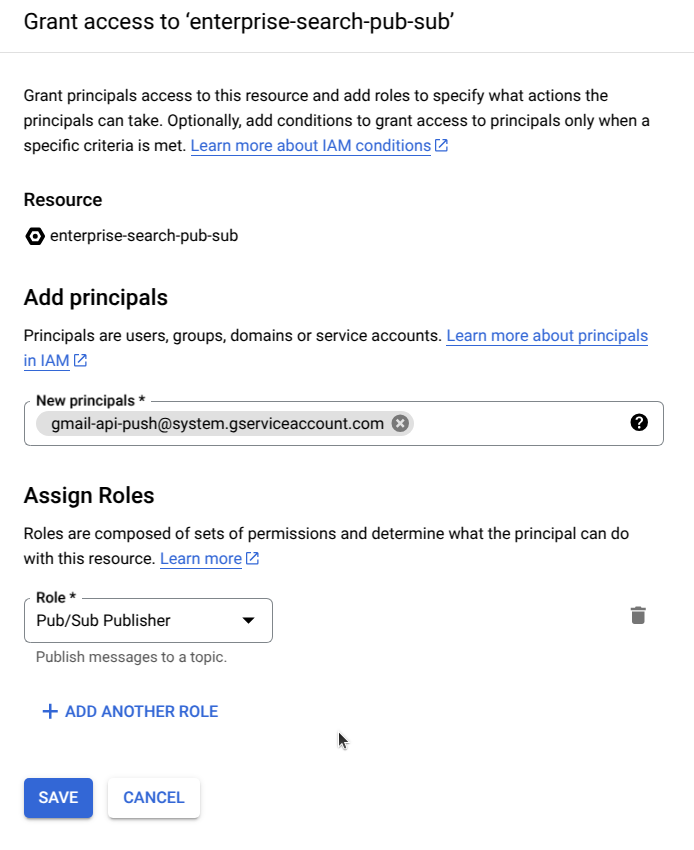
- Click Save
If you encounter an organizational policy constraint error, modify the policy in organizational policies to allow the given domain. Allow 5-10 minutes for changes to propagate.
Individual Setup
Individual Setup
Overview
The Gmail connector allows you to access, manage, and synchronize email data from Gmail, including attachments and embedded documents.Gmail is Google’s email service that provides access to emails, attachments, and related content. This connector enables synchronization of Gmail data including emails and their associated documents (Google Docs, Sheets, and Slides).Authentication
The Gmail connector uses OAuth 2.0 for authentication. This requires users to grant permission for the application to access their Gmail data within the scopes specified.Step 1: Create a Google Cloud Project
- Access the Google Cloud Console
- Create a project (if you don’t have one)
- Note your project ID for later use
Step 2: Enable Required APIs
- Navigate to APIs & Services > Library in the Cloud Console
- Search for and enable the following APIs required for Gmail sync:
- Gmail API (required for email access)
- Google Docs API (required for Google Docs attachments)
- Google Sheets API (required for Google Sheets attachments)
- Google Slides API (required for Google Slides attachments)
Step 3: Configure OAuth Consent Screen
- Navigate to APIs & Services > OAuth consent screen in the Cloud Console
- Configure the OAuth consent screen with your application details
- Add the required scopes (see Step 5)
Step 4: Create OAuth Client ID
- Navigate to APIs & Services > Credentials in the Cloud Console
- Click Create Credentials and select OAuth client ID
- Select Web application as the application type
- Set the Authorized redirect URI to:
or for HTTPS:
- Click Create and note your Client ID and Client Secret
Redirect URI must match exactly your frontend URL. For example: if your app is
running on https://f7f0-240.ngrok-free.app then redirect URI should be
https://f7f0-240.ngrok-free.app/connectors/oauth/callback/Gmail
in Google Cloud Console.
Step 5: Configure OAuth Scopes
- In the OAuth consent screen, navigate to the Scopes section
- Add the following OAuth scopes required for Gmail sync:
https://www.googleapis.com/auth/gmail.readonly- Read Gmail messageshttps://www.googleapis.com/auth/documents.readonly- Read Google Docs fileshttps://www.googleapis.com/auth/spreadsheets.readonly- Read Google Sheets fileshttps://www.googleapis.com/auth/presentations.readonly- Read Google Slides files
These scopes allow the connector to:
- Access and read Gmail messages
- Access Google Docs, Sheets, and Slides files that are attached to or embedded in emails
Configuring and enabling connector
- Navigate to the Connectors page in your account settings:
- Go to Account > Individual Settings > Settings > Connectors
- Click on “Add New Connectors” or “Browse Available Connectors” view available connectors
- Find and click on the Gmail connector card to create a new connector instance
-
In the configuration dialog that opens:
- Enter an Instance Name for your connector (e.g., “My Gmail”)
- Enter the Google Client ID from your Google Cloud Console
- Enter the Google Client Secret from your Google Cloud Console
-
Click on Save button to save the configuration
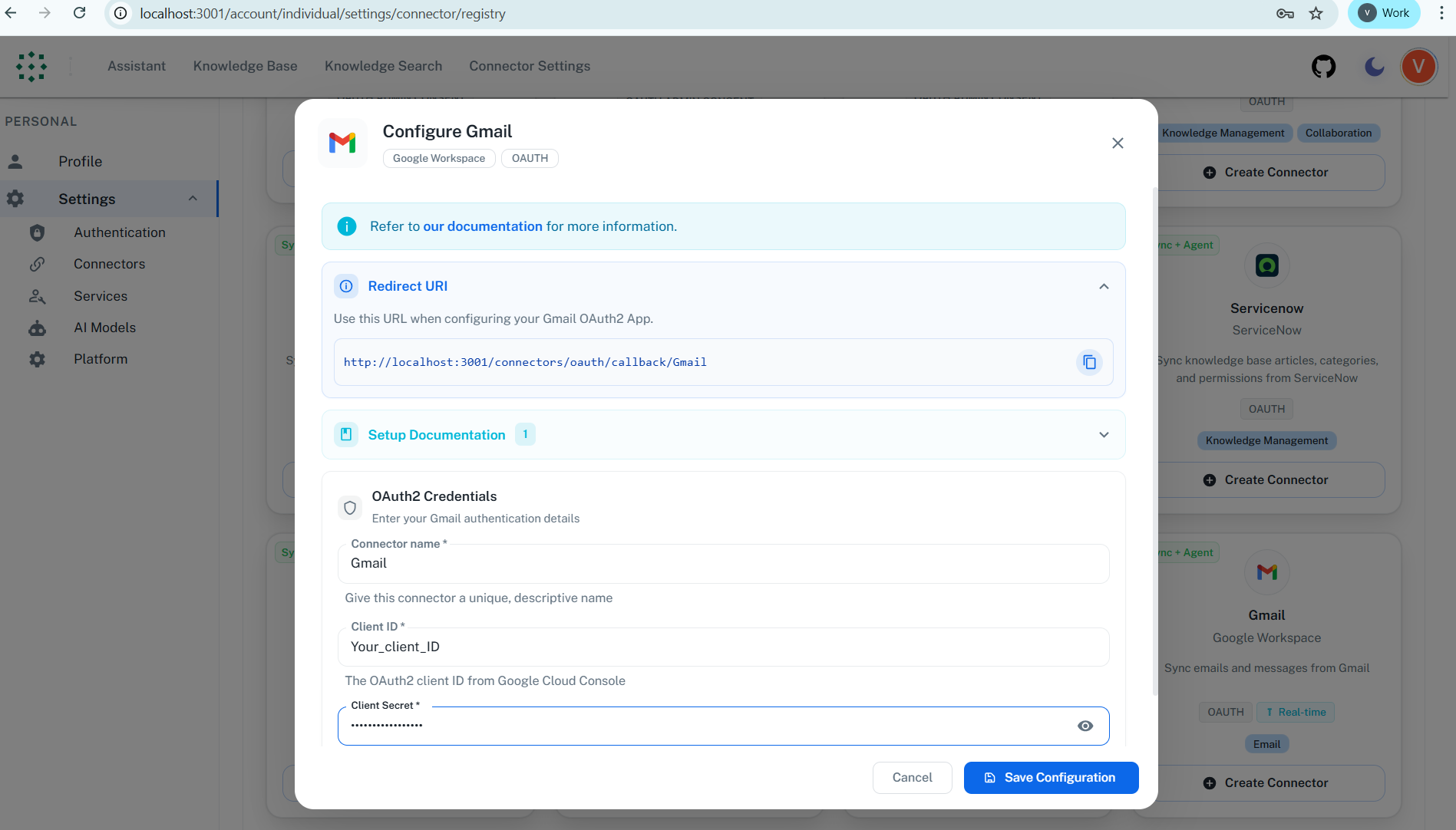
- After saving, you will be redirected to the connector instance page. To enable the connector:
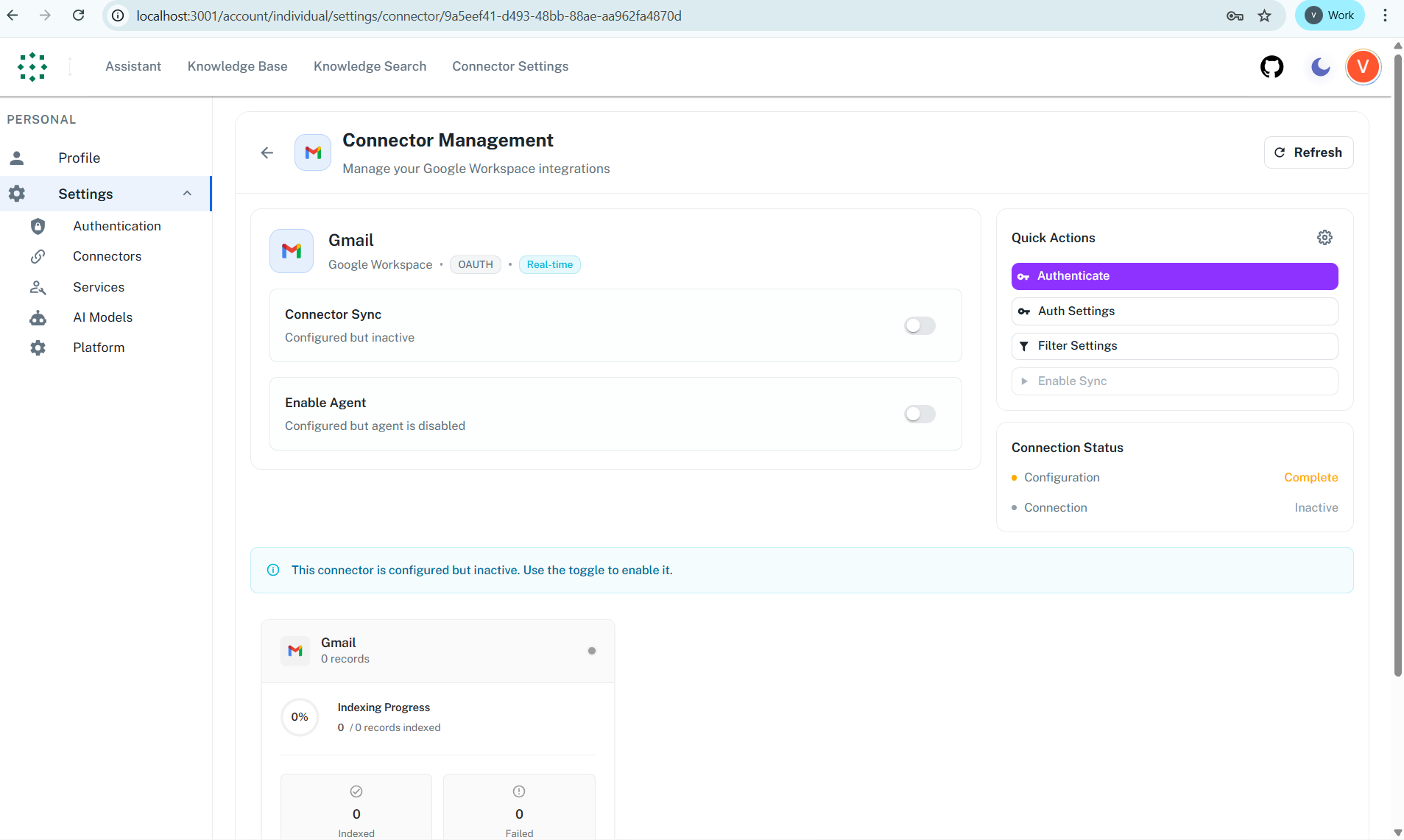
- Click on the Authenticate button (or use the Sync toggle switch)
- You will be redirected to Google’s consent screen where you need to sign in and grant permission for Gmail and related document access
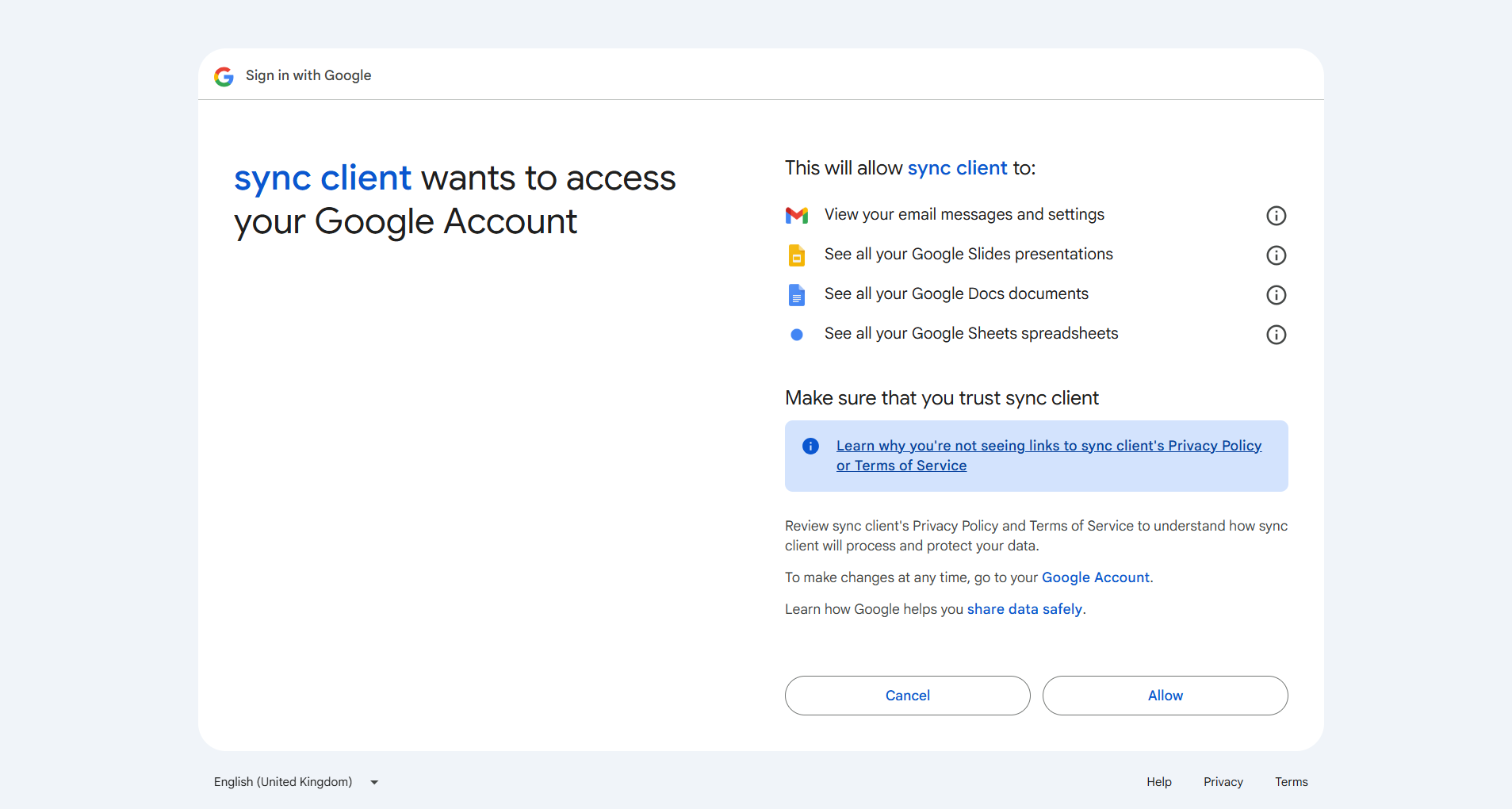
- After giving consent, it will redirect to the frontend and if the Google Workspace shows enabled, then your connector is successfully configured and enabled.
For setting up Google PubSub notifications, please refer to the Google PubSub Configuration Guide in the Enterprise documentation.
FAQ
What's the difference between Gmail Connector and Gmail Toolset?
What's the difference between Gmail Connector and Gmail Toolset?
| Aspect | Gmail Connector | Gmail Toolset |
|---|---|---|
| Purpose | Sync and index emails for search | Enable agents to perform email actions |
| Data Flow | One-way (import data into PipesHub) | Two-way (read and write via API) |
| When to Use | Query/search email history and conversations | Send emails, manage messages, create drafts |
Queries not returning results. What could be wrong?
Queries not returning results. What could be wrong?
There are three common causes:
-
Email mismatch - The email used during connector authentication doesn’t match your PipesHub account email. This causes permission issues preventing you from accessing synced data.
- Fix: Reconfigure the connector and authenticate using the same email as your PipesHub account.
-
Records show in “All Records” but not in search - Documents display in the All Records section but don’t appear in search query results.
- Fix: Verify sync filters in the connector settings and ensure indexing has completed. Check that the data matches your search query criteria.
-
Data not yet indexed - The connector is still syncing or hasn’t completed the initial indexing process.
- Fix: Go to Settings > Connectors, check the sync status, and wait for indexing to complete.
Ready to Get Started?
The Gmail connector is fully operational and ready for use. Follow the configuration guide above for your setup type (Enterprise or Individual), or reach out to our support team if you need assistance.