
Mistral AI Configuration
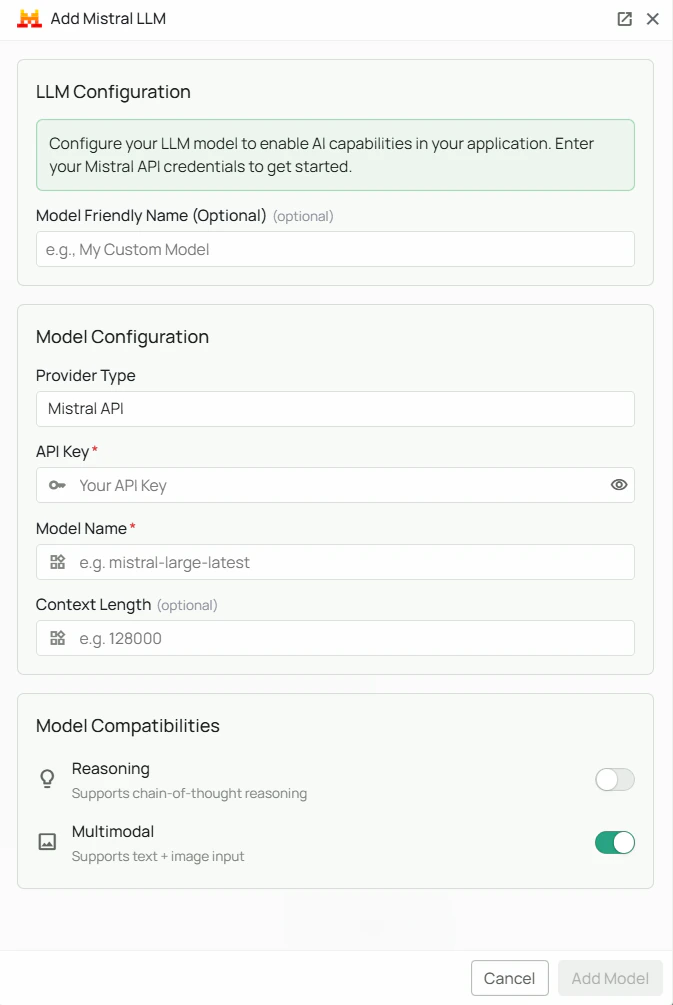
Required Fields
API Key *
The API Key is required to authenticate your requests to Mistral AI services. How to obtain an API Key:- Log in to the Mistral AI Console
- Navigate to the API Keys section
- Click on “Create new key” or use an existing key
- Copy the generated API key
Model Name *
The Model Name field defines which Mistral AI model you want to use with PipesHub. Popular Mistral AI models include:mistral-large-latest- Mistral’s most capable general-purpose model, ideal for complex tasksmistral-medium-latest- Balanced performance and cost for a wide range of use casesmistral-small-latest- Efficient and cost-effective for routine tasks
- For complex reasoning and maximum capabilities, select
mistral-large-latest - For balanced performance, select
mistral-medium-latest - For efficient, cost-effective tasks, select
mistral-small-latest - Check Mistral’s model documentation for the most up-to-date options
Optional Fields
Context Length
Specify the maximum context window for your model. For example, 128000 tokens (128K) for most Mistral models. Context length examples:- Mistral Large 3: 128000 tokens (128K)
- Mistral Medium 3.1: 128000 tokens (128K)
- Mistral Small 3.2: 128000 tokens (128K)
Multimodal Support
Mistral models support multimodal capabilities, enabling both text and image processing. Enable this option if you want to use image understanding features in your application.Reasoning
Enable this option if your selected model supports advanced reasoning capabilities. This allows for more complex problem-solving and logical inference.Configuration Steps
As shown in the image above:- Click Configure on the Mistral provider card
- Enter your Mistral AI API Key in the designated field (marked with *)
- Specify your desired Model Name (marked with *)
- (Optional) Configure the Context Length for your use case
- (Optional) Enable Multimodal support if needed
- (Optional) Enable Reasoning capabilities if supported by your model
- Click Add Model to save and validate your credentials
Both the API Key and Model Name are required fields to successfully configure Mistral AI integration.
Usage Considerations
- API usage will count against your Mistral AI API quota and billing
- Different models have different pricing - check Mistral AI’s pricing page for details
- Model capabilities vary - more powerful models may provide better results but at higher cost
- Mistral AI provides:
- Advanced reasoning capabilities with Mixture-of-Experts architecture
- Multimodal understanding (text and images)
- Support for long contexts (up to 128K tokens)
- Open-weight models for transparency and flexibility
- State-of-the-art performance across various tasks
Troubleshooting
- If you encounter authentication errors, verify your API key is correct and has not expired
- Ensure your Mistral AI account has billing set up if you’re using paid service tiers
- Check that the model name is spelled correctly and available
- Verify that your API key has access to the specific model you’ve selected
- If you’re experiencing rate limits, check your API usage in the Mistral AI Console dashboard
- For multimodal features, ensure your model supports image inputs