
Ollama Configuration
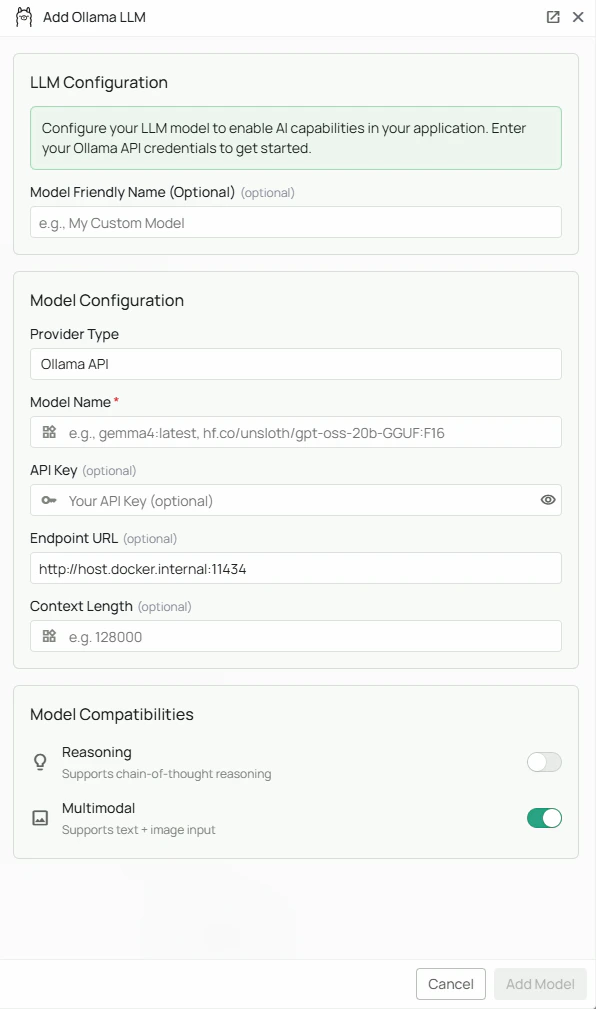
Required Fields
Model Name *
The Model Name field defines which Ollama model you want to use with PipesHub. Popular Ollama models include:gemma4:latest- Google’s Gemma 4 modelhf.co/unsloth/gpt-oss-20b-GGUF:F16- A Hugging Face-hosted GGUF model
- For multimodal capabilities (text + images), select models with vision support
- Check Ollama’s model library for the complete list of available models
Optional Fields
Endpoint URL
The Endpoint URL specifies where your Ollama instance is running. Defaults tohttp://host.docker.internal:11434 if left blank.
Common configurations:
http://host.docker.internal:11434- For accessing Ollama from within a Docker container (default)https://your-server-domain- For remote Ollama instances
11434 by default.
Note: Ensure your Ollama instance is running and accessible at the specified endpoint before configuring PipesHub.
API Key
The API Key field is optional for Ollama configurations. Most local Ollama instances do not require authentication. When to use:- If you’ve configured authentication on your Ollama instance
- When connecting to a secured remote Ollama server
- For enterprise deployments with access control
Advanced Options
Multimodal Support
Enable the Multimodal checkbox if your selected model supports both text and image inputs. Multimodal-capable models include:qwen3-vl:8b
- PipesHub can send both text and image data to the model
- Supports use cases like image analysis, visual question answering, and document understanding
Reasoning
Enable the Reasoning checkbox if your selected model has enhanced reasoning capabilities. When enabled:- The model will be used for tasks requiring complex logical reasoning
- Better performance on multi-step problem solving
- Enhanced analytical capabilities
Configuration Steps
As shown in the image above:- Click Configure on the Ollama provider card
- Enter your Model Name (marked with *) — e.g.,
gemma4:latestorhf.co/unsloth/gpt-oss-20b-GGUF:F16 - (Optional) Specify your Endpoint URL — defaults to
http://host.docker.internal:11434 - (Optional) Enter an API Key if your Ollama instance requires authentication
- (Optional) Check “Multimodal” if your model supports text + image processing
- (Optional) Check “Reasoning” if your model has enhanced reasoning capabilities
- Click Add Model to save and validate your credentials
Model Name is the only required field. The endpoint defaults to http://host.docker.internal:11434 if left blank. No API key is required for a standard local Ollama installation.
Prerequisites
Before configuring Ollama in PipesHub, ensure you have:-
Ollama installed on your machine or server
- Download from ollama.com
- Follow installation instructions for your operating system
-
Model downloaded - Pull your desired model:
-
Ollama running - Start the Ollama service:
- Network accessibility - Ensure PipesHub can reach your Ollama endpoint
Usage Considerations
Advantages of Ollama
- Privacy: All processing happens locally or on your infrastructure
- Cost-effective: No API usage fees or quotas
- Customizable: Full control over model selection and configuration
- Offline capable: Works without internet connectivity (after initial model download)
- No rate limits: Process as many requests as your hardware can handle
System Requirements
- Sufficient RAM (varies by model - typically 8GB minimum, 16GB+ recommended)
- Modern CPU or GPU for optimal performance
- Adequate disk space for model storage (models range from 2GB to 40GB+)
Performance Tips
- Use GPU acceleration when available for faster inference
- Choose smaller models for quicker responses if your use case allows
- Consider quantized models (e.g.,
llama2:7b-q4vsllama2:7b) for lower memory usage
Troubleshooting
Connection Issues
- Verify Ollama is running: Run
ollama listin your terminal - Check endpoint URL: Ensure the URL matches where Ollama is accessible
- Firewall settings: Verify that port 11434 is not blocked
- Docker networking: If using Docker, ensure proper network configuration for
host.docker.internal
Model Issues
- Model not found: Ensure you’ve pulled the model with
ollama pull <model-name> - Out of memory: Try a smaller or quantized version of the model
- Slow performance: Consider using a GPU
Multimodal Issues
- Images not processing: Verify your selected model supports vision capabilities
- Check model documentation: Not all models support multimodal inputs
Available Models
Visit the Ollama Model Library to browse all available models, including:- Language models (LLMs)
- Code-specialized models
- Multimodal models (vision + language)
- Embedding models
- Quantized variants for efficiency