
AWS Bedrock Configuration
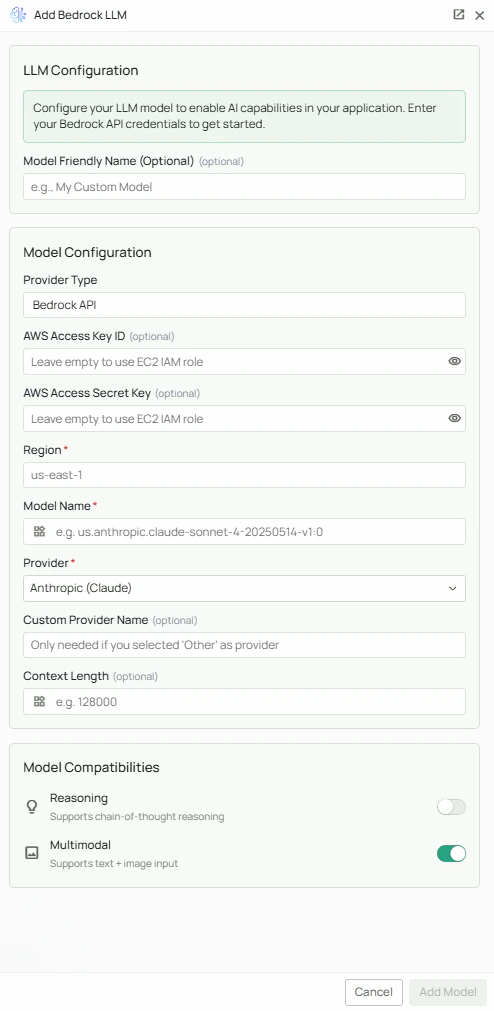
Required Fields
Region *
The AWS Region where your Bedrock service is deployed. Example:us-east-1
Common regions with Bedrock availability:
us-east-1(N. Virginia)us-west-2(Oregon)eu-west-1(Ireland)ap-northeast-1(Tokyo)ap-southeast-1(Singapore)
- Select a region close to your users for lower latency
- Ensure the models you need are available in that region
- Consider data residency requirements for your organization
Model Name *
The Model Name field specifies the model ID or ARN you want to use with PipesHub. Model ID format examples:us.anthropic.claude-sonnet-4-20250514-v1:0anthropic.claude-3-5-sonnet-20241022-v2:0amazon.titan-text-express-v1meta.llama3-70b-instruct-v1:0
arn:aws:bedrock:us-east-1:106782021127:inference-profile/apac.anthropic.claude-sonnet-4-20250514-v1:0
- Go to the AWS Bedrock Console
- Navigate to “Model access” to see available models
- Select “Base models” or “Custom models” to view model IDs
- Use the model ID as shown in the console
Provider *
Select the provider of the foundation model you’re using. This helps PipesHub properly format requests for the specific model. Available providers:- Anthropic (Claude) - Claude models
- Mistral - Mistral and Mixtral models
- Qwen - Alibaba’s Qwen models
- DeepSeek - DeepSeek models
- Cohere - Cohere Command models
- Amazon (Titan) - Amazon’s Titan models
- AI21 Labs - AI21 Labs models
- Other - For any other providers (requires Custom Provider Name)
Custom Provider Name
Only required if you selected “Other” as the provider. Enter the name of the custom provider you’re using.Optional Fields
AWS Access Key ID
The AWS Access Key ID for authenticating requests to AWS Bedrock. Example format:AKIAIOSFODNN7EXAMPLE
How to obtain your Access Key ID:
- Log in to the AWS Management Console
- Navigate to IAM (Identity and Access Management)
- Go to “Users” and select your user (or create a new one)
- Click on the “Security credentials” tab
- Under “Access keys”, click “Create access key”
- Copy the Access Key ID
AWS Access Secret Key
The secret portion of your AWS credentials. Example format:wJalrXUtnFEMI/K7MDENG/bPxRfiCYEXAMPLEKEY
How to obtain your Secret Key:
- When creating an access key in IAM, the secret key is shown only once
- Download or copy the secret key immediately when created
- If you’ve lost your secret key, you’ll need to create a new access key pair
Context Length
Specify the maximum context length for your model (e.g., 128000 for 128K tokens). This helps PipesHub optimize how it handles large documents and conversations. Note: Different models support different context lengths. Check your model’s documentation for the maximum supported context.Multimodal
Enable this option if your model supports multimodal inputs (text + image). This allows PipesHub to process both text and images when interacting with the model. Models with multimodal support include:- Claude 3.5 Sonnet, Claude 3 Opus, Claude 3 Haiku
- Amazon Titan Image models
Reasoning
Enable this option if your model supports advanced reasoning capabilities. This is particularly useful for models designed for complex problem-solving tasks.Configuration Steps
As shown in the image above:- Click Configure on the Amazon Bedrock provider card
- Specify your AWS Region (marked with *)
- Enter the Model Name (model ID or ARN) (marked with *)
- Select the appropriate Provider from the dropdown (marked with *)
- If you selected “Other” as provider, enter the Custom Provider Name
- (Optional) Enter your AWS Access Key ID — leave blank if using an EC2 IAM role
- (Optional) Enter your AWS Access Secret Key — leave blank if using an EC2 IAM role
- (Optional) Set the Context Length for your model
- (Optional) Enable Multimodal if your model supports text + image inputs
- (Optional) Enable Reasoning if your model supports advanced reasoning
- Click Add Model to save and validate your credentials
Region, Model Name, and Provider are required fields. AWS Access Key ID and Secret Key are optional when running PipesHub on EC2 with an appropriate IAM role.
IAM Permissions
Ensure your IAM user or role has the following permissions to use AWS Bedrock:Usage Considerations
- API usage will count against your AWS Bedrock quotas and billing
- Different models have different pricing - check AWS Bedrock pricing for details
- Model capabilities vary - more powerful models may provide better results but at higher cost
- AWS Bedrock provides enterprise features including:
- VPC endpoints for private connectivity
- AWS PrivateLink support
- CloudWatch integration for monitoring
- CloudTrail for auditing
- Data encryption at rest and in transit
Troubleshooting
- If you encounter authentication errors, verify your AWS Access Key ID and Secret Key are correct
- Ensure your IAM user has the necessary Bedrock permissions
- Verify the selected region has AWS Bedrock available and your desired model is accessible
- Check that you have model access enabled for the specific model in the AWS Bedrock console
- Ensure the model ID or ARN is correctly formatted
- If using an inference profile, verify the ARN is complete and accurate
- Check your AWS account’s service quotas for Bedrock