
Azure AI Configuration
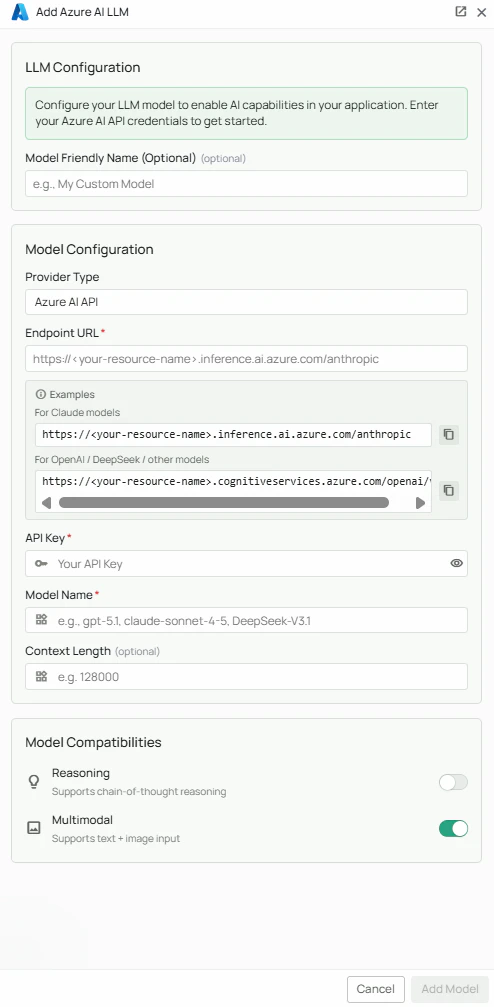
Required Fields
Endpoint URL *
The Endpoint URL is required to connect to your Azure AI Foundry deployment. The URL format varies depending on the model type you’re using. Endpoint formats by model type:- For Claude models:
https://<your-resource-name>.inference.ai.azure.com/anthropic - For other models (OpenAI, DeepSeek, etc.):
https://<your-resource-name>.cognitiveservices.azure.com/openai/v1/
- Log in to the Azure Portal
- Navigate to your Azure AI Foundry resource (formerly Azure AI Studio)
- Go to the model deployments section
- Select your deployed model and copy the endpoint URL
API Key *
The API Key authenticates your requests to your Azure AI service. How to obtain your API Key:- In the Azure Portal, navigate to your Azure AI resource
- Go to the “Keys and Endpoint” section in the left navigation
- Copy either Key 1 or Key 2 (both will work)
Model Name *
The Model Name field specifies which model you want to use with PipesHub. Popular Azure AI Foundry models include:gpt-5.1- OpenAI’s latest model for complex tasksclaude-sonnet-4-5- Anthropic’s Claude model for balanced performanceDeepSeek-V3.1- DeepSeek’s powerful reasoning model
- Visit the Azure AI Foundry model catalog
- Browse available models by capability or provider
- Use the exact model name as shown in your deployment
Optional Fields
Context Length
Specify the maximum context length for your model (e.g., 128000 for 128K tokens). This helps PipesHub optimize how it handles large documents and conversations. Note: Different models support different context lengths. Check your model’s documentation for the maximum supported context.Multimodal
Enable this option if your model supports multimodal inputs (text + image). This allows PipesHub to process both text and images when interacting with the model. Models with multimodal support include:- GPT-4o and variants
- Claude models (Sonnet, Opus)
Reasoning
Enable this option if your model supports advanced reasoning capabilities. This is particularly useful for models designed for complex problem-solving tasks. Models with reasoning support include:- DeepSeek R1
- OpenAI o1 series
Configuration Steps
As shown in the image above:- Select “Azure AI” as your Provider Type from the dropdown
- Enter your Endpoint URL in the designated field (marked with *)
- Enter your Azure AI API Key (marked with *)
- Specify your Model Name (marked with *)
- Optionally, set the Context Length for your model
- Enable Multimodal if your model supports text + image inputs
- Enable Reasoning if your model supports advanced reasoning
- Click “Add Model” to complete the setup
Endpoint URL, API Key, and Model Name are required fields. You must complete these fields to proceed with the setup.
Usage Considerations
- API usage will count against your Azure AI resource’s quota and billing
- Different models have different pricing - check Azure’s pricing page for details
- Model capabilities vary - more powerful models may provide better results but at higher cost
- Azure AI Foundry provides access to models from multiple providers with unified billing
- Enterprise features available include:
- Virtual Network support
- Role-based access control
- Content filtering
- Regional data residency
Troubleshooting
- If you encounter authentication errors, verify your API key and endpoint URL are correct
- Ensure you’re using the correct endpoint format for your model type (Claude vs. other models)
- Verify your Azure subscription is active and has sufficient quota for the selected model
- Check that the model name matches the exact name from your Azure AI deployment
- Ensure your IP address is allowed if you’ve configured network access restrictions
- For Claude models, verify you have access to the Anthropic models in Azure AI Foundry