

MariaDB
Tables sync from a MariaDB database
ReadyDatabase
Overview
The MariaDB connector indexes schema metadata, table contents from a MariaDB database so your AI assistant can answer questions over structured data alongside your other knowledge sources.Looking for query execution from agents (run SQL on demand, no indexing)? Use the MariaDB Toolset instead. Connector = sync & search. Toolset = run actions.
What Gets Synced
Configuration Guide
Step 1: Set up MariaDB
Step 1: Set up MariaDB
If you already have a MariaDB server, skip this step.This starts MariaDB on Enter your password when prompted. If you reach the The connector also reads schema metadata from
Option A: Docker (recommended for testing)
Run a local MariaDB container:localhost:3306 with:- Username:
root - Password:
rootpass - Database:
test_db
Option B: Install locally
Install MariaDB from the official MariaDB downloads page and follow the installer for your OS. After install, start the server and note yourhost, port, username, and password.Verify the connection
MariaDB [(none)]> prompt, the server is ready.Create a user for the connector
Create a dedicated read-only user for PipesHub. Run these asroot (or any user with CREATE USER and GRANT privileges) against the target database:information_schema, which is available to any authenticated user by default.Replace
pipeshub_user, a_strong_password, and test_db with your own values. Use 'pipeshub_user'@'localhost' instead of '%' if PipesHub connects from the same host as the database.Step 2: Configure the connector in PipesHub
Step 2: Configure the connector in PipesHub
- In PipesHub, open Connector Settings.
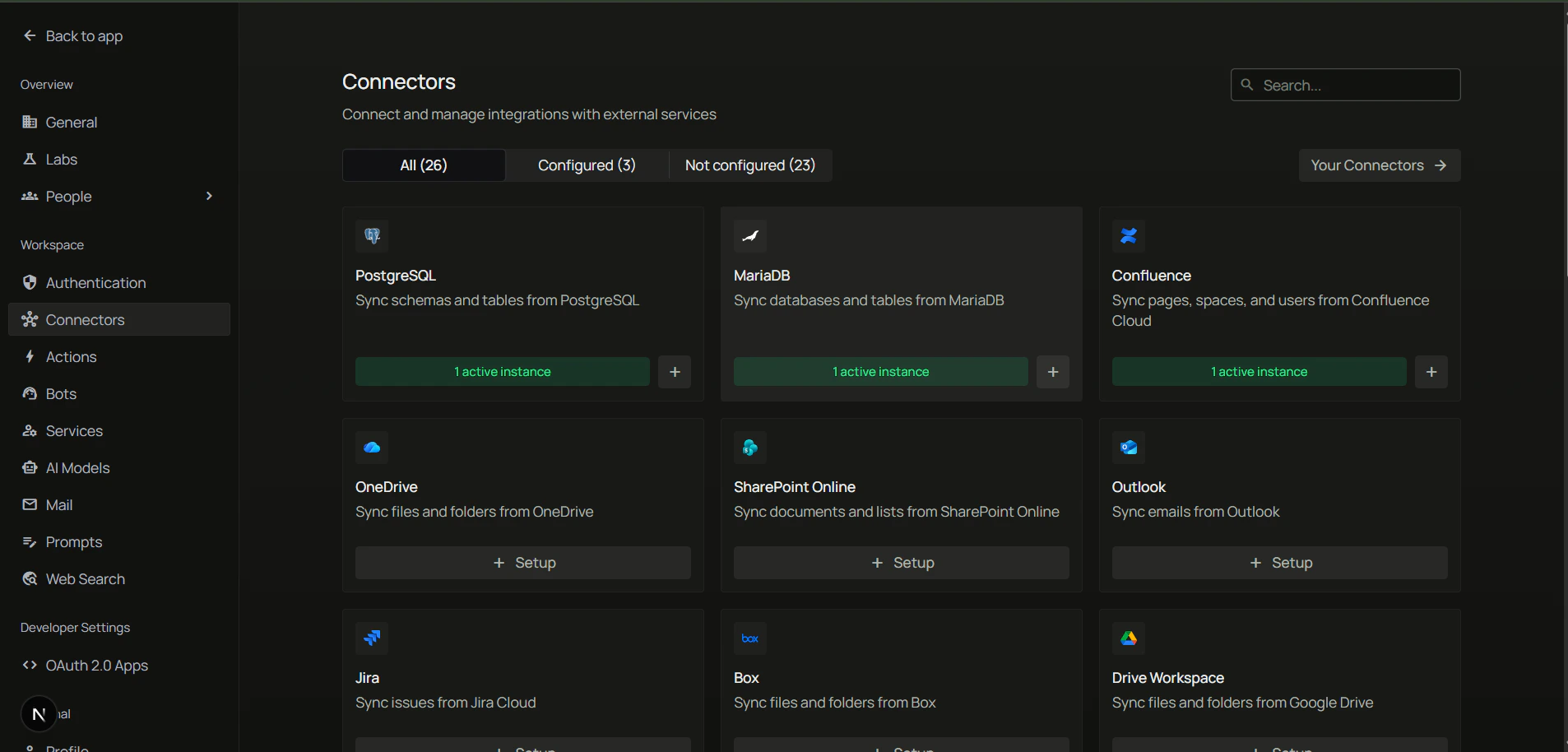
- In the Available tab, find the MariaDB card and click Configure.
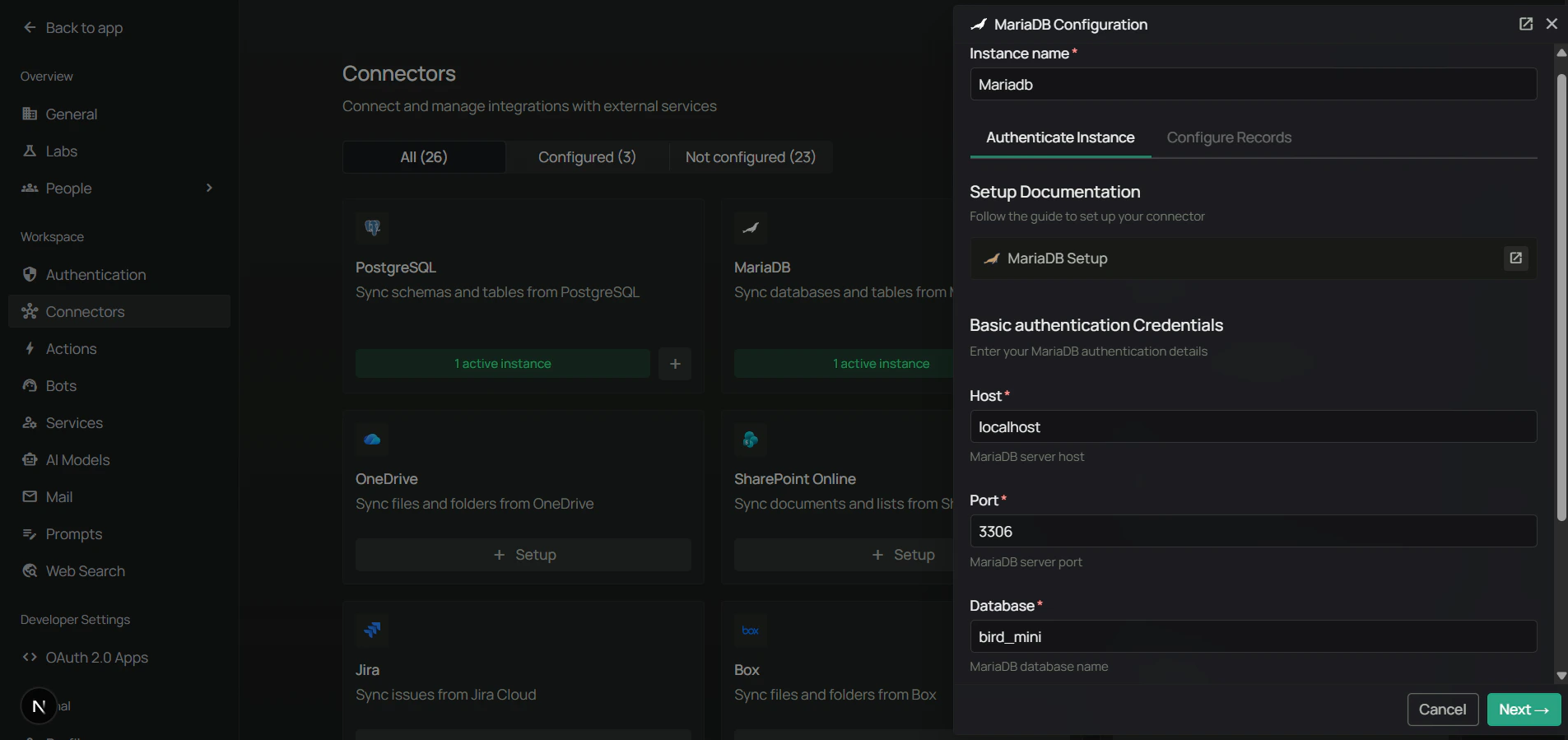
- Fill in the connection details:
Step 3: Configure sync filters
Step 3: Configure sync filters
Sync filters control what is pulled from MariaDB. Anything excluded by a filter is never downloaded.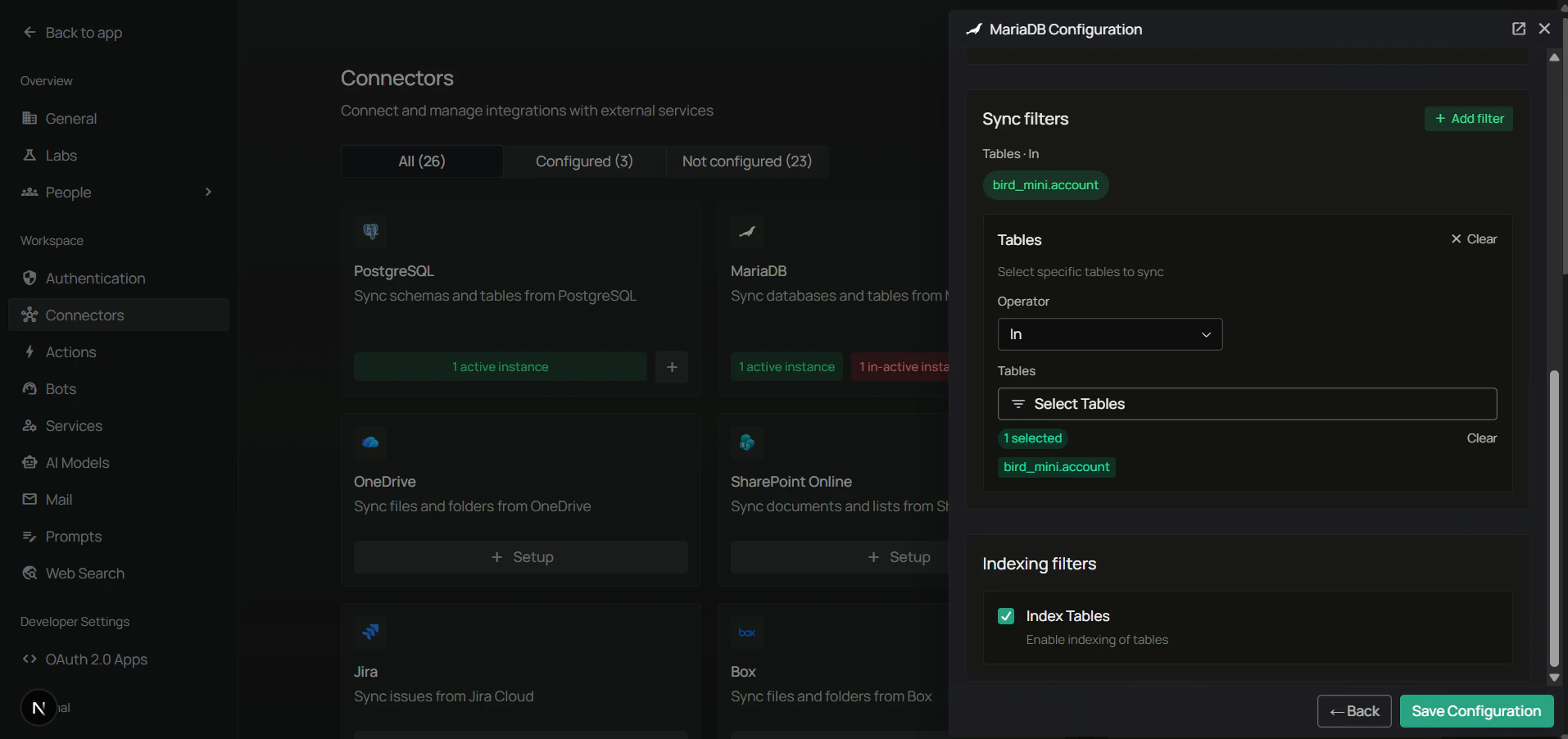
Use Max rows per table to keep initial syncs fast on large tables, or to cap the amount of data exposed to your assistant.
Step 4: Choose a sync strategy and save
Step 4: Choose a sync strategy and save
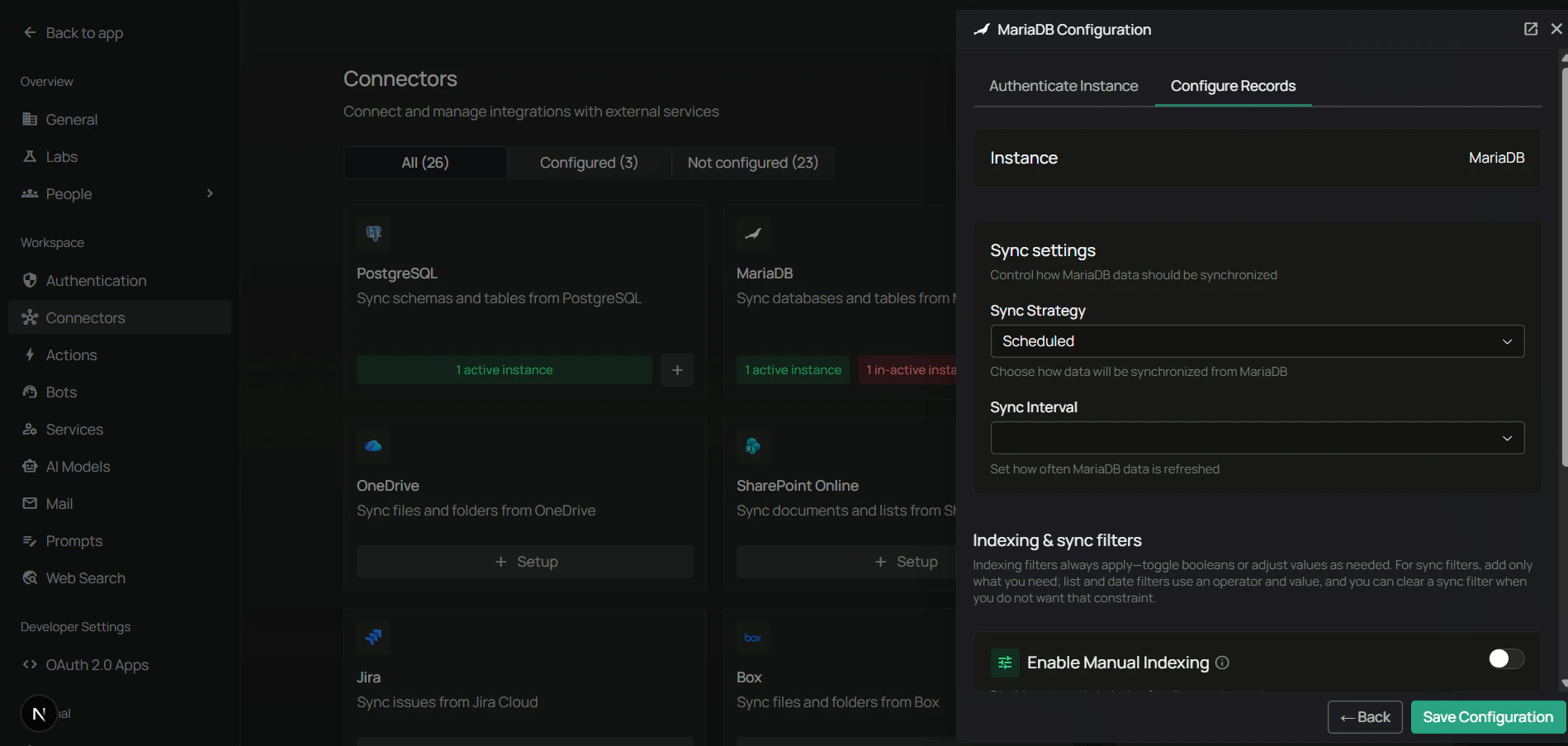
- Pick Scheduled or Manual sync.
- If scheduled, set the Sync interval (default: 60 minutes).
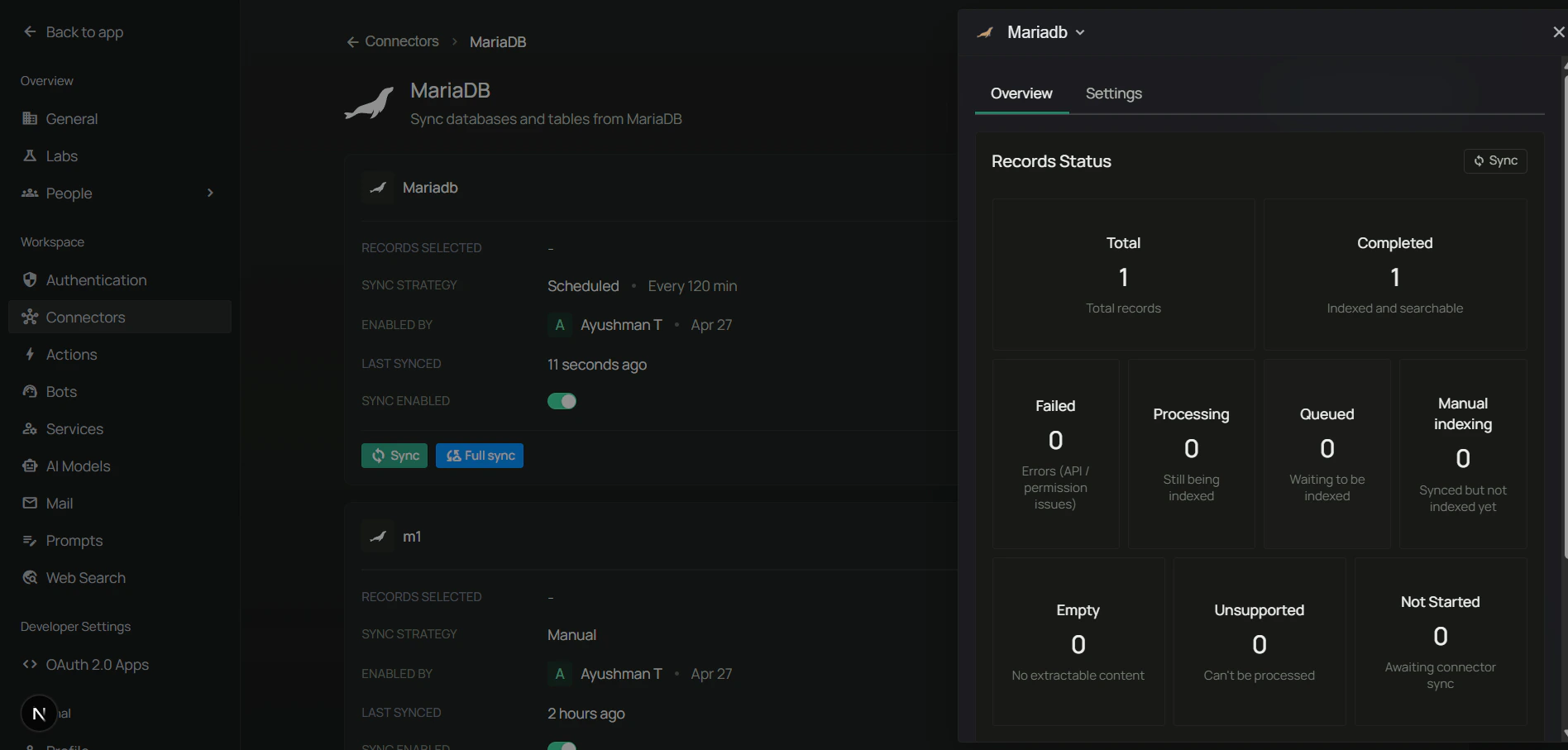
- Click Save to enable the connector.
FAQ
What privileges does the MariaDB user need?
What privileges does the MariaDB user need?
For read-only sync, The connector also reads schema metadata from
SELECT on the target database is enough:information_schema, which is available to any authenticated user by default.Can I connect to a remote MariaDB server?
Can I connect to a remote MariaDB server?
Yes. Use the public host and port of your MariaDB server. Make sure the server allows connections from the PipesHub deployment and that the user has the required privileges.
How do I keep large tables from blowing up the sync?
How do I keep large tables from blowing up the sync?
Use Max rows per table in sync filters to cap how many rows are fetched per table, and use the Tables filter to only sync the tables you actually need.
What's the difference between this connector and the MariaDB toolset?
What's the difference between this connector and the MariaDB toolset?
- Connector indexes your table and rows so they can be searched alongside your other knowledge.
- Toolset lets agents run live SQL against MariaDB at query time without indexing.
Do tables show up in search if I left the public URL blank when installing?
Do tables show up in search if I left the public URL blank when installing?
Yes. Search, chat and agents find tables either way, and a search result still opens the table in PipesHub. Only the link on a chat or agent citation comes from the public URL (
FRONTEND_PUBLIC_URL in .env), so without it those citations have no link to open.