

MariaDB Toolset
Schema introspection and SQL execution on MariaDB
ReadyDatabase
Overview
The MariaDB toolset lets AI agents read schema information and run SQL queries against a MariaDB database. Use it to answer analytical questions, explore table structures, and fetch data in natural language.Key Capabilities
- Ask questions about your data in plain English
- Run complex queries, joins, and aggregations across tables
- Explore the database structure and relationships between tables
- Generate reports and summaries from live data
- Download query results as CSV when they are too large to render in chat
Available Tools
Configuration Guide
Step 1: Set up MariaDB (for testing)
Step 1: Set up MariaDB (for testing)
If you already have a MariaDB server, skip this step.This starts MariaDB on Enter your password when prompted. If you reach the
Option A: Docker (recommended for testing)
Run a local MariaDB container:localhost:3306 with:- Username:
root - Password:
rootpass - Database:
test_db
Option B: Install locally
Install MariaDB from the official MariaDB downloads page and follow the installer for your OS. After install, start the server and note yourhost, port, username, and password.Verify the connection
MariaDB [(none)]> prompt, the server is ready.Step 2: Create the toolset (admin only)
Step 2: Create the toolset (admin only)
Only an admin creates the MariaDB toolset instance. Once created, every user in the workspace can authenticate with their own database credentials.
Navigate to Actions
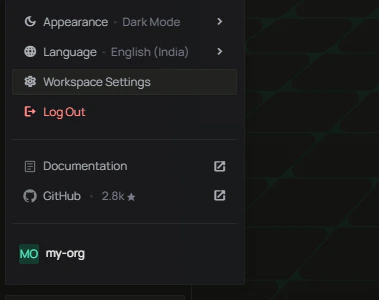
- Click your profile icon and select Workspace Settings
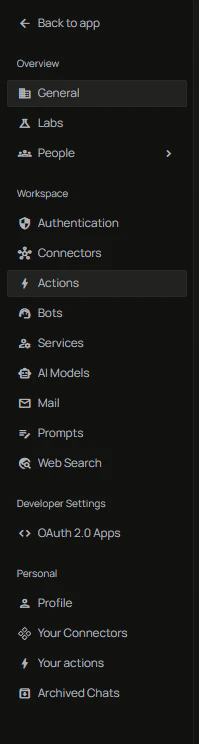
- In the sidebar, click Actions
Find MariaDB and click Setup
Locate the MariaDB card in the list of available toolsets and click + Setup.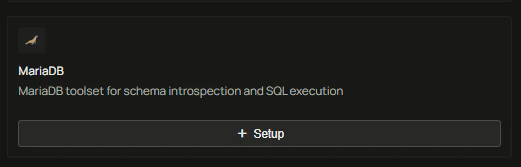
Configure the instance
Fill in the action configuration form:Click Create to save.
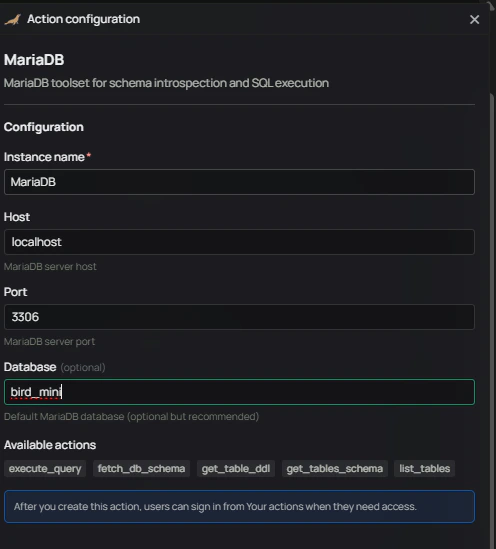
The admin only provides connection details (host, port, database). Username and password are entered by each user when they authenticate.
Step 3: Authenticate (each user)
Step 3: Authenticate (each user)
After the admin creates the toolset, every user must authenticate with their own MariaDB username and password before using it.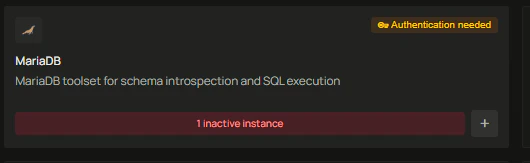
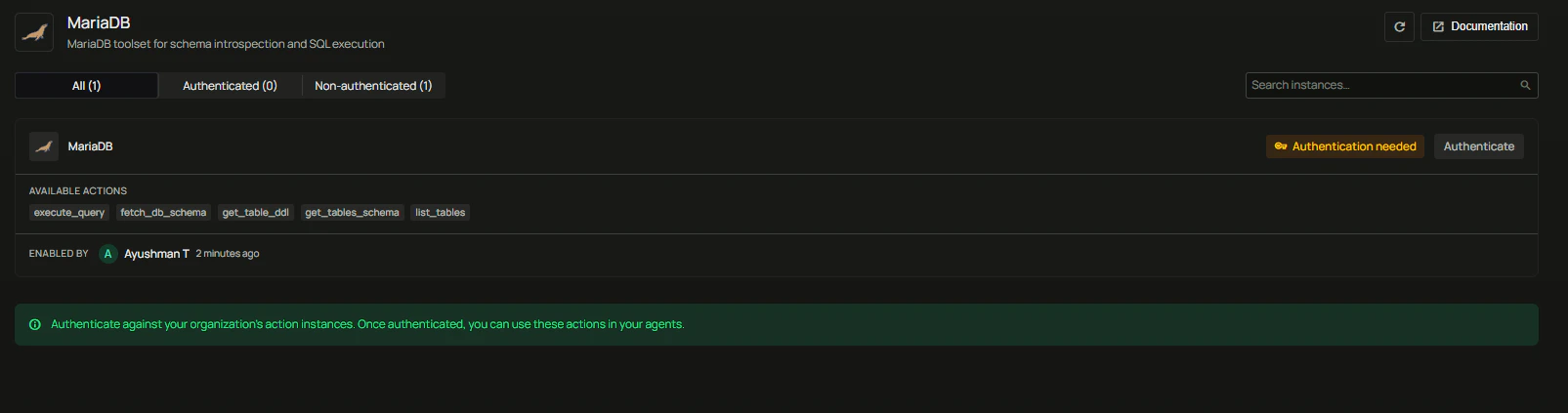
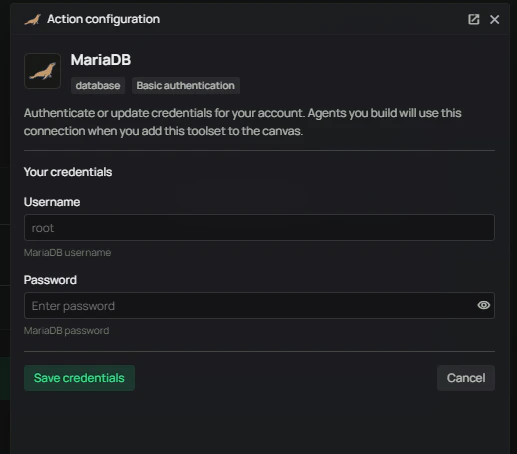

Find the MariaDB card
In Workspace Settings > Actions, locate the MariaDB card. It will show 1 inactive instance, meaning the toolset is set up but not yet authenticated for your user.Open the MariaDB toolset
Click the card to open it. You will see the instance marked as Authentication needed.Enter your credentials
Click Authenticate and enter your MariaDB Username and Password, then click Save credentials.Step 4: Use MariaDB in an agent
Step 4: Use MariaDB in an agent
- Open the Agent Builder
- In the left sidebar, expand Tools
- Drag the MariaDB toolset onto the canvas
- Connect it to your agent
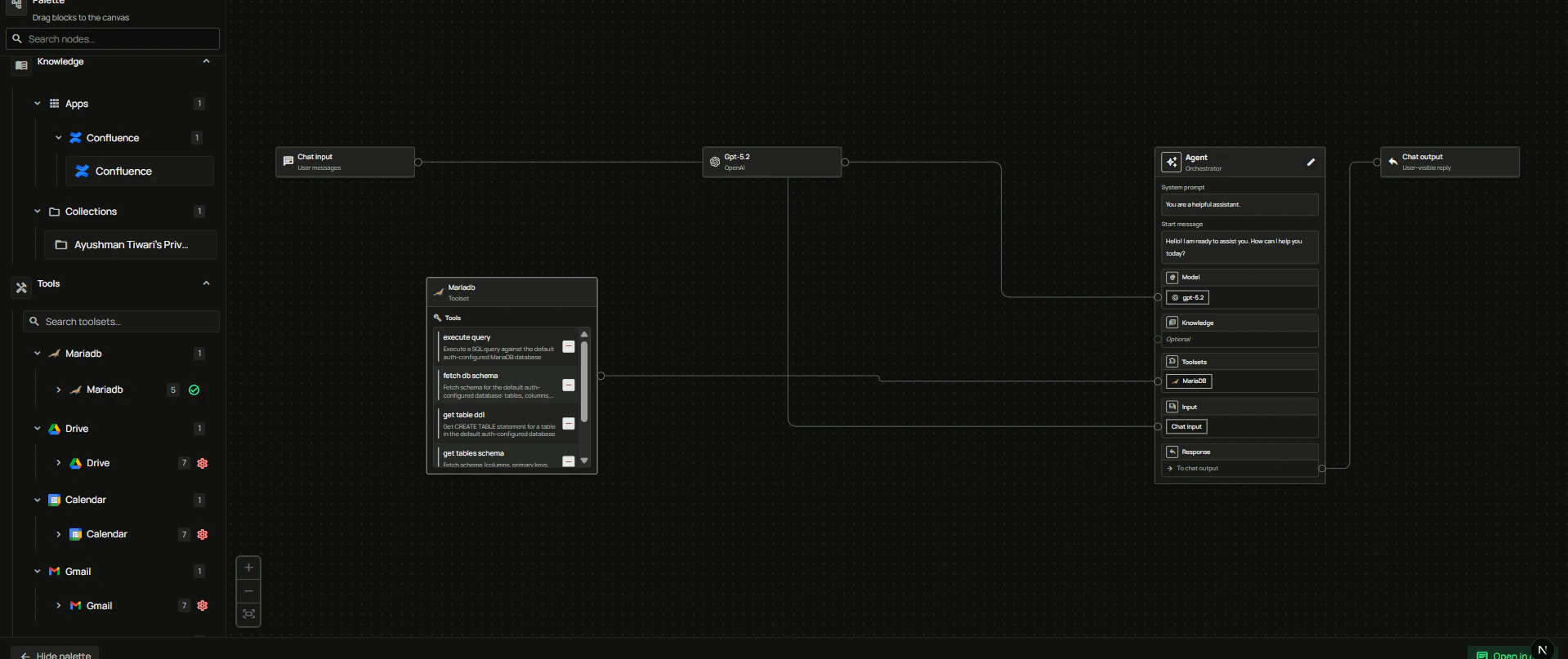
FAQ
Who creates the toolset and who authenticates?
Who creates the toolset and who authenticates?
- Admin creates the toolset instance with connection details (host, port, database).
- Each user authenticates separately with their own MariaDB username and password.
Can I connect to a remote MariaDB server?
Can I connect to a remote MariaDB server?
Yes. Use the public host and port of your MariaDB server. Make sure the server allows connections from the PipesHub deployment and that the user account has the required privileges.
What privileges should the MariaDB user have?
What privileges should the MariaDB user have?
Grant the minimum privileges required for your use case. For read-only analytics,
SELECT on the relevant database is usually enough:Can I change the database after creating the toolset?
Can I change the database after creating the toolset?
Yes. An admin can update the instance configuration from Workspace Settings > Actions. Users may need to re-authenticate after a change.
Usage Tips
How do I list all tables? Ask the agent “list all tables in the database”. How do I explore a table’s structure? Ask “show me the schema for theorders table” or “get the CREATE TABLE for customers”.
How do I run a query?
Describe the question in natural language, for example: “what are the top 10 customers by total order value?” — the agent will generate and run the SQL.
How do I limit the scope of a query?
Mention a specific table or time range in your question, e.g. “from the events table in the last 30 days”.