

ClickUp Toolset
Tasks, lists, docs, and team collaboration
ReadyProject Management
Overview
The ClickUp toolset enables AI agents to interact with your ClickUp workspace. Agents can create and update tasks, manage spaces, folders, and lists, add comments and checklists, and author docs and pages — all through natural language. It uses OAuth 2.0 so agents act on behalf of the authenticated user in the Workspaces they consent to.Key Capabilities
- Task management - Create, update, search, and filter tasks across the workspace
- Workspace structure - Create and browse spaces, folders, and lists
- Comments and replies - Post comments on tasks and reply in threads
- Checklists - Add checklists and check/uncheck items with assignees
- Docs and pages - Create docs, add pages, and edit content in markdown
- Deep linking - Every entity returned includes a
web_urlback to ClickUp
Available Tools
Tasks
Workspace Structure
Comments
Checklists
Docs and Pages
Auth
Configuration Guide
Setup
Setup
Step 1: Open the ClickUp API settings
- Sign in to ClickUp as a Workspace Owner or Admin.
- In the top-left corner, click Settings.
- Scroll to the Integrations & ClickApps section and click ClickUp API.
- On the ClickUp API page, switch from the API Tokens tab to the ClickUp API Settings tab.
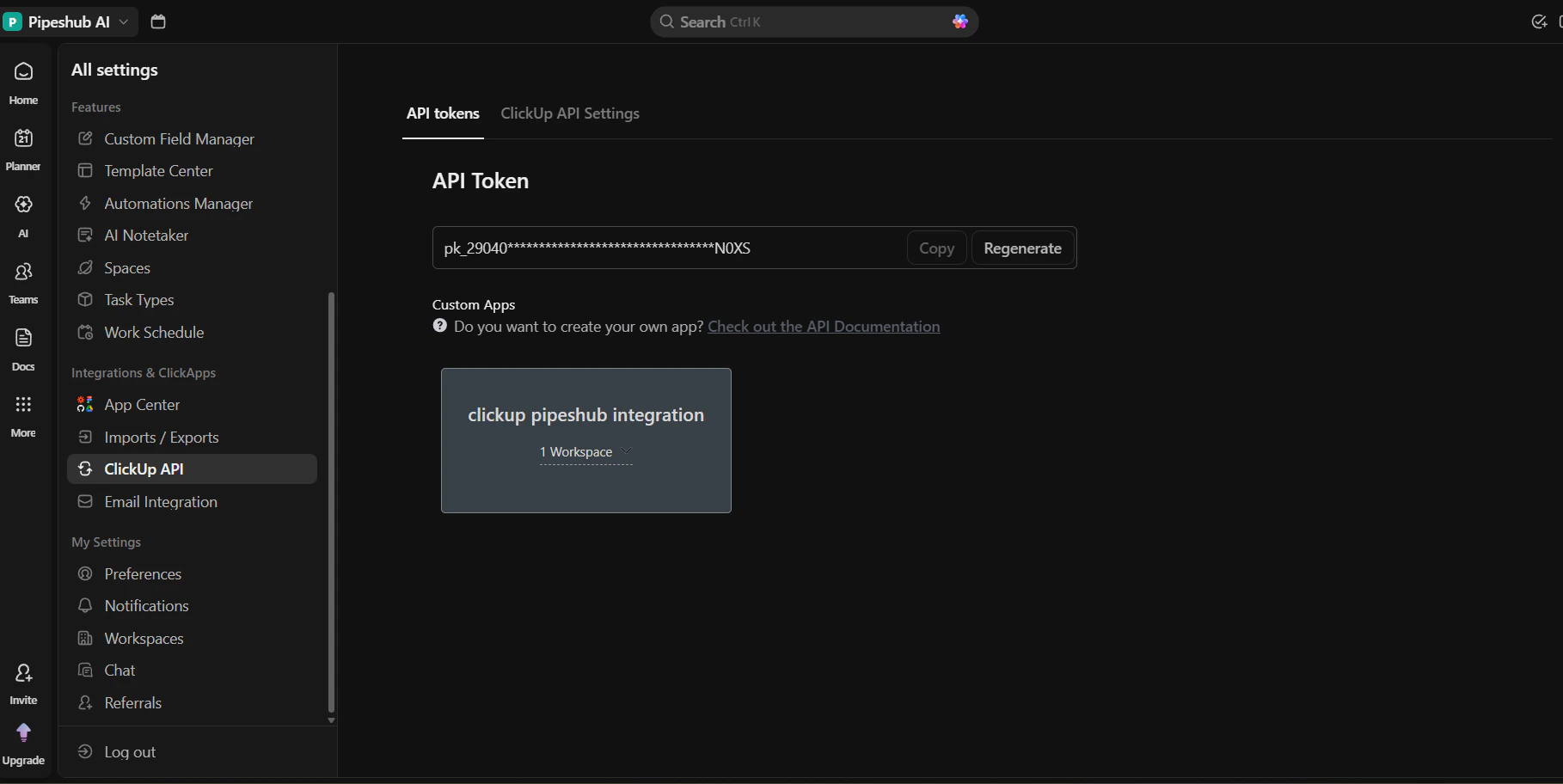
If ClickUp API or the ClickUp API Settings tab is not visible, your role doesn’t permit creating OAuth apps. Ask a Workspace Owner or Admin to complete this step.
Step 2: Get the Redirect URI from PipesHub
Before creating the app, copy the Redirect URI from PipesHub so the values match exactly.- In PipesHub, go to Workspace Settings → Actions.
- Find ClickUp in the list and click + Setup (or Configure).
- Copy the Redirect URI shown in the dialog.
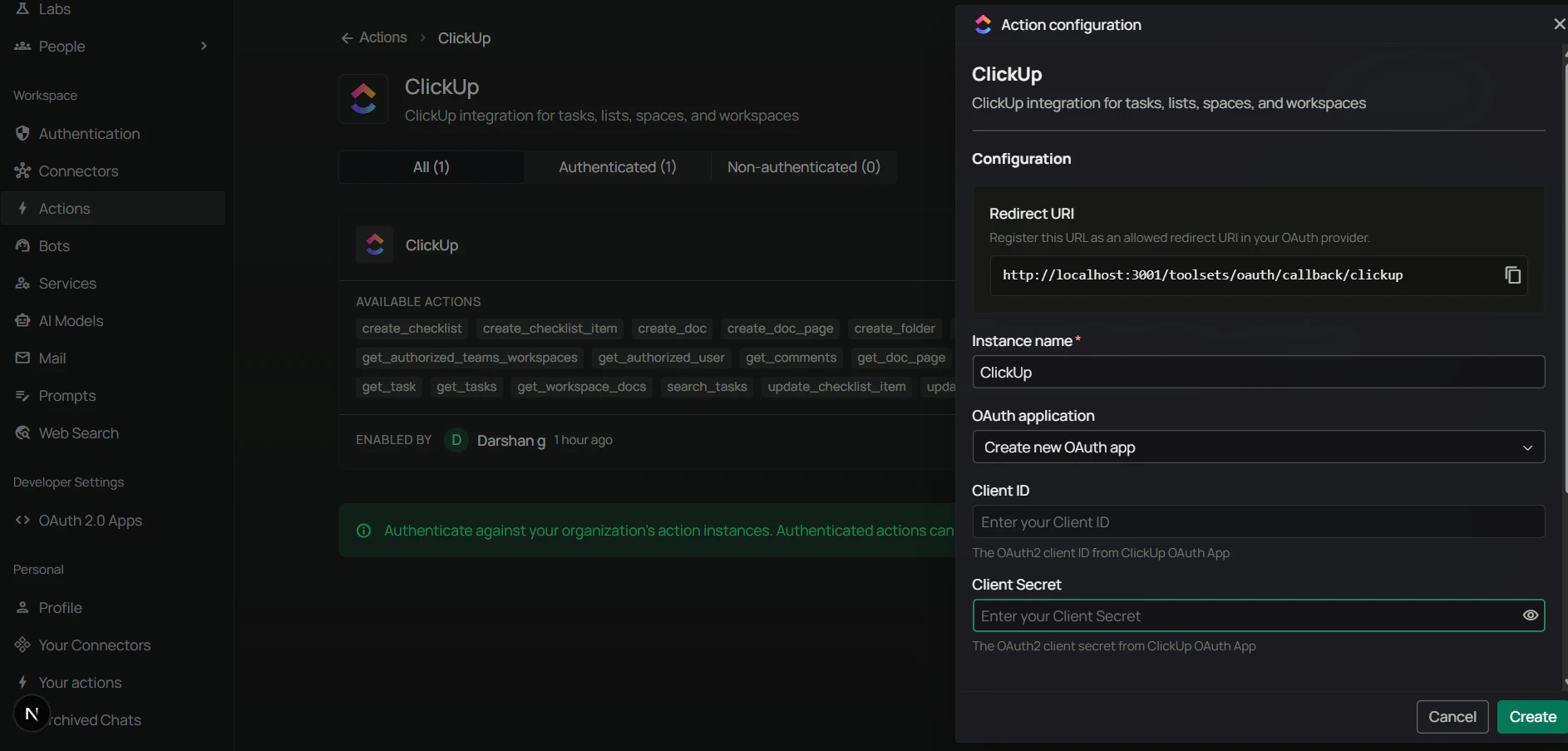
Step 3: Create the OAuth app
- Back on the ClickUp API Settings tab, click Create an App.
- In the dialog that opens, enter an App Name (for example,
PipesHub ClickUp Toolset). - Paste the Redirect URI you copied from PipesHub into the Redirect URL field.
- Click Create App.
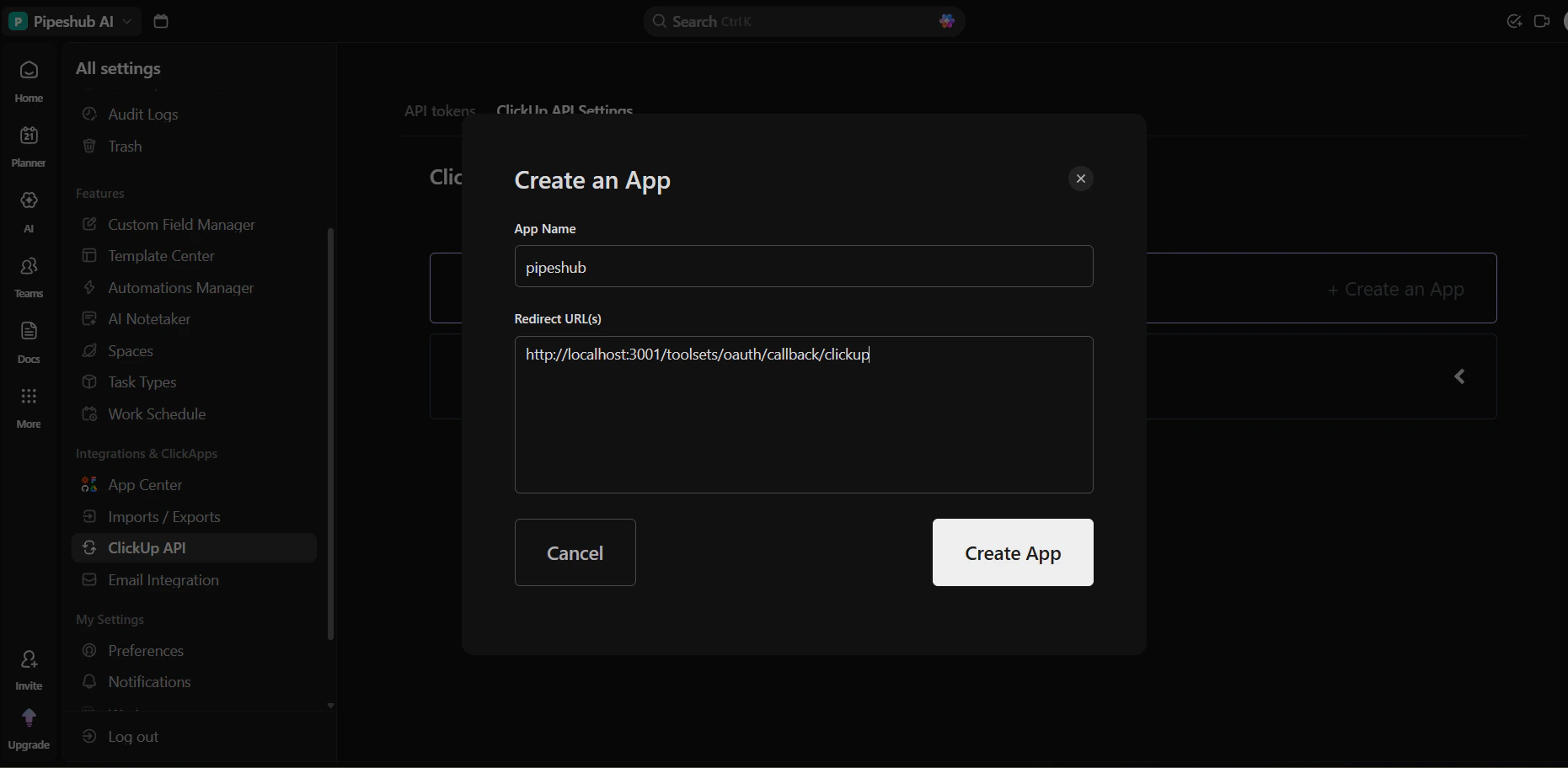
Step 4: Copy Client ID and Client Secret
After you click Create App, ClickUp lists the app on the ClickUp API Settings tab with its Client ID and Client Secret.- Client ID — used as Client ID in PipesHub.
- Client Secret — used as Client Secret in PipesHub. Copy it immediately; you cannot view it again later.
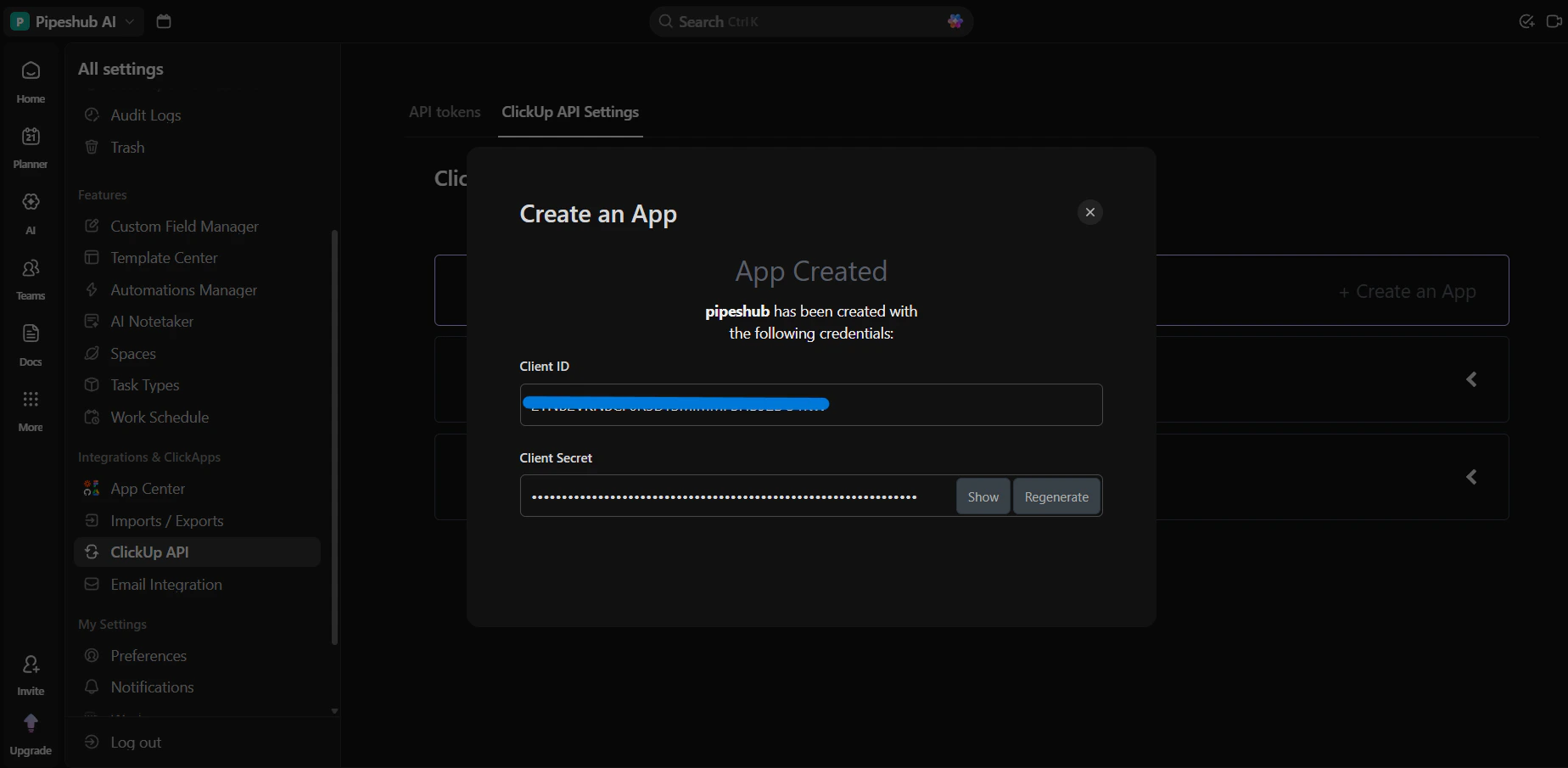
Step 5: Permissions and scopes
ClickUp OAuth does not use granular scopes. When a user authorizes the app, they choose one or more Workspaces to grant access to, and the access token inherits whatever permissions that user already has in those Workspaces. There is no scope selection step on either side.
Step 6: Configure the ClickUp toolset in PipesHub
- In PipesHub, return to Workspace Settings → Actions.
- Find ClickUp and open setup / configuration (+ Setup or Configure).
- Confirm the Redirect URI in the dialog matches the Redirect URL you registered in ClickUp in Step 3.
- Paste your Client ID and Client Secret, then save the instance.
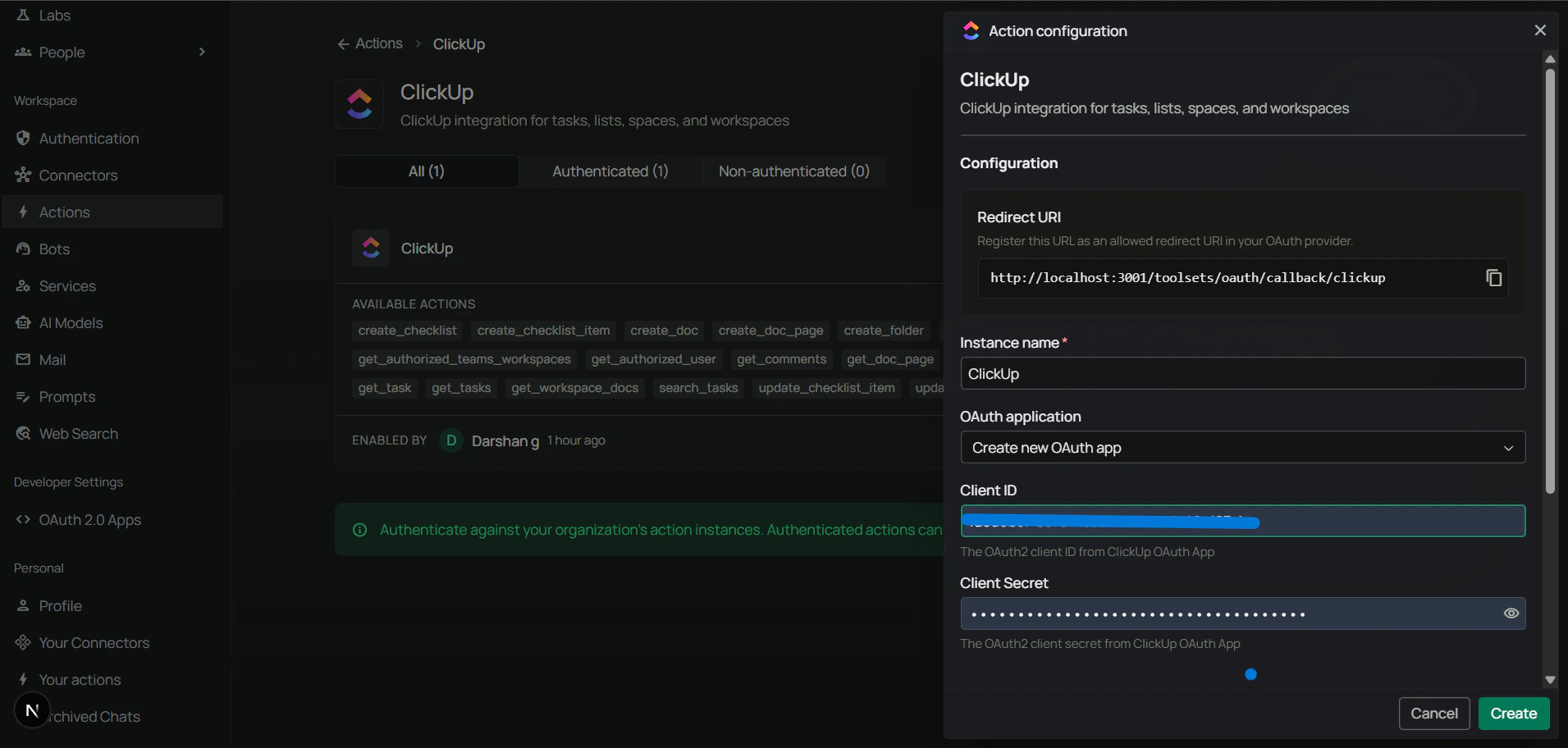
Step 7: Authenticate the ClickUp toolset
Authentication uses the same OAuth flow in either location:- Admins can authenticate the shared instance directly under Workspace Settings → Actions.
- Users can authenticate their own personal instance under Your actions (in the Personal section of the sidebar).
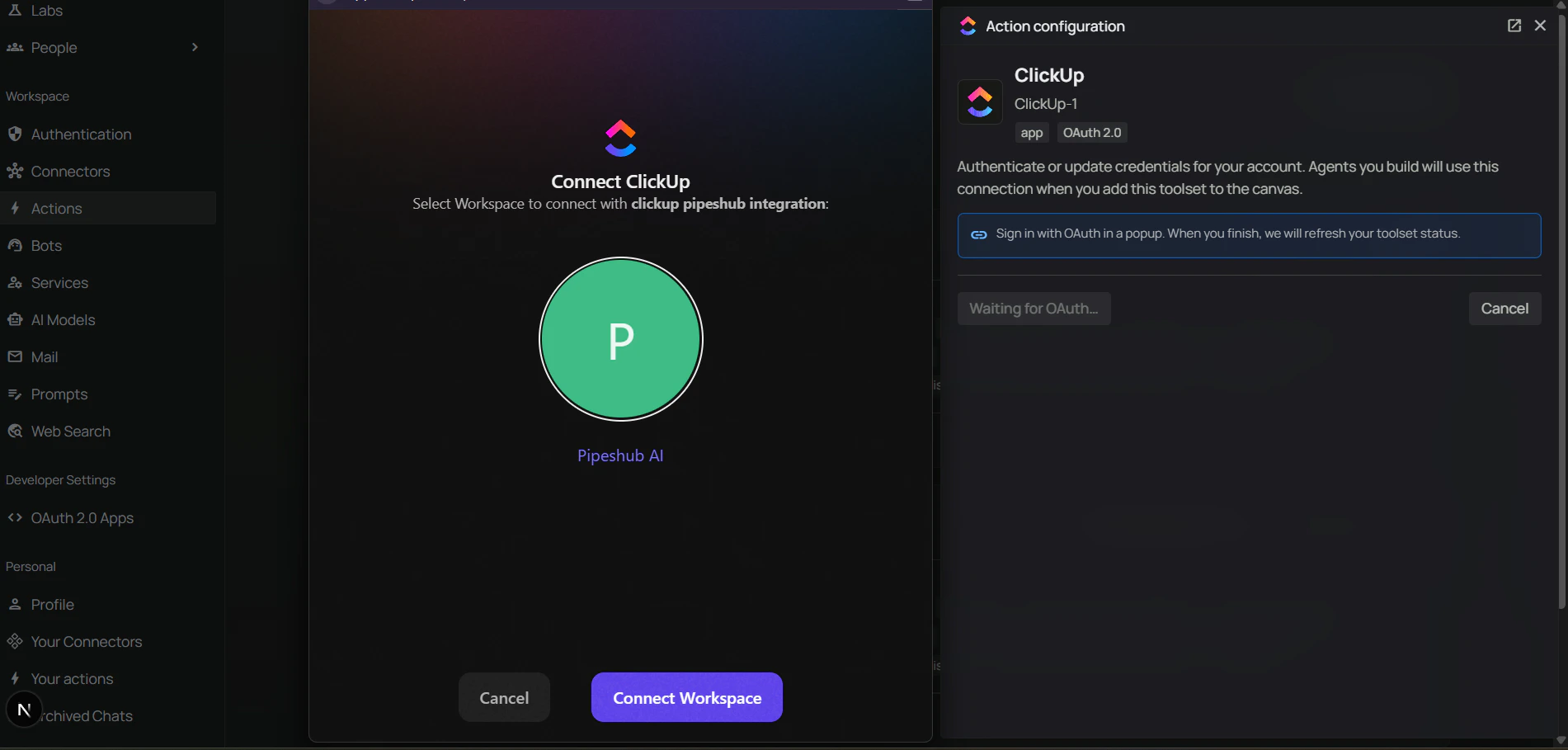
- On the ClickUp tile (in Actions or Your actions), click Authenticate with OAuth.
- A popup opens to ClickUp’s authorization page — select the Workspace(s) to connect and click Connect Workspace.
- The popup closes and the ClickUp tile now shows Authenticated status.
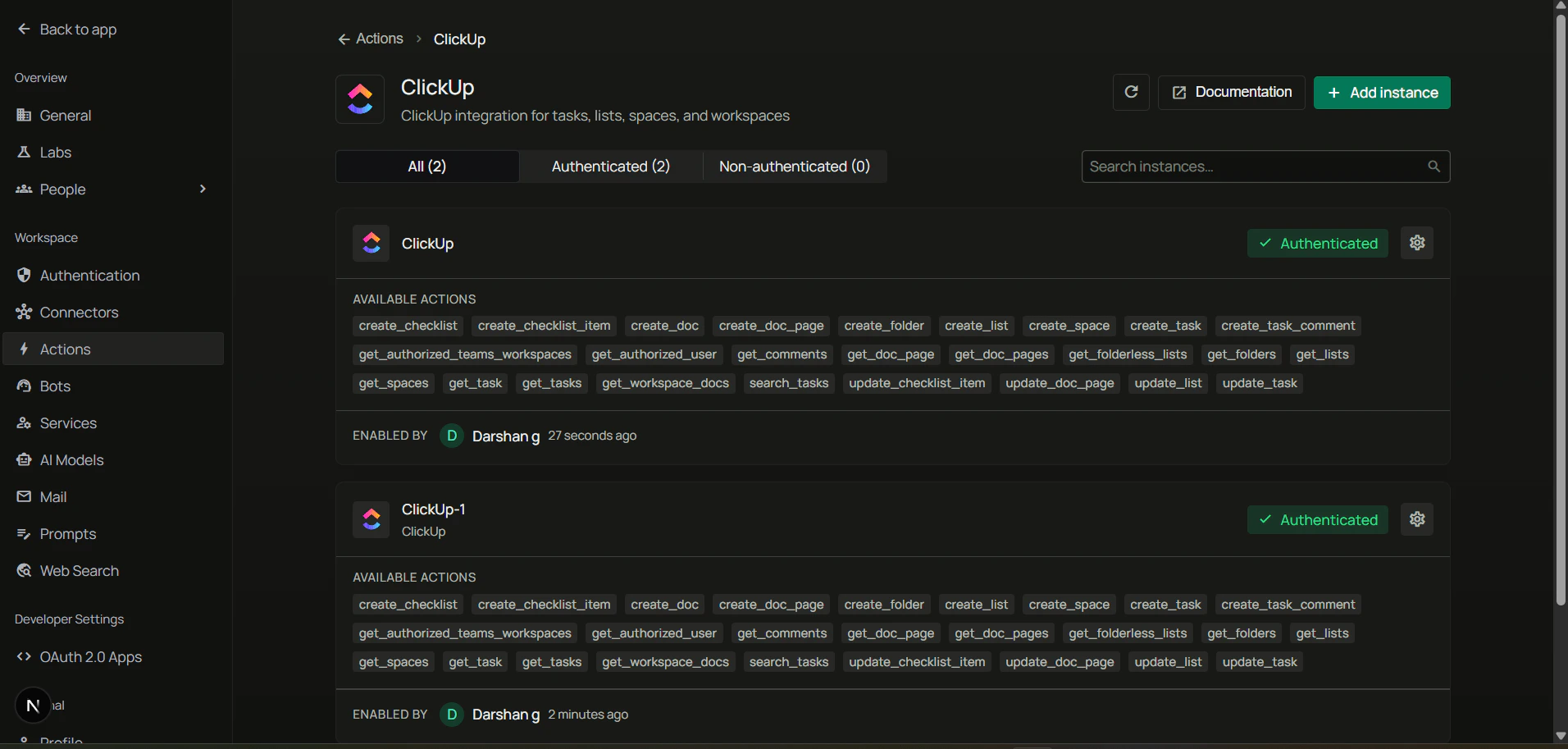
Step 8: Add ClickUp to an agent
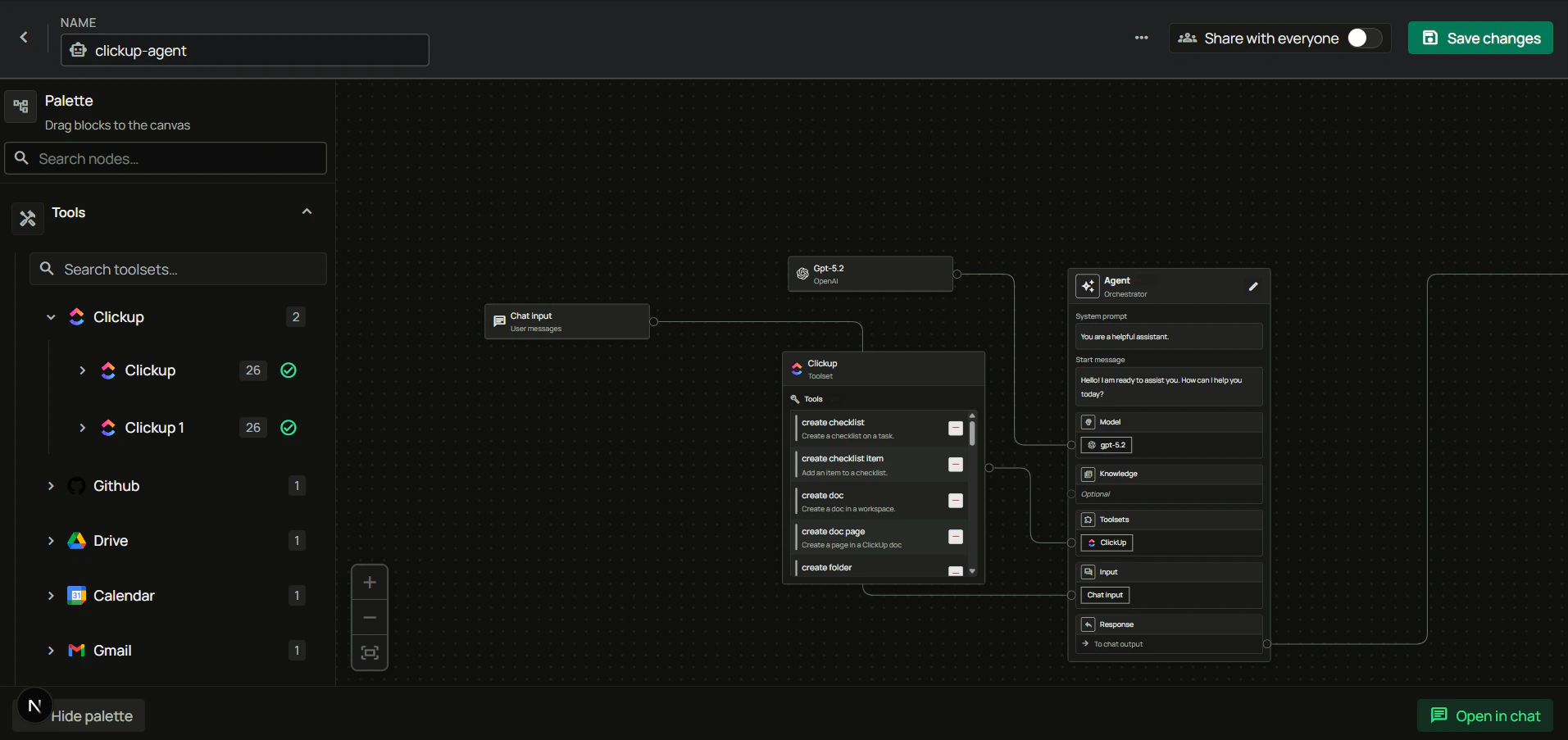
- Go to the Home page.
- Next to Agents, click + to create a new agent.
- Give the agent a name, drag the ClickUp toolset onto the canvas, connect it to the Agent Core node with your model and chat input/output, then create the agent.
FAQ
Why doesn't ClickUp ask me to choose scopes?
Why doesn't ClickUp ask me to choose scopes?
ClickUp’s OAuth implementation does not support granular scopes. Instead of picking individual permissions, the authorizing user selects which Workspaces to expose to the app. The resulting token can do anything that user can do inside those Workspaces. If you want to restrict what the toolset can touch, authorize as a user with narrower Workspace permissions.
Why do I only see some of my Workspaces on the consent screen?
Why do I only see some of my Workspaces on the consent screen?
ClickUp only lists Workspaces where your account is a member. Workspaces you’ve been removed from, or that belong to other accounts, will not appear. If a Workspace you expect is missing, check that you’re signed in to ClickUp with the correct account in the same browser session.
Do I need a paid ClickUp plan?
Do I need a paid ClickUp plan?
You can create an OAuth app and authorize the toolset on any ClickUp plan. However, rate limits and some API endpoints vary by plan, so heavy usage may benefit from a higher tier.
Usage Tips
Example: Create a taskAsk your agent to “create a task in the Marketing list called Launch checklist” — it will pick the right list and file the task. You can also specify assignees, priority, due date, and description in the same sentence. Priority uses ClickUp’s four levels: Urgent, High, Normal and Low. If the agent sends a priority ClickUp doesn’t have, the task isn’t created or changed, and the agent is told the valid values instead of the priority being silently dropped. Example: Update a task
Ask to “move task abc123 to In Progress” or “set the due date on task xyz789 to next Friday”. The agent updates status, priority, dates, and assignees in place. Example: Search for tasks
Ask to “find all open tasks assigned to me due this week” or “search tasks tagged ‘bug’ updated in the last 7 days”. Example: Add a checklist
Ask to “add a QA checklist to task abc123 with items Review, Test, and Ship”. The agent creates the checklist and each item in one flow. Example: Work with docs
Ask to “create a page called Release Notes in the Engineering doc” or “append today’s standup to the Team Updates page”. ClickUp docs accept markdown directly.