
OpenAI Text to Speech Configuration
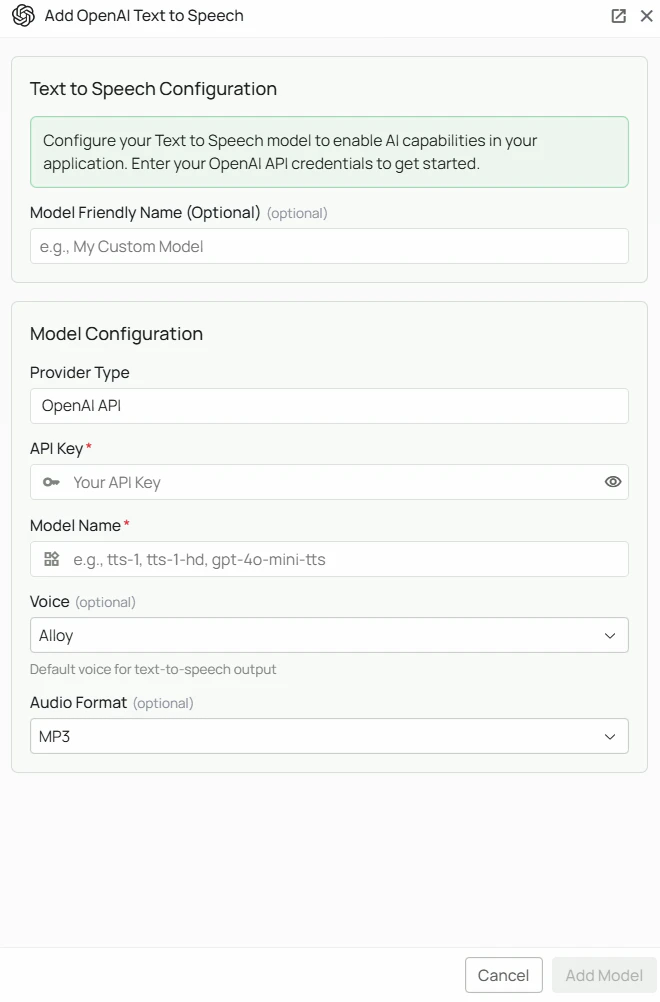
Required Fields
API Key *
The API Key is required to authenticate your requests to OpenAI’s TTS services. How to obtain an API Key:- Log in to your OpenAI account
- Navigate to the API Keys section
- Create a new secret key
- Copy the key immediately (it will only be shown once)
Model Name *
The Model Name field defines which OpenAI TTS model you want to use with PipesHub. Available OpenAI TTS models:tts-1- Standard quality TTS model optimised for real-time, low-latency applicationstts-1-hd- Higher quality TTS model optimised for audio fidelitygpt-4o-mini-tts- GPT-4o Mini powered TTS with natural, expressive speech
- For real-time voice output where speed matters, select
tts-1 - For higher audio quality, select
tts-1-hd - For the most natural and expressive speech, select
gpt-4o-mini-tts - Check OpenAI’s TTS documentation for the most up-to-date options
Optional Fields
Voice
Select the default voice used for audio output. You can change this at any time by editing the configuration. Available voices (default: Alloy):- Alloy — balanced, neutral tone
- Echo — warm, conversational tone
- Fable — expressive, storytelling tone
- Onyx — deep, authoritative tone
- Nova — energetic, upbeat tone
- Shimmer — clear, friendly tone
Audio Format
Select the output audio format for generated speech (default: MP3). Available formats:- MP3 — widely compatible, good compression (default)
- Opus — optimised for internet streaming, low latency
- AAC — good quality with broad device compatibility
- FLAC — lossless, highest quality, larger file size
- WAV — uncompressed, broad compatibility
Configuration Steps
As shown in the image above:- Click Configure on the OpenAI provider card
- Enter your OpenAI API Key in the designated field (marked with *)
- Specify your desired Model Name (marked with *)
- (Optional) Select your preferred Voice from the dropdown (default: Alloy)
- (Optional) Select your preferred Audio Format (default: MP3)
- (Optional) Set a Model Friendly Name — a human-readable label shown in the UI
- Click Add Model to save and validate your credentials
Both the API Key and Model Name are required fields to successfully configure OpenAI TTS integration.
Usage Considerations
- Each TTS request will count against your OpenAI account’s quota and billing
- Different models have different pricing — check OpenAI’s pricing page for details
- Higher quality models (
tts-1-hd) cost more per character than standard models - Longer texts require more tokens and cost proportionally more
Troubleshooting
- If you encounter authentication errors, verify your API key is correct and has not expired
- Ensure your OpenAI account has billing set up
- Check that the model name is spelled correctly (e.g.
tts-1, notTTS-1) - Verify your account has access to the TTS API