
Gemini Text to Speech Configuration
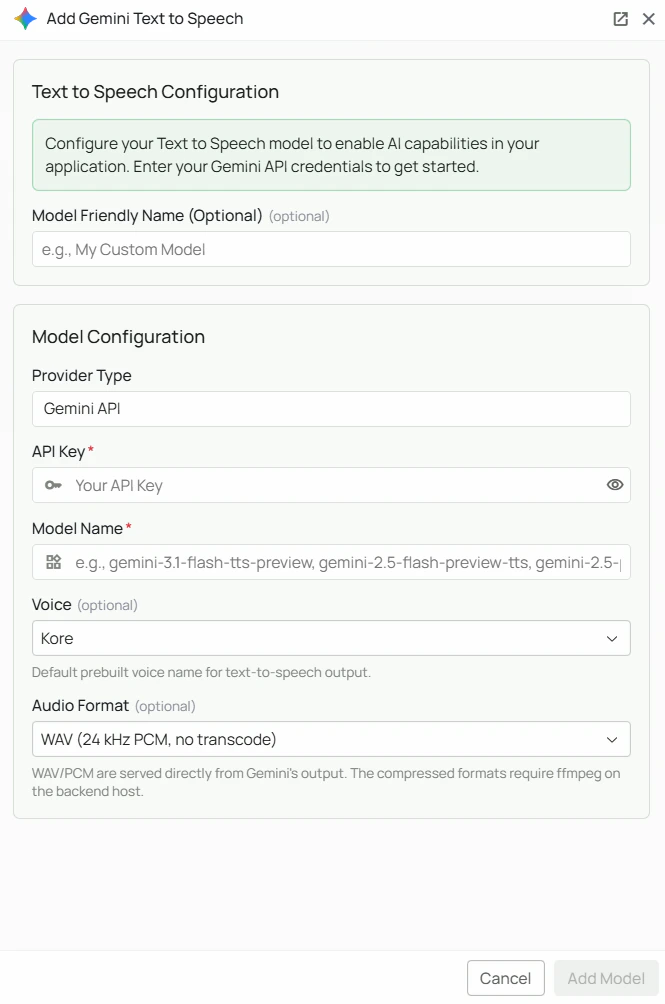
Required Fields
API Key *
The API Key is required to authenticate your requests to Google’s TTS services. How to obtain an API Key:- Log in to Google AI Studio
- Click “Create API key”
- Select or create a Google Cloud project
- Copy the generated API key
Model Name *
The Model Name field defines which Gemini TTS model you want to use with PipesHub. Available Gemini TTS models:gemini-3.1-flash-tts-preview- Gemini 3.1 Flash TTS, fast and cost-effective voice generationgemini-2.5-flash-preview-tts- Gemini 2.5 Flash TTS, balanced speed and qualitygemini-2.5-pro-preview-tts- Gemini 2.5 Pro TTS, highest quality voice generation
- For fast, cost-effective voice output, select
gemini-3.1-flash-tts-preview - For balanced performance, select
gemini-2.5-flash-preview-tts - For the highest audio quality, select
gemini-2.5-pro-preview-tts - Check Google’s TTS documentation for the most up-to-date options
Optional Fields
Voice
Select the default voice used for audio output (default: Kore). Gemini TTS provides 30 prebuilt voices named after astronomical objects. Available voices:Audio Format
Select the output audio format for generated speech (default: WAV). Available formats:If you select MP3, Opus, AAC, or FLAC and audio output is silent or failing, confirm that ffmpeg is installed on the machine running the PipesHub backend. WAV and PCM work without any additional dependencies.
Configuration Steps
As shown in the image above:- Click Configure on the Gemini provider card
- Enter your Google AI API Key in the designated field (marked with *)
- Specify your desired Model Name (marked with *)
- (Optional) Select your preferred Voice from the dropdown (default: Kore)
- (Optional) Select your preferred Audio Format (default: WAV)
- (Optional) Set a Model Friendly Name — a human-readable label shown in the UI
- Click Add Model to save and validate your credentials
Both the API Key and Model Name are required fields to successfully configure Gemini TTS integration.
Usage Considerations
- API usage will count against your Google AI API quota and billing
- Different models have different pricing — check Google AI’s pricing page for details
- WAV and PCM formats require no additional server-side dependencies
- MP3, Opus, AAC, and FLAC require ffmpeg to be installed on your PipesHub backend host
Troubleshooting
- If you encounter authentication errors, verify your API key is correct and has not expired
- Ensure your Google account has billing set up if you are on a paid tier
- Check that the model name is spelled correctly
- If using MP3, Opus, AAC, or FLAC and audio is not playing, install ffmpeg on the backend host and restart PipesHub
- If you are experiencing rate limits, check your quota in the Google AI Studio dashboard