
Before you start, create an OAuth app in PipesHub and note your Client ID and Client Secret. See MCP Server Overview.
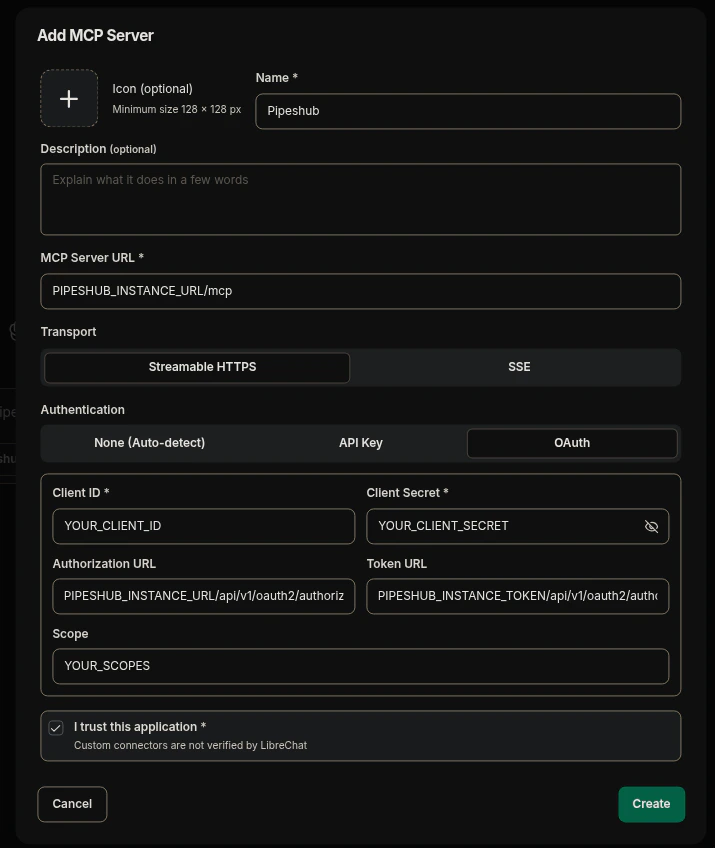
LibreChat MCP configuration
Configuration
1
Open MCP Servers settings
Log in to your LibreChat instance and navigate to the MCP Servers settings panel.
2
Add a new connector
Click Add to create a new custom MCP connector and fill in the details:
- Name:
Pipeshub(or any name you prefer) - MCP Server URL:
PIPESHUB_INSTANCE_URL/mcp - Transport: Select Streamable HTTPS
- Authentication: Select OAuth
3
Enter OAuth credentials
Enter your OAuth credentials:
- Client ID:
YOUR_CLIENT_ID - Client Secret:
YOUR_CLIENT_SECRET - Authorization URL:
PIPESHUB_INSTANCE_URL/api/v1/oauth2/authorize - Token URL:
PIPESHUB_INSTANCE_URL/api/v1/oauth2/token - Scope:
openid profile email offline_access semantic:write conversation:write conversation:chat kb:read team:read user:read config:read
4
Trust and save
Check I trust this application and click Add to save the connector.
5
Register the redirect URI
After adding, LibreChat generates a Redirect URI displayed in the connector settings panel (next to the copy button), in the format:Copy the Redirect URI and register it as an allowed redirect URI in your PipesHub OAuth app (see Step 1).
6
Authenticate
Return to the LibreChat connector and click Update to initiate the OAuth flow — you’ll be redirected to PipesHub’s login page to authenticate and grant permissions.
Redirect URI
LibreChat generates the redirect URI after the connector is created. The URI follows this format:<server-identifier> is the unique identifier assigned by LibreChat (visible at the top of the connector settings as “Unique Server Identifier”). You must copy this URI and add it to your PipesHub OAuth app’s allowed redirect URIs before authenticating.
If your LibreChat instance runs on a different host or port, the URI will reflect that (e.g.,
https://chat.example.com/api/mcp/pipeshub/oauth/callback).Scopes
LibreChat allows you to specify the OAuth scopes in the Scope field. Use a space-separated list:The scopes you request must match the scopes granted to your OAuth app in PipesHub. See Customizing Default Scopes for details.