

SMB
Sync files and folders from SMB 2/3 network shares
✅ Ready📖 Documentation Available
What is this?
SMB (Server Message Block) is the protocol behind Windows file sharing. Windows file servers, Samba on Linux, and most NAS devices (Synology, QNAP, TrueNAS and others) use it to share folders over the network. If your company has a mapped drive such asS: or a path such as \\fileserver\Shared, that’s an SMB share.
This connector copies the files in one share into PipesHub so you can search them from PipesHub chat and the knowledge base, and use them in agents, just like any other document.
PipesHub only reads the share. It never creates, changes, moves or deletes anything on the file server.
Words you’ll see
What you need before you start
- The server name. The hostname or IP address of the file server, such as
fileserver.corp.example.comor10.0.4.20. Just the server, without\\and without the share name. - The share name. For
\\fileserver\Sharedthe share isShared. - An account that can read the share. A username and password, and the domain if it’s a domain account. A dedicated read-only service account is best (see Which account should I use? under Frequently asked questions).
- Network access. The machine running PipesHub must reach the file server on TCP port 445. If PipesHub runs in the cloud and the file server is in your office, you’ll need a VPN or a firewall rule. The setup panel shows the IP addresses PipesHub connects from.
- SMB 2 or newer on the server. Any Windows Server, Samba or NAS from the last decade has it. Servers that only speak SMB1 aren’t supported.
Team or personal? An admin can add SMB as a team connector (everyone in the organization can search the files) under Workspace Settings → Connectors. Any user can add it as a personal connector (only they can search the files) under Workspace Settings → Your connectors. The setup steps are the same. Read Who can see the synced files? under How syncing works below before you choose.
Setup
Setup
Setup
Step 1 — Open SMB in PipesHub
- Open your profile menu at the bottom of the left sidebar and choose Workspace Settings.
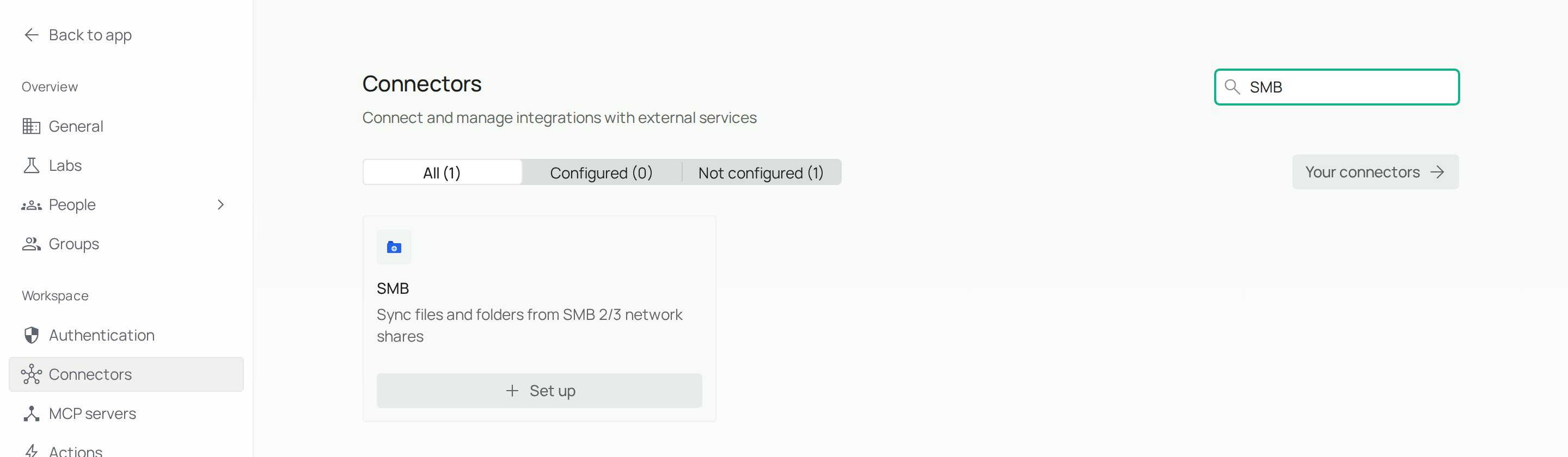
- Under Workspace, click Connectors (team connector). For a personal connector, click Your connectors under Personal instead.
- Type
SMBin the search box. - Click + Set up on the SMB card.
Step 2 — Name the instance
On the Authenticate tab, type a name you’ll recognise in Instance name, for exampleAcme shared drive or Finance share. If you later add more shares, this is how you’ll tell them apart.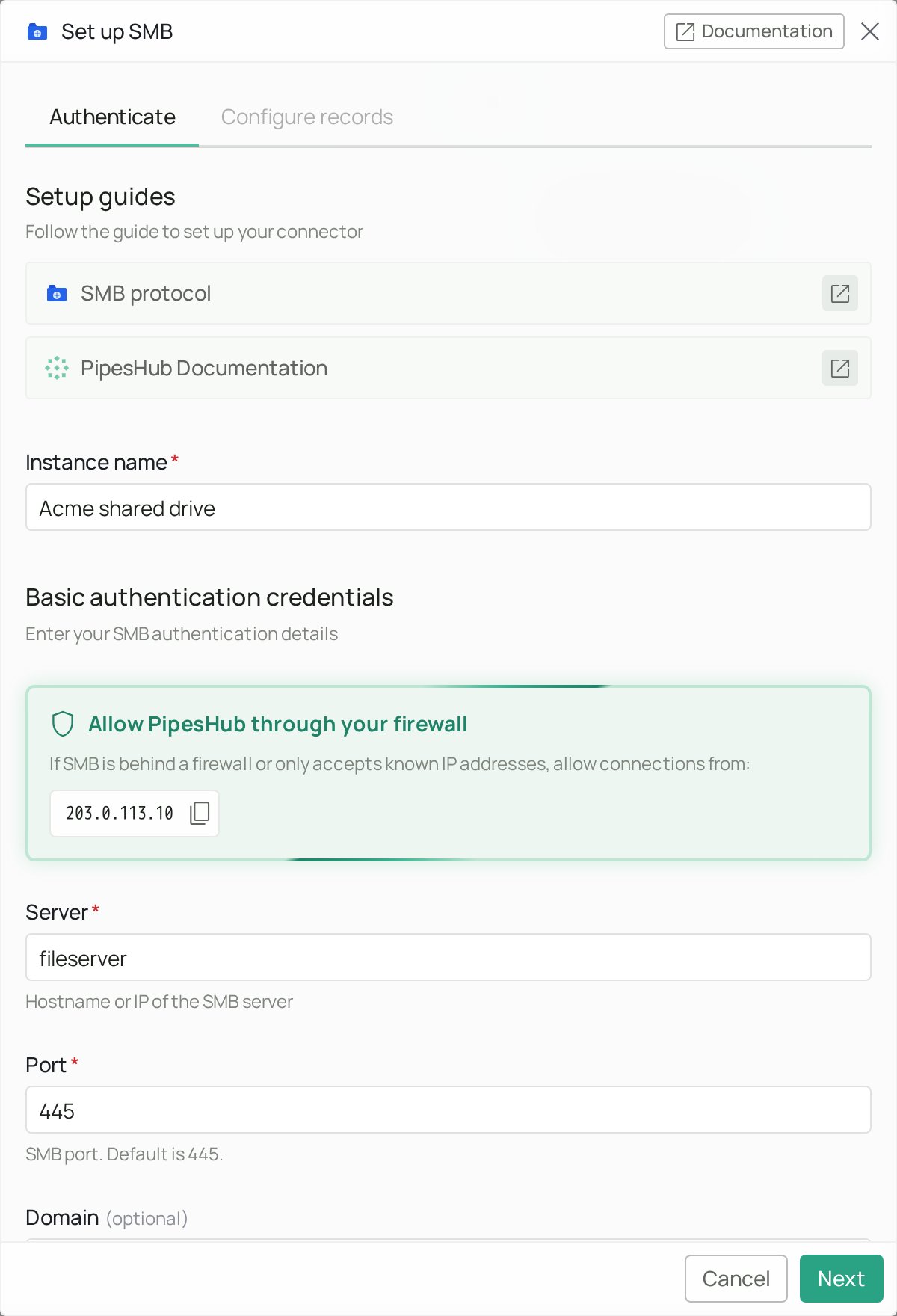
The box only appears when your PipesHub deployment has its outgoing IP addresses configured. On a self-hosted PipesHub, connections come from the host that runs PipesHub.
Step 3 — Enter the server and account details
Scroll down to the fields under Basic authentication credentials.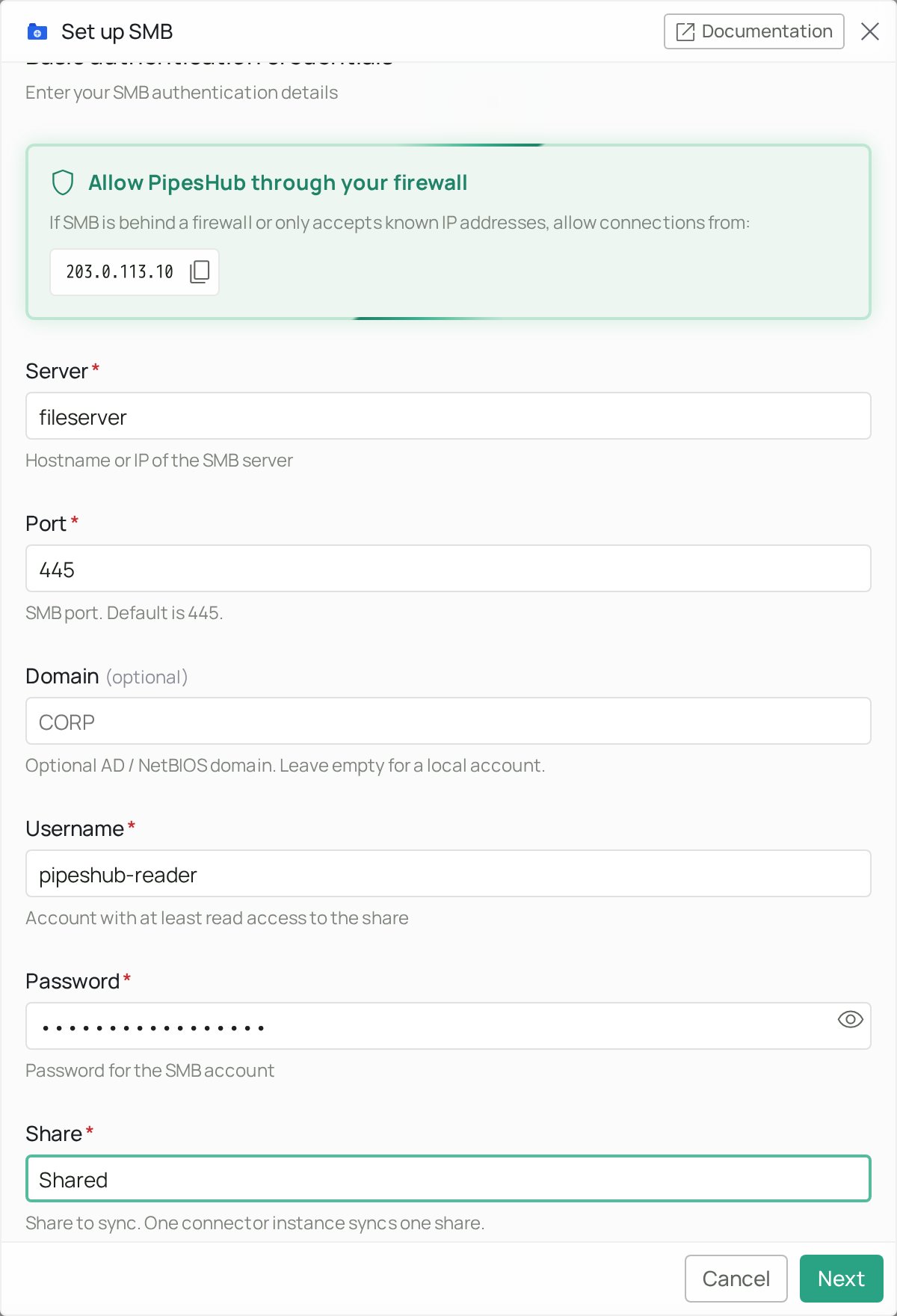
Click Next. PipesHub now connects to the server and opens the share to check your details. If it can’t, a red Couldn’t connect to SMB box tells you why, and you stay on this tab:
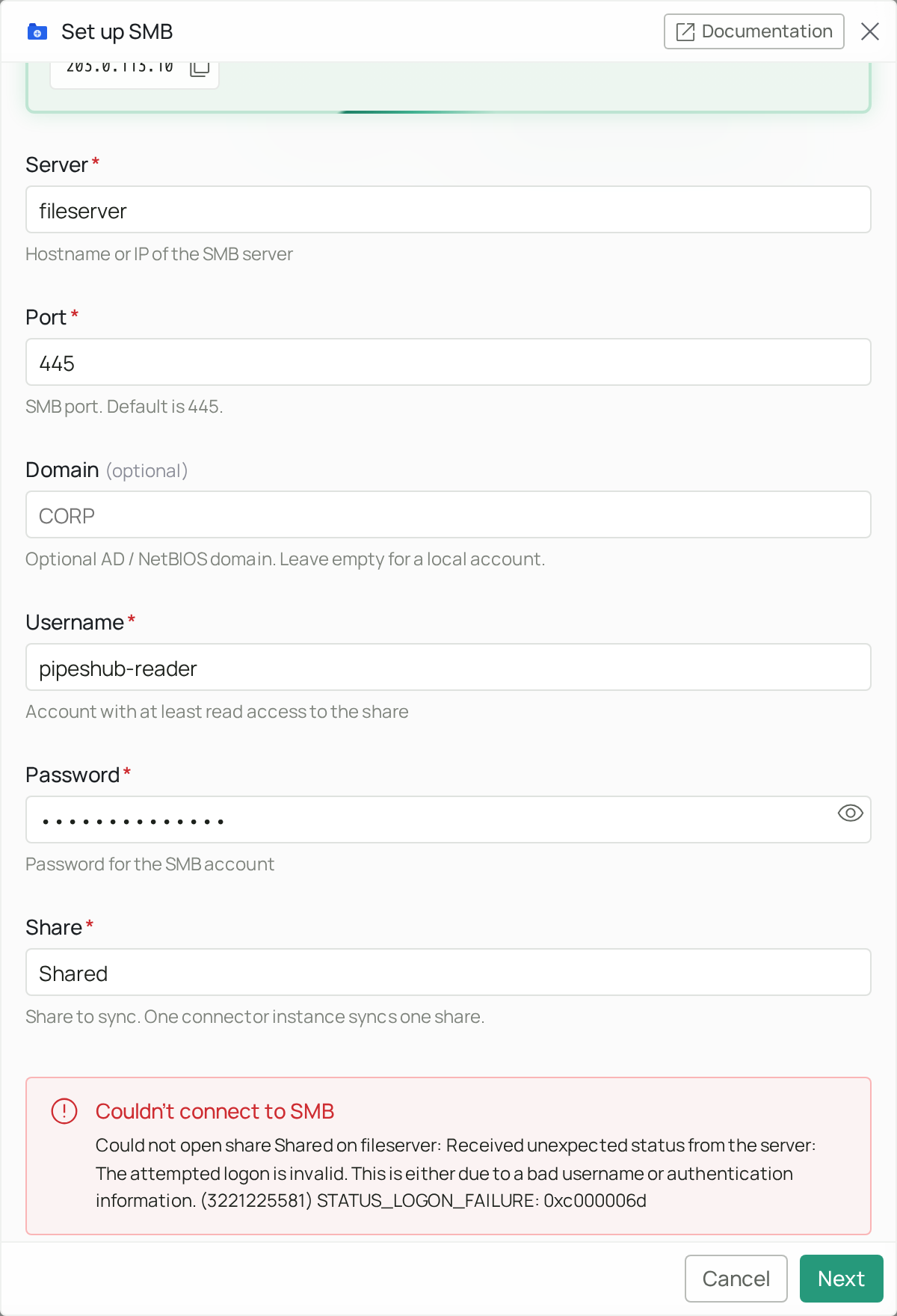
The check on Next only connects to port 445 or 139, so the setup panel doesn’t accept other ports. If your file server listens on a non-standard port, see Troubleshooting.
Step 4 — Choose how often to sync
The panel moves to Configure records.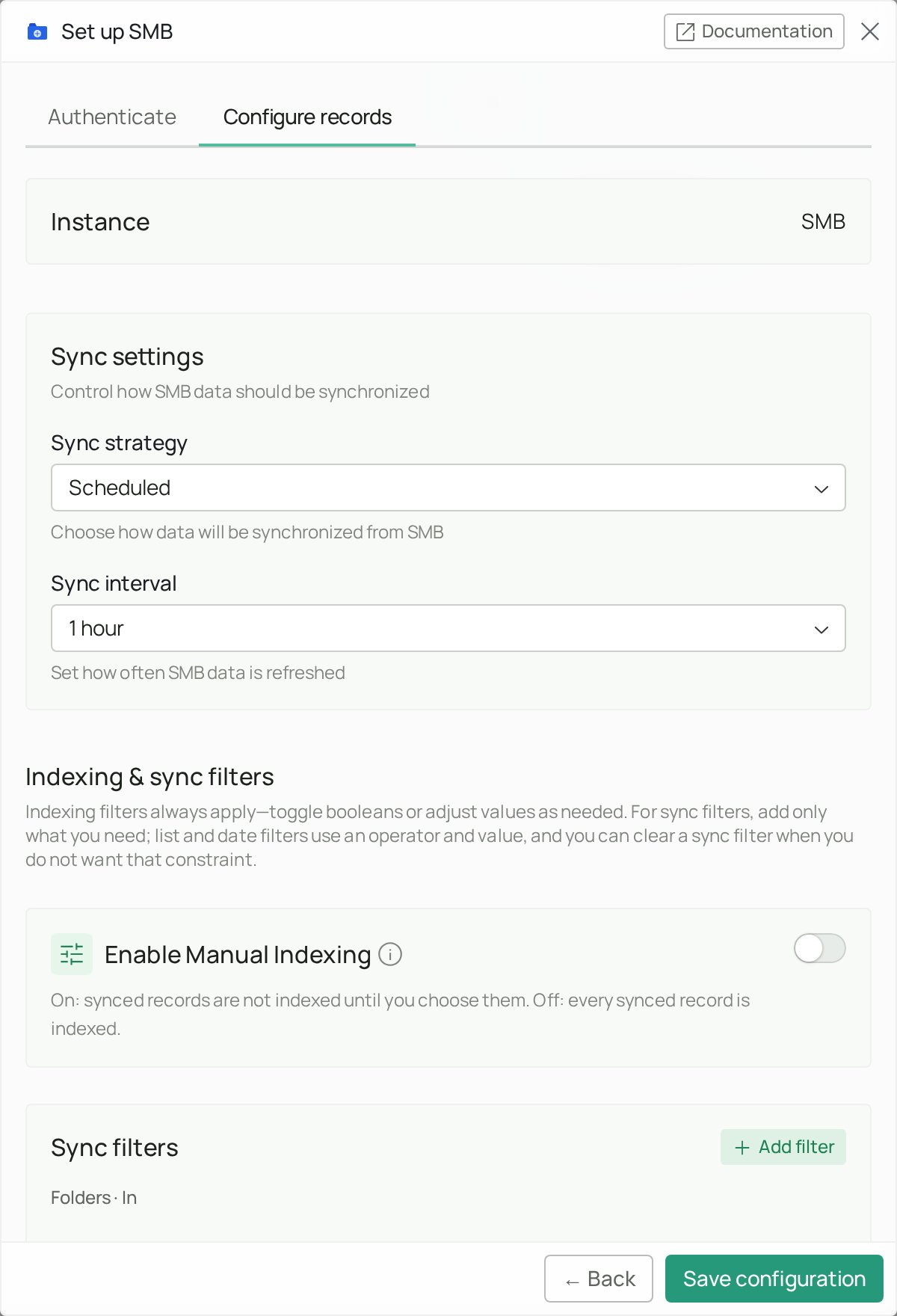
- Sync strategy — Scheduled syncs on its own. Manual syncs only when you click Sync.
- Sync interval — how often a scheduled sync runs. 1 hour is the default and a good start.
Step 5 — (Optional) Choose what gets synced
Without filters, PipesHub syncs every file in the share that the account can read. Scroll down to Indexing & sync filters if you want less.Folders. The Folders filter is already open. Type a folder path inside the share, such asHR or Engineering/Runbooks, and press Enter after each one. Folder names may contain spaces.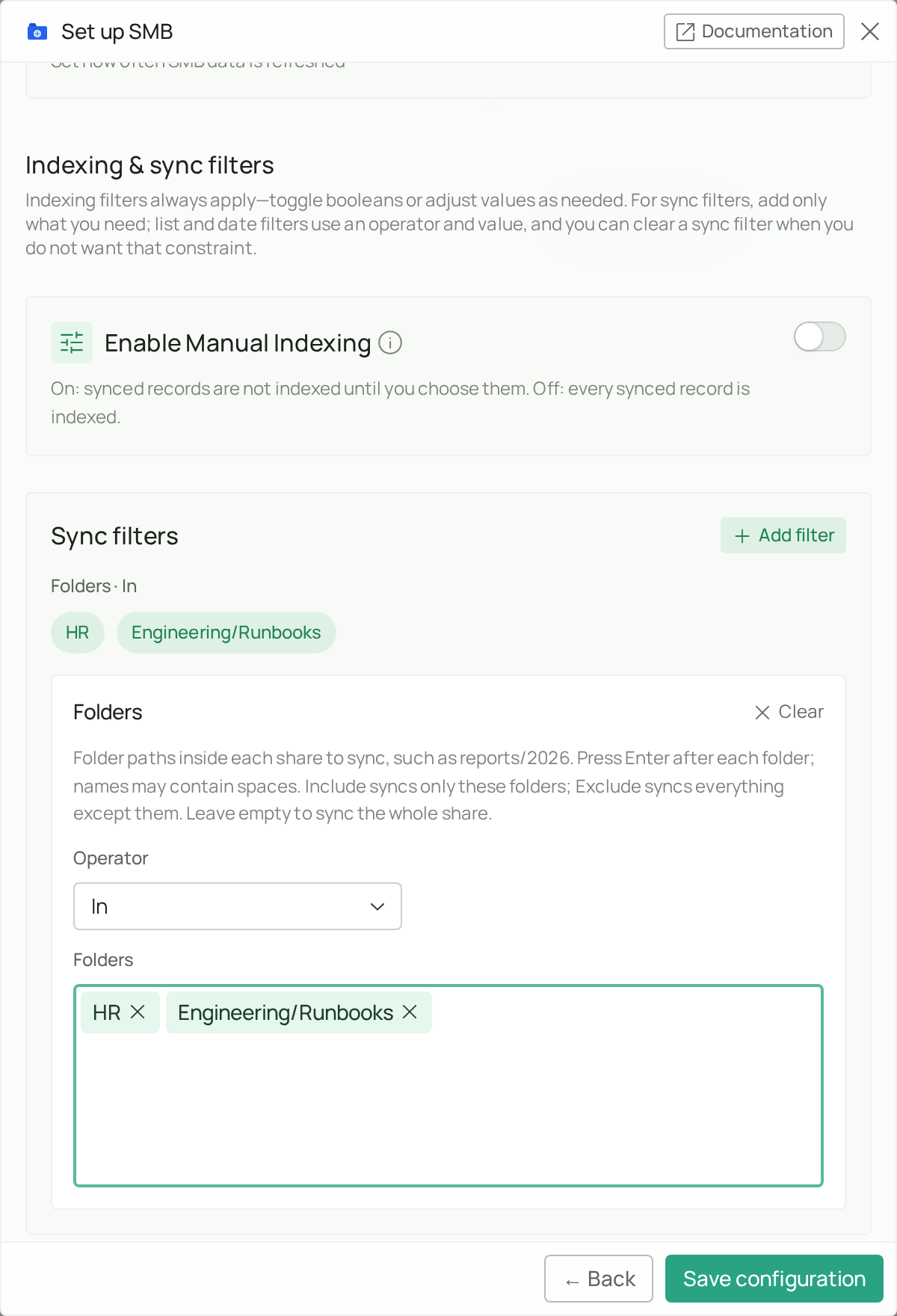
- Operator In syncs only these folders (and everything below them).
- Operator Not in syncs everything except these folders.
- Leave it empty to sync the whole share.
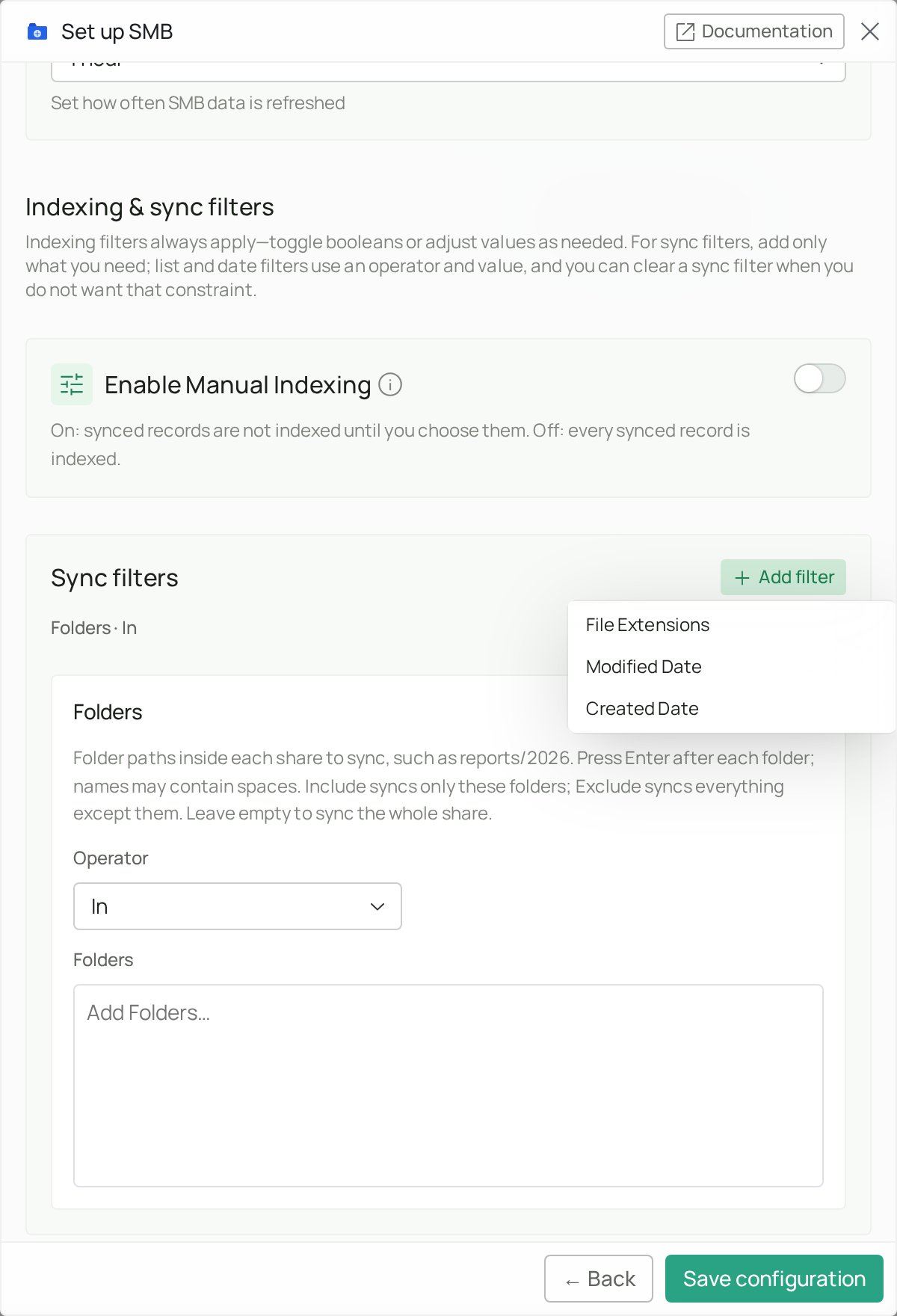
- File Extensions — sync only some file types, or skip some. For example In
pdf, docx, or Not inmp4, iso. - Modified Date — only files changed after, before or between dates.
- Created Date — only files created after, before or between dates. If the server doesn’t report a creation time, the last-modified time is used.
Step 6 — Start syncing
PipesHub opens the SMB page with your new instance and asks if you want to start now.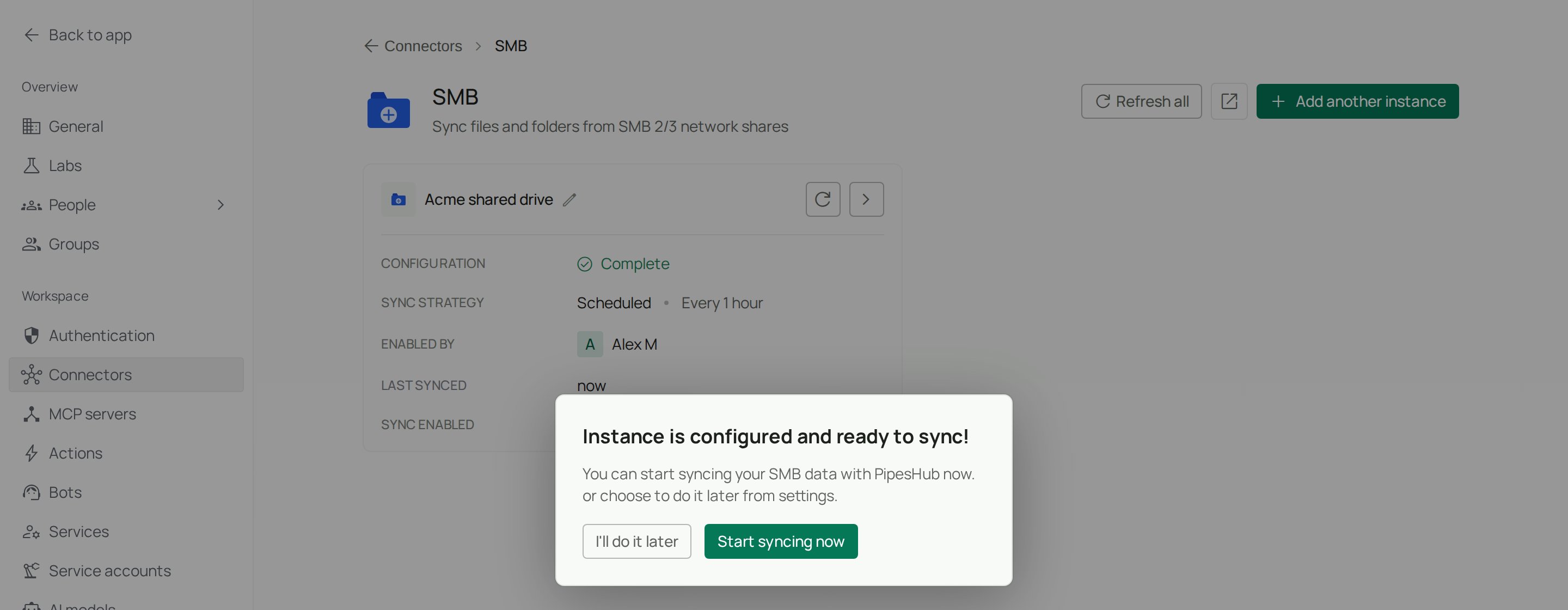
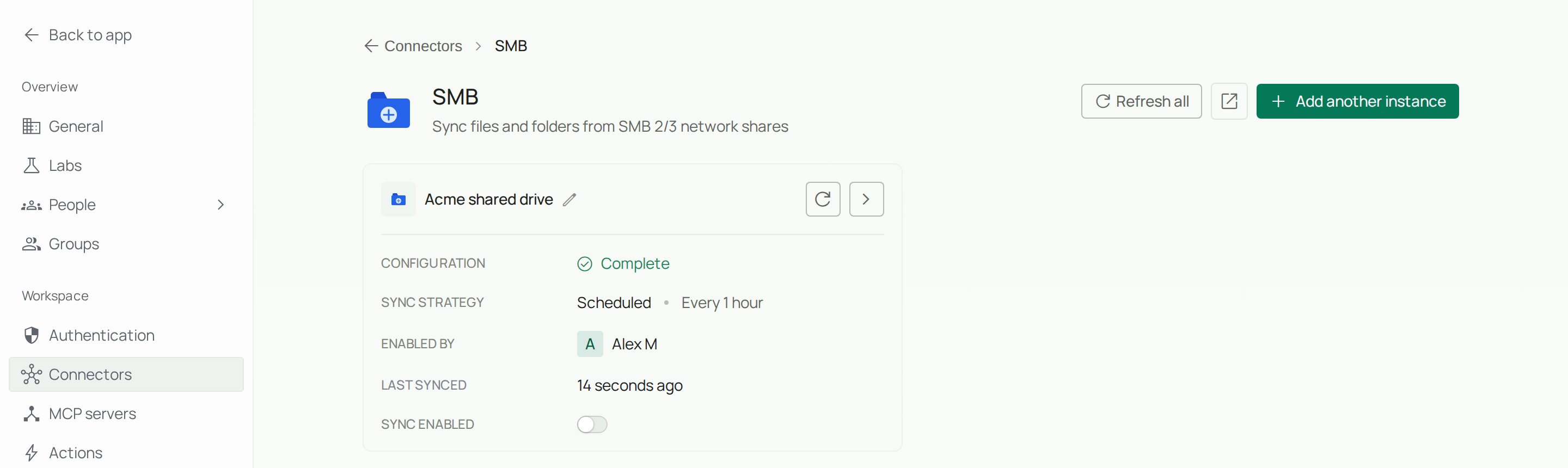
Step 7 — Check progress
Click the > arrow on the instance card to open the instance panel.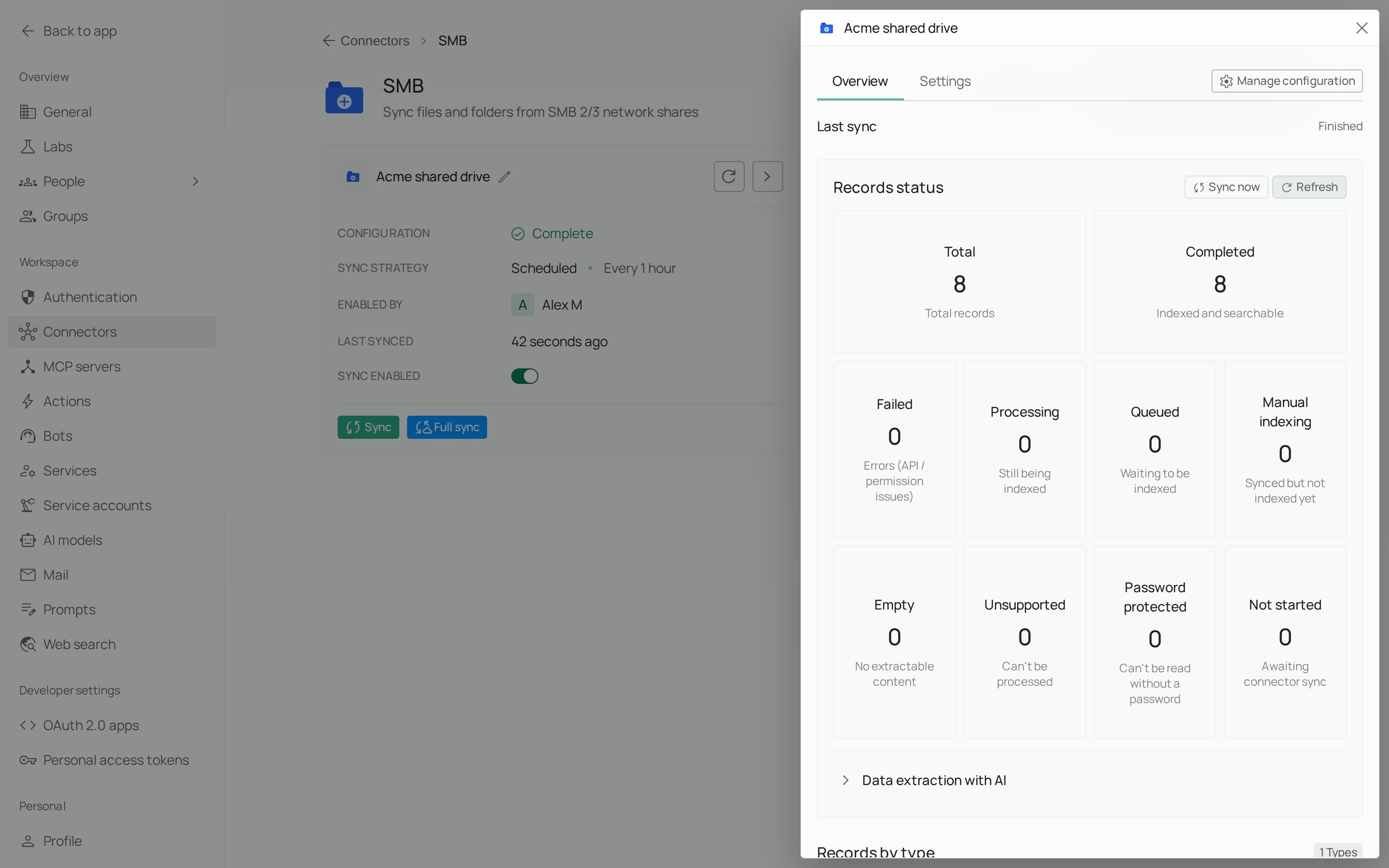
- Total — how many files PipesHub found in the share.
- Completed — files that are indexed and searchable.
- Failed — files that couldn’t be indexed.
- Processing / Queued — files still being indexed.
- Manual indexing — files synced but waiting for you to index them (only with Enable Manual Indexing on).
- Unsupported / Empty / Password protected — files PipesHub can’t read the text of.
- Sync now to run a sync right away, and Manage configuration to change the credentials, schedule or filters.
How syncing works
How syncing works
Every sync looks at the whole share
SMB has no change feed that PipesHub can read, so each sync lists the share (or the folders you picked) from the top. It compares what it finds with what it already has:- New files are added and indexed.
- Changed files (different size or modified time) are updated and indexed again.
- Renamed or moved files are moved to their new path in PipesHub instead of being added again as new files.
- Deleted files are removed from PipesHub.
What gets skipped
These are never synced:- Office lock files (
~$Report.docx) and system files such asThumbs.db,desktop.iniand.DS_Store. - Folders such as
$RECYCLE.BIN,System Volume Information,.gitandnode_modules. - Items marked both hidden and system.
- Symbolic links and junctions. Folders behind a link aren’t walked.
If PipesHub can’t read a folder
- If the account is denied access to a folder inside the share, that folder is skipped and anything PipesHub synced from it before is removed.
- If a folder can’t be listed for another reason (the server dropped the connection, a timeout), PipesHub keeps what it already had from that folder and tries again next sync. Nothing is removed by mistake.
- If nothing in the share can be read, you get a “Sync could not read the share” notification and nothing is removed.
Who can see the synced files?
This doesn’t change anything on the file server.What PipesHub can read
What PipesHub can read
Indexed for search
Supported file types can be content-indexed so you can search inside them:- Documents — PDF, DOCX, PPTX, XLSX, ODT, RTF
- E-books — EPUB, unless copy-protected (DRM). Their text is searchable, but they can’t be previewed in PipesHub; download the book to read it
- Plain text — TXT, MD, CSV, JSON, XML, HTML
- Code — .py, .js, .ts, .java, and more
- Images — JPG, PNG, GIF, WebP
Synced but not searched inside
These are stored as records but their contents aren’t indexed for search:- Video and audio
- Archives (ZIP, RAR, …)
- Other unsupported binary files
Troubleshooting
'STATUS_LOGON_FAILURE' / 'The attempted logon is invalid'
'STATUS_LOGON_FAILURE' / 'The attempted logon is invalid'
The server rejected the username or password.
- Check the password, and that the account isn’t locked or expired.
- For a domain account, put the domain in Domain (for example
CORP) and only the account name in Username. Don’t typeCORP\svc-pipeshubin Username. - For a local account on a NAS or Samba server, leave Domain empty.
- PipesHub signs in with NTLM. If your domain has NTLM turned off and only allows Kerberos, ask your admin to allow NTLM for this account or server.
'Could not find a server named …'
'Could not find a server named …'
The name in Server doesn’t resolve from the machine running PipesHub.
- Check the spelling, or use the full name (
fileserver.corp.example.com) or the IP address. - A short name that works on your laptop may not resolve inside a Docker container or the cloud. Try the full DNS name or the IP.
The check hangs or times out
The check hangs or times out
PipesHub can’t reach the server on port 445.
- Make sure the PipesHub host can reach the file server (VPN, routing, cloud network rules).
- Allow the addresses from the Allow PipesHub through your firewall box on TCP 445, on both the network firewall and the server’s own firewall.
- Many internet providers and cloud networks block port 445 to the internet. A VPN or a private link between PipesHub and the server is the usual fix.
'The connection check only uses port 445 or 139'
'The connection check only uses port 445 or 139'
You entered a port other than 445 or 139. The check on Next only connects to those two ports, so setup can’t continue with another one, even though the message mentions saving.Use port 445 (or 139). Most servers listen on 445; if yours doesn’t, ask your admin to also expose SMB on 445 to PipesHub, for example with a firewall port forward. Personal connectors can never use another port.
Self-hosted: the server is refused because its address is private
Self-hosted: the server is refused because its address is private
If your PipesHub deployment sets
PIPESHUB_BLOCK_PRIVATE_ADDRESSES=true, connectors may not reach private network addresses (such as 10.x.x.x or 192.168.x.x), which is where most file servers live. Leave the setting empty unless several organizations that don’t trust each other share your deployment. Loopback (localhost, 127.0.0.1) and link-local addresses are always refused.Sync is on but some files or folders are missing
Sync is on but some files or folders are missing
- Check your Folders, File Extensions and date filters.
- Make sure the connector account can open the missing folder. Folders it’s denied are skipped.
- The file may be on the skip list (see How syncing works → What gets skipped), or behind a symbolic link or junction.
- Give the first sync time to finish on a large share.
Files don't show up in search
Files don't show up in search
- Check that the file type is supported for content indexing.
- Wait for Processing and Queued to reach zero on the instance Overview.
- If Enable Manual Indexing is on, files wait in Manual indexing until you index them.
- Offline (tiered storage) files are synced but not indexed until you choose them.
- Make sure the file isn’t password-protected.
It used to work, but now it doesn't
It used to work, but now it doesn't
Usually the account’s password changed or expired.
- Open the instance panel and click Manage configuration.
- Go to the Authenticate tab and enter the new password. PipesHub asks you to turn sync off before it saves new credentials; accept.
- Click Next, then Save configuration, and turn Sync enabled back on.
Frequently asked questions
Which account should I use?
Which account should I use?
Create a dedicated service account (for example
svc-pipeshub) with read-only access to the share, a password that doesn’t expire, and no interactive sign-in. Read access to the share and the NTFS folders inside it is enough; PipesHub never writes. Avoid using a personal or admin account.Does PipesHub change anything on the file server?
Does PipesHub change anything on the file server?
No. It only lists folders and reads files. Files are opened so others can keep editing them, so a sync doesn’t lock anyone out.
Which servers work?
Which servers work?
Any server that speaks SMB 2.0.2 or newer (up to 3.1.1): Windows Server and Windows desktop shares, Samba, and NAS devices such as Synology, QNAP and TrueNAS. SMB1-only servers aren’t supported. Azure file shares also speak SMB, but for those the Azure File Shares connector is usually easier.
Does it pick up changes right away?
Does it pick up changes right away?
No. Changes are picked up on the next scheduled sync, or when you click Sync. There are no live change notifications for SMB.
What happens when I rename or move a file?
What happens when I rename or move a file?
On the next sync, PipesHub moves the record to the file’s new path. A few servers don’t report file IDs; there, a rename shows up as a new file plus a deleted one.
Can I click through to the file on the server?
Can I click through to the file on the server?
No. SMB files have no web link. Open the file from PipesHub’s search results or record view; PipesHub reads it from the share when you open it.
Is the password stored safely?
Is the password stored safely?
Yes. PipesHub stores it encrypted, and it isn’t shown in logs or to other users.
Useful links
- SMB protocol (Microsoft) — https://learn.microsoft.com/en-us/openspecs/windows_protocols/ms-smb2/56066a30-52a3-438d-8538-ba3a5050002a
- Samba — https://www.samba.org/
- Azure File Shares connector — Azure File Shares