
Gemini Speech to Text Configuration
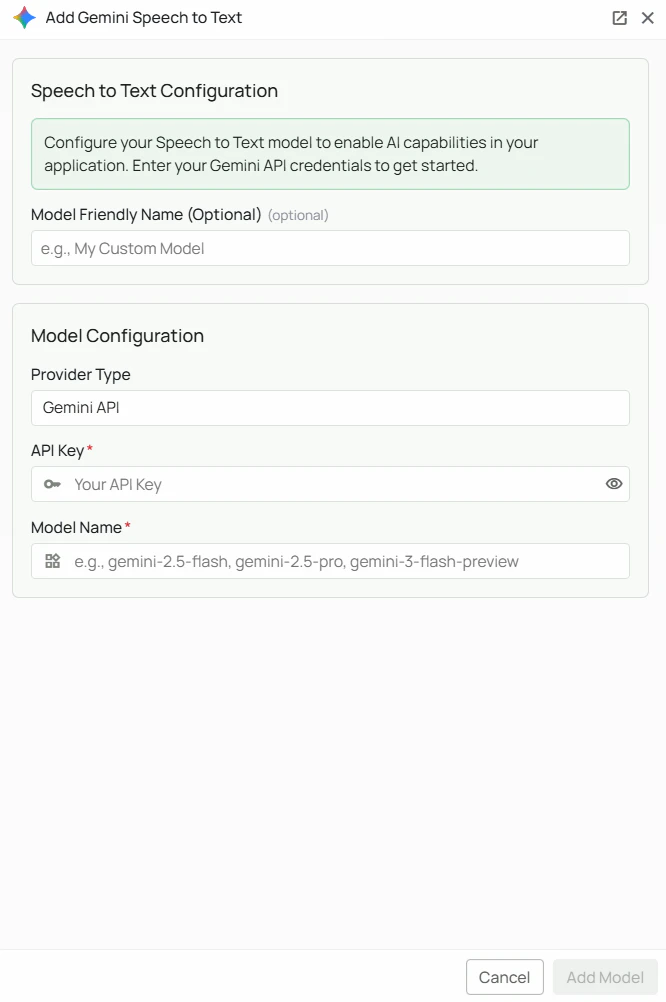
Required Fields
API Key *
The API Key is required to authenticate your requests to Google’s AI services. How to obtain an API Key:- Log in to Google AI Studio
- Click “Create API key”
- Select or create a Google Cloud project
- Copy the generated API key
Model Name *
The Model Name field defines which Gemini model you want to use for transcription. Available Gemini STT models:gemini-2.5-flash— fast, cost-effective transcription with strong accuracygemini-2.5-pro— highest accuracy transcription, best for complex audiogemini-3-flash-preview— next-generation Flash model preview
- For everyday transcription tasks where speed and cost matter, use
gemini-2.5-flash - For the most accurate transcriptions, especially with complex audio, use
gemini-2.5-pro - Check Google’s Gemini documentation for the most up-to-date model options
Optional Fields
Model Friendly Name
A human-readable label for this configuration, shown in the PipesHub UI instead of the raw model name. Useful when you have multiple configurations of the same provider.Configuration Steps
As shown in the image above:- Click Configure on the Gemini provider card in the STT tab
- Enter your Google AI API Key in the designated field (marked with *)
- Enter the Model Name (marked with *), for example
gemini-2.5-flash - (Optional) Set a Model Friendly Name
- Click Add Model to save and validate your credentials
Both the API Key and Model Name are required fields to successfully configure Gemini STT integration.
Usage Considerations
- Each transcription request counts against your Google AI API quota and billing
- Different models have different pricing — check Google AI’s pricing page for details
- Audio is sent to Google’s API servers for processing
- Gemini models support a wide range of languages natively
Troubleshooting
- If you encounter authentication errors, verify your API key is correct and has not expired
- Ensure your Google account has billing set up if you are on a paid tier
- Check that the model name is spelled exactly as shown
- Verify your API key has access to audio transcription features