
OpenAI Speech to Text Configuration
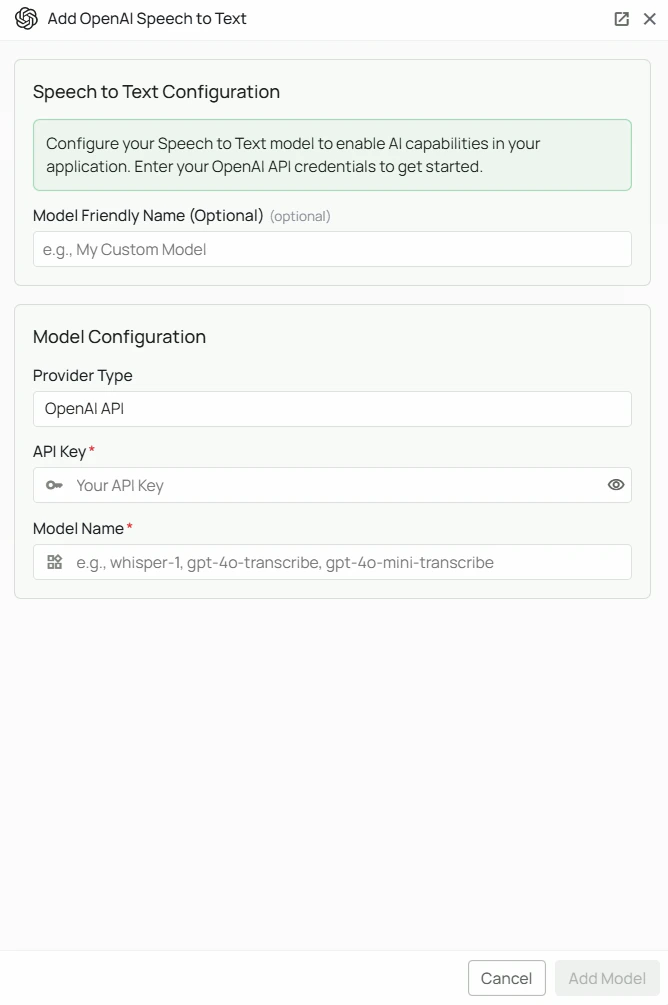
Required Fields
API Key *
The API Key is required to authenticate your requests to OpenAI’s transcription services. How to obtain an API Key:- Log in to your OpenAI account
- Navigate to the API Keys section
- Create a new secret key
- Copy the key immediately (it will only be shown once)
Model Name *
The Model Name field defines which OpenAI transcription model you want to use. Available OpenAI STT models:whisper-1— OpenAI’s Whisper model, supports 50+ languagesgpt-4o-transcribe— GPT-4o powered transcription, highest accuracygpt-4o-mini-transcribe— GPT-4o Mini powered transcription, faster and more cost-effective
- For broad language support and general-purpose transcription, use
whisper-1 - For the highest transcription accuracy, use
gpt-4o-transcribe - For a balance of speed and accuracy at lower cost, use
gpt-4o-mini-transcribe - Check OpenAI’s speech-to-text documentation for the most up-to-date model options
Optional Fields
Model Friendly Name
A human-readable label for this configuration, shown in the PipesHub UI instead of the raw model name. Useful when you have multiple configurations of the same provider.Configuration Steps
As shown in the image above:- Click Configure on the OpenAI provider card in the STT tab
- Enter your OpenAI API Key in the designated field (marked with *)
- Enter the Model Name (marked with *), for example
whisper-1 - (Optional) Set a Model Friendly Name
- Click Add Model to save and validate your credentials
Both the API Key and Model Name are required fields to successfully configure OpenAI STT integration.
Usage Considerations
- Each transcription request counts against your OpenAI API quota and billing
whisper-1is priced per minute of audio transcribed- GPT-4o transcription models may be priced differently — check OpenAI’s pricing page
- Audio files are sent to OpenAI’s API servers for processing
Troubleshooting
- If you encounter authentication errors, verify your API key is correct and has not expired
- Ensure your OpenAI account has billing enabled
- Check that the model name is spelled exactly as shown (e.g.
whisper-1, notWhisper-1) - Verify your account has access to the audio transcription API