
Wispr Flow Speech to Text Configuration
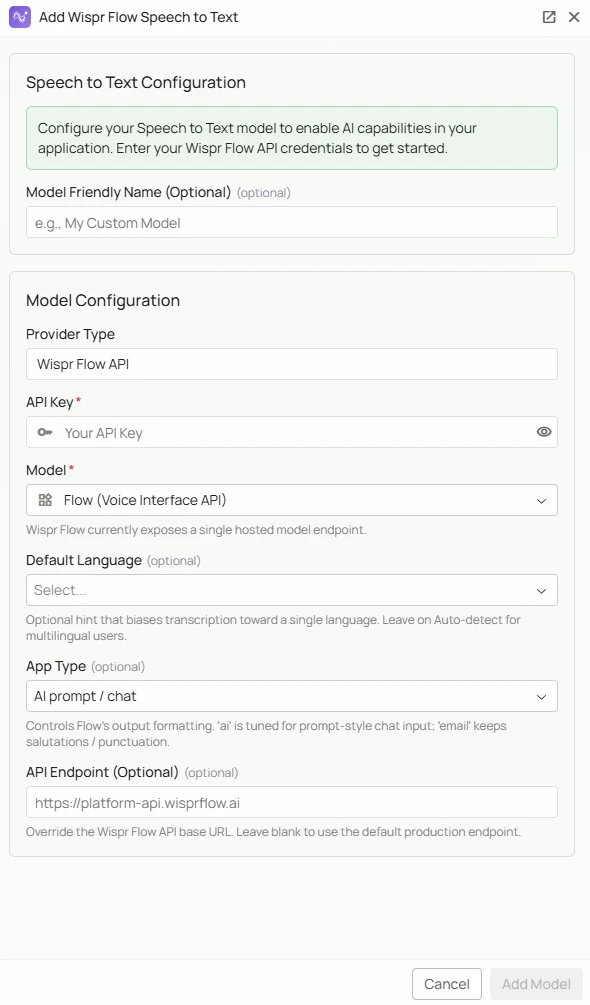
flow-v1 model is purpose-built for dictation and AI prompt input, with context-aware formatting across multiple output styles.
Wispr Flow requires ffmpeg installed on the PipesHub backend host for audio transcoding. Contact enterprise@wisprflow.ai to obtain an API key.
Required Fields
API Key *
The API Key is required to authenticate your requests to Wispr Flow’s transcription service. How to obtain an API Key:- Contact Wispr Flow’s enterprise team at enterprise@wisprflow.ai to request access and obtain your API key
Model
Wispr Flow currently has one available model: flow-v1. This is selected automatically — no manual entry is required.Optional Fields
Default Language
Bias transcription toward a specific language to improve accuracy. Leave on Auto-detect for multilingual users or when audio language varies. Supported languages: Auto-detect, English, Spanish, French, German, Italian, Portuguese, Dutch, Polish, Russian, Japanese, Korean, Chinese, Hindi, ArabicApp Type
Controls how Wispr Flow formats the transcribed output. Choose the type that best matches how the transcription will be used.API Endpoint
Override the default Wispr Flow production URL. Leave blank to use the default endpoint (https://platform-api.wisprflow.ai).
Only change this if Wispr Flow has provided you with a dedicated or regional endpoint URL.
Model Friendly Name
A human-readable label for this configuration, shown in the PipesHub UI. Useful if you have multiple STT models configured.Configuration Steps
As shown in the image above:- Click Configure on the Wispr Flow provider card in the STT tab
- Enter your Wispr Flow API Key in the designated field (marked with *)
- (Optional) Select a Default Language from the dropdown, or leave on Auto-detect
- (Optional) Select an App Type matching your use case (default: AI prompt/chat)
- (Optional) Enter an API Endpoint if you have a custom endpoint from Wispr Flow
- (Optional) Set a Model Friendly Name
- Click Add Model to save and validate your credentials
The API Key is the only required field. All other settings are optional and can be adjusted after saving by clicking Edit on the configured model.
Usage Considerations
- ffmpeg must be installed on the machine running the PipesHub backend for audio transcoding to work
- API usage is billed through your Wispr Flow enterprise account — check with your Wispr Flow contact for pricing details
- Selecting the correct App Type improves output formatting significantly for email dictation versus chat/prompt use
- For multilingual teams, leaving Default Language on Auto-detect gives the best results across different speakers
Troubleshooting
- If the health check fails, verify your API key is correct and active — contact enterprise@wisprflow.ai if unsure
- If audio output is silent or transcription fails entirely, confirm ffmpeg is installed on the backend host
- If you are seeing formatting issues in output, try switching the App Type to better match your use case
- Verify the API Endpoint is correct if you have overridden it — an incorrect URL will cause all requests to fail