

SharePoint Toolset
SharePoint sites, files, pages, and OneNote
ReadyMicrosoft 365
Overview
The SharePoint toolset enables AI agents to interact with your SharePoint Online content via the Microsoft Graph API. Agents can browse sites, read and update pages, search and manage files across drives, and create or read OneNote notebooks.Key Capabilities
- Sites — list and inspect SharePoint sites the user has access to
- Pages — read, search, create, and update SharePoint site pages
- Files & drives — list drives and files, search across content, read file metadata and content, create folders and Word documents, move items
- OneNote — find notebooks, list pages, read content, and create new notebooks
Available Tools
Sites
Pages
Files & Drives
OneNote
Configuration Guide
Setup
Setup
Step 1: Open App registrations from the Azure portal home
- Go to portal.azure.com and sign in.
- On the home page, find Azure services and click App registrations (grid icon). You can also search the top bar for App registrations or open Microsoft Entra ID and choose App registrations from there.
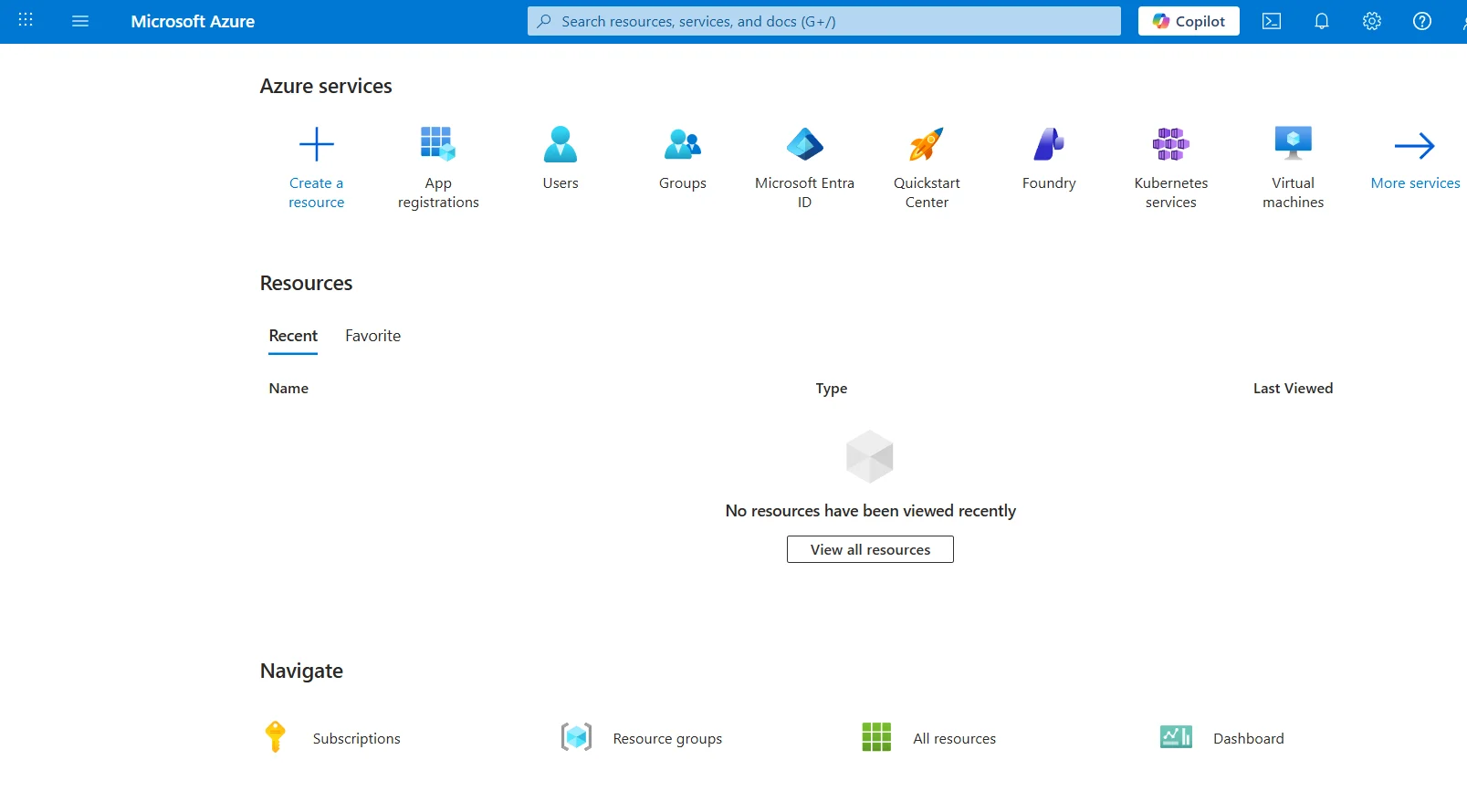
Step 2: Start a new registration
On the App registrations page, click + New registration.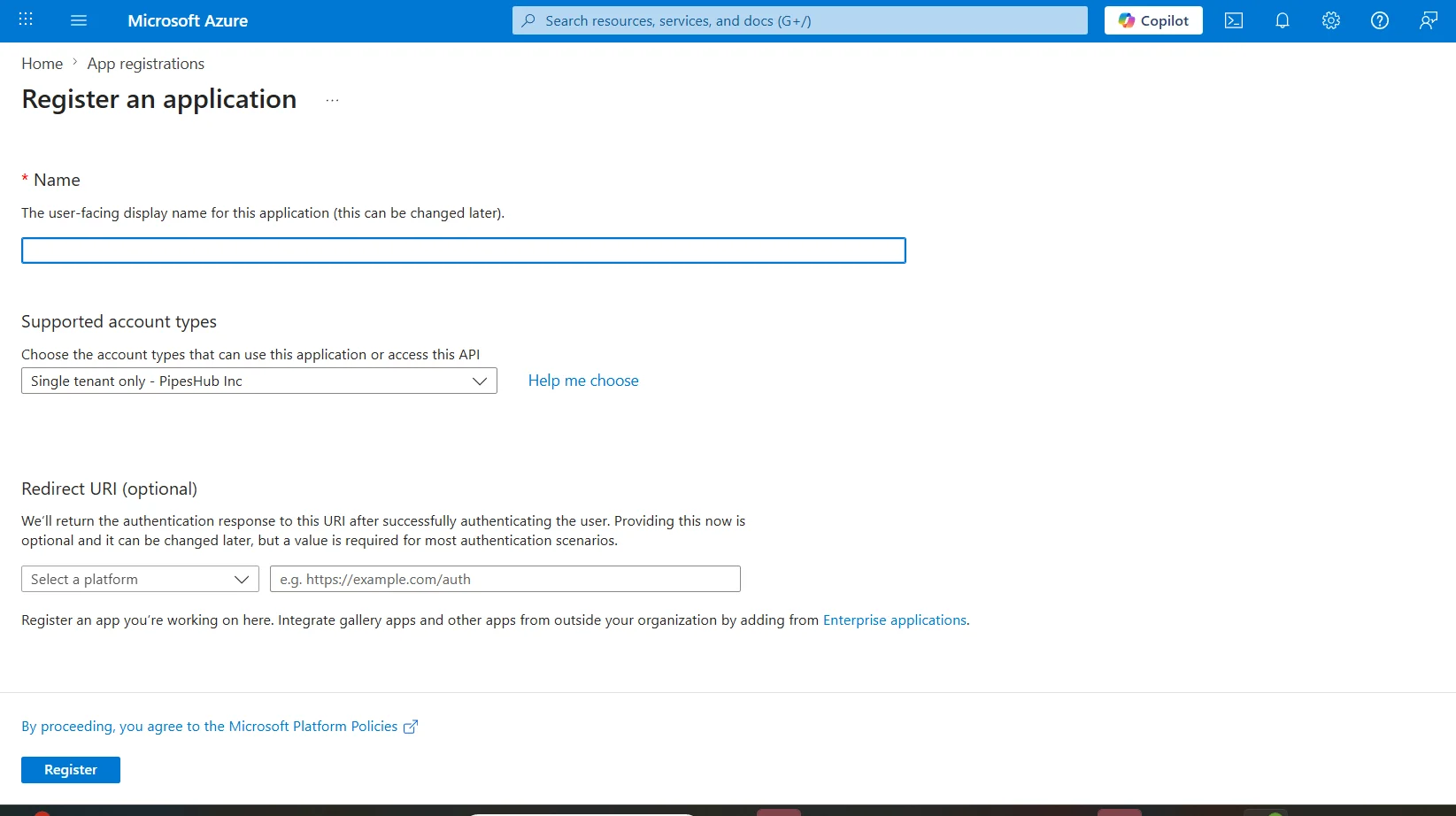
Step 3: Register the application
- Name: Enter a display name (for example,
PipesHub SharePoint Toolset). - Supported account types: Choose who can sign in — for example Accounts in any organizational directory and personal Microsoft accounts for the broadest support, or a single-tenant option if you only use your organization.
- Redirect URI: Get the Redirect URI from the PipesHub Configure SharePoint dialog in Workspace Settings → Actions (where SharePoint is set up — for example + Setup / Configure). Set the platform to Web and paste the value.
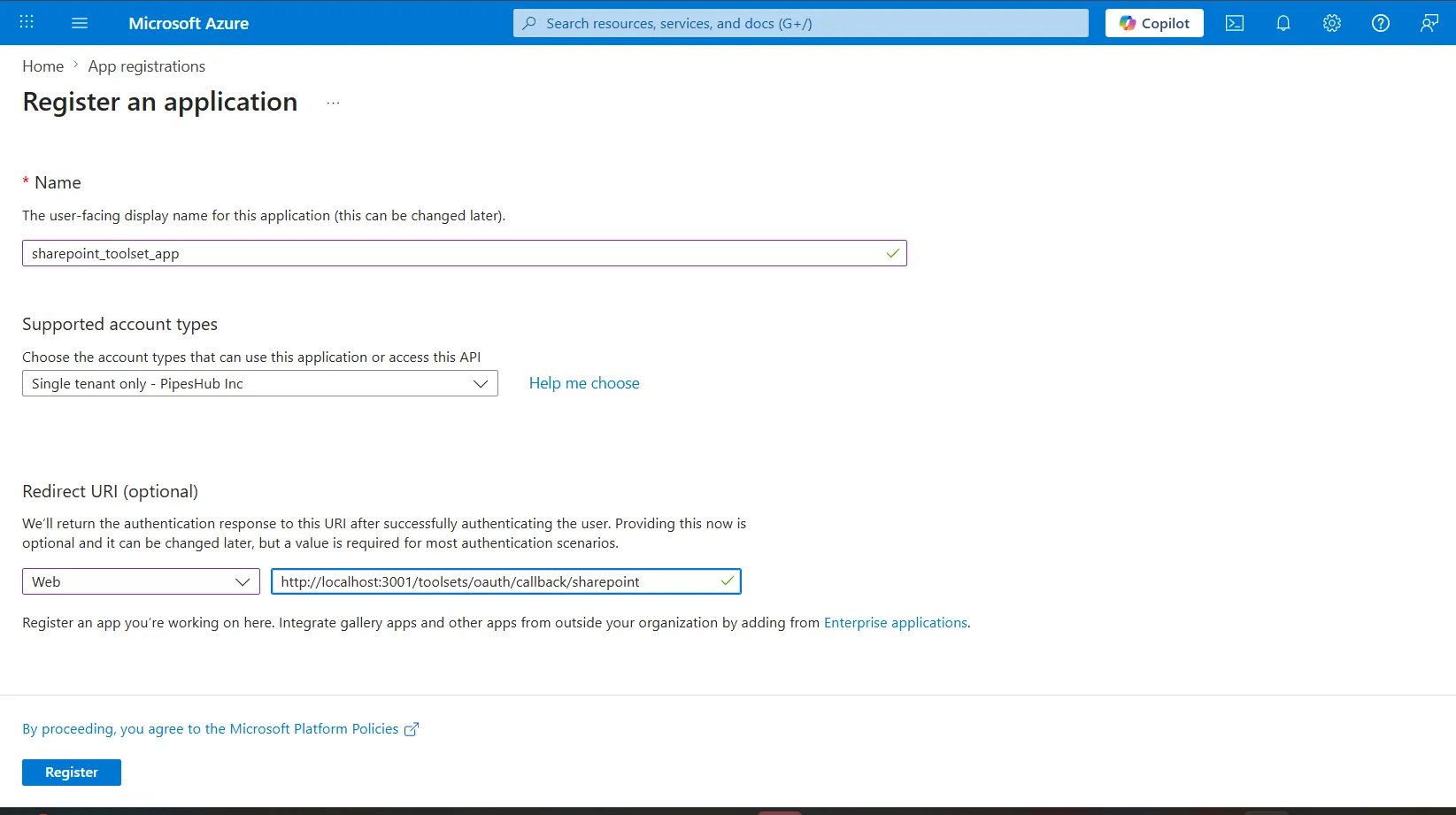
- Click Register.
Step 4: Copy Application (client) ID and Directory (tenant) ID
On the Overview page for your app, copy:- Application (client) ID — used as Client ID in PipesHub.
- Directory (tenant) ID — used as Tenant ID in PipesHub.
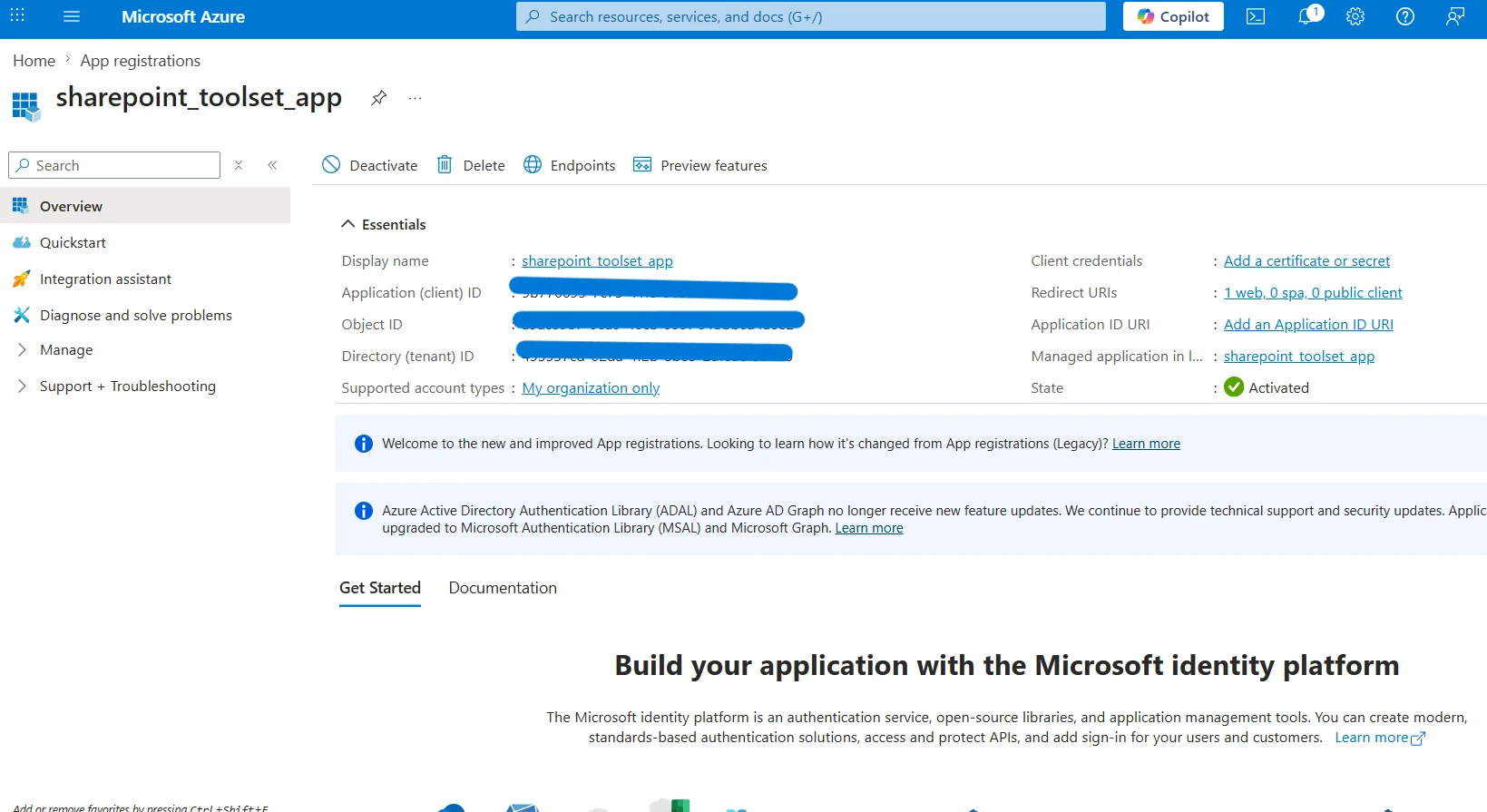
Step 5: Create a client secret
- In the left sidebar under Manage, open Certificates & secrets.
- On the Client secrets tab, click + New client secret.
- Add a description, choose an expiration, then click Add.
- Copy the secret value immediately — it is shown only once.
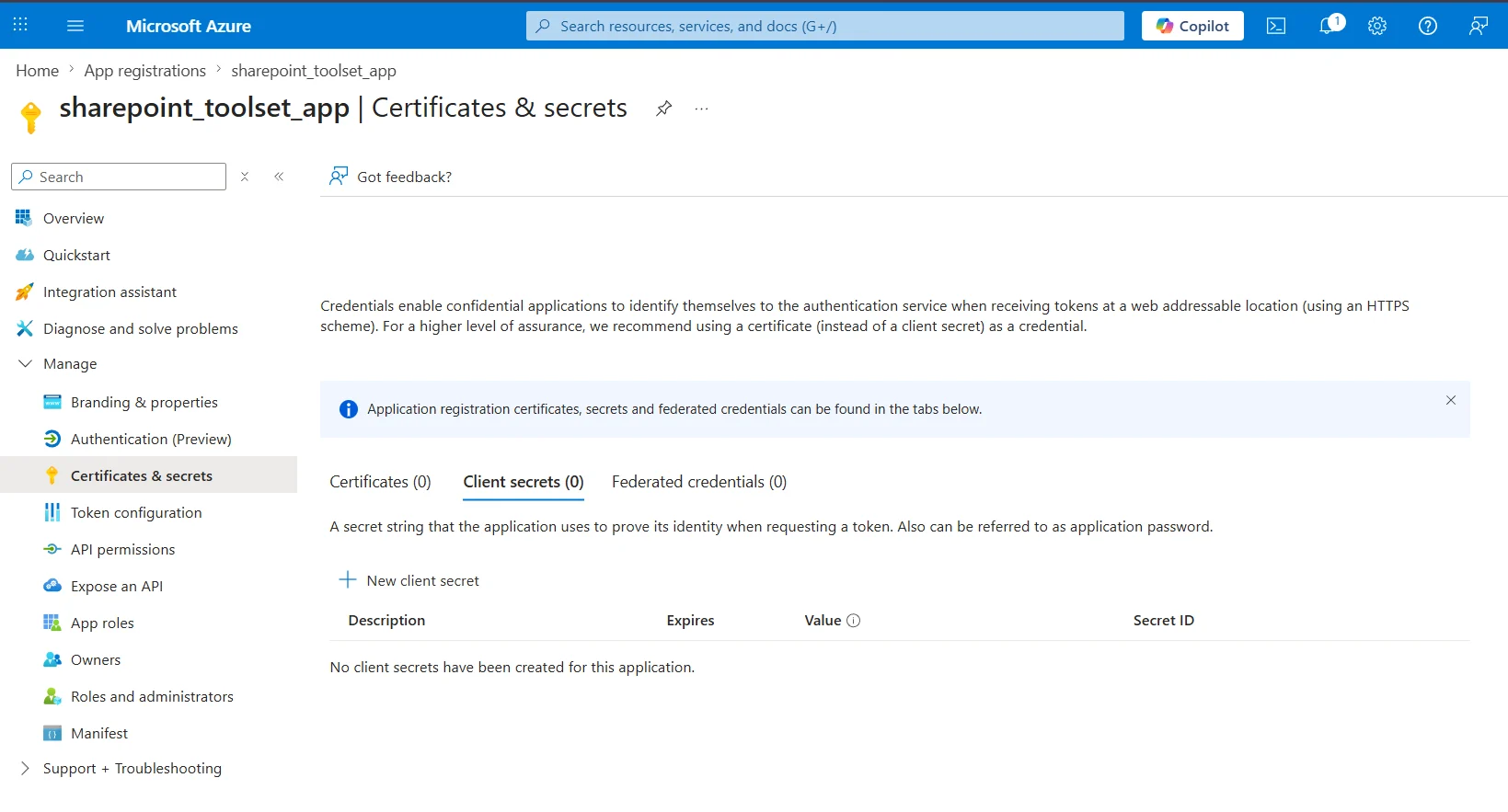
Step 6: Add Microsoft Graph API permissions
- In the left sidebar, open API permissions.
- Click + Add a permission → Microsoft Graph → Delegated permissions.
- Add the following permissions:
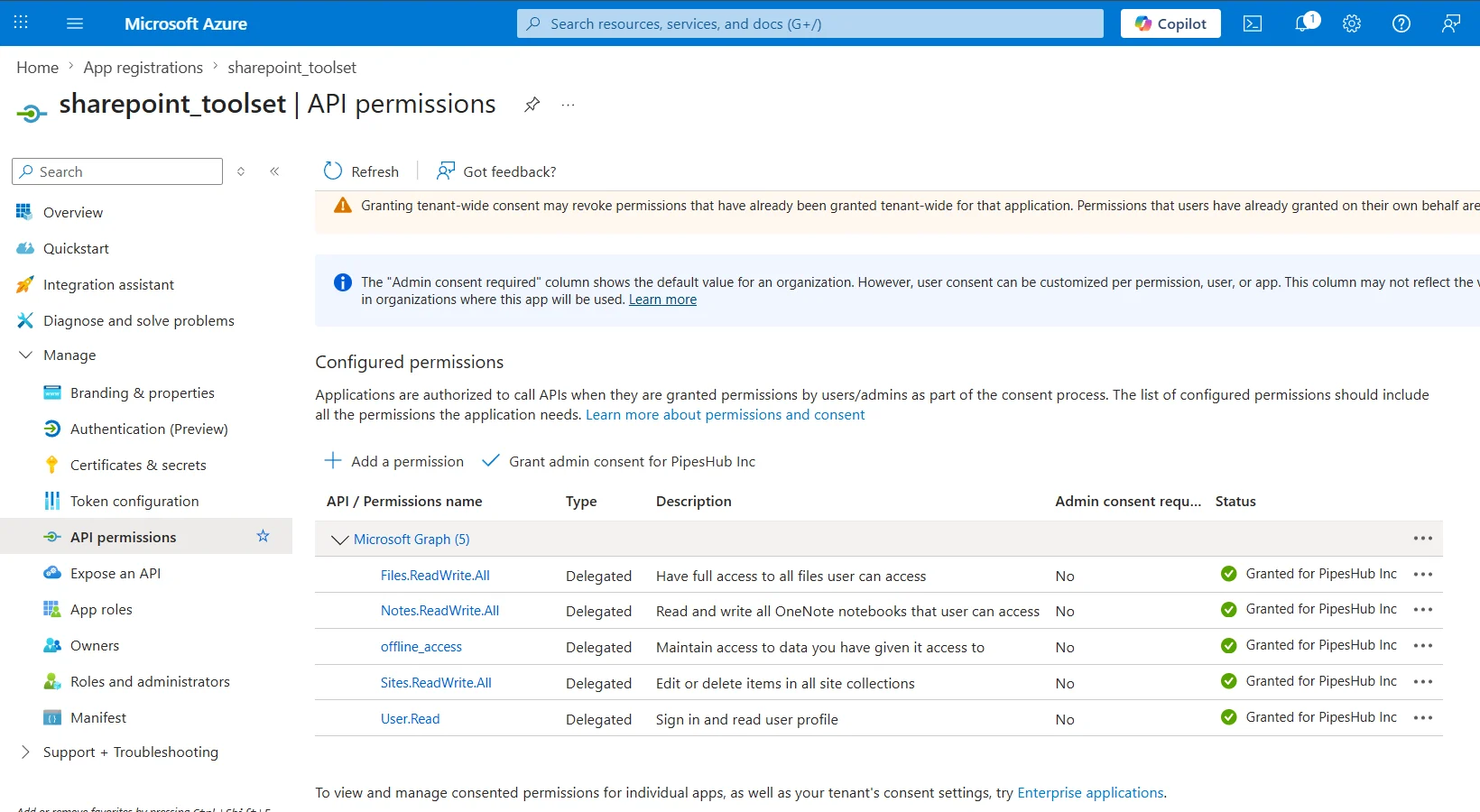
The SharePoint toolset uses Delegated permissions so actions run as the signed-in user, not as the app alone.
Step 7: Grant admin consent
The*.All scopes (e.g., Sites.ReadWrite.All) require admin consent at the tenant level even for delegated flows. Click Grant admin consent for your organization (the button includes your tenant name) and confirm. All permissions should show a green check after consent is granted.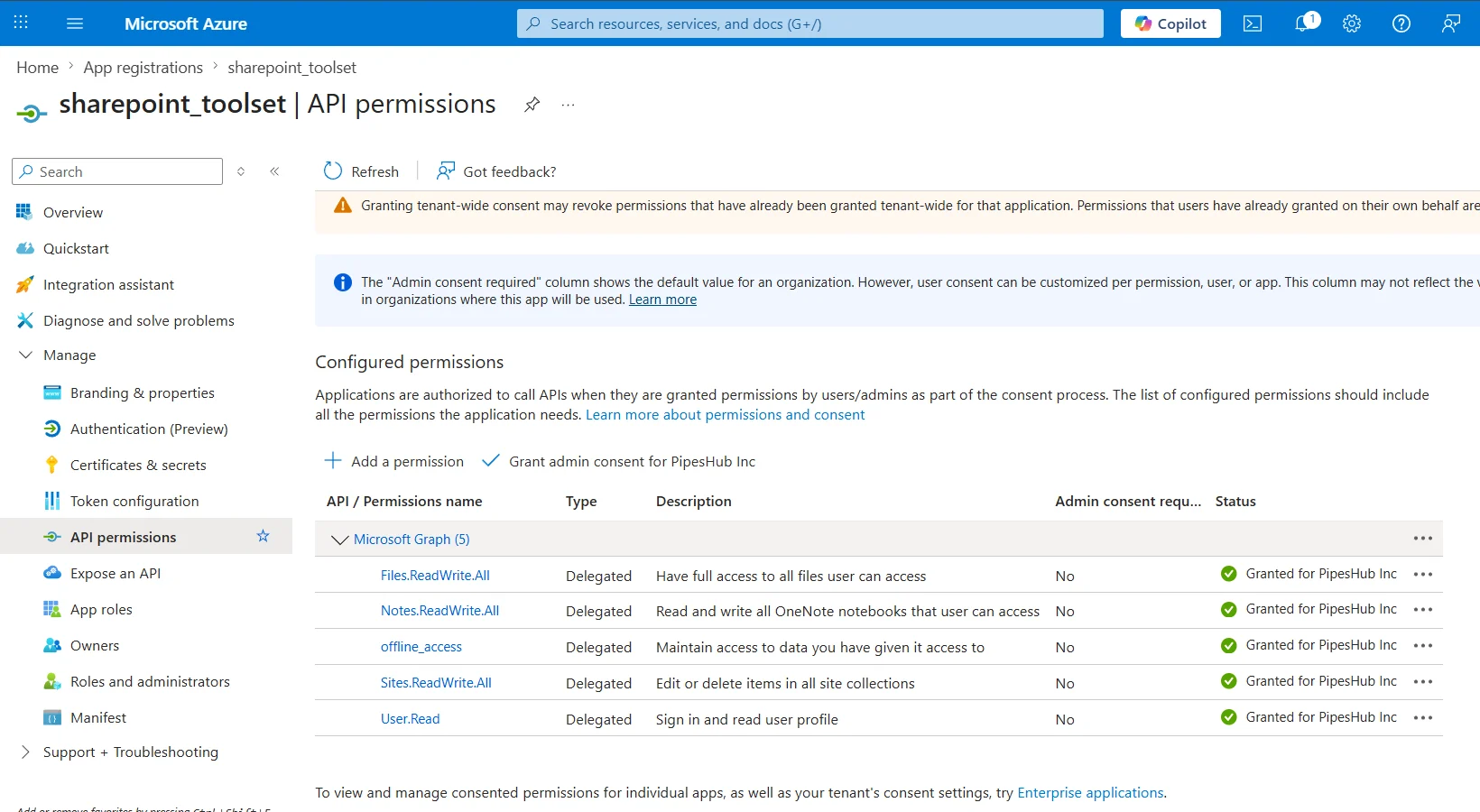
Step 8: Configure the SharePoint toolset in PipesHub
- In PipesHub, go to Workspace Settings → Actions.
- Find SharePoint and open setup / configuration (+ Setup or Configure).
- Confirm the Redirect URI in the dialog matches the Web redirect URI you registered in Azure in Step 3.
- Enter Client ID, Client Secret, and Tenant ID, then create or save the instance.
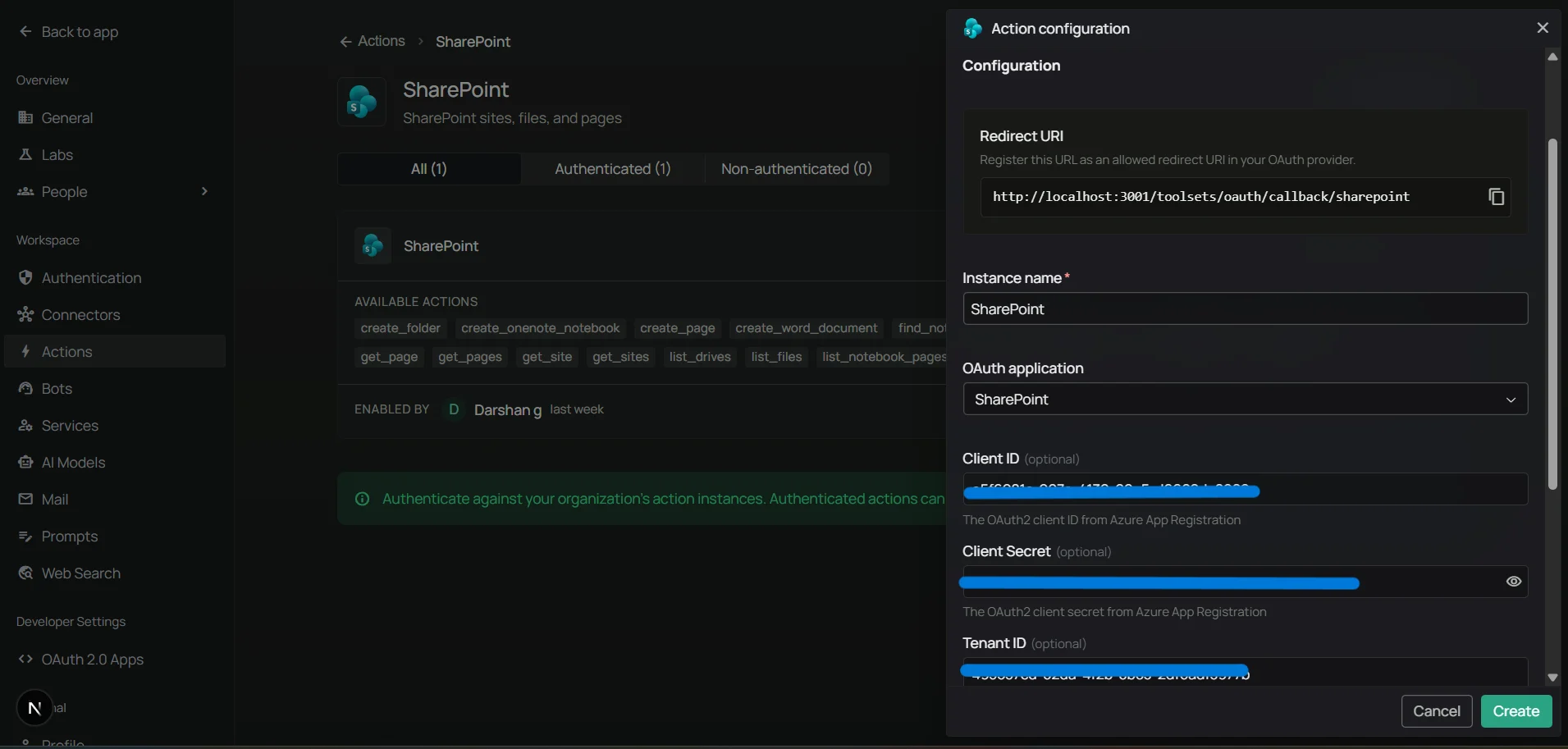
Step 9: Authenticate the SharePoint toolset
Authentication uses the same OAuth flow in either location:- Admins can authenticate the shared instance directly under Workspace Settings → Actions.
- Users can authenticate their own personal instance under Your actions (in the Personal section of the sidebar).
- On the SharePoint tile (in Actions or Your actions), click Authenticate with OAuth.
- A popup opens to Microsoft’s sign-in page — sign in and accept the permissions.
- The popup closes and the SharePoint tile shows Authenticated status.
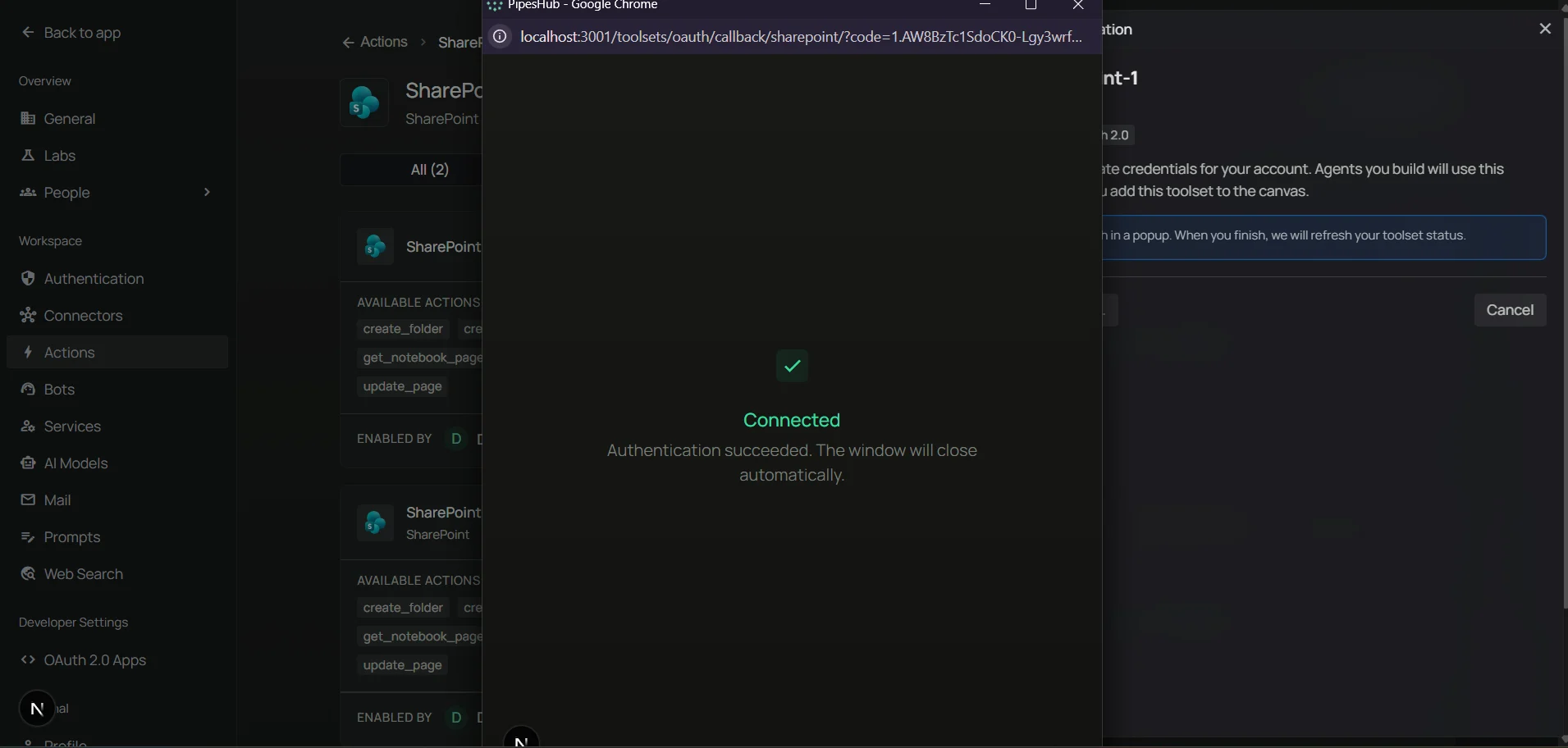
Step 10: Add SharePoint to an agent
- Go to the Home page.
- Next to Agents, click + to create a new agent.
- Give the agent a name, drag the SharePoint toolset onto the canvas, connect it to the Agent Core node with your model and chat input/output, then create the agent.
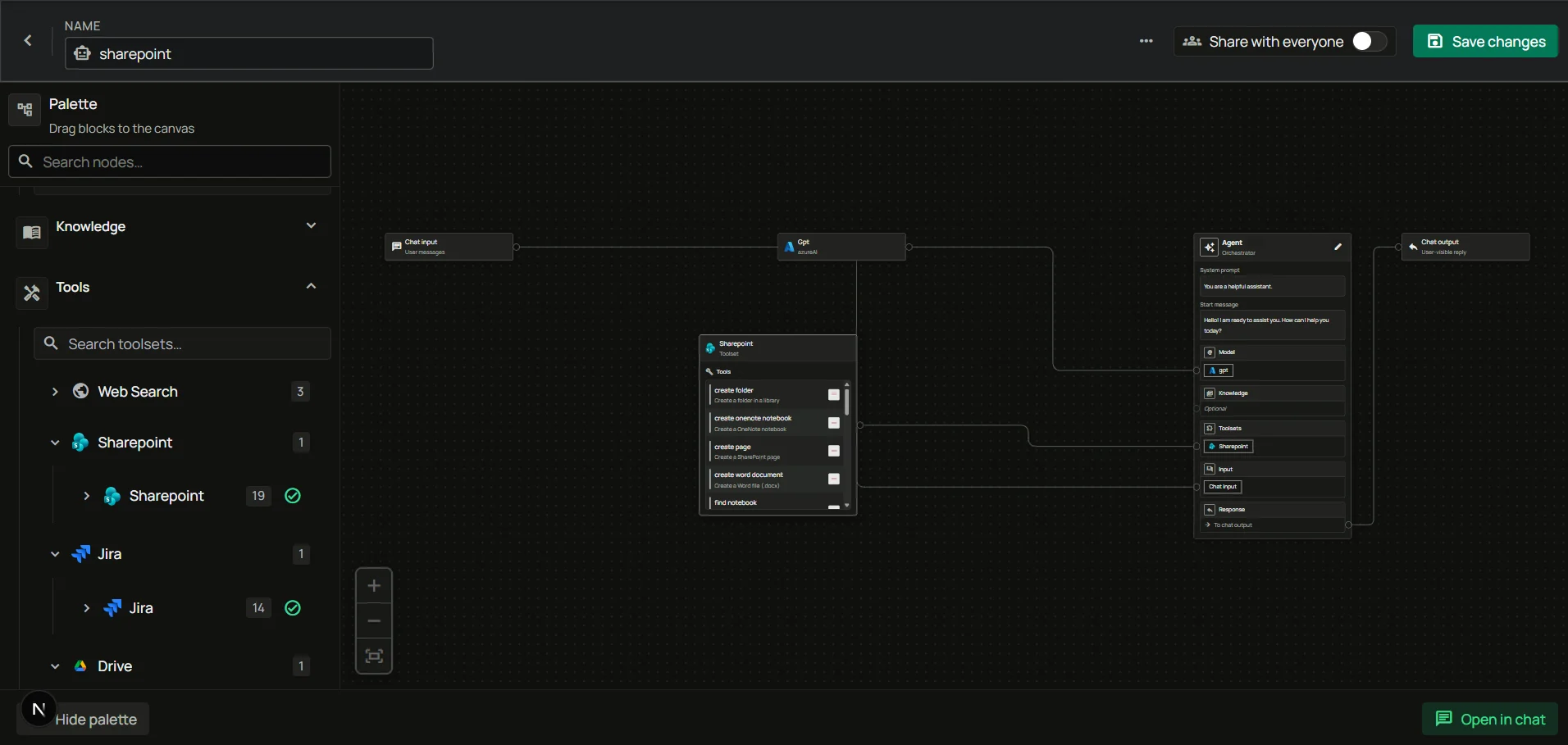
FAQ
Why does it need admin consent if it's user-level?
Why does it need admin consent if it's user-level?
The
*.All Microsoft Graph scopes (e.g., Sites.ReadWrite.All, Files.ReadWrite.All, Notes.ReadWrite.All) require admin consent at the tenant level even for delegated flows because they grant access to data beyond the user’s own resources. After an admin grants consent once, individual users can sign in without seeing the consent prompt for those scopes.Usage Tips
List the SharePoint sites I can accessAsk your agent to “list my SharePoint sites” or “what SharePoint sites am I a member of?” Search for a file across drives
Ask to “search SharePoint for the Q4 budget spreadsheet” — the agent searches across drives the user has access to. Create a new page
Ask to “create a new SharePoint page in the Engineering site titled ‘Release Notes’ with content X”. The agent creates the page and returns its URL. Read or update a page
Ask to “show me the content of the Onboarding page in the HR site” or “update the Release Notes page to add today’s deploy summary”. Create a OneNote notebook
Ask to “create a new OneNote notebook called Sprint Planning in my OneNote” — the agent creates it and returns the notebook ID.