

Microsoft Teams actions
Team channels, chats, meetings, and calendar via Microsoft Graph
ReadyMicrosoft 365
Overview
The Microsoft Teams action lets AI agents work with your organization through Microsoft Graph: post and read channel messages, manage chats, search conversations, manage teams and channels, and work with calendar events, online meetings, transcripts, and attendance. Administrators enable the integration under Workspace → Actions in the web app. Each user completes sign-in under Your actions so agents run with that user’s Microsoft identity and permissions.Key Capabilities
- Channel messaging — Send messages, reply in threads, update text, reactions, permalinks, and search across channels
- Direct chats — Message users by name or email, read chat history with a person, create 1:1 or group chats
- Teams and channels — List teams and channels, create or rename channels, create teams, list and add members
- Users — Look up a user or list directory users in the tenant
- Meetings and calendar — List and filter meetings, search events by name in a date range, create or edit calendar events, schedule channel meetings
- Meeting insights — Transcripts, invited attendees, and attendance for Teams online meetings
Available tools
These are the Graph-backed tools your agents can call once the Microsoft Teams action is configured and the user has authenticated. In the product UI they appear under Available actions for this integration.Configuration Guide
Setup
Setup
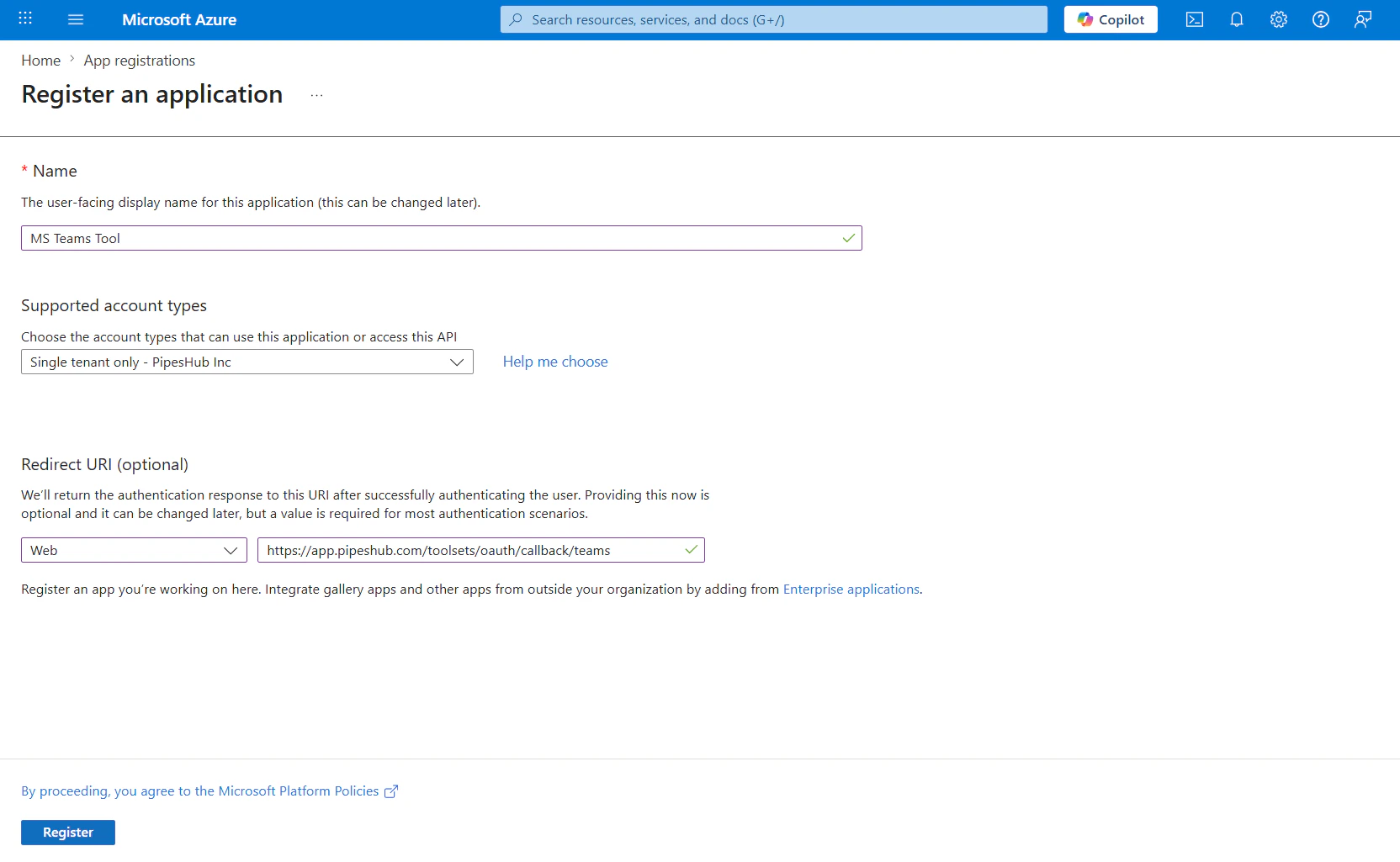
Step 1: Register an application in Microsoft Entra ID
- Sign in to the Azure portal as an administrator (or a user who can register apps).
- Open Microsoft Entra ID (Azure Active Directory).
- Under Manage, select App registrations → New registration.
- Enter a name (for example, “PipesHub Teams actions”), choose Accounts in any organizational directory and personal Microsoft accounts if you need the broadest sign-in audience (or a stricter option for your tenant), then register.
- Copy the Application (client) ID for later.
Step 2: Add Microsoft Graph API permissions
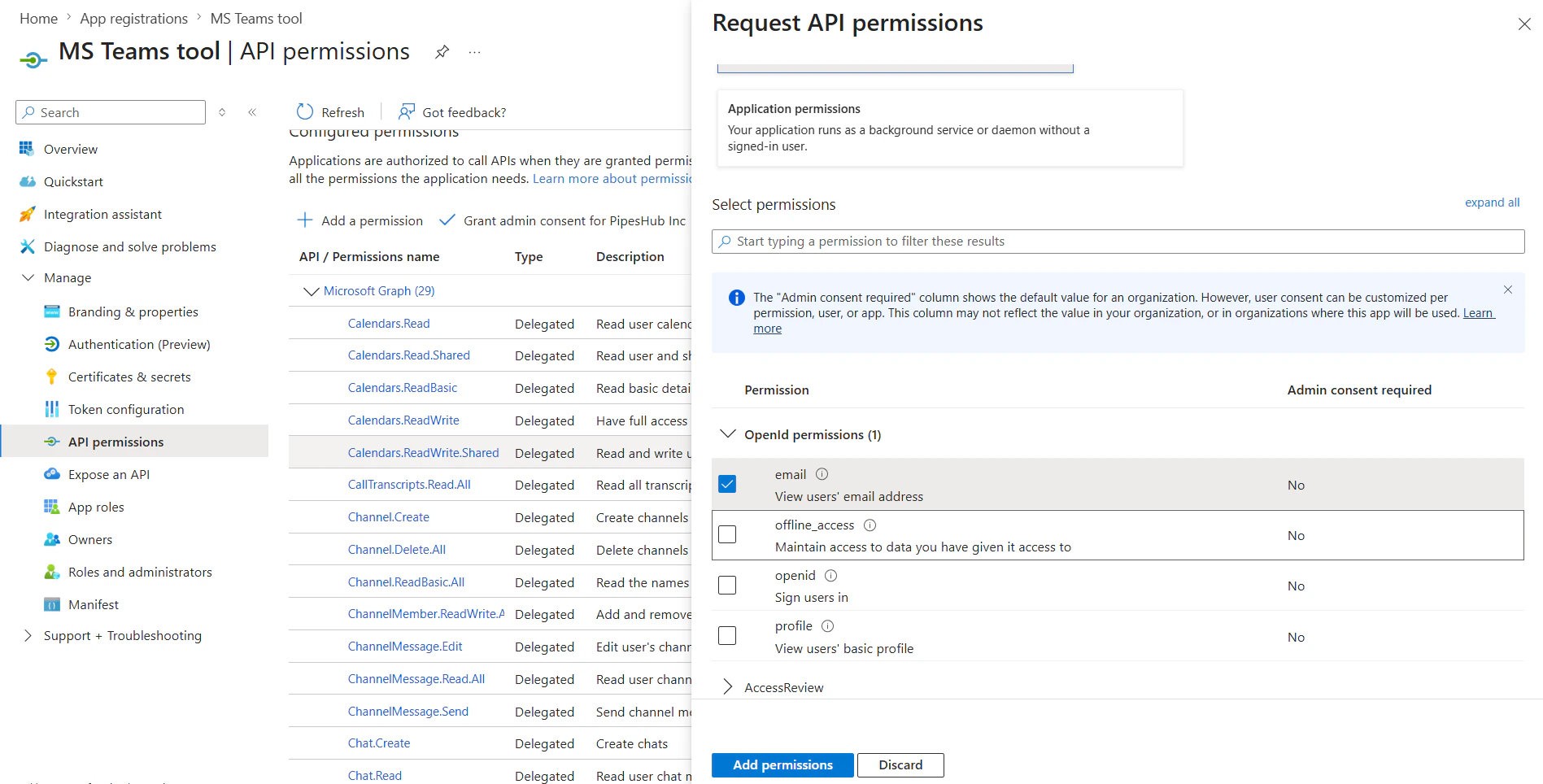
- In the app registration, open API permissions.
- Click Add a permission → Microsoft Graph → Delegated permissions.
- Add the permissions required by the Teams action (see the table below). Add each permission that appears in your product version; your administrator may consolidate or adjust these over time.
- Click Add permissions.
Delegated permissions (reference)
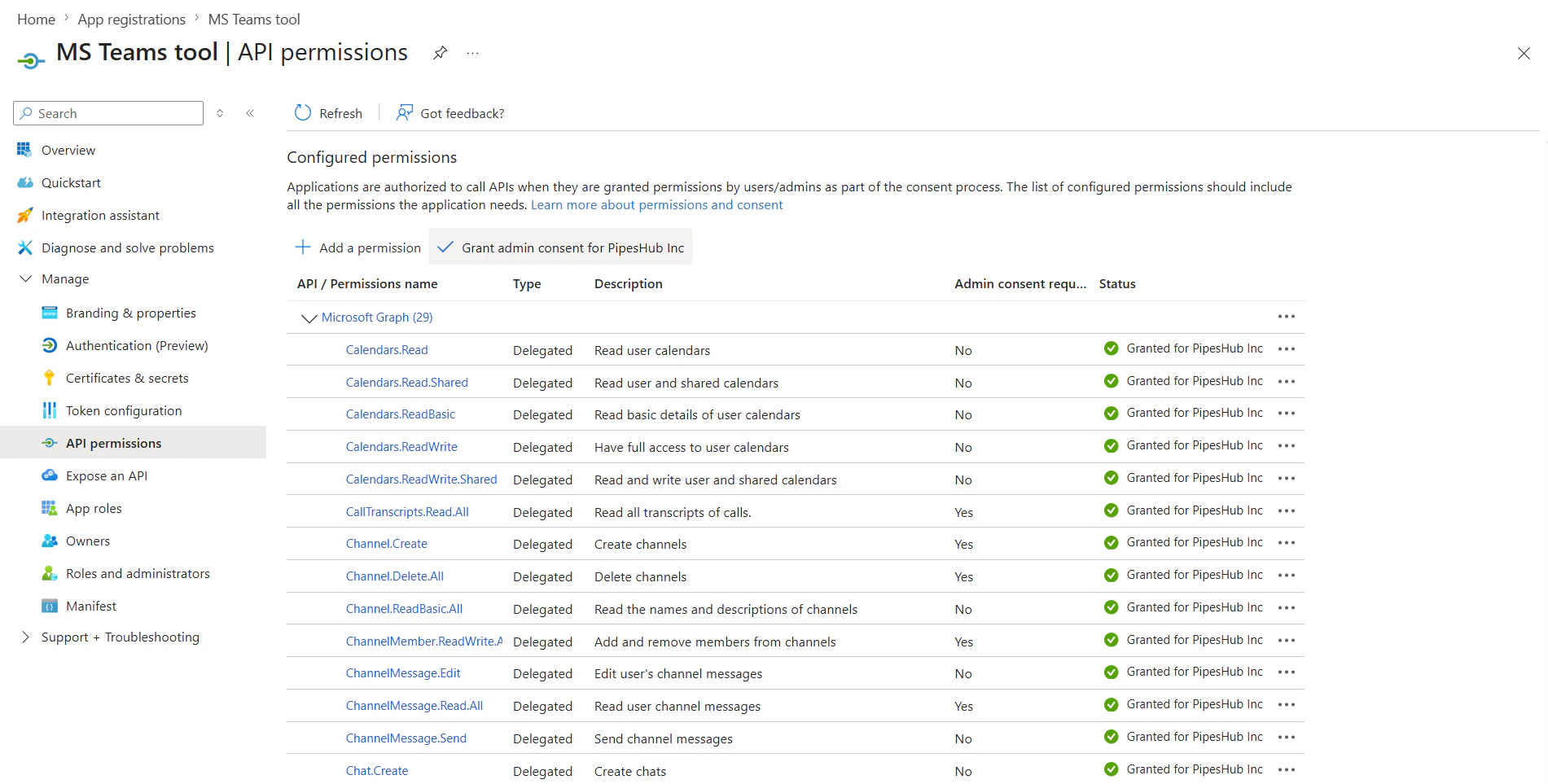
These align with the agent OAuth scope configuration for the Microsoft Teams action. Several permissions are commonly granted via admin consent. See the Microsoft Graph permissions reference for details.Step 3: Grant admin consent (if required)
- On API permissions, review Status for each permission.
- If your tenant requires it, click Grant admin consent for [your organization] and confirm.
Step 4: Create a client secret
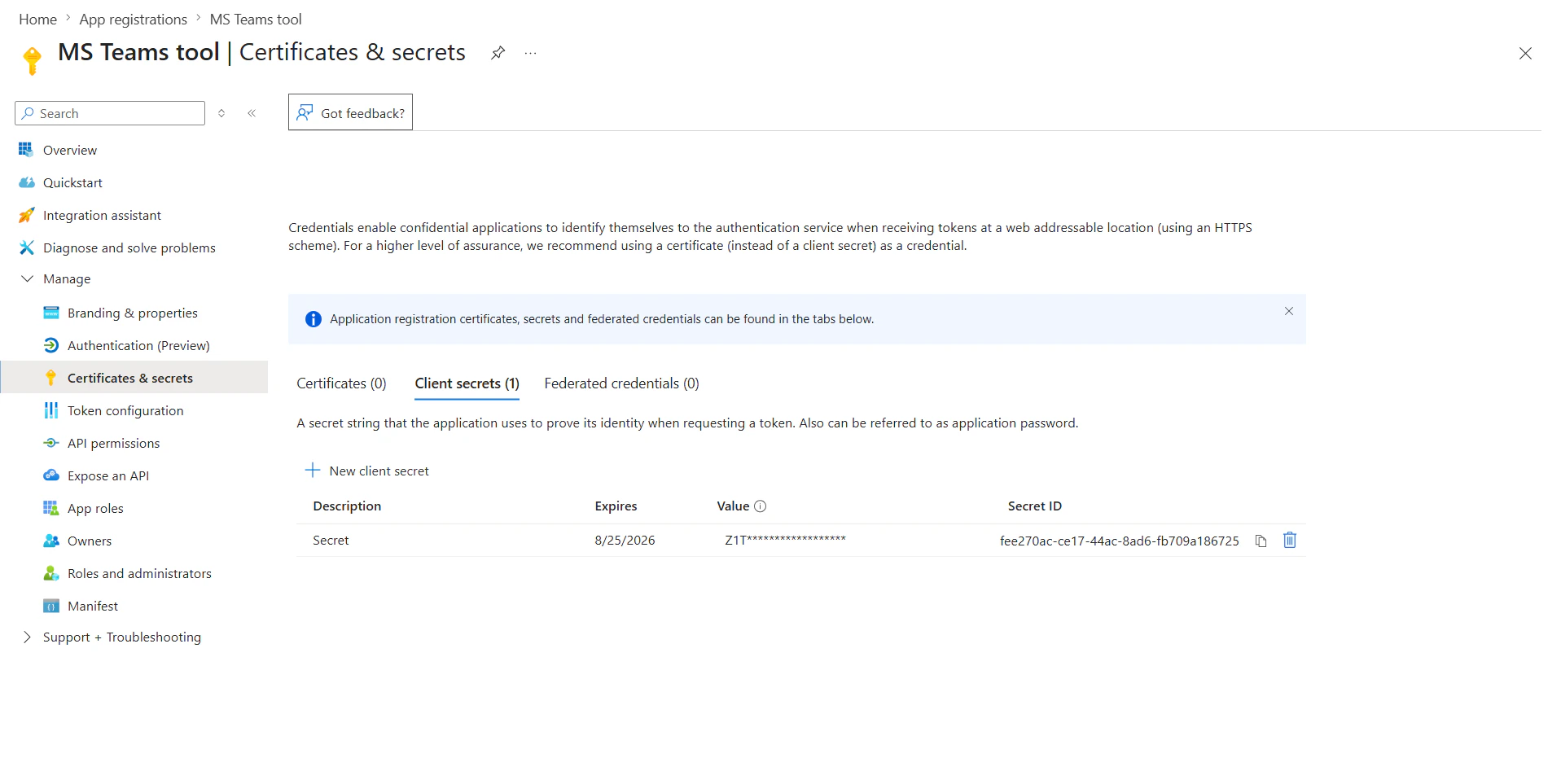
- Open Certificates & secrets.
- Under Client secrets, click New client secret, add a description and expiry, then Add.
- Copy the secret value immediately; it is shown only once.
Step 5: Create the Microsoft Teams action in PipesHub
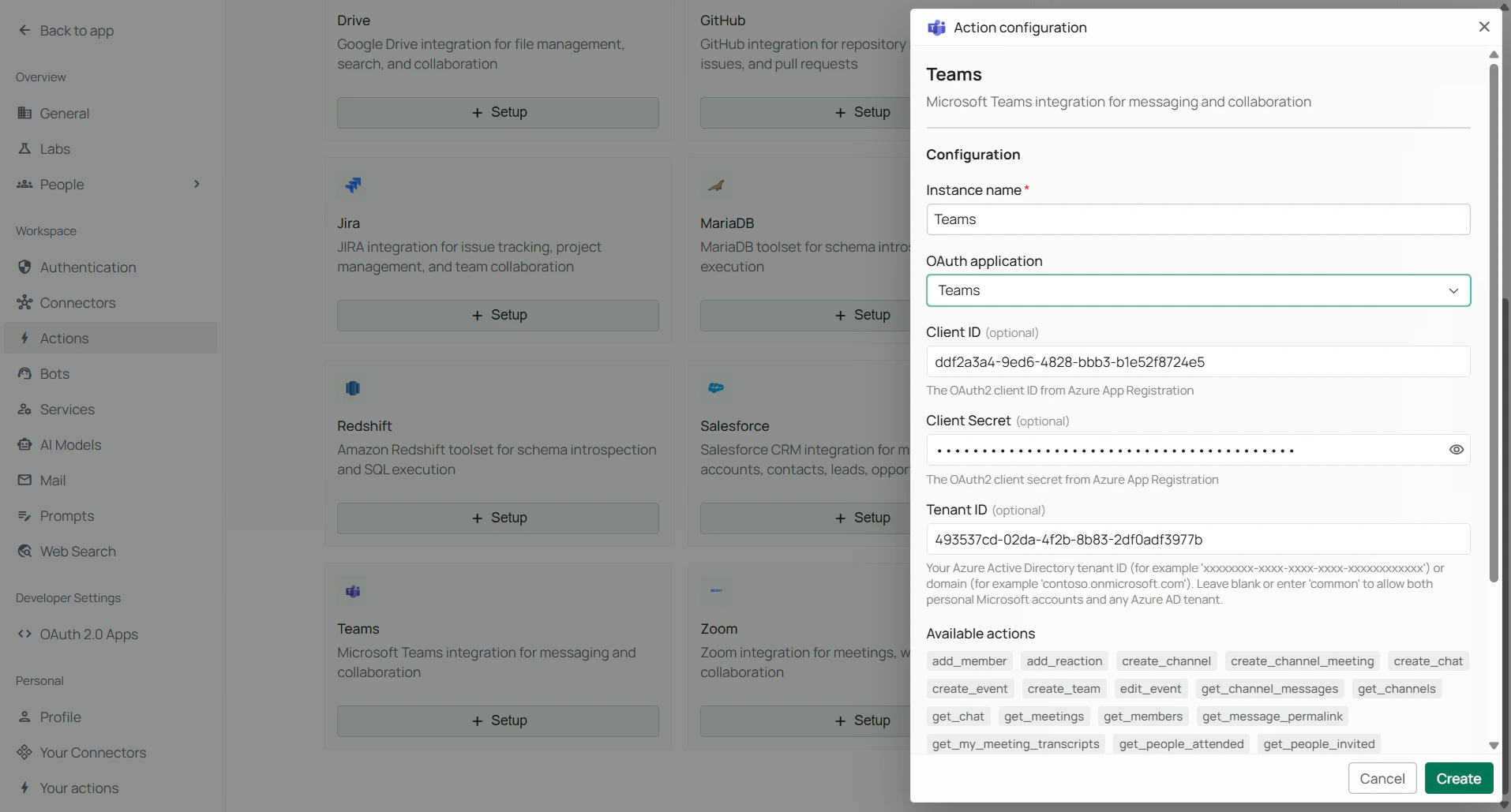
These steps require a workspace administrator. Open Workspace → Actions (or/workspace/actions/team). Use the path that matches whether your organization already has a Microsoft Teams org instance.Case A — Organization does not have a Microsoft Teams instance yet
- In the sidebar, open Workspace, then Actions.
- On the catalog, find Microsoft Teams. With no org instance yet, the card is Not configured and the primary control is Setup.
- Click Setup on the Microsoft Teams card (or open the card and start setup). The Action configuration drawer opens.
Case B — Organization already has at least one Microsoft Teams instance
- In the sidebar, open Workspace, then Actions.
- Find Microsoft Teams in the catalog. When an org instance already exists, clicking the card opens the Microsoft Teams type page (instances list) instead of launching setup immediately.
- On the type page, click Add instance. The Action configuration drawer opens.
Complete configuration (both cases)
- In the Action configuration drawer, set Instance name (for example, “Production Teams”).
- Enter Client ID and Client secret from Entra (and Tenant ID if the form shows it—your directory GUID, domain, or
commonfor the default multi-tenant and personal Microsoft account behavior, as described in the product UI). - Click Create to save the organization action instance.
After you create an OAuth-backed action, the product may remind you that each user must sign in from Your actions before they can use it in agents.
Step 6: Copy the Redirect URI and register it in Azure
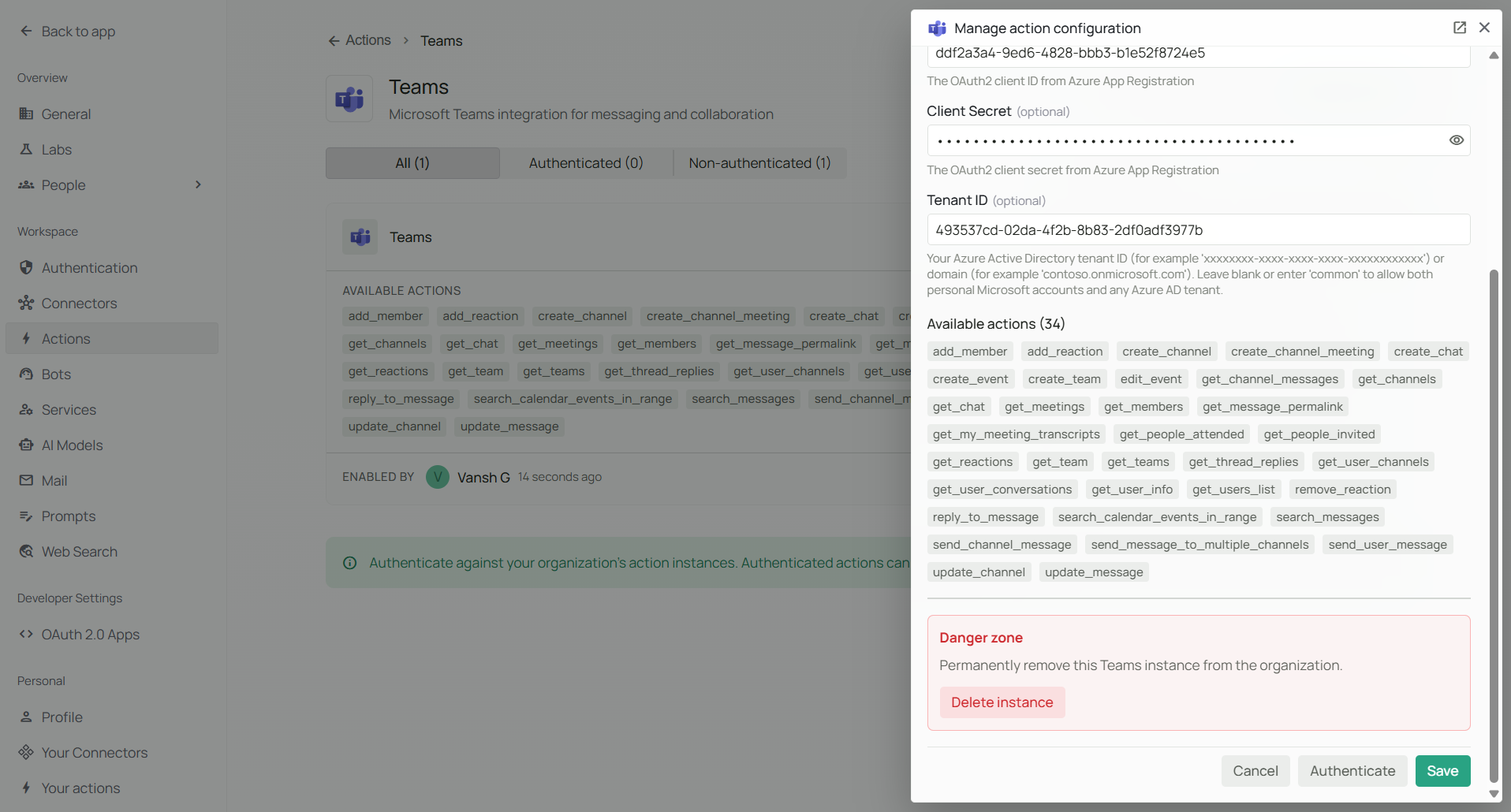
The Action configuration drawer does not show the redirect URL; you copy it from Manage action configuration after the instance exists.- On the Microsoft Teams action page, find your new instance in the list.
- Open Manage action configuration (the settings control on the instance row).
-
Under Redirect URI, copy the value (or use Copy). It matches your deployment host and this pattern:
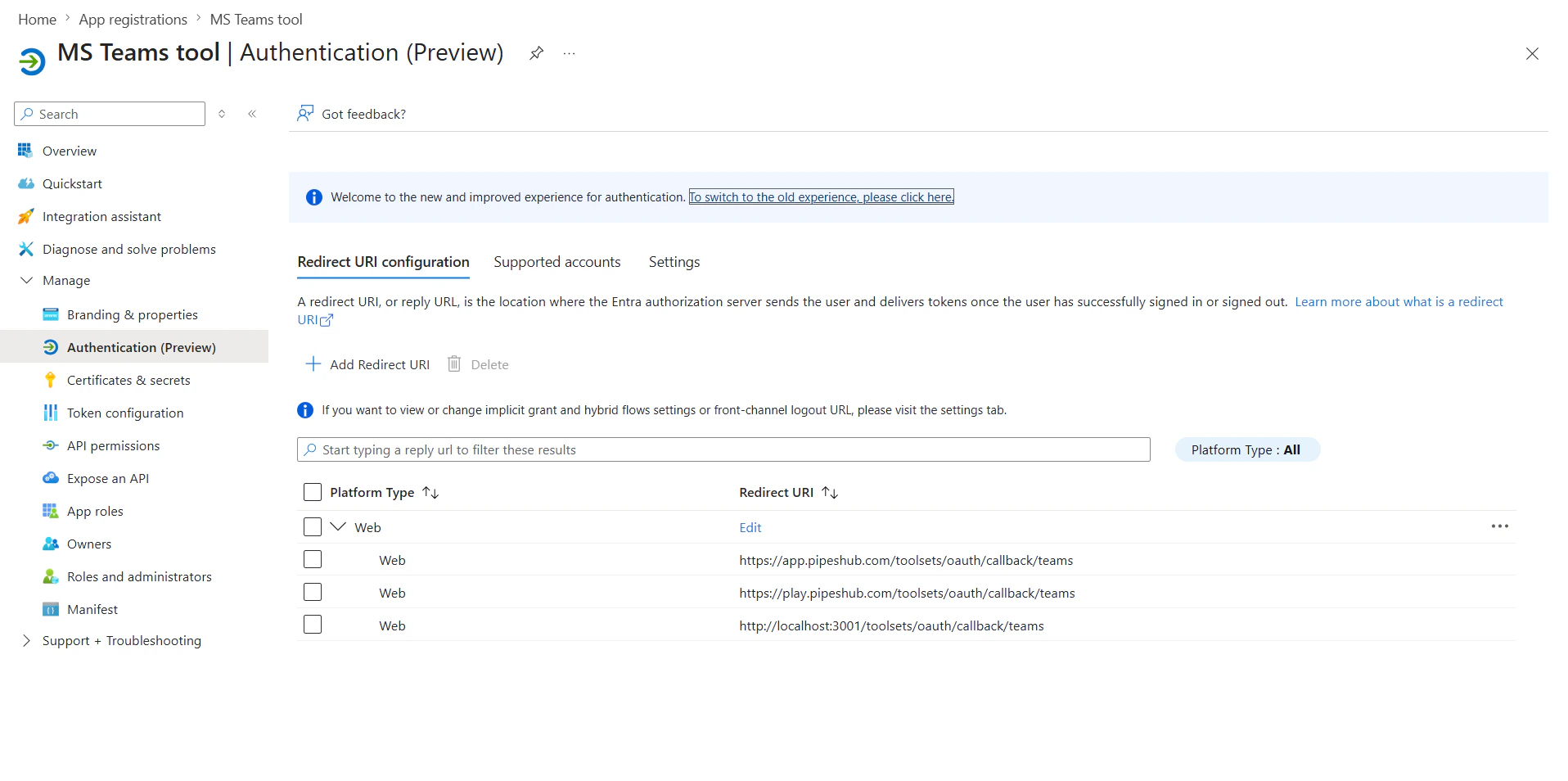
https://<your-pipeshub-host>/toolsets/oauth/callback/teamsThe path segmentteamsmatches the Microsoft Teams action type. The value must match what you register in Entra exactly (scheme, host, path; no stray trailing slash unless your deployment includes one). - In the Entra app registration, open Authentication.
- Under Platform configurations, add a Web platform if needed.
- Under Redirect URIs, paste the exact Redirect URI from PipesHub.
- For a web-based OAuth callback, you can enable Access tokens and ID tokens under Implicit grant and hybrid flows only if your organization’s security policy requires it; many confidential-client flows use the authorization code flow only.
- Save the Authentication blade.
Step 7: Sign in and authorize
Administrators (org instance)On Workspace → Actions, open Microsoft Teams, select your instance, and use Authenticate to complete the Microsoft sign-in and consent flow. After redirect back to PipesHub, the instance should show as authenticated.End users
Each person who should use Microsoft Teams in agents opens Your actions in the workspace sidebar (
/workspace/actions/personal), finds Microsoft Teams, and completes Authenticate for the organization instance they need.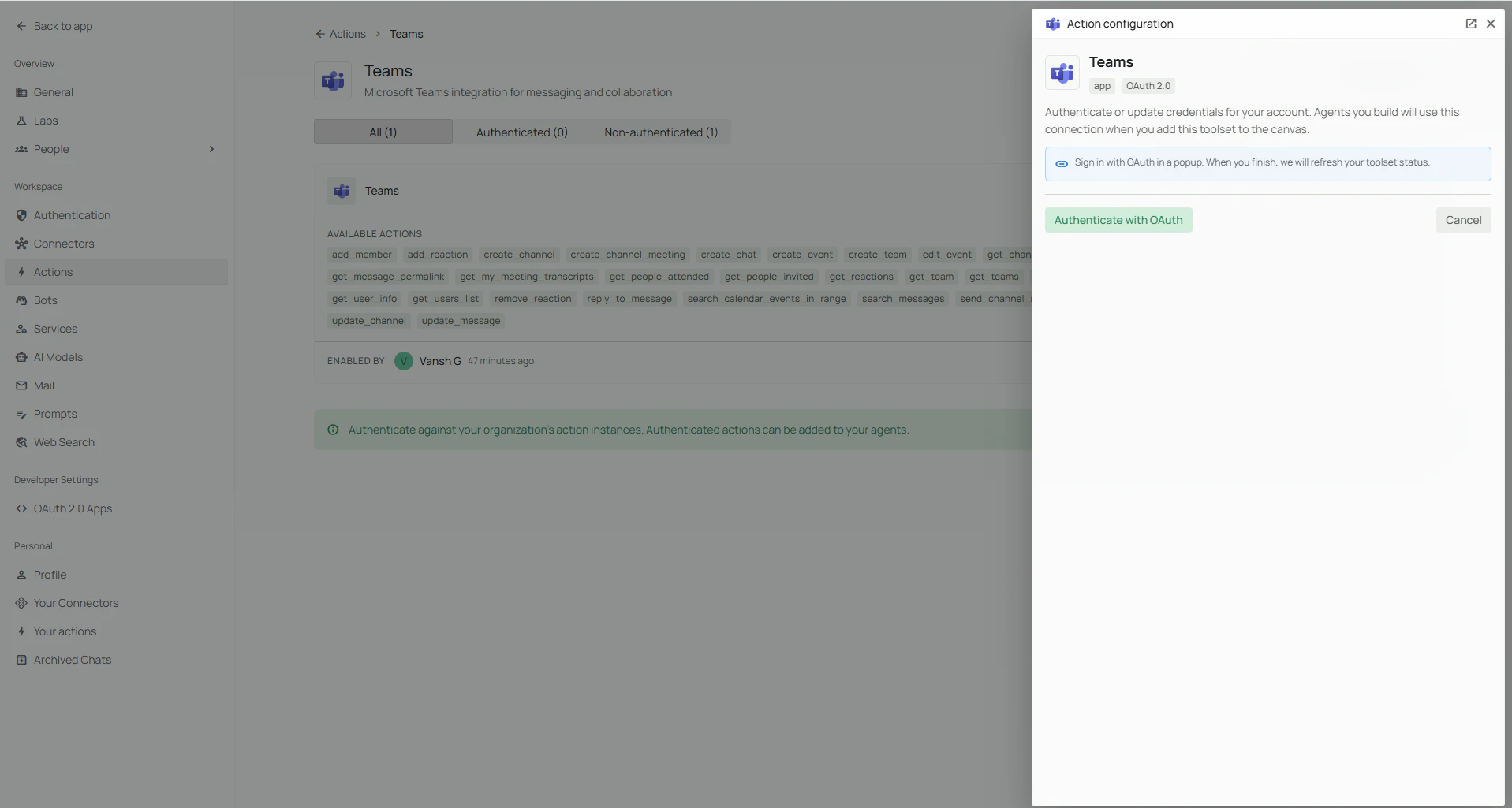
FAQ
What is the difference between a Teams Connector and the Microsoft Teams action?
What is the difference between a Teams Connector and the Microsoft Teams action?
Use a connector when you need retrieval over indexed data; use the Microsoft Teams action when the agent should act in Teams or Graph on behalf of the signed-in user (within granted permissions).
Channel message search scans recent messages per channel (bounded by the tool’s parameters). Ask for a specific team or channel when possible so results stay focused. If none of the channels could be read, the search reports the error instead of “no matches”.
Usage Tips
How do I post in a Teams channel?Ask the agent to send a message to the right team and channel. It can use
get_teams and get_channels to resolve IDs, then send_channel_message.
How do I direct-message someone?Ask to “DM” or “chat with” a person by display name, email, or UPN. The Microsoft Teams action uses
send_user_message. It looks the person up across your whole directory and sends only on an exact match of display name, email, sign-in name (UPN) or ID. If the name only partly matches (for example “Sam” when the directory has “Samantha Lee”), nothing is sent: the agent gets the closest matches and asks you to confirm with an email or ID. Reading a chat with a person uses the same matching.
How do I reply in a thread?Ask to reply to a specific message or thread in a channel. The agent uses
reply_to_message with the parent message ID when it is known, or reads the thread with get_channel_messages / get_thread_replies first.
How do I find or schedule a meeting?Use natural language with a time range. The agent can call
get_meetings, search_calendar_events_in_range, create_event, or create_channel_meeting depending on whether the meeting is personal or tied to a channel. For a recurring meeting, say how it repeats: daily, weekly on certain days, monthly on a date (the 15th) or on a weekday (the first Monday), or yearly. A repeat pattern Microsoft doesn’t accept is refused with a message saying what to send, rather than quietly becoming a daily meeting.
How do I get a meeting transcript or who attended?Ask for the transcript or attendance for a specific online meeting. The agent uses
get_my_meeting_transcripts, get_people_attended, or get_people_invited as appropriate, often after resolving the meeting from calendar or join information.
How do I add someone to a team or private channel?Ask to add the user by email or ID and specify the team (and private channel if needed). The agent uses
add_member; use get_members to inspect membership first if helpful.