

Jira Data Center
Self-hosted project management and issue tracking
✅ Ready📖 Documentation Available
Overview
Jira Data Center (and Jira Server) is the version of Jira that you install and run on your own servers. Atlassian does not host it for you. The Jira Data Center connector syncs projects, issues, comments, and attachments from your instance. It keeps Jira’s permissions, so each user in PipesHub only sees what they can already see in Jira.If Atlassian hosts your Jira for you, that is Jira Cloud. Use the Jira Cloud connector instead. The two connectors are not interchangeable.
Atlassian ended support for Jira Server on February 15, 2024, and plans to end Data Center on March 28, 2029. The connector still works with Jira Server, since it uses the same REST API.
A separate Jira Data Center Personal connector syncs only what your own account can see. See Personal connector.
Jira Data Structure
The connector understands Jira’s hierarchical data model: Projects → Issues → Comments/AttachmentsWhat Gets Synced
The connector indexes the following content for AI-powered search:- Issue Content: Summary, description, status, priority, labels
- Issue Metadata: Reporter, assignee, created/updated dates, issue type, parent, custom fields
- Issue Links: Links between issues, including Epic Link and parent link
- Comments: Comments that everyone who can see the issue can read, with author information. Comments restricted to a role or group are not indexed.
- Attachments: All file types attached to issues (PDFs, images, documents)
- Permissions: Project permission schemes, project roles, and issue-level security
Configuration Guide
The Jira Data Center connector supports two ways to sign in: Personal Access Token (PAT) and Basic Authentication. Both sync the same data.Prerequisites
Check these before you start:Required privileges
The connector reads a few admin-only APIs to work out who is allowed to see what. If the account cannot reach them, the sync still runs, but some permissions will be missing.A temporary error (a timeout, a server error, rate limiting) is not the same as access being denied. If a project’s permissions or a group’s members can’t be read for that reason, the project or group keeps the access PipesHub already has, and its issues still sync. A failed read never opens content up and never removes anyone’s access. The next sync tries again.
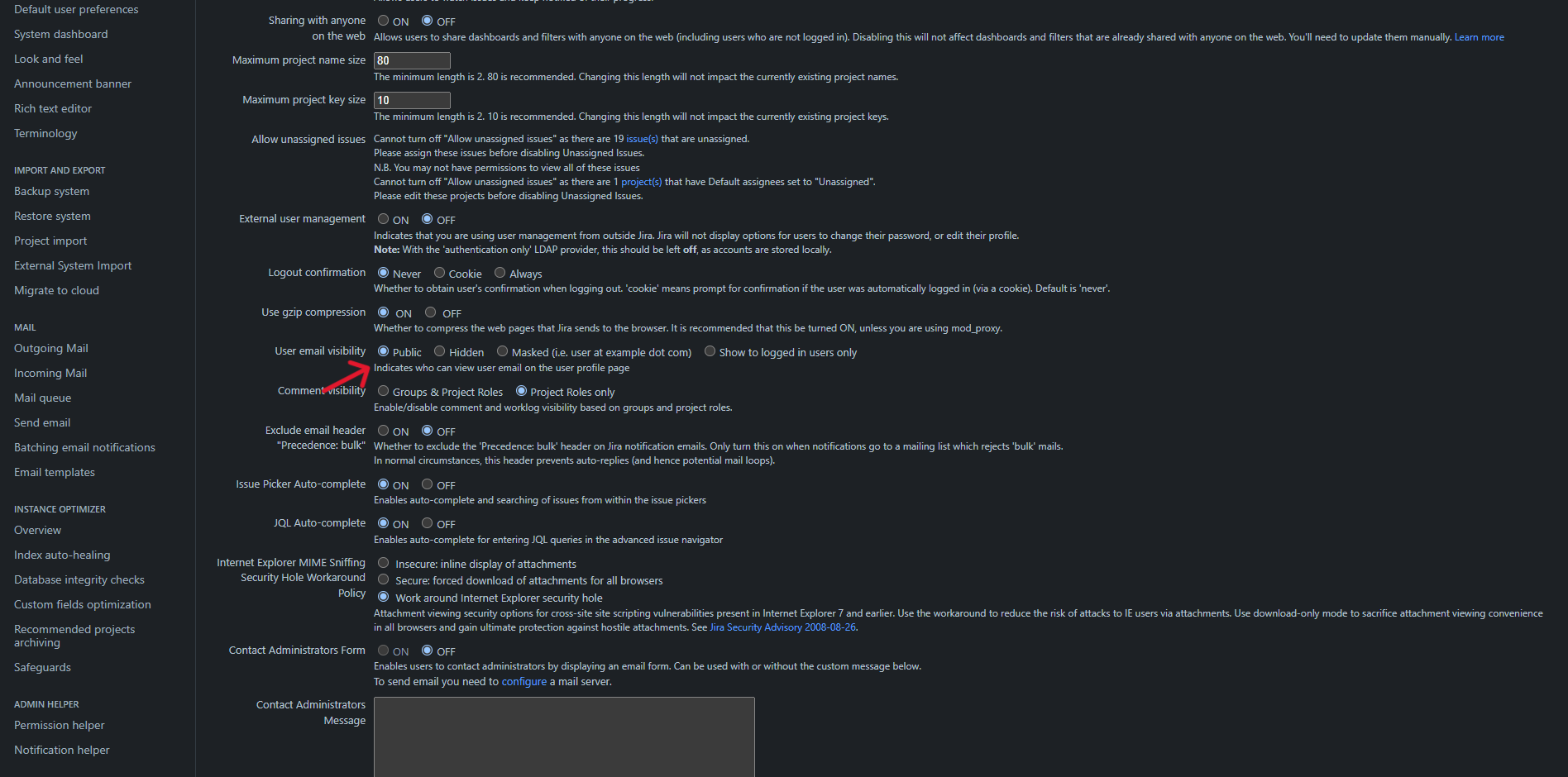
Prerequisite: Email visibility
PipesHub matches Jira users to PipesHub accounts by email address.If a user hides their email in Jira, PipesHub can still find them, as long as that user already exists in PipesHub or in another connected app. Making emails public is not required here. It only makes the first sync faster, because the connector does not have to look up each user one by one. Jira Cloud resolves hidden emails the same way.
On Jira Data Center, email visibility is a global setting that an administrator controls. Users cannot change it for themselves, unlike Jira Cloud where each person sets their own.
- Go to Administration (the gear icon) → System.
- Open General Configuration and click Edit Settings.
- Set User email visibility to Public.
- Save.
Choose how to sign in
- Personal Access Token
- Basic Authentication
Step 1: Create a Personal Access Token in Jira
- Sign in to your Jira with the account you want the connector to use.
- Click your profile picture in the top right, then select Profile.
- Select Personal access tokens in the left-hand menu.
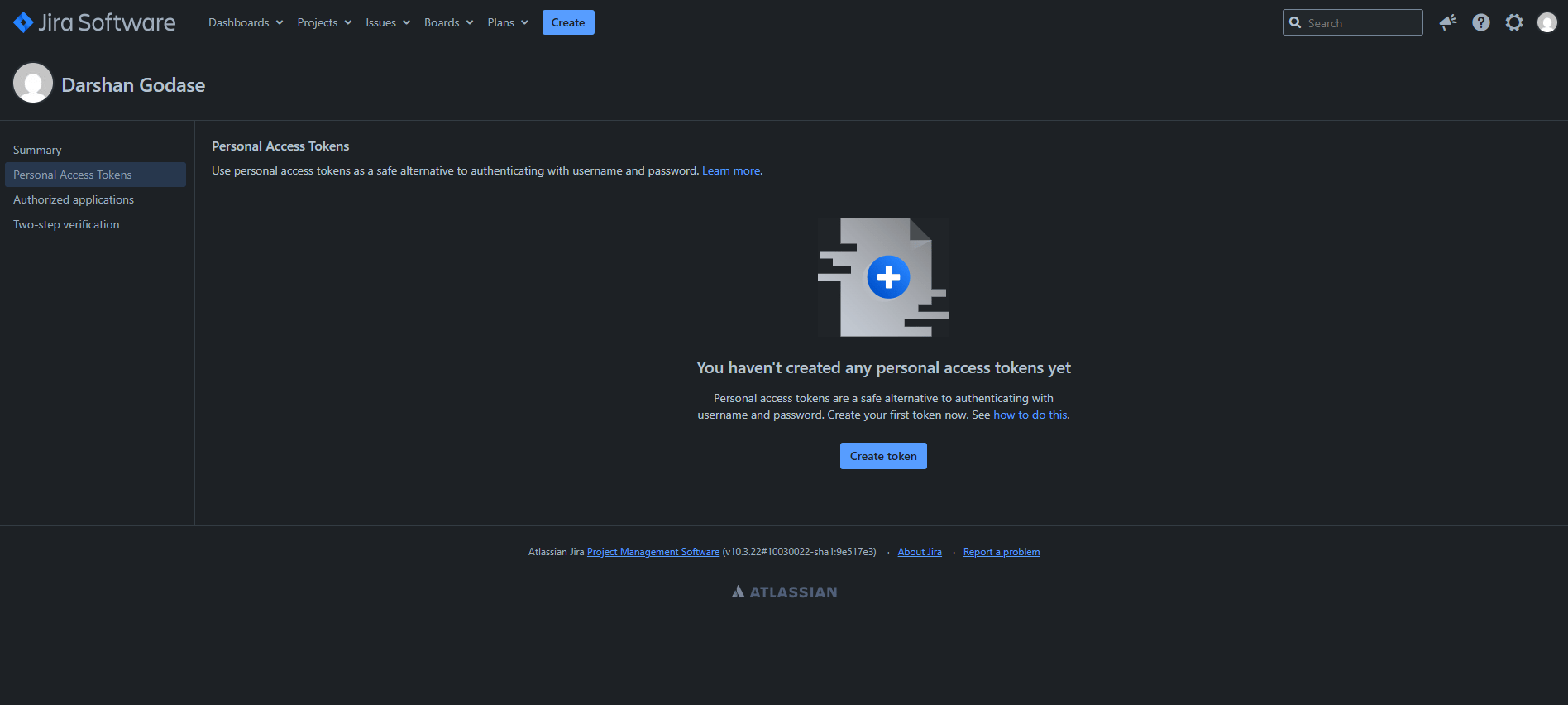
- Click Create token.
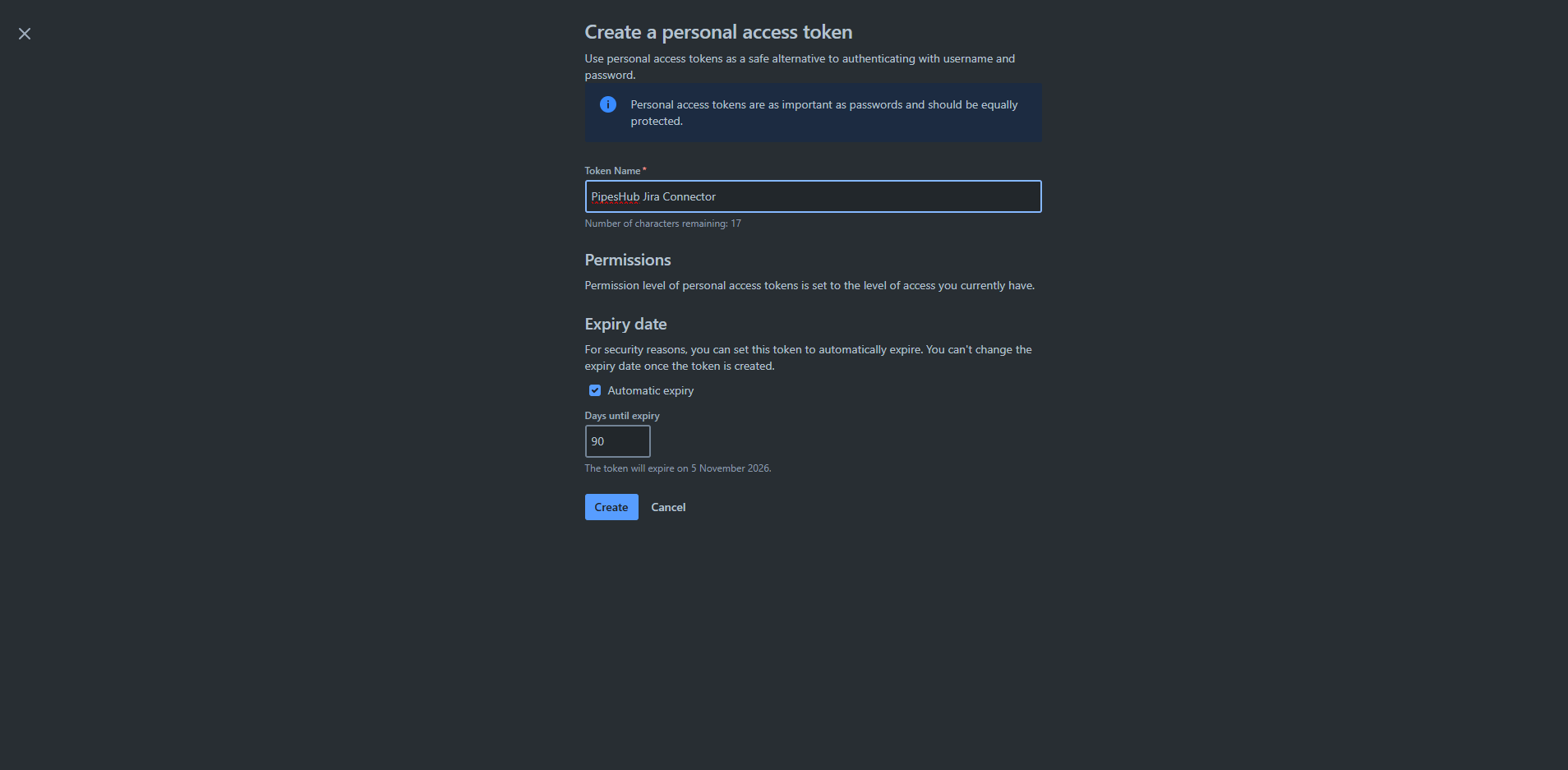
- Give it a name you will recognise, such as
PipesHub Jira Connector. - Set an expiry, or turn off Automatic expiry if your policy allows tokens that do not expire.
- Click Create.
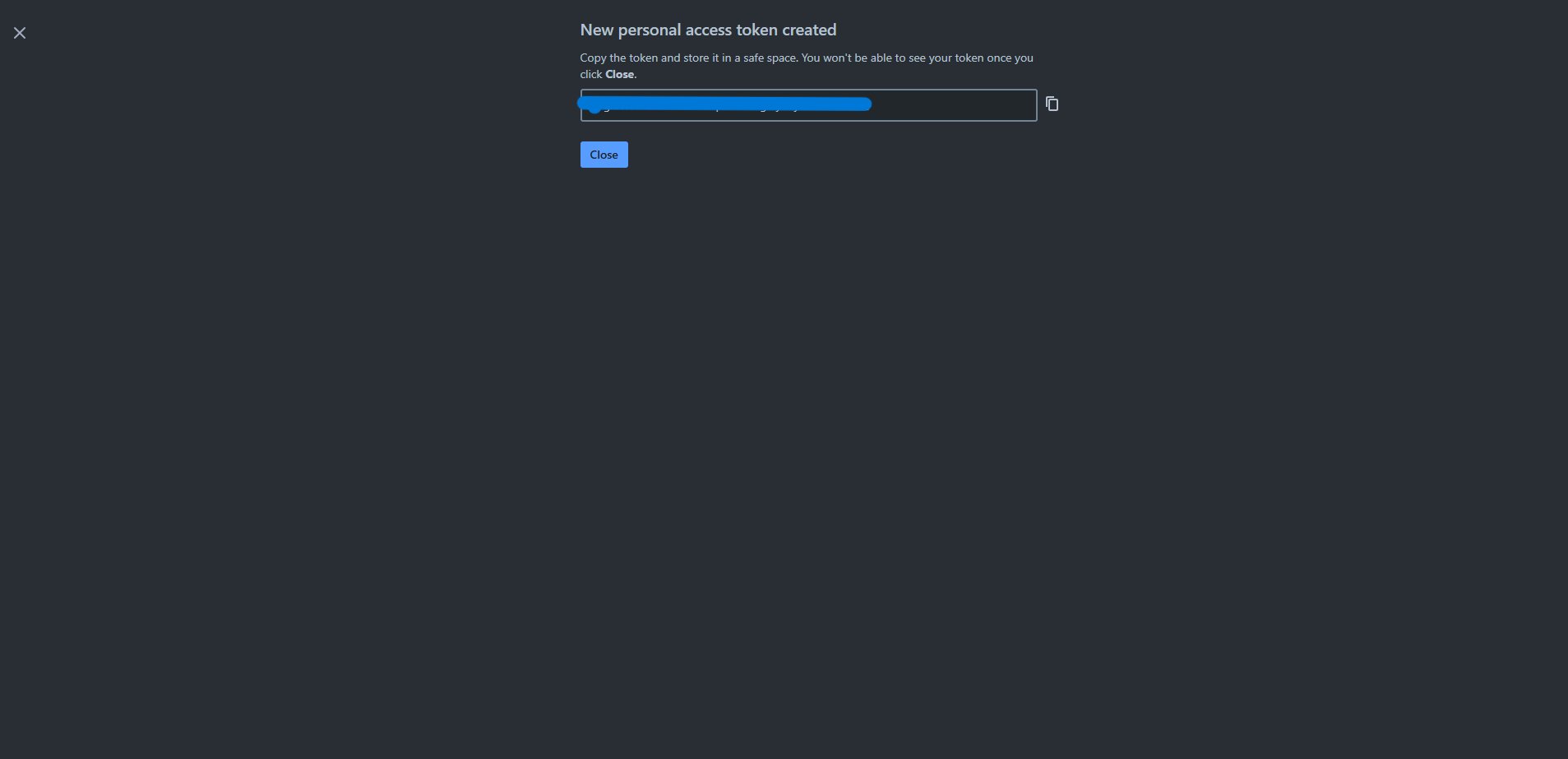
- Jira shows the token once. Copy it and store it somewhere safe.
A token has the same access as the account that created it. Create it from the Jira admin or service account you want the connector to run as. See Required privileges.
Step 2: Authenticate tab — enter your credentials
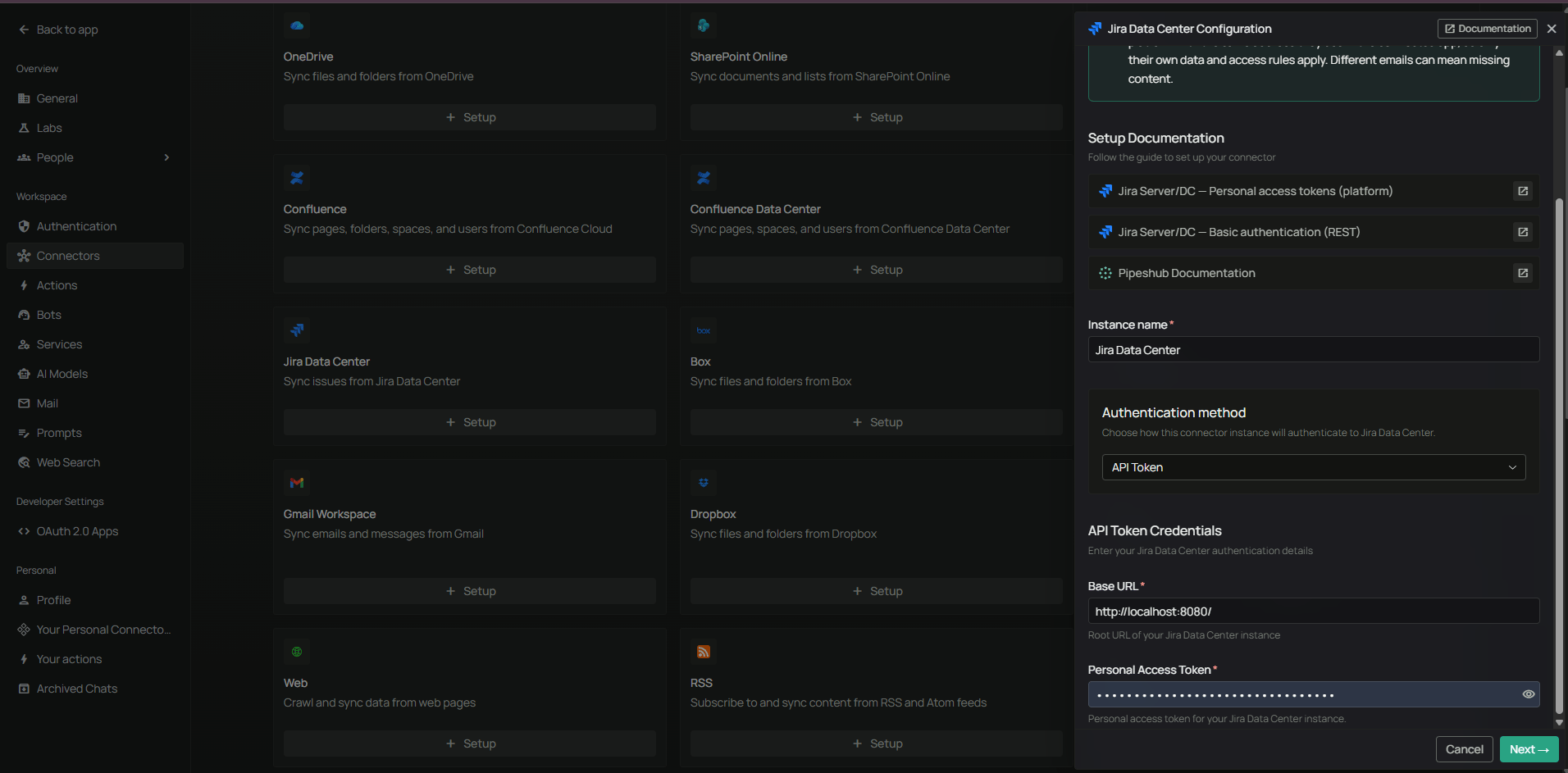
- In PipesHub, go to Workspace Settings → Connectors, find Jira Data Center, and click Set up.
- The connector panel opens as a drawer on the right.
- On the Authenticate tab, enter an Instance name (required), such as
Jira Data Center. - Select API Token in the Authentication method dropdown. The field it shows is labelled Personal Access Token.
- Enter:
- Base URL — the root URL of your Jira, such as
https://jira.company.com(a trailing slash is removed automatically) - Personal Access Token — the token you copied in Step 1
- Base URL — the root URL of your Jira, such as
- Click Next. PipesHub checks the credentials and moves you to the Configure records tab.
Step 3: Configure records tab
See Configure records below. The options are the same for both sign-in methods.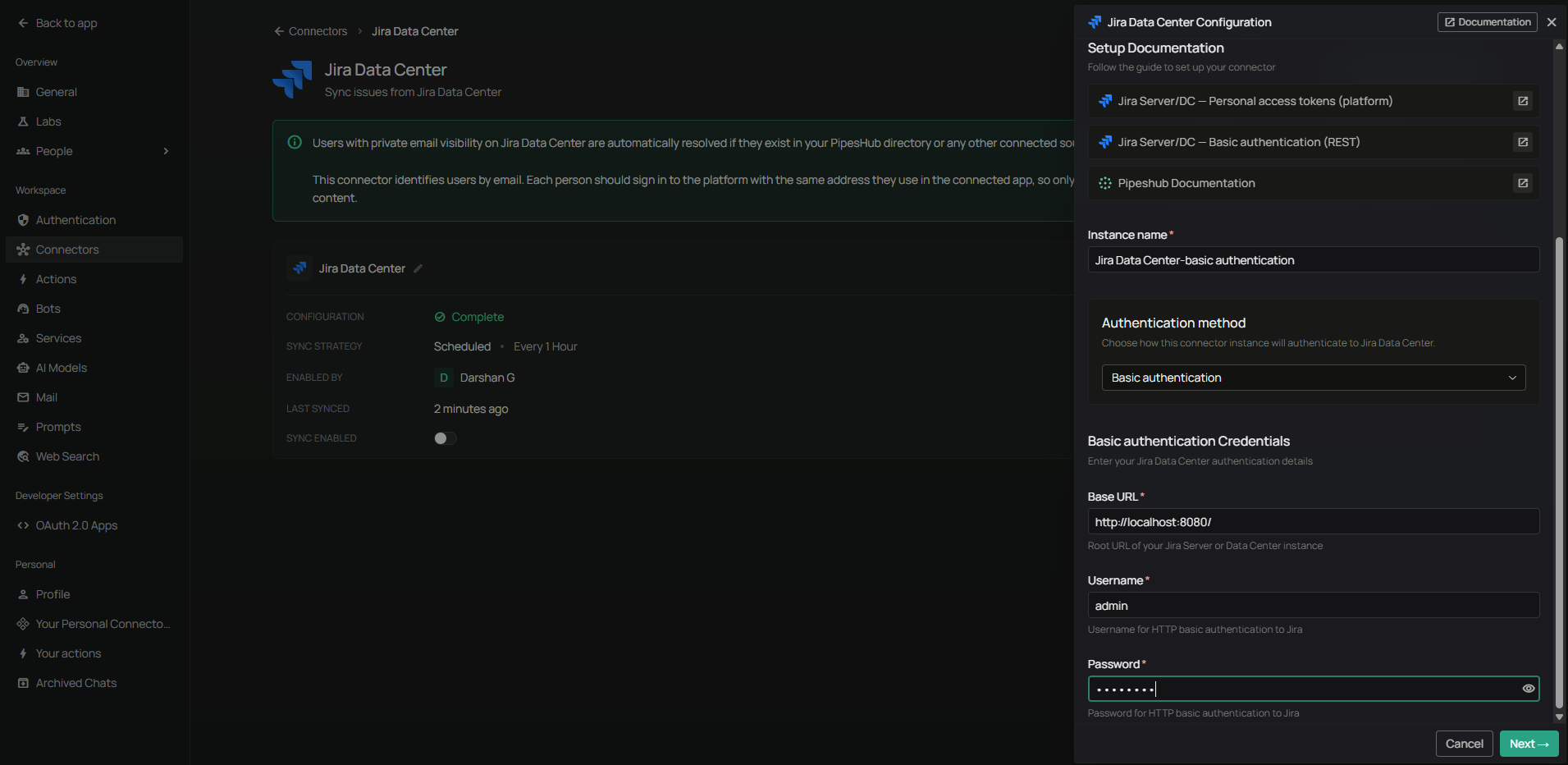
Configure records
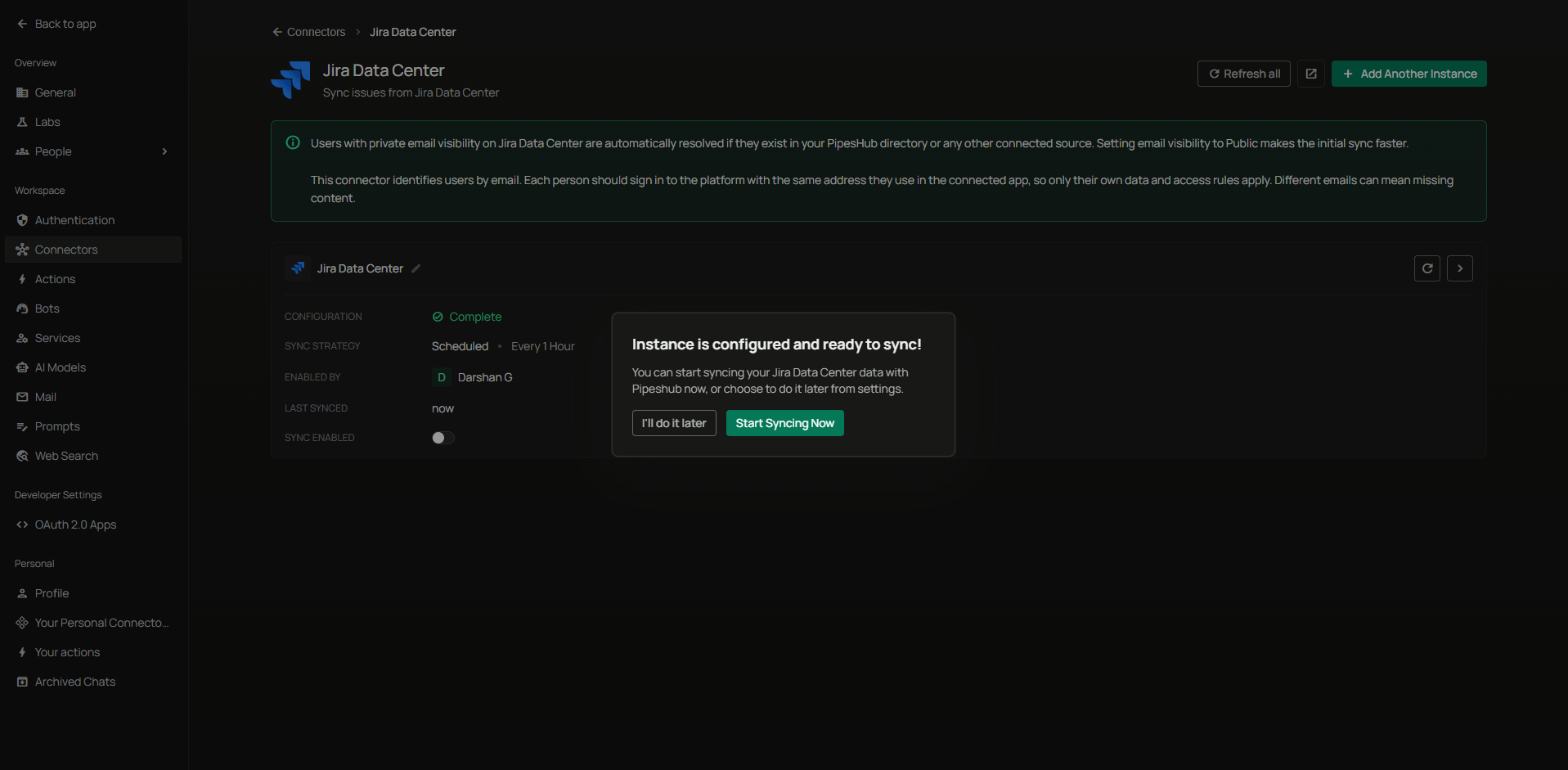
On the Configure records tab, you choose how often the connector syncs and what it syncs. Sync settings — set these first:- Sync Strategy —
ScheduledorManual. - Sync Interval — how often to sync (default: 60 minutes).
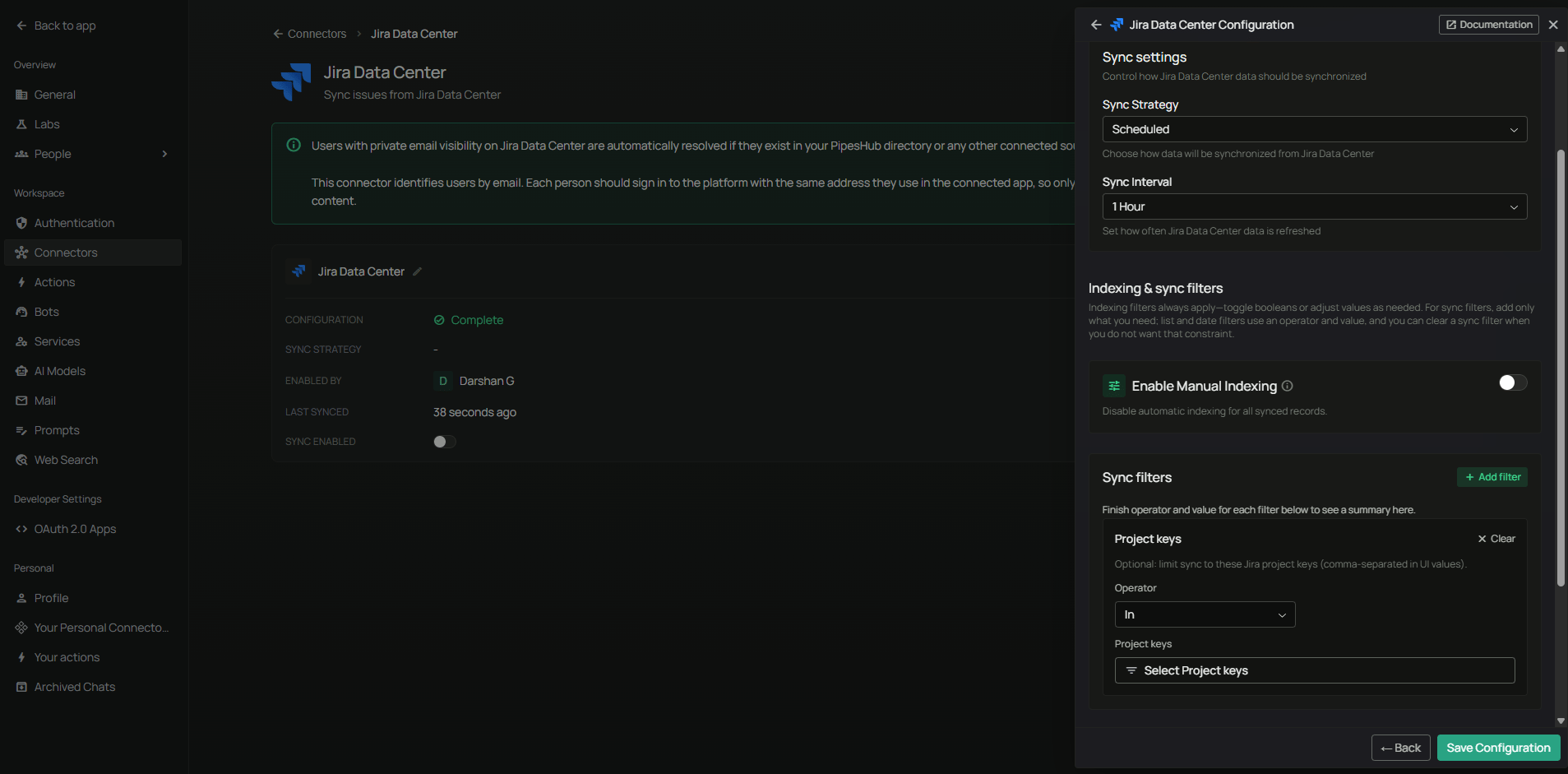
Scheduled sync runs on its own at the interval you set. Manual sync runs only when you start it. Real-time sync is not available for Jira Data Center.
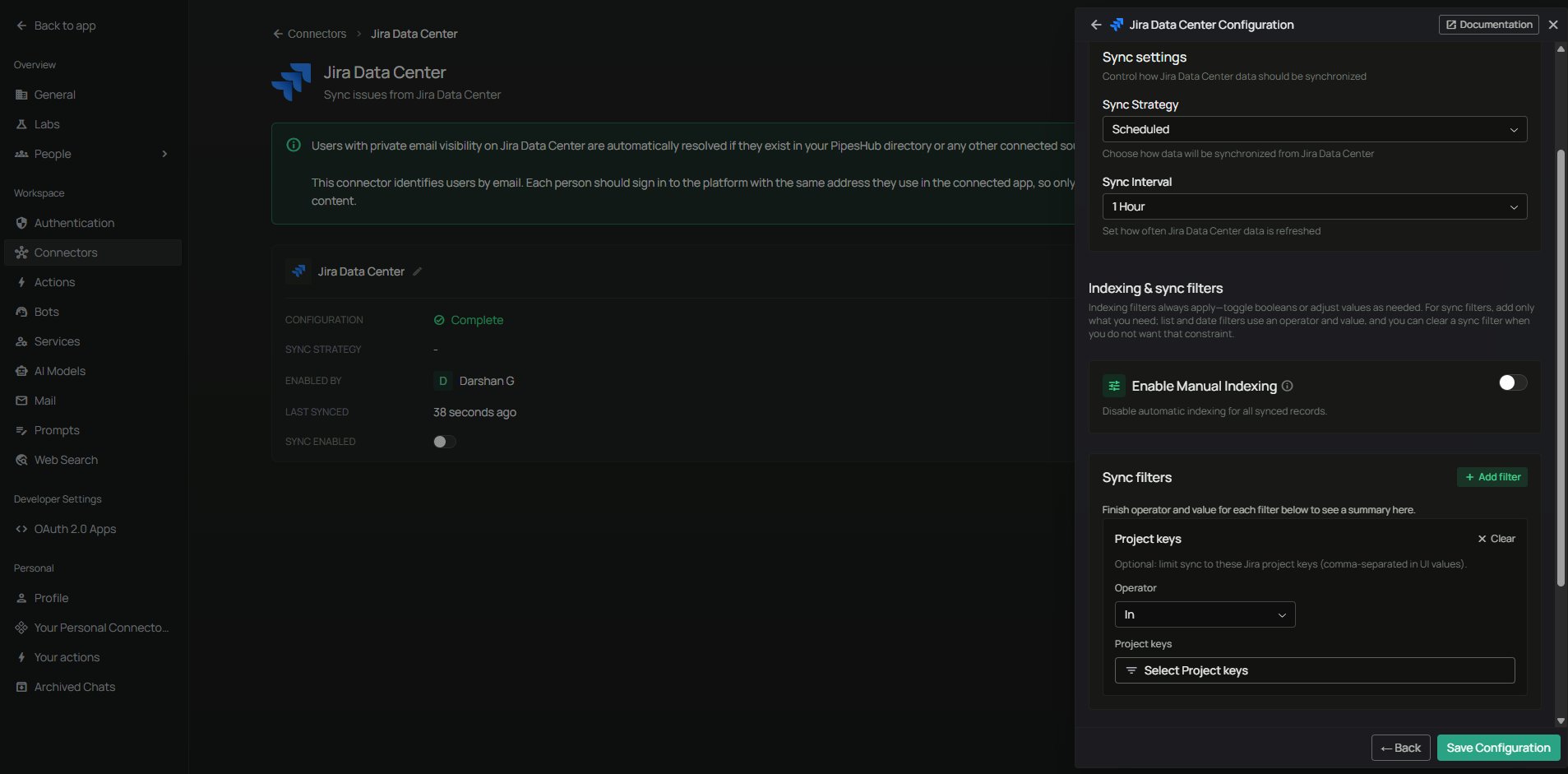
- Project keys — pick which projects to sync.
- Operator:
Into include only those projects, orNot Into exclude them - Selection: a searchable dropdown of the projects your account can see
- Operator:
- Modified Date — filter by last change date. Operators:
Is After,Is Before,Is Between. - Created Date — filter by creation date. Same operators.
Leave Project keys empty to sync every project your account can see. The list is loaded from your instance, so you can type to search it.
- Enable Manual Indexing (default: off) — when on, synced issues are not indexed until you pick them; when off, everything synced is indexed
- Index issues (default: on) — include issue descriptions and comments in search
- Index issue and comment attachments (default: on) — include attachments in search
Comments are stored as part of the issue, not as separate records. When Index issues is on, descriptions and comments are indexed together.
- Sync only the Engineering project: Project keys →
In→ select “Engineering” - Skip archived projects: Project keys →
Not In→ select the archived ones - Recent issues only: Modified Date →
Is After→2024-06-01 - Issues but not attachments: turn off Index issue and comment attachments
Personal connector
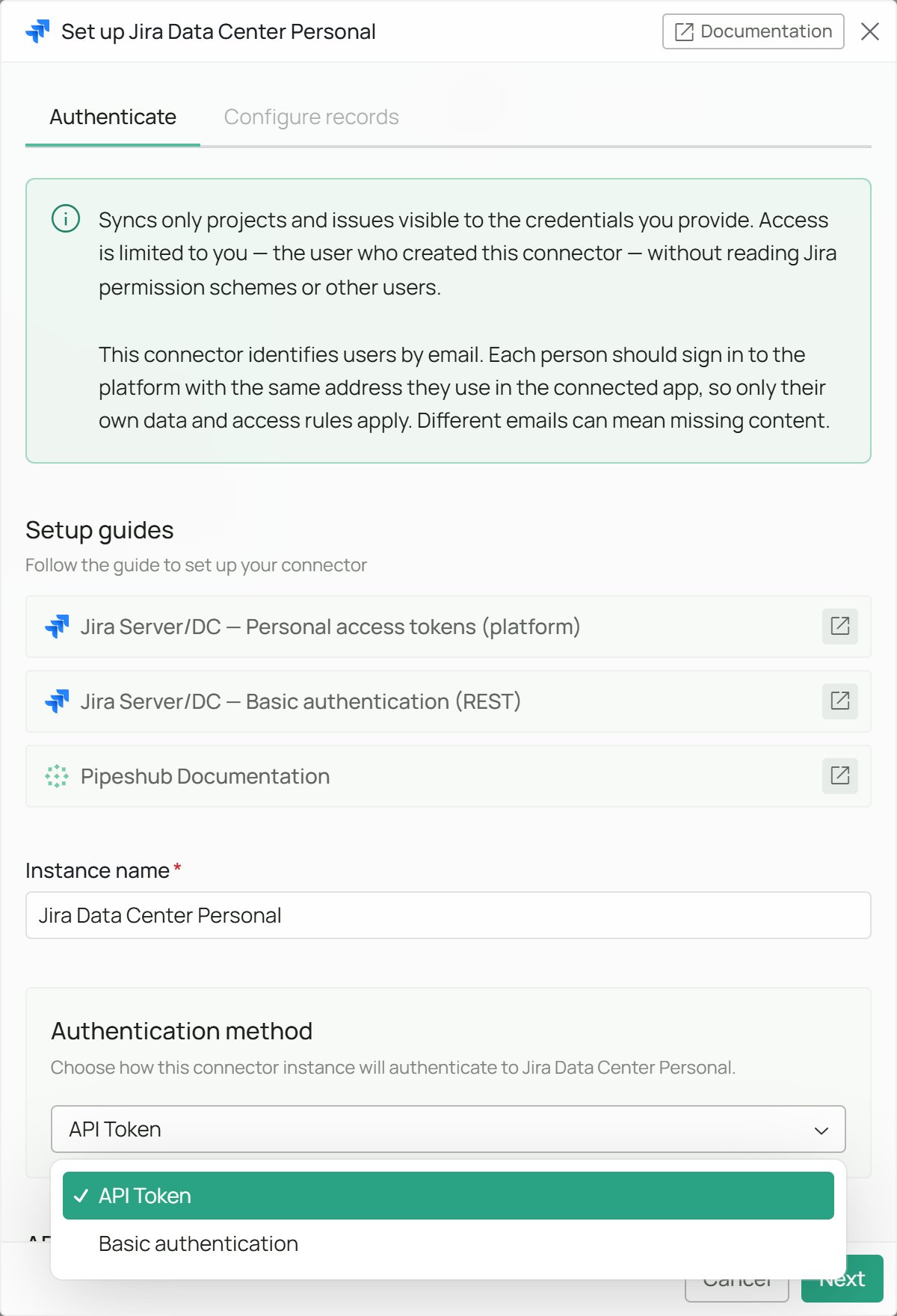
Jira Data Center Personal is a separate connector that syncs Jira Data Center issues your own account can see into your personal workspace. Set it up under Workspace Settings → Personal → Your Connectors.- What it syncs: only the projects and issues visible to the credentials you provide.
- Who can see it: only you, the user who created the connector. It doesn’t read Jira permission schemes or other users.
- Sign-in: choose API Token (a personal access token) or Basic authentication under Authentication method, with the same fields as the team connector. Use your own token or account, not a service account.
- Configure records: the same sync settings, filters, and indexing options as the team connector.
Supported Features
The Jira Data Center connector syncs:- Projects — every project your account can see, with their permission schemes
- Issues — summary, description, status, priority, and custom fields
- Issue links — links between issues, including Epic Link and parent link
- Comments — comments visible to everyone who can see the issue, with author information. Comments restricted to a role or group are not indexed
- Attachments — files attached to issues and comments
- Users — user profiles and account information
- Groups — user groups and memberships
- Project roles — role assignments used for project access
- Application roles — licensed application groups used in permission schemes
- Permissions — project permission schemes and issue-level security
Want agents to act in Jira? This connector only syncs data into PipesHub. To let agents create and update issues, set up the Jira Data Center toolset as well.
Useful Links
- Personal access tokens (Jira Server/DC): developer.atlassian.com/server/jira/platform/personal-access-token
- Basic authentication (Jira Server/DC REST): developer.atlassian.com/server/jira/platform/basic-authentication/
- Jira Server/DC REST API v2: docs.atlassian.com/software/jira/docs/api/REST/latest/
Troubleshooting
Troubleshooting
Troubleshooting
Common issues
The connector will not start, or you see “authType is required”:- No sign-in method was selected. Reopen the connector, choose API Token (personal access token) or Basic authentication, and save again.
- Start with
https:// - A trailing slash is removed automatically, so
https://jira.company.com/also works - No page paths like
/browse/PROJ-1or/secure/Dashboard.jspa - If Jira runs under a path, include it:
https://company.com/jira
- Check for extra spaces at the start or end of the token
- The token may have expired or been revoked. Create a new one from Profile → Personal access tokens
- Your Jira version may be too old to support tokens (Jira Core or Jira Software before 8.14, or Jira Service Management before 4.15). Use Basic Authentication instead
- Use the Jira username, not the email address
- The account may be CAPTCHA-locked after failed sign-ins. Sign in once in a browser to clear it
- Check that PipesHub can reach the base URL through your firewall, VPN, or allowlist
- If your instance uses a self-signed or internal certificate, PipesHub needs to trust that certificate
- If your PipesHub deployment sets
PIPESHUB_BLOCK_PRIVATE_ADDRESSES, a Jira on a private IP address is refused. Loopback addresses such aslocalhostare never allowed - For firewall allowlists, get the addresses PipesHub connects from with
GET /api/v1/connectors/network/egress-ips(see the Connector Manager API)
- Check that the connector shows Active
- Check that the account has Browse Projects permission on the projects you expect
- Check that the projects are not archived
- Read the sync logs for the exact error
- This happens when the account cannot read permission schemes or application roles. Set the connector up again with a Jira administrator account. See Required privileges.
- The connector reads the full user list from
/rest/api/2/user/list, which exists only on the Jira 10.3 LTS from 10.3.13, and on Jira 11.0 or later. On other versions it falls back to user search, which Jira 10 and later cap at 100 results, so some users may be missing. Upgrade to 10.3.13 or later on the 10.3 LTS, or to 11.x, so the connector can use the full user list - Give the account Browse Users permission, or ask a Jira administrator to set User email visibility to Public in General Configuration
- Jira Data Center’s group list returns at most 1000 groups, and it has no way to page past them. The sync logs say “More than 1000 groups (Jira reports N): roles that include groups past the first 1000 were left unchanged.”
- The first 1000 groups keep syncing. A project role that includes a group past the first 1000 keeps the members it already has in PipesHub, so nobody loses access. But that role’s membership isn’t updated: people who join a group past the first 1000 don’t gain the role’s access in PipesHub, and people who leave it keep the access they had. Roles made only of users, or only of groups in the first 1000, sync as usual.
- Deleted issues are found through the audit log, which needs Jira administrator access
- Check that the account is a Jira administrator and that auditing is turned on
Connector Workflow
Synchronization Process
Synchronization Process
Sync order
Each sync runs these steps in order:Full sync and incremental sync
A full sync runs when:- It is the first sync
- You changed the sync filters
- You start a full sync by hand
How Data Center differs from Jira Cloud
This connector talks to the REST v2 API on your own server. It never goes through Atlassian’s cloud gateway.How issues are synced
For each project, the connector:- Builds a JQL query from the project and any date filters
- Fetches issues in batches
- Reads the content — the description, the rendered HTML, and metadata such as status, priority, labels, issue type, parent, and issue links
- Builds the structure — the description sits at the top, each comment thread sits under it, and each comment is stored inside its thread
- Places attachments — each attachment is attached to the description or to the comment that references it
- Applies permissions — permission scheme grants (
BROWSE_PROJECTS), project roles, and issue security levels
Comments are stored inside the issue, not as separate records. This keeps threads together, and comments are removed automatically when the issue is deleted.
Checkpoints
After each successful sync, the connector saves the latest issue update time as a checkpoint and saves the filter settings so it can tell when they change. It also keeps a checkpoint per project, so a failed sync can pick up where it stopped instead of starting over. Deleted-issue tracking uses its own separate checkpoint.If one issue can’t be processed, the other issues in its project still sync. The project’s checkpoint waits at that issue, so the next sync tries it again. After five syncs in a row fail on the same issue, the connector moves on without it, logs an error naming the issue, and picks it up again the next time the issue changes.If Jira rate-limits the issue search, the connector tries the search up to three times, waiting as long as Jira asks each time, but no more than a minute. If Jira is still rate-limiting after the third try, that project is skipped for this sync, and the next sync picks up where it stopped.FAQ
Can I use OAuth with this connector?
Can I use OAuth with this connector?
No. This connector supports Personal Access Token and Basic Authentication only. OAuth apps created in the Atlassian Developer Console are for Jira Cloud and will not work here.
Should I use a Personal Access Token or Basic Authentication?
Should I use a Personal Access Token or Basic Authentication?
Use a Personal Access Token unless your instance cannot create them. Both sync the same data.
What is the difference between the Jira Cloud and Jira Data Center connectors?
What is the difference between the Jira Cloud and Jira Data Center connectors?
Pick the one that matches your setup. They cannot be swapped.
Does the connector need a Jira administrator account?
Does the connector need a Jira administrator account?
It is strongly recommended. Without admin access the connector cannot read application roles, permission schemes, the full user list, or the audit log. Issues still sync, but some permissions will be missing and deleted issues may not be removed. See Required privileges.
Can I sync only certain Jira projects?
Can I sync only certain Jira projects?
Yes. On the Configure records tab, use the Project keys filter with the
In operator and pick the projects you want. Use Not In to leave projects out instead.My searches return nothing. What should I check?
My searches return nothing. What should I check?
Check these in order:
- The sync has not finished. Go to Settings → Connectors and check the sync status, then look in All Records for the issues you expect.
- Permissions are incomplete. If a non-admin account set up the connector, some projects may only be visible to that person. Set it up again with a Jira administrator account.
- Your filters are too narrow. Check the Project keys and date filters on the Configure records tab.
- Indexing is off. Check that Index issues is turned on.
Ready to Get Started?
Connect your self-hosted Jira Data Center instance to PipesHub in a few minutes. Follow the steps above to search every project and issue across your Jira content.