
Cohere Embeddings Configuration
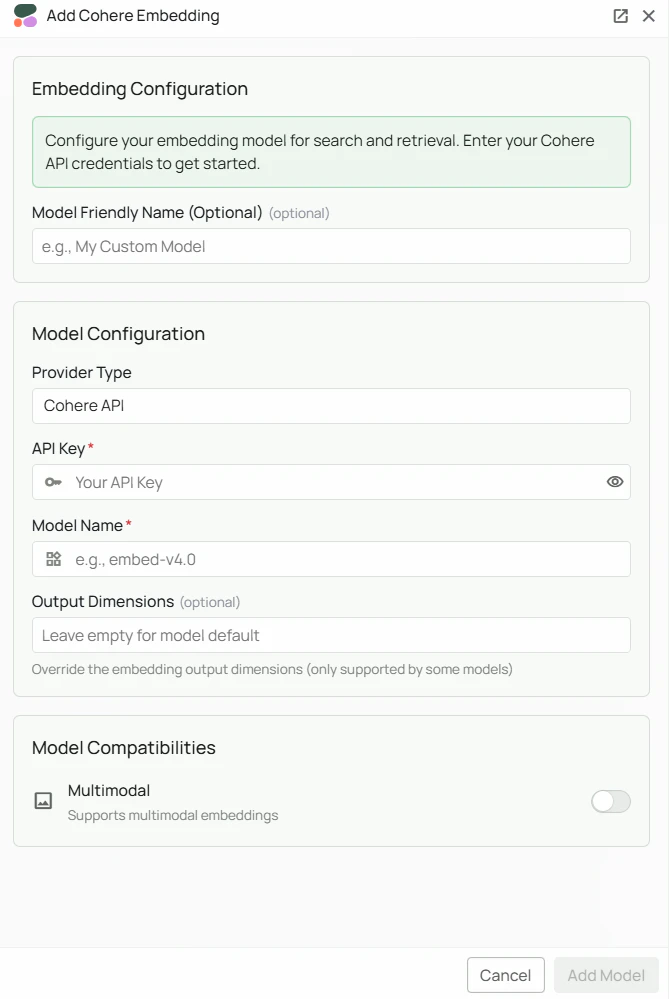
Required Fields
API Key *
The API Key is required to authenticate your requests to Cohere’s services. How to obtain an API Key:- Log in to the Cohere Dashboard
- Navigate to the “API Keys” section
- Click “New API key” or use an existing key
- Copy the generated API key
Model Name *
The Model Name field defines which Cohere embedding model you want to use with PipesHub. Available Cohere embedding models:embed-v4.0- Cohere’s latest and most capable embedding model, optimised for retrieval
- For most retrieval and RAG use cases, select
embed-v4.0 - Check Cohere’s model documentation for the most up-to-date options
Configuration Steps
As shown in the image above:- Click Configure on the Cohere provider card
- Enter your Cohere API Key in the designated field (marked with *)
- Specify your desired Model Name (marked with *)
- Click Add Model to save and validate your credentials
Both the API Key and Model Name are required fields to successfully configure Cohere embedding integration.
Usage Considerations
- API usage will count against your Cohere account’s quota and billing
- Different models have different pricing — check Cohere’s pricing page for details
- Cohere embedding models excel at retrieval-augmented generation (RAG) and enterprise search tasks
- Cohere supports multilingual embeddings — check model documentation for language coverage
Troubleshooting
- If you encounter authentication errors, verify your API key is correct and has not expired
- Ensure your Cohere account has billing set up if you are using paid service tiers
- Check that the model name is spelled correctly and matches Cohere’s naming conventions
- Verify that your API key has access to the specific model you have selected