
Amazon Bedrock Embeddings Configuration
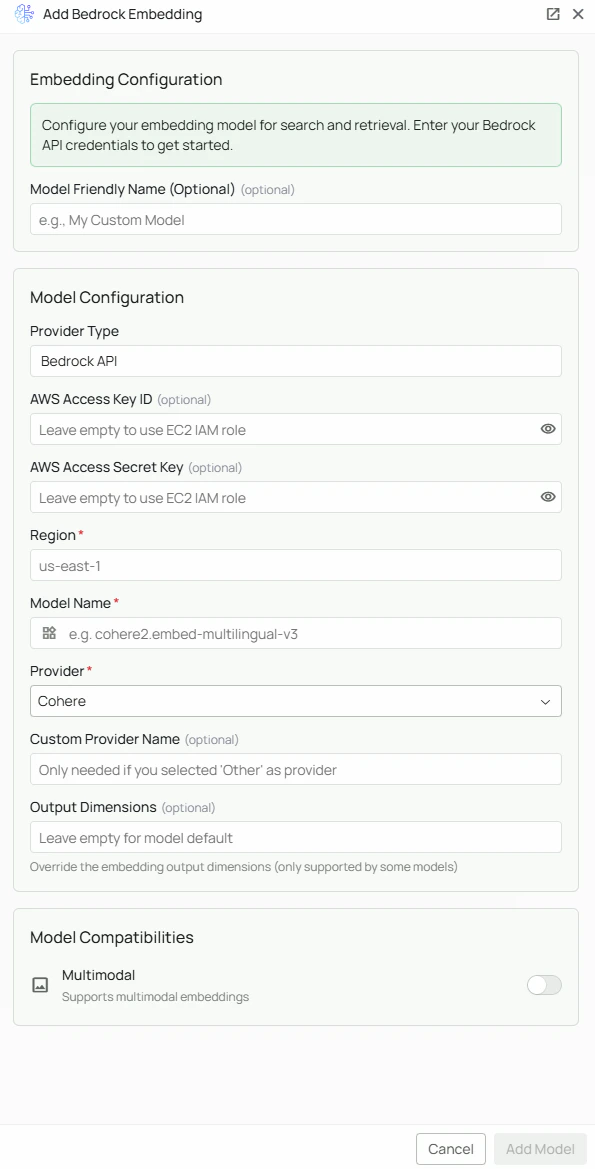
Required Fields
Region *
The AWS Region where your Bedrock service is deployed. Example:us-east-1
Common regions with Bedrock availability:
us-east-1(N. Virginia)us-west-2(Oregon)eu-west-1(Ireland)ap-northeast-1(Tokyo)
- Select a region close to your users for lower latency
- Ensure the embedding models you need are available in that region
- Consider data residency requirements for your organisation
Model Name *
The Model Name field specifies the model ID you want to use with PipesHub. Available Amazon Bedrock embedding models:cohere2.embed-multilingual-v3- Cohere’s multilingual embedding model, supports 100+ languages
- Go to the AWS Bedrock Console
- Navigate to “Model access” to see available models
- Select “Base models” to view model IDs
- Use the model ID exactly as shown in the console
Provider *
Select the provider of the embedding model you are using. This helps PipesHub properly format requests for the specific model. Available providers:- Cohere - Cohere embedding models
- Amazon (Titan) - Amazon’s Titan embedding models
- Other - For any other providers (requires Custom Provider Name)
Optional Fields
AWS Access Key ID
The AWS Access Key ID for authenticating requests to AWS Bedrock. Example format:AKIAIOSFODNN7EXAMPLE
Note: If PipesHub is running on an EC2 instance with an appropriate IAM role attached, you can leave this field blank.
AWS Secret Access Key
The secret portion of your AWS credentials. Note: Leave blank if using EC2 IAM role authentication. Security Note: Your secret key should be kept secure and never shared publicly. PipesHub securely stores your credentials.Configuration Steps
As shown in the image above:- Click Configure on the Amazon Bedrock provider card
- Specify your AWS Region (marked with *)
- Enter the Model Name (model ID) (marked with *)
- Select the appropriate Provider from the dropdown (marked with *)
- (Optional) Enter your AWS Access Key ID — leave blank if using an EC2 IAM role
- (Optional) Enter your AWS Secret Access Key — leave blank if using an EC2 IAM role
- Click Add Model to save and validate your credentials
Region, Model Name, and Provider are required fields. AWS Access Key ID and Secret Key are optional when running PipesHub on EC2 with an appropriate IAM role.
IAM Permissions
Ensure your IAM user or role has the following permissions to use AWS Bedrock embedding models:Usage Considerations
- API usage will count against your AWS Bedrock quotas and billing
- Different models have different pricing — check AWS Bedrock pricing for details
- AWS Bedrock provides enterprise features including VPC endpoints, CloudTrail auditing, and data encryption
Troubleshooting
- If you encounter authentication errors, verify your AWS Access Key ID and Secret Key are correct
- Ensure your IAM user or role has the necessary Bedrock permissions
- Verify the selected region has AWS Bedrock available and your desired model is accessible
- Check that you have model access enabled for the specific model in the AWS Bedrock console
- Ensure the model ID is correctly formatted as shown in the Bedrock console