Keyboard shortcuts
On macOS use Cmd; on Windows and Linux use Ctrl.Search chats
Select Search chats in the sidebar, or press Cmd/Ctrl + K. Type to find a chat by its title or by words in its messages. The top row, New chat, starts a new chat and shows its shortcut.Inbox
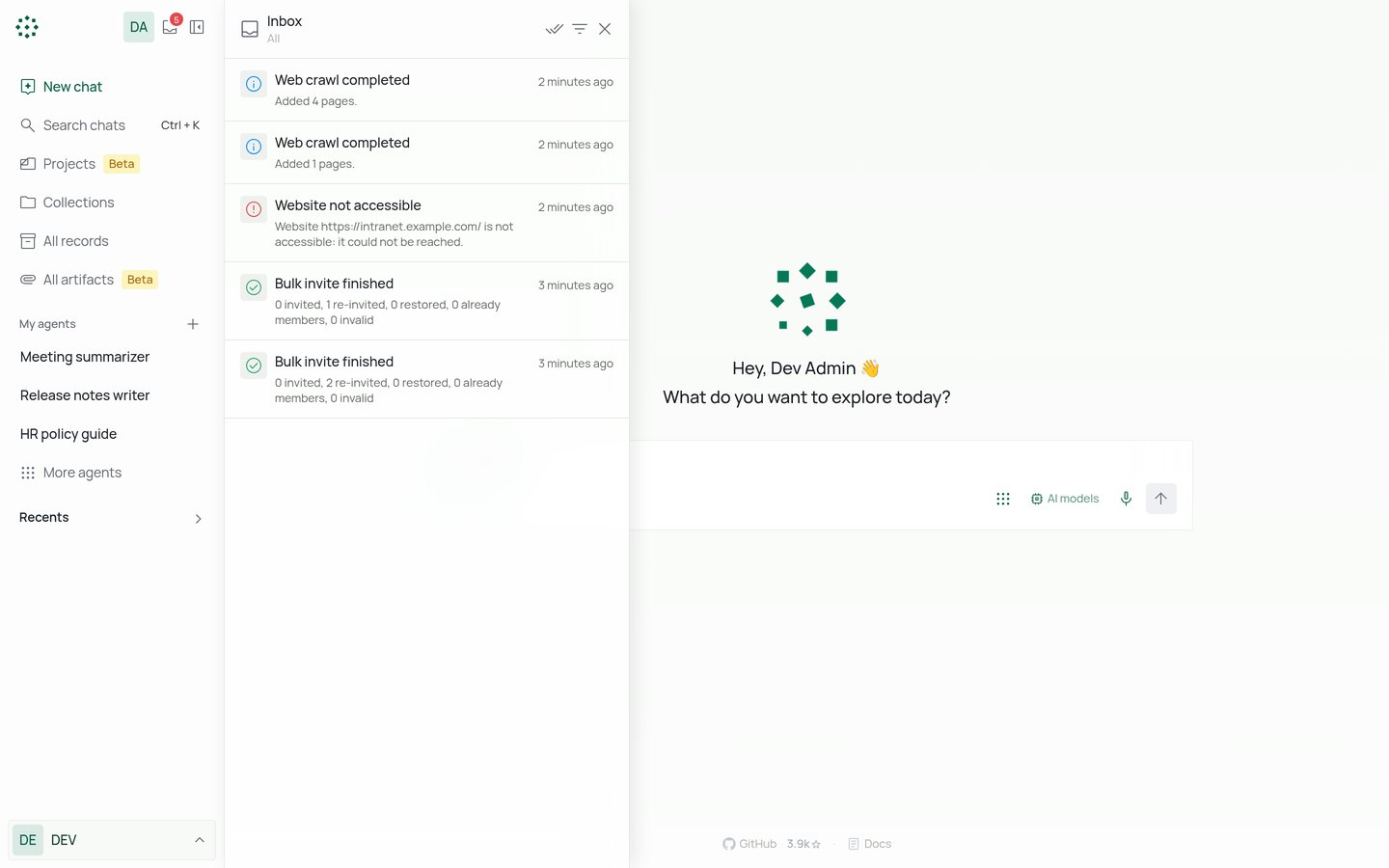
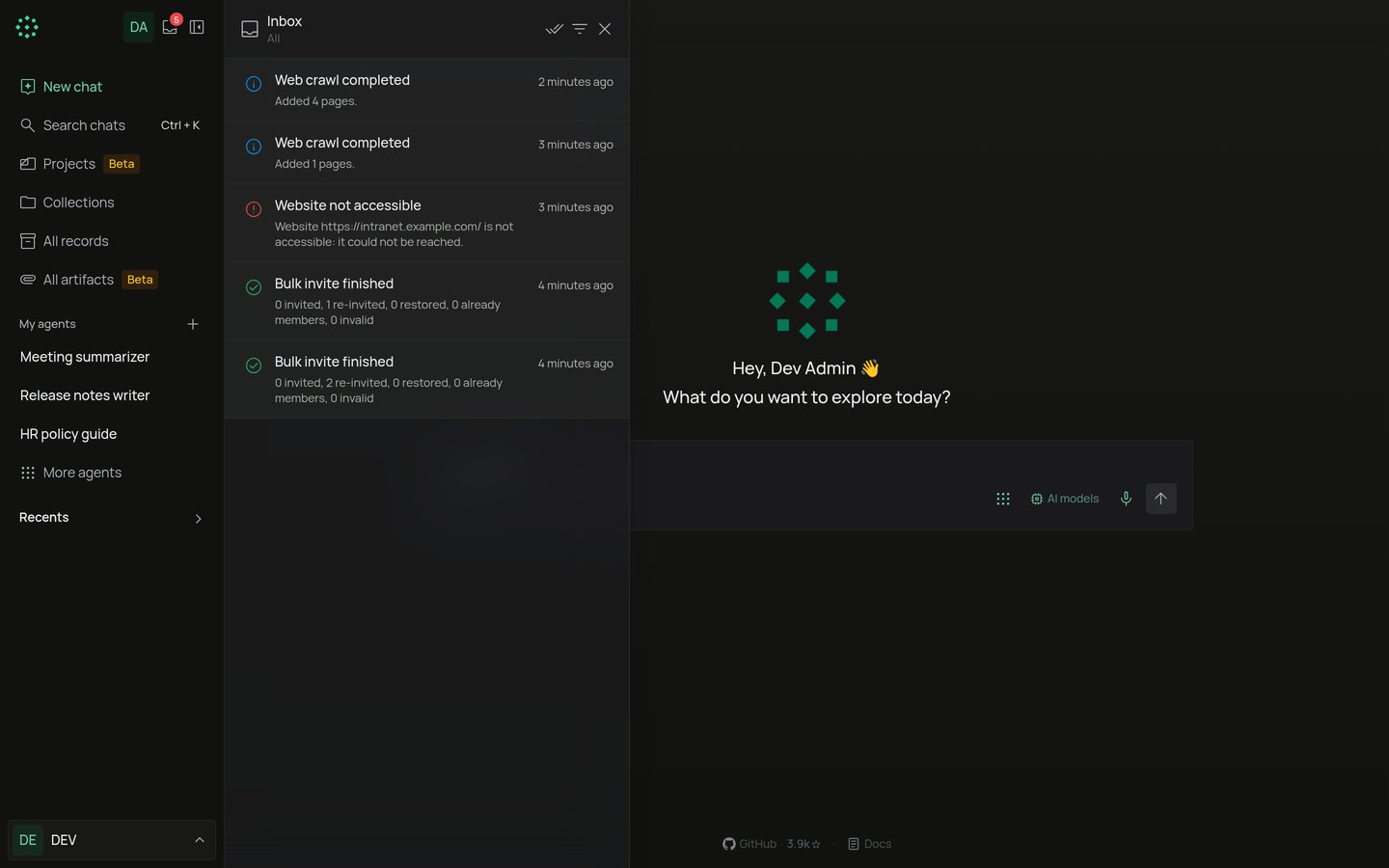
The Inbox button at the top of the sidebar shows how many notifications you have not read. Select it to open your notifications. You get a notification when:- someone shares a chat with you (“Name shared a chat with you”),
- someone shares an artifact with you,
- a bulk invite you started finishes or fails,
- a connector has a problem, such as a sign-in or sync error,
- an action you are setting up needs attention, such as a sign-in problem,
- a Web connector finishes a crawl (Web crawl completed, or Web crawl stopped early when it hits a limit).
- filter by All, Unread or Archived,
- Mark read or Mark unread one notification, or Mark all as read,
- Archive a notification, and Unarchive it again.
Language and appearance
Select your workspace name at the bottom of the sidebar to open the menu.- Appearance: System, Light or Dark. System follows your computer’s setting.
- Language: English (US), English (India), Deutsch (Deutschland), Español (España), हिन्दी (भारत), 한국어 (대한민국), 中文(简体,中国), 中文(新加坡), 中文(台灣) or Čeština (Česko). The choice is saved in your browser.
Labs (admins)
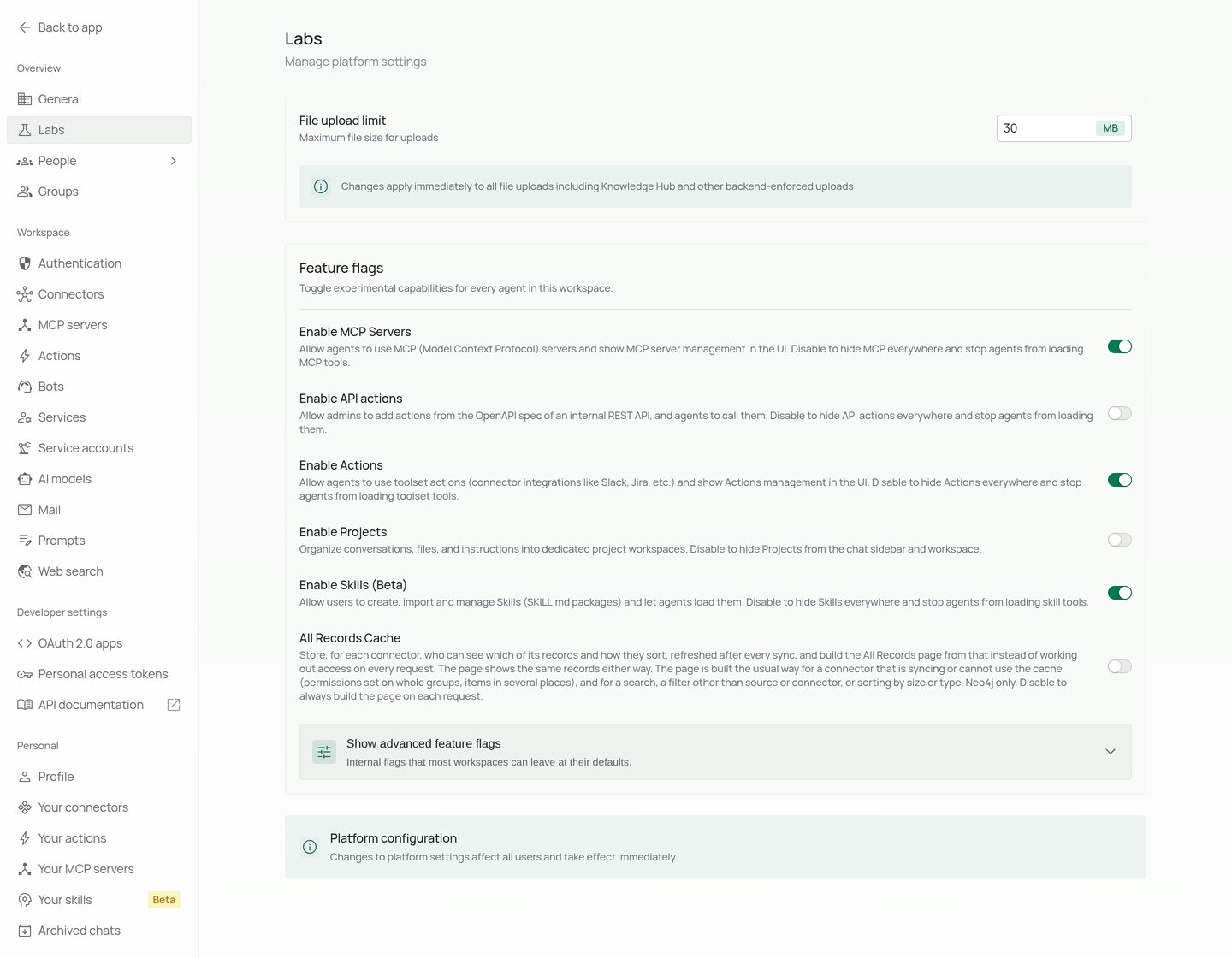
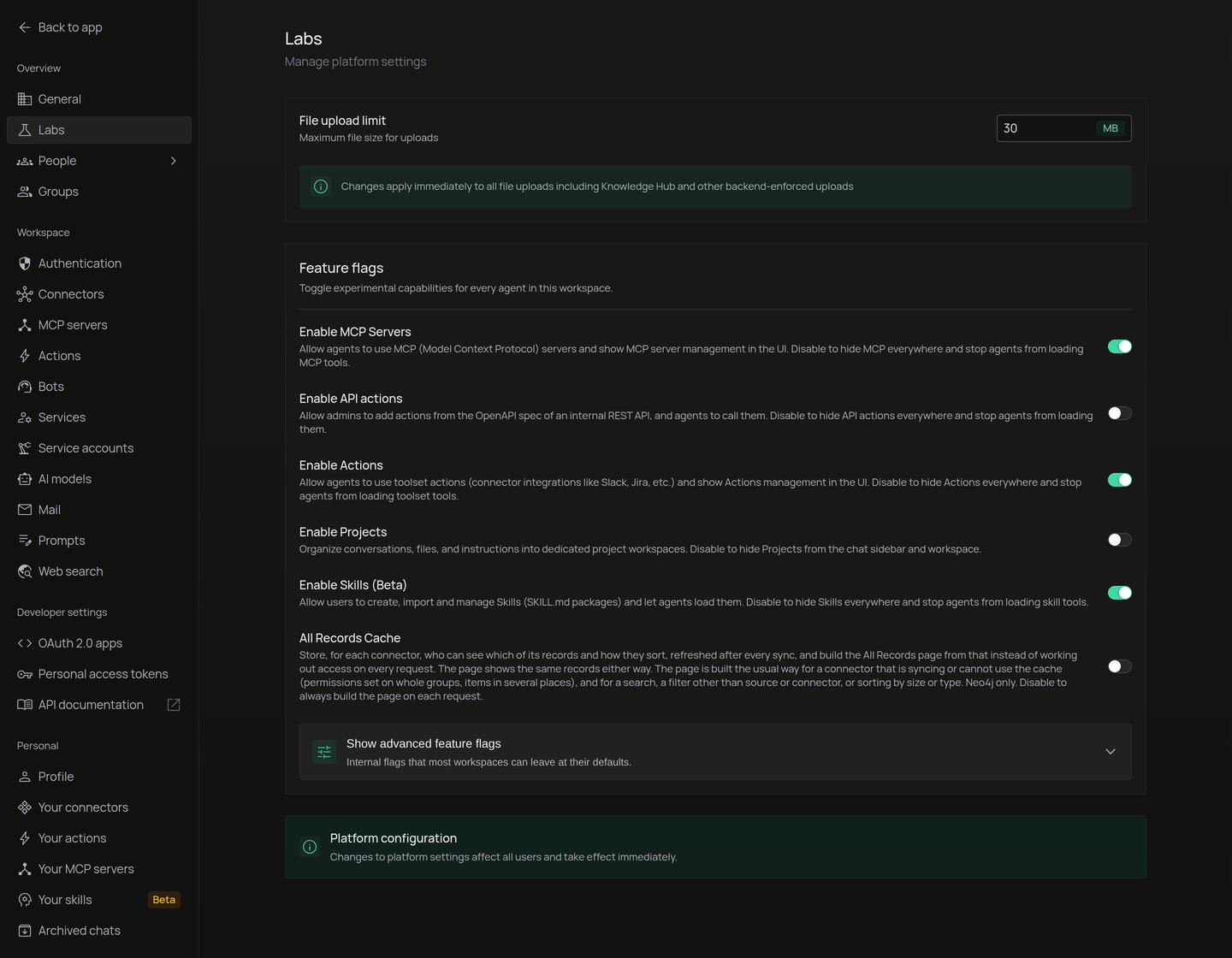
Workspace → Labs holds settings that affect everyone at once:- File upload limit: the largest file anyone can upload, in MB, up to 1000.
- Feature flags: switch features on or off for the whole workspace. Some flags only show after you open Show advanced feature flags.
The advanced list also has flags for named entity extraction, classifying records when first used, and content revision files. Leave them at their defaults unless you know you need them.
Desktop app
PipesHub also runs as a desktop app for Windows and Linux. Installers are attached to each release on the GitHub releases page. The first time you open it, the Connect to PipesHub server screen asks for your Server URL. Enter the address you use in the browser, starting withhttp:// or https://, and select Connect. To point the app at another server later, use Change server.
What the desktop app adds:
- Local folders. The Local FS connector syncs a folder on your computer. Its settings can only be changed in the desktop app, on the computer that owns the folder. In the browser they are read-only.
- Sign-in in your browser. When a sign-in or a connector needs OAuth, the app opens your default browser, and the browser hands the result back to the app.
Connect a device
Thepipeshub login command in the PipesHub CLI signs in with a code instead of a token:
- Run
pipeshub login. The terminal shows a code and a link to/oauth/deviceon your PipesHub server. - Open the link. Sign in if you are asked to.
- On Connect a device, enter the code shown in your terminal (it looks like
ABCD-EFGH) and select Continue. If you opened the full link, the code is already filled in. - Check the app name and the access it asks for, then select Allow.
- The page says Device connected. Go back to the terminal.
When the server can’t be reached
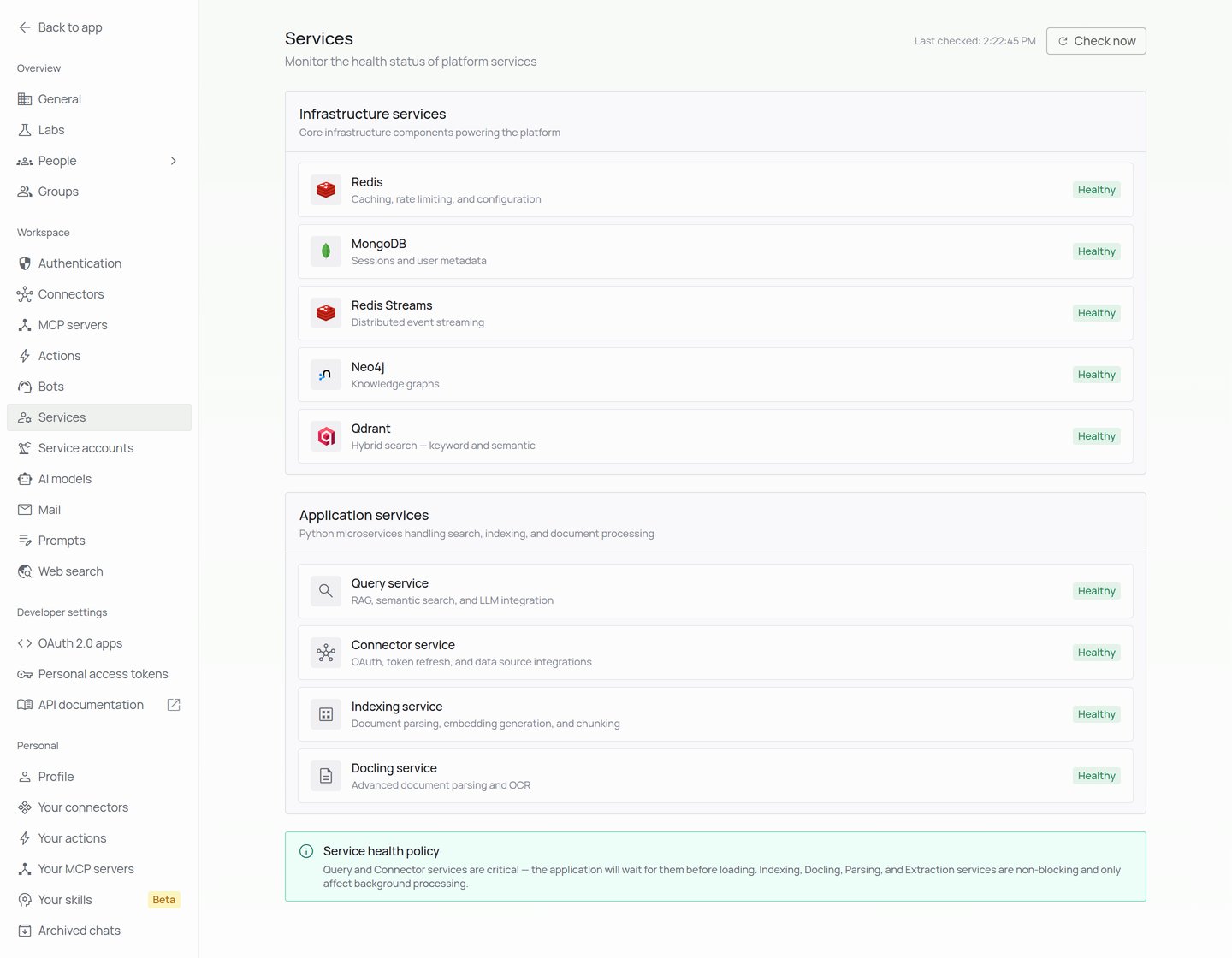
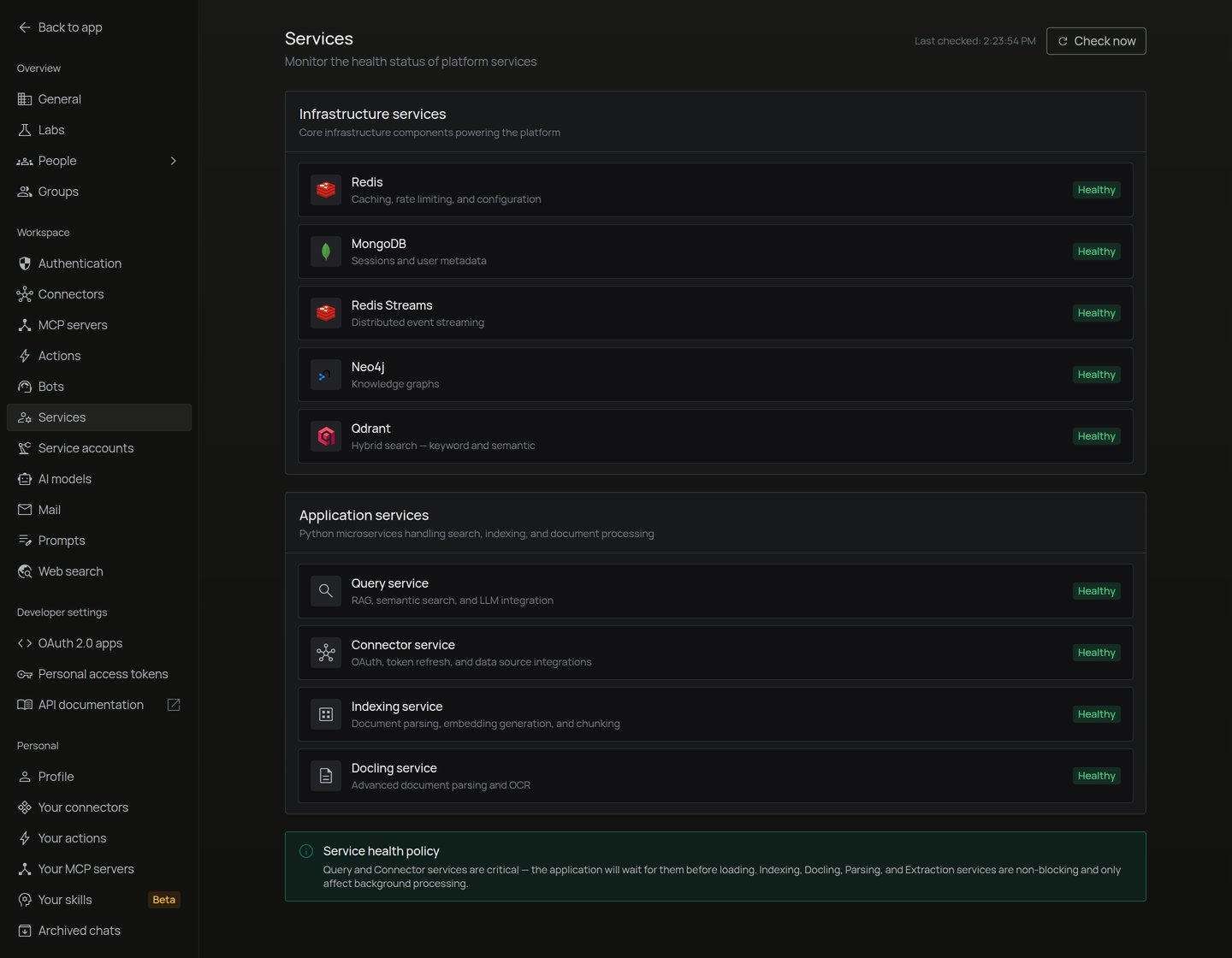
Unable to connect to server fills the screen when the app can’t reach the PipesHub server. It may be starting up or under maintenance. The app keeps trying to reconnect on its own. If it lasts, contact your PipesHub admin. The button on this screen is Log out in the browser and Change server in the desktop app. Some services are unavailable appears as a message when one or more backend services are down. Some features stop working until they come back, and the app reconnects on its own. A page that needs a service that is down shows Service unavailable and comes back by itself when the service recovers. Admins see which services are affected and a View status button. It opens Workspace → Services, which shows the health of each service and has Check now. The Query and Connector services are critical: the app waits for them before it loads. The Indexing, Docling, Parsing and Extraction services only affect background processing.